

Working Smarter, Not Harder
There are a dozen ways to accomplish any given task on a computer, but some are considerably faster than others. For designers and other knowledge workers who spend their days pushing pixels, every second saved by streamlining workflows translates directly into more time for meaningful work — or simply squeezing in an extra project that month.
Productivity has long been a passion of mine, and I've spent years evaluating tools that improve my day-to-day workflow. I began my computing journey back in the MS-DOS era, so I've seen the landscape shift dramatically. Below, I'll share my favorite approaches to getting things done faster, covering both Windows and Mac platforms, with a few notes for Android and iOS users where relevant.
The Power of Clipboard History
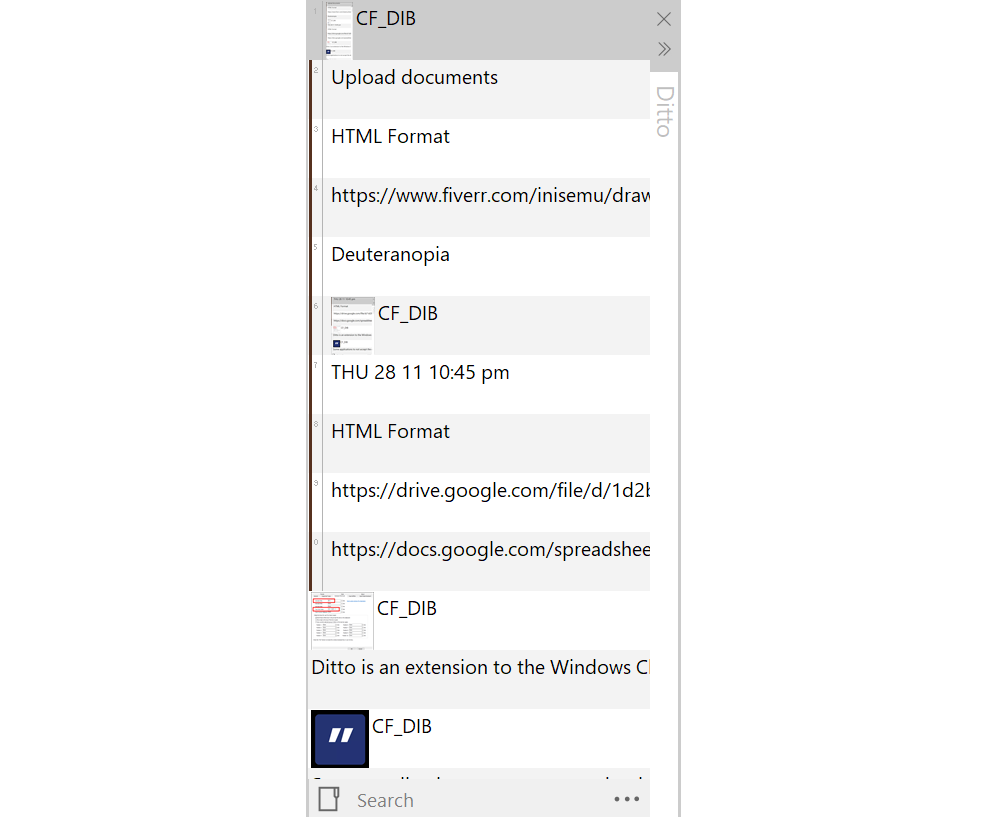
Among all the productivity tricks I've adopted, none saves more time in the most literal sense than accessing clipboard history. Since copy-paste is such a fundamental part of our daily work, the ability to copy multiple items from one source and paste them sequentially without going back and forth is a game-changer.
There are dozens of clipboard managers available, and the right choice ultimately depends on your personal workflow. My primary tool on Windows is Ditto, an open-source application that's straightforward, no-nonsense, and plug-and-play, though it offers considerable customization under the hood. On Mac, I use Clipy for essentially the same reasons. While fancier options like Paste exist for macOS, I prefer open-source tools that get the job done without compromise.
Text Expansion for Repetitive Input
Clipboard managers don't always eliminate the round-trip of finding and opening a document just to copy frequently used text. That's where text expansion apps shine. Email addresses, phone numbers, physical addresses, ID card numbers — these are all snippets you might need repeatedly throughout the day.
Rather than typing these out or hunting for a note file, I map them to short text shortcuts. My preferred tool is Espanso, available on both Windows and Mac. It requires editing a YAML file, which isn't for everyone, but the feature set is worth it — including the ability to position your cursor wherever you want within the expanded phrase. For example, typing ;em followed by a space automatically inserts my email address; ;ph expands to my phone number, and ;adr to my address.
If you prefer a more visual interface with additional features, TextExpander or PhraseExpress might suit you better.
Command Palettes for Everything
Tools like Spotlight on Mac are among the most versatile time-savers available. Beyond launching applications without navigating menus, Spotlight can search files, search the web, perform basic math, and handle currency conversions. Raycast, a newer Mac application, takes this concept further with additional functionality and integrations with other apps and services.
Windows lacks a built-in equivalent, but several alternatives exist. My favorite is Ueli, which covers everything Spotlight does except file search — a gap easily filled by Everything search.
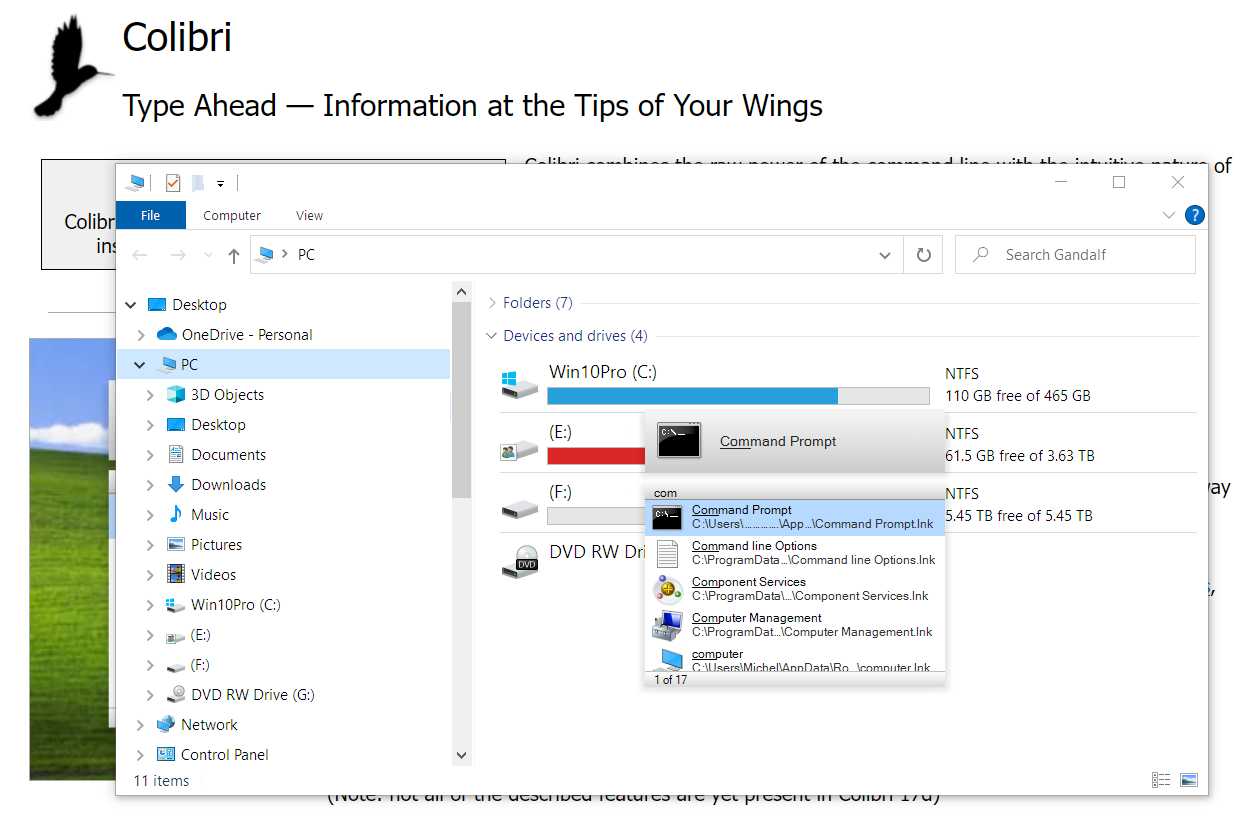
A brief history lesson: Modern Windows 10 and 11 include solid built-in options for launching applications and searching, but this wasn't always the case. During the Windows XP era, which stretched over a decade, there was no way to start programs by typing their names. This gap led to third-party tools like Colibri, which let you launch programs, open web pages, manage bookmarks, search your computer, and even control the Winamp player — all without touching the mouse. Other notable tools like Launchy, FARR, and Keypirinha also deserve honorable mentions. The fundamental idea — eliminating painful navigation through multiple menus — has persisted and evolved into the command panels we use today.
The power of command panels must be experienced to be fully appreciated. Hit a hotkey, start typing what you're looking for, and suggestions update instantly. Over time, these tools learn from your usage patterns and adapt. It's no surprise that this pattern has been adopted widely, from Visual Studio Code to Notion to Obsidian.
Window Management and Workspace Organization
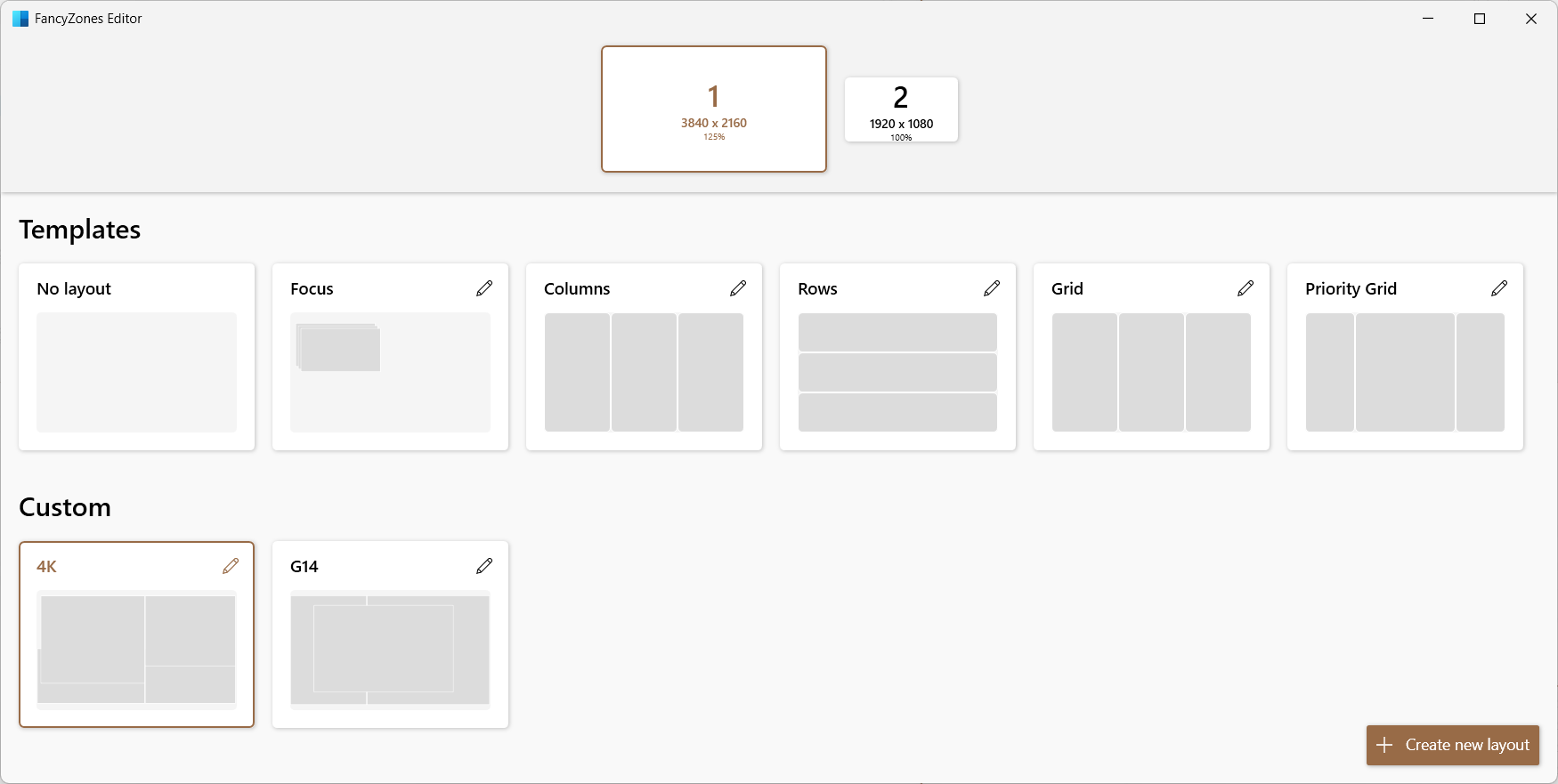
Designers often use external displays with their laptops, and with high-resolution 4K monitors, there's plenty of screen real estate to arrange windows. Both Windows and Mac offer built-in window-snapping tools, but their predefined layouts are often insufficient for complex workflows.
On Windows, I rely on the FancyZones feature in PowerToys, which lets me create custom frames for windows tailored to my workflow. FancyZones even supports overlapping frames, and you can snap windows by dragging them while holding the Shift key. Mac's built-in tools are even more limited, so I recommend a third-party app like Rectangle Pro or Magnet.
Note: PowerToys for Windows is a comprehensive toolkit far beyond FancyZones. It includes a command panel called 'Run,' a tool to prevent Windows from sleeping, a color picker, keyboard remapping, a powerful file renaming utility, and much more. It's an open-source project, with the official Microsoft PowerToys app built on top of it.
Visual Bookmarking for Inspiration
Designers constantly seek inspiration, which can come from anywhere. With the information overload we all face daily, keeping track of visual references is challenging — but essential for quick access when needed.
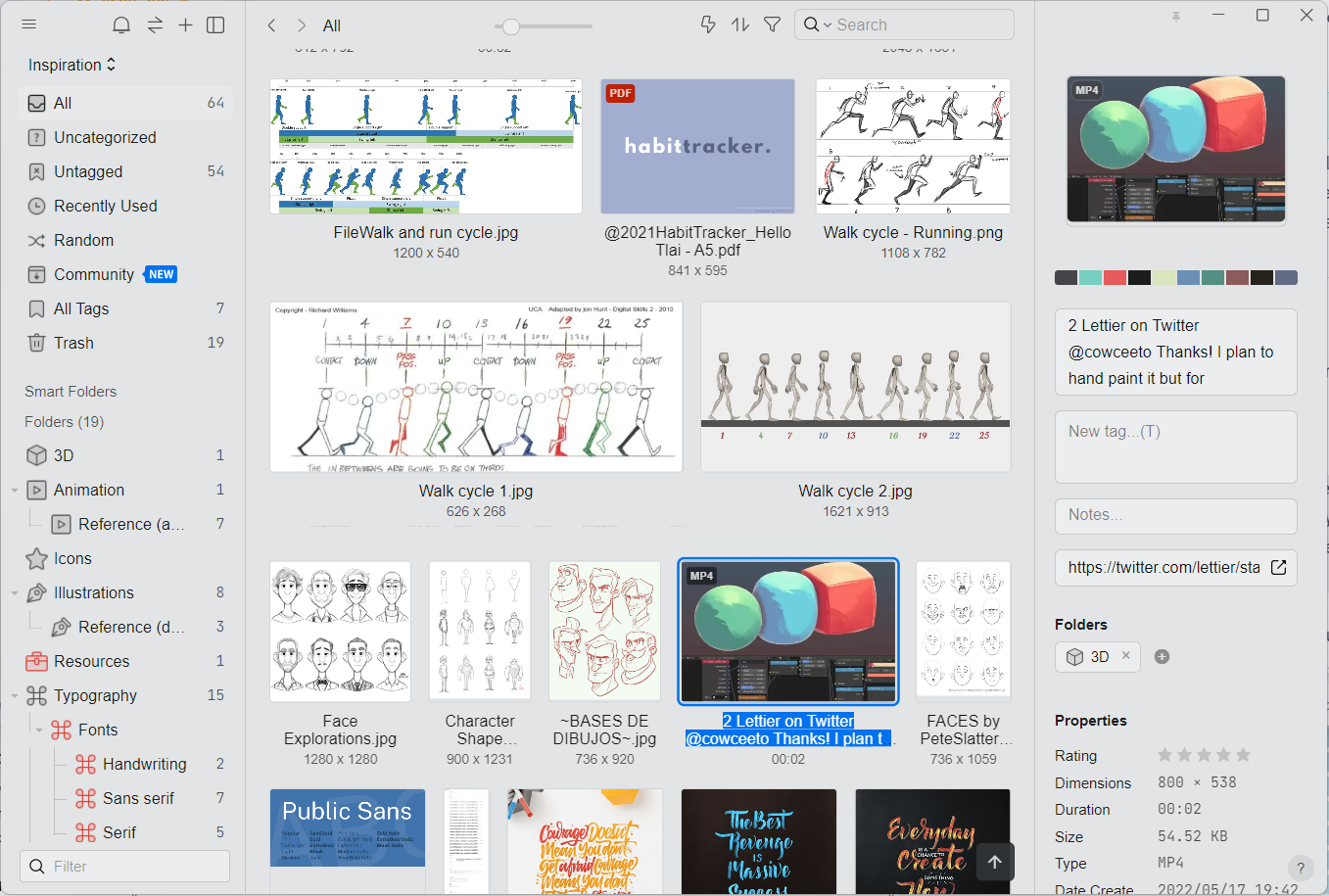
My solution is Eagle, an underrated app available on both Windows and Mac. It keeps your image library synced across computers via any cloud storage platform like Dropbox, Google Drive, or iCloud. Since Eagle supports virtually every image format — plus animated GIFs, videos, and PDFs — I use it as a one-stop repository for managing inspiration, source files, templates, and other resources.
Each image can include a description, source URLs, and an automatically generated color palette, making it easy to find exactly what you're looking for. I'm glad Eagle is still actively developed, as many similar apps have ceased development over recent years.
Collaboration in the Remote Work Era
The pandemic gave remote work a massive boost, and it's clear that remote arrangements are here to stay. According to Ladders, 25% of all professional jobs in North America will be remote by the end of 2022, with continued growth projected through 2023. This shift demands new ways of collaborating virtually with teammates and clients.
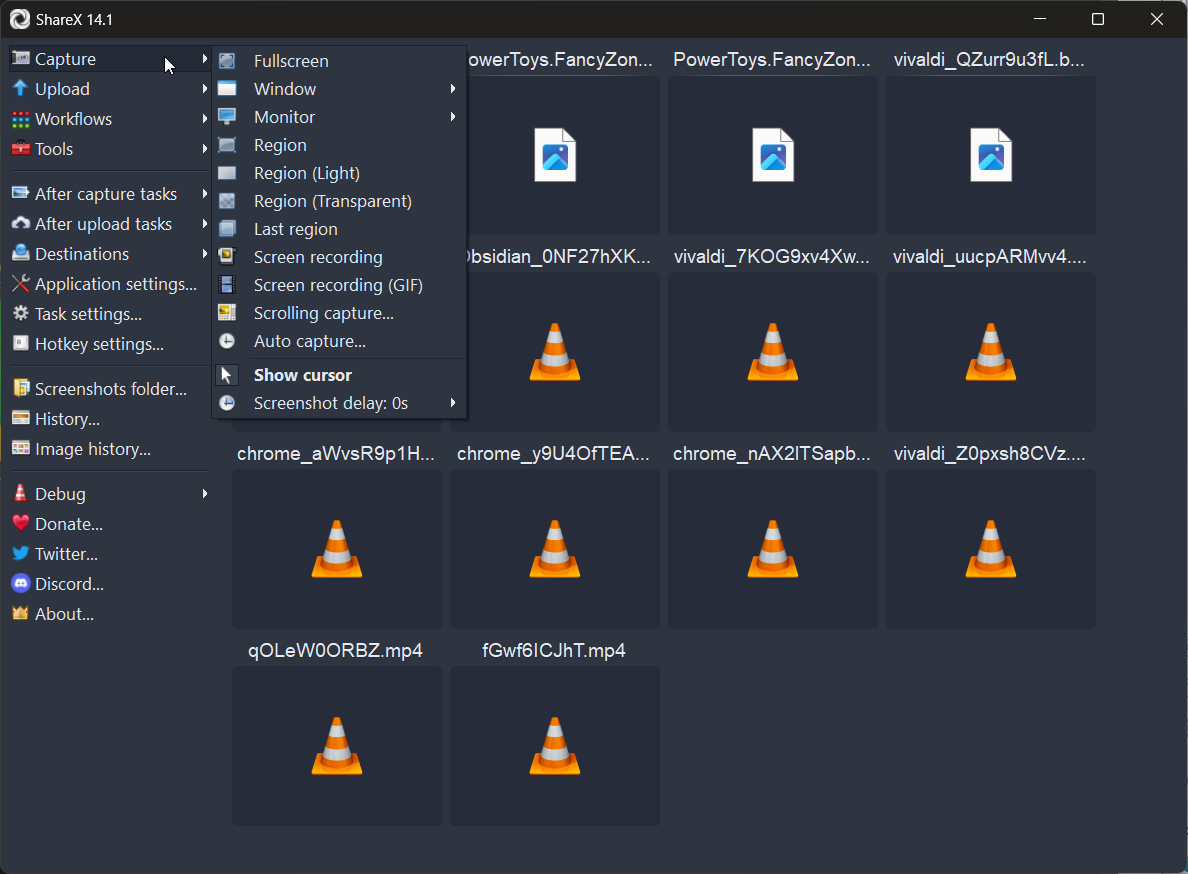
For video calls, Zoom, Meet, and Microsoft Teams serve their purpose. But for asynchronous communication, I find screenshots and screen recordings indispensable. On Windows, I use the open-source ShareX; on Mac, CloudApp is the closest match. Both let you capture screenshots, annotate them, or record screen video to share with your team or clients.
Most of my clients use Slack, which is the primary communication channel for my team. While Slack wasn't great for audio and video early on, the addition of huddles has significantly reduced the need for jumping on Zoom calls for quick conversations or shareouts.
Small Utilities That Earn Their Keep
Beyond the heavyweight productivity apps, there’s a category of desktop tools that do one thing exceptionally well. These aren’t feature-rich suites; they’re focused utilities that solve a specific, recurring problem. A few that are worth adding to your setup:
- Image compression: Caesium (Windows) or ImageOptim (Mac) for shrinking image files before they become web assets.
- Audio device switching: Soundswitch (Windows) lets you swap between speakers and microphones with a keyboard shortcut; there’s no direct Mac equivalent yet.
- Per-app volume control: Eartrumpet (Windows) or Background Music (Mac) let you keep Spotify quiet in the background while turning up a Zoom call.
- Mouse button remapping: X Mouse Button (Windows) handles extra buttons on a six-button mouse; BetterTouchTool (Mac) does that and much more.
- Quick file previews: Quicklook (Windows) brings the Mac-style spacebar preview to the PC.
- Richer file managers: One Commander (Windows) or Path Finder (Mac) replace the stock file explorer with a more capable alternative.
Making the Browser Work Harder
For many designers, the browser has replaced the desktop application. It hosts not just design tools like Figma, but also animation apps, video editors, email clients, and office suites. That shift makes browser efficiency a major productivity factor.
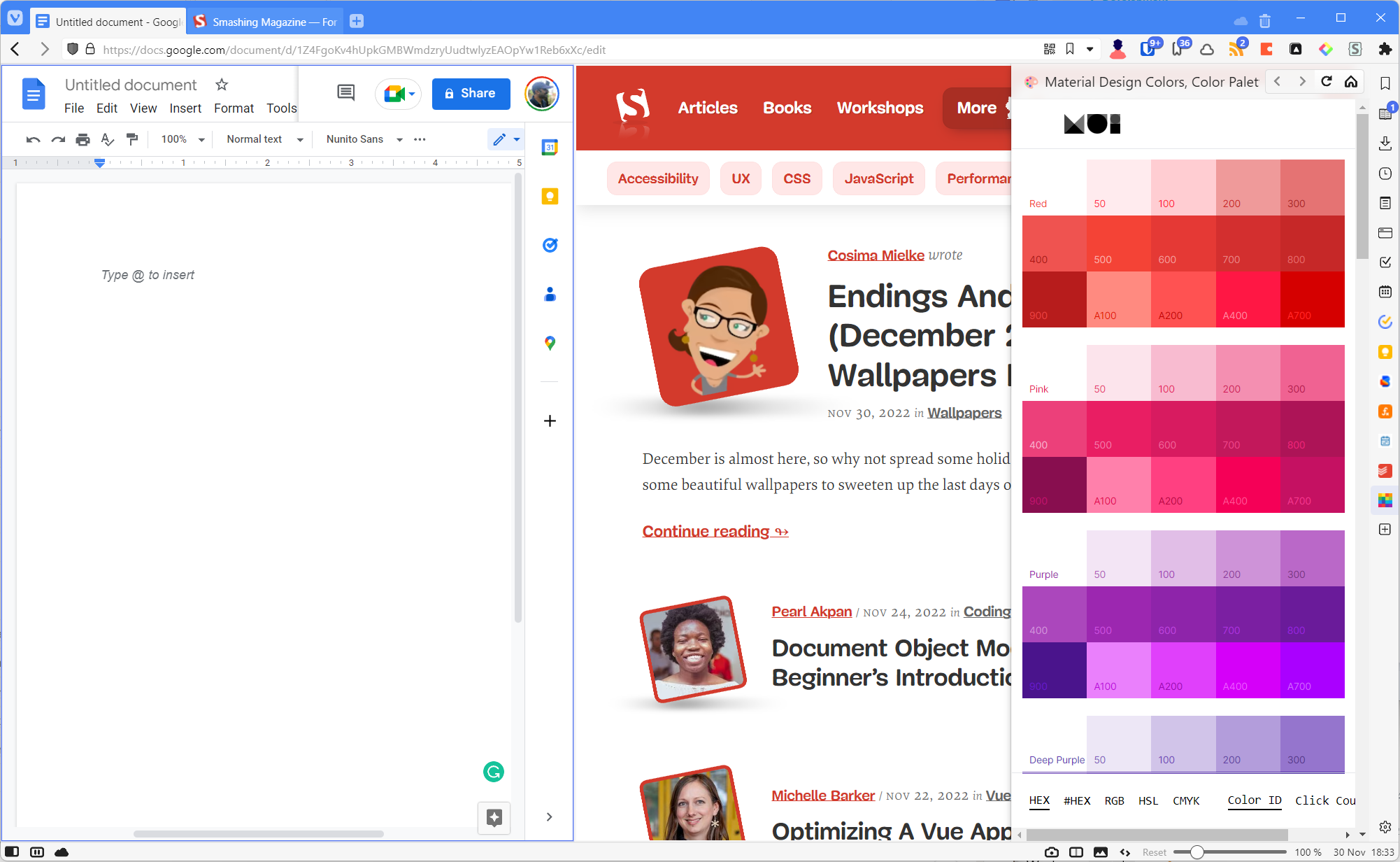
Chromium-based browsers all support the same extensions, which widens the toolset considerably. One particularly strong option is Vivaldi, which pairs the Chromium engine with several built-in features that eliminate the need for extra extensions:
- Split tabs: View multiple tabs side-by-side, which is handy for copying between two Figma files, comparing documents, or keeping a checklist open while reviewing.
- Quick Commands: A Spotlight-like command line for switching tabs, opening bookmarks, saving notes to the built-in notepad, doing math, and chaining several actions into one command.
- Web panels: Open websites in the sidebar as overlays. Useful for keeping a mobile view of a todo app like Todoist, a Twitter feed, or a color palette reference.
Beyond the browser’s built-in capabilities, extensions can tackle repetitive tasks. Most work in Chrome, Edge, Opera, Brave, and other Chromium browsers, and many have Firefox versions, too:
- Hover to see the full-size image: The Imagus extension pops up the original image when you hover over a thumbnail, which is helpful for copying, saving, or inspecting details.
- One-click color copying: Simple Material Design Palette puts the Material color swatches in the browser header. Click the icon, find the shade, and click to copy the
#hexvalue. - Keyboard-only browsing: Vimium enables mouse-free navigation: open links, scroll, switch tabs, focus inputs, select and copy text, all without leaving the keyboard.
- Faster access to saved articles: Pocket saves web pages for later reading, and the IwillriL extension surfaces those saved items in a popup, avoiding a trip to the Pocket site. For tab overload, Toby saves tab groups and sessions for later.
There are plenty more utilities to be found, but these are the ones that have proven their worth day in and day out. They were chosen because they fit a particular workflow; not every tool works for every person. Still, the general principle holds: if you hit a repeating snag, someone has likely already built a solution. The goal is to try out options, keep what fits, and assemble a personal toolbox that makes your time at the computer more deliberate and less repetitive.
Key Tools at a Glance
The following list highlights the most valuable apps and extensions from the full article:
- Ditto clipboard manager (Windows)
- Clipy clipboard manager (Mac)
- Espanso text expansion (Windows/Mac)
- TextExpander text expansion (Windows/Mac/Chrome)
- PhraseExpress text expansion (Windows/Mac)
- Raycast app launcher (Mac)
- Ueli app launcher (Windows/Mac)
- Everything search utility (Windows)
- PowerToys — includes FancyZones window manager (Windows)
- Rectangle Pro window management (Mac)
- Magnet window management (Mac)
- Eagle design file organizer (Windows/Mac)
- ShareX screen capture and file sharing (Windows)
- CloudApp visual communication for teams (Mac)
- Vivaldi Chromium-based browser
- Firefox browser
- Todoist personal task manager
- Imagus (Chromium extension)
- Simple Material Design Palette (Chromium extension)
- Vimium (Chromium extension)
- Pocket personal reading list with IwillriL extension




