

Why Teams Is Worth Considering For Your Web App
Microsoft Teams is often thought of purely as a communication tool, but for developers it also works as a distribution platform for web applications. The platform was built with the web in mind, which means your existing HTML, JavaScript, or server-side code can be surfaced inside Teams with relatively little work. That reach matters: Teams reports over 115 million daily active users, so putting your app where those users already collaborate can give it exposure it wouldn't otherwise get.
Tabs: The Simplest Integration Path
The easiest way to bring a web app into Teams is through a "tab." A tab is essentially an embedded web page, rendered inside the Teams client using an <iframe>. Because Teams was designed with this embedding capability from the start, you can drop in an existing web app—built with React, .NET, or plain HTML—without rewriting it for a new runtime.
You're not forced into unfamiliar tooling either. Standard developer tools like Git, Node.js, npm, and Visual Studio Code work as expected. If you want to extend your app further, there are specialized options such as the Teams Yeoman generator, the Teams Toolkit Visual Studio Code extension, and the Microsoft Teams JavaScript client SDK for pulling additional context or enhancing the tab's content.
What You Need To Get Started
Before you begin, make sure you have the following:
- Permission to develop on Teams, or a free developer tenant from the M365 Developer Program.
- App Studio installed in your Teams client. This is a helper app inside Teams that guides you through app configuration and manifest creation.
- Basic web development skills.
For this tutorial, everything runs in Glitch, a browser-based IDE. That removes the need to deal with tunneling or deployment setup while you're learning. In a real project, though, you'll eventually need a localhost tunneling tool like ngrok during development and a cloud service like Azure Web Services (or on-premises infrastructure that is publicly accessible) for production.
Remix The Sample Project
Start by visiting the sample code page on Glitch and remixing the project. Remixing is similar to forking a repository—it creates your own copy that you can modify freely. When you remix, Glitch assigns you a project name and a corresponding web server URL, for instance https://achieved-diligent-bell.glitch.me if your project is named achieved-diligent-bell. You can customize the name if you'd like.
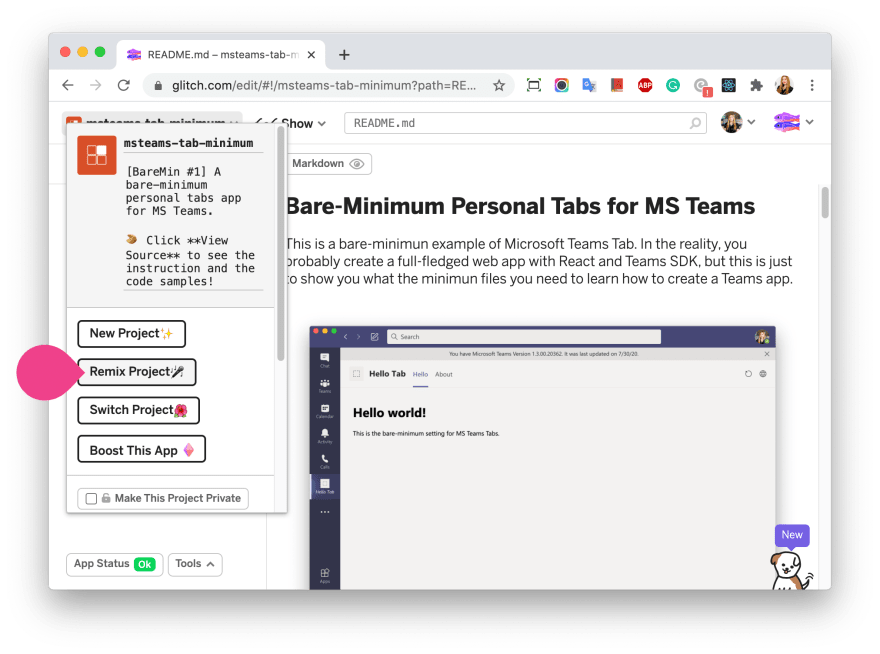
Once your web service is running, the next step is creating an app package that Teams can install. The package contains two icons and a JSON manifest file that defines the app's metadata, its extension points, and the URLs that power those points.
Creating The App Package
📁 your-app-package
 └── 📄 manifest.json
 └── 🖼 color.png (192x192)
 └── 🖼 outline.png (32x32)
You can assemble the manifest by hand, but App Studio is the more practical route. It runs inside Teams as a special app (meta indeed) and walks you through the required configuration, generating the manifest automatically.
To begin, open the App Studio app from the three-dot menu in the left sidebar, then select the Manifest Editor tab and choose Create a new app.
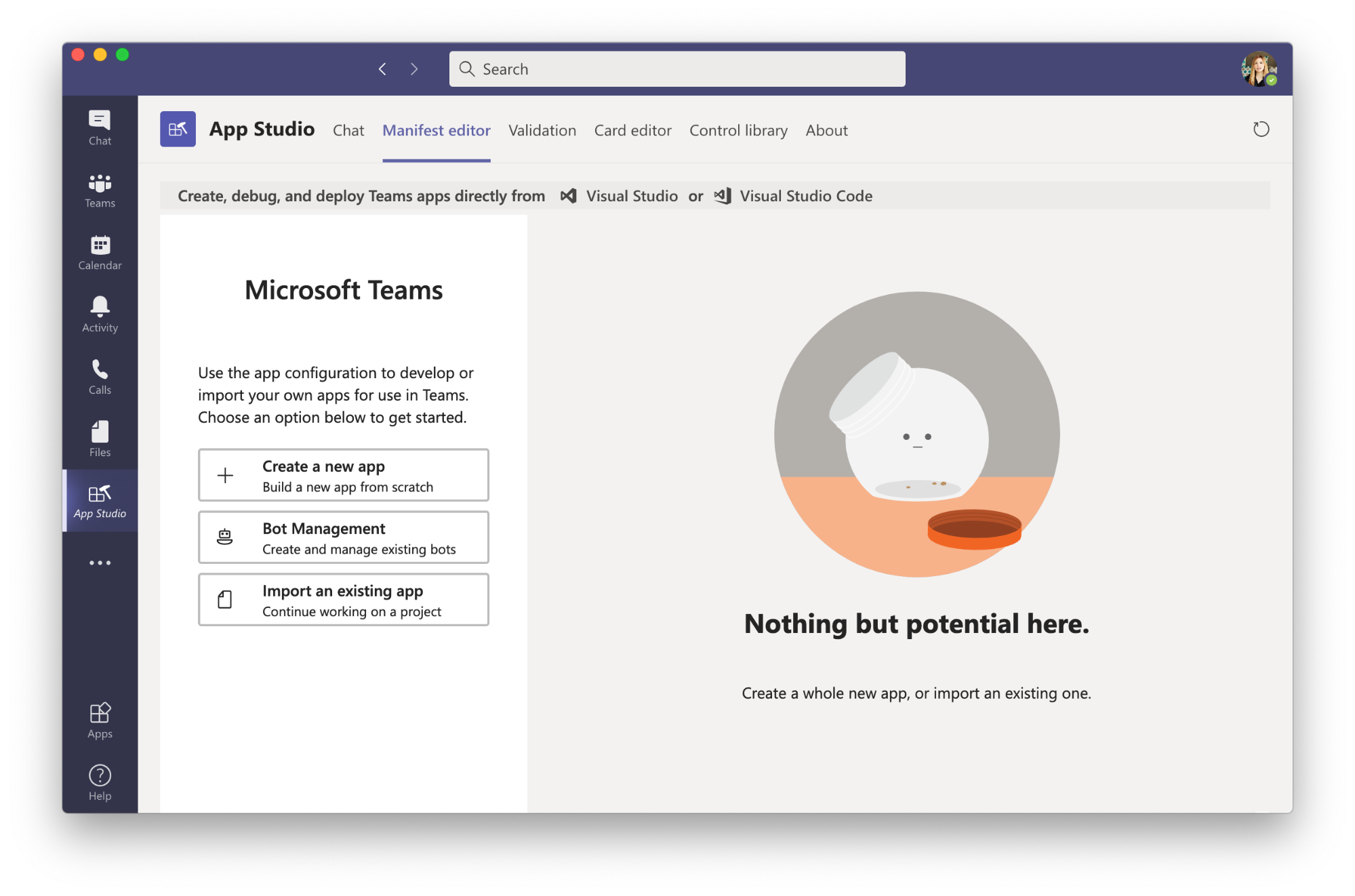
Fill in all required fields such as app names and descriptions. For the App URLs section, enter your privacy policy and terms of use pages—https://example.com is a fine placeholder here.
Next, configure your personal tab. Under Capabilities > Tabs, click Add under Add a personal tab. In the Content URL field, enter your webpage URL—in this case, it should look like https://[your-project-name].glitch.me/index.html.
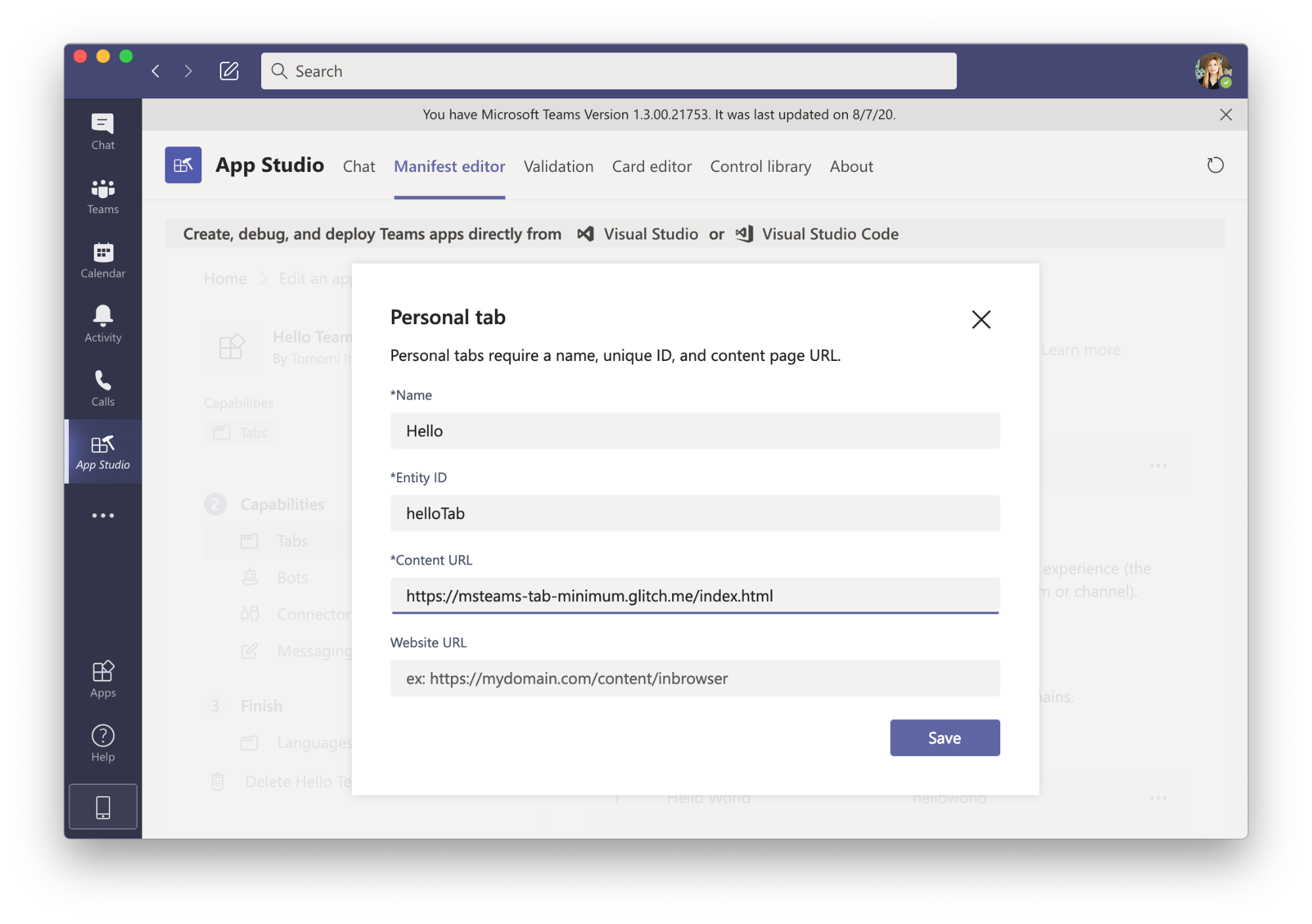
The associated index.html file contains just a few lines of static HTML:
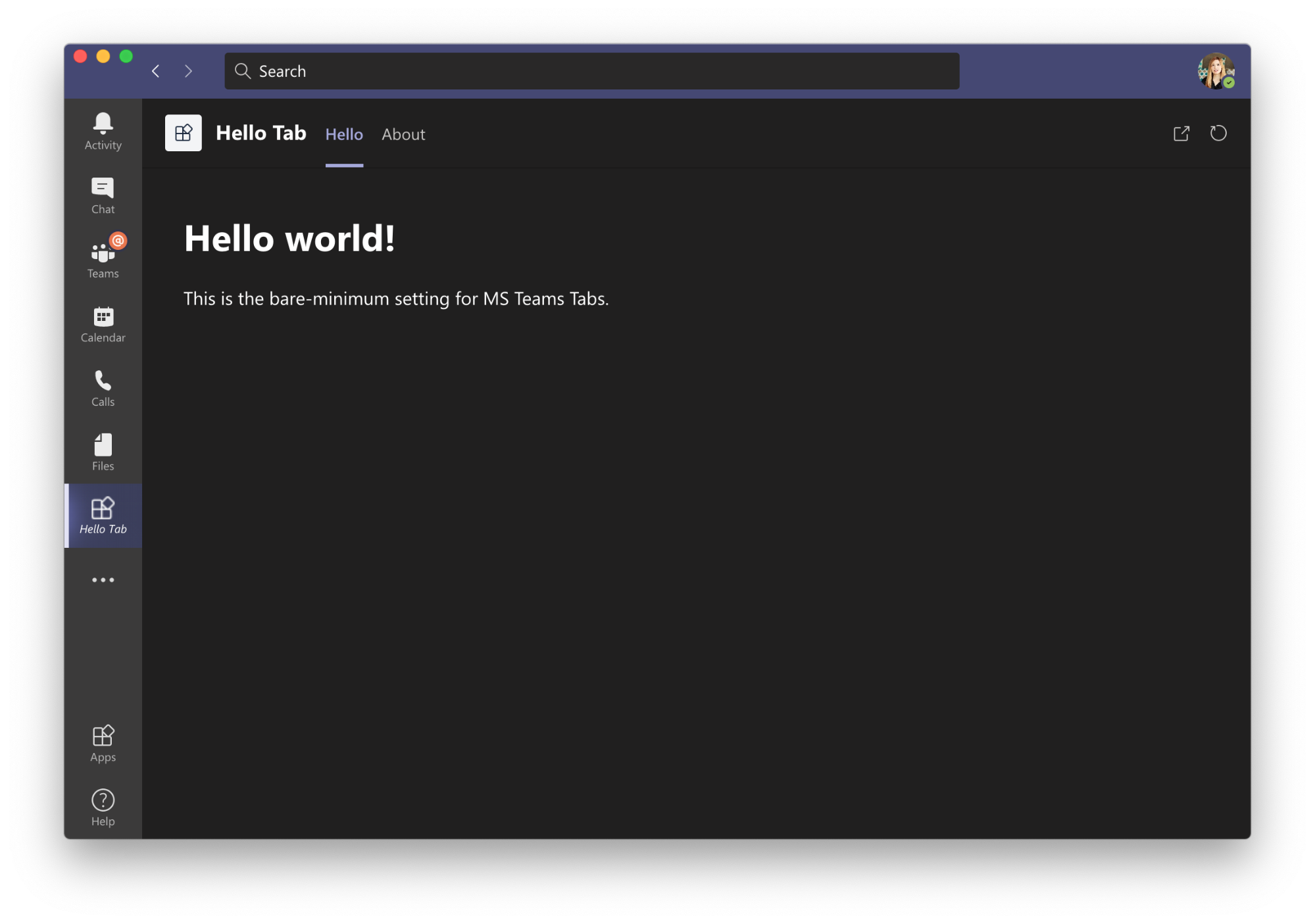
<h1>Hello world! </h1>
<p>This is the bare-minimum setting for MS Teams Tabs.</p>
Feel free to edit that file to change what appears in the Teams client. When you're done, go to Finish > Test and distribute. If the validation reports no errors, click "Install" and your personal tab will be live in Teams.
Going Beyond Static HTML With The Teams SDK
The sample above is minimal by design—it shows the configuration path without adding framework complexity. That doesn't mean you're limited to static pages. Any web framework, including React, works fine inside a tab.
Teams also provides its own JavaScript SDK for deeper integration. One common need is handling Teams' three themes: light (the default), dark, and high-contrast. CSS alone won't reliably handle this because your page is rendered inside Teams' iframe; you need the SDK to detect the active theme.
You can pull the SDK from npm:
npm install --save @microsoft/teams-js
Or include it directly in your HTML:
<script src="https://statics.teams.cdn.office.net/sdk/v1.8.0/js/MicrosoftTeams.min.js"></script>
Once the SDK is loaded, use the getContext method to detect the current theme and set your body text color accordingly:
microsoftTeams.initialize();

microsoftTeams.getContext((context) => {
  if(context.theme !== 'default') {
    document.body.style.color = '#fff';  }
});
Because a user can switch themes while your app is open, you should also listen for the theme change event:
microsoftTeams.registerOnThemeChangeHandler((theme)=> {
  if(theme !== 'default') {
    document.body.style.color = '#fff';
    document.body.style.color = 'inherit';
}
});
Next Steps After Your First Tab
This walkthrough covers the first step: getting a web app visible inside Teams. From here you can add Teams-native UI components, search integration, messaging extensions, or conversational bots to make the app more interactive. The Teams Developer Docs cover the full set of capabilities—tabs, messaging extensions, bots, webhooks, and more—along with the recommended toolset of Visual Studio Code and the Yeoman Generator. Integrating your app requires just a few clicks and a manifest, and once deployed it has a potential audience of over 115 million daily active Teams users.


