
WordPress, Without the Installation
For years, the path to a WordPress site has followed a familiar route: download the software, upload it to a server, create a database, and configure the connection. That process, once optimistically called the “famous five-minute install,” has been streamlined by many hosting providers, but the underlying requirement for a server environment remains.
WordPress Playground aims to remove that step entirely. First publicly introduced by Matt Mullenweg at State of the Word 2022, it runs the full WordPress stack — PHP, web server, and database — in a web browser. Instead of installing WordPress on a server, you open a URL and get a working instance instantly.
There is a caveat: the environment is ephemeral. Refresh the browser and the site is gone, as if it never existed. This makes Playground more of a disposable sandbox than a place for a permanent site, but that temporary nature is central to its usefulness for testing and experimentation.
The Technical Foundation
Playground pulls together a few key browser technologies to simulate a server environment:
- WebAssembly (Wasm) allows PHP code to execute directly in the browser.
- SQLite provides a self-contained database engine, replacing the need for a MySQL server.
- The Web Service Worker API enables the site to run even without an active internet connection.
This combination produces a virtual machine that mimics a server capable of running WordPress, minus the real server. The result is functionally similar to a local WordPress installation, but it exists entirely within the browser.
One of Playground’s more powerful features is its ability to run specific versions of both WordPress and PHP. This can be controlled through its API. For example, Playground can spin up an instance running WordPress 6.2 in a PHP 8.2 environment with a simple URL:
https://playground.wordpress.net/?php=8.2℘=6.2
A Look at Existing Alternatives
Playground is not the first service to offer throwaway WordPress environments. Other sandbox options include TasteWP, InstaWP, and WP Sandbox, the last of which shut down on September 23, 2023. These services differ from Playground in how they are built. Many run on a WordPress multi-site network, meaning they create a real site on their infrastructure connected to the internet.
Take TasteWP as an example. Visiting https://tastewp.com/new/ begins the process of creating an accessible WordPress instance on a randomized subdomain:
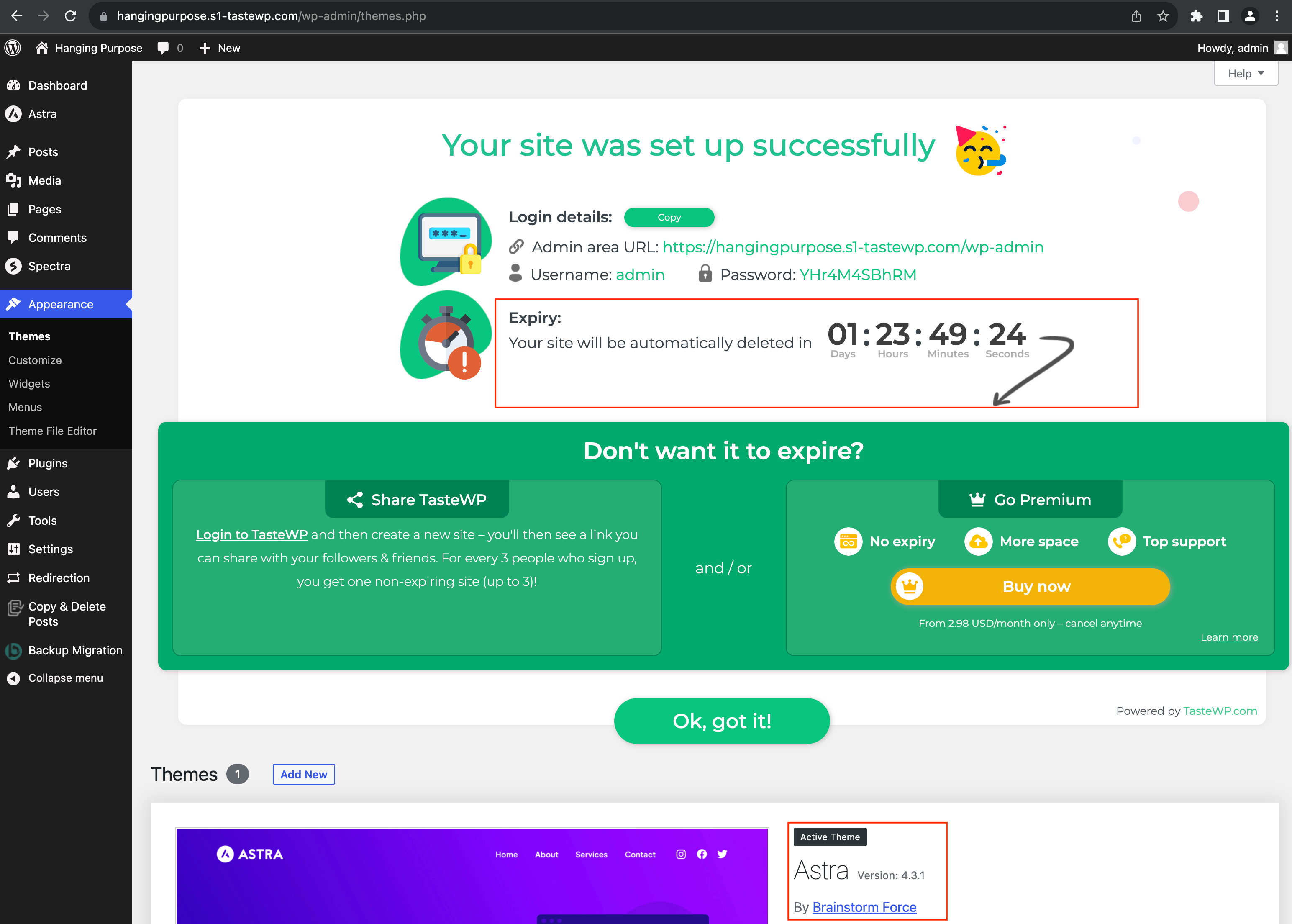
These sites have a URL that can be shared with others, provided they haven’t hit their expiration date. That timer is a core part of the business model; services like TasteWP use site expiration to manage server load. The free tier is limited to a few sites, and the interface immediately pushes for upgrades that offer permanence, additional space, and support:
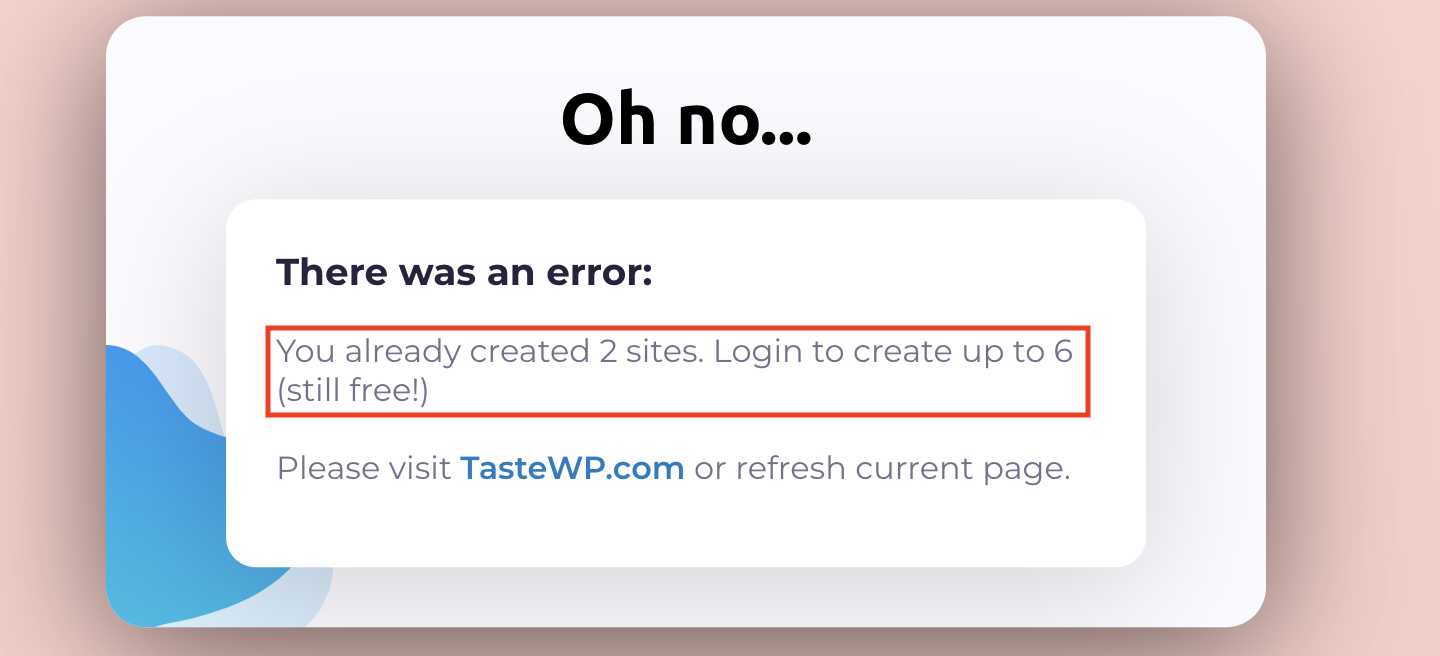
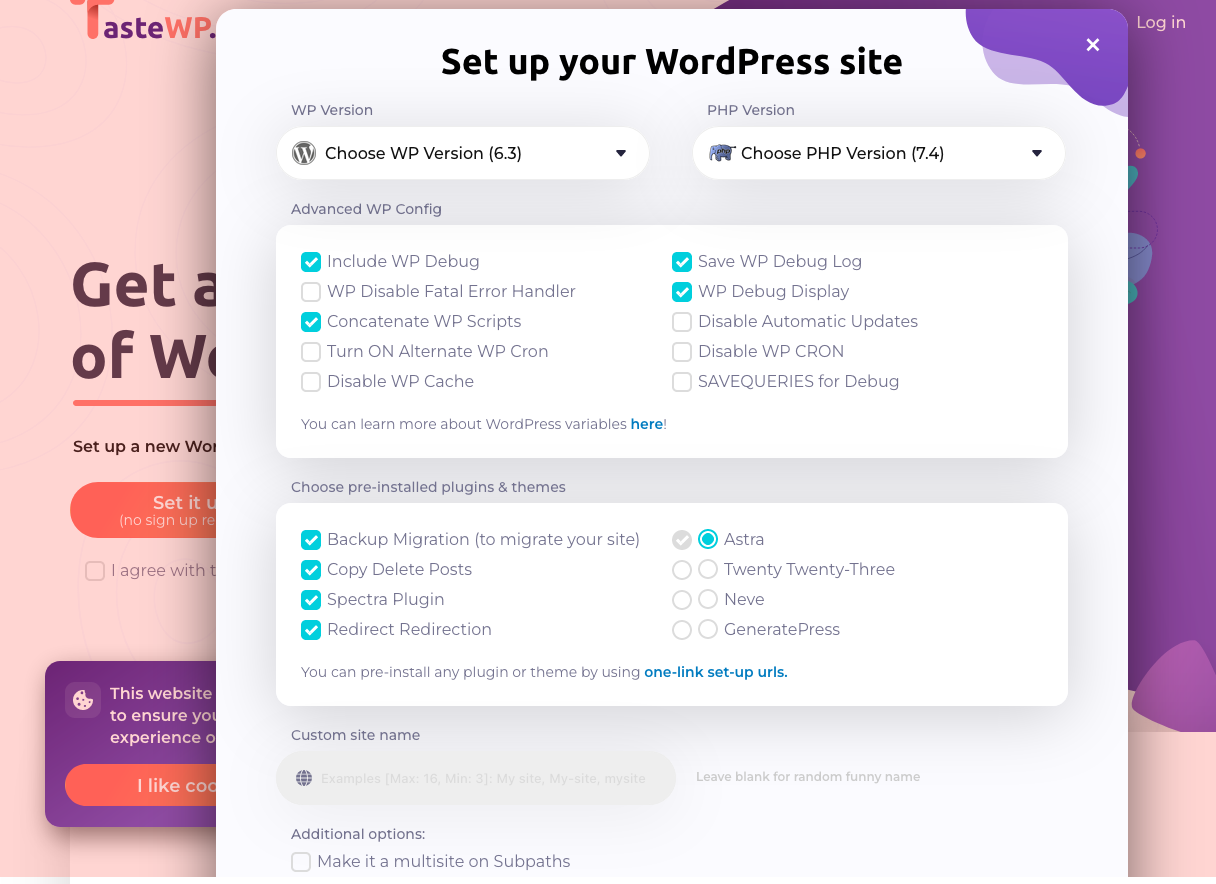
For more advanced users, TasteWP does offer greater control over the environment, allowing you to select specific WordPress and PHP versions, modify settings normally found in wp-config.php, and pre-load themes and plugins:
Playground’s Place in the Market
The key distinction is that Playground instances are isolated simulations not connected to the live web. Third-party sandboxes, on the other hand, provision actual sites on a server with public URLs.
Playground is still an early-stage tool that feels more like a developer utility than a consumer product, given its API-driven nature. Despite these differences, it occupies a distinct space along side other sandbox services, which continue to offer value for tasks that require a real, web-accessible URL. The market at this point has room for both approaches, and Playground’s connection to the WordPress admin dashboard suggests a shift toward development workflows that don't require a local setup.
Playground's Many Entry Points
WordPress Playground isn't a single tool locked to one interface. It's distributed across several surfaces, each suited to a different workflow. You can spin up an environment from a plain URL, a terminal, a code editor, or even a browser extension. The four primary paths are the hosted website, the GitHub repository, the wp-now CLI package, and a Visual Studio Code extension.
Instant Sites From A URL
The simplest route is pointing your browser at playground.wordpress.net. The moment the page loads, a WordPress instance is created and ready for you—no signup, no configuration, no waiting around.
If you need a specific combination of versions, the URL accepts query parameters. Running WordPress 6.2 on PHP 8.2 is as straightforward as appending the right values to the address:
https://playground.wordpress.net/?php=8.2℘=6.2
For those who want to test upcoming releases, there's also a parameter to pull in development builds of WordPress:
https://playground.wordpress.net/?wp=beta
Running From The GitHub Repository
Playground is an open-source project, so you can pull the source and run it locally. Cloning the repository gives you a full copy of the codebase:
git clone https://github.com/WordPress/wordpress-playground.git
A lighter alternative fetches only the latest revision, which speeds things up considerably:
git clone -b trunk --single-branch --depth 1 [email protected]:WordPress/wordpress-playground.git
Once the repository is cloned, installation is a standard one-command step:
cd wordpress-playground
npm install
npm run dev
Starting the local server prints a URL in the terminal—typically http://localhost:5400/website-server/—which you open to reach the newly created site:
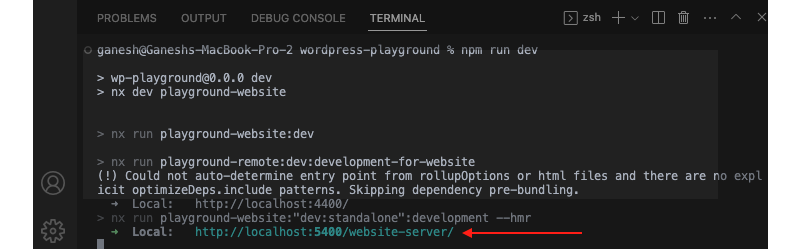
The command line also accepts version flags. This one launches a WordPress 5.9 site on PHP 7.4:
wp-now start --wp=5.9 --php=7.4
The wp-now Command Line Tool
For an even leaner setup, wp-now is available as a global npm package. Installing it once gives you a wp-now command you can invoke from anywhere:
npm install -g @wp-now/wp-now
A single command then creates a fresh Playground instance and automatically opens it in your default browser, with a working site ready to go. Just make sure Node 18 or newer is installed first to avoid version-related errors:
wp-now start
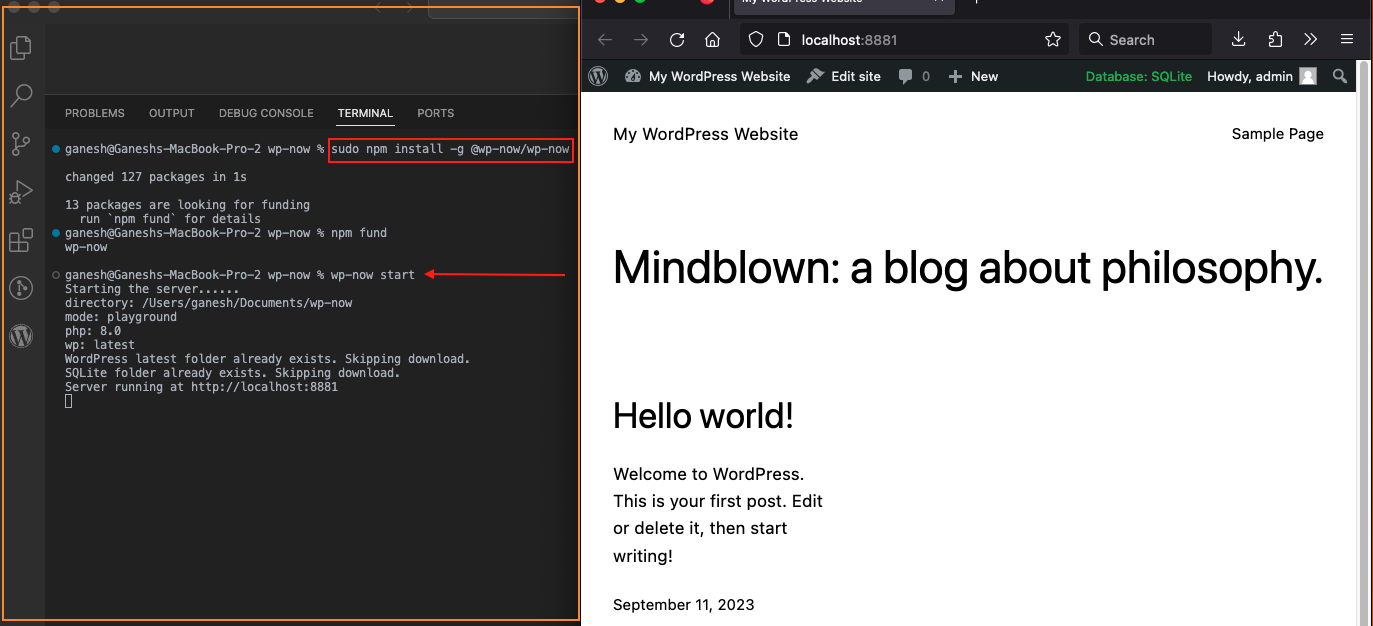
Version configuration works just the same way:
wp-now start --wp=5.9 --php=7.4
One of wp-now's strong points is its automatic mode detection. Run it from a directory containing a full WordPress install, and Playground runs that directory as a complete site. Point it at a folder with just an index.php file, and it treats that file as the entry point for all requests. Beyond those defaults, explicit modes exist for theme, plugin, wp-content, and wordpress-develop directories, letting you choose exactly how the environment should behave based on what you're working on.
A Visual Studio Code Extension
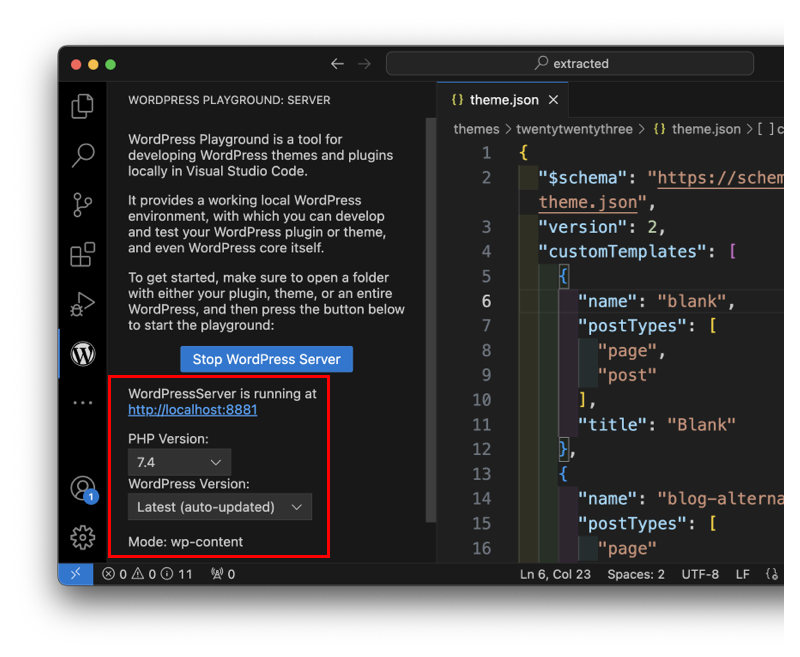
Developers who live inside an editor can install the WordPress Playground extension for VS Code. Once installed, a WordPress icon appears in the sidebar; clicking it opens a dedicated panel with a "Start WordPress Server" button. That single click boots a new site, and the panel surfaces useful details such as the local URL, the active mode, and settings for adjusting the PHP and WordPress versions.
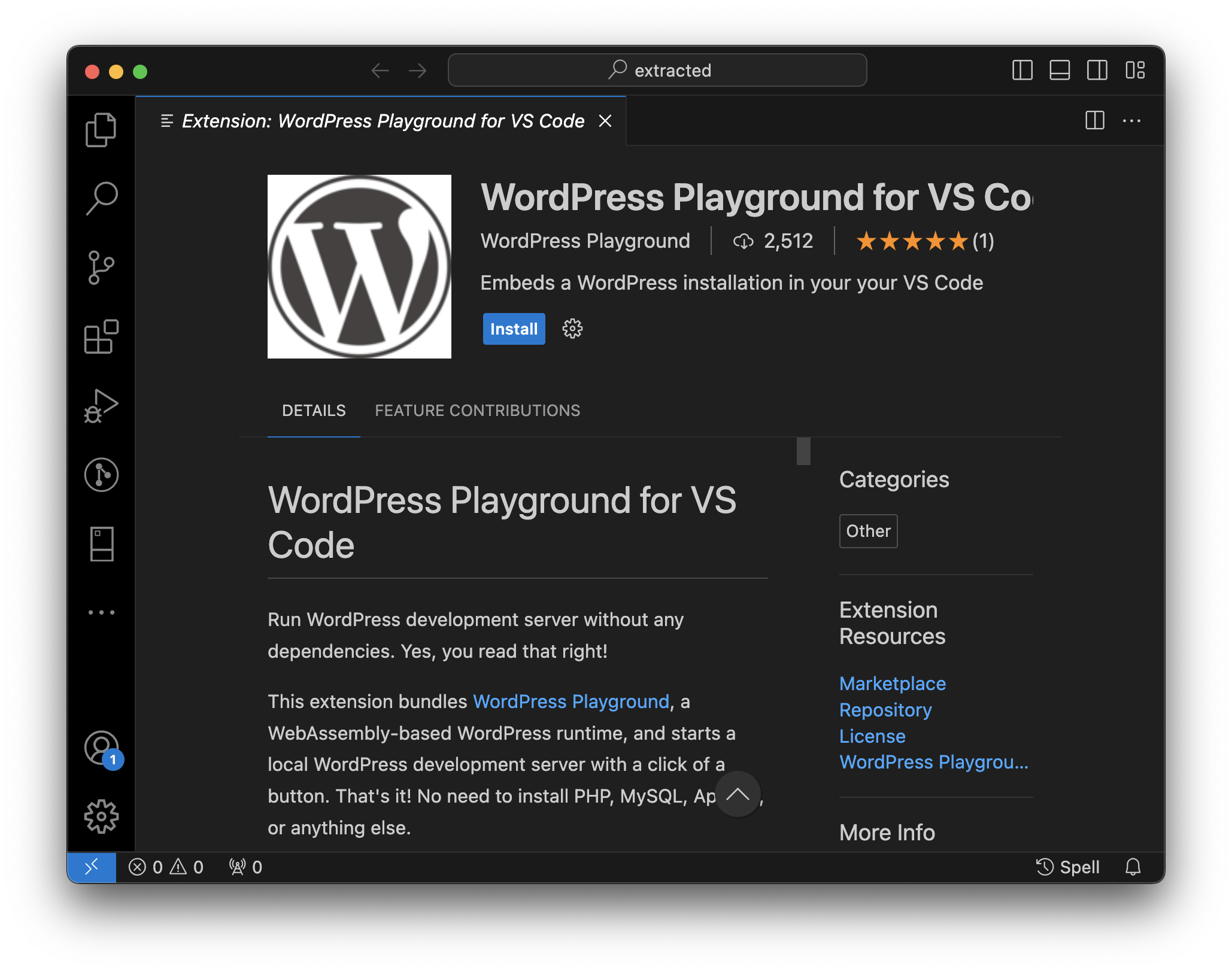
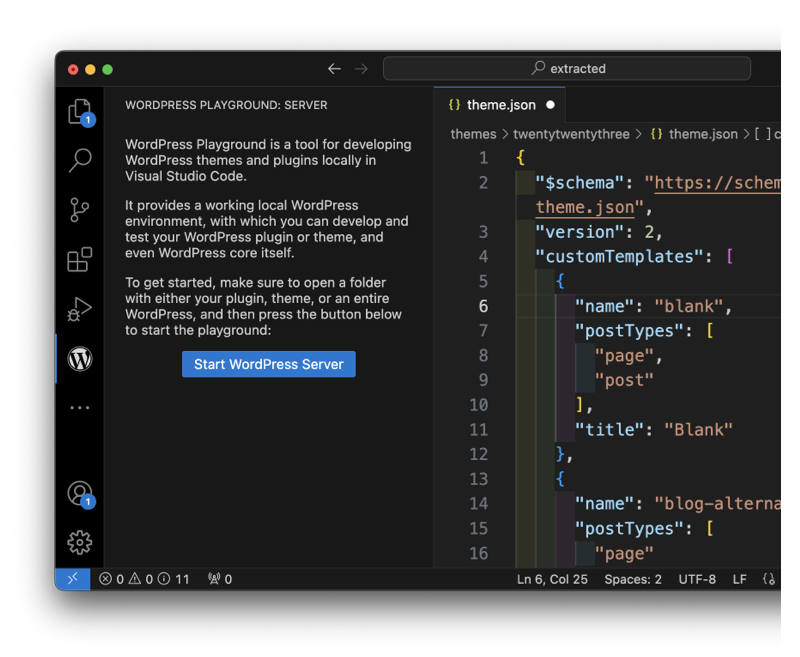
One notable detail surfaced during testing: the extension automatically installs and activates the SQLite Database Integration plugin. That's obviously a necessary component for Playground to function, but it does drop at least one plugin into every instance from the start.
Previewing Themes And Plugins In Chrome
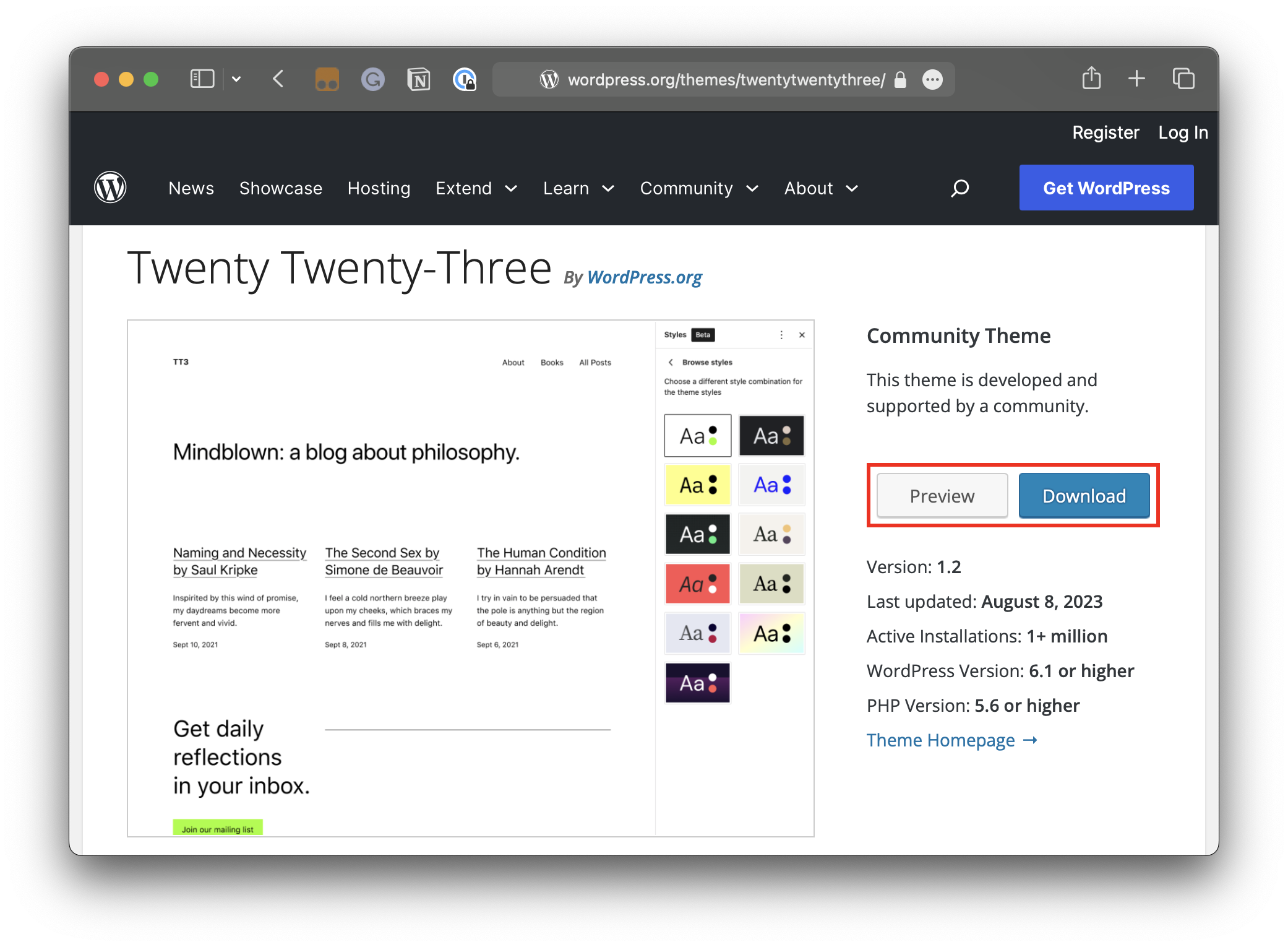
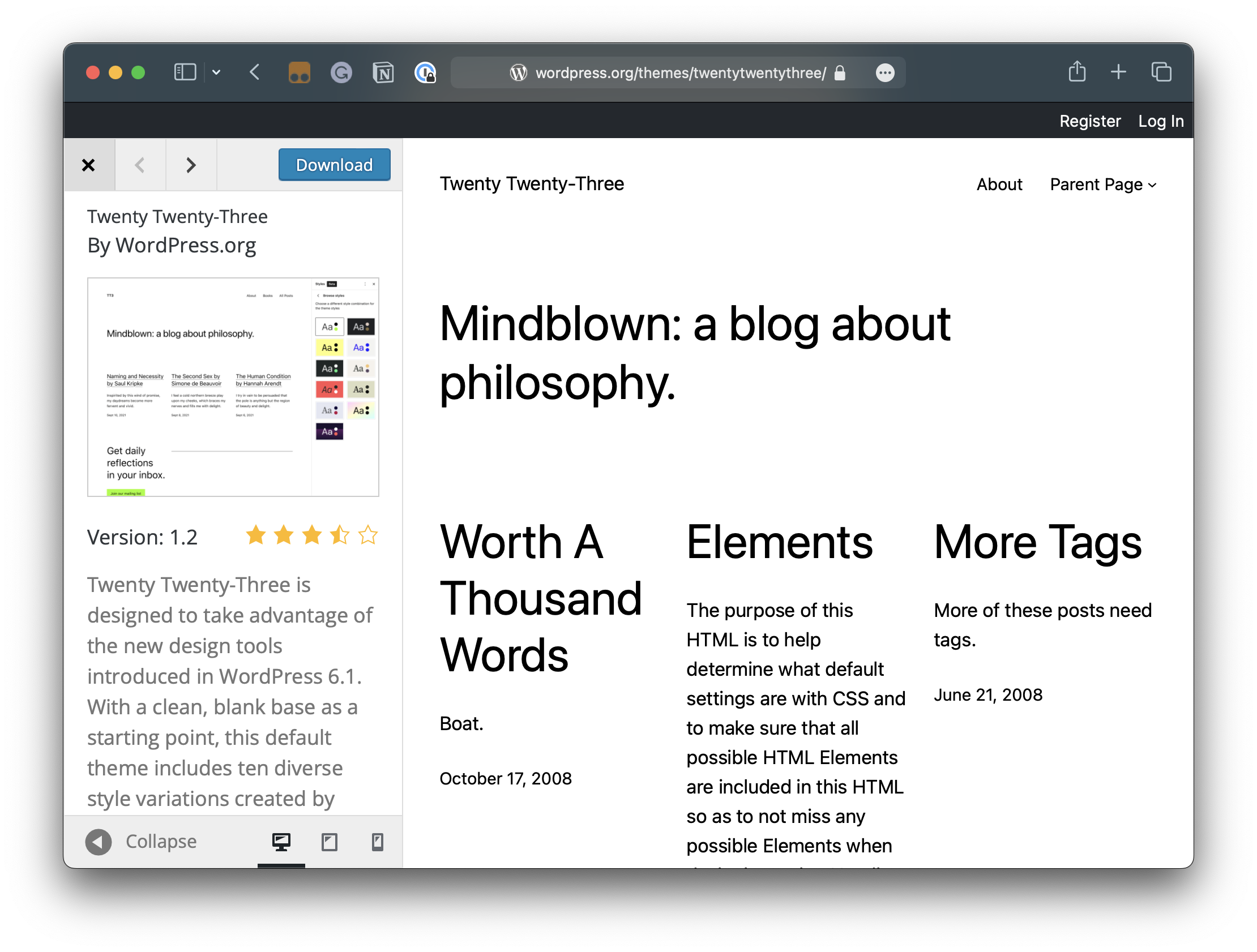
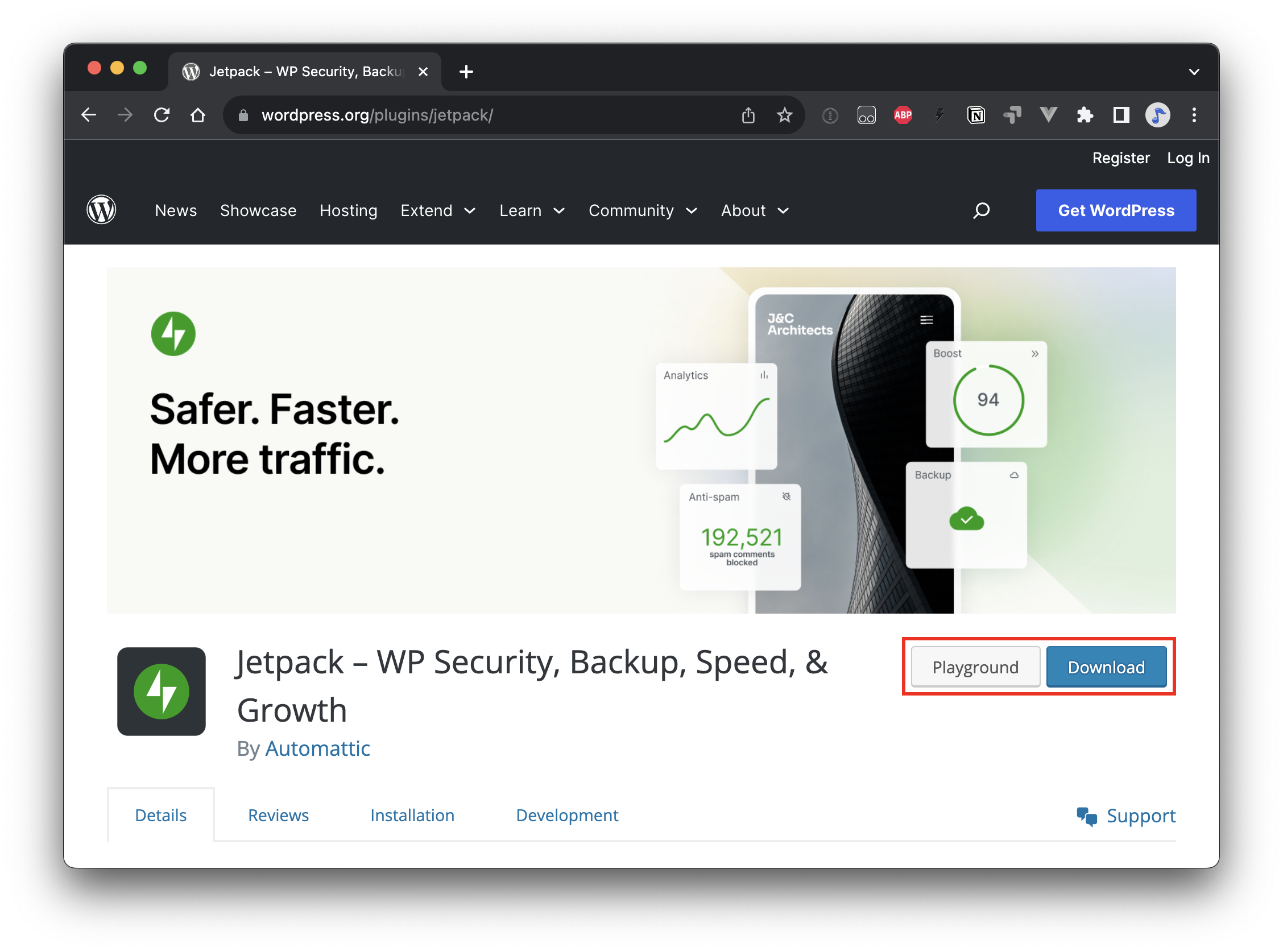
The Theme Directory already gives visitors a "Preview" button, which opens a theme inside a frame resembling the classic Customizer. But that's a shallow look at the front end. It doesn't let you try creating posts, editing pages, or exploring block patterns in the admin.
A third-party Chrome extension called "Open in WordPress Playground" takes that concept further. It adds an option to open any theme from the directory in a real Playground environment, where you can interact with it the way you would a regular site. The extension works equally well on the Plugin Directory, offering the ability to test a plugin's behavior without setting up a sandbox—or worse, risking a live site.
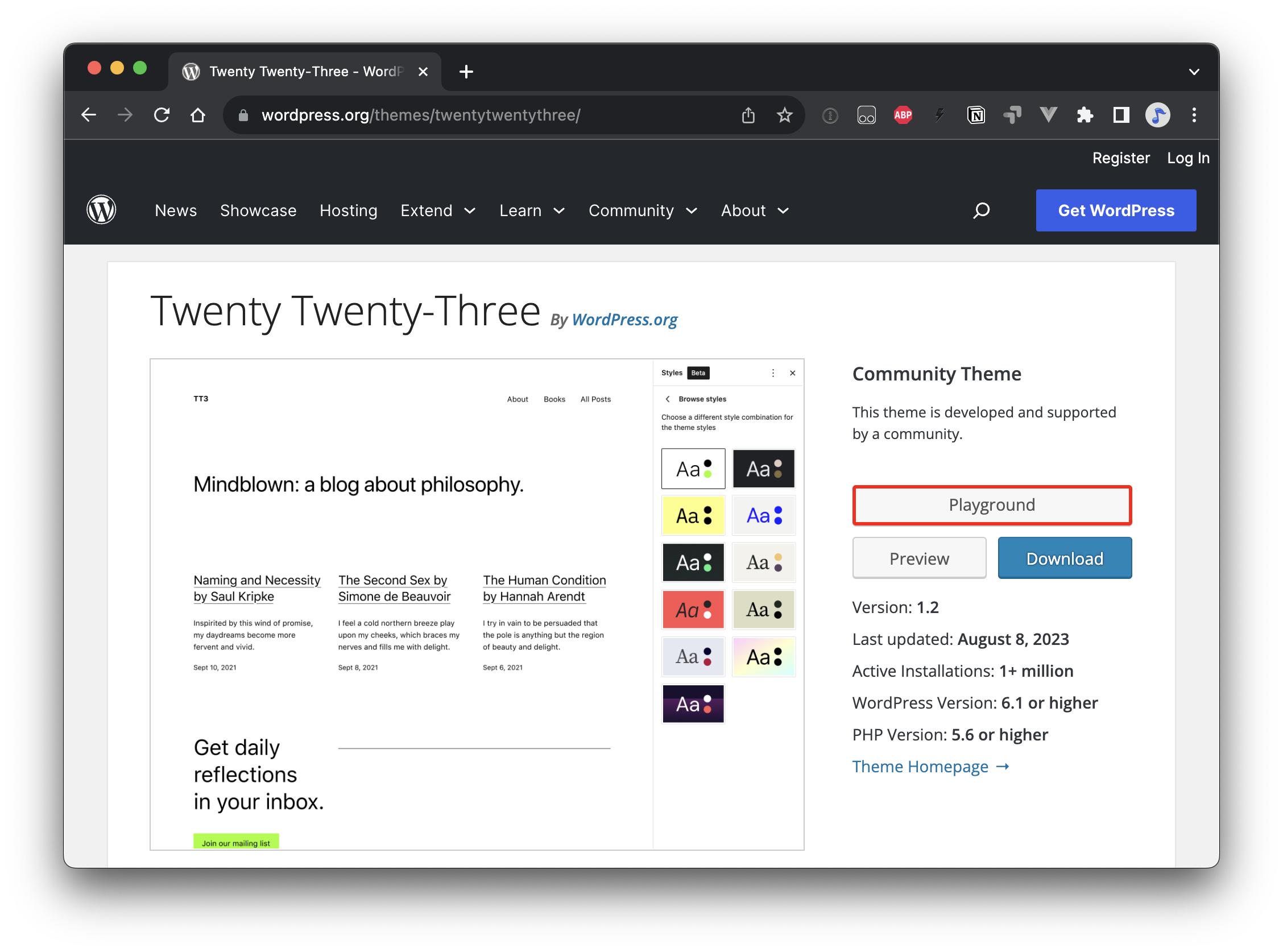
The extension is free to install from the Chrome Web Store, and its source is available on GitHub. It's worth emphasizing that this is a community contribution, not an official WordPress or Automattic product.
What A Default Instance Contains
Across all methods—URL, repo, wp-now, or VS Code—the generated sites are nearly identical out of the box. Every instance ships with the Twenty Twenty-Three theme installed and active, matching the behavior of a standard WordPress installation.
The SQLite Database Integration plugin, built by the WordPress Performance Team, is also present in every default instance. It's there for a pragmatic reason: WordPress Playground needs a database, and SQLite is how it gets one without external infrastructure. The plugin's description hints that it may eventually be folded into WordPress Core, which would leave future Playground instances with zero bundled plugins.
Beyond those commonalities, the differences between methods are minor but worth knowing. The following table shows what each approach includes at the time of writing:
| Method | WordPress Version | PHP Version | Themes | Plugins |
|---|---|---|---|---|
| WordPress Playground website | 6.3.2 | 8.0 |
|
|
| GitHub repo | 6.3.2 | 8.0 |
|
|
| wp-now package | 6.3.2 | 8.0.10-dev |
|
|
| VS Code extension | 6.3.2 | 7.4 |
|
|
| Chrome extension | 6.3.2 | 8.0 |
|
|
Any further variation depends on the environment itself. Running wp-now from a directory that holds several themes or plugins will make those resources available in the instance. Likewise, launching Playground via the Chrome extension from a specific theme or plugin directory page installs that particular item automatically.
Bringing In Themes And Plugins
A standard WordPress install pulls themes straight from the Theme Directory over an internet connection. Playground instances created from the hosted website (and the Chrome extension, which behaves the same way) don't maintain that kind of live connection, so there's no direct way for them to fetch themes or plugins from the admin interface.
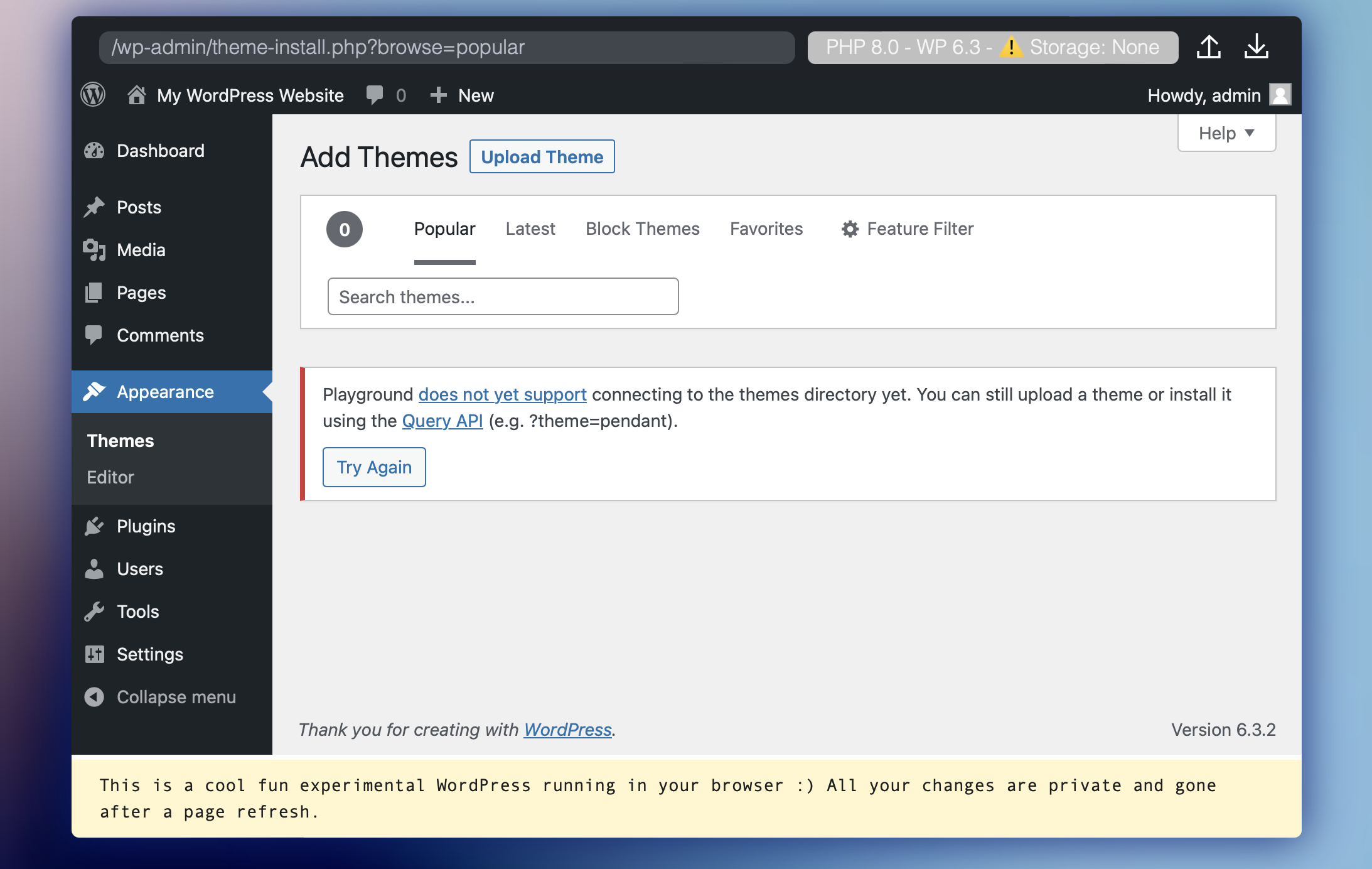
If your workflow demands the familiar point-and-click installation experience, the GitHub repository, wp-now, and the VS Code extension are the better options. All three provide internet-connected instances where themes and plugins install normally from the admin.
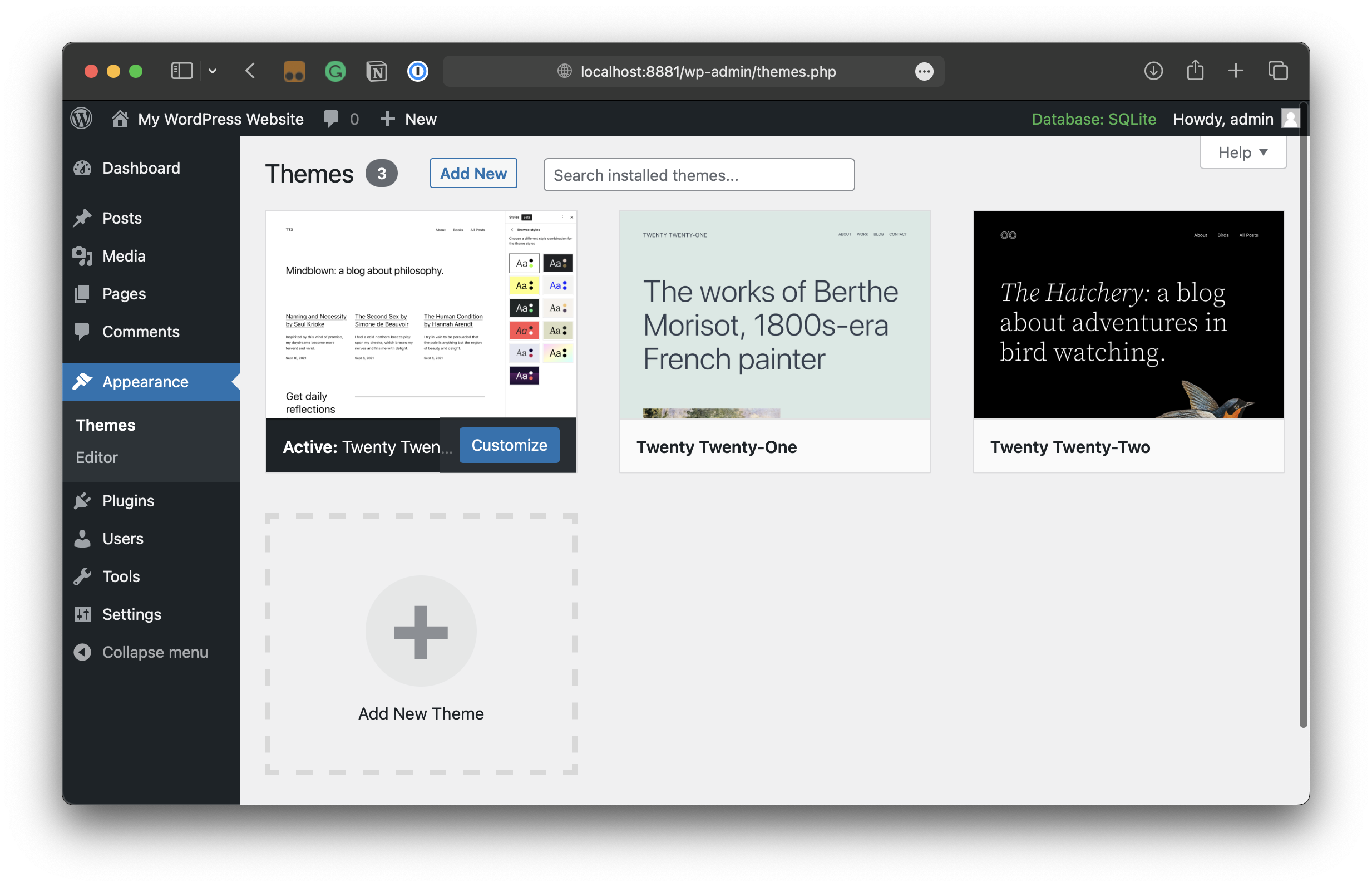
For disconnected environments, the Query API picks up the slack. The WordPress admin itself displays a note explaining that theme directory access isn't available, but that you can still upload a theme or use the Query API—for example, by passing a ?theme=pendant parameter in the URL:
"Playground does not yet support connecting to the themes directory yet. You can still upload a theme or install it using the Query API (e.g. ?theme=pendant)."
https://playground.wordpress.net/?theme=ollie
Plugins follow the same pattern, specified by their slug in the URL:
https://playground.wordpress.net/?plugin=jetpack
Multiple plugins can be chained together by repeating the parameter with an ampersand (&) separator:
https://playground.wordpress.net/plugin=jetpack&plugin=woocommerce
The equivalent multi-theme setup isn't supported through the Query API. If you need to test several themes in one instance, it's cleaner to point wp-now or the VS Code extension at a directory where those themes already exist.
The Block Patterns Catch
Default Playground instances hosted on the site come with just two block patterns: Posts and Call to Action. That limitation also stems from the missing internet connection—patterns are normally fetched live from WordPress.org.
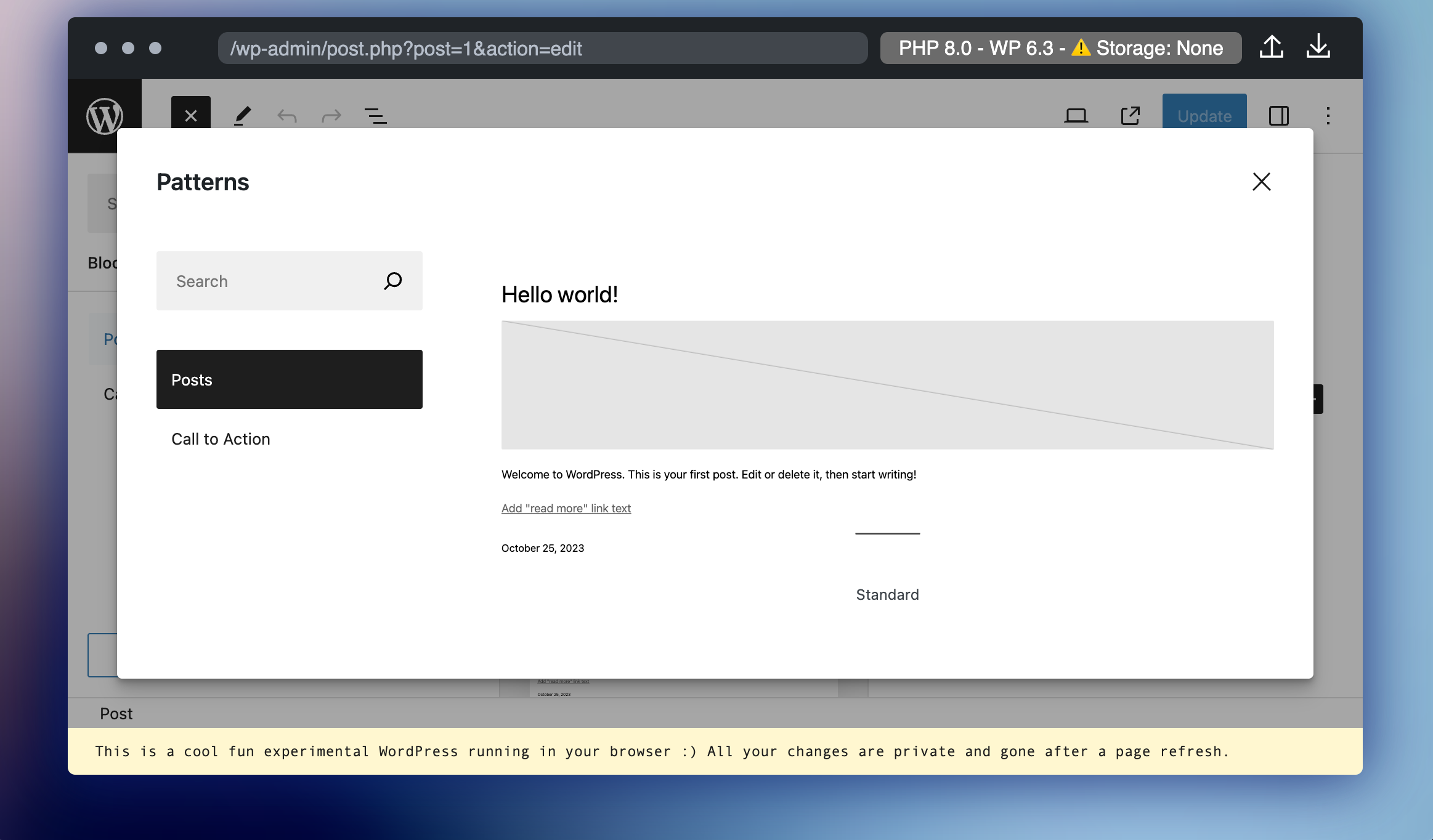
Choosing one of the local server methods gives you a much fuller pattern library, since those instances can reach out and load the full set from the web.
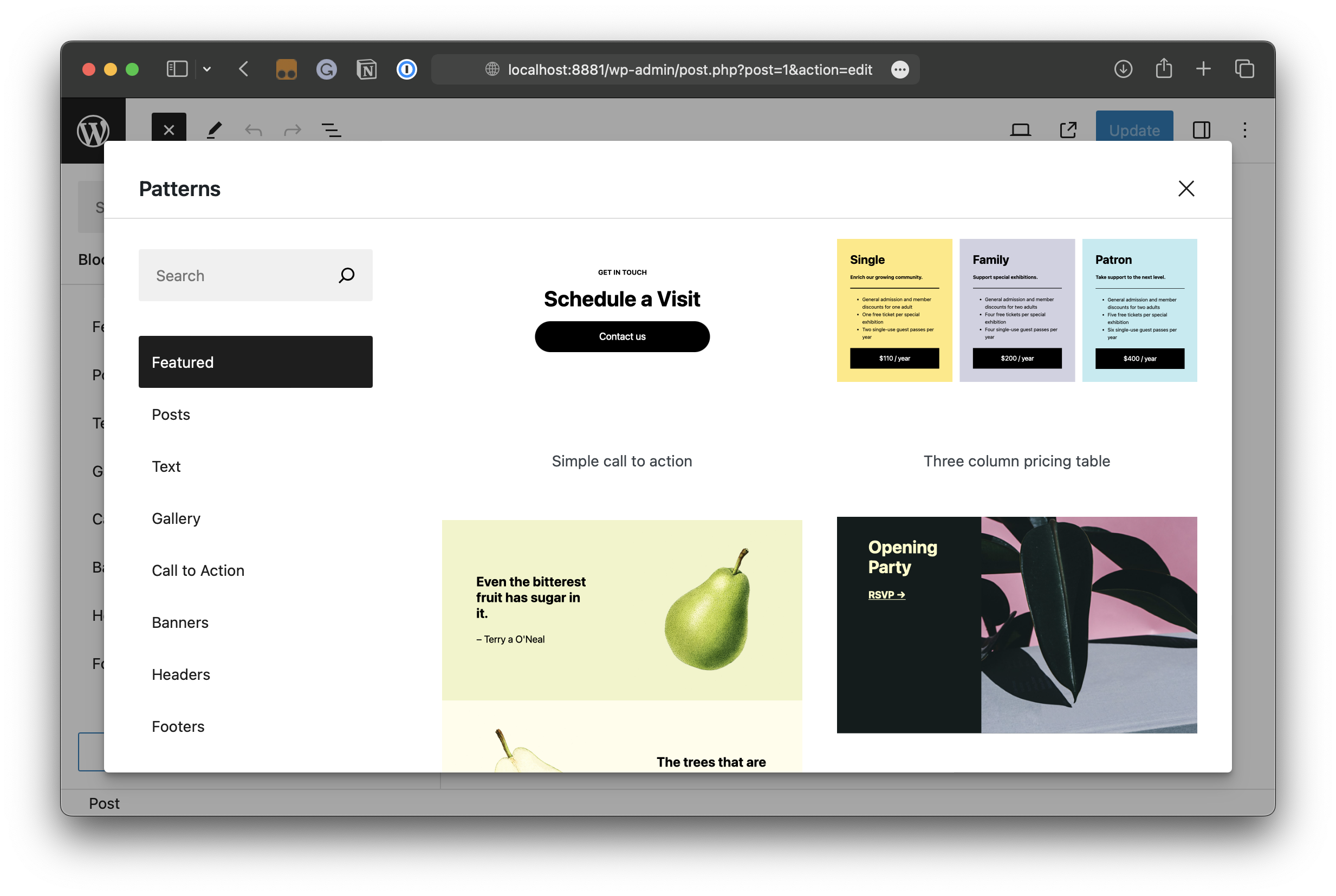
The Query API offers no equivalent for importing patterns, unlike themes and plugins. The reliable routes are either to include patterns within the theme you're pointing at or to visit the Block Pattern Directory manually, copy a pattern, and paste it directly into the page or post you're testing in Playground.
Portable WordPress: Exporting and Importing Playgrounds
The ephemeral nature of a Playground instance is exactly what makes it useful — a page refresh and the site is gone. But sometimes you need to keep the work. Playground supports exporting an instance to a ZIP file, and importing that file into a fresh instance later.
If you create an instance at playground.wordpress.net or use the Chrome Extension to preview themes and plugins from WordPress.org, you'll notice Upload and Download icons in the top-right corner of the interface. These controls are available only in instances created through those two routes.
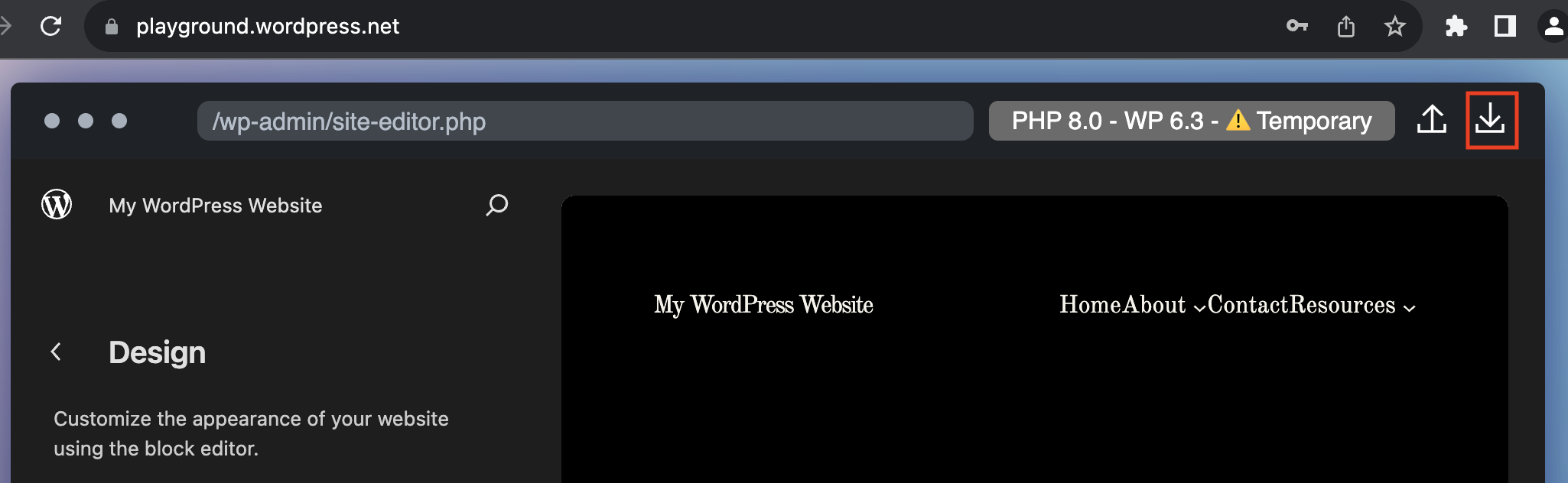
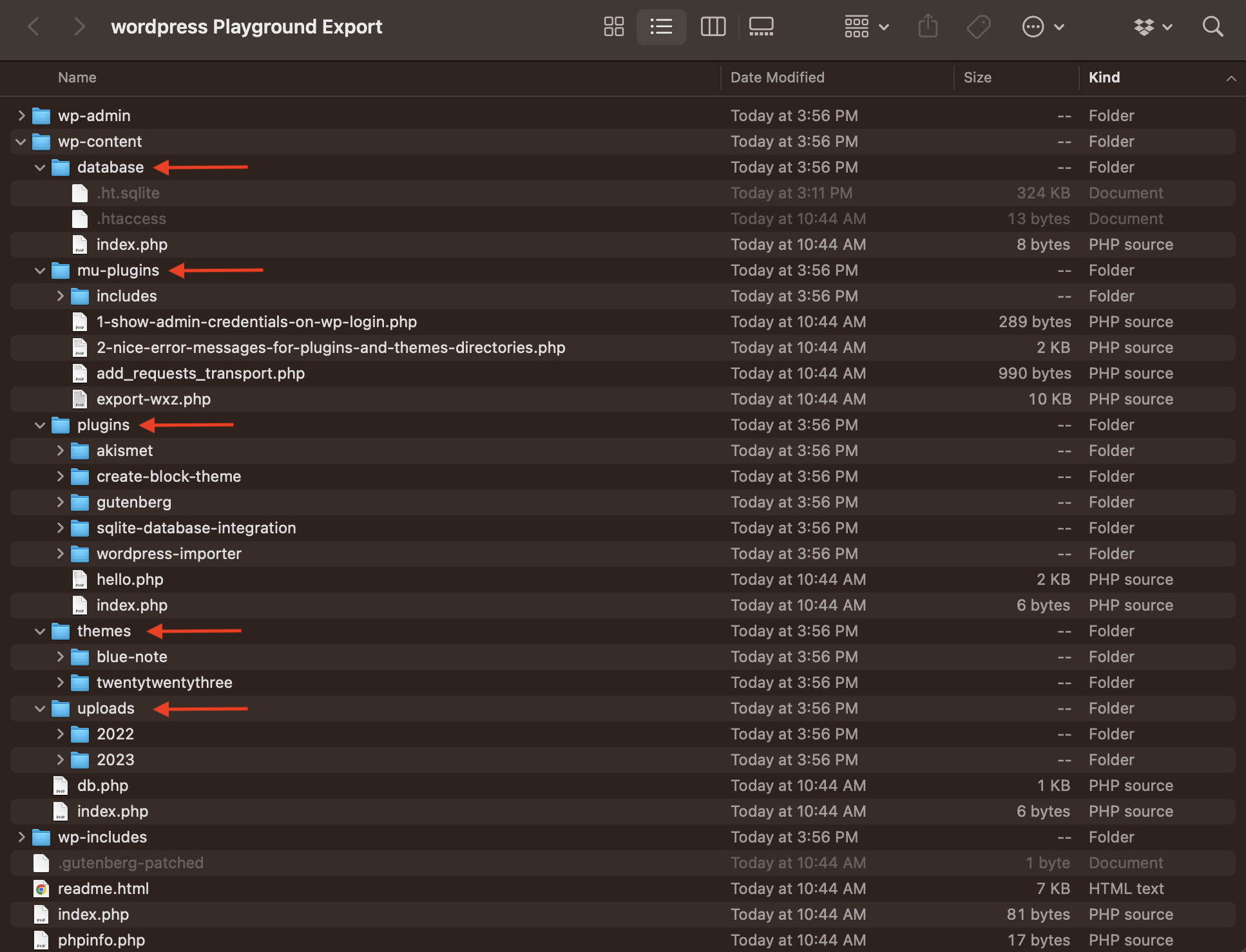
Exporting produces a ZIP file named wordpress-playground.zip. Unzipping it reveals the complete website, including the full WordPress installation. It looks like any standard WordPress project, with a wp-content directory holding themes, plugins, and media library uploads. The one notable difference: Playground includes the SQLite database in the export, also tucked inside wp-content.
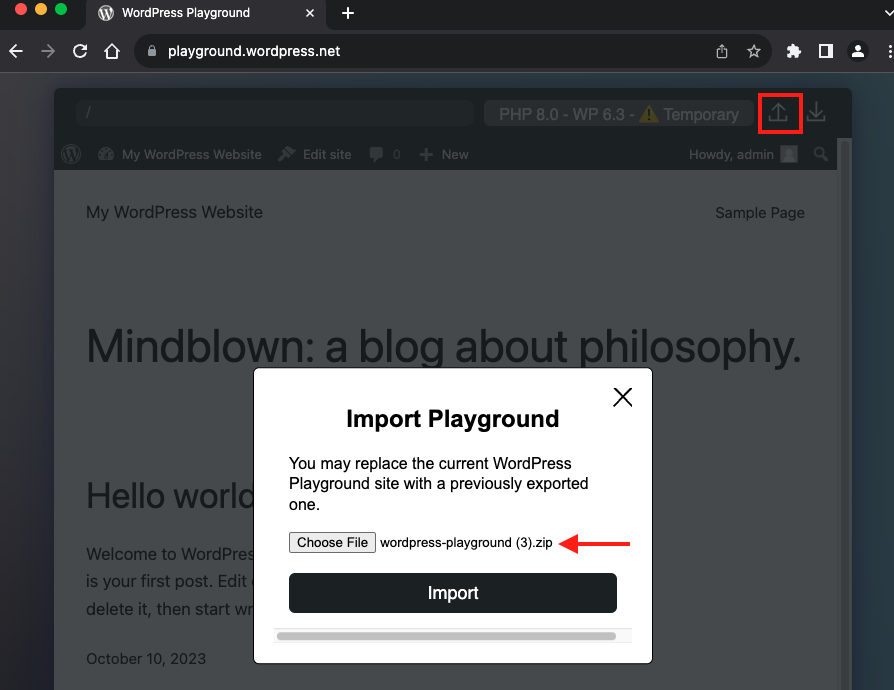
Importing works in reverse. In a new Playground instance, click the Upload icon and select the ZIP file you downloaded from the original site. The new instance replicates the exported environment exactly.
Because the export is a complete WordPress site, it can also be moved beyond Playground. You can take the exported files to a hosting provider, or commit them to a GitHub repository where production code lives, triggering a fresh build. In other words, Playground can serve as a development sandbox that ships to staging or production when ready.
In other words, it's possible to use Playground as a testing ground for development and then ship it to a production or staging environment when ready. Similarly, the exported files can be committed to a GitHub repo where your production files are, and that triggers a fresh build in production. However you choose to roll!
Sharing Playground Configurations
WordPress has never been particularly portable — anyone who has migrated a site knows the pain. Playground changes that dynamic, opening up fresh ways to share work with others.
The Query API
The Query API is the simplest sharing mechanism: append parameters to a playground.wordpress.net URL and share the link. Anyone who clicks it gets a site spun up with everything you specified. For example, this URL shares the Blue Note theme configured with the Gutenberg plugin:
https://playground.wordpress.net/?plugin=gutenberg&theme=blue-note
You can even link directly to specific screens. This URL opens the post editor:
https://playground.wordpress.net/?plugin=gutenberg&theme=blue-note&url=/wp-admin/post-new.php
And this one takes a visitor straight to a theme's templates in the Site Editor:
https://playground.wordpress.net/?plugin=gutenberg&theme=blue-note&url=/wp-admin/site-editor.php?path=%2Fwp_template
The documentation lists many more parameters than covered here.
Embedded iFrames
Playground instances can be embedded in other pages via iframe. A prime example is the WordPress Playground developer page, which runs an embedded instance directly on the page. When you spin up a new Playground instance, you are effectively running an iframe within an iframe.
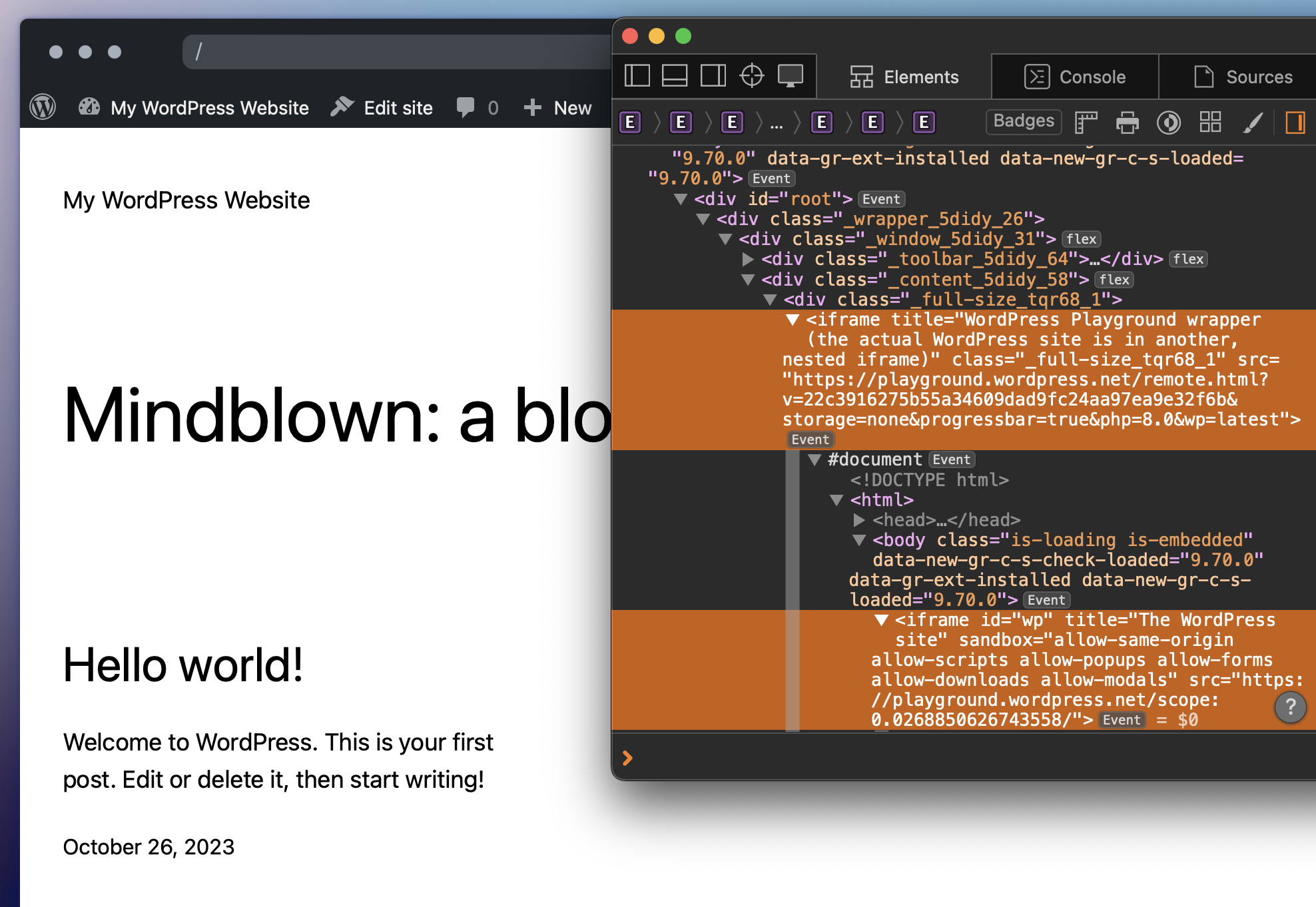
Say you want to embed a site with the Pendant theme and the Gutenberg plugin:
<iframe width="800" height="650" src="https://playground.wordpress.net/?plugin=gutenberg&theme=pendant&mode=seamless" allowfullscreen></iframe>
This is simply dropping the same source URL into an iframe element in HTML — the instance renders on the page instead of in a separate browser tab. You can even add a Custom HTML Block on a production WordPress site and embed a Playground instance there:
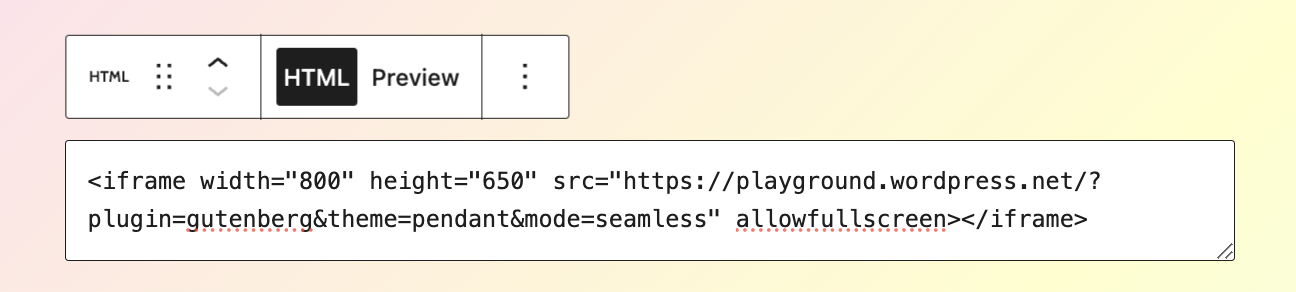
The advantage here is that the instance is effectively preserved and always accessible. Data won't persist on refresh, but the URL is a permanent preview of the configured site on a page you host.
One consideration: Playground can be self-hosted. If the hosted API at playground.wordpress.net gets overloaded as adoption grows, those instances could break or new ones could be blocked. Self-hosting Playground is a path worth considering for developers and agencies that want to provide demo work to clients — a topic substantial enough for its own article. The documentation lists all available Query API parameters.
JSON Blueprints
Beyond URL parameters, Playground accepts structured configuration data. The Playground website itself exposes its JSON configuration at playground.wordpress.net/blueprint-schema.json. You can configure a site without writing code, then share the file so others can sync their environment.
Here is an example blueprint pulled from the Playground docs:
{
  "$schema": "https://playground.wordpress.net/blueprint-schema.json",
  "landingPage": "/wp-admin/",
  "preferredVersions": {
    "php": "8.0",
    "wp": "latest"
   },
  "steps": [{
    "step": "login",
    "username": "admin",
    "password": "password"
  }]
}
This file can be sent to a colleague to clone your working site, or used in a self-hosted context where others pull it into their own blueprint. Structured data can also be written as URL fragments instead of a separate file, though that approach becomes unwieldy quickly:
https://playground.wordpress.net/#{"preferredVersions": {"php":"7.4", "wp":"5.9"}}
It may not be the most practical route, but it shows the Playground team is thinking through every possible way to port WordPress.
Full Control With the JavaScript API
URL parameters and blueprints cover a lot of ground, but the JavaScript API offers complete control. It can execute PHP code, make requests, manage files and directories, and configure WordPress parts that no other approach touches — including theme and plugin preinstallation, prepublished content, and php.ini memory limits.
The JavaScript API runs inside an iframe and relies on the @wp-playground/client npm package. The Playground docs' "Quick Start" guide shows a minimal integration:
<iframe id="wp" style="width: 100%; height: 300px; border: 1px solid #000;"></iframe>

<script type="module">
  // Use unpkg for convenience
  import { startPlaygroundWeb } from 'https://unpkg.com/@wp-playground/client/index.js';

  const client = await startPlaygroundWeb({
    iframe: document.getElementById('wp'),
    remoteUrl: `https://playground.wordpress.net/remote.html`,
  });
  // Let's wait until Playground is fully loaded
  await client.isReady();
</script>
That example is deliberately simple. The docs also demonstrate using JavaScript to execute PHP code from a specific file path:
php.writeFile(
  "/www/index.php",
  `<?php echo "Hello world!";"`
);
const result = await php.run({
  scriptPath: "/www/index.php"
});
// result.text === "Hello world!"
Adam Zieliński and Thomas Nattestad published a more elaborate, well-commented example with multiple tasks over at web.dev:
import {
  connectPlayground,
  login,
  connectPlayground,
} from '@wp-playground/client';

const client = await connectPlayground(
  document.getElementById('wp'), // An iframe
  { loadRemote: 'https://playground.wordpress.net/remote.html' },
);
await client.isReady();

// Login the user as admin and go to the post editor:
await login(client, 'admin', 'password');
await client.goTo('/wp-admin/post-new.php');

// Run arbitrary PHP code:
await client.run({ code: '<?php echo "Hi!"; ?>' });

// Install a plugin:
const plugin = await fetchZipFile();
await installPlugin(client, plugin);
Advanced JavaScript API usage is yet another area that merits deeper exploration than this article can provide.
Known Limits of the Current Playground
As capable as Playground is, it is not without its constraints. The team has openly documented several limitations that affect how and where you can use it today.
- No access to plugin and theme directories. Because each Playground is a self-contained virtual environment rather than a connected browser session, it cannot reach the official WordPress.org plugin or theme repositories. You cannot browse or install from those directories inside a Playground instance.
- Instances do not survive a refresh. All data is held in a temporary, browser-based database. Refreshing the page wipes uploads, settings, and content. The export feature remains the only way to preserve work; it downloads a zipped archive of the entire instance. The team is tracking this as an open issue.
- iFrame and anchor link quirks. When a Playground is embedded via
iframe, clicking certain links inside the instance can cause the parent page to reload, thereby resetting the embedded session. - Rendering issues in certain iFrame setups. If the
iframe’ssrcattribute is set to a blobbed URL rather than an HTTP URL, assets such as CSS and images may fail to load. Reports of this behavior are documented in issue #646.
A Look Ahead
Playground remains an evolving platform, and the project is actively seeking feedback. Feature requests can be filed as pull requests, and bugs can be reported as issues on the official GitHub repository. Ongoing discussions about direction and use cases are open to the community.
The project’s creator, Adam Zieliński, has already demonstrated one of the most promising applications: a tool that uses Playground to preview GitHub pull requests for WordPress core within the browser. This moves beyond simple theme and plugin testing and points to a future where WordPress development itself becomes more fluid.
WordPress has historically lagged behind static site generators and headless setups when it comes to developer experience. With its instant spin-up, portability, and embedded preview capabilities, Playground is positioned to close some of that gap.
Further Reading
- WordPress Playground Resources (WordPress Developer Resources)
- WordPress Playground for VS Code
- Exploring the Future of Web Development with WebAssembly and PHP
- Build In-browser WordPress Experiences with WordPress Playground and WebAssembly
- WordPress Playground Lets You Run WordPress Entirely in Your Browser
- Preview WordPress Core Pull Requests with Playground



