
Remote Work Can Remove Barriers — or Create New Ones
For many people with disabilities, working from home eliminates obstacles that are part of daily office life. No more relying on paratransit or expensive ride-share services. No more navigating a building that isn't truly accessible. You can attend to medical needs — running a nebulizer or using an IV — without disrupting a meeting or drawing attention in a shared workspace.
But the tools we rely on for remote collaboration can introduce barriers of their own. A person with a severe disability may find themselves shut out of meetings entirely if the software isn't built with assistive technologies in mind. That's not just frustrating for the individual — it can create significant legal liability for an employer.
"When people with disabilities are excluded because a product is inaccessible, it's not only frustrating, but it [also] affects our colleagues and clients that work with us."
— Lynette Frison, screen reader user
The common mistake when setting up large meetings or online events is assuming everyone attending will be fully able to participate. Unless you know each participant's ability level — as you might with your immediate co-workers — you should ask whether anyone needs accommodations. Assume someone may have difficulty seeing, hearing, or working a mouse.
Why Zoom Leads Among Assistive Technology Users
Ask anyone in the disability community which video conferencing tool they prefer, and the answer will almost certainly be Zoom. The app has built a reputation for consistently high accessibility. In a survey by Fable, an accessibility testing firm that recruits testers with various disabilities, 92% named Zoom as their tool of choice.
Accessibility in this context means the app's functionality works for everyone, including those using screen readers, magnification software, and captions. Most developers don't thoroughly test their applications for compatibility with assistive technologies. Even the simple act of joining a meeting can be a roadblock if the app wasn't developed with accessibility in mind. Unnecessary preference dialogs upon entering a meeting can prevent a blind user operating a screen reader from attending. Zoom, by contrast, lets a participant click a link in an email and join immediately. "You follow the link and that's it," says Eric Barrette, director of technology for the Lighthouse of Broward, an organization serving blind and visually impaired people.
The simplicity of Zoom's one-click sign-on hides the depth underneath. Zoom's product philosophy favors universal design — one application servees all user types rather than separate apps for different needs. The result is an interface that's easy to learn for first-time users, with layers of additional features for power users who invest the time.
Hosting Accessibly
Video conferencing apps typically define three user roles: host, presenter, and participant. Names vary by app, but the functions are standard. A host manages permissions and acts as master of ceremonies; a presenter speaks or shares their screen. Hosting carries the most functionality and demands the deepest knowledge of the application — making it the hardest role to support accessibly. Zoom handles this well enough that Jonathan Mosen, a blind podcaster from New Zealand, has produced an in-depth audiobook called Meet me Accessibly that teaches blind users everything from hosting meetings and screen sharing to installation and settings optimization.
Deep Settings, Complex Defaults
Zoom lets users tailor the experience through extensive settings menus. The Lighthouse of Broward takes advantage of this by maintaining two accounts — one configured for blind users, another with different settings for low-vision users.
The sheer number of options is notable: 70 settings in the desktop client and another 95 in the web-based advanced settings interface. With 165 settings total, getting defaults right is a challenge, and Zoom has stumbled. The security issues that plagued the platform largely stemmed from overly permissive defaults — meetings that didn't require passwords, for instance, or the reuse of personal meeting room IDs for convenience.
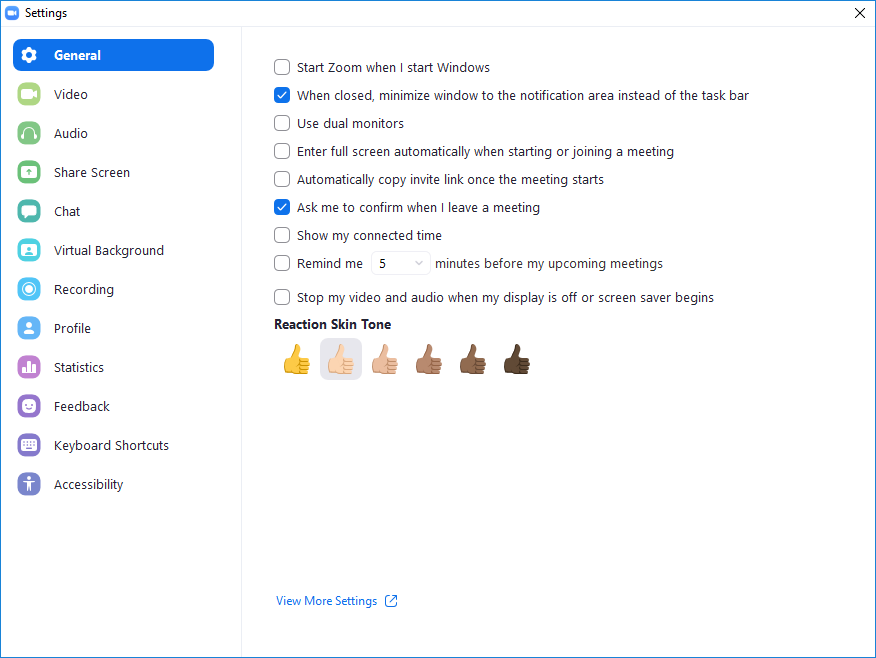
One limitation remains: Zoom doesn't yet allow settings to be saved offline or shared. In an ideal world, experienced users in the disability community could create settings profiles tailored to specific disabilities and share them with those less familiar with the application's options.
Chat Apps and Their Video Capabilities
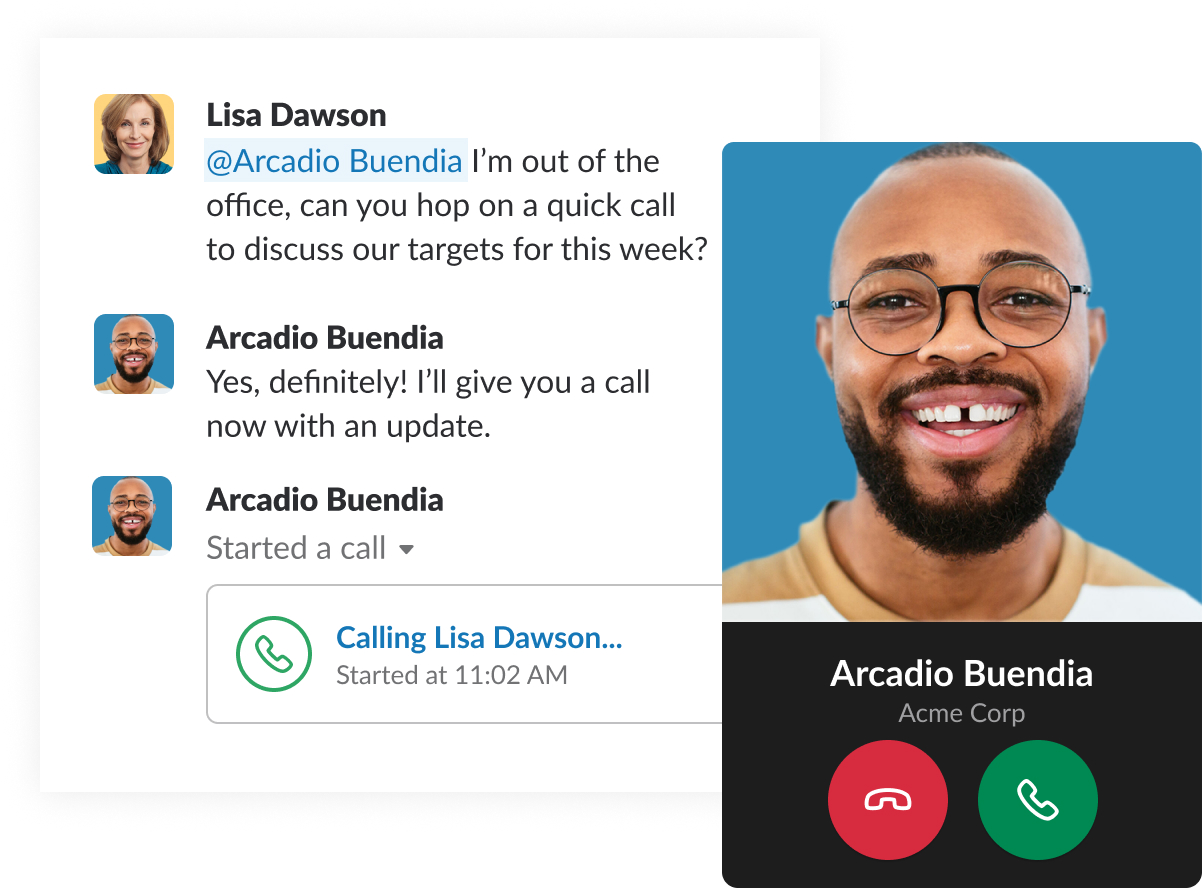
Work chat platforms such as Slack and Microsoft Teams now double as video calling tools for many teams. Slack's interface uses large, bold buttons and resizable text, which benefits users with moderate low vision. However, screen reader users and those with more serious vision impairments may struggle with Slack, particularly when trying to keep track of which community they are in while the interface is magnified.
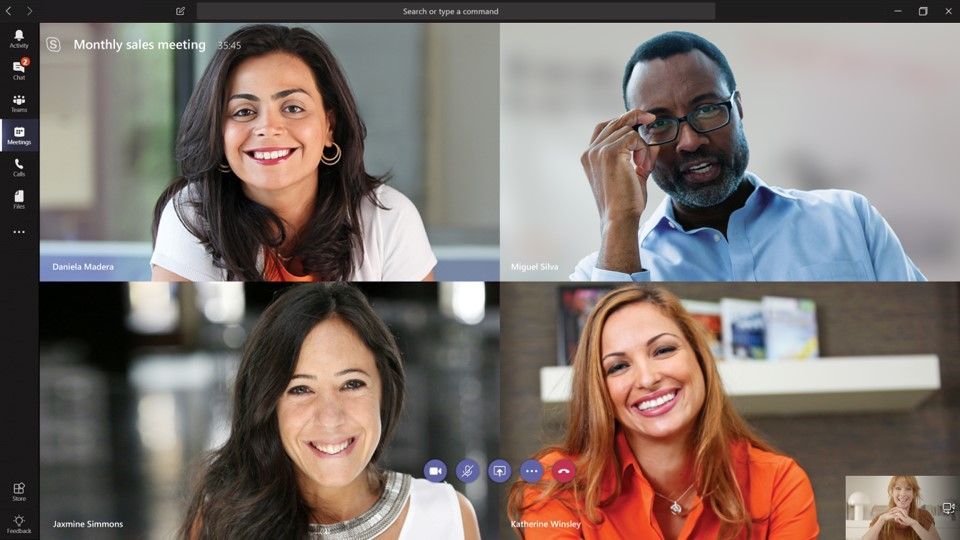
Microsoft Teams, available with Office 365 Enterprise licenses, integrates tightly with other Office applications for calendaring and file sharing. Its video calls can host hundreds of participants, and the application is generally favored over Slack by many blind and low-vision users.
One-to-One Calls and Sign Language
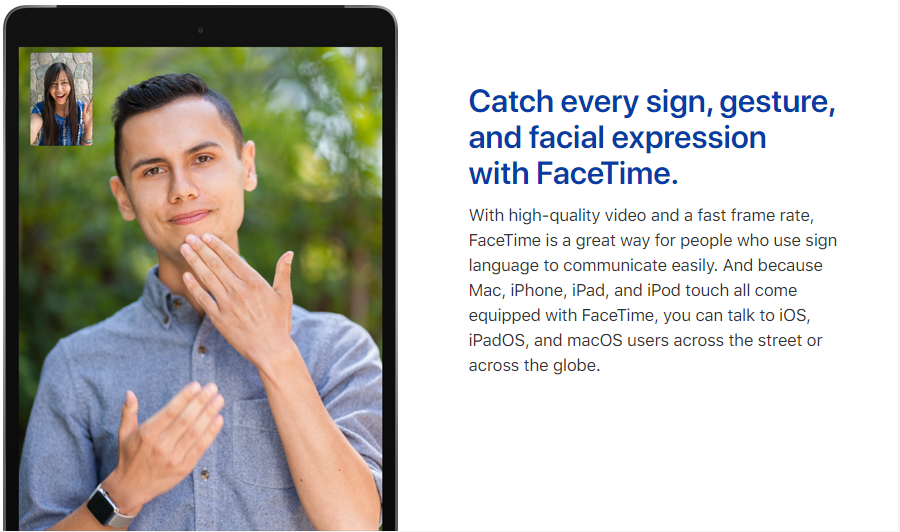
Different scenarios call for different tools. For job interviews, it is critical to know in advance whether a candidate needs accommodations or cannot use the chosen platform; failing to provide an alternative could lead to a discrimination lawsuit. One-to-one video calls with apps like FaceTime suit therapists and independent healthcare providers well. They are also an excellent option for participants who communicate using sign language, as Apple's accessibility website demonstrates.
The State of Automatic Captions
When participants do not share a sign language, hard-of-hearing users benefit from automatic captions. Google Meet offers this feature, activated through a simple menu selection in the bottom right corner. Captions appear only on devices where they have been enabled, so they do not distract other attendees.
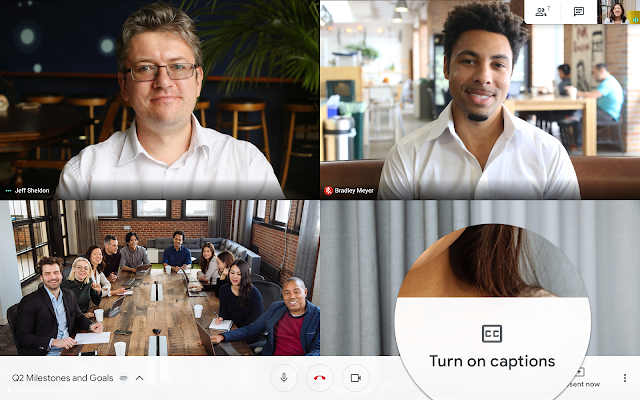
Captions serve as a lifeline for deaf and hard-of-hearing participants, as well as those who must keep audio off or are in noisy environments. Non-native speakers also benefit. Auto-captions work reasonably for native speakers of American or Australian English, though occasional homonym errors occur, such as "meat" versus "meet." Accuracy drops significantly for speakers with strong accents or speech impairments.
How accurate must captions be? Kristina England, an accessibility expert at the University of Massachusetts, notes that in higher education institutions, accommodation requests require 99% accurate captions. Below 90% accuracy, auto-captions become a serious annoyance, earning the nickname "craptions" within the disability community. Because of this, it is essential to choose products that let users turn captions off on their end.
Presenters should avoid using auto-captions in PowerPoint or Google Slides during remote presentations. These captions become part of the video stream and cannot be disabled by attendees. If the presentation is recorded, the inaccurate captions become an permanent part of the file. These tools only transcribe the presenter's audio, missing everything spoken by other participants.
Before the pandemic, Zoom planned to launch Live Transcription, an automatic captioning feature powered by Otter.ai, in its Enterprise plan. The 30-fold growth in new accounts forced Zoom to delay the release to avoid overtaxing its infrastructure. In the meantime, the same functionality remains available by running Otter.ai through Zoom's API for third-party captioning, but that requires an Otter for Teams account with a minimum of three users at $30 per month each.
For large public events or conferences, relying on auto-captions is risky. Hiring a live human captioner is the safer choice. On Zoom, this approach has an added benefit: participants can scroll back through the captions and review any parts they missed.
Webex: Mixed Support
Webex holds significant market share in large enterprises, largely due to its integration with Cisco's on-site video conferencing equipment. The Webex Productivity Tools package binds it tightly to Microsoft Outlook. This combination offers mixed accessibility.
For sighted and low-vision users comfortable with a mouse, Webex integrations work well. However, the pop-up dialogs that confirm audio and video choices upon entering a meeting cannot be operated without a pointing device. Outlook's Calendar and Meeting interfaces also lack keyboard access, blocking those who cannot use a mouse.
Webex does not offer automatic captions for deaf and hard-of-hearing users, but it provides a media viewer window where a human captioner can type what the presenter says during a meeting. Customers with Network Based Recordings enabled also receive transcription services for recorded meetings.
Webex's visual design serves low-vision users well. "The text in Webex is easy to see visually and works well when utilizing screen magnification software. The settings in Webex are intuitive and easy to figure out," says Elizabeth Novak, a tester with Fable. But for blind users relying on screen readers, Webex poses many barriers. Interface elements often have confusing or missing labels, and some cannot be reached by keyboard.
This spotty screen reader support led to a lawsuit against Beacon Health Options in October 2019. A blind employee in Massachusetts sued her employer for failing to provide accessible alternatives like Zoom for Webex meetings used in virtual conferences and mandatory training. The case was still ongoing at the time of writing.
Digital accessibility lawsuits are rarely filed against software makers. They almost always target the organization that licenses and deploys the product, based on the reasoning that the organization should conduct due diligence when vetting software.
Evaluating Vendor Commitment
Given the lack of formal product studies and constant changes, choosing a platform demands careful research. Checking for an accessibility page or policy is a practical first step, since such pages usually appear in site footers. Companies meeting strict standards, such as Section 508 requirements for selling to government or higher education, publish Voluntary Product Accessibility Template (VPAT) statements. These documents provide detailed accessibility compliance information.
Zoom and Webex both publish extensive VPATs that classify support into four categories:
- Supports
- Supports With Exceptions
- Does Not Support
- Not Applicable
Anything other than "Supports" should be examined closely. A red flag is the absence of a posted policy, or search results for "accessibility" that return nothing related to disabilities or assistive technologies. Crowdcast falls into this category: its results for "access" relate to connectivity and security. Jitsi, an open-source project, has sparse accessibility resources despite its active developer community:

Developers seeking to make a large social impact may find Jitsi an inviting contribution target. Even accessible platforms can have spotty support for ancillary features like polling or Q&A. VPATs reveal which specific features are problematic, so avoiding these extras is wise when accessibility matters.
Building Accessibility Into Video Tools
Zoom treats accessibility as a core value, starting with CEO Eric Yuan. According to Alex Mooc, Zoom's accessibility lead, "that executive buy-in trickles down to every team leader, every platform. Every platform owner is accountable for these accessibility issues." Unlike most companies where accessibility oversight comes from a separate entity, Zoom embeds accessibility experts into every development team. Fast release cycles mean products are tested for accessibility during construction. New engineers are not expected to have accessibility expertise, but they must learn quickly from internal knowledge.
Zoom views accessibility as part of usability for all users, not an afterthought. Mooc explains that resolving issues for disabled users helps everyone, since someone with a disability is like a "canary in a coal mine." Zoom actively seeks feedback from the disability community, relying on relationships with institutions like the University of Washington. Mooc's research involves observing disabled users working in their own homes, though pandemic restrictions paused this fieldwork.
Live testing with disabled users is the best way to understand a product's accessibility. Fable Tech Labs uses Zoom for remote functional testing with participants who are blind, have low vision, or have mobility impairments. Such testing requires substantial skill and knowledge of assistive hardware, often leading to complex workarounds with multiple devices and video feeds. A mixer-board-style product to handle multiple feeds remotely would help, but it is not on Zoom's roadmap.
Growth, Security, and Speed of Change
Zoom and Google Meet each grew from 10 million to over 300 million daily participants in just a few months. This rapid expansion attracted malicious users who exploited insecure meetings, a practice dubbed "zoom-bombing." The resulting news coverage raised security concerns, prompting some organizations, including Google and the New York City school system, to ban Zoom entirely. For many in the disability community, these bans meant replacing a usable although imperfect tool with less accessible alternatives.
"Security is very important, but there's no point trying to use an inaccessible tool no matter how secure it is."
— Erik Burggraaf, screen reader user
Zoom responded within weeks by tightening lax defaults in its 165 settings and changing the user experience. Users now bear responsibility for keeping apps, settings, and desktop clients updated. The pace of development has accelerated across the industry, with major Zoom releases arriving almost daily and Google making weekly product announcements. Users of any video conferencing software should update frequently or enable auto-updates, as accessibility fixes often arrive through routine updates.
Despite the challenges, the outlook is optimistic. As accessibility tester Shane puts it: "Accessibility is getting better each day within online communication tools. However, some still need work to be completely inclusive to all people."
Further Resources
- 3PlayMedia: The Ultimate Guide to Closed Captioning
- National Federation for the Blind: Blind Employee Sues Beacon Health Options, October 31, 2019
- Jonathan Mosen, "Meet me Accessibility" free audiobook
- iBestuur: How accessible are video conference tools? (Dutch)
- Hearing Like Me: A guide to group video calling apps for hearing loss
- The Big Hack: Best video conferencing apps and software for accessibility, April 8, 2020
- Denver University Zoom knowledgebase



