Quest 2 gets real browser-based apps
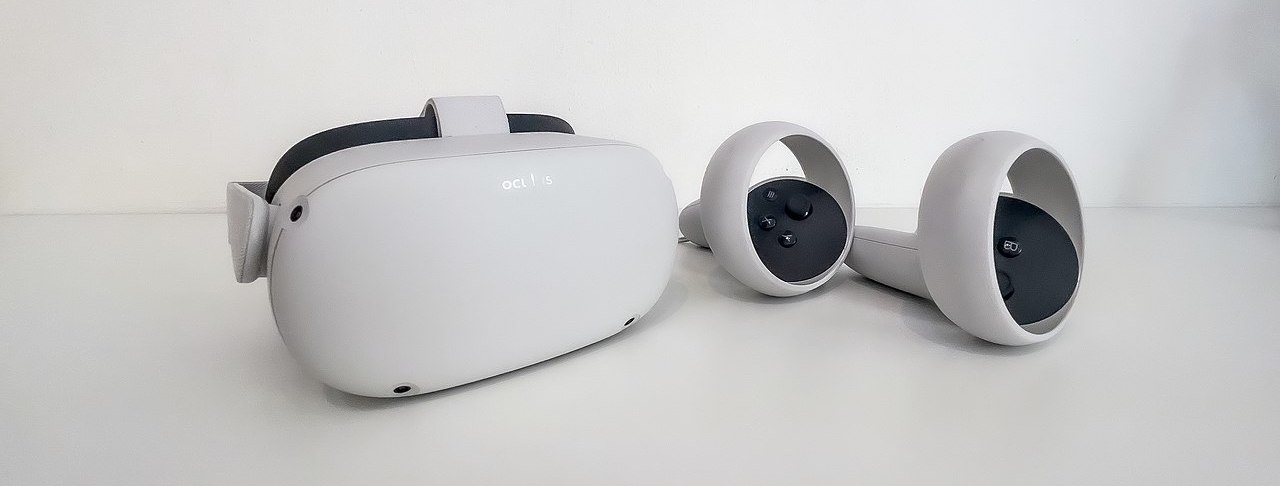
Meta's Oculus Quest 2 is a standalone VR headset built around a Qualcomm Snapdragon XR2 chipset with 6 GB of RAM, a fast-switch LCD panel running 1,832 × 1,920 pixels per eye at up to 120 Hz, and an Android-based operating system. While the device is primarily aimed at immersive VR content, developers can now ship traditional 2D and 3D Progressive Web Apps to it, taking advantage of the headset's multitasking capabilities. The built-in Oculus Browser, powered by Chromium, is the vehicle for this.
The Oculus Browser environment
Three browsers are available for Quest 2 today: Wolvic, its predecessor Firefox Reality, and the stock Oculus Browser. This last one is the focus here. Oculus describes it as supporting "the latest web standards," with a Chromium rendering engine that runs standard 2D sites while also exposing VR-oriented APIs through WebXR.
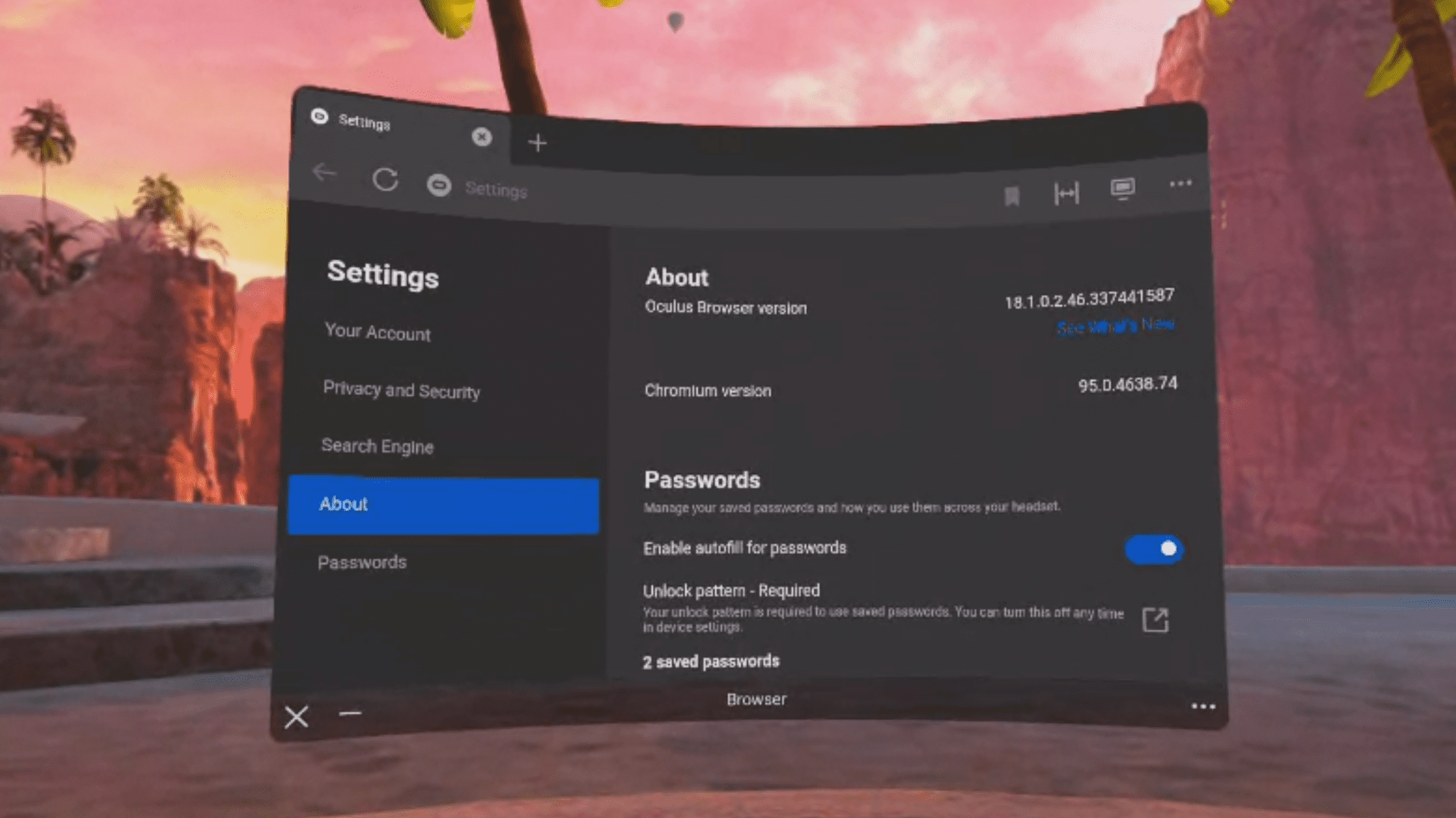
At the time of writing, the browser's user agent string is as follows.
Mozilla/5.0 (X11; Linux x86_64; Quest 2)
AppleWebKit/537.36 (KHTML, like Gecko)
OculusBrowser/18.1.0.2.46.337441587
SamsungBrowser/4.0
Chrome/95.0.4638.74
VR
Safari/537.36
The current release, version 18.1.0.2.46.337441587, sits on Chrome 95.0.4638.74, just one version behind the then-current stable Chrome 96.0.4664.110. Switching to mobile mode changes the user agent's VR token to Mobile VR.
The UI and display
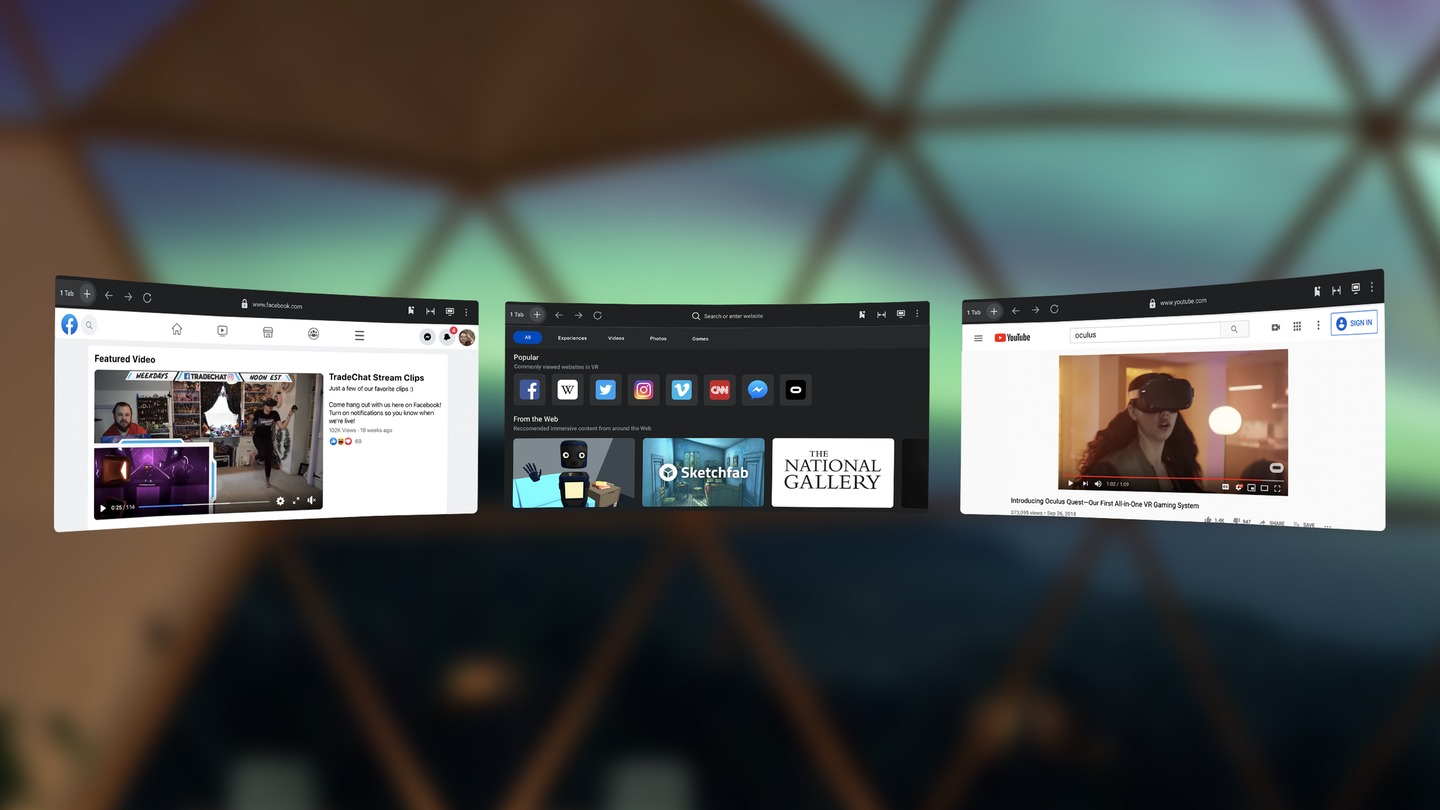
The browser interface offers familiar controls along the top row: back, reload, site information, URL bar, bookmark creation, a window resize control with narrow/medium/wide presets and zoom, a "request mobile site" toggle, and a menu leading to private mode, tab management, settings, bookmarks, downloads, history, and browsing-data controls. The bottom row holds close, minimize, and a three-dot menu with back, forward, and reload.
For Quest 2, the browser renders both ordinary 2D pages and WebXR content at a 90 Hz refresh rate. In fullscreen media playback, it adjusts the device refresh rate to the video's frame rate (for instance, 24 fps for film content). Text rendering makes use of a device pixel ratio of 1.5.
PWAs arrive on the headset
In late October 2021, Meta's Product Management Lead Jacob Rossi confirmed PWAs were heading to Oculus Quest and Quest 2. Since then, PWA support has been built into both Oculus Browser and the Oculus Store discovery flow.
Shared sessions and credentials
Login state carries over between Oculus Browser and installed PWAs, so users can hop back and forth without re-authenticating. Facebook Login works out of the box, and the browser's password manager shares saved credentials with installed app experiences.
Resizable windows
Both regular browser windows and standalone PWA windows support free resizing. Heights range from 625 px to 1,200 px, widths from 400 px to 2,000 px, and new windows default to 1,000 × 625 px.
Input and permissions
PWAs respond to the left and right Oculus controllers, Bluetooth mice and keyboards, and hand tracking. Scrolling is driven by the controllers' thumb sticks or by a pinch-and-move gesture; a point-and-pinch gesture maps to a selection click.
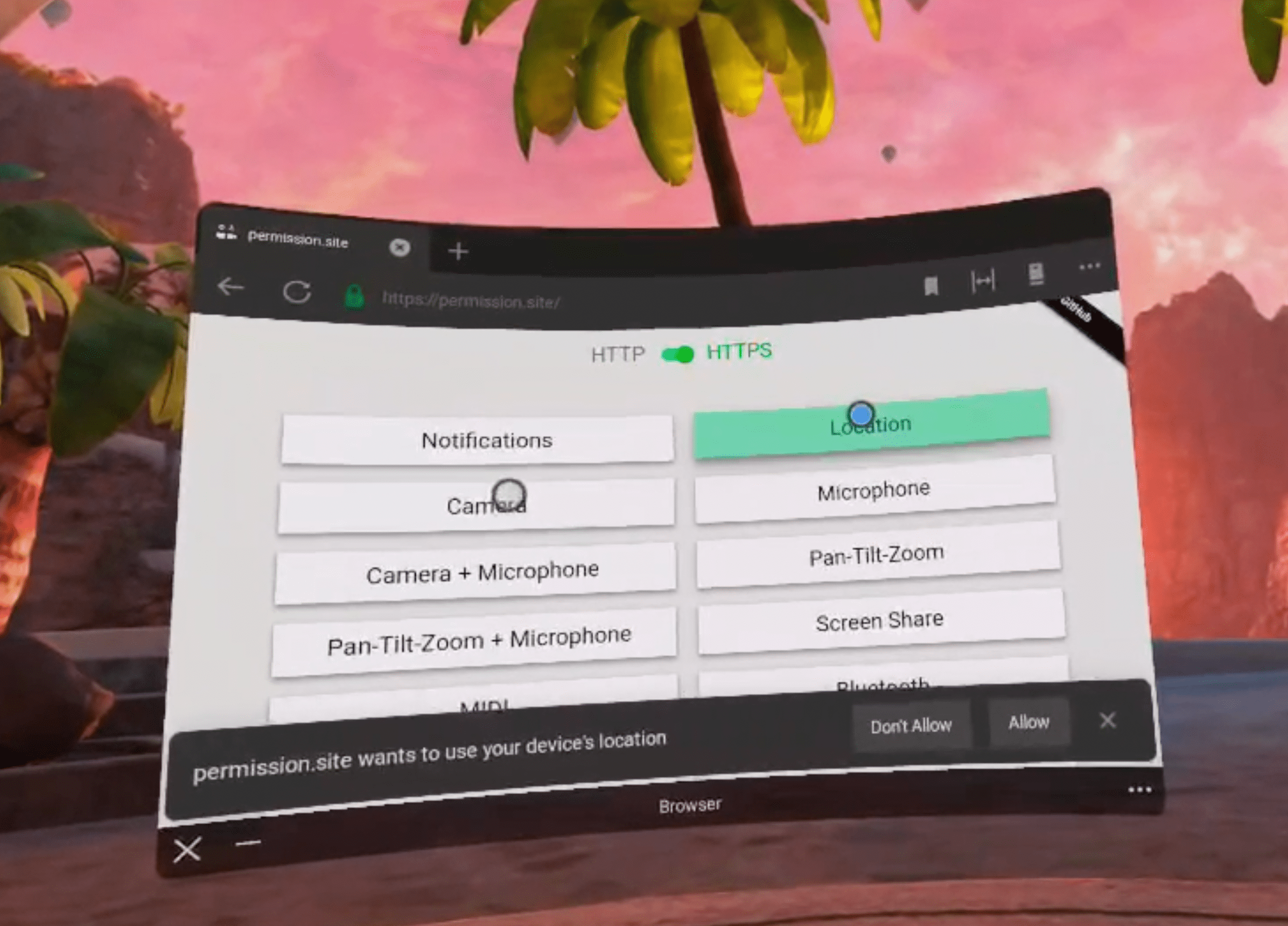
Permission handling mirrors Chrome's model, and, importantly, permission state is shared between browser tabs and installed PWAs, so granting something once avoids re-prompting after the user switches contexts. That said, not every permission maps to a working capability. Geolocation requests succeed, but the device never reports a real location. Hardware APIs including WebHID and Web Bluetooth pass feature detection but never surface a device picker, since the headset cannot pair with external hardware through these APIs today.
Remote debugging
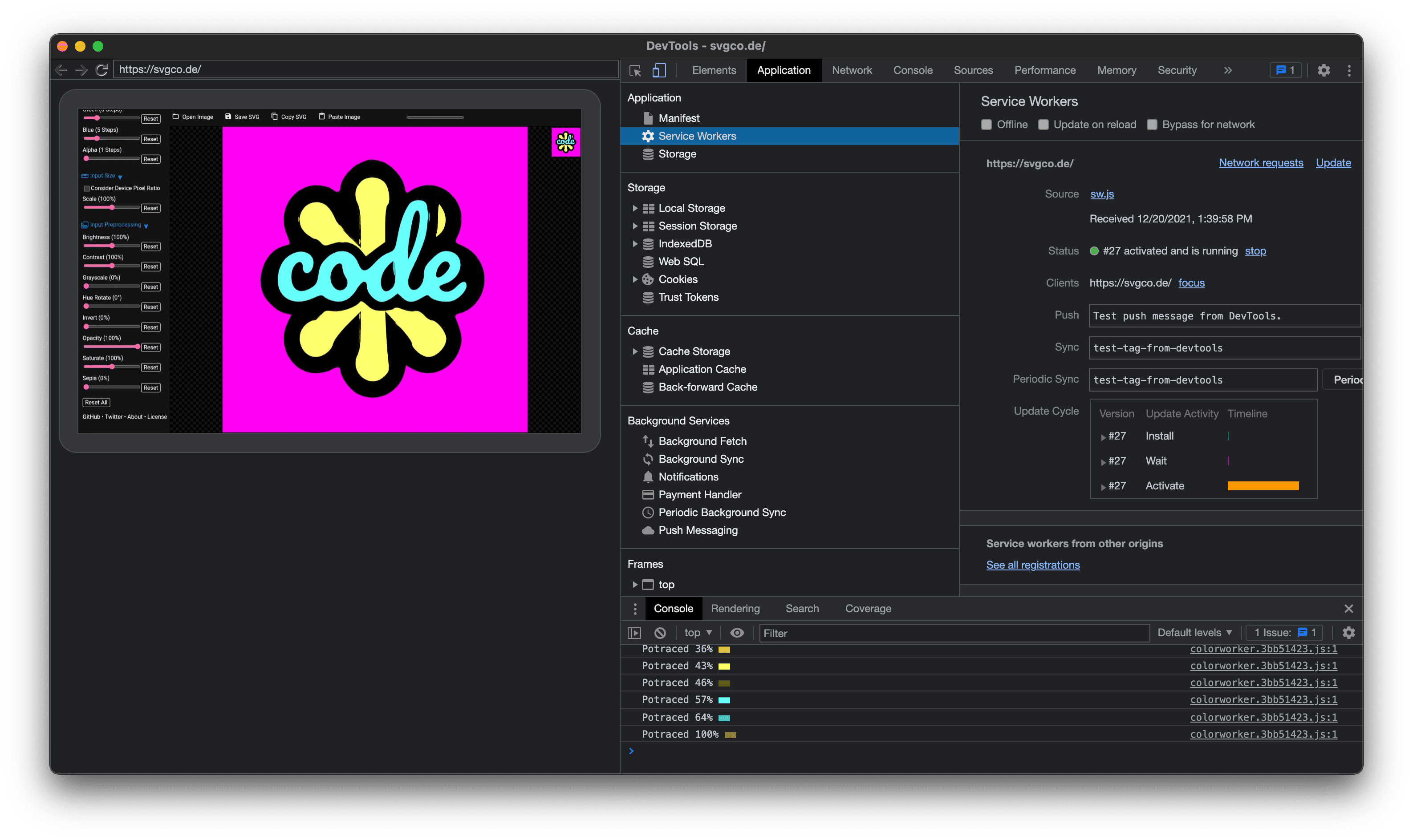
With Developer Mode enabled on the headset, debugging an Oculus Browser tab is the same as remote debugging any Android device:
- Open the target site in Oculus Browser on the device.
- On a desktop machine, open Google Chrome and go to
chrome://inspect/#devices. - Select the Oculus device; the list underneath shows the Oculus Browser tabs open on the headset.
- Click inspect on the tab you want to debug.
Discovery in the Oculus Store
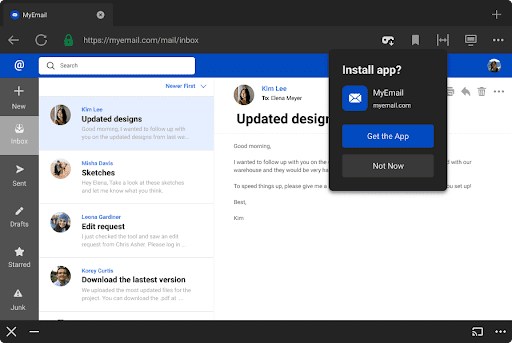
Users encounter PWAs through the browser itself or through the Oculus Store. As with any PWA, an installed app remains reachable as a plain website in a browser tab. But the Oculus Browser goes a step further: it actively surfaces an installed app only for sites available in the Oculus Store, and for users who already installed the app it offers a quick path to jump from the tab into the standalone window.
Early PWA examples on Quest 2
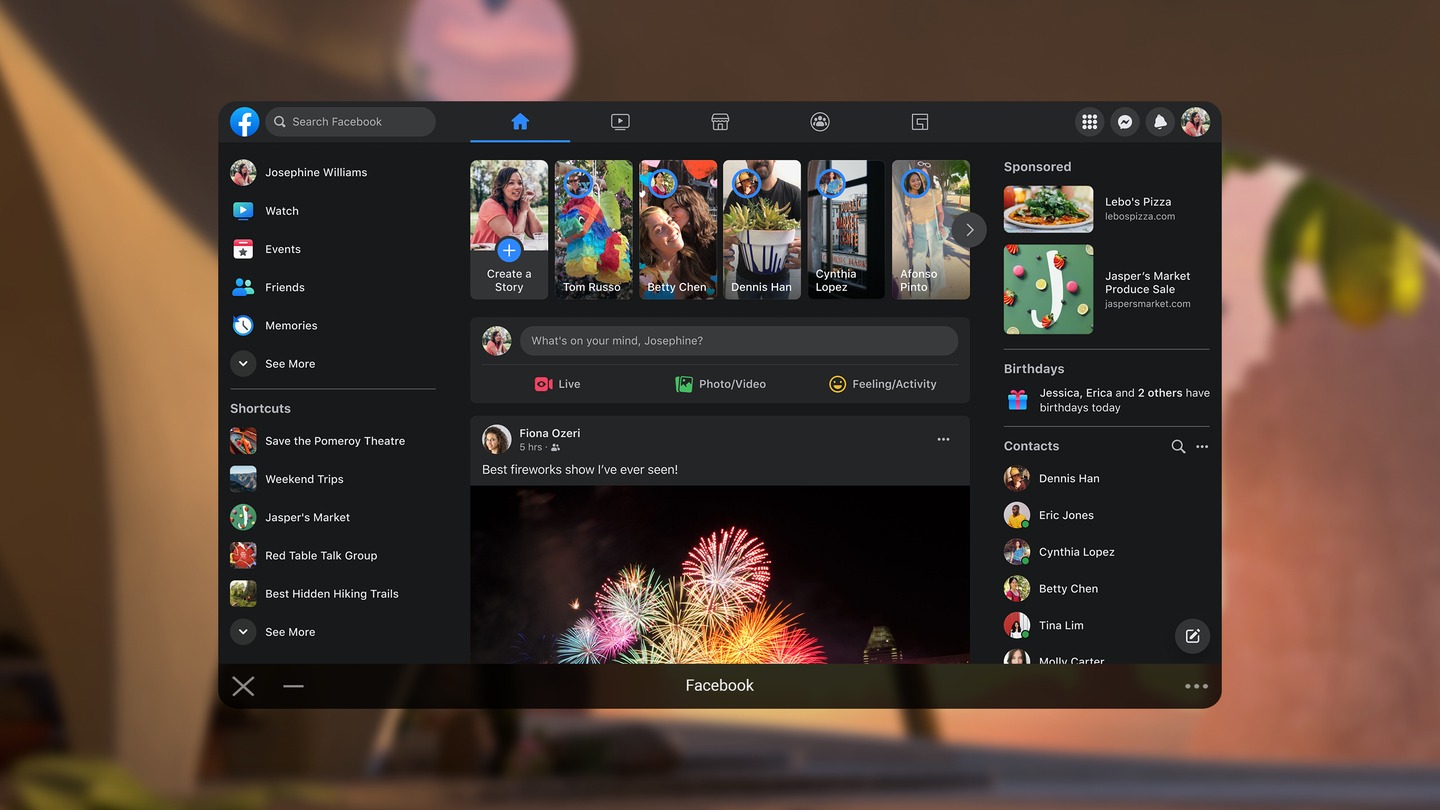
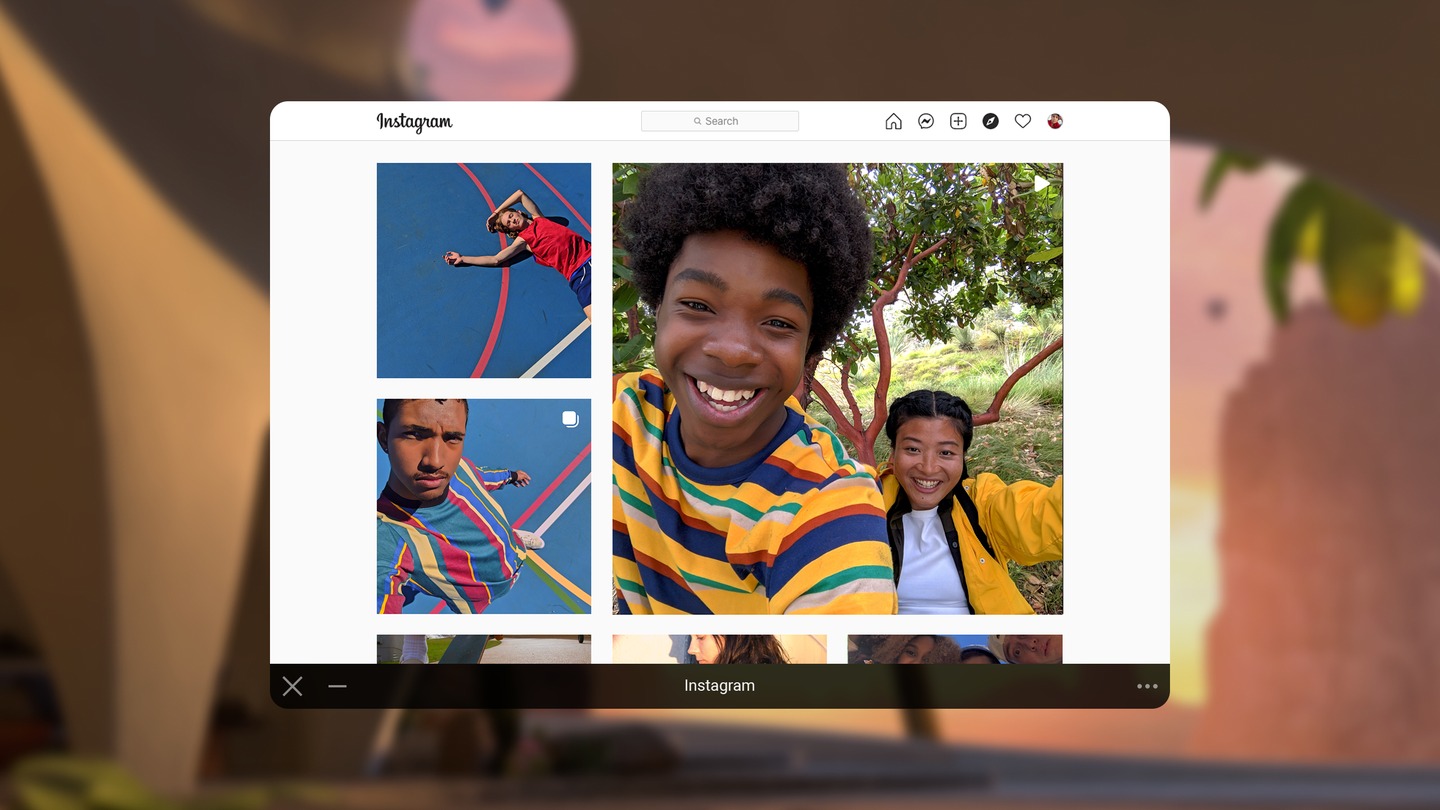
Meta's own divisions shipped some of the first PWAs for the headset. Both Instagram and Facebook run in standalone, URL-bar-free windows that users can resize at will.
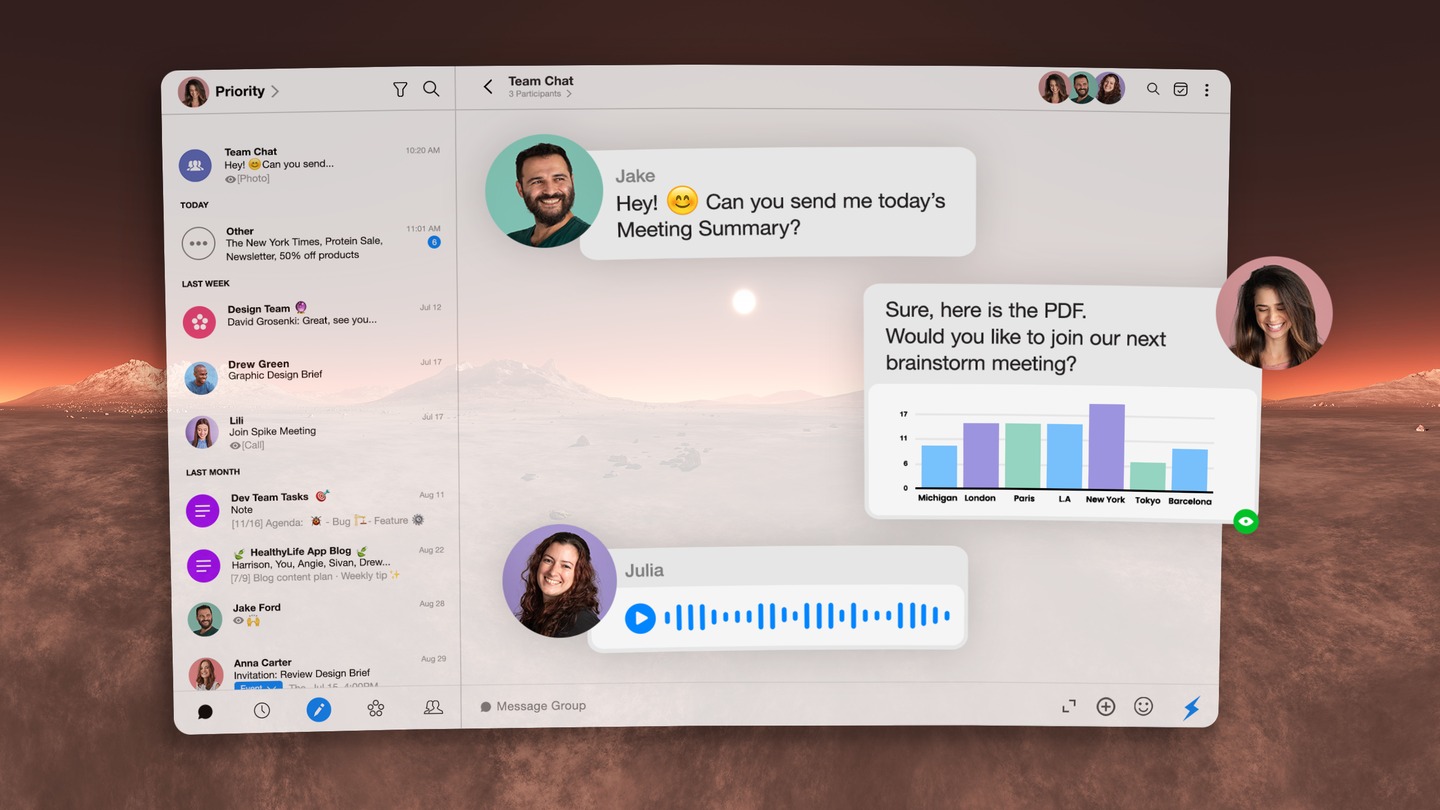
Third-party offerings remain few but growing. Spike brings email, chat, calls, notes, tasks, and to-dos into a virtual workspace hub. Smartsheet offers a dynamic workspace for project management, automated workflows, and rapid solution building.
More PWAs—including Slack, Dropbox, and Canva—were teased in a video from Meta's 2021 Connect conference. As the Oculus Browser and its PWA plumbing continue to mature, expect the line between installable web apps and native headset utilities to keep blurring.
Manifest Requirements on Oculus
Meta's documentation outlines the requirements for PWAs on Quest devices. Apps that are installable in Chrome will often work on Oculus out of the box, but there are differences from Chrome's installability criteria and the Web App Manifest spec. Notably, Oculus currently supports only left-to-right languages, and start_url—which Chrome strictly requires—is optional on Oculus.
Meta provides a command line tool that lets developers create PWAs for the Oculus Quest 2, allowing them to pass missing or override existing parameters in the Web App Manifest. Oculus also defines several optional proprietary manifest fields for customizing the PWA experience.
| Name | Description |
|---|---|
name |
(Required) The name of the PWA. Currently Oculus only supports left-to-right languages for the name. |
display |
(Required) Either "standalone" or "minimal-ui". Oculus currently doesn't support any other values. |
short_name |
(Required) A shorter version of the app name, if needed. |
scope |
(Optional) The URL or paths that should be considered as part of the app. |
start_url |
(Optional) The URL to show at app launch. |
| Name | Description |
|---|---|
ovr_package_name |
(Optional) Sets the package name of the APK generated for the PWA. This must be in reverse domain name notation, e.g., "com.company.app.pwa". If not set, developers must provide a package name to the command line tool with the (then required) parameter --package-name. |
ovr_multi_tab_enabled |
(Optional) If true, this boolean field will give the PWA a tab bar similar to Oculus Browser. In multi-tab PWAs, internal links that target a new tab (target="_new" or target="_blank") will open in new tabs within the PWA window. This differs from single-tab PWAs where such links would open to a Oculus Browser window. This feature is currently being standardized as Tabbed Application Mode. |
ovr_scope_extensions |
(Optional) Allows a PWA to include more web pages within the scope of the web application. It consists of a JSON dictionary containing extension URLs or wildcard patterns. This feature is currently being standardized as Scope Extensions for Web Apps. |
Packaging Options
Three primary toolchains can package a PWA for Meta Quest: Bubblewrap CLI, Oculus Platform Utility, and PWABuilder.
Bubblewrap CLI
Bubblewrap is an open source Node.js library and CLI developed by the Google Chrome team to generate, build, and sign Android projects that launch PWAs as Trusted Web Activities (TWAs). Meta Quest Browser doesn't fully support TWA, but starting with version 1.18.0, Bubblewrap supports packaging for Meta Quest devices. It can generate universal APK files that open a TWA on regular Android devices and the Meta Quest Browser on Quest devices.
Install the CLI with:
npm i -g @bubblewrap/cli
On first run, Bubblewrap offers to download Java Development Kit (JDK) and Android SDK Build Tools. To generate a Meta Quest compatible project, run init with the --metaquest flag:
bubblewrap init --manifest="https://your.web.app/manifest.json" --metaquest
Build and sign the generated project with:
bubblewrap build
The output file, app-release-signed.apk, installs on devices or can be published to the Meta Quest Store, Google Play Store, or other Android distribution platforms.
Oculus Platform Utility
The official Meta command line tool for Oculus Rift and Meta Quest publishing also packages PWAs via the create-pwa command. Set the output file name with -o, the Android SDK path with --android-sdk, and the live web app manifest URL with --web-manifest-url. If you don't have a live manifest or need to override it, use a local manifest file with --manifest-content-file.
To keep the manifest clean, prefer the --package-name parameter with reverse domain notation (for example, com.company.app.pwa) over adding the proprietary ovr_package_name field.
ovr-platform-util create-pwa -o output.apk --android-sdk ~/bin/android-10 --manifest-content-file manifest.json --package-name com.company.app.pwa
PWABuilder
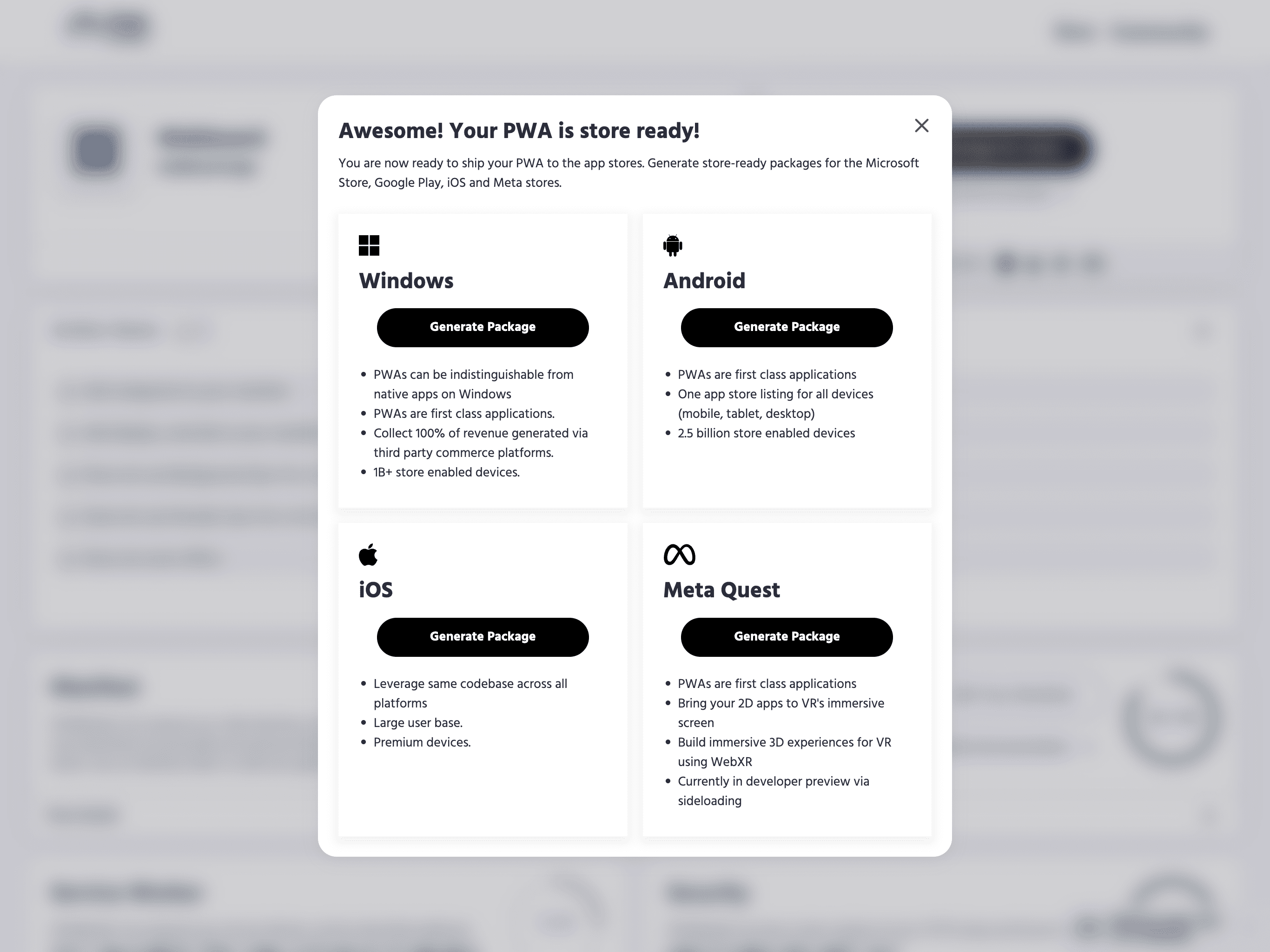
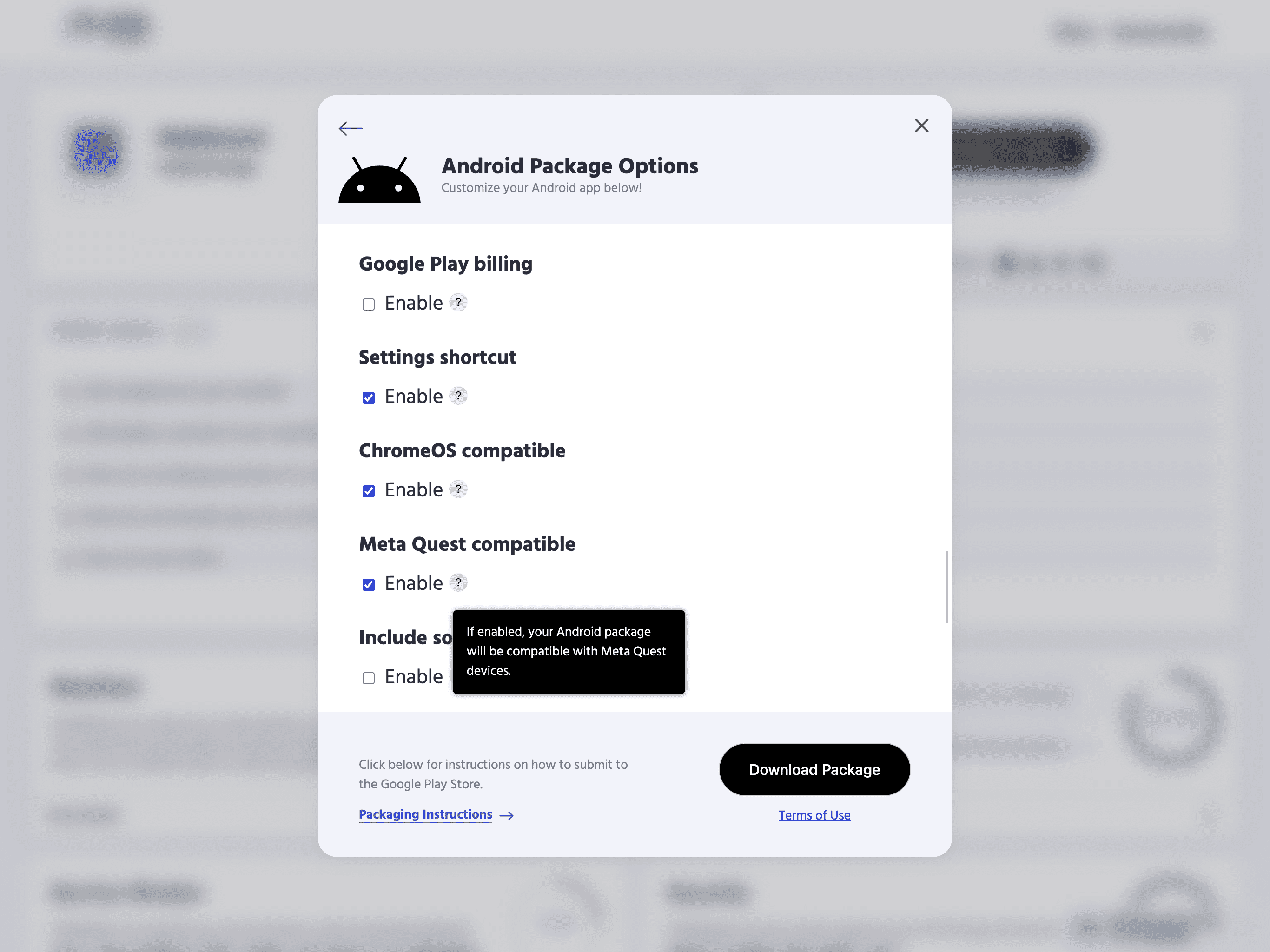
Microsoft's open source PWABuilder packages PWAs for various stores, including Microsoft Store, Google Play, App Store, and Meta Quest Store. Packaging involves entering the PWA URL, editing metadata, and clicking Generate. PWABuilder lets you choose the underlying tool: select Meta Quest to use Oculus Platform Utility, or select Android and check Meta Quest compatible to use Bubblewrap.
Sideloading and Distribution
Install the resulting APK on a Quest device via ADB over USB or Wi-Fi:
adb install app-release-signed.apk
Bubblewrap CLI provides a convenient alias for this:
bubblewrap install
Sideloaded apps appear under Unknown Sources in the app drawer. For broader distribution beyond the Oculus Store, platforms like SideQuest let developers reach consumers directly without store approval, suitable for early, experimental, or niche apps.
Testing Multi-Tab Behavior
To test how multi-tab PWAs behave, a test PWA demonstrates the various link features: opening a new in-PWA tab, staying on the current tab, opening a new browser window, and opening in a WebView while staying on the current tab. Create a locally installable copy by running:
ovr-platform-util create-pwa -o test.apk --android-skd ~/bin/android-10 --web-manifest-url https://tomayac.github.io/oculus-pwa-test/manifest.json --package-name com.example.pwa
adb install test.apk
Real-World Validation
An Oculus version of SVGcode, a file-conversion PWA, was built as a test. The resulting output.apk is available for download, along with build instructions in package.json. The app works well, including file open and save operations. The Oculus Browser lacks File System Access API support, but the fallback approach handles files correctly. The only non-functional feature was pinch-zooming, which should have worked by pressing the trigger button on both controllers and moving them in opposite directions. Everything else was performant and responsive.
Beyond Flat 2D
Immersive WebXR
PWA support extends to immersive 3D VR experiences via the WebXR API. Testing user agent prompts in VR shows that entering VR mode requires user permission, which is asked once per origin. Requesting permissions exits immersive mode, and notifications are not supported.
Hand Tracking
In immersive mode, hand interaction works through the WebXR Hand Input API combined with Meta's AI-based hand-tracking system.
Augmented and Mixed Reality
Meta Quest Browser supports WebXR Augmented Reality (also called Mixed Reality) on Quest 2 and Quest Pro. A slightly modified A-Frame starter example with scaled-down models and hidden sky and plane demonstrates AR. A-Frame is an open source framework for building 3D/VR/AR experiences from declarative, reusable custom HTML elements. Note that Quest 2's cameras are monochrome, so passthrough appears in grayscale; Quest Pro offers color.
Impressions and Outlook
PWAs on Oculus Quest 2 show real promise. The infinite virtual canvas, where users scale their screen to fit the task, has significant potential for changing how we work. Hand-tracking typing is still in its infancy and not fully reliable, but it suffices for URLs and short text.
The strongest aspect is that these are just regular PWAs—usable unchanged in a browser tab or through a thin APK wrapper, without platform-specific APIs. Targeting multiple platforms from the same codebase is now straightforward. The future of PWAs in VR and AR on the web is bright.


