Designing a Booking Experience That Actually Converts
For service-based businesses, the booking flow is often where revenue is won or lost. A clunky calendar, a long form, or a slow page can quietly push customers elsewhere. WordPress booking plugins remove the manual overhead of scheduling, but the real challenge is designing the booking widget itself so that it encourages completion rather than abandonment.
In this walkthrough, we focus on the design side of appointment and event booking with the Amelia WordPress booking plugin. Installation is straightforward, so the emphasis here is on structuring the customer-facing booking experience to make it as frictionless as possible.
Building a Booking Flow That Feels Effortless
The booking process should feel like a natural extension of your client's brand, not a third-party form bolted onto the site. A well-designed booking widget guides visitors through every step without requiring them to think about what comes next.
Amelia's shortcode-based system lets you place booking widgets anywhere on a WordPress page. Start with a clean layout: a two-column design where the left side holds the calendar and available time slots, and the right side collects customer details. This keeps the entire interaction on one screen, reducing the number of clicks and page loads required to secure a booking.
One effective approach is to limit the initial view to just the essential scheduling elements. Visitors first pick a service and a date. Only after they have made that selection should they be asked for their name, email, and phone number. This progressive disclosure prevents the form from feeling like a hurdle before the visitor has even committed to a time.
Cutting Down the Time-to-Booking
Every additional field or step in a booking process is an opportunity for a visitor to drop off. Review the fields you actually need and remove anything that isn't strictly necessary for confirming an appointment.
For many businesses, that means asking for a name and email address up front, with a phone number only when required for the service. The calendar should be the primary interactive element, with clear visual cues for available versus booked slots. Avoid requiring account creation or lengthy registration before a visitor can book; it is a major conversion killer for one-time or first-time customers.
Setting Expectations With Time Zones and Buffers
Misunderstandings around time are a common source of no-shows and cancellations. Make sure the booking widget displays times in the customer's local time zone. Amelia handles this at the system level, but confirm that the setting is enabled so that a customer in a different region doesn't miss an appointment due to a time zone mismatch.
Similarly, configure padding between appointments if your client needs a setup or travel buffer. This prevents a back-to-back schedule that creates stress and a poor experience for both the service provider and the client.
Booking Systems That Work: Building A Better Appointment Flow
Businesses that live by appointments — salons, clinics, agencies, real estate firms, even freelancers running discovery calls — all face the same scheduling grind: capturing contact details, finding a mutually agreeable slot, and chasing changes. The temptation is to drop that work on a third-party reservation platform. But those services carry subscription costs and, worse, list you beside competitors, making it just as easy for a prospect to drift to someone else as to book with you.
A WordPress booking plugin on the client's own site keeps the audience on the property. But embedding a shortcode is only the start. To get real results, the booking flow itself needs to be designed, extended, and automated properly.
Reeling In The Right Customers With Smarter Booking Design
For businesses with many services or staff — a spa or salon being the obvious example — a wide-open booking page forces visitors to sort through every option. That is a great way to lose them. This is where decision fatigue sets in. Fight it with a widget that narrows the field before the customer assigns pen to paper.

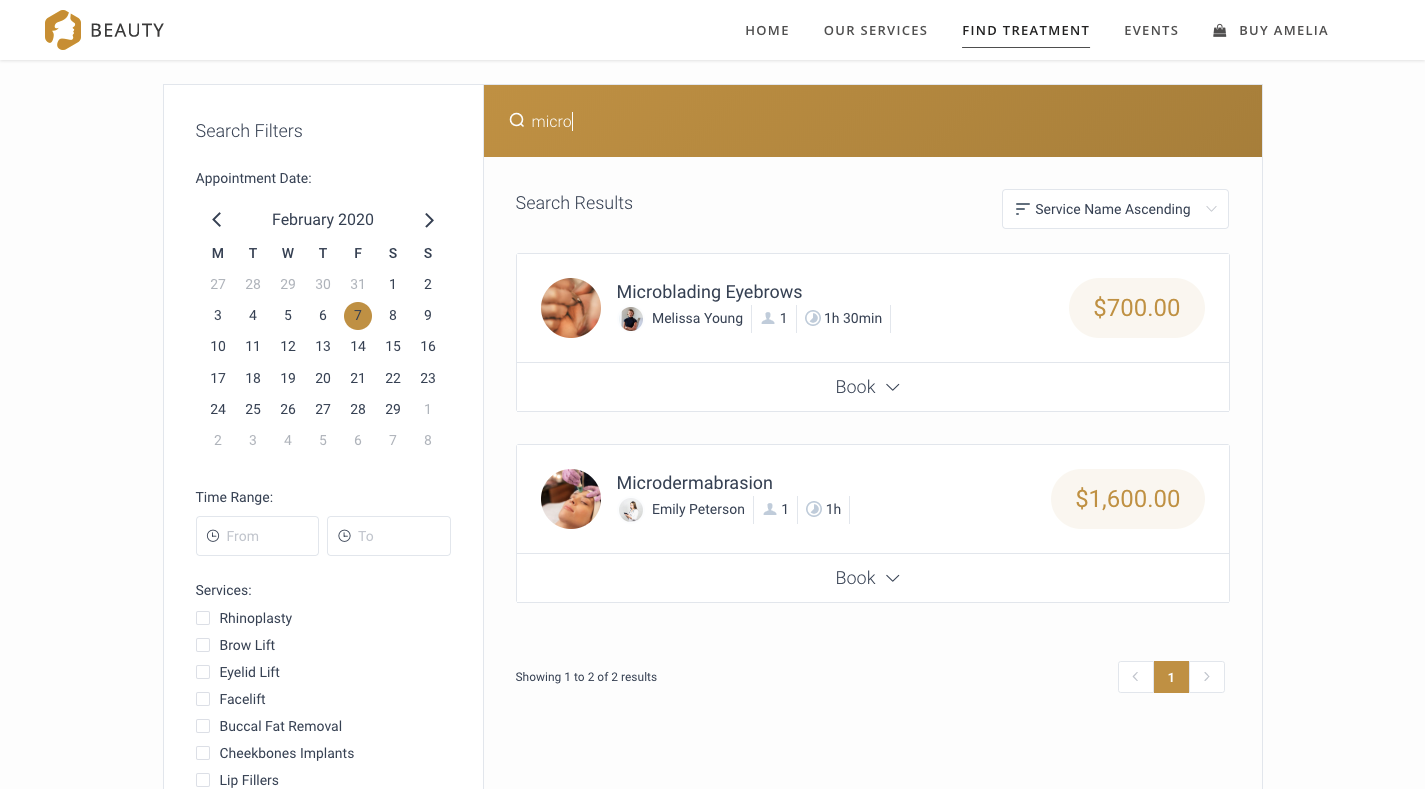
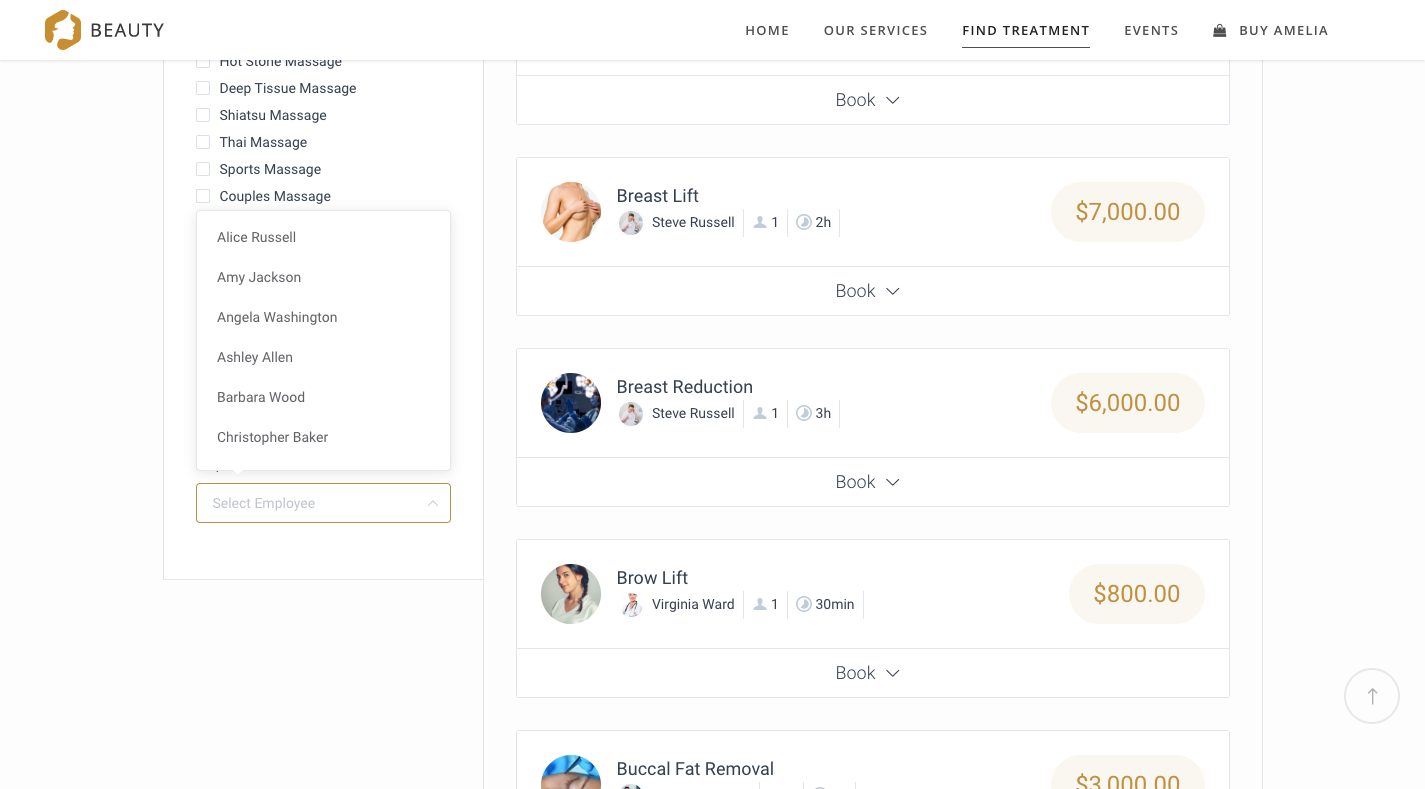
A simple search bar at the top of the widget allows visitors to type what they know. But the real workhorse is the sidebar filter. Pre-populated options remove the burden of remembering exact service names, which matters when a customer is not quite sure what they want. In the source example, filters exist for appointment date, time range, multiple selectable services, and specific employees — each instantly paring the options down to the feasible.
Giving the customer fewer, more relevant choices at each step makes the booking quick and painless, which speeds up the conversion.
Capture The Context Before The Meeting Starts
There is a lot of value in gathering useful documents before a session. Imagine a web design agency's discovery call. If the prospect can upload a style guide, a logo, even existing content when they book, the meeting starts from a position of knowledge rather than guesswork.
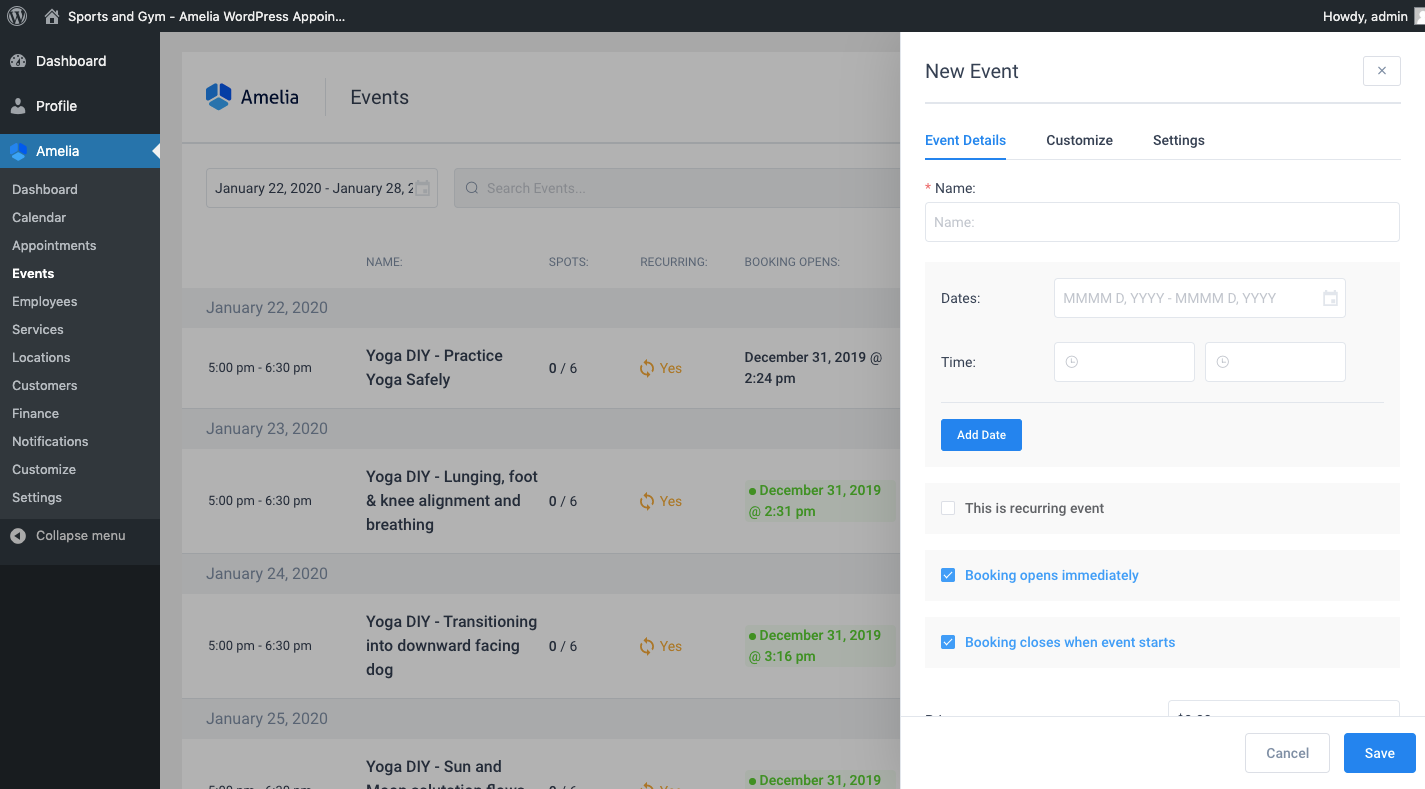
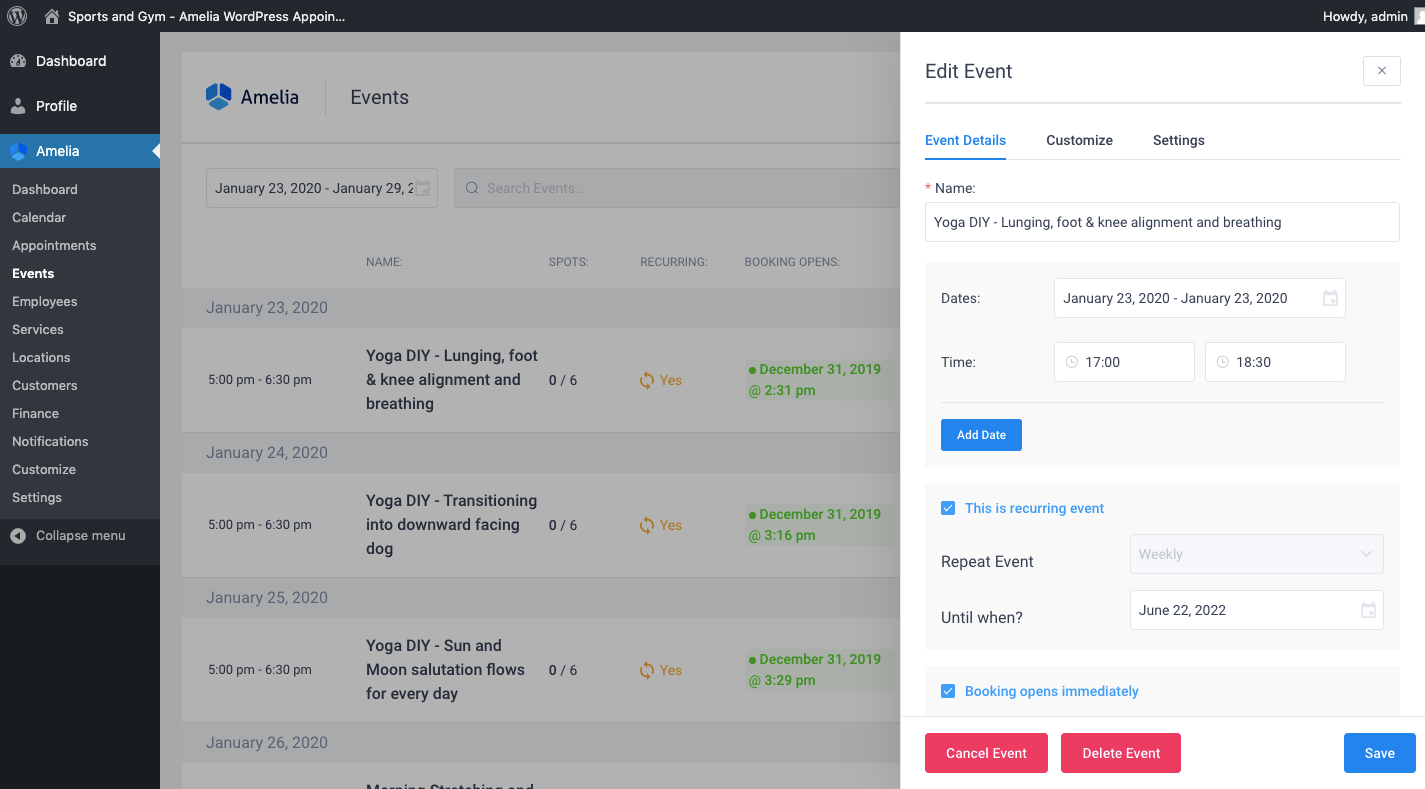
Amelia's default service and event settings control the essential logistics — event name, dates, recurring schedule, booking windows, and assigned staff:
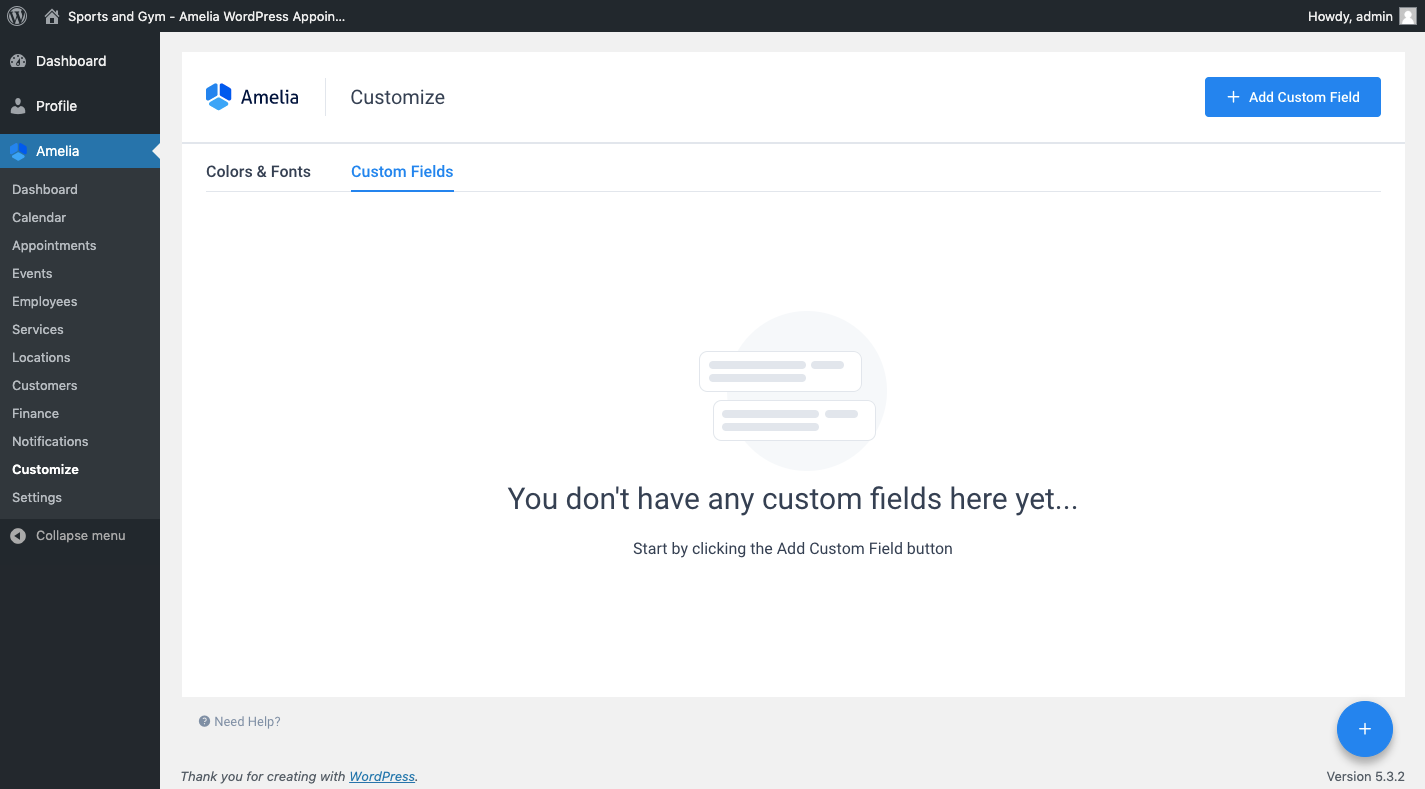
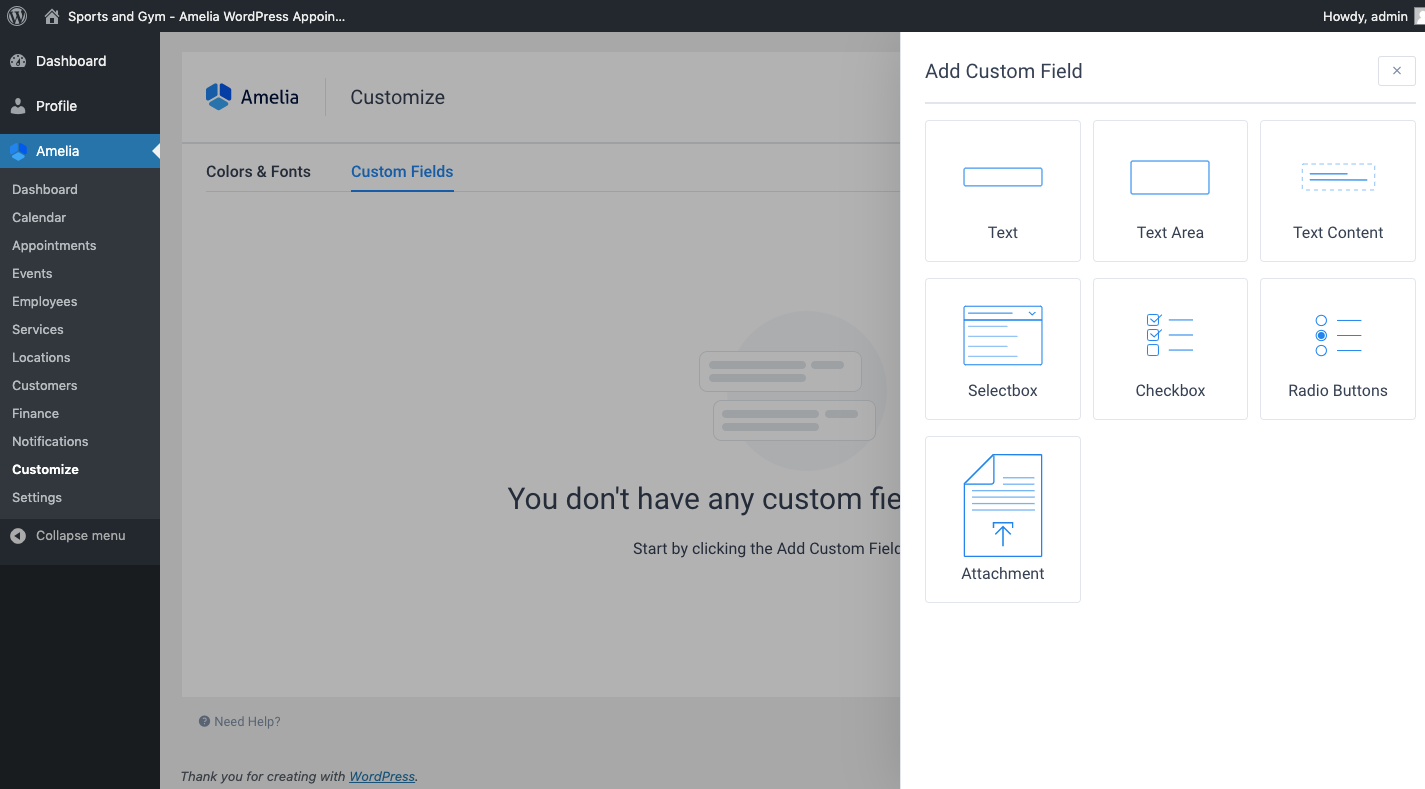
To let prospects upload documentation, head to the "Customize" tab and add a custom field. Choose the "Attachment" type from the field options:
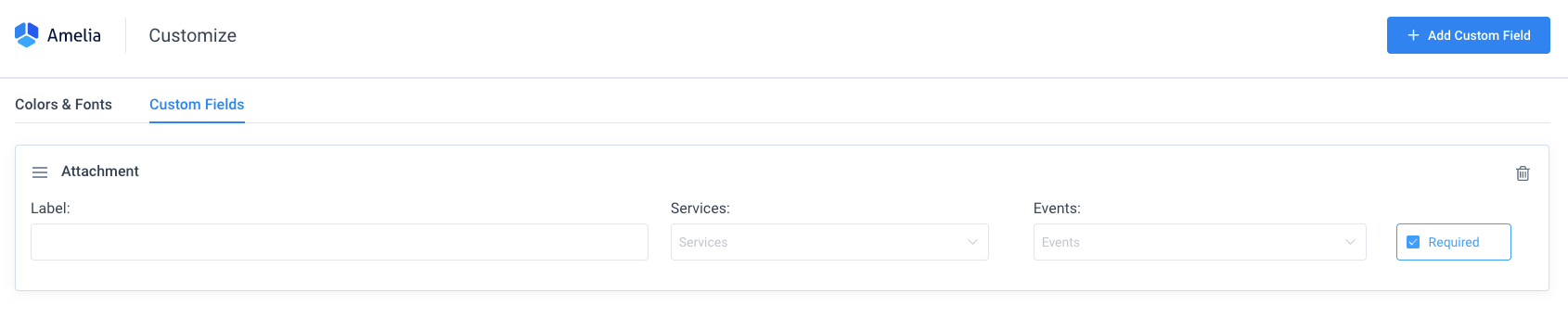
Give the field a clear label so users know what file to attach, then assign it to any service or event where it should appear in the booking flow:
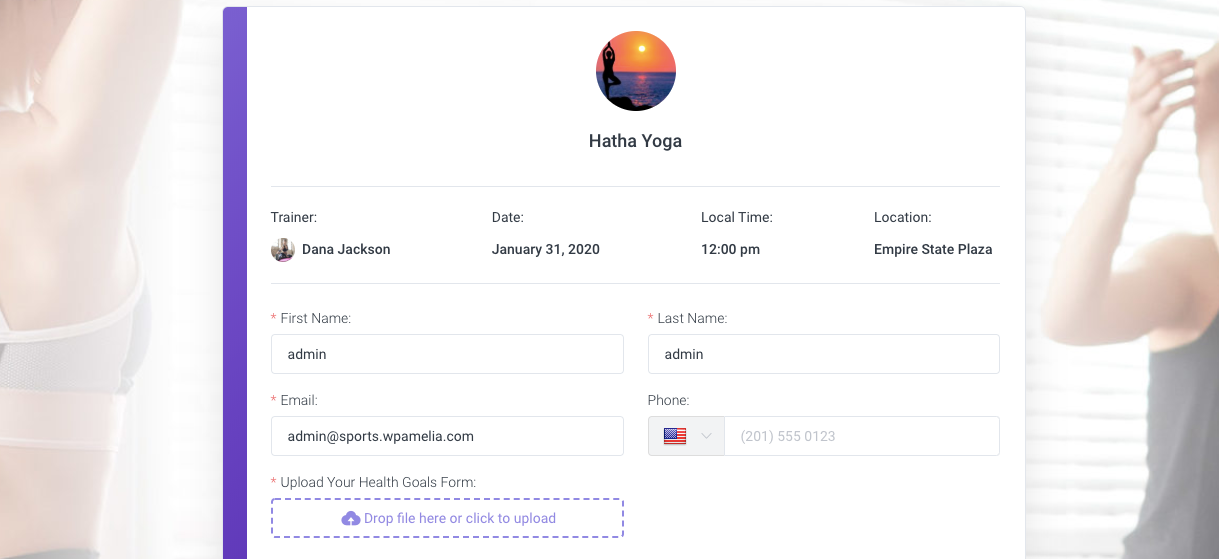
On the front end, the finished field sits naturally among the other booking details:
This subtle addition changes who books. Clients who come prepared at this early stage tend to stay prepared through the project. For any service provider — lawyers, healthcare practitioners, consultants — who needs waivers and paperwork before onboarding, this feature moves that paperwork collection to the start of the process rather than the middle of it.
Turning The Widget Into A Virtual Assistant
The advantage of software over a human assistant here is accuracy — software captures spelled names and email addresses exactly as typed. But done right, a booking widget can also behave like the best kind of assistant: one who knows what is actually available and leaves room between meetings.
For each service offering, define custom schedules and booking rules:
This accomplishes two things. Customers can only select slots that genuinely exist, and the business stays in control of over-booking. If the lunch hour is most in demand, limiting capacity at that time means everyone who books can actually be served.
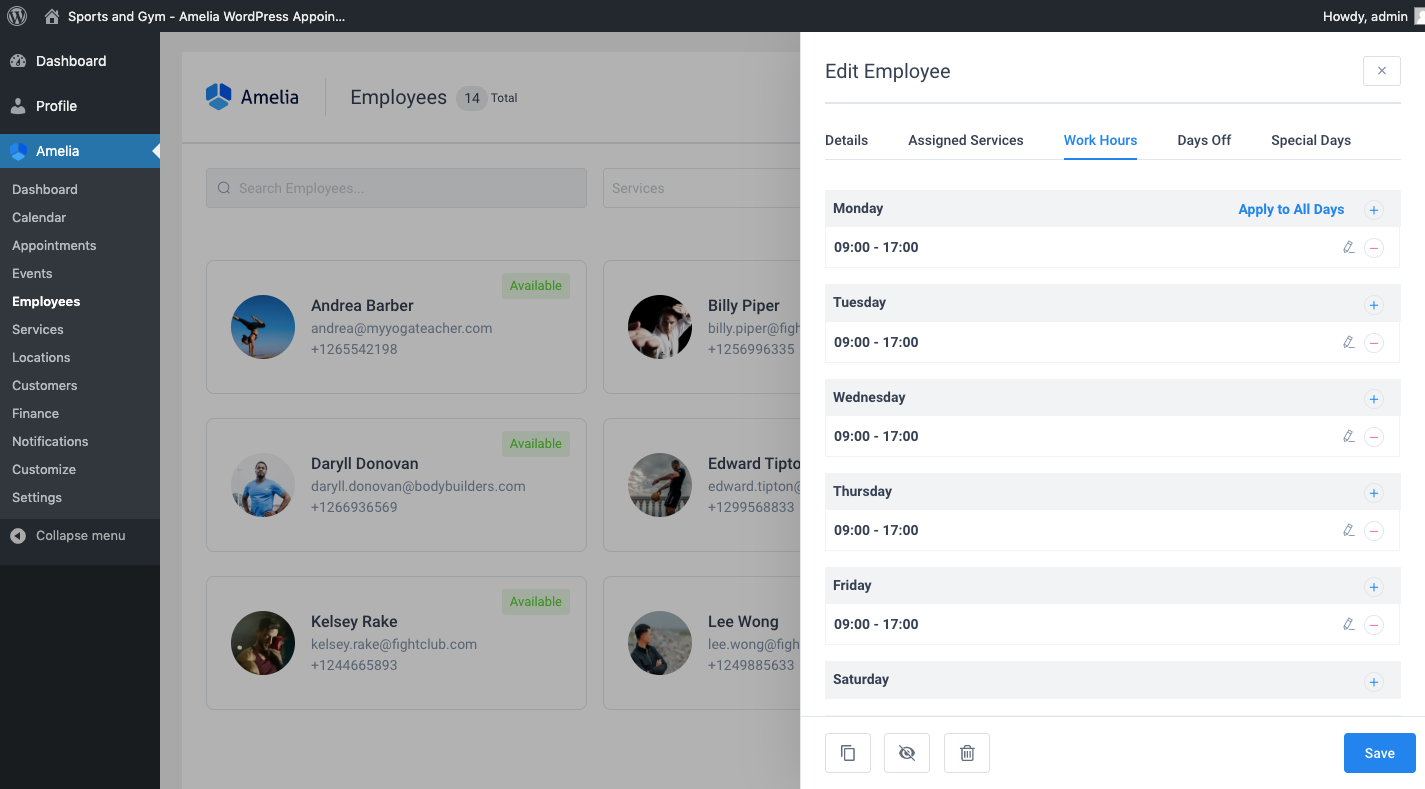
With multiple staff members, the level of detail goes further. The employee setup should not stop at "who they are." Set specific work hours, days off, and holidays. The widget will then hide those providers from view when they are unavailable instead of allowing an impossible booking that later has to be undone:
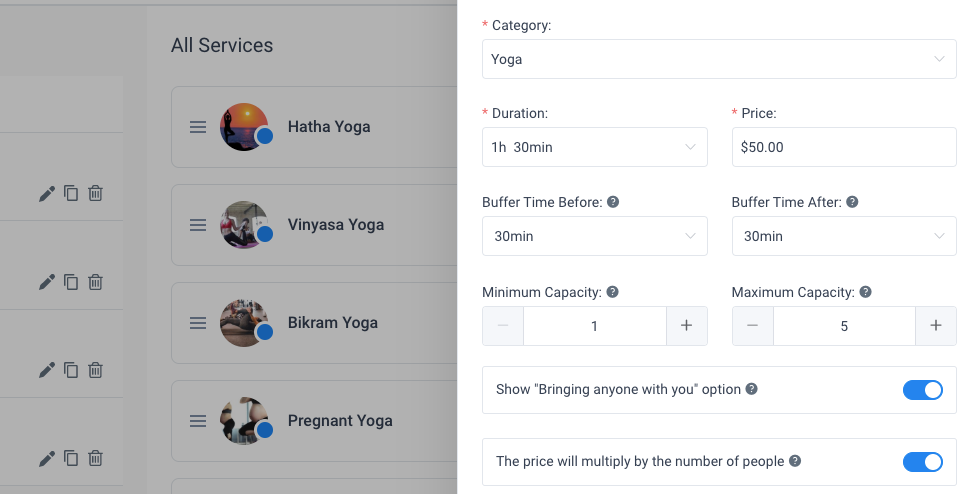
Buffer times are another key assistant behaviour. They give the provider a window to set up, clean up, or jot notes after a call that ran long. Under each service created, buffers can be configured to appear before or after the time slot:
For a one-person outfit, these individual schedules are overkill. The plugin's Settings tab allows for the creation of universal scheduling rules instead.
Get Paid At The Point Of Booking
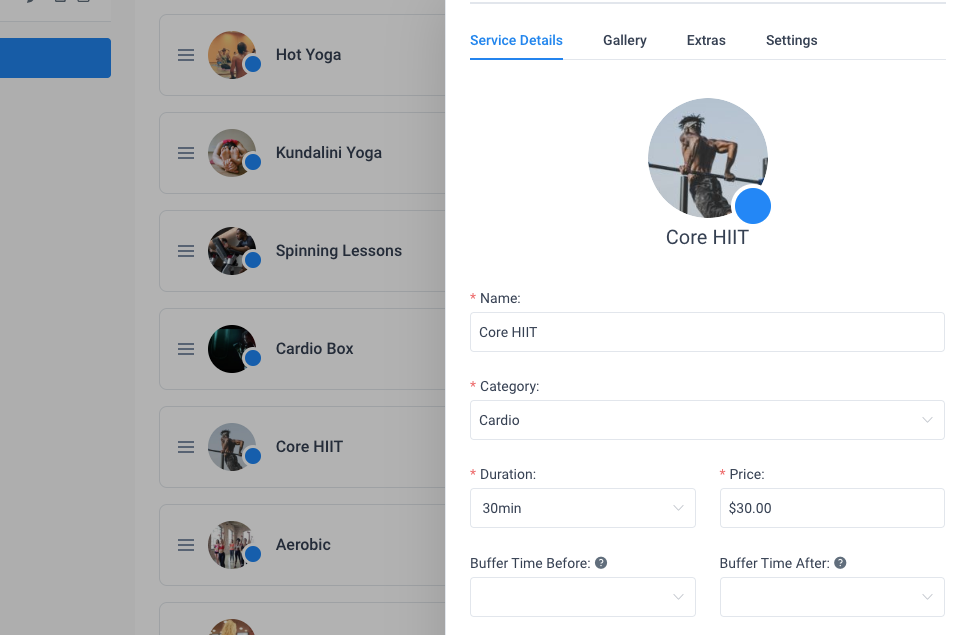
No-shows cost time and revenue. Collecting payment upfront gives customers a real reason to show. The first step is simply attaching a price to every service and event — even when charging at booking time is not planned, the price keeps expectations honest:
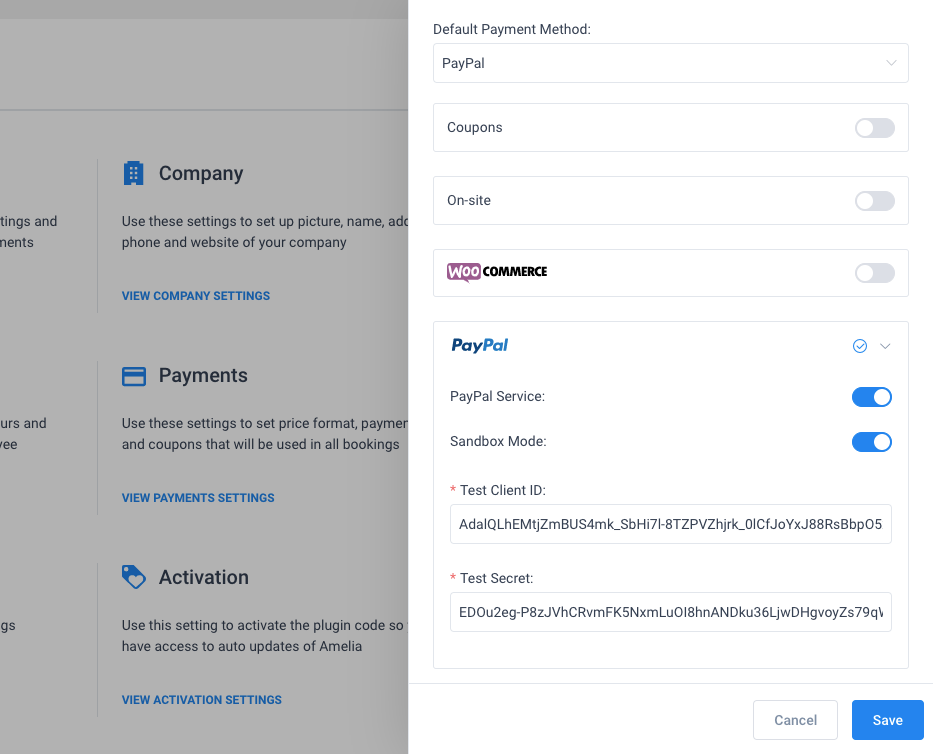
From Amelia's "Settings" and "Payments" sections, enable payment collection and configure Stripe or PayPal:
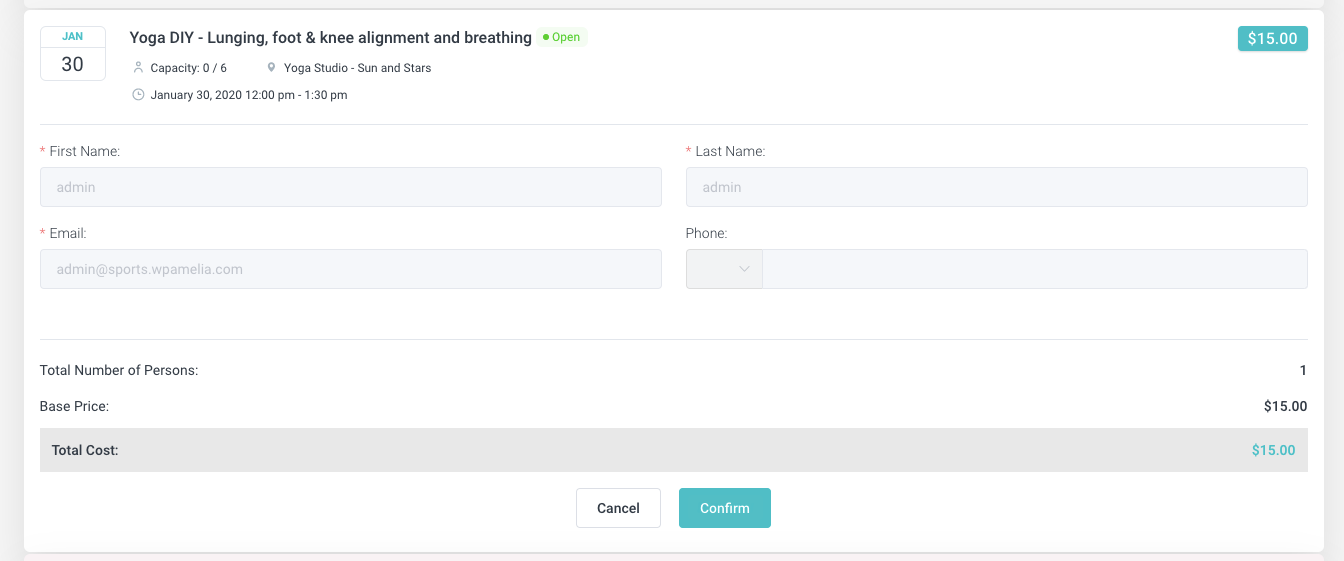
Once enabled, users confirm the appointment and are sent straight to the payment processor:
Make sure the booking form includes a note near the displayed price — telling customers that payment is taken now rather than at the service date. This same mechanism can be used for discovery calls: charge a small retainer or fee up-front to cut down on curiosity meetings.
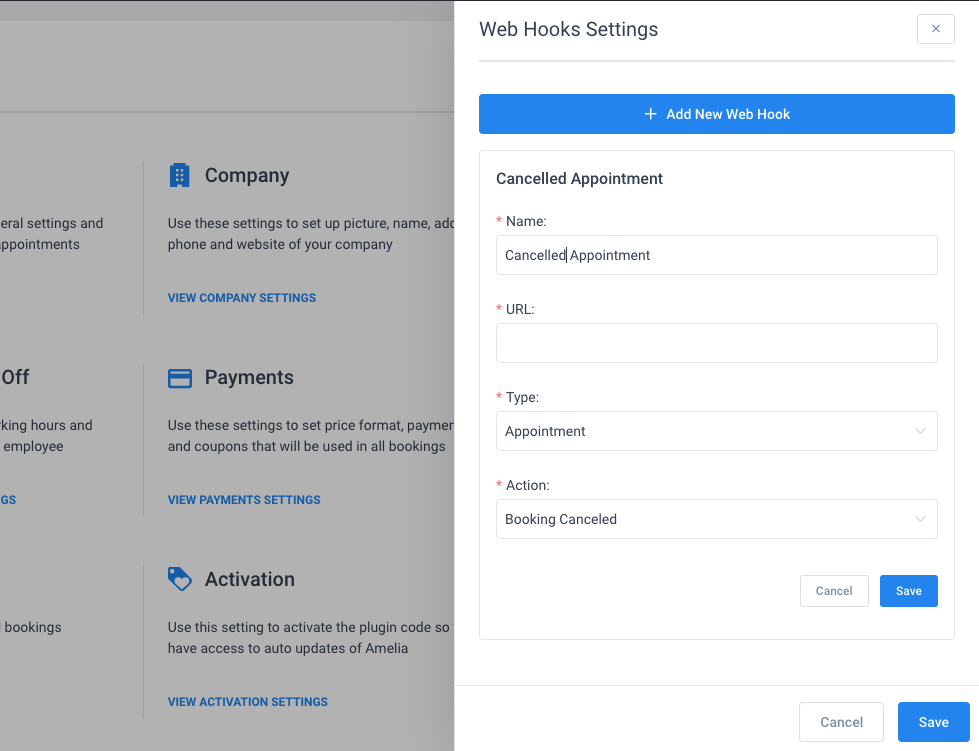
For revenue lost to slots that do go empty, the plugin can hand data off to an outside support system. The web hooks settings let you trigger actions in third-party software when a customer cancels or reschedules:
Triggering follow-up messaging in this way — say, inviting someone to reschedule 14 days after a cancellation — recovers business that might otherwise quietly disappear, much like a cart-abandonment tool for bookings. Zapier and other webhook tools plug in here as well.
Let Automation Handle The Follow-Through
The measure of a great booking experience is not in the click and confirm — it is in everything that happens afterwards. All customers deserve a follow-through, not just the ones who reschedule.
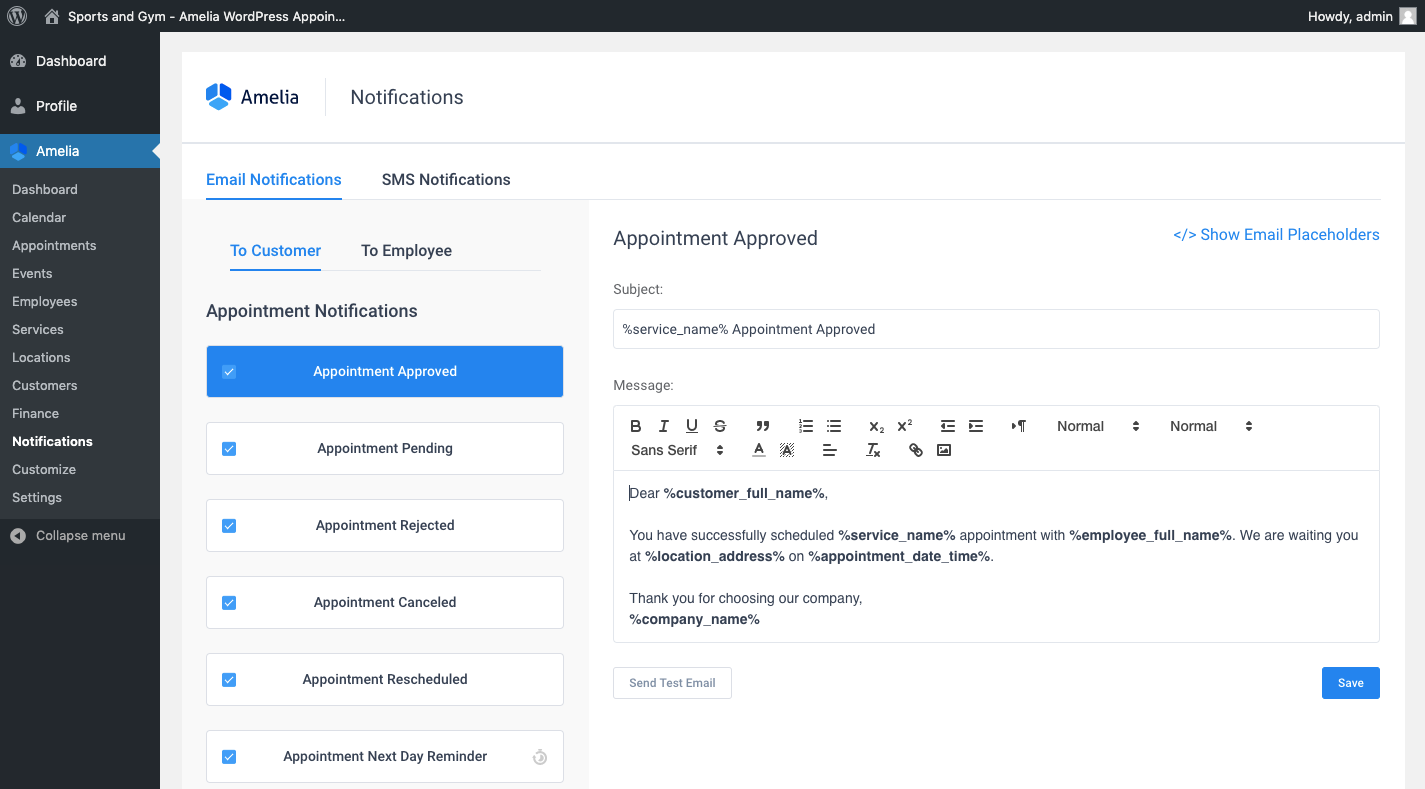
Automated messaging handles the full arc of the customer relationship:
- Confirmation emails that recap the appointment details and attach an
.icscalendar file so the appointment syncs to the customer's own schedule. - A matching notification to the employee who has been booked, telling them who is coming and when.
- Reminders closer to the date, complete with reschedule or cancel options for those who cannot make it.
- A post-appointment "thank you" that can route into next-step suggestions for the customer.
- Occasional touchpoints like birthdays or anniversaries to retain the customer beyond any single transaction.
Amelia comes with these common notifications pre-written, each including placeholders that personalise the messages so nothing sounds like an outgoing server response. The included library covers the essentials of appointment management, and for anything else, a Zapier integration can extend these automated flows into third-party marketing or CRM systems.
Making Manual Scheduling Obsolete
Manually managing appointments and events is not just tedious — it is a liability. Every hand-typed entry is a chance to lose a booking, misrecord a detail, or miss the follow-up window entirely. Automating this layer of your workflow removes those failure points while giving prospects a smoother path to booking.
Using a dedicated plugin like Amelia for WordPress turns scheduling into a self-service operation. It does more than replace a calendar; it actively encourages sign-ups by removing friction from the booking flow, so you spend less time on admin and more time converting inquiries into confirmed appointments.
Further Reading
- How To Work With GraphQL In WordPress In 2024
- Modifying Headers In HTTP(s) Requests In UI Automation Testing
- The Problem With WordPress Is Positioning, Not Plugins
- Internationalization In Vue With The Vue I18n Plugin