

Finding the Right Place to Optimize
Optimization work in React apps usually starts with one core issue: React may re-render components that are unaffected by a data change. During an initial render, React builds a component tree. When the data in that tree changes, the framework should only re-render the affected parts — but that is not always what actually happens.
If React ends up re-rendering everything in the tree, you get longer loading times, wasted time, and unnecessary CPU usage. The goal is to configure each component so it only renders or diffs when necessary.
Before you start optimizing, avoid guessing at the problem. Use measurement tools first to build a concrete picture of your app’s performance and pinpoint what is slowing it down.
Profiling in Chrome
In development mode, Chrome’s “Performance” tab can visualize how React components mount, update, and unmount. React’s documentation confirms this is a valid approach in development mode. To use it, follow these steps:
- Disable all extensions temporarily. React Developer Tools in particular can interfere, so the fastest route is to run the browser in incognito mode.
- Confirm the app is running in development mode on localhost.
- Open Chrome’s Developer Tools, switch to the “Performance” tab, and hit “Record”.
- Perform the actions to profile. Keep the session under 20 seconds to prevent Chrome from hanging.
- Stop the recording.
- Look for React events grouped under the “User Timing” label.
Profiler numbers in development are relative; components typically mount and update faster in production. The exercise is still useful for detecting accidental UI updates and measuring how deep and how often the UI churns.
React Developer Tools Profiler
For apps running react-dom 16.5+ or react-native 0.57+, React Developer Tools Profiler adds deeper profiling capabilities in development mode. The profiler leverages React’s experimental Profiler API to collect timing data for each rendered component, which helps isolate performance bottlenecks.
- Install or update React Developer Tools.
- Run the app in development mode or with the production-profiling build of React v16.5+.
- Open Chrome’s Developer Tools, where a new “Profiler” tab will appear.
- Click “Record”, execute the actions you want to profile, then stop.
- Study the resulting flamegraph, which displays all event handlers and components in the app.
Memoization with React.memo()
React v16 introduced React.memo(), a higher-order component that serves purely as a performance optimization. The name is a nod to memoization: store the result of an expensive function call and hand back that stored result when the same expensive function is called again with identical arguments.
In React terms, the functions are components and the arguments are props. By default, a component wrapped in React.memo() only renders if its props change. The check is shallow, but can be overridden. This skips unnecessary re-renders where props have not genuinely changed:
const MemoizedComponent = React.memo((props) => {
// Component code goes in here
})
When React.memo() Makes Sense
- Pure functional components: If a component is functional, renders the same output for the same props, and does not rely on mutable state, memoization is a good fit. It also works with non-pure functional components when using React hooks.
- Frequent renders: Wrap components that get re-rendered often.
- Re-renders with identical props: Useful when a component is typically called again with the same props.
- Medium to high element counts: The component has enough UI elements that prop-equality checks pay off.
Caution: Memoization breaks if props include callbacks that the parent recreates on every render. The parent must pass the same callback instance between renders for the memoized component to behave correctly.
Consider a functional component, Photo, that displays a photo title and its subject location:
export function Photo({ title, views }) {
  return (
    <div>
      <div>Photo title: {title}</div>
      <div>Location: {location}</div>
    </div>
  );
}
// memoize the component
export const MemoizedPhoto = React.memo(Photo);
The memoized version, MemoizedPhoto, will not re-render as long as the title and location props remain the same in subsequent renderings. In that case, React calls the memoized function once and skips rendering on the next round as long as those props are unchanged.
// On first render, React calls MemoizedPhoto function.
<MemoizedPhoto
  title="Effiel Tower"
  location="Paris"
/>

// On next render, React does not call MemoizedPhoto function,
// preventing rendering
<MemoizedPhoto
  title="Effiel Tower"
  location="Paris"
/>
Code Splitting and Bundling
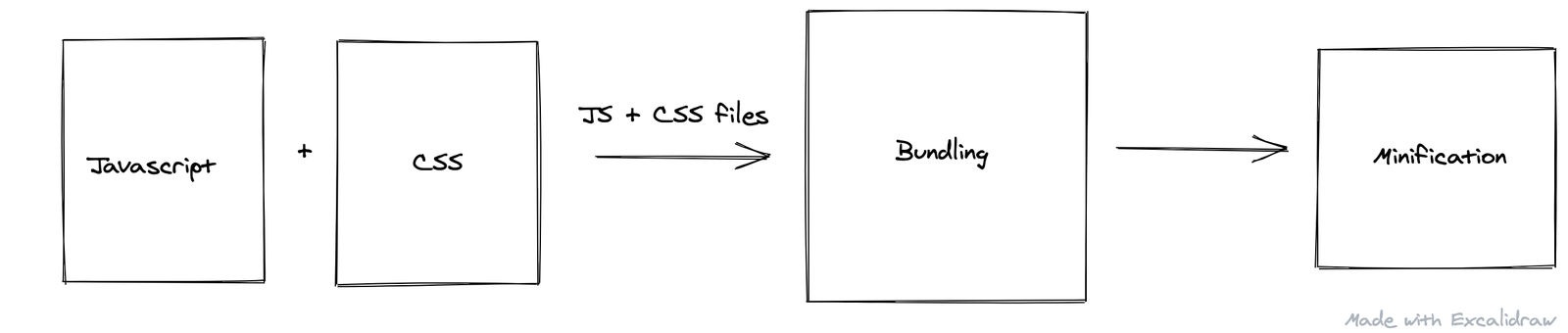
For a small React SPA, bundling all JavaScript into a single file is acceptable. As an app grows, however, that one file becomes large and hurts load time. Bundlers such as Webpack offer code-splitting tools that split the codebase into multiple files delivered to the browser only when needed. This practice is recommended in the Webpack and React documentation as a way to improve load time, especially through lazy-loading what the user needs at a given moment.
Webpack’s documentation lists three ways to split code:
- Entry points: Split code manually by adjusting the entry configuration.
- Duplication prevention: Use
SplitChunksPluginto deduplicate and split shared chunks. - Dynamic imports: Split code by calling inline functions inside modules.
Benefits of Code Splitting
- The browser caches resources more effectively, including code that rarely changes.
- Resources download in parallel, lowering total loading time.
- Code is served in chunks loaded on demand.
- The initial download stays small, which reduces time to first render.
Immutable Data Structures
React’s documentation emphasizes the power of leaving data unmutated: when data changes, a new value is created in memory and the old one stays intact. This concept pairs well with React.PureComponent for automatic detection of complicated state changes.
When state is immutable, all state objects can live in a single store (for example, with Redux), which makes undo and redo fairly straightforward. The drawback is you can never alter an immutable object once it exists.
Why Immutable Structures Help
- No side effects.
- They are simple to create, test, and use.
- State update checks become quick — no need to repeatedly scan the data.
- Temporal coupling is prevented because code never depends on the order of changes.
If you want to adopt immutable data, several libraries provide ready-made structures:
- immutability-helper: Supplies new versions of data without modifying the source.
- Immutable.js: Provides immutable persistent data collections for efficiency and simpler logic.
- seamless-immutable: Adds immutable behavior to normal arrays and objects.
- React-copy-write: Offers a mutable-looking API on top of immutable state.
Practical Optimizations Beyond Components
Ship a Production Build
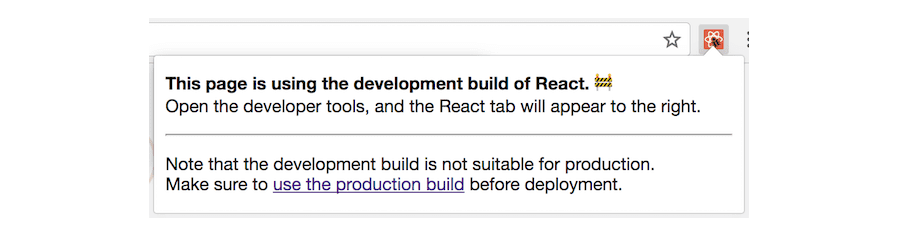
React’s development build includes extra warnings and checks that are helpful during development but add unnecessary overhead in production. The official docs recommend deploying the minified production build to avoid this overhead.
Prefer Named Functions Over Anonymous Ones
Anonymous functions passed inline to props such as onClick are recreated on every render. Because they lack a stable identifier via const, let, or var, JavaScript must allocate new memory for them each time the component updates. Named functions, in contrast, are allocated once and reused across renders, making them the more performant choice.
import React from 'react';

// Don’t do this.
class Dont extends Component {
  render() {
    return (
      <button onClick={() => console.log('Do not do this')}>
        Don’t
      </button>
    );
  }
}

// The better way
class Do extends Component {
  handleClick = () => {
    console.log('This is OK');
  }
  render() {
    return (
      <button onClick={this.handleClick}>
        Do
      </button>
    );
  }
}
onClick() prop, which causes the allocation churn described. The second uses a named function in the onClick() handler, which avoids the issue.
Avoid Frequent Mounting and Unmounting
Using conditionals or ternaries to remove a component from the tree triggers a browser reflow and repaint each time. That process is expensive because the browser must recalculate the positions and geometries of elements in the document. A cheaper alternative is to hide the component with CSS properties like opacity or visibility. The component stays mounted in the DOM but invisible, incurring no layout recalculations.
Virtualize Large Lists
For lists containing large amounts of data, React’s documentation recommends rendering only the subset of rows that falls within the viewport at any moment, then rendering more as the user scrolls. This “windowing” technique keeps the number of mounted rows small and bounded. Two widely used libraries for this are maintained by Brian Vaughn:
Wrapping Up
The techniques covered here — production builds, stable function references, avoiding needless unmounts, and windowed lists — are among the most effective places to start when improving React performance. The official React documentation on optimization, along with the other resources linked below, goes into further detail on each approach.
- “Use React.memo Wisely”, Dmitri Pavlutin
- “Performance Optimization Techniques in React”, Niteesh Yadav
- “Immutability in React: There’s Nothing Wrong With Mutating Objects”, Esteban Herrera
- “10 Ways to Optimize Your React App’s Performance”, Chidume Nnamdi
- “5 Tips to Improve the Performance of Your React Apps”, William Le




