
Why DOM size matters for INP
Every web page has a Document Object Model (DOM), which represents the page's HTML structure and gives JavaScript and CSS access to it. The problem is that the size of that DOM directly affects how quickly a browser can render the page initially, and how costly it is to update that rendering later.
Large DOMs become especially problematic when user interactions trigger DOM modifications. When an interaction changes the DOM, the browser often has to perform expensive layout, styling, compositing, and paint work. That work can end up increasing your page's Interaction to Next Paint (INP), because the main thread is busy rendering instead of responding to the user. Keeping your DOM only as large as absolutely necessary is therefore a practical step toward better interactivity.
What counts as "too large"?
According to Lighthouse, a page's DOM is excessive once it exceeds 1,400 nodes, and warnings start appearing past 800 nodes. Consider this simple example:
<ul>
  <li>List item one.</li>
  <li>List item two.</li>
  <li>List item three.</li>
</ul>
That markup contains just four DOM elements: a <ul> and its three <li> children. Actual pages inevitably carry many more nodes than this, so it is worth understanding how large DOMs hurt performance and what you can do about it.
How large DOMs slow pages down
Large DOMs affect performance through three distinct mechanisms:
- During initial render: When CSS is applied, the browser builds a CSS Object Model (CSSOM) that mirrors the DOM. Higher CSS selector specificity makes the CSSOM more complex, and the browser needs more time to perform the layout, styling, compositing, and paint work required to draw the page. This delays interactivity for early user actions.
- When interactions modify the DOM: Insertions, deletions, or style changes trigger rendering work that can become very costly on large DOMs. As with initial render, complex CSS selectors add to the cost when new elements are inserted in response to interactions.
- When JavaScript queries the DOM: References to DOM nodes are stored in memory. Call
document.querySelectorAllto select all<div>elements on a page with a very large DOM, and the memory cost can be considerable.
Measuring DOM size
You can check your DOM size with Lighthouse. In the audit results, look for the "Avoid an excessive DOM size" entry under the "Diagnostics" heading. It reports the total number of DOM elements, the element containing the most children, and the deepest element in the tree.
A quicker method requires only the JavaScript console in any major browser's developer tools. Run the following after the page loads to get the total element count:
document.querySelectorAll('*').length;
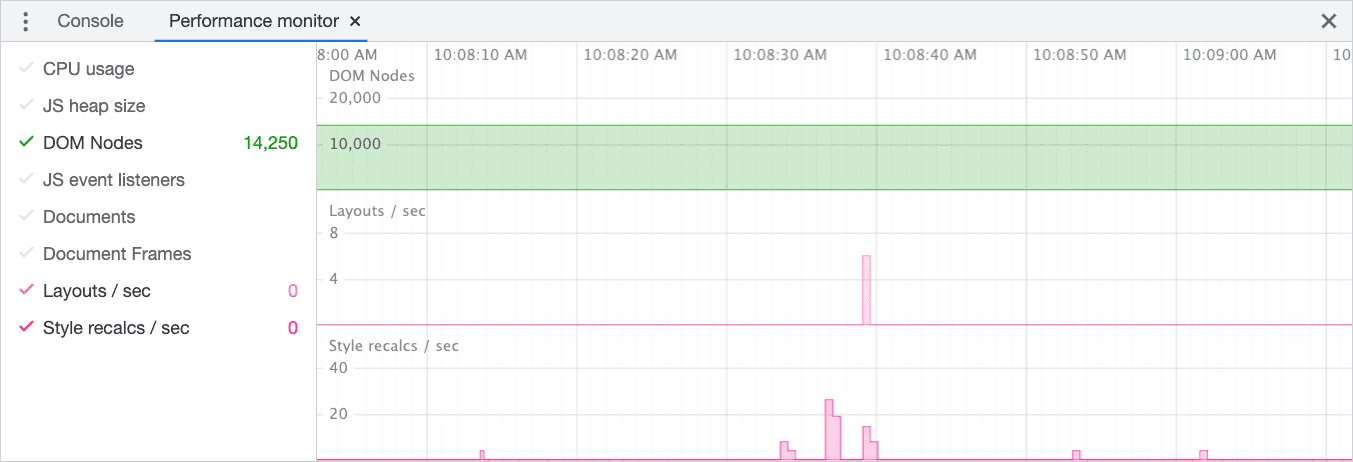
If you want to see DOM size change in real time, the performance monitor tool in Chrome's DevTools can show the current DOM size alongside layout and styling operations. That correlation can help you determine whether DOM size is a factor in slow rendering.
Diagnosing how many elements an interaction affects
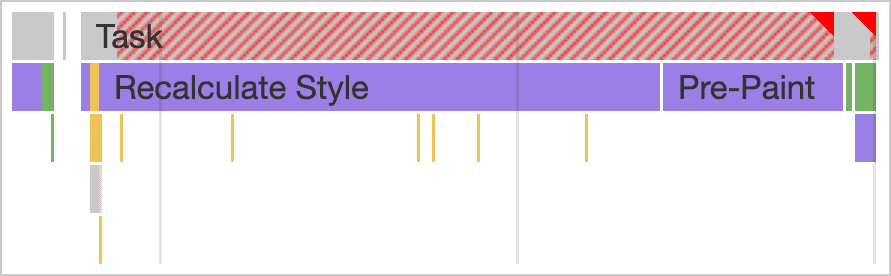
When profiling a slow interaction in the lab, you may suspect the DOM size plays a role. In the profiler, select any activity labeled "Recalculate Style." The contextual data in the bottom panel will show the number of affected elements.
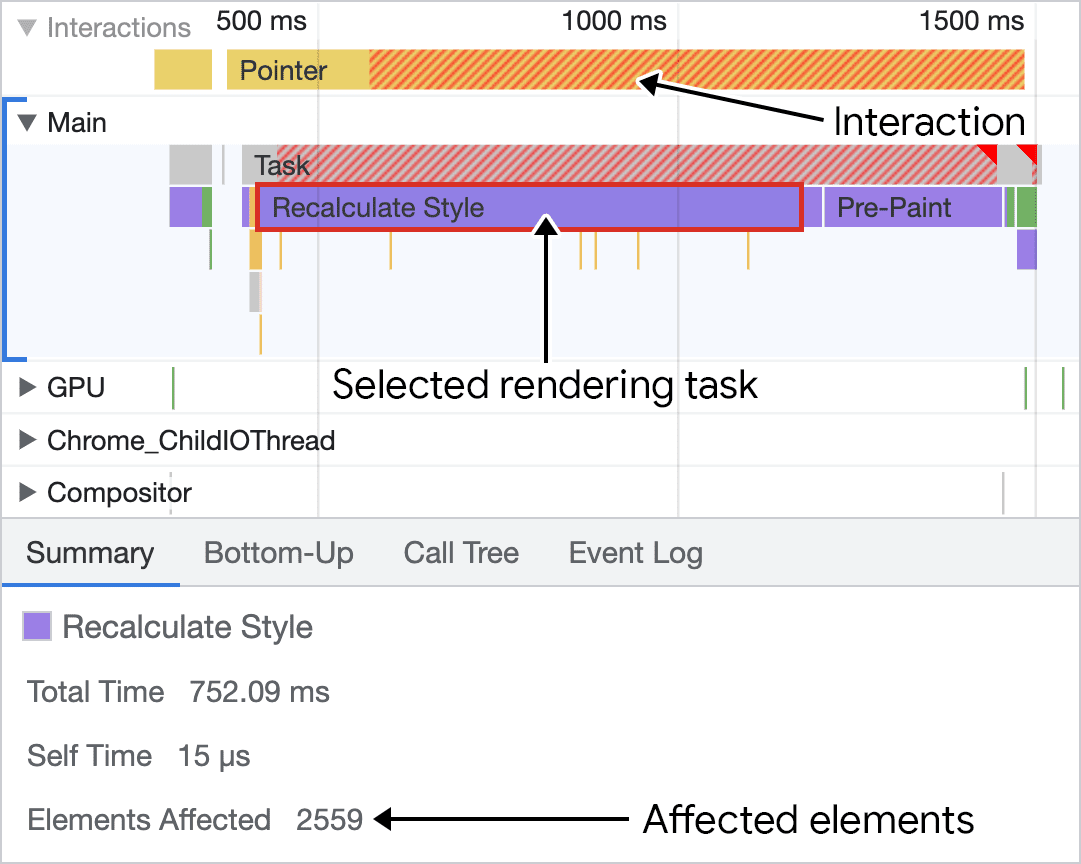
The screenshot above illustrates an extreme case on a page with many DOM elements, but the diagnostic information is useful in any situation: it tells you whether DOM size is a limiting factor in how long the browser takes to paint the next frame in response to an interaction.
Reducing DOM size and depth
Auditing your HTML for unnecessary markup is the first step, but the main structural fix is reducing DOM depth. A common signal that your DOM is deeper than it needs to be is markup like this in the Elements panel:
<div>
  <div>
    <div>
      <div>
        <!-- Contents -->
      </div>
    </div>
  </div>
</div>
Patterns like this can often be simplified by flattening the DOM structure, which reduces the node count and frequently allows simpler styles as well.
DOM depth can also be a byproduct of the frameworks you use. Component-based frameworks that rely on JSX require nesting components inside a parent component. Fortunately, many frameworks support fragments as an alternative, including:
Fragments allow you to return multiple elements without adding a wrapper node, cutting unnecessary depth. If you are worried that flattening will complicate your styling, more modern layout modes such as flexbox or grid generally handle the visual structure without necessitating deep nesting.
Other strategies when the DOM stays large
Even after flattening your DOM and removing redundant elements, some pages legitimately have huge DOMs that trigger heavy rendering work on interaction. In those situations, consider limiting the rendering cost in other ways.
Add to the DOM lazily
If large parts of your page are not initially visible, those sections are candidates for deferred rendering. Omitting that HTML on startup means a lighter initial payload, faster first render, and less main-thread competition for interactions that occur early in the page lifecycle.
You can then insert the hidden content into the DOM when the user interacts with the sections that need it. This has tradeoffs: making network requests to fetch data can increase perceived latency, even though in-flight requests themselves do not count toward INP. Show a loading indicator so users understand something is happening while they wait.
Simplify your CSS selectors
When parsing selectors, the browser traverses the DOM to determine which styles apply. The more complex your selectors, the more work is required for both initial rendering and any style recalculations triggered by interaction-driven DOM changes. Keeping selectors simple limits that overhead.
Use the content-visibility property
The content-visibility CSS property provides a way to skip rendering for off-screen elements entirely, rendering them on demand as they approach the viewport. This reduces initial rendering work and also avoids recalculating styles and layout for off-screen subtrees when an interaction changes other parts of the DOM.
Keeping rendering work in check
Minimizing DOM size to what the page genuinely needs is a solid way to keep your INP under control, because it cuts the time the browser spends on layout and rendering when the DOM updates. Where large DOMs are unavoidable, techniques like CSS containment and the content-visibility property can isolate rendering work to specific subtrees. In either case, reducing rendering overhead in response to interactions means a more responsive page, a lower INP, and a better experience for users. But in the meantime, the page is taking up too much space.



