

WordPress Full-Site Editing: What It Changes for Users and Developers
WordPress 5.9 introduced Full-Site Editing (FSE), a feature that extends the block-based workflow to page templates and site-wide elements such as headers and footers. Further refinements arrived with WordPress 6.0, and this overview reflects those updates. FSE is the second phase of the Gutenberg project, building on the block editor introduced in WordPress 5.0, which had already expanded into areas like widget management.
The core intent of FSE is to unify how site changes are made. Previously, creating a menu, editing page content, populating a sidebar, and adjusting colors each required different tools and workflows. More substantial modifications demanded familiarity with page template files or custom CSS. With FSE, these tasks are handled through a consistent block-based interface, even if they still live in separate menus.
For site owners, the practical benefit is less dependence on developers for routine design and layout work. Changes to page templates and global elements are now visible immediately in the editor, eliminating the need to switch between the front end, back end, and code files. For theme developers, FSE simplifies markup creation and speeds up templating.
Core Components of Full-Site Editing
FSE is built from three primary elements:
- Page templates and template parts. Two new editor interfaces let you customize page layouts much like the content editor. You can reposition elements, change their colors, fonts, and alignment, and add or remove components. Header and footer sections—and other template parts—can be edited separately. Templates can also be exported and distributed as themes.
- Global styles and
theme.json. Centralized styling controls define site-wide colors and typography in one place, a feature familiar to users of page builder plugins. This replaces the scattered process of making style changes via the Customizer and block editor. Thetheme.jsonfile serves as a nexus for different APIs and holds most styling information for block-based themes. - Template blocks and block patterns. FSE introduces new block types, including static elements like the site logo and dynamic ones such as navigation, post titles, and featured images, which adapt based on settings elsewhere. A query block acts like the WordPress PHP loop, displaying post lists anywhere on a page. Each block ships with its own configuration and design options.
Hands-On With Full-Site Editing
Accessing FSE requires a block-based theme. Classic themes with traditional PHP template files will not offer the full editing experience. To get started, install a theme such as Twenty Twenty-Two or Twenty Twenty-Three, then navigate to Appearance → Editor in the WordPress admin. This opens the site editor, a dedicated interface for managing templates, template parts, and global styles.
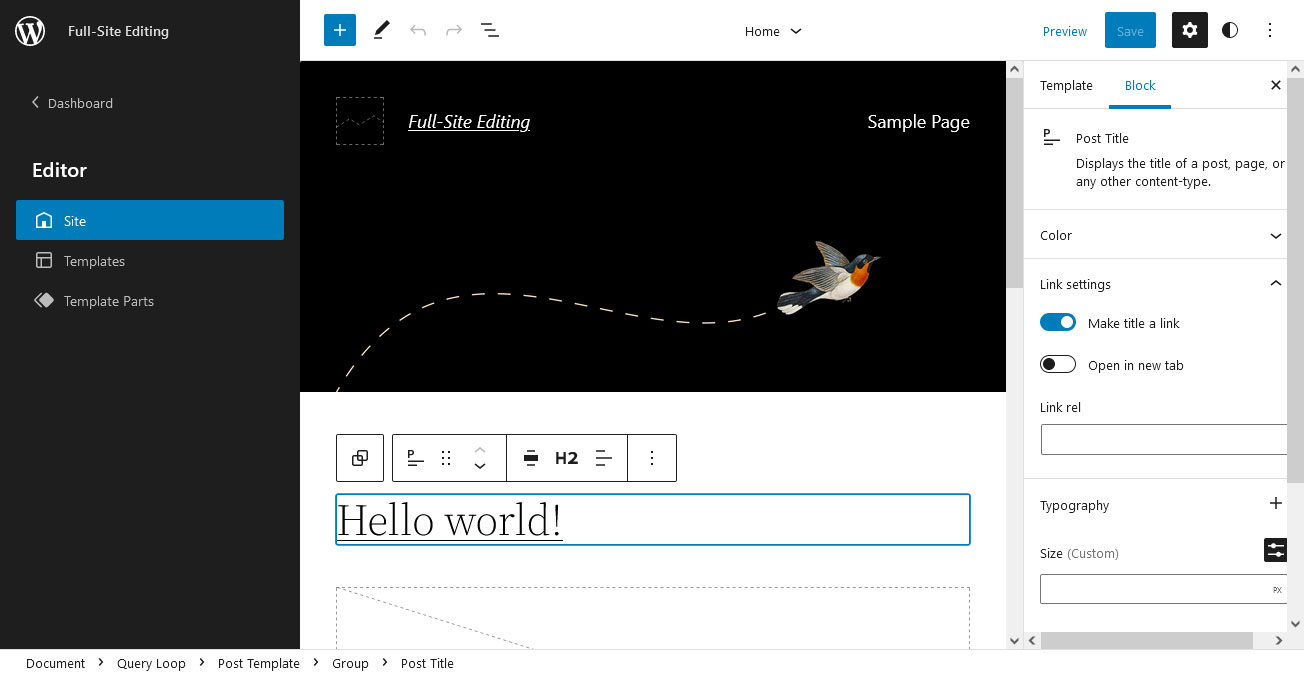
From here, you can select a template to edit—for example, the single post template—and begin making changes. The layout mirrors the post editor: clickable blocks appear with their own settings panels, and you can drag, remove, or add blocks as needed. Adjusting site-wide settings, such as the color palette or typography, is done through the Styles panel, which writes changes directly into the theme.json file behind the scenes.
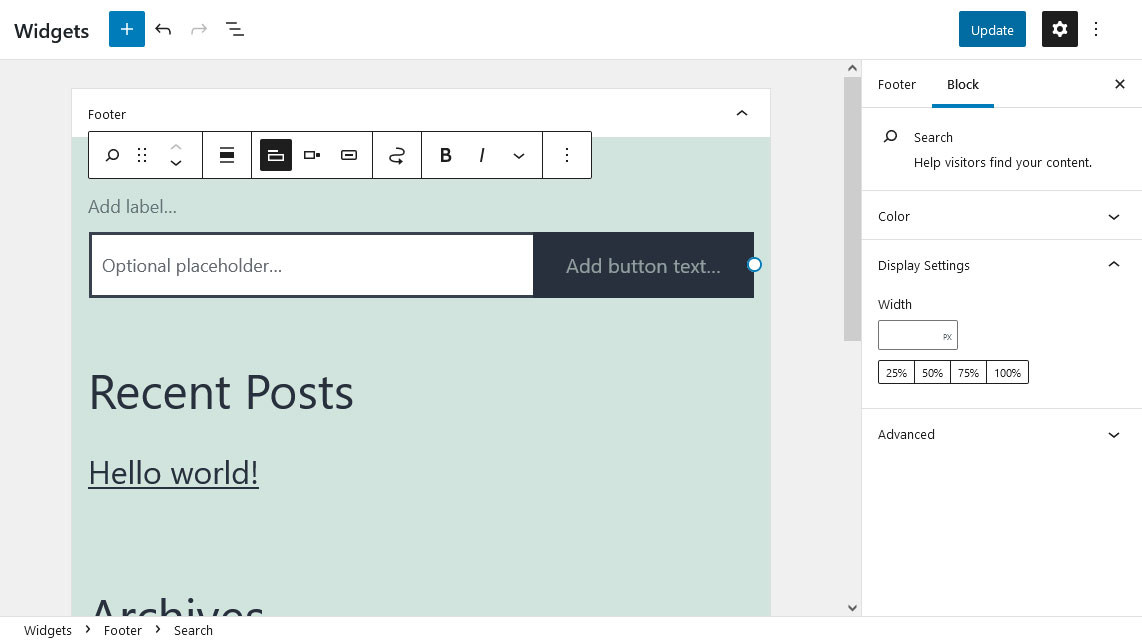
To change the site header, simply navigate to the header template part. You can modify its layout, add or remove elements, and edit the navigation block. Each part is cged independently, and you can assign a template part to multiple templates simultaneously.
Template creation follows a similar procedure. Click the plus button to add a new template, then choose whether to start from a blank canvas or an existing block pattern. New templates are automatically registered and become available for assignment to pages, posts, or custom post types.
Working With Global Styles
Site-wide styling is managed in the Styles panel of the site editor. This interface lets you set the default font, color scheme, and layout values for the entire site without touching a stylesheet. The changes apply to all templates that use the site's global styles, so you can maintain a consistent brand across pages and posts. More granular settings—such as spacing between blocks or button styles—are also available under the Blocks section of the Styles panel. All of this configuration is stored in the theme.json file, making it portable across installations.
The Impact on the WordPress Ecosystem
FSE's implications extend well beyond single sites. Theme authors now face a shift: instead of shipping PHP templates and separate stylesheets, they can package themes as a set of template parts and JSON-configuration files. This lowers the barrier to theme creation since no backend code is required. At the same time, it changes the relationship between themes and plugins, as more functionality moves into the editor itself.
Page builder plugins are also affected. FSE delivers many features that were formerly the selling point of those plugins, such as drag-and-drop layout building and site-wide style controls. While page builders may integrate more deeply with blocks, the need for a separate templating system has diminished. The block editor's growing feature set means that, for many users, a block theme combined with FSE offers a complete alternative to traditional page builder workflows.
For developers, the transition involves learning to work with theme.json, template blocks, and the block patterns API—skills that are substantially different from traditional theme development. The upside is a more efficient theming process, but it requires adapting to a new set of conventions. WordPress's existing plugin architecture remains intact, and custom blocks and extensions can still be built within the block framework, ensuring that the platform continues to be a flexible foundation.
Getting Started With Full-Site Editing
To use Full-Site Editing, you need WordPress 5.9 or higher, or a lower version with the Gutenberg plugin installed and up to date. You also need a block theme — a theme built to take advantage of the feature. Twenty Twenty-Two, released alongside WordPress 5.9, is a solid choice for testing. If you are trying FSE for the first time, use a staging site or a local development environment so you can experiment freely without affecting a live site.
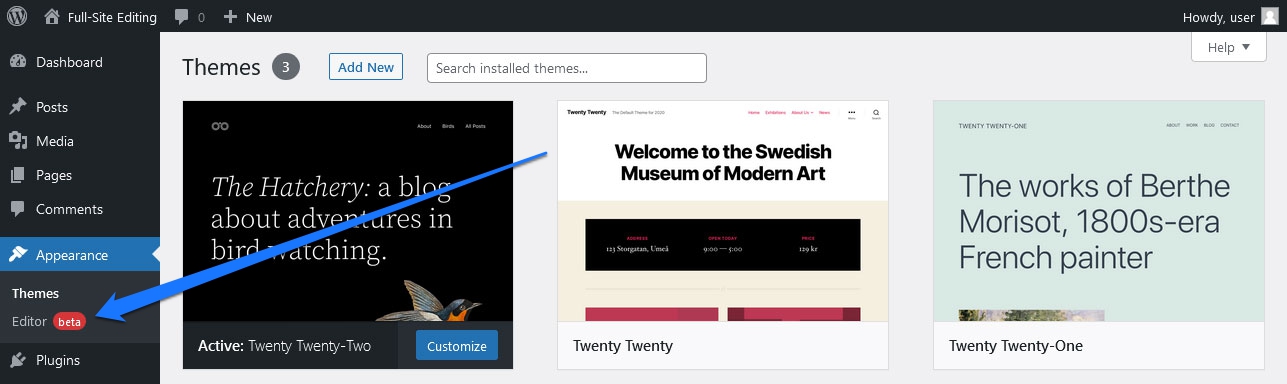
You can enter the site editor from the admin menu via Appearance > Editor. Note that the widget and Customizer options disappear when a block theme is active. Alternatively, use the Edit Site link in the admin taskbar on the front end.
Inside The Editor
The main editor interface is organized as follows:
- Top left corner. The WordPress logo opens a menu for editing templates and template parts, with a link back to the dashboard.
- Top bar. The familiar Gutenberg controls live here: adding blocks and patterns, toggling between edit and select modes, undo/redo, a list view, and template part navigation.
- Top right corner. Buttons for saving, previewing at different screen sizes, and accessing settings via the gear icon. The half-black, half-white circle opens Global Styles; the three-dot icon holds display options, export controls, and the welcome guide.
- Center. The main editing canvas, which shows an accurate representation of your design and lets you add or modify blocks directly.
Most of these controls are togglable to match your workflow.
Global Styles: Site-wide Presets
Global Styles offers two levels of control: entire site styling and per-block styling. What you see depends on the theme. For Twenty Twenty-Two, the options cover typography, colors, and layout.
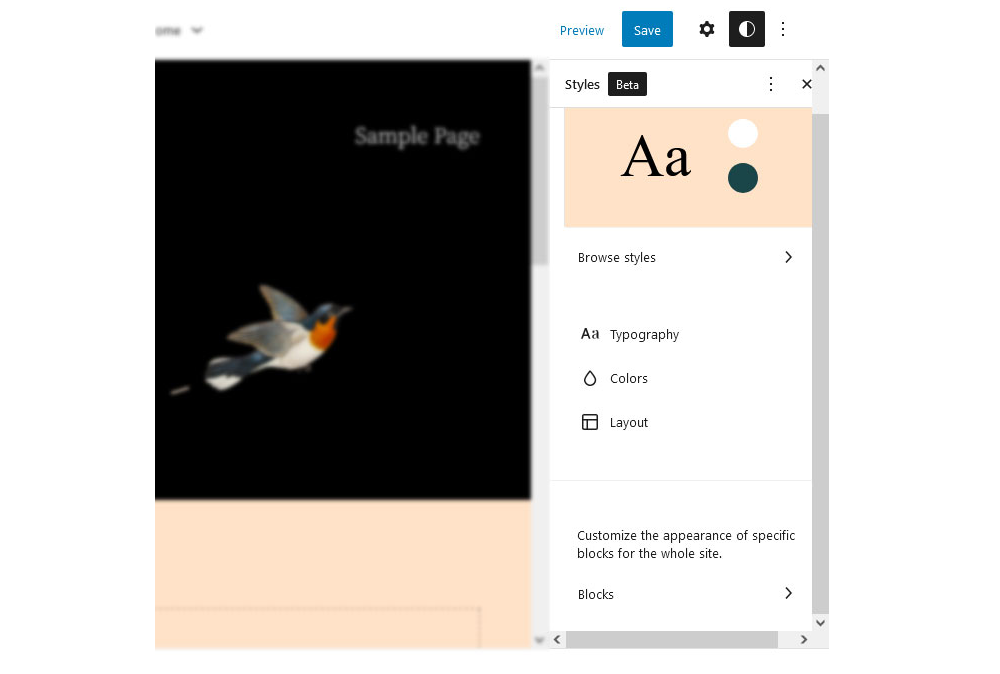
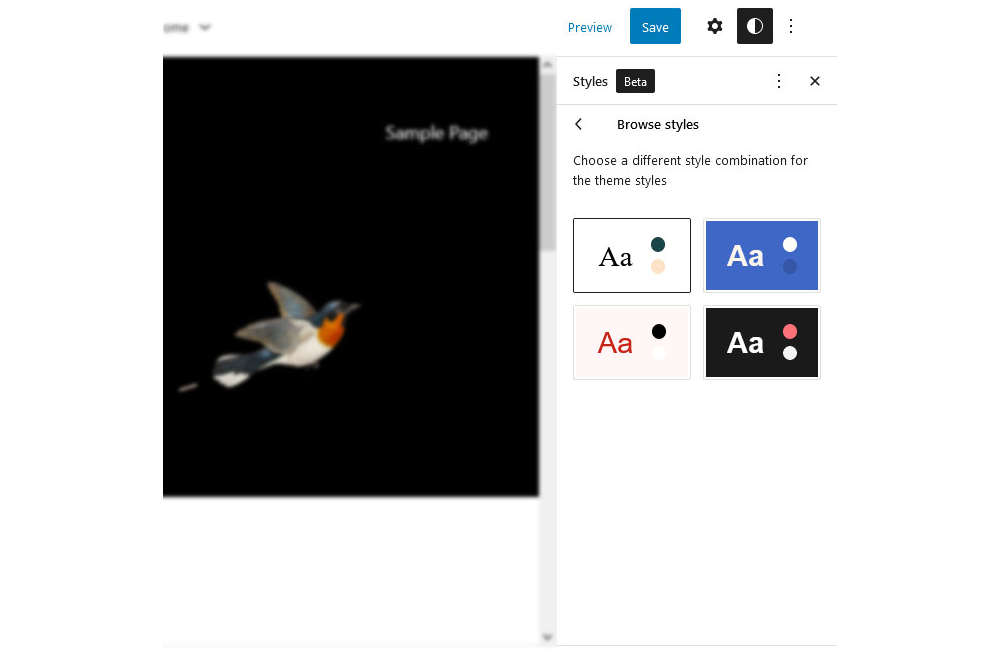
The standout option here is the preset color themes, found under Browse styles. Developers can ship multiple visual presets for a theme, each with its own color and font scheme. Hover over an option to preview it, then adopt it with one click. This effectively bundles several child-theme-like variants into one theme. If you want to undo your choice, use the three-dot menu and select Reset to defaults.
Typography
From the Typography submenu, you can style general text or links separately. Each section allows you to customize the font family, size, line height, and appearance (font weight and slant). The available options are limited to what the theme provides — Twenty Twenty-Two, for instance, ships only with System Font and Source Serif Pro in its font menu.
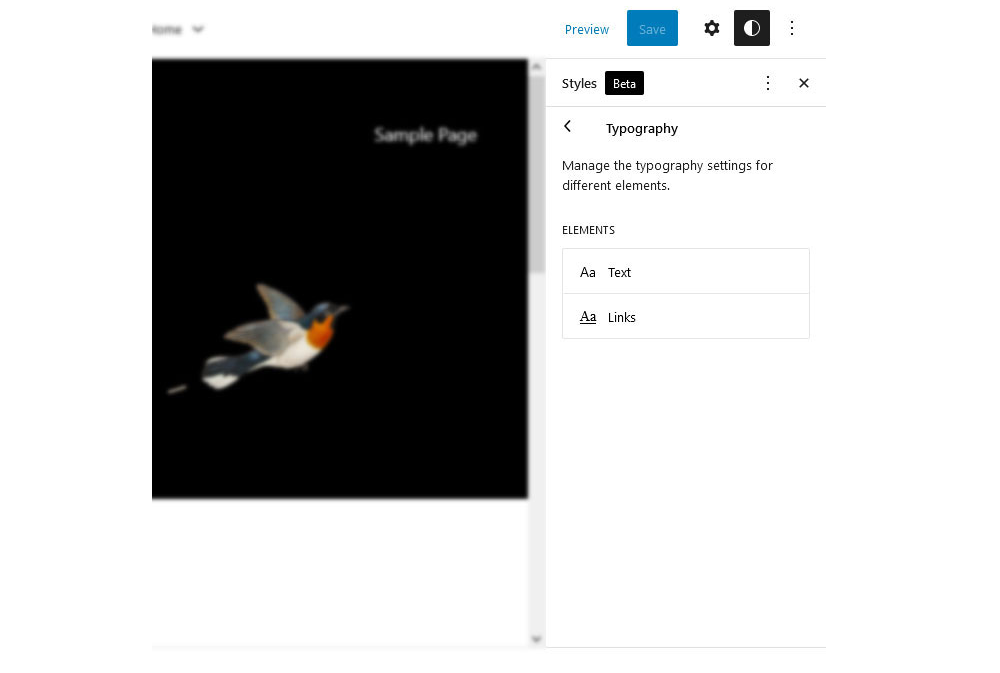
That limitation reflects the theme’s release date: full support for local web fonts only arrived in WordPress 6.0. You can use the icon in the upper right corner of the size sections to set a custom value beyond the theme defaults.
Colors And Layout
The Colors section lets you change hues for different elements. The Palette option shows a theme-provided set of colors and gradients, separate from Gutenberg defaults and user-created custom colors. For Twenty Twenty-Two, the configurable elements are Background, Text, and Links. Selecting any of these brings up a color picker with preset swatches, a gradient option, and a custom picker supporting RGB, HSL, or HEX values.
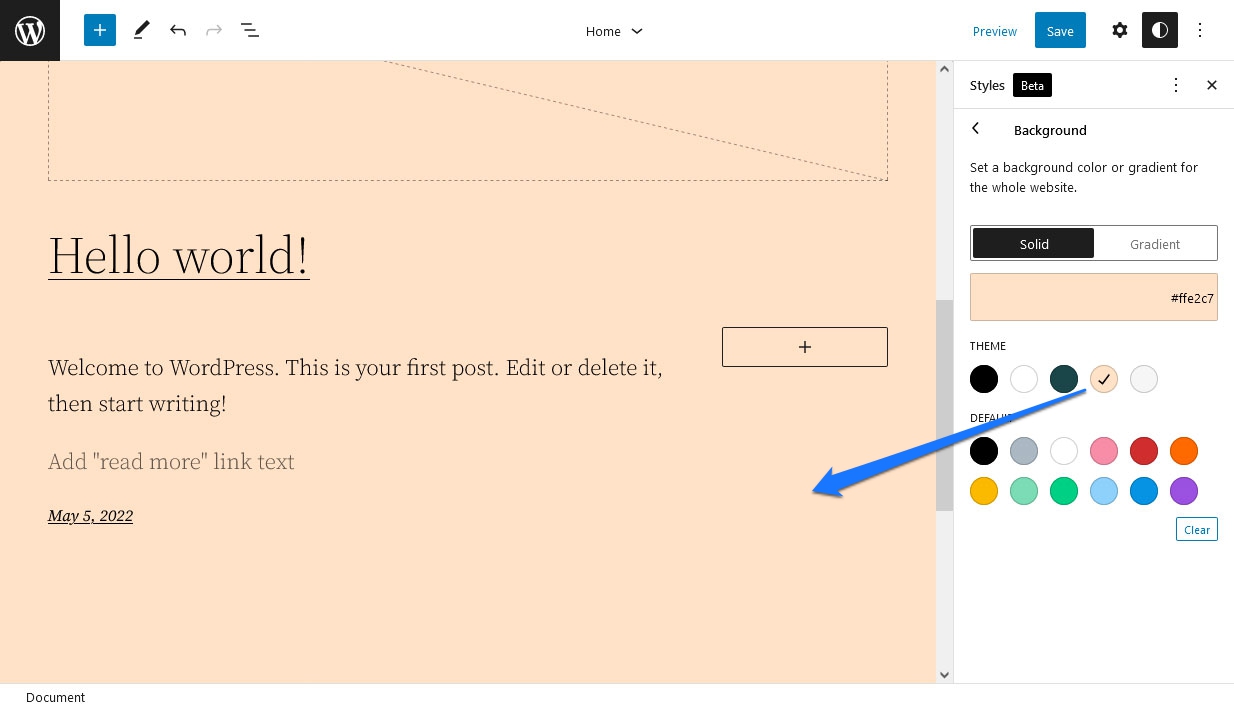
The Layout option for this theme only enables adding padding around the homepage.
Per-Block Style Overrides
Global Styles also lets you set defaults for individual blocks. At the bottom of the menu, click Blocks to see a list of all standard WordPress blocks. Each block has its own set of design options. For example, you can set the site-wide link color to blue, then override the color for the Post Title block specifically. Since post titles are often links, this acts as a more specific rule — the same concept as overriding site-wide standards further down in a CSS cascade.
Working With Blocks In Templates
Editing a template works like editing a page with Gutenberg: every element on screen is a block or a group of blocks. The Query Loop block, which powers the homepage’s post listing, is itself composed of separate blocks — Post Title, Post Featured Image, Post Excerpt, Post Date, Spacer, and Pagination. You can reorder these blocks with the arrow controls in the toolbar or drag them with the six-dot handle. After you hit Save, the change applies across the site.
Every block also has its own settings in the right sidebar when selected. What you see depends on the block:
- Post Featured Image controls margin, padding, and image dimensions.
- Pagination adjusts justification, orientation, wrapping, colors, and whether arrows or chevrons appear.
- Post Title lets you choose heading level (h1–h6) via the toolbar, options like linking behavior and a
rel=attribute, plus color, typography, and margin. The toolbar also offers typographic transformations such as Title Case.
You can add new blocks by hovering over empty space and using the plus button, using the Insert before / Insert after options on existing blocks, or dragging from the block inserter in the top left. Block patterns can also be dropped in this way. Removing blocks is just as simple — select and delete, either via keyboard or the options menu. The list view, available through the three-line icon at the top, gives an overview of the block hierarchy and allows quick deletion.
This flexibility means you can insert static content — like an introductory heading and paragraph — or fully dynamic content into the homepage layout.
Template Parts
Template parts are interchangeable sections within a template. In Twenty Twenty-Two, headers and footers are template parts. You can edit them directly on the page, but their real power lies in variation: themes can offer multiple versions of a template part that you can swap with a single click.
When you select a header or footer, the settings bar shows a Replace option.
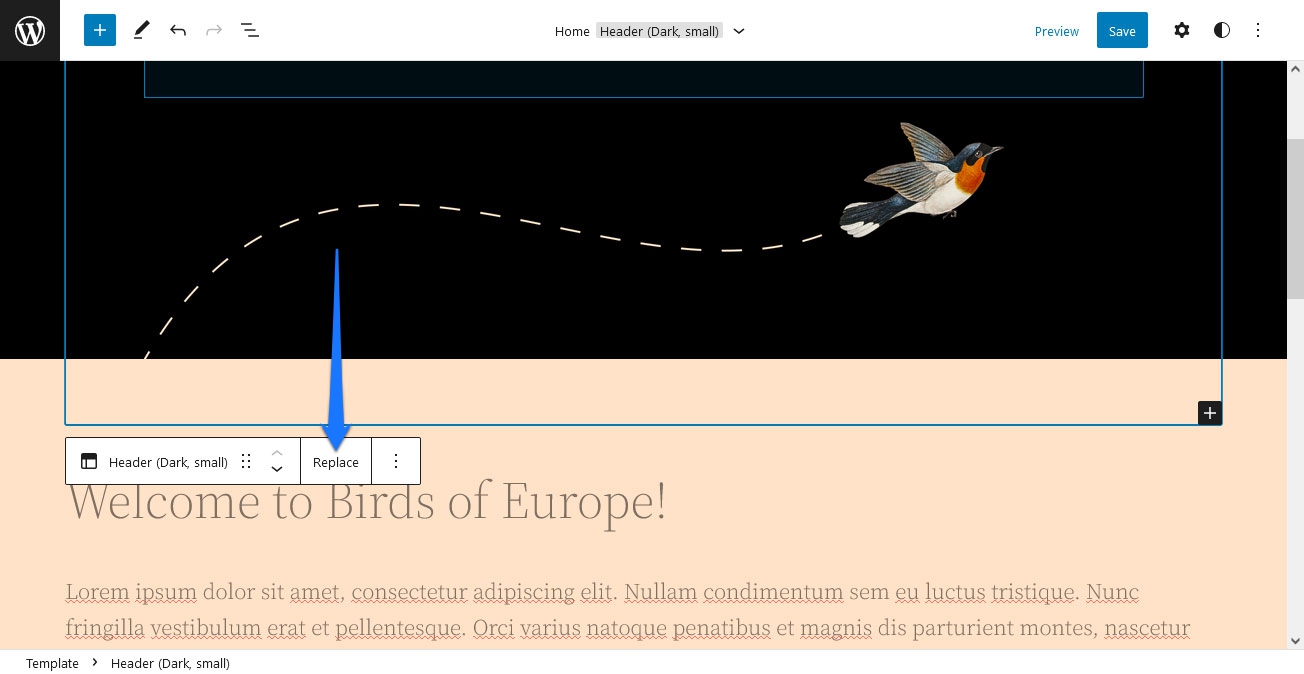
Clicking it shows the theme’s supplied variations along with fitting block patterns. Choosing one replaces the section immediately.
For more granular control, open the WordPress logo menu and select Template Parts to see every template part on your site.
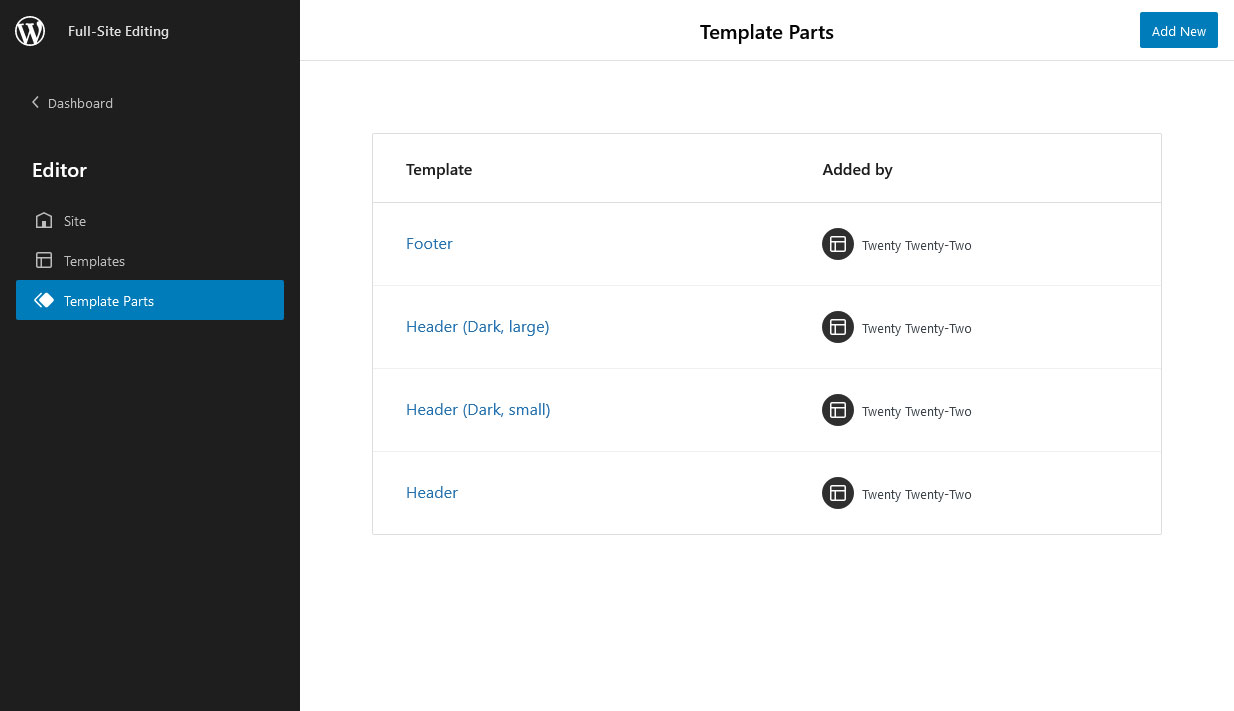
In this view:
- Edit any existing part. The editor includes handles on the left and right so you can shrink and expand the canvas to check responsive behavior on smaller screens.
- Add New creates a new template part from scratch. WordPress automatically offers both header and footer starter templates so you do not start empty.
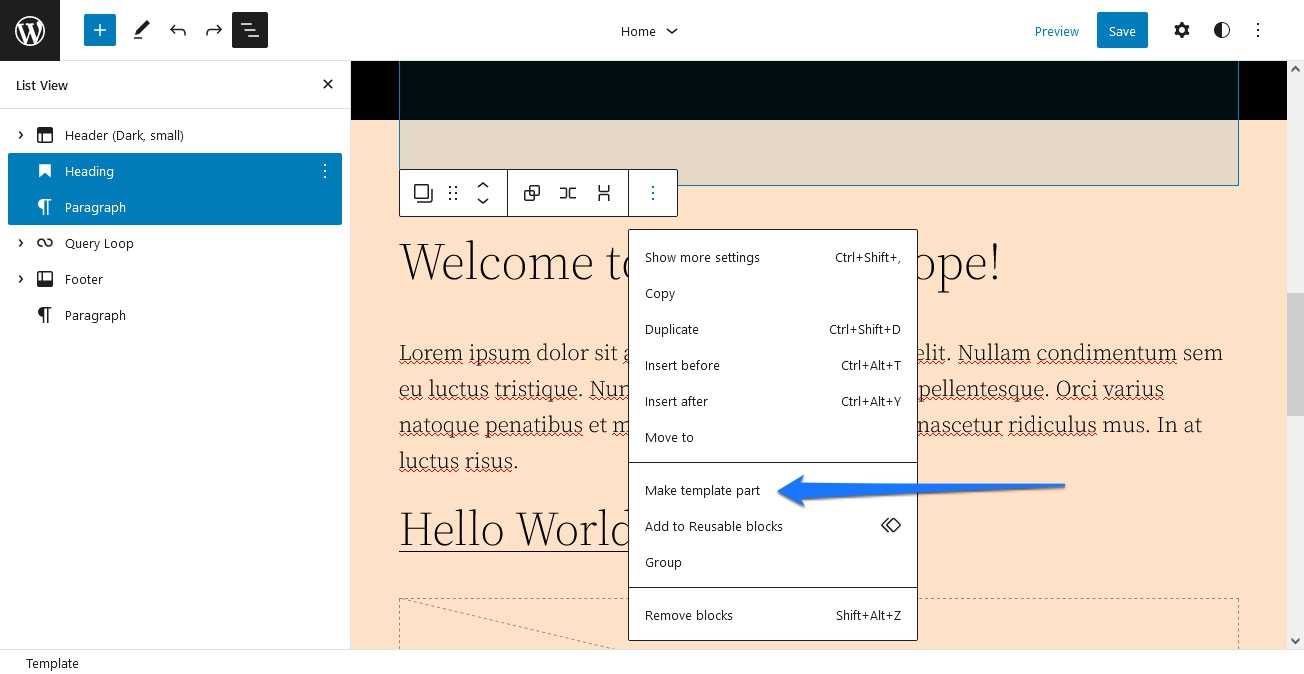
Changes you save to a template part propagate to every template that uses it. You can also convert an existing group of blocks into a reusable template part: select the blocks, choose Make template part, give it a name, and assign it to a site area.
Templates And Block Patterns
The WordPress logo menu also lists all available page templates — 404 pages, archives, single pages, and posts. Editing a template this way applies changes to every piece of content of that type. You can also create new templates with Add New, although FSE currently only supports the creation of standard page templates.
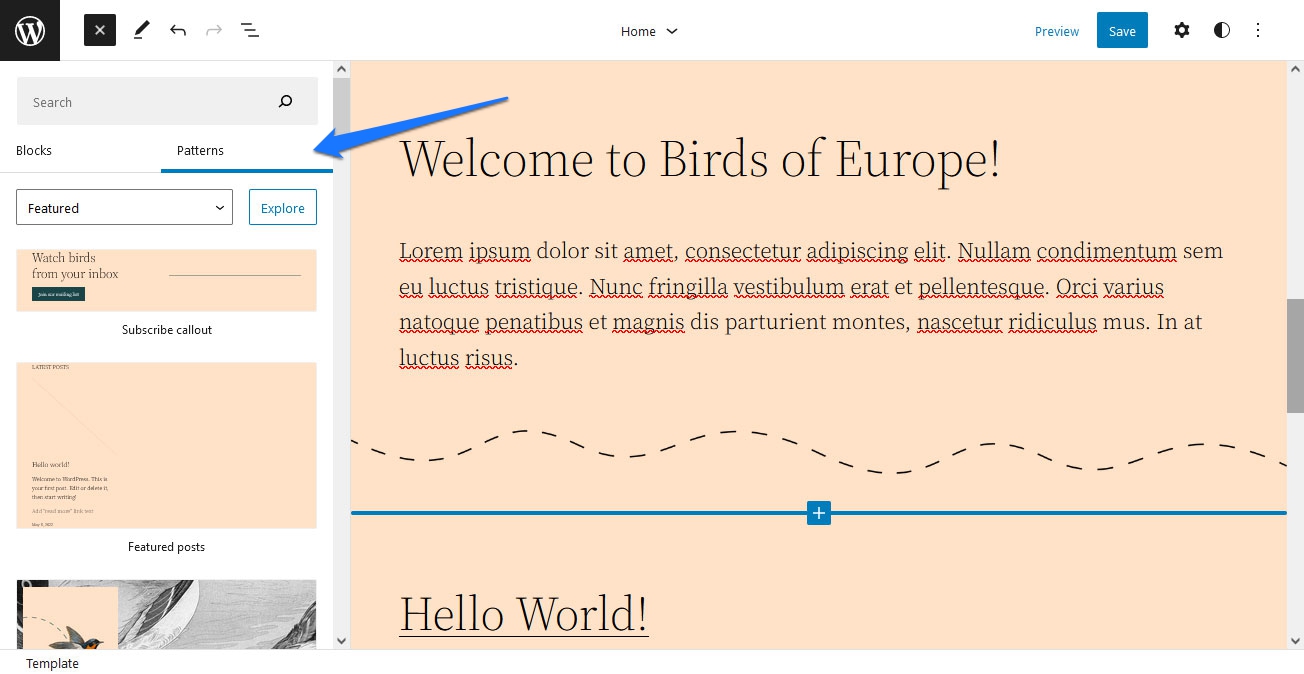
Block patterns make assembling templates considerably faster. These predesigned, multi-block layouts range from newsletter signups and pricing tables to simple styled dividers. To add one, click the plus icon in the upper left, navigate to the Patterns tab, then filter or search. Patterns can be dragged onto the page, and the Explore option opens a dedicated browser with more refined search controls on the left. Clicking a pattern there adds it directly to the template, ready for positioning and customization.
Note: You can clear your customizations for any individual template from the three-dot menu within the Templates list.
You can also import block patterns from the WordPress pattern directory. Use the Copy Pattern button on the pattern’s page, head back into the site editor, and paste it in place. The pattern then appears as a normal block group. If you plan on reusing it, choose Add to Reusable blocks from its options menu, and it will that appear under the Reusable section of the block inserter.
Creating Templates From The Content Editor
A second, less complex path to template editing exists inside the regular Gutenberg content editor. Create a new post or page, locate the Template panel underneath Status & visibility in the document settings sidebar. You can edit the current template with the Edit button, create a new one with New, or pick an existing template from the drop-down. Each opens a template editor limited to that single template.
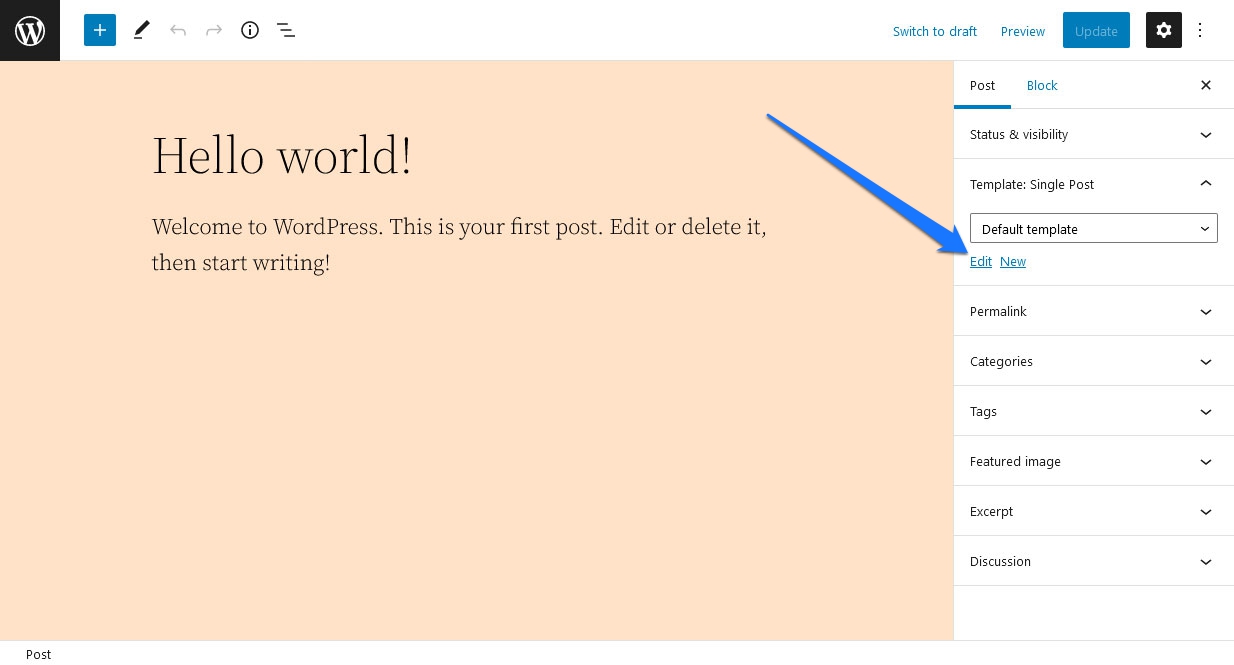
Templates created or modified here also appear in the list within the Full-Site Editing editor.
Template-Specific Blocks
Full-Site Editing introduces a set of dynamic blocks that pull content from the database according to context. They cover:
- Site title, tagline, and logo.
- Post title, featured image, content, excerpt, author, avatar, author bio, date, tags, categories, and next/previous post navigation.
- Comments, including the commenting form, individual comments, and comment counts and avatars.
- Archive title and term description.
- Query loop and its sub-blocks, pagination, and template parts.
These blocks are also available in the standard editor and are under ongoing expansion via the Gutenberg plugin.
Saving Your Work
After making changes, the Preview button in the upper right lets you check the design at different screen sizes. When you are ready to publish, click Save. A panel then appears listing every template and template part your changes will affect.
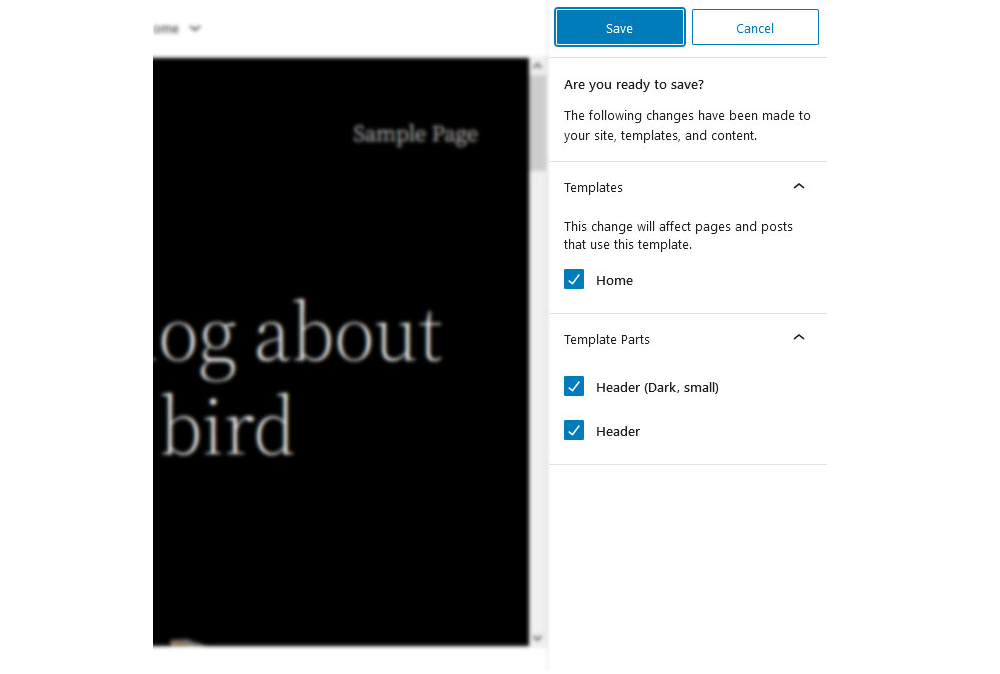
You can uncheck any of those components to discard changes there while keeping them elsewhere. Confirming the save applies your selections across the front end of your site.
Block Themes: A New Architecture
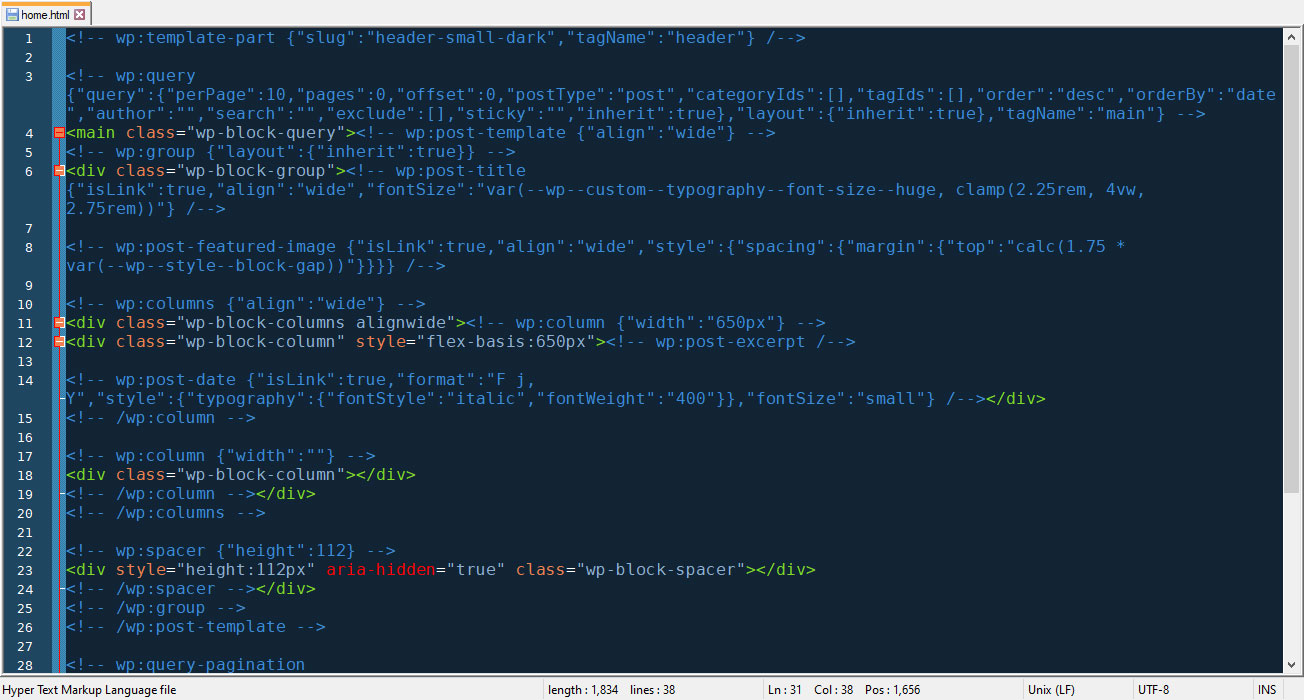
Full-Site Editing is not just a new interface for users — it also changes how themes are built. Block themes no longer rely on PHP template files. Instead, templates and template parts are plain HTML files that contain block markup.
Styling duties have largely moved from style.css to theme.json. This file defines styles for the block editor and individual blocks, including presets and CSS defaults for both the front end and the editor. Its power is considerable: swapping the theme.json values in Twenty Twenty-Two for different font, color, duotone or spacing settings can visually transform the whole site. WordPress 6.0 even made it possible to switch between multiple global style sets — i.e., different theme.json files — within the same theme.
The shift is dramatic. Twenty Twenty-Two’s style.css is just 148 lines, while its predecessor, Twenty Twenty-One, runs to roughly 6,000 lines. The markup inside theme.json is unlike anything in classic themes, and the format merits its own deep dive; the block editor documentation covers the details.
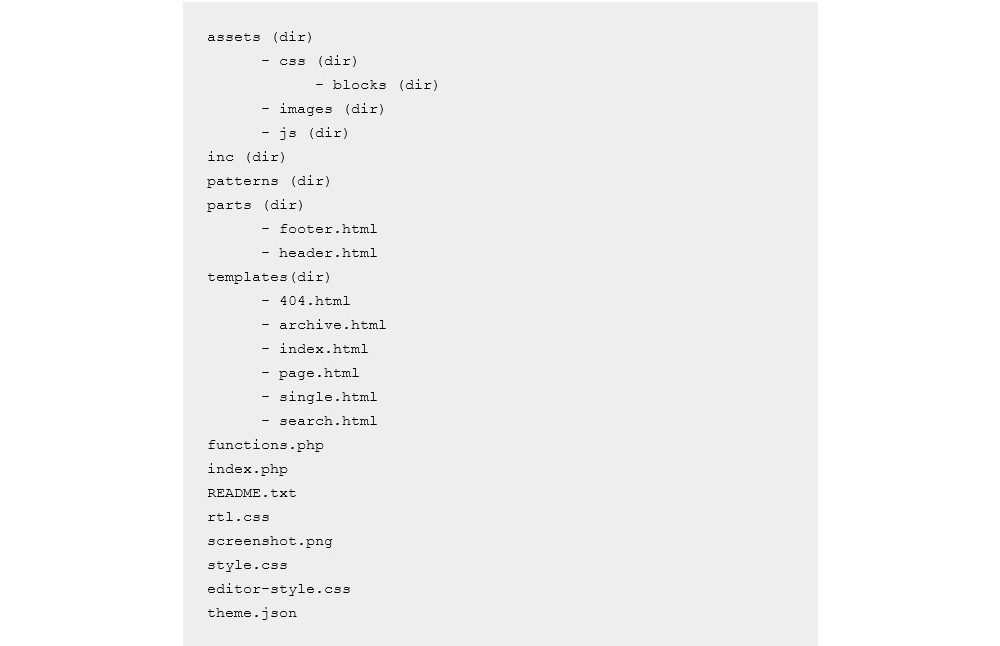
A minimal block theme needs only three files: index.php, style.css, and an index.html inside a templates folder. The last of these is what signals to WordPress that the theme is a block theme. Optional additions include a parts folder for template parts, a functions.php, a theme.json, and a styles folder containing global style presets such as alternative color schemes.
Generating Theme Files From the Editor
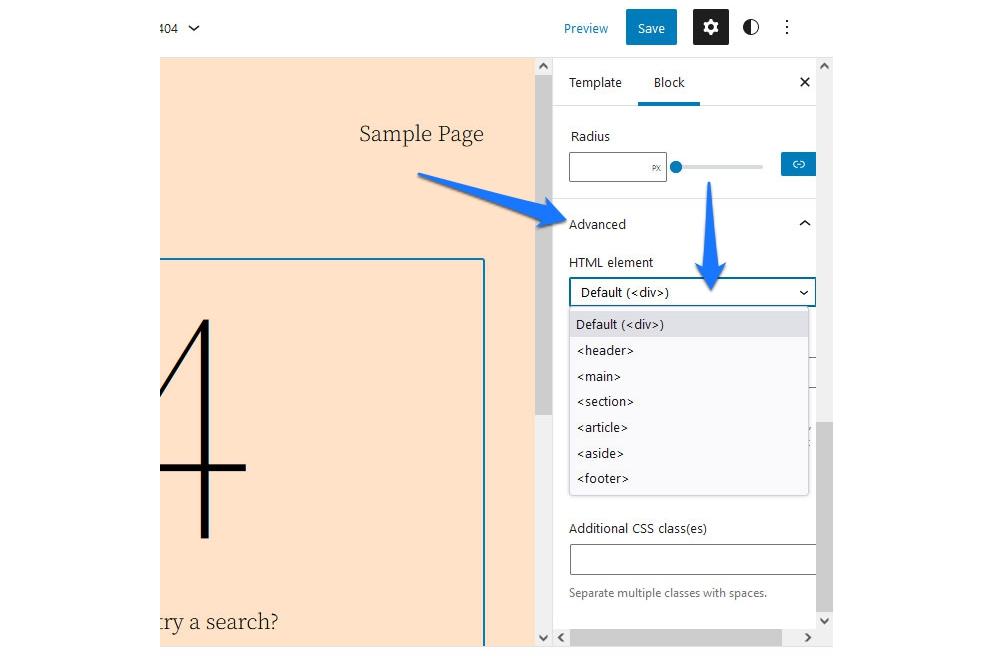
Rather than writing template files by hand, you can build them in the Full-Site Editing or Template Editor interface. One useful option lives in the Advanced settings of template-part blocks, where you can change the HTML element they render as.
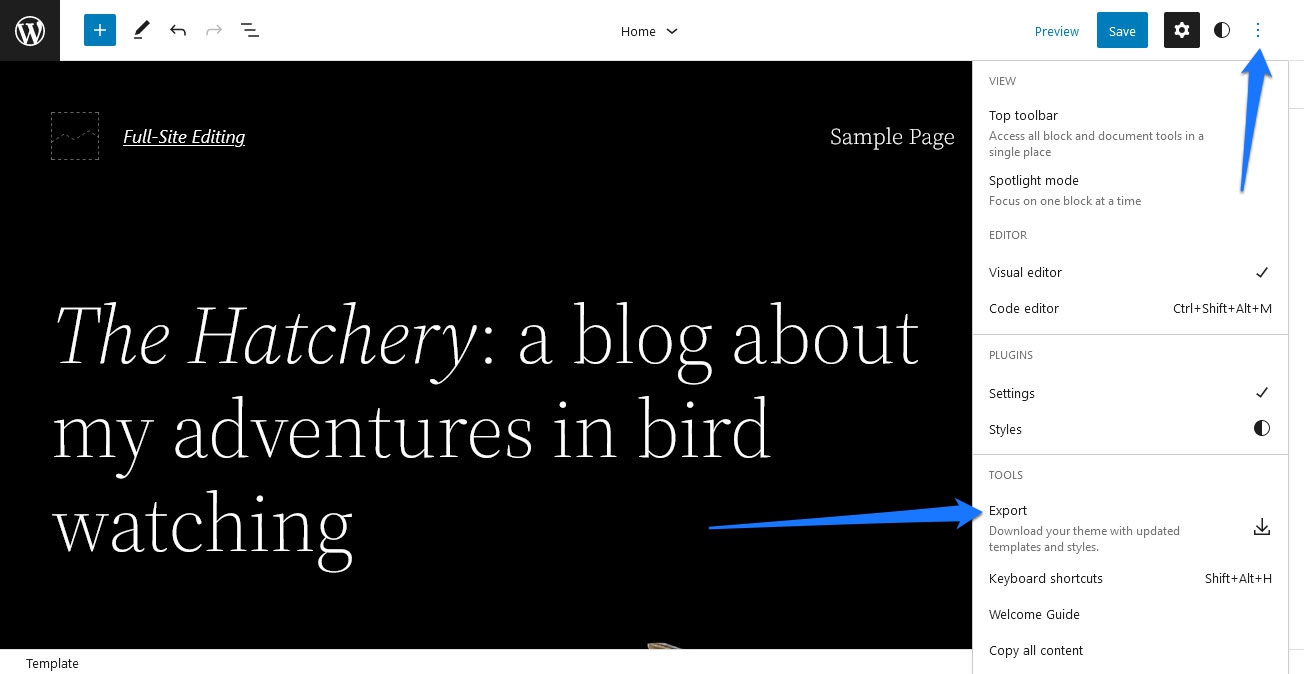
When your templates are ready, the export feature collects all theme files into a single archive. It is available under More tools & options — the three-dot menu in the upper right corner of the Full-Site Editing screen. Choosing Export downloads a zip containing every template and template-part file, ready to be unpacked and used in a theme.
Writing Block Templates Manually
Manual template creation is still fully supported, and it only requires familiarity with block markup. Most blocks are written as HTML comments with a wp: prefix. Some are self-contained, such as the site-title block:
<!-- wp:site-title /-->
Others, like paragraphs, open and close like brackets:
<!-- wp:paragraph -->
<p>Lorem ipsum dolor sit amet, consectetur adipiscing elit.</p>
<!-- /wp:paragraph -->
Template parts are invoked by filename using the slug attribute — this example calls footer.html:
<!-- wp:template-part {"slug":"footer"} /-->
The wrapping HTML tag (which defaults to div) can be customized with the tagName attribute:
<!-- wp:group {"tagName":"main"} -->

<!-- /wp:group -->
If you are unsure about the exact markup, you can build the block in any of the editors and copy the generated code. Conversely, files saved into the theme directory will appear in the Full-Site Editing interface without further steps.
Impact on the WordPress Ecosystem
Full-Site Editing raises a familiar question: will it replace professional developers and designers? History suggests not. Page builders and earlier WordPress features made self-service website building easier, but the demand for professional help never disappeared. Users still need experts for unique designs, complex functionality, and the work behind the scenes — SEO, performance, security, and maintenance. Many site owners simply prefer to hire someone rather than learn the craft. Design is not just technical ability, and mistakes are easier to make when more power is in the hands of non-experts.
Theme creators face a more immediate question: must everyone switch to block themes? Not at once. Many themes have not even adopted the block editor, and the Classic Editor plugin remains supported until at least the end of 2022. All Full-Site Editing features are optional. Hybrid themes are also possible — a theme does not have to be a full block theme to use block templates, unless that capability is explicitly disabled.
Still, a gradual move toward Full-Site Editing is prudent. Users will increasingly expect the flexibility it provides. For theme developers, the interface offers a way to prototype and produce themes with less code, and the ecosystem gains room for new revenue streams: blocks and block patterns can be sold or offered as extensions alongside themes.
Page builder plugins such as Divi and Elementor are unlikely to vanish. Many users are deeply invested in their current tools, and these plugins remain more powerful than Full-Site Editing in its current form. They have also become deeply entrenched, sometimes bundled with themes. Yet Full-Site Editing will erode some of their market share, particularly among new users who learn it as a standard WordPress feature. Competitiveness will require page builders to differentiate — perhaps by offering hybrid plugins that extend the native editor, a model that already exists for both Gutenberg and the Classic Editor.
Further Reading
For a deeper exploration of Full-Site Editing, these resources are a solid starting point:
- Block Editor Handbook — The general reference for everything Gutenberg-related, plus the primer on block themes in the Theme Developer Handbook.
- Fullsiteediting.com — A dedicated resource site and free course by Carolina Nymark, covering all aspects of FSE from basics to
theme.json, and featuring a starter block theme generator and a directory of block themes. - WordPress Theme Directory: Block Themes — The official directory now tags Full-Site Editing-compatible themes, making it easy to find and test them.
A Promising but Unfinished Chapter
Full-Site Editing marks a significant evolution in WordPress. It unifies the design process, giving content creators more direct control over their sites. Developers and theme designers must adapt to a new theme architecture, markup, and workflow — but the change brings opportunities for faster prototyping, themes built with less coding, and new business models around blocks and patterns.
The feature still has rough edges. There is, for example, no visible option to change hover or active colors for links and other elements, and it does not yet match the power of established page builders. What is already impressive is the modularity and the granular control over theme parts. As new capabilities close the gap with page builders, Full-Site Editing is likely to earn a permanent place in the WordPress toolkit.


