
What a service worker actually does
A service worker is a background process that runs on its own thread alongside your web app. It can intercept network requests and respond to them with anything — compiling TypeScript on the fly, transcoding video the browser can't handle natively, or, more commonly, serving cached assets. The VitePWA plugin by Anthony Fu automates this last case for Vite projects, generating a worker that provides offline support, caches assets and content, and notifies users when new content is available.
On a visitor's first load, the generated service worker installs and pre-caches your HTML, CSS and JavaScript through the Cache Storage API. Later visits are served straight from cache, and even during the first visit, anything the user clicks next is likely already pre-cached, so the browser can skip the network entirely.
Why the plugin exists
Cache invalidation is the hard part. Build tools emit hashed filenames like foo-ABC123.js, so editing a file produces a fresh name on the next deploy. The Service Worker API itself offers no turnkey answer: you would have to read your build's output, hard-code the file names into the worker, write the pre-cache logic, and track which files are cached. When your code changes, the worker file changes too, and the incoming worker must diff its new manifest against the cached one — evicting stale entries and caching new ones. The service worker's creation has to be tied to the build system.
That's why the sensible move is Workbox, Google's library for service worker generation. Workbox is still fairly low-level, though — it needs detailed knowledge of the files being pre-cached, which lives inside the bundler. VitePWA sits on top: it wraps Workbox and feeds it all the information about the bundles Vite produces. Equivalent plugins exist for webpack and Rollup.
Setting things up
Start by installing the plugin:
npm i vite-plugin-pwaImport it in your Vite config:
import { VitePWA } from "vite-plugin-pwa"Then add it to the config:
plugins: [
  VitePWA()
That is all you need for a surprisingly capable worker. Register it from your app's entry point:
import { registerSW } from "virtual:pwa-register";

if ("serviceWorker" in navigator) {
  // && !/localhost/.test(window.location)) {
  registerSW();
}
The commented-out line guards development: the worker is installed only when you aren't on localhost, unless you're developing the worker itself — in which case you can disable the check for the session, but revert before merging. To verify, open a fresh browser, load the app with the DevTools Network panel open, and expect the usual page load plus a slew of additional requests as Workbox pre-caches the bundles.

Offline mode and its limits
Because the bundles are pre-cached, they can be served without touching the network. Nothing more is required: select offline simulation in Chrome's Network panel and refresh — the page should load.

Data requests are a separate problem. While offline, they hang. You can intercept them in the service worker, check connectivity, and answer from IndexedDB, browsers' built-in persistent database. A simpler route is to detect that the user is offline, show a message, and skip the data layer altogether. Restore the network connection before continuing.
How updates propagate
To watch updates in action, clear the site's data from the Application tab of DevTools, then rebuild.
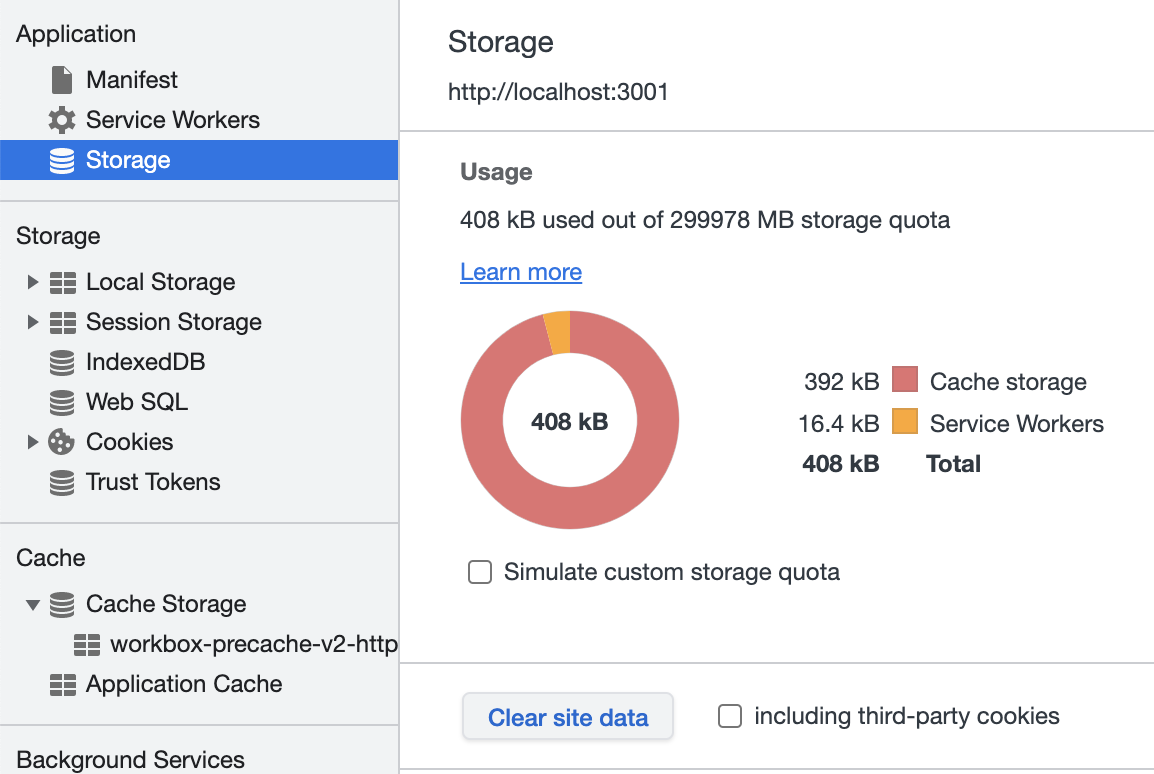
The generated sw.js contains a pre-cache manifest listing all assets. (If it's minified, run it through Prettier first.)
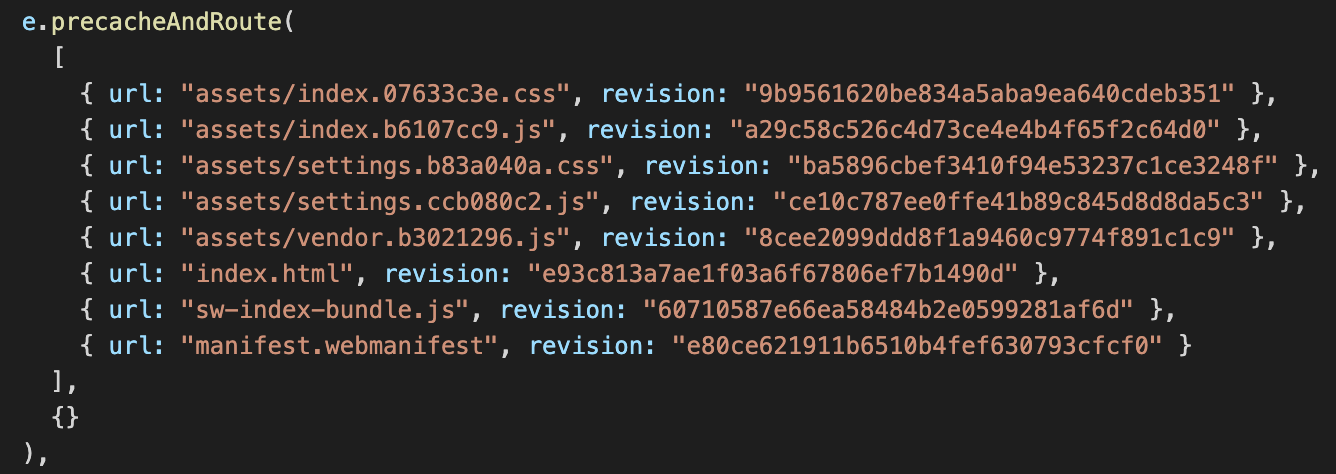
Serving the site shows what's in the cache:

Of note is the settings.js file. Vite emitted assets/settings.ccb080c2.js from a content hash, and Workbox, independent of Vite, computed its own hash of the same file. If the same bundle name ever shipped with different content, a new service worker with a different revision in its manifest would let Workbox cache the replacement and drop the old copy. Note that the VitePWA plugin has since been updated and no longer injects those revision hashes, so following these steps today may look slightly different (see this GitHub issue).
Modify settings.js and rebuild: Vite emits a new hash, and the plugin treats it as a new file. The manifest now looks like:

Refresh, and the old service worker keeps serving the old file in the old tab. The new worker, with its new manifest, is downloaded and pre-caches in the background:

That behaviour is the catch: the user still sees the old content. By default, the service worker guarantees every open tab runs the same version, so refreshing alone won't reveal a change.
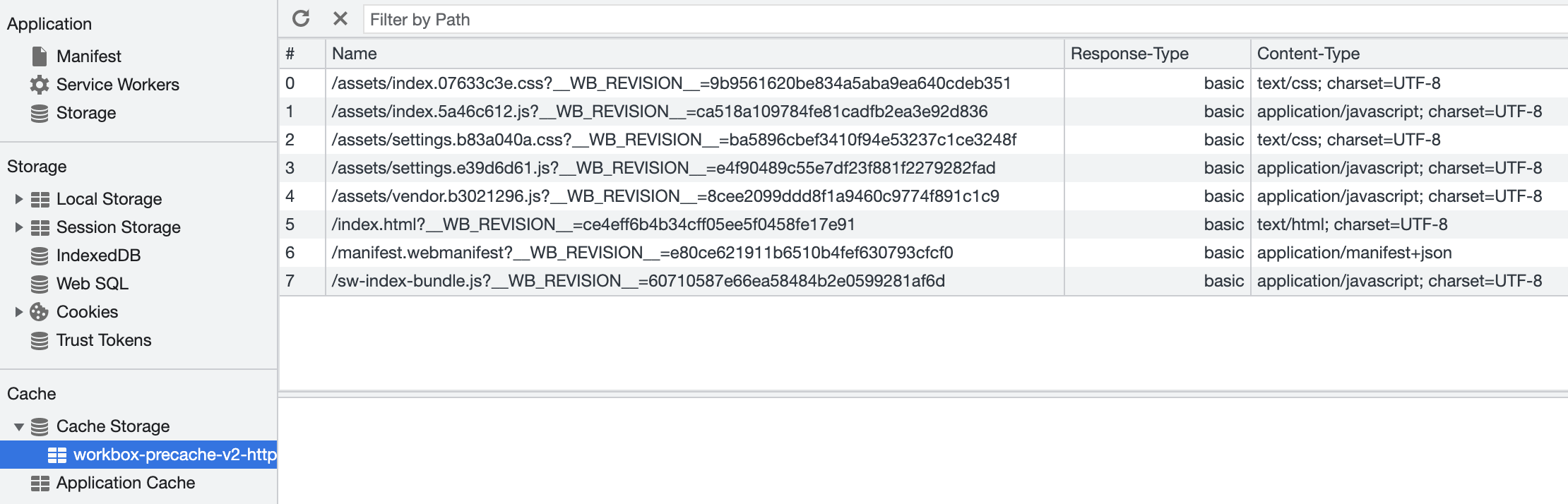
Closing every tab on the site and reopening it picks up the update. Workbox makes this work with almost no effort from you — but waiting for users to close their tabs is rarely acceptable.
Prompting the user to refresh
The plugin's registerSW function accepts an object with an onNeedRefresh method, invoked whenever a new service worker is waiting to take over. It also returns a function that reloads the page and activates the new worker.
if ("serviceWorker" in navigator) {
  // && !/localhost/.test(window.location) && !/lvh.me/.test(window.location)) {
  const updateSW = registerSW({
    onNeedRefresh() {
      Toastify({
        text: `<h4 style='display: inline'>An update is available!</h4>
               <br><br>
               <a class='do-sw-update'>Click to update and reload</a>  `,
        escapeMarkup: false,
        gravity: "bottom",
        onClick() {
          updateSW(true);
        }
      }).showToast();
    }
  });
}
The example below uses the toastify-js library to notify the user that a new version is available; clicking the toast triggers the reload.

One wrinkle: if you deploy the toast code as a change, the toast won't appear on your next visit, because the previous service worker is still in control. Close all the site's tabs and reopen once to let the new worker install. The next code change you deploy will then produce the prompt. The reload function works where a plain refresh does not because it also calls low-level Service Worker APIs, notably skipWaiting.
Caching beyond the bundle
Pre-caching covers build output; other requests at runtime are handled by Workbox's runtimeCaching option. Pass the plugin an object with a workbox property containing Workbox settings:
const getCache = ({ name, pattern }: any) => ({
  urlPattern: pattern,
  handler: "CacheFirst" as const,
  options: {
    cacheName: name,
    expiration: {
      maxEntries: 500,
      maxAgeSeconds: 60 * 60 * 24 * 365 * 2 // 2 years
    },
    cacheableResponse: {
      statuses: [200]
    }
  }
});
// ...

  plugins: [
    VitePWA({
      workbox: {
        runtimeCaching: [
          getCache({
            pattern: /^https:\/\/s3.amazonaws.com\/my-library-cover-uploads/,
            name: "local-images1"
          }),
          getCache({
            pattern: /^https:\/\/my-library-cover-uploads.s3.amazonaws.com/,
            name: "local-images2"
          })
        ]
      }
    })
  ],
// ...
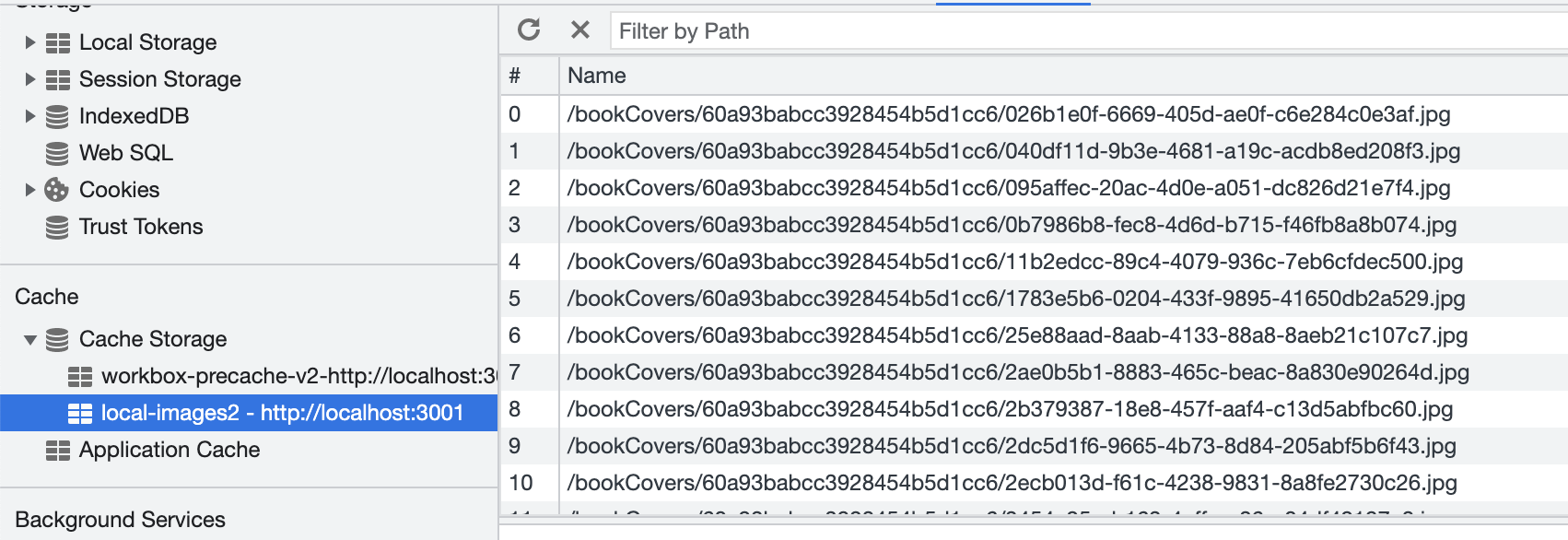
This configuration caches anything matching the given URL patterns; the Workbox docs cover the details. Once it takes effect, those resources are served by the service worker, and a corresponding cache appears:

Injecting custom worker code
If you need your own logic — IndexedDB sync, fetch handlers that answer from IndexedDB when offline, and so on — Workbox exposes importScripts:
VitePWA({
  workbox: {
    importScripts: ["sw-code.js"],
The worker fetches sw-code.js at runtime, so that file must be served by your app. The easiest way is to place it in the public folder (see the Vite docs). If the file outgrows a single script and needs JavaScript imports, bundle it — for instance as a separate Vite build — so the service worker never has to execute import statements.
Takeaway
Pre-caching via the Cache API is a large performance win, and the machinery underneath — manifests, revision tracking, activation — is fiddly enough that automating it is the only practical path. Workbox does the legwork; VitePWA connects it to Vite's build output. Install the plugin and an offline-capable site is your starting point, with the more advanced service worker capabilities available as you need them.