
Finding a content management layer that works with a static site generator has long been an exercise in trade-offs: odd pricing, awkward customization, or a system that becomes its own project to run. Pages CMS is an attempt at a middle ground — it bills itself as "The No-Hassle CMS for Static Site Generators." It is largely the work of a single developer, Ronan Berder, and is open source, with pull requests accepted on GitHub.
The draw is that content stays as flat files in your git repository, so there is no back end to maintain. Pages CMS gives contributors a way to edit that content without knowing Git. Setup revolves around a single configuration file and a browser-based interface that borrows many of the better ideas from other CMS tools.
What a CMS for static sites needs
The bar is not especially high: the tool should be easy enough that non-technical people can use it, require little beyond updating some HTML, support collaboration among contributors who know neither Markdown nor GitHub, and expose custom fields for different content types. Pages CMS covers each of these, and it is free to use.
- Authentication works in two ways. Contributors can sign in with a GitHub account, or be invited by email and receive a password-less "magic link" login URL — useful since GitHub accounts are less common outside development work.
- Content lives as flat files in the repository; Pages CMS commits changes on your behalf.
- Customization spans media uploads, editable single files, whole content collections, the full set of supported field types documented on the project site, and fully custom fields.
Pairing with Astro content collections
A public repository, astro-pages-cms-template, demonstrates the setup using Astro's default blog starter. Astro content collections make globs of data available throughout a site, commonly sourced from directories of Markdown files — exactly what Pages CMS manages. A collection is defined in a configuration file; here, the src/content.config.ts file declares a collection named blog:
import { glob } from 'astro/loaders';
import { defineCollection, z } from 'astro:content';

const blog = defineCollection({
// Load Markdown in the `src/content/blog/` directory.
loader: glob({ base: './src/content/blog', pattern: '**/*.md' }),
  // Type-check frontmatter using a schema
  schema: z.object({
    title: z.string(),
   description: z.string(),
    // Transform string to Date object
    pubDate: z.coerce.date(),
    updatedDate: z.coerce.date().optional(),
    heroImage: z.string().optional(),
  }),
});

export const collections = { blog };
The blog collection looks in /src/content/blog for files matching **/*.md. The schema property is optional, but through Zod it adds type-checking in Astro, so the data Pages CMS saves behaves as the site expects.
Configuring Pages CMS
Astro now knows where to find blog content; the next step is the Pages CMS configuration file, .pages.config.yml:
content:
  - name: blog
    label: Blog
    path: src/content/blog
    filename: '{year}-{month}-{day}-{fields.title}.md'
    type: collection
    view:
      fields: [heroImage, title, pubDate]
    fields:
      - name: title
        label: Title
        type: string

      - name: description
        label: Description
        type: text

      - name: pubDate
        label: Publication Date
        type: date
        options:
          format: MM/dd/yyyy

      - name: updatedDate
        label: Last Updated Date
        type: date
        options:
          format: MM/dd/yyyy

      - name: heroImage
        label: Hero Image
        type: image

      - name: body
        label: Body
        type: rich-text

  - name: site-settings
    label: Site Settings
    path: src/config/site.json
    type: file
    fields:
      - name: title
        label: Website title
        type: string

      - name: description
        label: Website description
        type: string
        description: Will be used for any page with no description.

      - name: url
        label: Website URL
        type: string
        pattern: ^(https?:\/\/)?(www\.)?[a-zA-Z0-9.-]+\.[a-zA-Z]{2,}(\/[^\s]*)?$

      - name: cover
        label: Preview image
        type: image
        description: Image used in the social preview on social networks (e.g. Facebook, Twitter...)

media:
  input: public/media
  output: /media
Within its content section, the blog object ties Pages CMS to the same directory Astro reads:
- name: blog
  label: Blog
  path: src/content/blog
  filename: '{year}-{month}-{day}-{fields.title}.md'
  type: collection
  view:
    fields: [heroImage, title, pubDate]
  fields:
    - name: title
      label: Title
      type: string

    - name: description
      label: Description
      type: text

    - name: pubDate
      label: Publication Date
      type: date
      options:
        format: MM/dd/yyyy

    - name: updatedDate
      label: Last Updated Date
      type: date
      options:
        format: MM/dd/yyyy

    - name: heroImage
      label: Hero Image
      type: image

    - name: body
      label: Body
      type: rich-text
path: src/content/blogThe path property points Pages CMS to the directory where Markdown files should be saved, matching the /src/content/blog/ location Astro uses. The filename property supplies a pattern template for naming saved files; in this example it combines the file date's year, month and day with the entry's title, referenced as fields.title. That pattern can be customized in many ways to fit a given scenario. Meanwhile, type tells Pages CMS this entry is a collection of files rather than a single editable file:
filename: '{year}-{month}-{day}-{fields.title}.md'type: collectionThe Astro schema expects each file to carry metadata such as title, description, pubDate and a few other properties. Those requirements are mirrored as fields in the Pages CMS blog collection, with each field tailored to the type of data it collects — here matched to the default Markdown frontmatter of the Astro blog starter:
fields:
  - name: title
    label: Title
    type: string

  - name: description
    label: Description
    type: text

  - name: pubDate
    label: Publication Date
    type: date
    options:
      format: MM/dd/yyyy

  - name: updatedDate
    label: Last Updated Date
    type: date
    options:
      format: MM/dd/yyyy

  - name: heroImage
    label: Hero Image
    type: image

  - name: body
    label: Body
    type: rich-text
With that in place, every new blog item created in Pages CMS presents these fields for filling out, conforming to Astro's schema.
Editable files and media paths
Beyond content collections, Pages CMS can manage individual editable files — handy for site-wide variables, feature flags or editable navigation. The site-settings object sets type: file and includes a filename in its path:
- name: site-settings
  label: Site Settings
  path: src/config/site.json
  type: file
  fields:
    - name: title
      label: Website title
      type: string

    - name: description
      label: Website description
      type: string
      description: Will be used for any page with no description.

    - name: url
      label: Website URL
      type: string
      pattern: ^(https?:\/\/)?(www\.)?[a-zA-Z0-9.-]+\.[a-zA-Z]{2,}(\/[^\s]*)?$

    - name: cover
      label: Preview image
      type: image
      description: Image used in the social preview on social networks (e.g. Facebook, Twitter...)
Its fields cover common site-wide settings: the site's title, description, url and cover image.
Media storage is configured separately, telling Pages CMS where images and video should live:
media:
  input: public/media
  output: /media
The input property sets the storage location, /public/media. The output property rewrites file paths for tools with specific path requirements: Astro runs on Vite under the hood, and Vite already knows about the public directory — it complains if that segment appears in file paths. Setting output means Pages CMS writes image paths starting at the inner /media directory instead. In the test post under src/content/blog/, the result is visible:
---
title: 'Test Post'
description: 'Here is a sample of some basic Markdown syntax that can be used when writing Markdown content in Astro.'
pubDate: 05/03/2025
heroImage: '/media/blog-placeholder-1.jpg'
---
The heroImage property now correctly points to /media/... rather than /public/media/.... Overall, the configuration can be as simple or as complex as needed, with any number of collections and editable files, each with its own field set.
Connecting the site and writing content
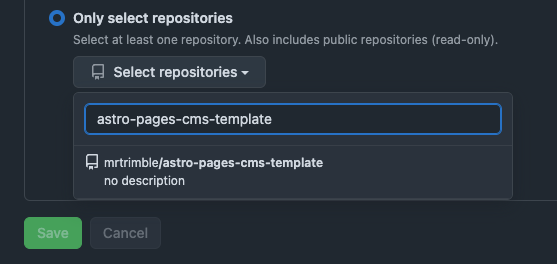
With the site and its .pages.config.yml in place, the repository owner signs in at https://app.pagescms.org/ with a GitHub account and answers Git permissions questions — granting access to all repositories or only specific ones. Restricting access to just the astro-pages-cms-template repository is an option.
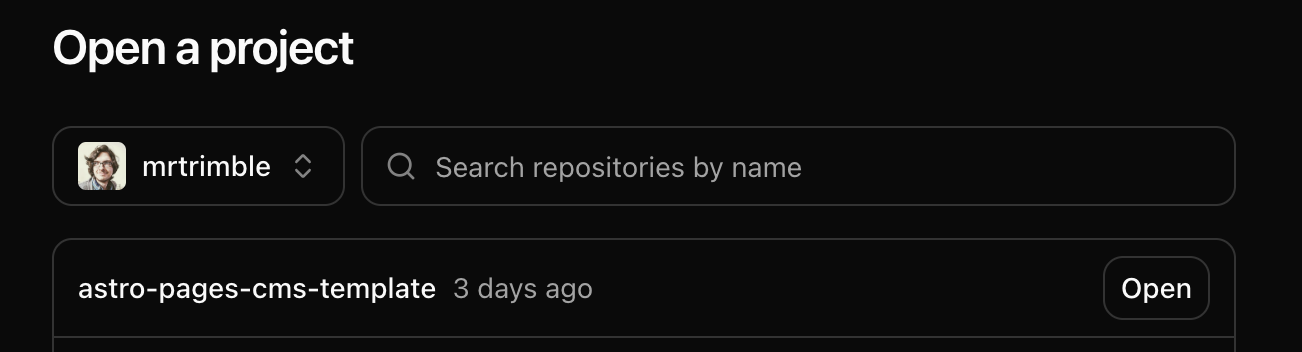
After access is granted, the project appears in the Pages CMS application under the "Open a Project" headline:
Opening it lands in the site dashboard. The left-hand navigation mirrors the configuration:
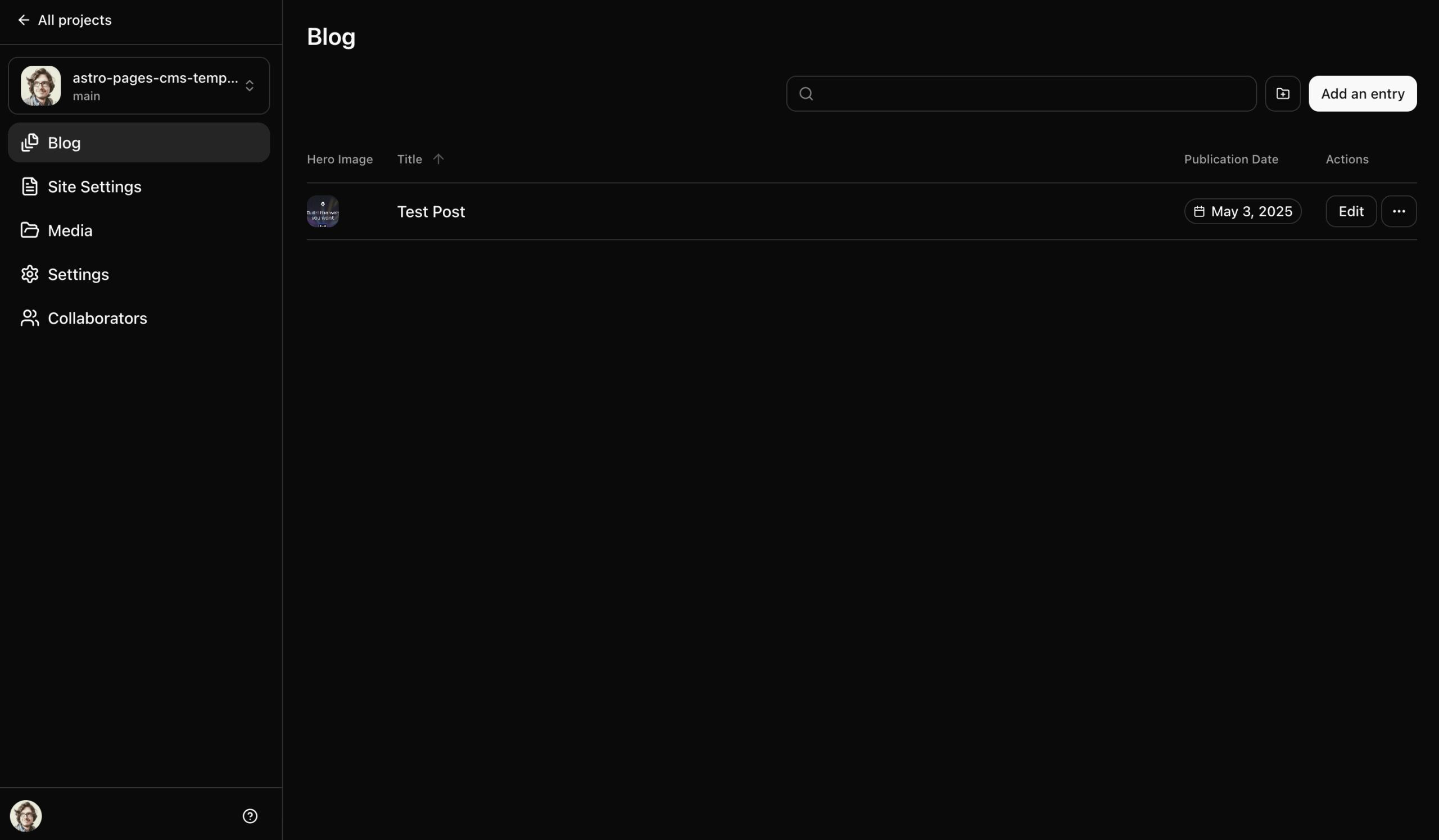
- Blog — the collection defined in
.pages.config.yml, where new entries are added. - Site Settings — the editable file holding site-wide variables.
- Media — storage for images and other assets.
- Settings — a place to edit the
.pages.config.ymlfile directly. - Collaborators — invites others to contribute content.
Clicking Add Entry in the top right starts a new blog post:
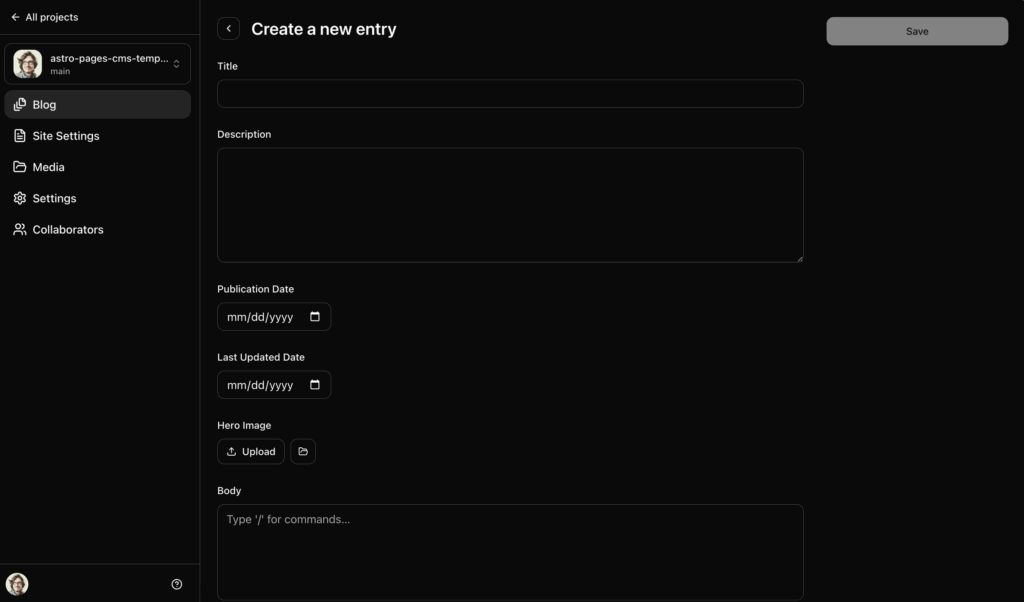
Fill out the fields and press Save. Pages CMS then creates the Markdown file, places it in the proper directory and commits the change to the repository automatically — no direct Git use required.
Deployment
The last piece is automated deployment through a provider of your choice. Astro has integrations for Netlify, Cloudflare Pages and Vercel, but can be hosted anywhere node applications run. Builds are typically fast thanks to Vite, so updates are not instant but deploy fairly quickly; sites using Astro's server-side rendering rather than fully static output may see faster changes.