Why image compression matters for performance
Uncompressed images add unnecessary bytes to a page. Since images can be candidates for Largest Contentful Paint (LCP), those extra bytes can increase resource load duration and potentially make LCP times worse.
Consider the two photos below. The version on the right is 40% smaller than the one on the left, but the visual difference is likely imperceptible to most users.
|
|
|
|---|


Finding compression opportunities
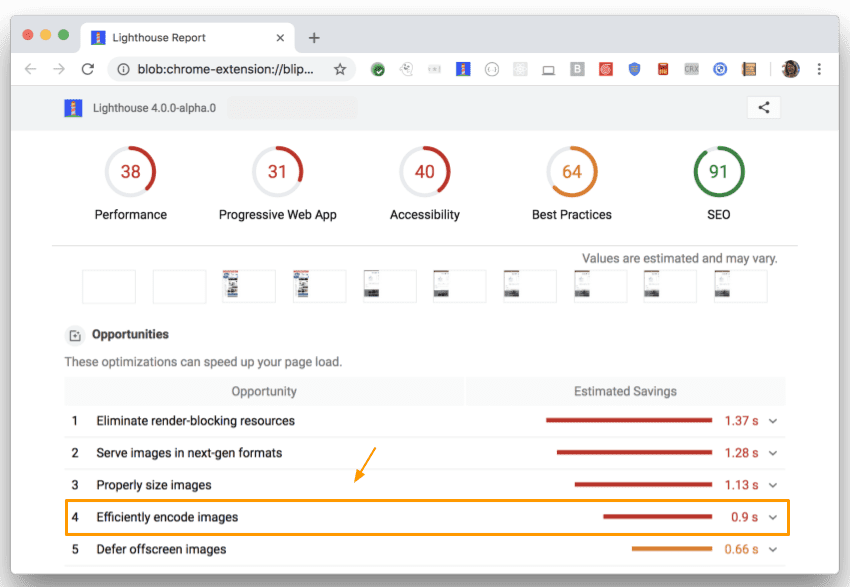
Run Lighthouse to detect images that are not efficiently encoded. The audit surfaces these as opportunities under "Efficiently encode images":
Compressing with Imagemin
Imagemin is a solid choice for image compression because it supports many formats and fits well into build scripts and toolchains. You can use it as a CLI or as an npm module. The npm module is generally the preferred route since it exposes more configuration options; the CLI is a handy option if you want to test Imagemin without writing code.
Understanding Imagemin plugins
Imagemin is organized around plugins—npm packages that compress a specific image format. For example, the mozjpeg plugin compresses JPEG files, and popular formats often have multiple plugin options.
The key distinction when choosing a plugin is whether it performs lossy or lossless compression. Lossless compression preserves all data, while lossy compression can reduce quality in exchange for smaller file sizes. A useful hint: if a plugin's API lets you set output quality, it is lossy. For most projects, lossy plugins deliver significantly better file size savings, and you can tune the quality level to suit your needs. The following table lists popular plugins that are strong candidates for a project (these aren't the only ones available).
| Image Format | Lossy Plugin(s) | Lossless Plugin(s) |
|---|---|---|
| JPEG | imagemin-mozjpeg | imagemin-jpegtran |
| PNG | imagemin-pngquant | imagemin-optipng |
| GIF | imagemin-giflossy | imagemin-gifsicle |
| SVG | imagemin-svgo | |
| WebP | imagemin-webp | imagemin-webp |
Using the Imagemin CLI
The CLI works with five plugins: imagemin-gifsicle, imagemin-jpegtran, imagemin-optipng, imagemin-pngquant, and imagemin-svgo. Imagemin picks the right plugin automatically based on the input file's format.
The command below compresses files in the images/ directory, saving the results in place (the original files are overwritten):
$ imagemin images/* --out-dir=images
Using Imagemin as an npm module
When integrating Imagemin with a bundler, check whether the bundler already has an Imagemin plugin. For instance, webpack has solid support for Imagemin—see this guide on using Imagemin with webpack.
Imagemin can also run standalone as a Node script. The following code uses the imagemin-mozjpeg plugin to compress JPEGs to a quality of 50 (where '0' is the worst quality and '100' the best):
const imagemin = require('imagemin');
const imageminMozjpeg = require('imagemin-mozjpeg');

(async() => {
  const files = await imagemin(
      ['source_dir/*.jpg', 'another_dir/*.jpg'],
      {
        destination: 'destination_dir',
        plugins: [imageminMozjpeg({quality: 50})]
      }
  );
  console.log(files);
})();


