
Adding a table of contents to a WordPress post serves two purposes: it lets readers jump straight to the section they need, and it carries SEO weight. RankMath treats a table of contents as a factor in page score, and other SEO plugins such as Yoast ship their own TOC block. The catch is that using that block ties you to the plugin for a small feature, so it's worth knowing what else exists.
What to evaluate before choosing
- Header customization — Can you turn off or rename the "Table of Contents" label, and which heading level does it use? Disabling it may be required for layout, and the level matters for HTML semantics.
- Collapsible behavior — Toggling open/closed usually needs JavaScript. Check whether the toggle is accessible and whether you can set the default state.
- Heading selection — Can you limit the block to
<h2>only, or to<h2>through<h4>? Do subheadings produce a nested list, and do you want that? - Editable link text — Most plugins copy headings verbatim. Consider whether you can shorten or rewrite a link without changing the heading itself.
- Extra links — Can you add entries that aren't headings, such as a custom field or the comments section, or remove entries you don't want?
- Block Editor support — Plenty of older tools are
[shortcode]-based or insert themselves automatically. Blocks are the focus, but placing a TOC elsewhere in the template (a sidebar, say) may call for more modular options. - Styling — Some users want color, font and spacing controls in the editor; others prefer to bring their own CSS and dequeue anything the plugin loads.
- Semantic markup — Inspect the generated HTML. Some plugins fake nesting by adding classes to list items instead of nesting actual lists.
- Heading IDs — Anchors need IDs, and a decent plugin should only add one where a heading lacks it; otherwise existing links or styling can break. Also watch for collisions: the author's Add Anchor Links plugin generated IDs identical to the TOC plugin's, producing duplicate IDs.
Option 1: a dedicated TOC plugin
These plugins do one thing only.
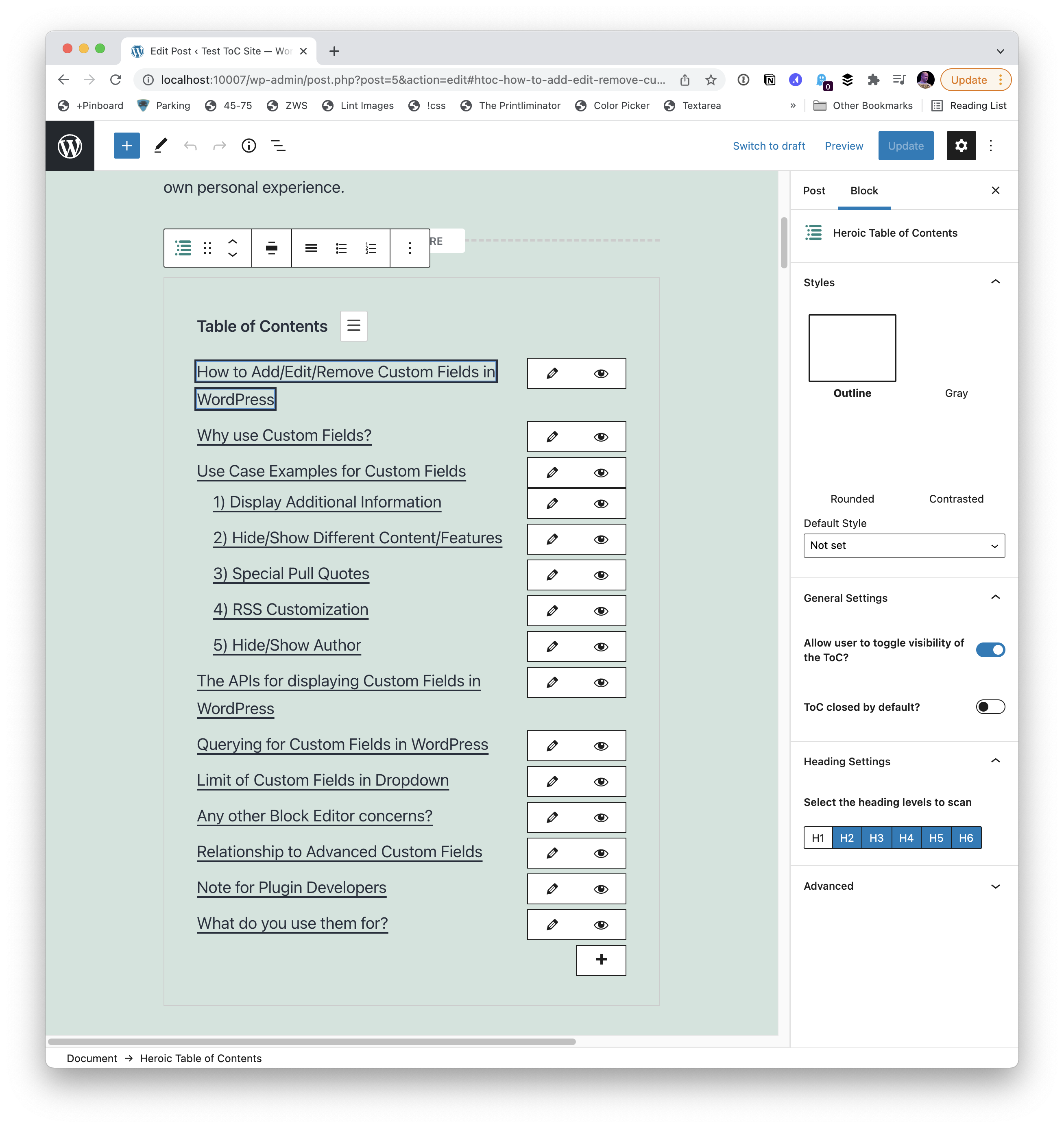
Heroic Table of Contents
Its standout ability is editing, adding and removing entries after the automatic generation. It can also collapse optionally. The cost is extra scripts and styles enqueued on the page.
Easy Table of Contents
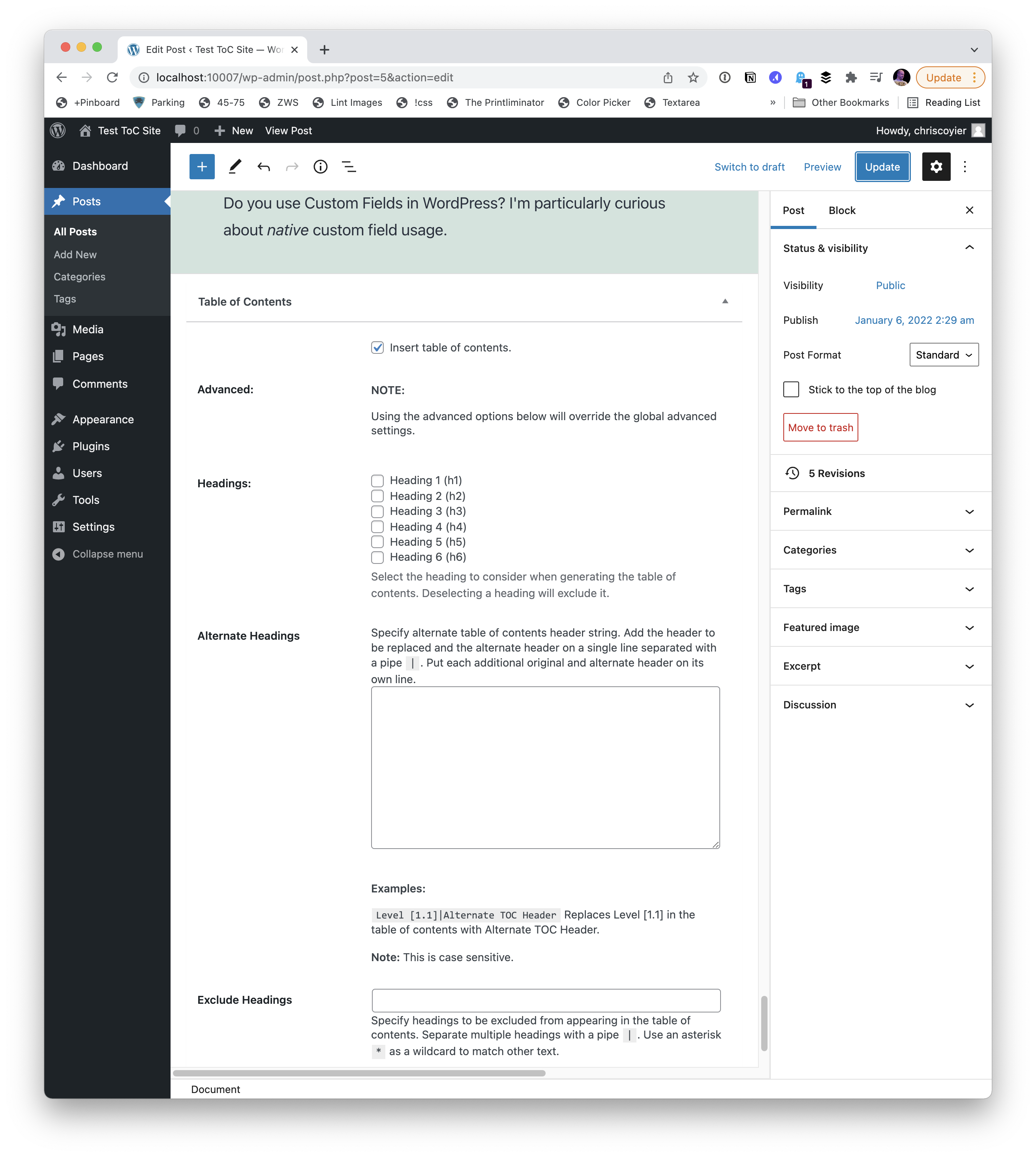
This one isn't a Block Editor block at all. It inserts itself automatically, either by content type or via an opt-in checkbox in a metabox, and placement isn't controllable — it appears near the top of the post, likely just after <!-- more -->.
SimpleTOC
The author's pick. By default it adds no scripts or styles; it simply builds a semantic HTML list from the headings and links them.

LuckyWP Table of Contents
Feature-rich, but it replaces regular block controls with a fully custom settings UI, and the block itself gives no preview.
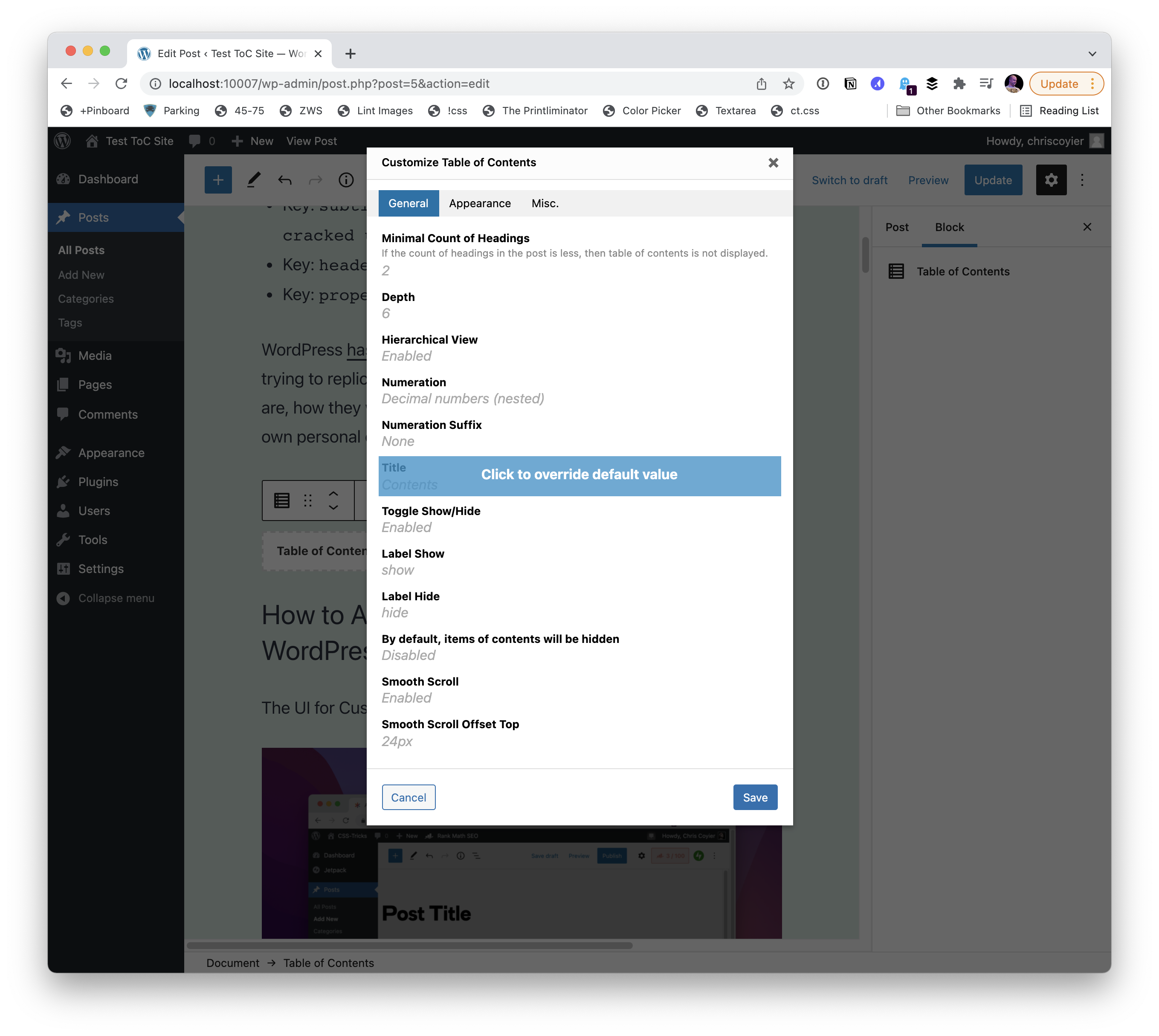
GutenTOC
Fits the Block Editor model well, though its settings feel awkward — square bullets and "15" spacing, for instance.

Option 2: wait for a core block
An open pull request aims to add a TOC block to the Gutenberg plugin, presumably with core as the eventual destination. That doesn't solve an immediate need. If it lands and works well, migrating existing blocks to the native version and dropping the plugin would be the preferred route.
Option 3: a TOC inside a larger plugin
Adopting a big plugin for one small feature is generally a bad trade, unless you genuinely use much of the rest of it and benefit from running fewer plugins.
Yoast SEO Premium
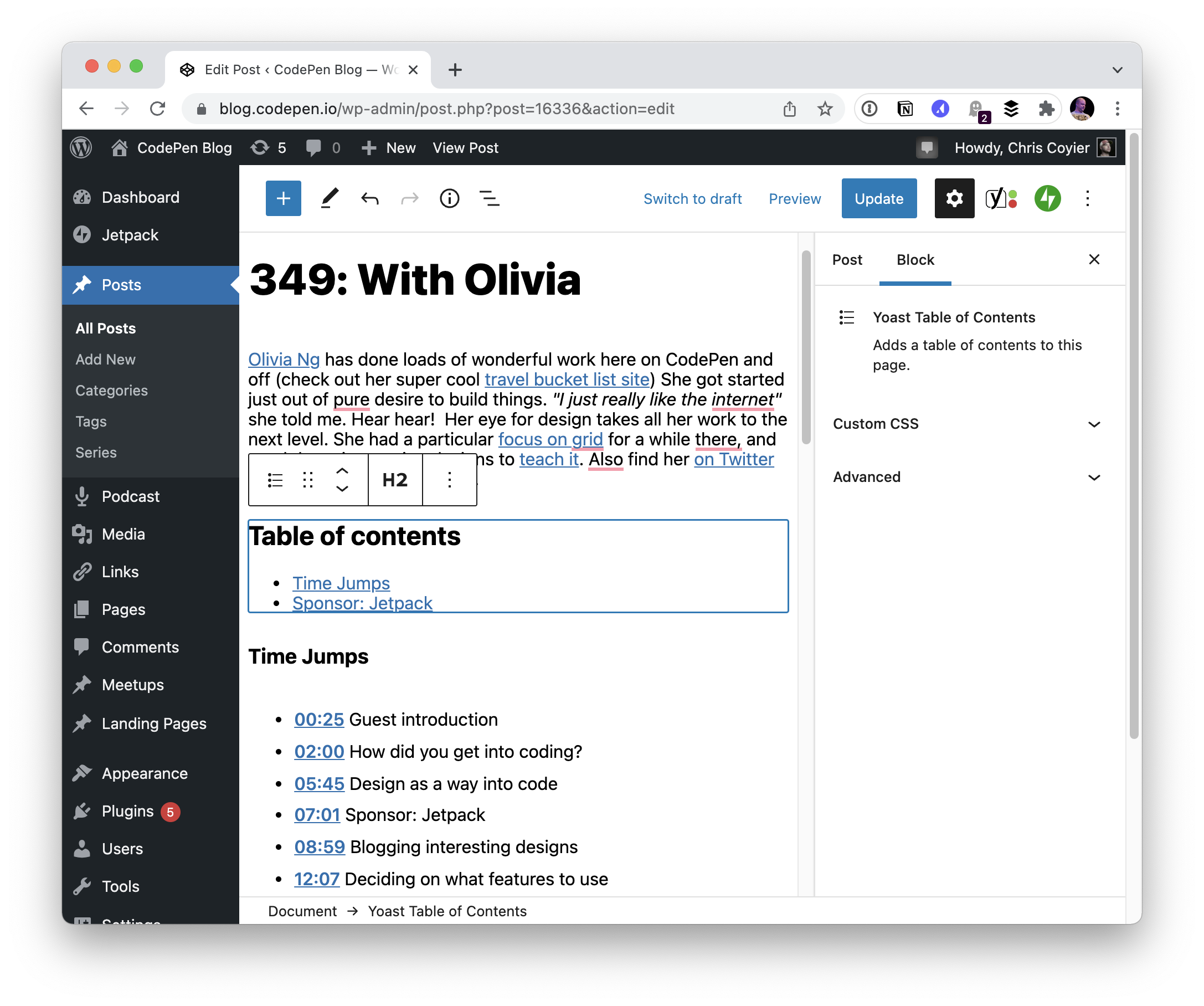
The free Yoast SEO plugin lacks a TOC block; the Premium version, at $99 per year, includes one. It is nearly featureless: you insert the block, it appears, and you can edit or remove its title. Link text isn't editable, but the list updates in real time as headings change — something most other tested options didn't do. It wouldn't justify the subscription on its own, but it's the obvious choice if you already run Yoast long-term.
Ultimate Addons for Gutenberg
Described as the classiest TOC block tested. The usual caveat about all-in-one plugins applies; if the other bundled features are useful to you, it's a solid option.

Option 4: build your own
Writing a block yourself is viable. The author has used create-guten-block before and would now reach for @wordpress/create-block. This means working in JavaScript: parsing post content, finding headings, and assembling the list — intermediate-to-advanced work. You take on technical debt but gain full control.
Advanced Custom Fields offers a powerful route to custom blocks that keeps the work in PHP, which simplifies things when all you need is a TOC built from heading blocks. Bill Erickson's post on accessing block data with parse_blocks() and render_block() ends up building a TOC block, and the gist he provides is a useful reference for looping through a post's blocks and outputting an HTML list.