Why S3 alone falls short for video delivery
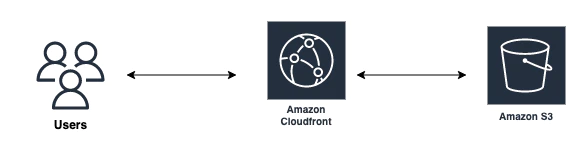
Hosting video on a platform like YouTube is not always viable — particularly when you want a native-looking experience you control, or when revenue sharing with a third party is off the table. AWS is the usual answer in those cases, and the standard pattern is to store videos in S3 and stream them directly to the user's device. Pairing the bucket with CloudFront improves load times, but neither service includes video optimization.
The source files are often enormous, so streaming is slow and wastes bandwidth. The downstream effects are lower average playback time and reduced retention and revenue. Fixing this means optimizing the video for each device, network condition, and layout before delivery.
The cost of doing it with MediaConvert
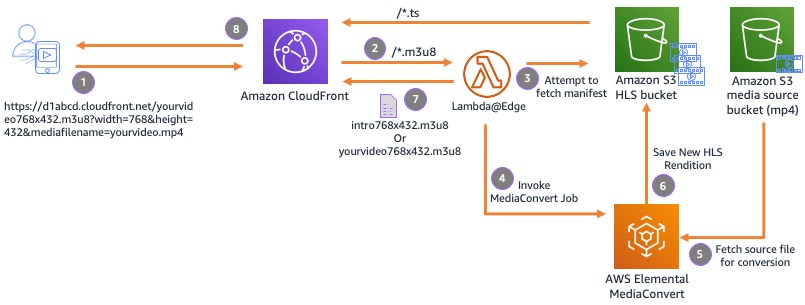
AWS Elemental MediaConvert handles transcoding and optimization, but it carries a steep learning curve and is complex to operate:
- You must integrate the tool with your existing workflow and storage, create jobs, and manage job queues and completion notifications.
- Creating jobs requires knowing streaming protocols, encoding, formats, resolution, and codecs, then mapping them to your requirements.
- MediaConvert does not convert on the fly by itself; real-time use means pairing it with other AWS services, which adds complexity and expense. Without that, jobs must be configured correctly up front, and any new requirement means changing the job and re-running it across every video to produce a new encoding or format — a serious limitation if videos arrive regularly and device sizes keep changing.
Connecting an S3 bucket to ImageKit
ImageKit, a media management and delivery platform with a Video API, streams videos from S3 and transforms and optimizes them in real time after a few minutes of setup. Two steps are required: give ImageKit read access to the bucket, then access videos through their ImageKit URLs.
Private and public S3 buckets are both supported. For a private bucket, ImageKit reads objects using a pair of read-only keys created in your AWS account. A public bucket, or public objects within it, can be added as a web folder type origin using the bucket's domain name as the base URL. The bucket must also be mapped to a URL endpoint in the ImageKit dashboard.
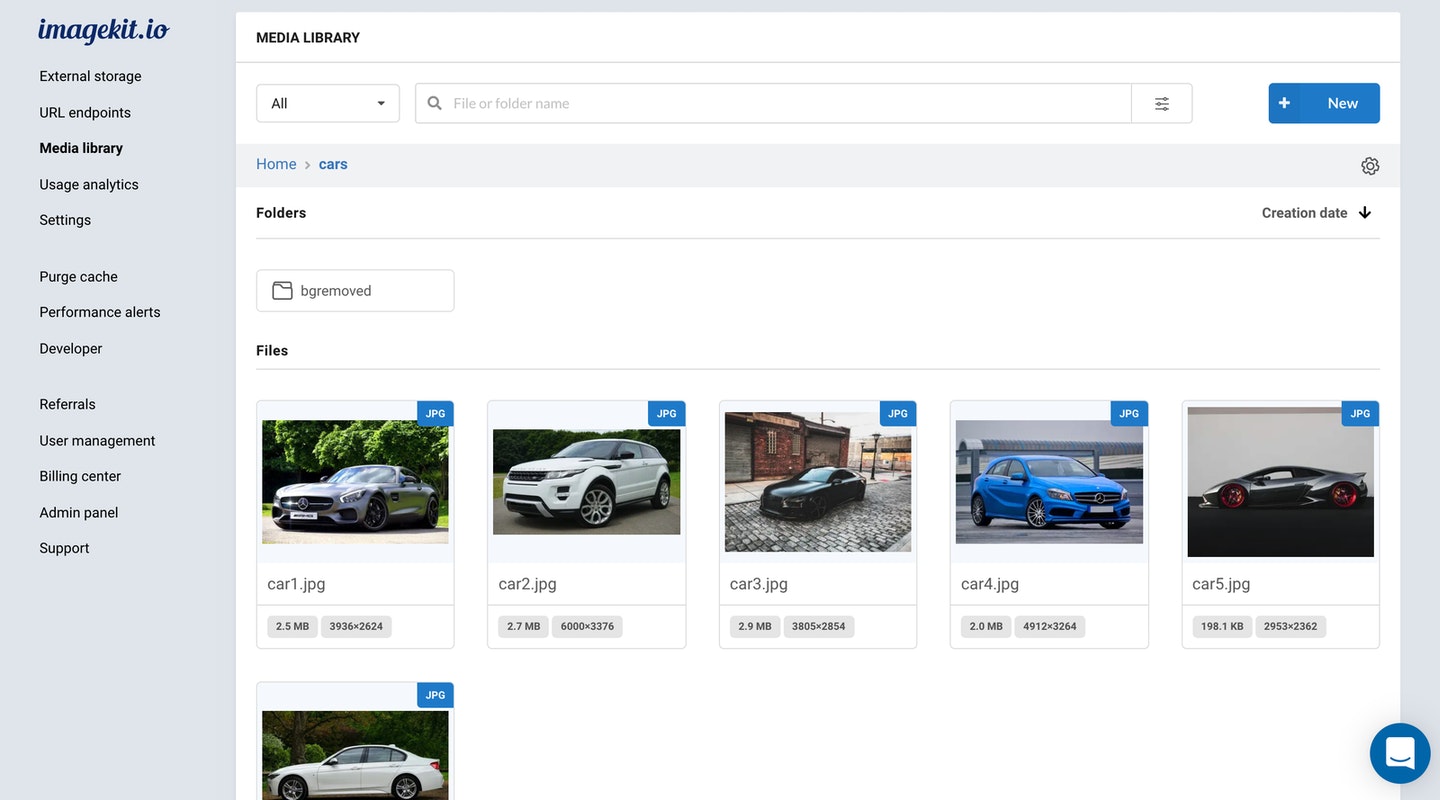
ImageKit's Media Library — file storage built on AWS S3 with a UI and APIs for management and search — is an alternative if you have no bucket or want a better way to organize video.
Streaming and transforming via URL
Once the bucket is attached, any video in it is reachable through ImageKit. In the example, sample.mp4 at the key videos/woman-walking.mp4 in a test bucket is accessed with:
https://ik.imagekit.io/ikmedia/videos/woman-walking.mp4Opening that URL in a browser tab streams the video through ImageKit, and the same URL works inside a <video> tag:
<video src="https://ik.imagekit.io/ikmedia/videos/woman-walking.mp4" controls></video>Delivery runs through ImageKit's integrated AWS CloudFront CDN. Beyond plain streaming, ImageKit applies most optimizations automatically with sensible defaults, or exposes them as real-time URL parameters — minimal learning compared with tools like MediaConvert.
Format and compression defaults
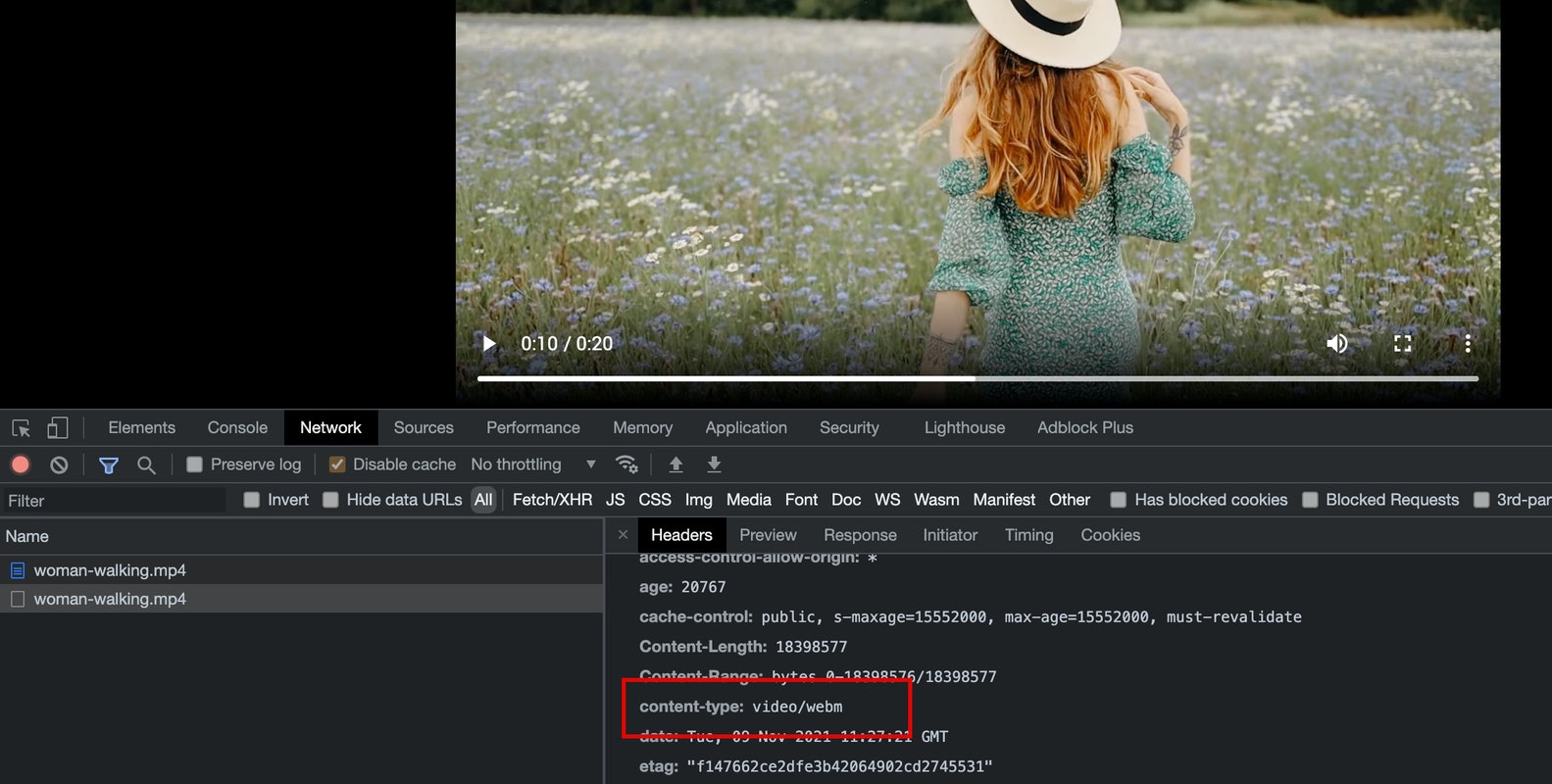
With automatic format conversion enabled in the dashboard, ImageKit combines the formats supported by the browser with information about the original video to encode the best possible output at request time, reducing the bytes sent. For example, an MP4 video is delivered as WebM in Chrome and MP4 in Safari.
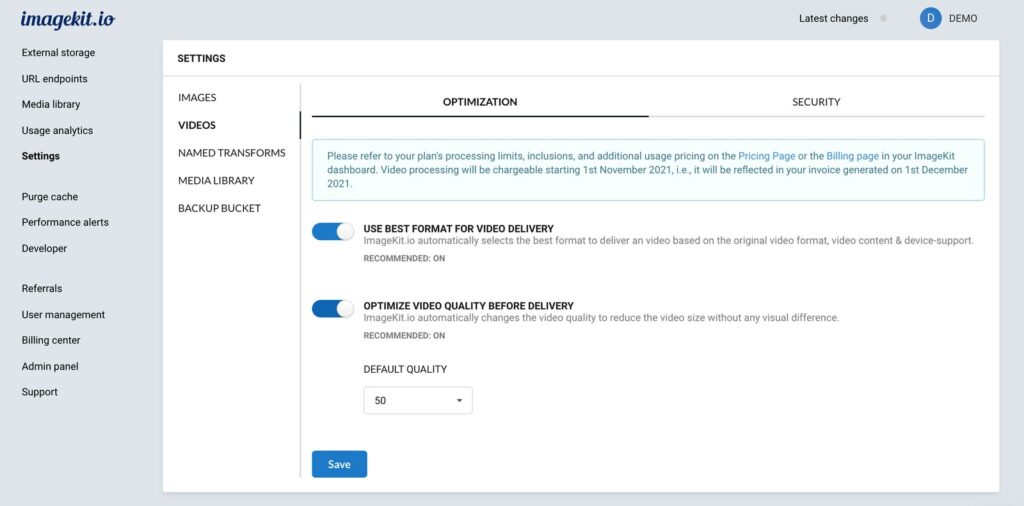
Camera footage can easily reach hundreds of megabytes, or gigabytes, which is impractical to deliver. ImageKit's compression setting is turned on from the dashboard along with a default compression level; the default value of 50 balances output size against visual quality. With it enabled, video is encoded at the specified level before streaming.
In the example, the compressed video keeps the same format as the original but is almost 15% lighter: 12.6MB versus 14.6MB.
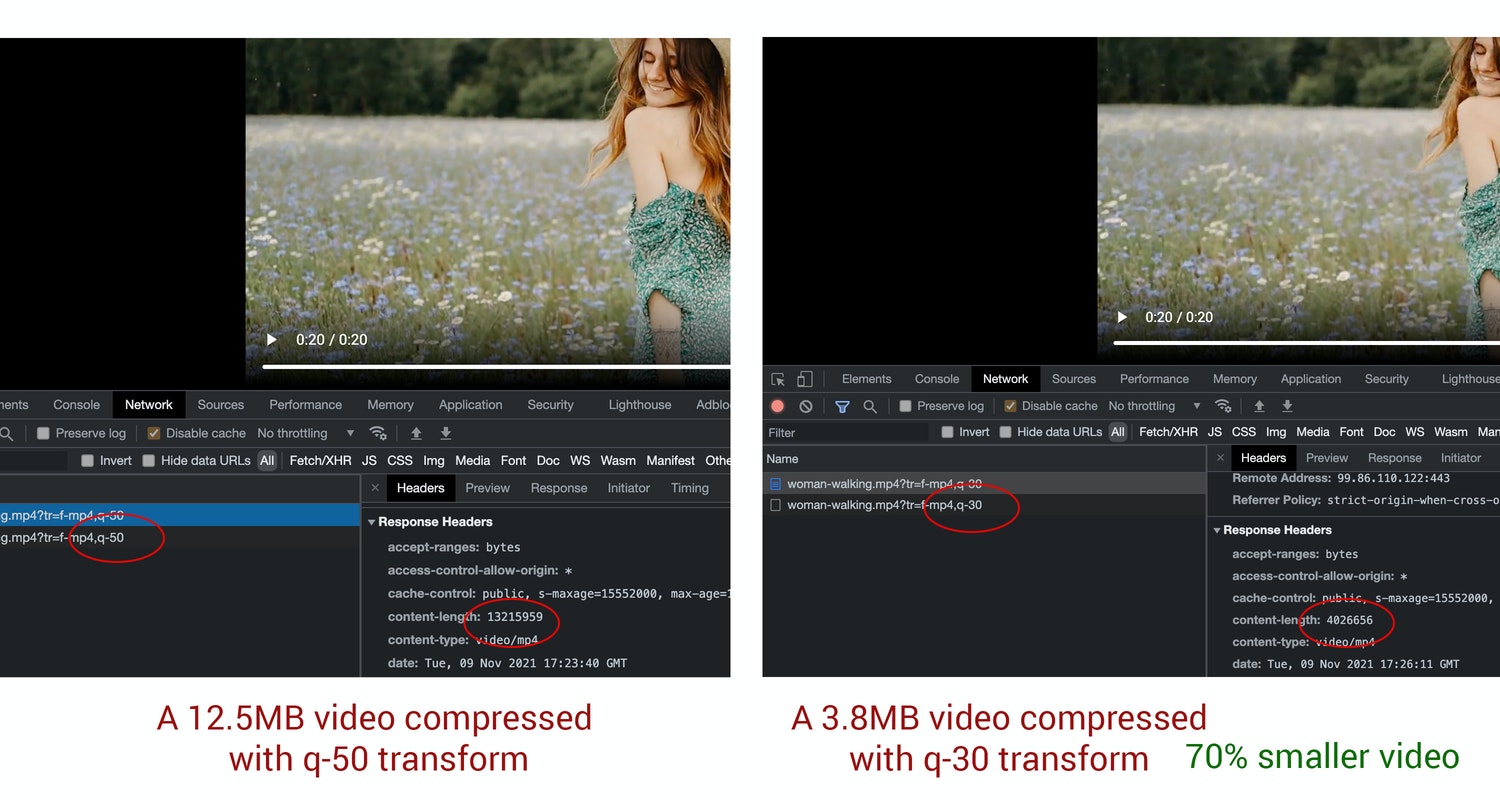
Compression level can also be overridden per request through a real-time URL transformation. The video below uses quality level 30 and is almost 70% smaller than the version encoded at the dashboard default of 50 — useful for adapting delivery to users on slow networks.
Resizing for layout and aspect ratio
If a page only has 200px of width for a video, serving a much larger file wastes bandwidth with no benefit. As with the image transformation API, adding a width or height parameter to the URL returns a video at the requested dimensions in real time; the example scales the video down to 200px wide.
https://ik.imagekit.io/ikmedia/videos/woman-walking.mp4?tr=w-200The same URL parameters convert landscape footage to portrait. Supplying width and height on the video URL produces a vertical output — for example, turning a landscape clip into something shaped like an Instagram story.
https://ik.imagekit.io/ikmedia/videos/woman-walking.mp4?tr=w-300,h-500All of these transformations are streamed in the most suitable format and at the appropriate compression level, delivered through the CloudFront CDN. In the demo, the original 14.6MB video ended at 1.8MB after optimization and scaling in the final vertical example.
Free tier and scope
ImageKit's Forever Free plan covers both video processing and delivery: more than 15 minutes of fresh video can be optimized and transformed each month and delivered to thousands of users, without a credit card — a fit for a small business or side project that wants to connect a bucket and start streaming.