

Extending gh Beyond the Basics
GitHub CLI has matured considerably since its first public beta a year ago, adding commands for repository management, issue comments, pull request auto-merge, and Actions secrets. But the real power of a command-line tool lies in composability: chaining it with other utilities and embedding it in scripts to automate workflows. Here's how to bend gh to your own needs, using plain-text streams and standard shell tools.
Aliases, Pagers, and Formatting
The fastest way to tailor gh is through aliases and output configuration. If you find yourself typing long command sequences repeatedly, define an alias to collapse them:
# before:
$ gh issue view --comments https://github.com/cli/cli/issues/1055

# configure an alias:
$ gh alias set iv 'issue view --comments'

# after:
$ gh iv https://github.com/cli/cli/issues/1055
For long outputs like issue view, which can fill several screens with conversation threads, it helps to route the output through a pager. gh respects the PAGER environment variable, sending all output through whatever utility you specify:
$ PAGER=less gh issue view -c https://github.com/cli/cli/issues/1055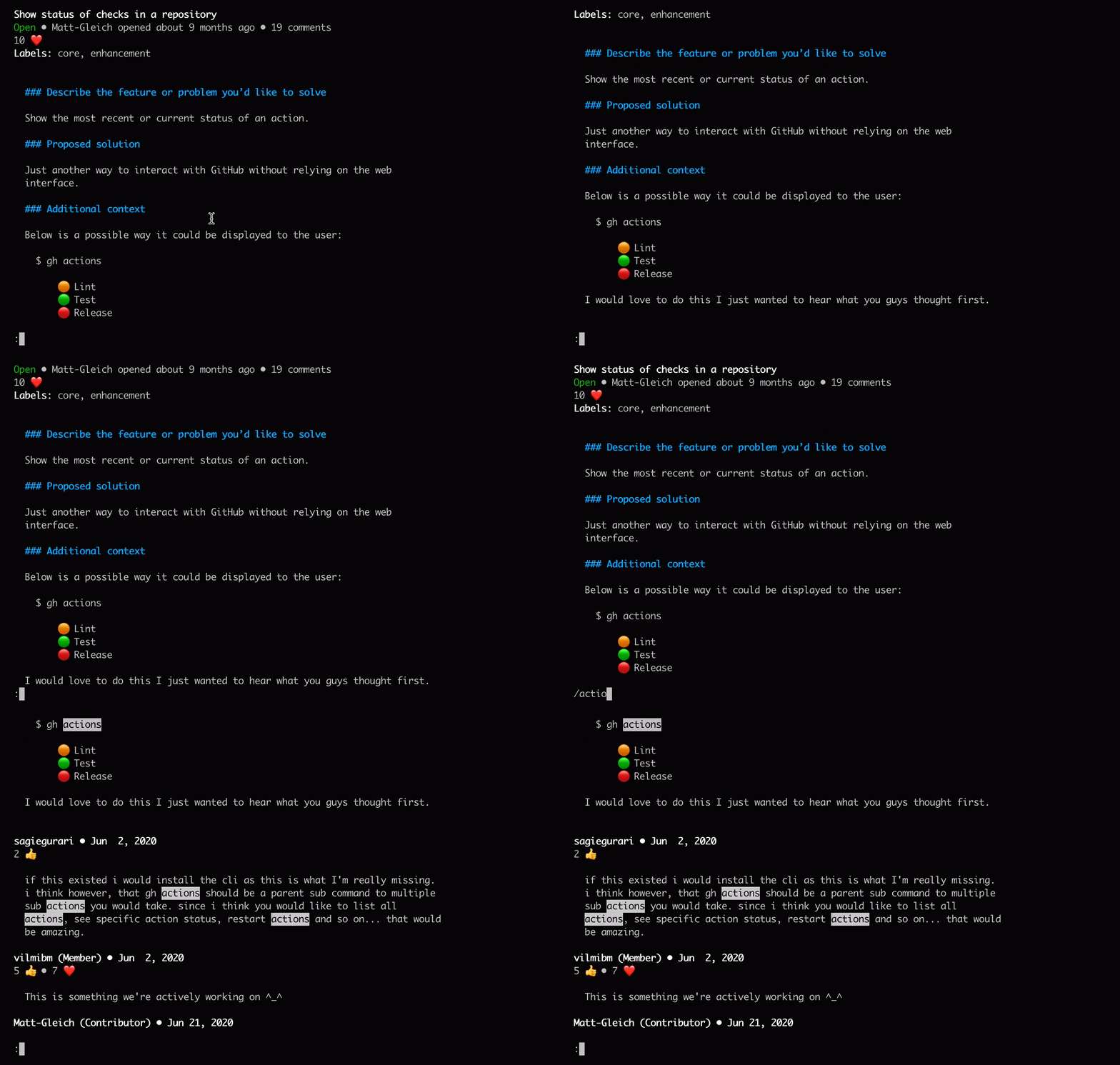
With less, you can navigate with keyboard arrows and search by typing "/". Press "q" to exit. Windows users should run these commands from Git Bash (bundled with Git for Windows).
Pagers aren't limited to plain text viewers. For viewing pull request diffs, tools like delta (installable via Homebrew) provide a richer, split-diff visualization:
$ brew install git-delta

$ PAGER='delta -s' gh pr diff https://github.com/cli/cli/pull/3023

To set this for every gh command by default, configure it once via a configuration option:
$ gh config set pager 'delta -s'Chaining gh with Filtering Tools
When working with lists of pull requests, scanning through all output to find a specific item can be tedious. Fuzzy-finders like fzf provide an interactive way to filter input streams, returning only the line you select. This is especially useful for selecting a pull request to check out:
$ brew install fzf

$ gh pr list | fzf
#=> [selected item]

Combining fzf with cut allows you to extract just the pull request number from the selected line and pass it as an argument to another gh command. Define an alias to quickly check out any open pull request from a list:
$ gh alias set co --shell 'id="$(gh pr list -L100 | fzf | cut -f1)"; [ -n "$id" ] && gh pr checkout "$id"'

$ gh co
#=> [checkout the selected PR]
When gh detects that its output is piped to a script rather than displayed in a terminal, it automatically switches to a machine-readable format: tab-delimited fields, no text truncation, and no ANSI color escape sequences. This hands scripts complete control over the raw data.
Scripting Actions Workflows
GitHub CLI ships pre-installed in GitHub Actions virtual environments, making it easy to script workflow steps without relying on a Marketplace action. When no existing Action fits your needs, just call gh directly in a step.
For example, one workflow step can mark every new pull request for auto-merge once all checks pass:
steps:
  - name: Enable auto-merge for new PRs
    run: gh pr merge --auto --merge "$PR_URL"
    env:
      PR_URL: ${{github.event.pull_request.html_url}}
      GITHUB_TOKEN: ${{secrets.GITHUB_TOKEN}}
You can refine this to target only specific pull requests, such as those opened by core team members. Another workflow could automatically create a GitHub Release for each git tag and upload build artifacts to it:
- name: Create a release and attach files
  run: |
    tagname="${GITHUB_REF#refs/tags/}"
    gh release create "$tagname" dist/*.tgz
  env:
    GITHUB_TOKEN: ${{secrets.GITHUB_TOKEN}}
Provided GITHUB_TOKEN is set in the Actions environment, gh enables these scripting scenarios without extra configuration. For tasks that need write access to other repositories, generate a Personal Access Token and store it securely with gh secret set.
Reaching Into the API with gh api
For operations without a dedicated gh command, the gh api command acts as a lightweight curl wrapper for any REST or GraphQL operation. It handles authentication, parameter serialization, and JSON decoding automatically.
Consider this query: which open issues in an organization-owned repository involve members of a specific team? Involvement means a member either commented, was mentioned, or got assigned. Building the search query dynamically requires first listing the team members. With curl, you'd need to handle authentication and pagination manually:
$ curl https://api.github.com/orgs/MYORG/teams/TEAM/membersWith gh api, pagination and response caching come for free:
$ gh api -X GET 'orgs/MYORG/teams/TEAM/members' -F per_page=100 --paginate --cache 1h
[
  {
    "login": "user1",
    "id": 1234,
    ...
  },
  ...
]
Raw JSON output isn't ideal for shell scripts. Adding a jq filter lets you select only the needed fields—say, all user login handles:
$ gh api ... --jq '.[].login'
#=> "user1"
#=> "user2"
#=> ...
Modify the filter to produce a list of variables resembling the search query syntax:
$ gh api ... --jq '[.[].login] | map("involves:\(.)") | join(" ")'
#=> "involves:user1 involves:user2"
Then directly supply it to a final API call that lists the matching issues:
team-involves() {
  gh api -X GET "orgs/$1/teams/$2/members" \
    -F per_page=100 --paginate --cache 1h \
    --jq '[.[].login] | map("involves:\(.)") | join(" ")'
}

gh api -X GET search/issues -F per_page=100 --paginate \
  -f q="repo:MYORG/REPO is:issue is:open $(team-involves MYORG TEAM)" \
   --jq '.items[] | [.number, .title] | @tsv'

#=> "456  Issue title"
#=> "123  Another issue"
#=> ...
The output shows the number and title of each matching issue on a single line. You can expand the jq expression to include more issue properties from the API documentation.
gh is a versatile foundation for building custom workflows, whether you're working interactively, writing automation scripts, or integrating deeply with the GitHub API. For examples of full workflow setups or to share your own, see the CLI Discussions section.


