
From site rework to a full theme
The theme started as a side effect of redesigning a personal website. Code snippets in the old design relied on Dracula Theme, which no longer fit the new look. The original goal was narrow: improve syntax highlighting so code blocks matched the rest of the site.
Research turned up the fact that Shiki, the syntax highlighter built into Astro by default, supports themes built from CSS variables — and those require only a handful of colors.
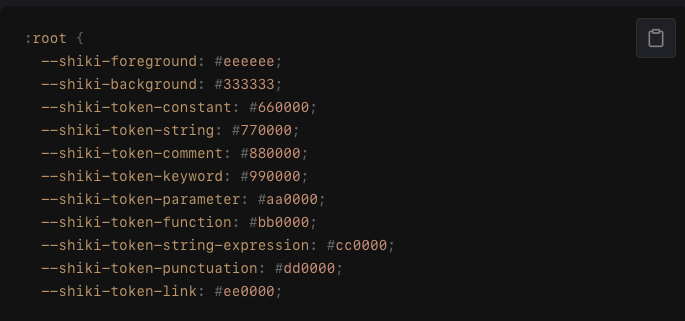
With AI assistance fleshing out a Shiki theme around those variables, the following CSS and JavaScript cover the Astro setup:
:root {
  --shiki-foreground: #eeeeee;
  --shiki-background: #333333;
  --shiki-token-constant: #660000;
  --shiki-token-string: #770000;
  --shiki-token-comment: #880000;
  --shiki-token-keyword: #990000;
  --shiki-token-parameter: #aa0000;
  --shiki-token-function: #bb0000;
  --shiki-token-string-expression: #cc0000;
  --shiki-token-punctuation: #dd0000;
  --shiki-token-link: #ee0000;
}

pre.shiki,
pre.astro-code {
  padding: 1rem;
  border-radius: 0.5rem;
  color: var(--shiki-foreground);
  background-color: var(--shiki-background);
  overflow-x: auto;
}

pre.shiki code,
pre.astro-code code {
  padding: 0;
  font-size: inherit;
  line-height: inherit;
  color: inherit;
  background: none;
}
import { createCssVariablesTheme } from 'shiki/core'
const shikiVariableTheme = createCssVariablesTheme({
name: 'css-variables',
variablePrefix: '--shiki-',
fontStyle: true,
})
export default defineConfig ({
// ...
markdown: {
shikiConfig: {
theme: shikiVariableTheme
}
}
})Comparing those colors against Dracula, Sarah Drasner's Night Owl and Moonlight 2 gave enough confidence to go further. CSS variables could not reach far enough, though, so the work moved to TextMate tokens for granular control over which tokens get which color. Some code blocks looked terrible without it.
Scaffolding TextMate scopes
The approach was to drive an AI through three steps: state the intent to build a custom theme, request a scaffold, and ask it to read Moonlight 2's theme files as a reference for generating TextMate scope tokens. The colors were consolidated into semantic keywords such as foreground, background and keyword, mirroring the Shiki CSS variable theme. All raw colors went into a color object, leaving a palette object with semantic names only.
const colors = {
  purple: '...',
  blue: '...',
  // ...
}

const palette = {
  foreground: '...',
  background: '...',
  // ...
}

export default {
  colors: {
    // Used for theming the text editor
  },
  displayName: 'Display Name of your Theme',
  name: 'your-theme-name',
  tokenColors: [
    {
      name: 'Scope name (optional)',
      scope: [/*scopes used*/],
      settings: {
        foreground: /* change color */,
        background: /* background of the text */,
        fontStyle: /* normal, bold or italic */,
      }
    }
  ]
}
VS Code needs JSON, so a build script converts that intermediate format into a .json file. Both the script and the rest of the setup live in the GitHub Repo.
Local debugging via the Extension Host
Testing highlighting on the website was impractical because every variable change required a manual server restart. VS Code's Extension Host solves this for local development. A .vscode/launch.json file with the contents below launches it:
{
  "version": "0.2.0",
  "configurations": [
    {
      "name": "Extension",
      "type": "extensionHost",
      "request": "launch",
      "args": [
        "--extensionDevelopmentPath=${workspaceFolder}"
      ]
    }
  ]
}
F5 on Windows or Fn + F5 on Mac opens a new editor window where the custom theme can be selected. That window is easy to recognize: it carries the Extension Host keyword prominently in its title, and once the theme is switched it differs from any other open editor.

Theme switching in the Extension Host may also require the following in package.json:
{
  "contributes": {
    "themes": [
      {
        "label": "Your Theme Name",
        "uiTheme": "vs-dark",
        "path": "<path-to-your-theme>.json"
      }
    ]
  }
}
Reading scope inspector output
Pasting screenshots and asking AI to retune tokens to chosen colors quickly became frustrating, because either the AI picked the wrong TextMate scope or something else overrode it — and there was no way to tell which. The "Developer: Inspector Editor Tokens and Scopes" command makes the scopes visible.
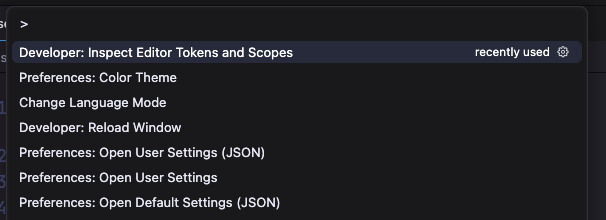
In this mode, clicking any text opens a window with everything needed to adjust scopes:
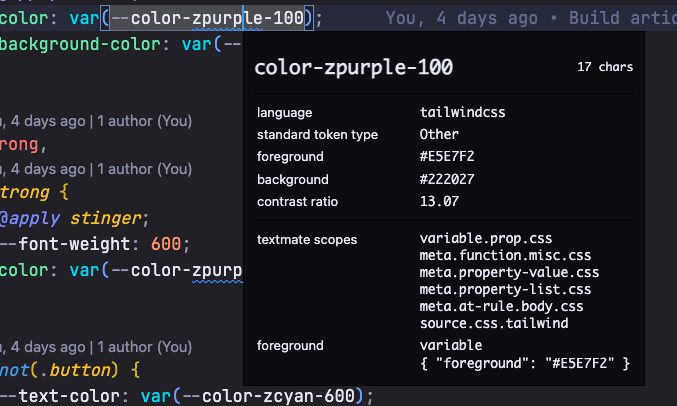
- Foreground shows the currently active scope —
variable, for example. - TextMate scopes lists the scopes available for that specific token.
Behavior observed through experimentation, so possibly not fully accurate:
- Any part of the available scopes can be used:
variable,variable.propandvariable.prop.cssall work. - More stated properties mean higher specificity:
variable.prop.css>variable.prop>variable. - The higher scope beats the lower one:
variable>meta.function.misc.css. - Scopes can be combined like CSS selectors to override a higher scope:
meta.function variable>variable.
Choosing colors under the principle of contrast
This is the most consequential part of theme work: highlighting that does not help a developer read code makes the theme pointless. Two references shaped the decisions: Sarah Drasner's "Creating a VS Code Theme" and Tonsky's "Everyone is getting syntax highlighting wrong." The takeaways:
- Highlights should stand out.
- Colors sharing lightness and chroma look alike and are hard to tell apart.
- If everything is highlighted, nothing is.
- If everything is important, nothing is.
Designing for someone who is reading led to three questions: how do I guide the eye, which elements must be seen, and which matter less.
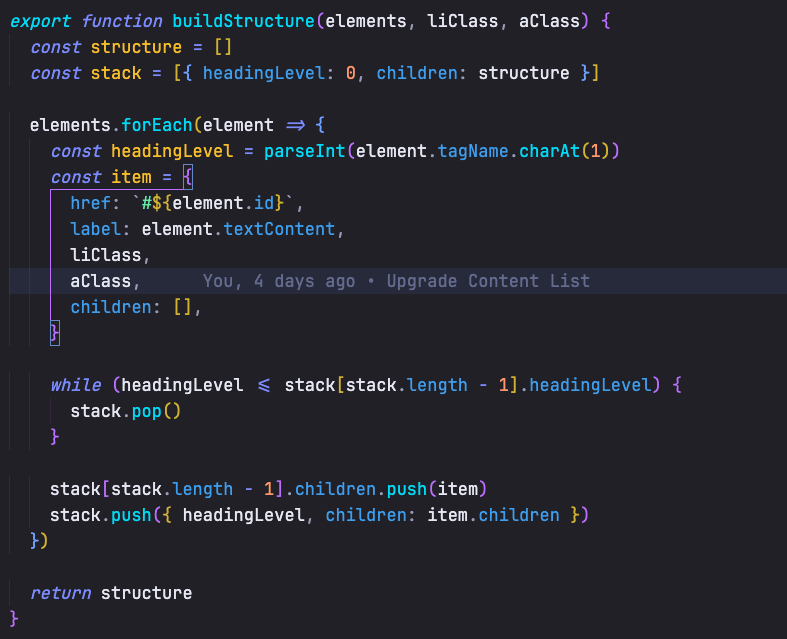
- Functions and methods matter, so they had to be strong:
cyan, the strongest color in the palette. Theexportkeyword is equally important because it marks an export. - Keywords like
importandfunctioncan stay muted:purple. - Strings get
green, which reads pleasantly across a JSON file full of text. - Constants get
orangebecause it is easy to spot. - Variables stay
white-ish, since they are the bulk of the text; coloring them produces the "Christmas Lights Diarrhea" effect Tonsky describes. - Properties get
blue— workhorses that need differentiation without drawing too much attention.
HTML/Astro/Svelte work followed after that.