Where a theme has to ship
A finished color theme needs to be delivered through more than one registry. VS Code users pull extensions from the Visual Studio Marketplace, while other editors — Cursor, for one — draw from Open VSX. Publishing the same package to both is the baseline requirement: the Marketplace for VS Code users, Open VSX for the rest. Optionally, an npm release makes the theme easy to reuse in other contexts, such as syntax highlighting through Shiki.
Authoring requirements before any upload
A few fields in package.json have to be right before trying either registry, and one mistake blocks Open VSX entirely.
Name. Keep it unscoped. A scoped name like @scope/theme-name publishes fine to the Marketplace but fails on Open VSX, so use a plain, unscoped name for the theme (the word theme is optional):
{
  "name": "twilight-cosmos-theme",
}
Icon. Provide a 128px square image file inside the project and point the icon property at it:
{
  "icon": "path/to/icon.png",
}
Contribution point. Both VS Code and the other editors scan for a contributes key to discover themes:
{
  "contributes": {
    "themes": [
      {
        "label": "<Theme Name>",
        "uiTheme": "vs-dark",
        "path": "./<path-to-theme>.json"
      }
    ]
  },
}
Keywords. Add a set of keywords so the theme turns up in search on both registries:
{
  "keywords": [
    "theme",
    "dark theme",
    "twilight",
    "cosmos",
    "color-theme",
    "dark",
    "purple",
    "blue",
    "vscode-theme"
  ],
}
Publishing to the Visual Studio Marketplace
The vsce CLI does the upload, but only after you have a personal access token from an Azure DevOps account. Before anything else, sign up for a Marketplace account, click Publish Extension, and create a publisher account. The publisher step is required whether you publish with vsce or manually.
Two caveats on the token route: Azure DevOps cannot issue an access token valid for life — the maximum expiry is roughly one year — and creating the Azure DevOps account made the terminal hang and hid the right page even when the URL was pasted in directly. That failure is not a dead end; waiting a day or two and trying again eventually works.
- Log in to
vsceusing the publisher ID created in the Marketplace — the publisher ID, not the user ID. - Supply the access token when prompted.
- Run the publish command:
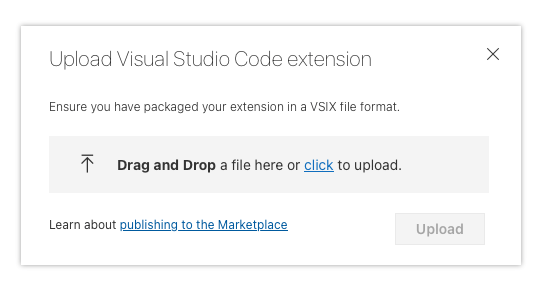
npx vsce login <publisher_id>npx vsce publishThe manual route needs no token at all, which made it the practical fallback when account setup broke down. On the Marketplace site, click Publish Extensions, then New Extension, package the extension with vsce package into a visx file, and upload it by dragging and dropping that file:
Verification of a publisher is time-gated: a first extension can only be verified once it is at least six months old, so the reminder has to be set for later.
Publishing to Open VSX
Open VSX takes more setup because two identity systems are involved. The sequence is:
- Log in to Open VSX with GitHub.
- Create an Eclipse Foundation account.
- Link the GitHub account to it.
- Sign the Eclipse Foundation agreement.
- Create a publisher namespace and set it as
publisherinpackage.json. - Create an access token.
- Run
npx ovsx publish.
The ovsx tool requests the personal access token on the first publish. Unlike Azure DevOps, it issues a token with no expiry, so renewal is not a concern. Claiming the publisher namespace is Open VSX's form of verification and can be done right away rather than after six months of waiting. As long as the namespace is unclaimed, the namespace page shows a prominent warning:

Claiming it means opening an issue with the Eclipse Foundation through the project's GitHub repository and asking for the namespace. For a public repository, link it in the issue; for a private one, offer temporary access.
Screenshots and the absolute-URL requirement
Theme screenshots in Readme.md let users judge the colors before installing. Neither the Marketplace nor Open VSX resolves relative URLs — they render broken — so every image has to be linked at an absolute URL, ideally pointing at the public GitHub repository. The link takes this form: