Where conflicts come from
A merge conflict arises whenever changes from a different source are integrated into your current working branch — but branching is only one route to that situation. Conflicts can also surface during a rebase or interactive rebase, while cherry picking a commit from one branch and applying it to another, during git pull, or even when reapplying a stash. Every one of these operations performs some form of integration, which is the condition under which conflicts become possible — not a guarantee that they will.
Most of the time, Git resolves things on its own; its merging capability is among its strongest features.
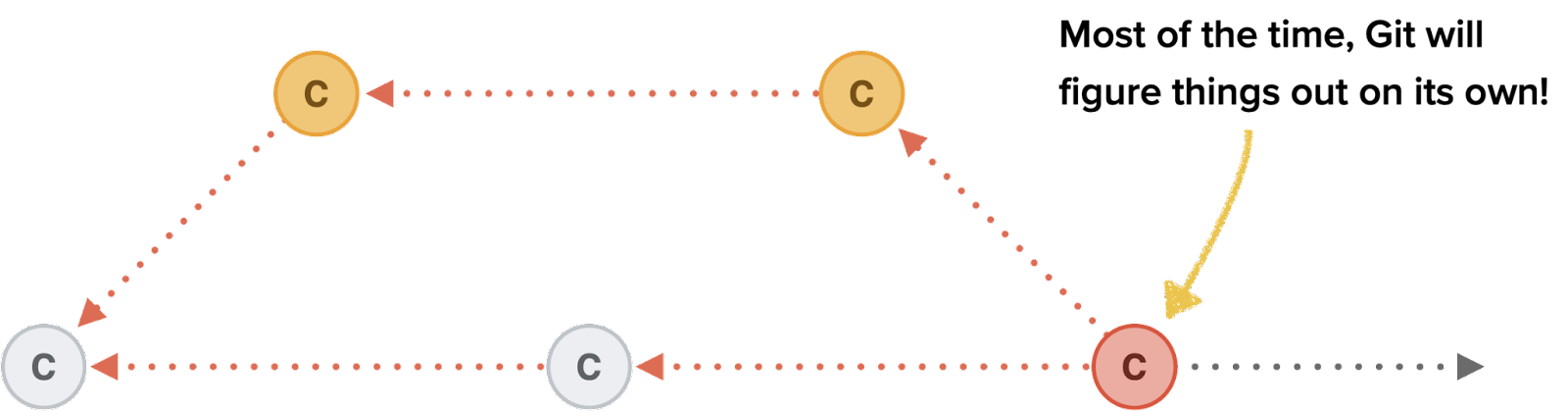
A conflict means the changes are contradictory, and no machine can decide between them — a human has to. The classic case is the same line of code edited in two commits on two different branches; less commonly, a file is modified on one branch and deleted on another. Rather than guess, Git hands the decision back to you.
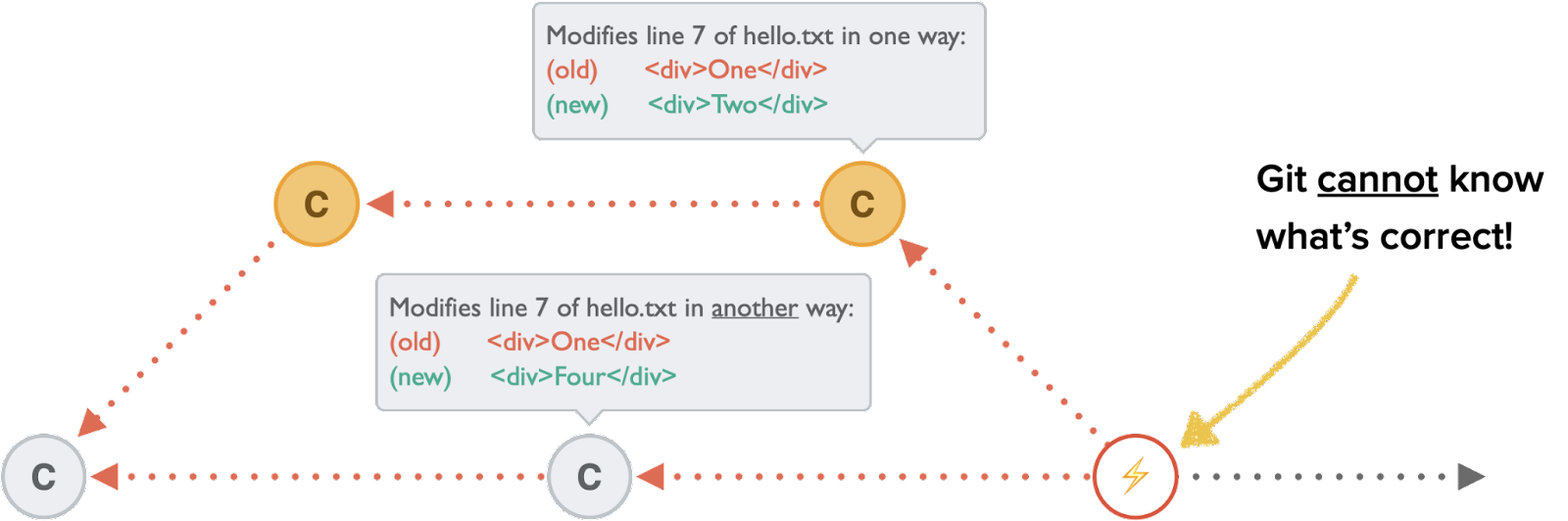
Recognizing a conflict, and backing out of one
Git announces failures itself: if your committed changes clash with someone else's, the terminal reports that the automatic merge failed, and git status repeats the warning on your next invocation. A desktop GUI can also flag conflicts so they don't slip past you.
$ git merge develop
CONFLICT (content): Merge conflict in index.html
Automatic merge failed; fix conflicts and then commit the result.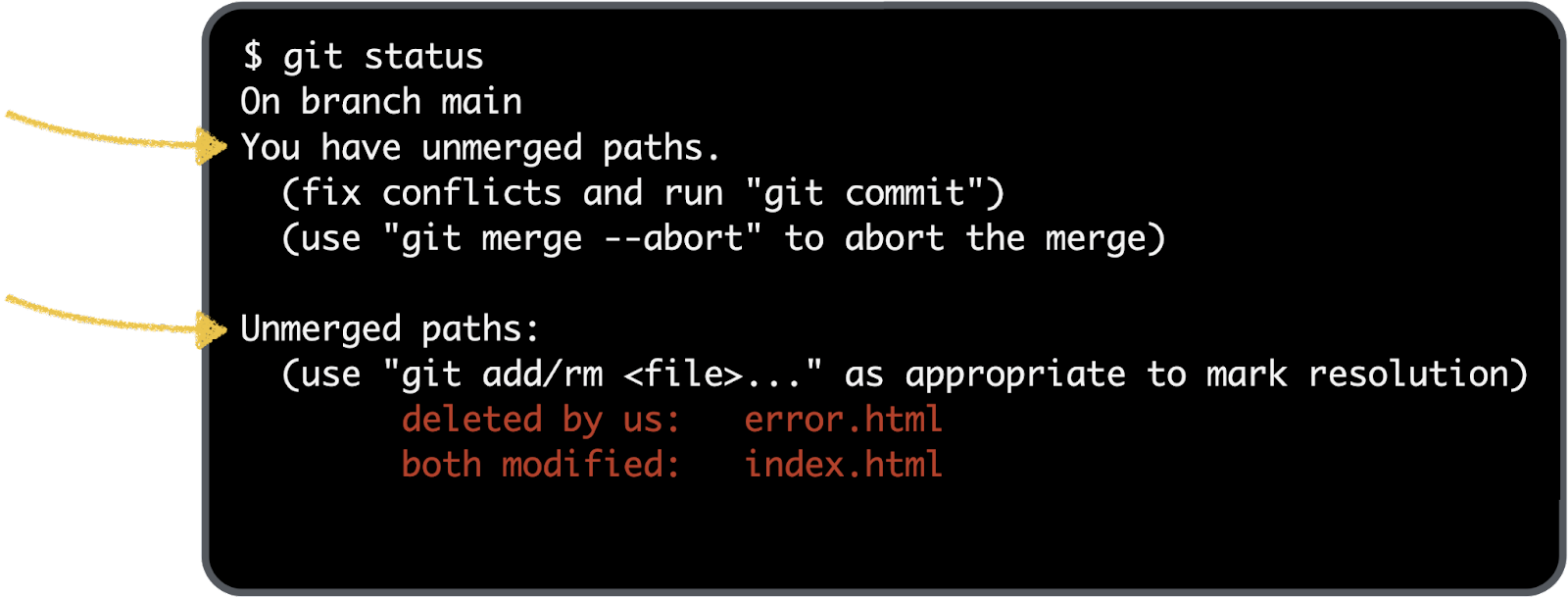
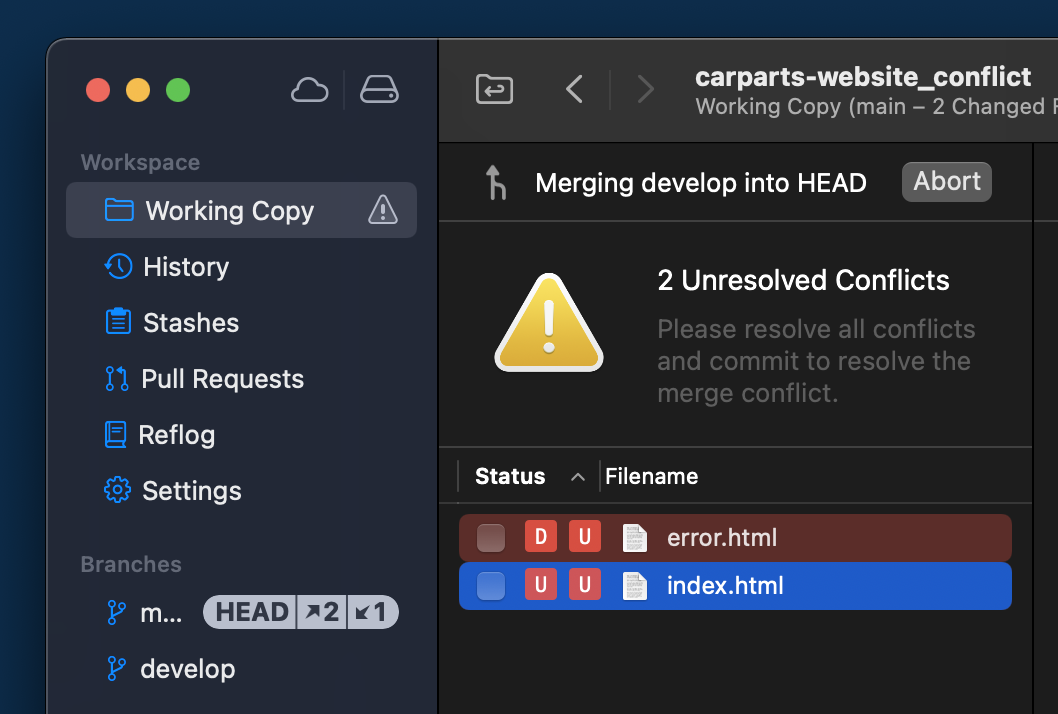
You have two ways forward: resolve the conflict, or abort the action that caused it. Undoing is usually just the --abort flag on the relevant command, such as git merge --abort or git rebase --abort, which restores the state before the conflict appeared. That still works after you've begun editing the conflicted files, so a dead end is never really a dead end — you can return to a clean state and start again.
What a conflict looks like in the file
Git marks the troublesome regions directly inside the file. In a conflicted index.html:

The markers tell the whole story. Content after <<<<<<< comes from your current working branch (HEAD); a line of seven equals signs (=======) divides the two sides; and the content before >>>>>>> is the other branch's version (develop in the example). Your job is to strip those lines and leave the file exactly as you want it — in a text editor, an IDE, a Git desktop GUI or a Diff & Merge Tool.
Resolving and completing the merge
No particular tooling is required: open the file and make your edits. If the conflicting change came from a colleague, you may need to talk to them before deciding whether to keep your code, theirs, or a combination. When the manual route gets inefficient, dedicated tools help. GUI clients can visualize where each change originated and what kind of modification it was, and a Diff & Merge Tool adds formatting and presentation modes such as side-by-side or single-column views. Configure your chosen tool with git config (see its documentation) and invoke it with git mergetool when a conflict blocks you.
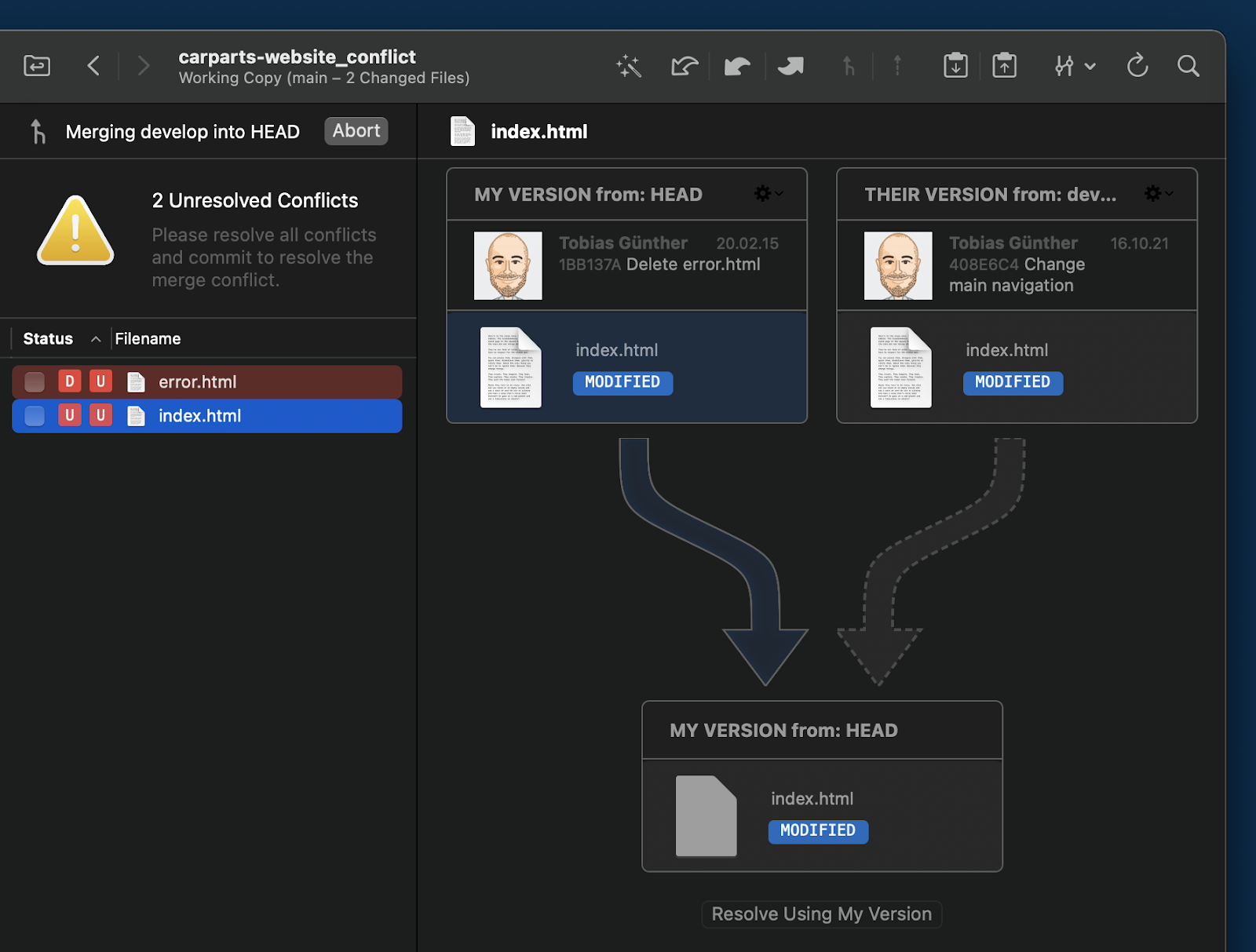
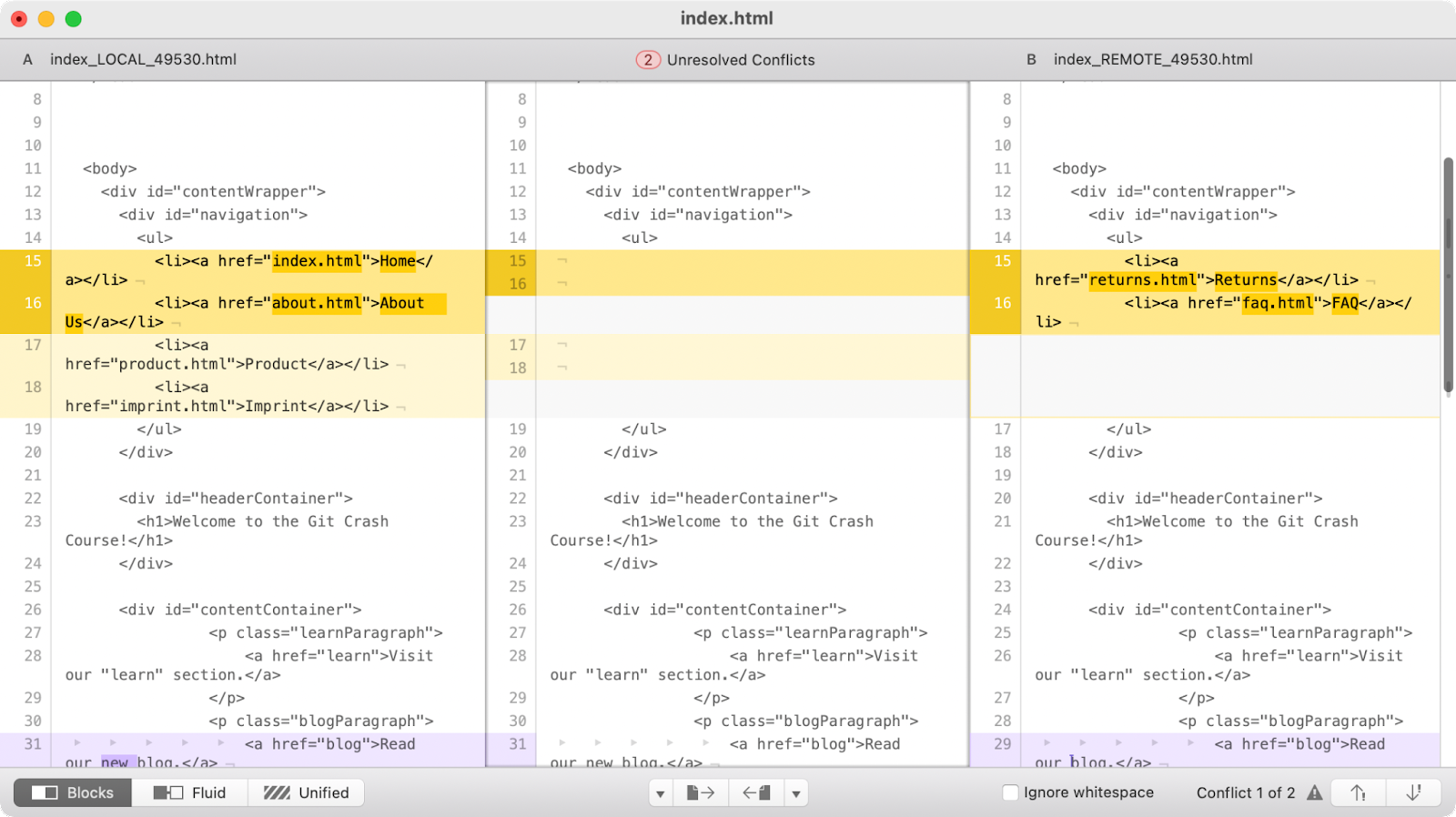
Once a file is cleaned up by any of these means, git add <filename> tells Git the conflict is settled. With every conflict resolved and staged, a regular commit finishes the job. And if you realize mid-resolution that something went wrong, rolling back to the commit before the trouble and starting over remains available.