

Extracting Amazon Product Data With Node.js
Amazon is a data goldmine for anyone making product decisions. Whether you are pricing a new release, planning features for an existing product, or simply trying to find the best deal on a big-ticket item, having accurate, product-level data from the leading online retailer is immensely useful. The most efficient way to collect that data is through a scraper, which automates the tedious work of manually visiting and recording pages.
The use cases boil down to two primary drivers. For businesses, scraping competitor pages reveals pricing strategies, customer sentiment, and feature sets that directly inform how to position a product. For consumers, comparing prices, reviews, and included items across multiple options can lead to a significantly better purchase. If you're shopping for something like a new shelf, the ability to scan all available listings at once beats tabbing through dozens of pages.
The Obstacles in Scraping Amazon
While the potential payoff is clear, scraping Amazon successfully requires navigating a few intentional hurdles. First, Amazon’s anti-bot systems monitor for predictable request patterns. Scrapers that run faster than a human or send requests with identical parameters will often trigger an IP ban. You can mitigate this with proxies, though for small scraping jobs, careful pacing may be enough.
Second, Amazon product pages are not built with a uniform layout. Different product categories and individual items can have significant variations in their HTML structure. A scraper designed for one page will often need specific adjustments to work on another. This means general-purpose scrapers are less likely to succeed, and your code will need to be tailored to the specific pages you intend to target.
Finally, scale is an issue. Amazon is an enormous site, and running long scraping sessions on your local machine can be inefficient, especially when you must frequently throttle your request rate to to avoid blocks. Any serious data collection effort will need a plan that takes this instability into account.
Building the Scraper
To get started, we’ll build a scraper that extracts essential listing information from a search results page. This particular example pulls data from a search for “shelves,” looking at products that might fit your next home or office project. The goal is to capture key attributes without getting lost in page complexity. You will need a few tools: Chrome, a code editor like VSCode, and Node.js with NPM installed.
Once your environment is ready, create a new project folder and run the following command to initialize the project and get a package.json file:
npm init -yNow, we can install our two dependencies, each used for a specific part of the scraping process. The first is Cheerio, a parsing library that lets you grab page elements with selectors like $("div"), helping us navigate the HTML. The second is Axios, which you can use to make the actual HTTP request from Node.js to the Amazon page.
npm install cheerionpm install axiosWith our dependencies ready, the next step is to find the data selectors in the site structure. Open your target URL and use your browser’s developer tools (usually accessible via right-click and “Inspect”) to examine a product listing container. You will notice that each item—including its title, price, rating, and link—is held inside a div element with the class sg-col-inner.
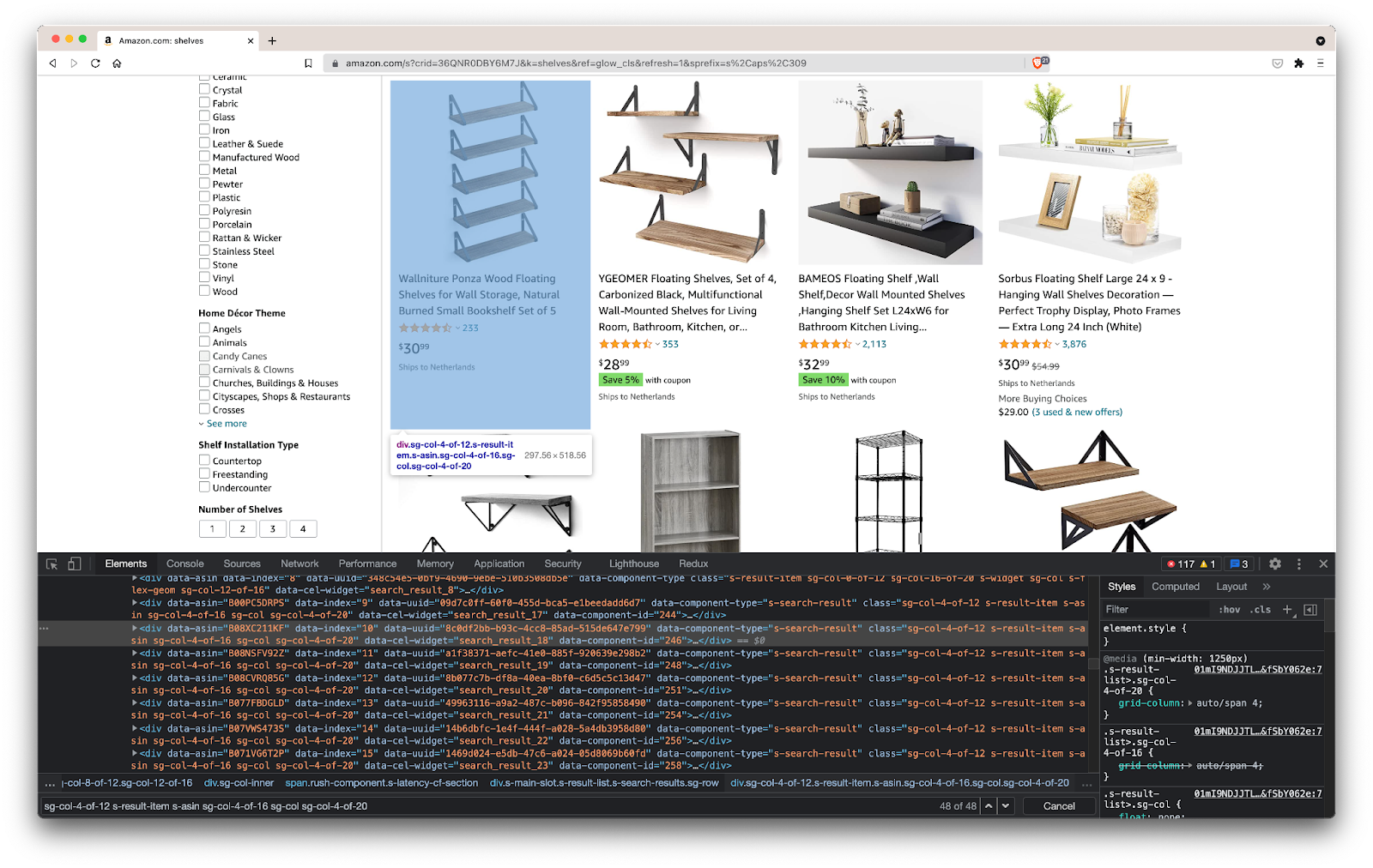
sg-col-4-of-12 s-result-item s-asin sg-col-4-of-16 sg-col sg-col-4-of-20Fetching and Parsing the Page
Let’s put the pieces together by creating a new index.js file. In the first part of the script, we import both Axios and Cheerio. Then, we use Axios to fetch the page and feed the resulting HTML into Cheerio. The fetchShelves() function selects all the containers identified previously.
const axios = require("axios");
const cheerio = require("cheerio");

const fetchShelves = async () => {
   try {
       const response = await axios.get('https://www.amazon.com/s?crid=36QNR0DBY6M7J&k=shelves&ref=glow_cls&refresh=1&sprefix=s%2Caps%2C309');

       const html = response.data;

       const $ = cheerio.load(html);

       const shelves = [];

 $('div.sg-col-4-of-12.s-result-item.s-asin.sg-col-4-of-16.sg-col.sg-col-4-of-20').each((_idx, el) => {
           const shelf = $(el)
           const title = shelf.find('span.a-size-base-plus.a-color-base.a-text-normal').text()

           shelves.push(title)
       });

       return shelves;
   } catch (error) {
       throw error;
   }
};

fetchShelves().then((shelves) => console.log(shelves));
This setup gives us a function that currently just extracts the product title. We can get the rest of the product data by adding selectors for the price, customer rating, and product link into the loop. These selectors target specific attributes within the listing’s HTML. After capturing these values, the scraper adds them to a new object and pushes that object into the array.
const image = shelf.find('img.s-image').attr('src')

const link = shelf.find('a.a-link-normal.a-text-normal').attr('href')

const reviews = shelf.find('div.a-section.a-spacing-none.a-spacing-top-micro > div.a-row.a-size-small').children('span').last().attr('aria-label')

const stars = shelf.find('div.a-section.a-spacing-none.a-spacing-top-micro > div > span').attr('aria-label')

const price = shelf.find('span.a-price > span.a-offscreen').text()

    let element = {
        title,
        image,
        link: `https://amazon.com${link}`,
        price,
    }

    if (reviews) {
        element.reviews = reviews
    }

    if (stars) {
        element.stars = stars
    }
After replacing the shelves.push(title) line with the new push command, the scraping function produces structured objects. A sample result of one of these objects looks like this:
  {
    title: 'SUPERJARE Wall Mounted Shelves, Set of 2, Display Ledge, Storage Rack for Room/Kitchen/Office - White',
    image: 'https://m.media-amazon.com/images/I/61fTtaQNPnL._AC_UL320_.jpg',
    link: 'https://amazon.com/gp/slredirect/picassoRedirect.html/ref=pa_sp_btf_aps_sr_pg1_1?ie=UTF8&adId=A03078372WABZ8V6NFP9L&url=%2FSUPERJARE-Mounted-Floating-Shelves-Display%2Fdp%2FB07H4NRT36%2Fref%3Dsr_1_59_sspa%3Fcrid%3D36QNR0DBY6M7J%26dchild%3D1%26keywords%3Dshelves%26qid%3D1627970918%26refresh%3D1%26sprefix%3Ds%252Caps%252C309%26sr%3D8-59-spons%26psc%3D1&qualifier=1627970918&id=3373422987100422&widgetName=sp_btf',
    price: '$32.99',
    reviews: '6,171',
    stars: '4.7 out of 5 stars'
  }
Formatting Data Into a CSV
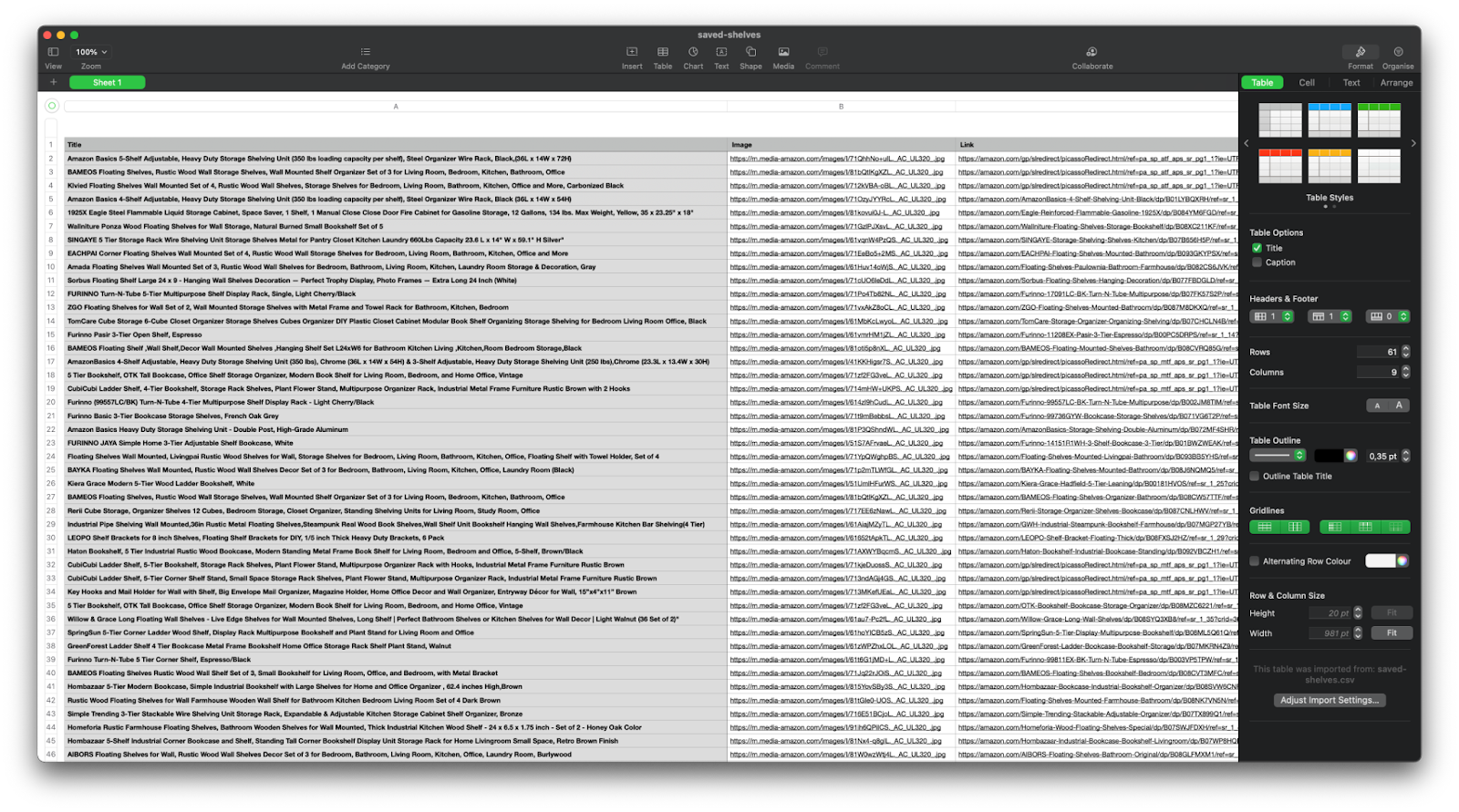
With the data scraped, generating a readable, shareable file is the logical next step. A CSV file is ideal for this use case. Node.js provides a built-in fs module for this task. We’ll use it to create a saved-shelves.csv file in our project directory.
let csvContent = shelves.map(element => {
   return Object.values(element).map(item => `"${item}"`).join(',')
}).join("\n")

fs.writeFile('saved-shelves.csv', "Title, Image, Link, Price, Reviews, Stars" + '\n' + csvContent, 'utf8', function (err) {
   if (err) {
     console.log('Some error occurred - file either not saved or corrupted.')
   } else{
     console.log('File has been saved!')
   }
})
This final code block joins the values from our objects with commas to format the rows. It then uses the fs module to append a header row and our formatted data to the file. A callback function is added to handle any errors that might occur during the write. The result is a clean, structured CSV file containing the data you need, ready to be opened in any spreadsheet.
Handling Dynamic Pages With Puppeteer
Many modern sites render content via JavaScript after the initial page load, so a plain HTTP request to the URL won't return the product data you want. For those cases, Puppeteer — a Node library that controls a headless Chrome instance through the DevTools Protocol — gives you a programmatic browser you can drive yourself.
Install it in your project with npm install puppeteer, create a puppeteer.js file, and use code along these lines:
const puppeteer = require('puppeteer')

(async () => {
 try {
   const chrome = await puppeteer.launch()
   const page = await chrome.newPage()
   await page.goto('https://www.reddit.com/r/Kanye/hot/')
   await page.waitForSelector('.rpBJOHq2PR60pnwJlUyP0', { timeout: 2000 })

   const body = await page.evaluate(() => {
     return document.querySelector('body').innerHTML
   })

   console.log(body)

   await chrome.close()
 } catch (error) {
   console.log(error)
 }
})()
This opens a Chrome instance, creates a new page, and directs it to the target URL. The script then instructs the browser to wait until the element with the class rpBJOHq2PR60pnwJlUyP0 appears on the page, also setting a timeout of 2000 milliseconds. The page.evaluate method executes JavaScript inside the now-populated page context, grabs the HTML content of the body, and returns it. Finally, chrome.close() shuts down the browser.
If Puppeteer is not a fit for your stack, alternatives such as NightwatchJS, NightmareJS, or CasperJS all follow a similar headless-browser pattern.
Avoiding Detection: Headers and Throttling
Rotate Your user-agent Header
The user-agent request header identifies your browser and operating system to the visited server. Sites use it to adapt content, but also to recognize bots that fire off requests even when they rotate IP addresses. A standard header looks like this:
Mozilla/5.0 (Windows NT 10.0; Win64; x64) AppleWebKit/537.36 (KHTML, like Gecko) Chrome/93.0.4577.82 Safari/537.36
To stay under the radar, you should regularly change this value to something current. Avoid sending an empty or clearly outdated user-agent, since that alone can single you out as a scraper.
Implement Rate Limiting
Scraping at full speed is a bad idea for two reasons. First, a flood of requests can overwhelm the server and effectively act as a denial-of-service attack. Second, it is an obvious bot signature — no human browses hundreds of pages per second.
The easy fix is to add a delay between requests. In the Puppeteer example above, you can pause before making the next call with waitForTimeout:
await page.waitForTimeout(3000);Here, ms stands in for the desired number of milliseconds to wait.
For an axios-based scraper, you can wrap a setTimeout() call in a promise to achieve the same effect:
fetchShelves.then(result => new Promise(resolve => setTimeout(() => resolve(result), 3000)))Adding these delays lightens the load on the target server and mimics more natural human pacing.
Wrapping Up
You now have a complete, step-by-step scraper for fetching Amazon product data with Node.js. Keep in mind that scrapers are site-specific: for any other target, you will need to adjust selectors, request logic, and handling for dynamically rendered content to get meaningful results.
For deeper dives into JavaScript scraping, useful reading includes “The Ultimate Guide to Web Scraping with JavaScript and Node.Js” by Robert Sfichi, “Advanced Node.JS Web Scraping with Puppeteer” by Gabriel Cioci, and “Python Web Scraping: The Ultimate Guide to Building Your Scraper” by Raluca Penciuc. Further reading on related Node.js and browser topics is available through the links below.



