

Copying commits between branches
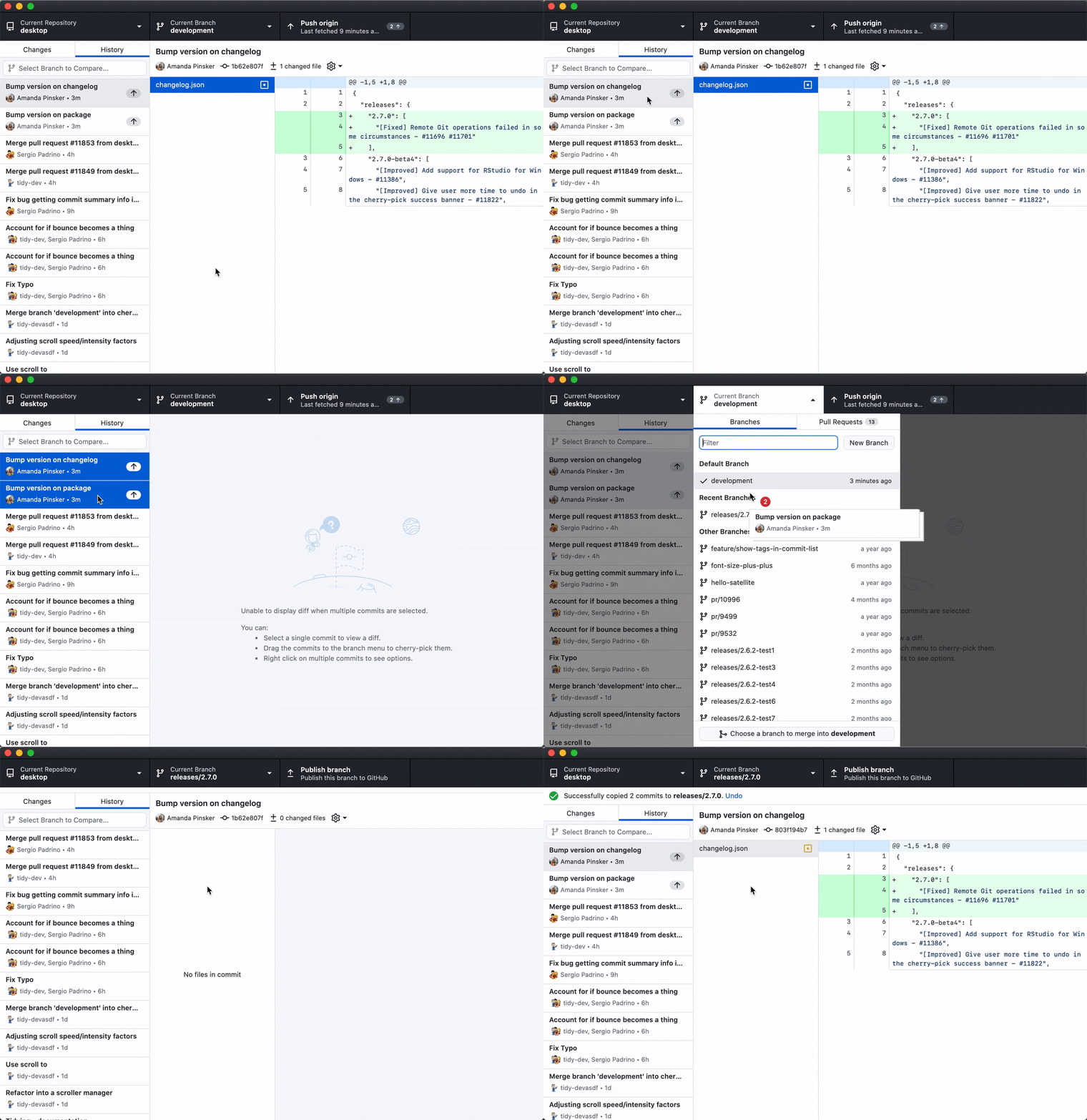
GitHub Desktop 2.7 adds cherry-picking, one of the most requested features from the past year. The new workflow is built around drag and drop: pick up a commit from the history view and drop it onto another branch to copy it there. This is useful when a fix or change made on one branch needs to be moved onto another without merging the entire branch.
A common scenario: you're several commits into a new feature when you discover a bug in the underlying architecture. You commit a fix, but it needs to ship before the feature is complete. Create a release branch and cherry-pick the fix onto it—no need to wait for the feature to finish.
Dragging commits across branches
To cherry-pick a single commit, just drag it. To copy a range, Shift+click the commits and drag them together.
What comes with cherry-picking
- Undo: if you copy too many commits, the success banner's undo button removes them and returns you to the branch you started from.
- Conflict resolution: conflicts are handled with the same resolve dialog used in merging and rebasing.
- Context menu: right-click a commit or selection and choose the cherry-pick option to open a target branch dialog, if drag and drop isn't your preference.
Better commit attribution
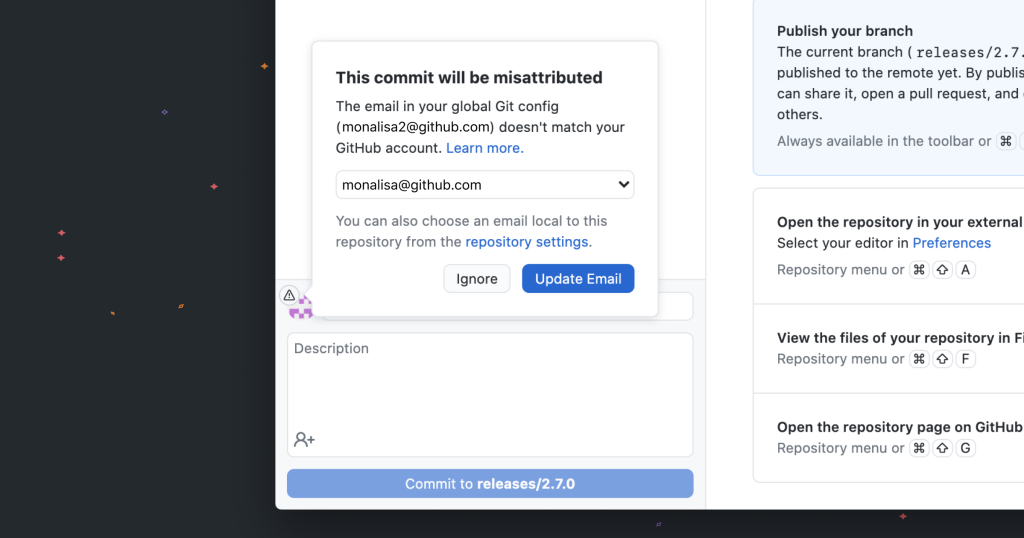
Since version 2.6, GitHub Desktop has also improved how it handles commits made under the wrong identity. Its avatar now shows a warning if your local Git config doesn't match an email associated with your GitHub account. Click the avatar to update the Git config for your current repository.
The cherry-picking feature and the attribution warning both came from user feedback. GitHub Desktop is available from desktop.github.com, and feature requests can be filed in the open source repository.


