Home/Engineering/Getting The Most Out Of Git — Smashing Magazine
Engineering
Getting The Most Out Of Git — Smashing Magazine
Git has so many powerful features under the hood! From Interactive Rebase to Submodules and from the Reflog to File History, these advanced features help you become more productive and make fewer mistakes. In this article, Tobias explores some of the less known but very useful features in Git. You’ll learn how to recover deleted commits, clean up your commit history, use submodules to manage third
TG
Tobias GuentherSmashing Magazine
·February 9, 2021
Git’s Underused Recovery Tools
Most teams rely on Git for version control, yet the typical workflow rarely goes beyond commit, push, and pull. That’s a shame: Git ships with a handful of features that can save your work, clean up messy histories, and make day-to-day development noticeably smoother. Here’s a look at four of them.
Undoing Accidental Resets with the Reflog
Suppose you’ve made two commits that you now believe lead nowhere. The natural reaction is to undo them:
$ git reset --hard 2b504be
Minutes later you realize those commits contained indispensable work. The good news: nothing is truly lost. Git maintains a “diary” of every significant movement of the HEAD pointer — commits, checkouts, merges, rebases, and cherry-picks are all recorded there. That diary is the Reflog.
Open it with:
$ git reflog
The Reflog is ordered chronologically, with the newest entry on top. In a typical accidental-reset scenario, the top entry will be your git reset, and directly below it is the state you want to return to. To recover your lost commits, simply reset to that earlier entry:
$ git reset e5b19e4
This technique also works for other mishaps — deleted branches, botched merges, or commits made on the wrong branch. In a desktop GUI like Tower, the same recovery can usually be triggered with a plain CMD + Z.
Deleting Commits with Interactive Rebase
Before merging a feature branch into a shared team branch, it’s worth inspecting the commit history you’ve produced. Are there commits that shouldn’t be there? Entries that should be squashed together? A sprawling commit that needs to be split apart? Interactive Rebase is the tool for all of that cleanup.
Say you need to remove an older commit — perhaps because it contains credentials that never should have been committed. Start an interactive rebase at the parent revision of the problematic commit:
git rebase -i 2b504be
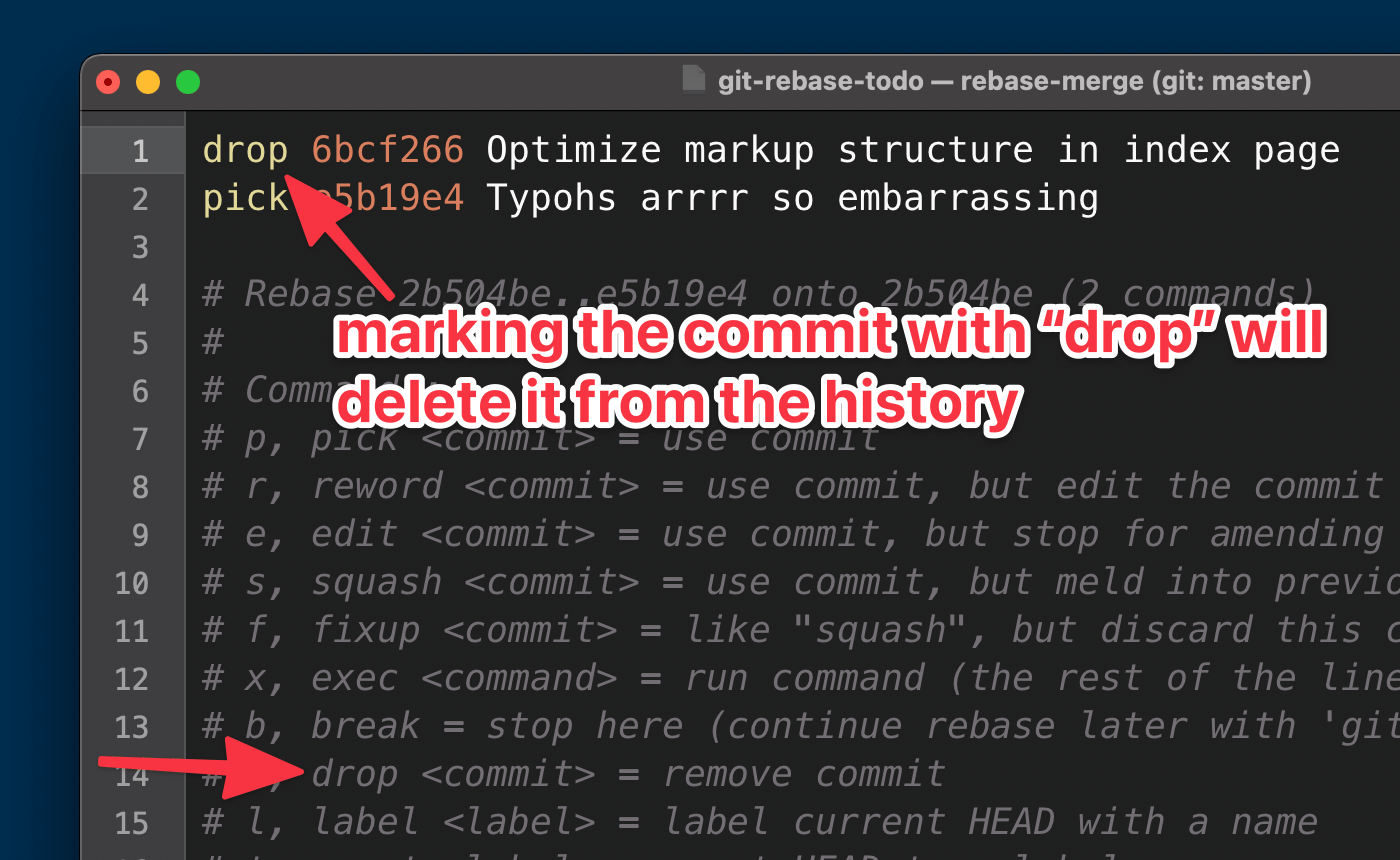
An editor opens, showing the selected commits. Find the line for the unwanted commit and change its action keyword to drop. Save and close the editor, and the interactive rebase finishes — the commit is gone.
Marking the commit with drop will delete it from the history. (Large preview)
Interactive Rebase supports far more than deletion: you can reorder commits, squash multiple entries into one, or split a large commit into several logical parts. GUI tools often offer a shortcut by right-clicking a commit and choosing a delete option.
Including Third-Party Code with Submodules
Modern projects almost always rely on external libraries or modules. The naive approach — copy-pasting third-party code into your repository — creates update headaches and mixes external code with your own. Git’s submodule feature avoids both problems by letting you embed another Git repository inside your own.
After that, the external repository exists as a separate, fully functional Git repository within your project. Your own code and the third-party code remain neatly isolated. The tradeoff is complexity: submodules have their own update and synchronization semantics, so they deserve a proper read of the documentation before you rely on them heavily.
Staging Only Parts of a File
Good version control practice says every commit should address a single issue. In practice, though, a file often ends up with modifications that span several unrelated topics. If you stage the whole file, your commit mixes those topics — making it hard for colleagues to understand what changed and why.
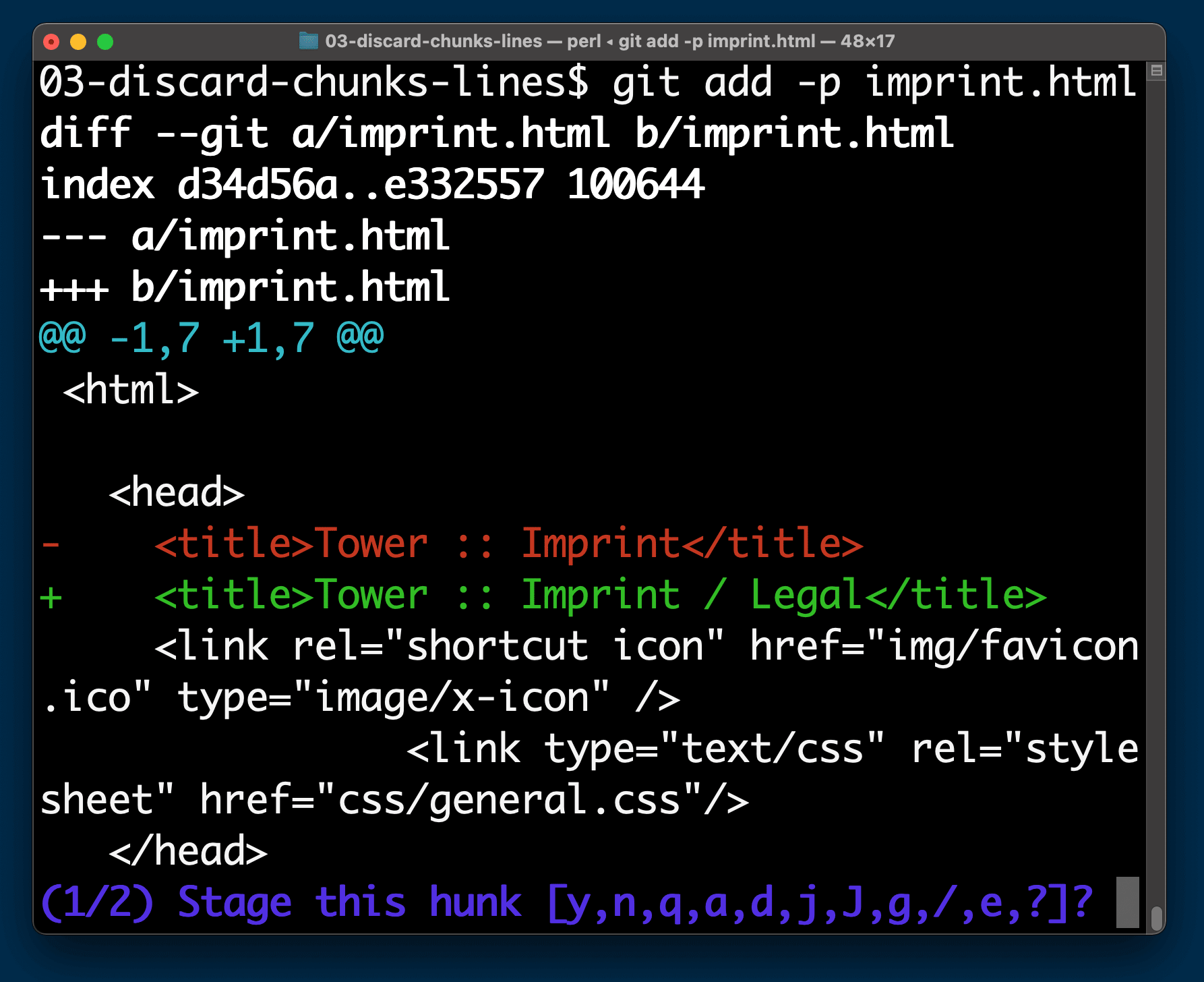
Precisely selecting chunks we want to put into the next commit. (Large preview)
Git lets you choose precisely which chunks of a modified file enter the next commit. The trick is the -p flag:
$ git add -p imprint.html
Git then walks you through each chunk and asks whether you want to stage it. Answer Y or N for each one. When you commit, only the chunks you approved are included. The remaining edits stay in your working copy, ready for a separate, later commit. Desktop Git clients typically expose the same option directly in their staging interface.
Further Resources
These four features only scratch the surface of what Git can do. If you want to keep digging, useful free materials include:
Git Cheat Sheet — a quick reference for common commands, available in multiple languages.
First Aid Kit for Git — a video series focused on undoing mistakes and recovering from errors.
Tobias Günther is a co-founder of Tower , the popular Git desktop client that helps more than 100,000 developers around the world to be more productive with Git. More about Tobias ↬
One of the most wonderful aspects of math is how deep we can get by studying seemingly trivial questions. Consider the roots of unity, where "unity" simply means the number 1. Basics: roots of unity for real numbers Studying the roots of unity usually begins in middle school: what is …
Cloudflare Gateway and Data Loss Prevention have inherited the flexibility and power of Cloudflare Workers through our full-stack integration with the Cloudflare Developer platform.