Static site generators push authors toward Markdown, and the more time you spend in the format, the more you want the tool to recede. What follows is an assessment of the features worth checking before you pick an editor, plus a short list of picks.
Editing mode, preview, and visible syntax
Separate modes for writing and reading are normally a UX anti-pattern, yet writers seem comfortable with the split — the same pattern appears in everything from vi(m) to Google Docs.
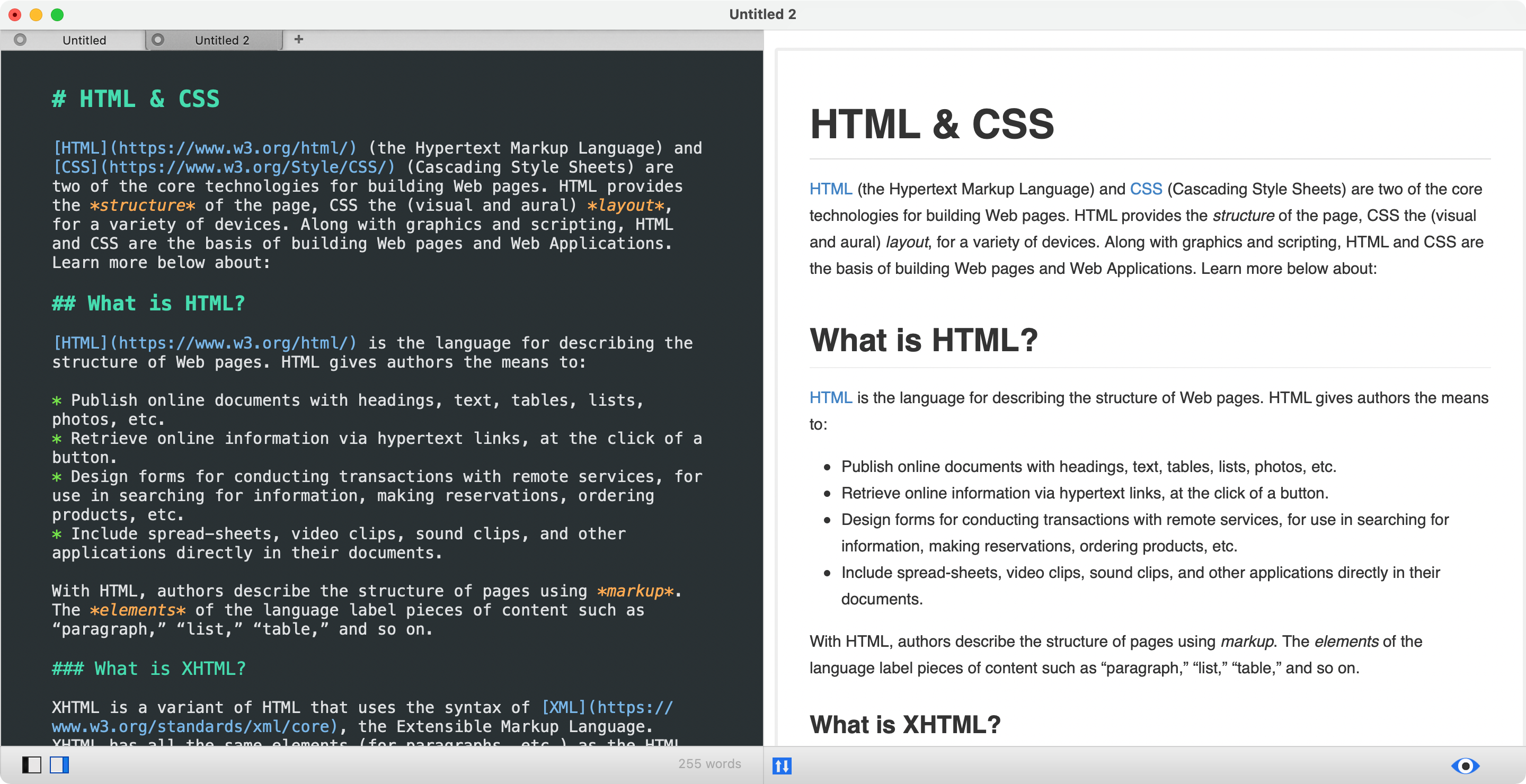
A side-by-side or paned layout, where the source and the rendered output sit next to each other, is often the better fit. Markdown is not code: appearance matters, and a live preview approximates the auto-refresh you already get from a static site generator.
The opposite design — one mode where Markdown converts in place to styled text — is harder to work with. Dropbox Paper, Typora, Ulysses, and Bear implement some version of it, and each requires guessing at click versus double-click versus keyboard interaction to change something as simple as a heading level.
The source you wrote should stay visible even when the end user never sees it; that much is worth borrowing from code editors.
Theme requirements
Whether a theme is shipped or written from scratch matters less than getting the amount of styling right: enough to separate plain text from formatted text, not so much that it distracts. Even with a preview pane open, most time is spent in the editing view. The specifics:
Colour per style
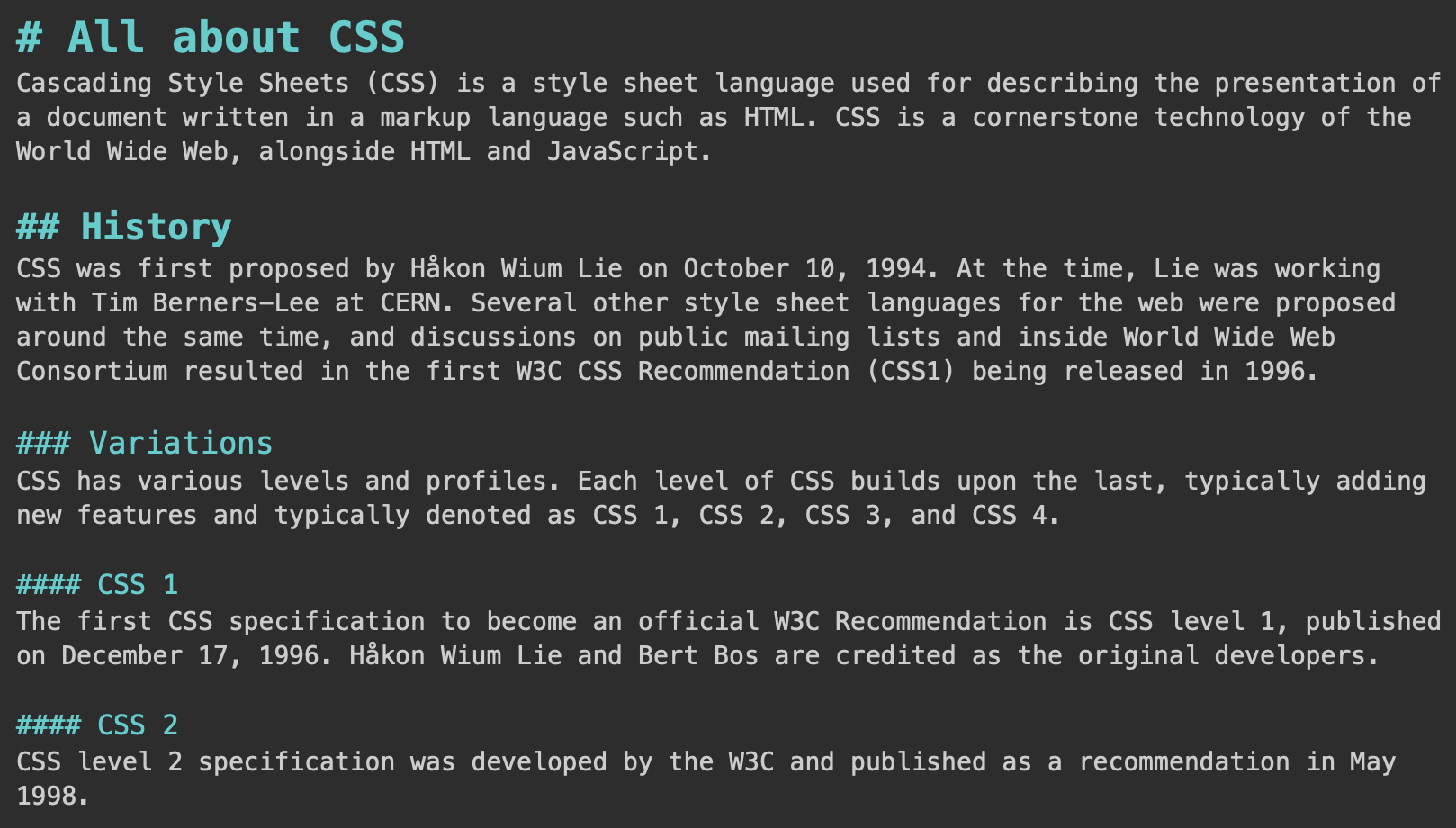
Most of the editor text is never rendered, so colour is what tells you quickly what has been marked up — whether a URL is written out in the prose or tucked inside a hyperlink, for example. Ideally every style gets its own colour: headings, links, bold, italic, quotes, images, code, bullets.

Styling that mirrors bold and italic
Asterisks are the preferred delimiters wherever the choice exists, which makes visual differentiation between **this is important** and *this is important* valuable while skimming — **this is important** and *this is important* are easier to tell apart. The same styling exposes mismatched asterisks such as **is this important?*.
Heading sizes
Code editors vary colour and style within a file but not font size, so this is a departure. It is also, for some writers, the feature that matters: distinct sizes per heading level turn a glance through the text into an outline of its hierarchy.
Keyboard behaviour
Standard text-editor shortcuts are the baseline: CTRL/CMD + B for bold, I for italic. Article-specific additions earn their keep too, particularly CTRL/CMD + (number) to set heading levels, starting at CTRL/CMD + 1 for H1.
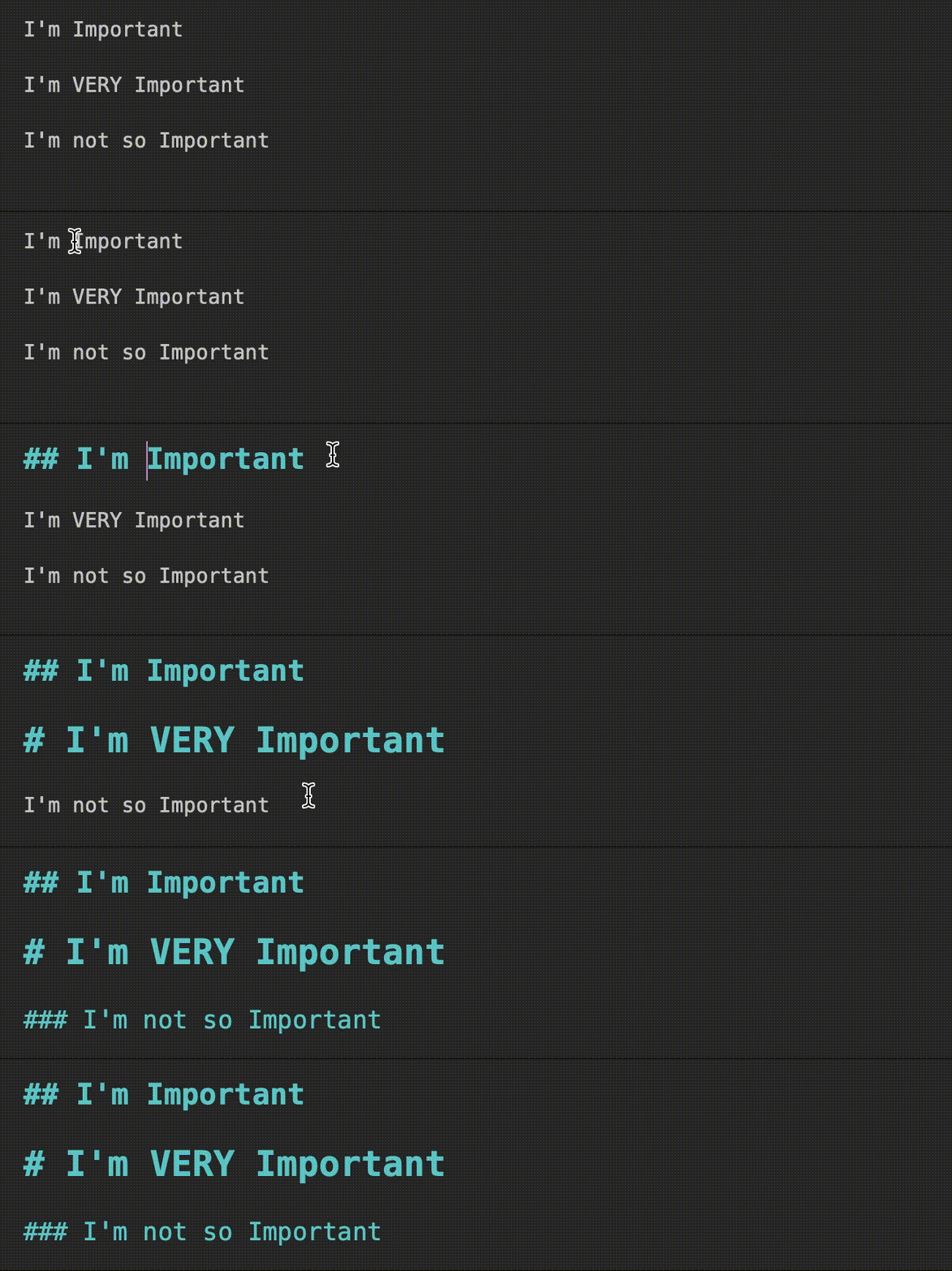
Selection wrapping is the code-editor habit worth importing: with text selected, typing [ or ( should enclose that text in the opening and closing character rather than overwrite it. The same goes for *, `, and _.

Link and image insertion is easy to misremember — after years of regular Markdown writing, the order of brackets and parentheses still slips. A dedicated shortcut removes the doubt.
Some editors go further: select text, hit the link shortcut, and a URL already on the clipboard lands in the hyperlink field. That shortcut alone accelerates the workflow noticeably.

Bonus: copy out as HTML
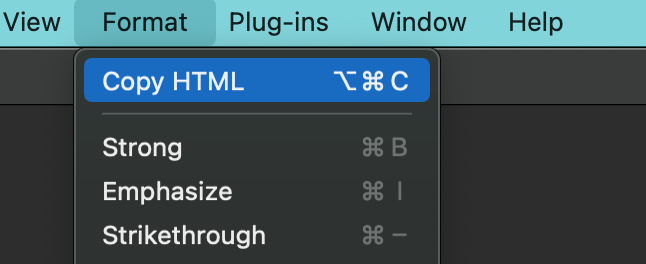
One editor used here offers a one-click, keyboard-accelerated “Copy HTML” command that copies the entire document as HTML — a convenient route into systems with a code/source option, WordPress among them.
Standalone app or is the IDE enough?
Plenty of people who run static site generators live in their IDE and switch between code and Markdown in the same day, which makes a familiar environment an obvious choice. When the task is text itself, a separate app is preferable; the preference is not absolute, since an IDE is still used for complex find-and-replace and similar edits. An IDE is fine provided it delivers the benefits below.
- The interface stays quiet. “Zen mode” isn’t required, but when the goal is writing you want as few panels open as possible, and clearing an IDE down to that state takes a lot of switching off.
- It feels lighter. Markdown tools are less complex and do less, so they ought to be faster; ideally the writing app launches fast and responds instantly, with no sense of effort.
- You can find one you like. No IDE-based Markdown editor has yet matched the standalone tools already in use here — though that stems from not having the time to test every option, not from the category being ruled out.
- The mental switch helps. Opening an IDE primes thoughts of code; opening the Markdown editor primes thoughts of words.
Editors worth using
Omission from this list does not make an app poor. Several solid tools were left out for carrying too many features or for being too expensive next to the range of decent free and cheap options, and countless Markdown apps remain untested. Features meant to force “into the zone” — typewriter modes, focus modes, ambient audio — have never held up in practice and are usually turned off, so they were not selection criteria. Those who like the idea can try Typora, which runs on Mac, Windows, and Linux and is free during its Beta.
Top pick: MacDown

Free and Mac-only, open source, light and responsive, and it satisfies the criteria above. On Windows and Linux, Ghostwriter (also free) is a good, similar alternative.
Also worth considering

Lightpaper — $15, Mac. A step up in functionality, with a third pane that makes switching between files and folders easy.

Obsidian — free for personal use, Mac, Windows, Linux. For a fuller-featured app its editor interface is good and meets most of the criteria above. Zettlr offers similar features but feels more complicated.

Byword — $11, Mac and iOS. Not the preferred writing and editing app, though publication to platforms such as Medium, WordPress, Tumblr, Blogger, and Evernote is a useful extra.

Bear — free, or $1.49/mo. for Pro, Mac and iOS. Worth choosing if Markdown serves personal notes and task management as well as site content; it also scores highly on appearance and usability.