
What exactly is a pull request?
A pull request (PR) is a formal proposal to merge changes from one branch into another. It gives your team a chance to review the differences before those changes are integrated into the main codebase. In a pull request, you'll see a side-by-side visual comparison of the content in two branches. Two terms matter here:
- Source branch: The branch that contains your changes.
- Target branch: The branch you want to merge your changes into.
How to open a pull request
You have several options for creating a pull request: GitHub.com, GitHub Desktop, GitHub Codespaces, GitHub Mobile, or the GitHub CLI. This walkthrough uses the terminal with git, which gives you a clear picture of the underlying workflow.
Start by navigating to your repository, cloning it, then creating a new branch. In this example, we've created a branch named update-name. In your terminal, switch to that branch:
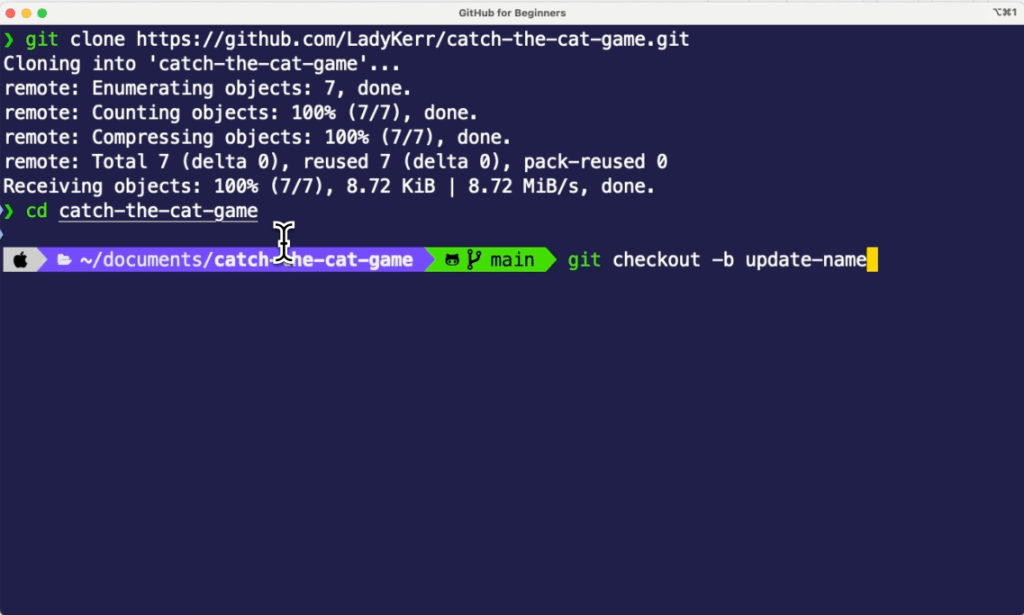
git add .
git commit -m "update game name"
Once those commands finish, run git status to verify the commit succeeded. A clean working tree message ("nothing to commit") means you're ready to push your branch up to GitHub:
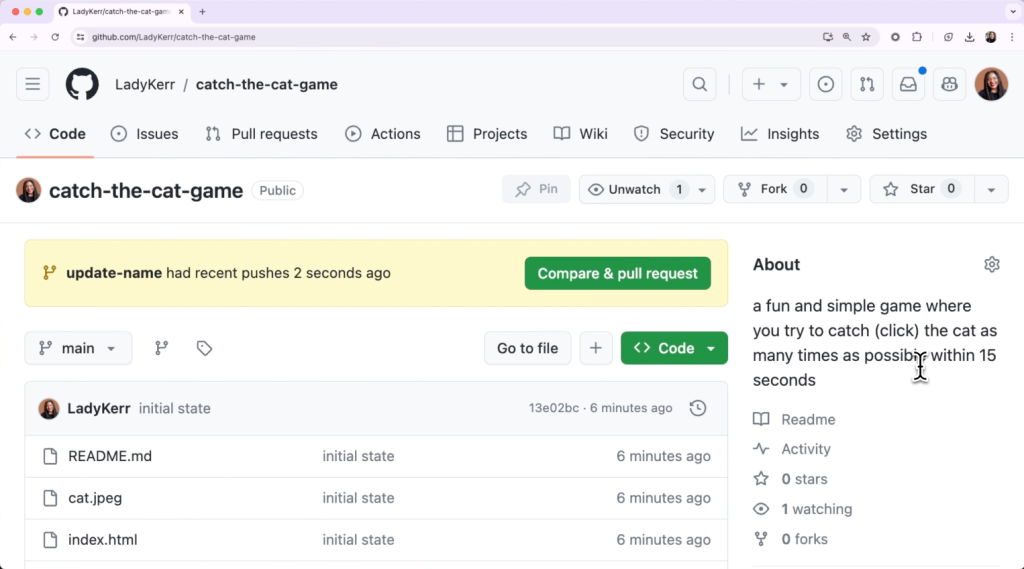
When the branch is on GitHub, head back to the repository page in your browser. You'll see a banner noting that your branch has recent pushes. Click the green Compare & pull request button.
Now check the two dropdowns at the top of the page:
- The base: dropdown indicates the target branch. The default is typically main — leave it unless you're merging into another branch.
- The compare: dropdown is the source branch. Select the branch that holds your changes.
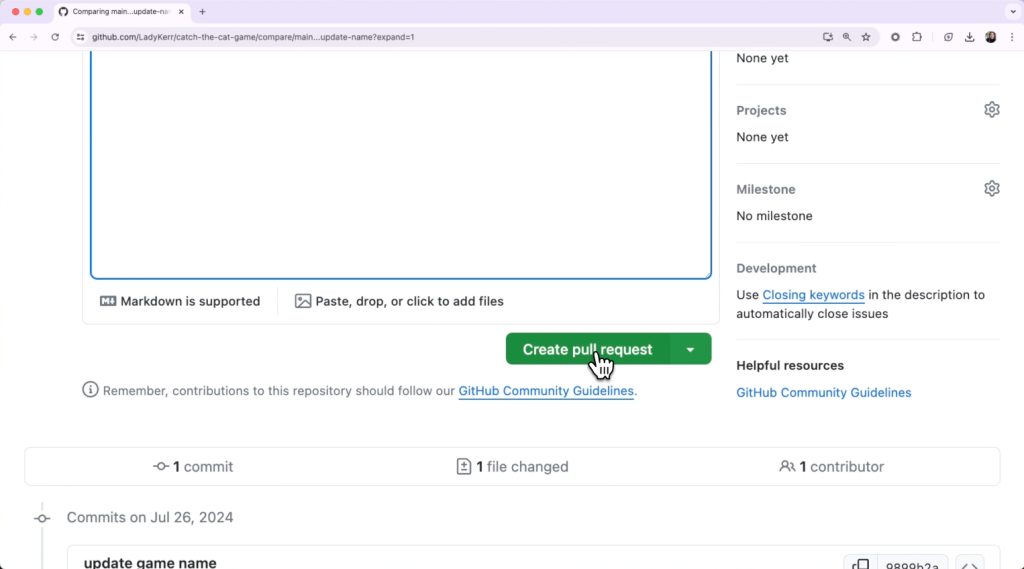
Once the target and source branches are correct, give your pull request a title and a description. The description should make the intent of your changes clear. Click the green Create pull request button when you're ready for a review.

After the reviewer approves the change, you can finalize it by clicking Merge pull request at the bottom of the page. That merges the source branch's changes into the target branch.
Good pull request habits
A few practices will make your pull requests smoother for everyone, including your future self:
- Keep them small. Smaller PRs are quicker to review, simpler to test, less likely to introduce bugs, and leave a cleaner commit history.
- Review your own PR first. Build and test it before you ask anyone else to look at it. You'll catch typos and basic issues early.
- Give context. Write a clear title and description with the why behind the change. Include:
- The purpose of the pull request
- An overview of what changed
- Links to related issues, tickets, or earlier discussions
Once you're comfortable with pull requests, you can use them on any repository where you have write access — or fork and contribute to someone else's project. It's the core mechanism for collaborative development on GitHub, and it's also your path to suggesting improvements to repos you don't own.


