Modern GPUs are capable of rendering millions of triangles per frame, but traditional JavaScript animation techniques can't feed them fast enough. The bottleneck is CPU-side: updating vertex positions in JavaScript for hundreds of thousands of objects will stall your frame rate long before the GPU breaks a sweat. The solution is to push geometry updates into the vertex shader, where the GPU can do the math itself. This article demonstrates the approach by animating a million letters in real time using Three.js.
Minimizing state changes and draw calls
Efficient WebGL rendering is largely about reducing overhead. The typical pattern—set uniforms, bind buffers, configure shaders, then draw—works fine for a handful of objects but falls apart at scale. Every state change and draw call has a cost. For large scenes, you want to group objects together and minimize the number of times you switch shaders or re-upload data.
Bundling multiple objects into a single geometry is the simplest optimization. Instead of issuing one draw call per object, you can pack all vertex data into one buffer and draw everything at once:
var geo = new THREE.Geometry();
for (var i=0; i<objects.length; i++) {
  // bundle the objects into a single geometry
  // so that they can be drawn with a single draw call
  addObjectToGeometry(geo, objects[i]);
}
// GOOD! Only one object to add to the scene!
scene.add(new THREE.Mesh(geo, material));
renderer.render(scene, camera);
For even better performance, move as much computation as possible into shaders. In this demo, the letter animation is driven entirely by the vertex shader, so no JavaScript runs per frame to move vertices. The only CPU work is updating a time uniform.
Building the letter geometry
The letters are rendered as textured quads. To prepare the assets, a sprite sheet with all character glyphs is drawn onto a Canvas 2D texture, and a corresponding buffer of texture coordinates is uploaded to the GPU:
var fontSize = 16;

// The square letter texture will have 16 * 16 = 256 letters, enough for all 8-bit characters.
var lettersPerSide = 16;

var c = document.createElement('canvas');
c.width = c.height = fontSize*lettersPerSide;
var ctx = c.getContext('2d');
ctx.font = fontSize+'px Monospace';

// This is a magic number for aligning the letters on rows. YMMV.
var yOffset = -0.25;

// Draw all the letters to the canvas.
for (var i=0,y=0; y<lettersPerSide; y++) {
  for (var x=0; x<lettersPerSide; x++,i++) {
    var ch = String.fromCharCode(i);
    ctx.fillText(ch, x*fontSize, yOffset*fontSize+(y+1)*fontSize);
  }
}

// Create a texture from the letter canvas.
var tex = new THREE.Texture(c);
// Tell Three.js not to flip the texture.
tex.flipY = false;
// And tell Three.js that it needs to update the texture.
tex.needsUpdate = true;
The text itself—a full book—is laid out as a set of vertex quads, one per character. The vertices are initially positioned so that an unanimated render produces a plain text layout:
var geo = new THREE.Geometry();

var i=0, x=0, line=0;
for (i=0; i<BOOK.length; i++) {
  var code = BOOK.charCodeAt(i); // This is the character code for the current letter.
  if (code > lettersPerSide * lettersPerSide) {
    code = 0; // Clamp character codes to letter map size.
  }
  var cx = code % lettersPerSide; // Cx is the x-index of the letter in the map.
  var cy = Math.floor(code / lettersPerSide); // Cy is the y-index of the letter in the map.

  // Add letter vertices to the geometry.
  var v,t;
  geo.vertices.push(
    new THREE.Vector3( x*1.1+0.05, line*1.1+0.05, 0 ),
    new THREE.Vector3( x*1.1+1.05, line*1.1+0.05, 0 ),
    new THREE.Vector3( x*1.1+1.05, line*1.1+1.05, 0 ),
    new THREE.Vector3( x*1.1+0.05, line*1.1+1.05, 0 )
  );
  // Create faces for the letter.
  var face = new THREE.Face3(i*4+0, i*4+1, i*4+2);
  geo.faces.push(face);
  face = new THREE.Face3(i*4+0, i*4+2, i*4+3);
  geo.faces.push(face);

  // Compute texture coordinates for the letters.
  var tx = cx/lettersPerSide,
      ty = cy/lettersPerSide,
      off = 1/lettersPerSide;
  var sz = lettersPerSide*fontSize;
  geo.faceVertexUvs[0].push([
    new THREE.Vector2( tx, ty+off ),
    new THREE.Vector2( tx+off, ty+off ),
    new THREE.Vector2( tx+off, ty )
  ]);
  geo.faceVertexUvs[0].push([
    new THREE.Vector2( tx, ty+off ),
    new THREE.Vector2( tx+off, ty ),
    new THREE.Vector2( tx, ty )
  ]);

  // On newline, move to the line below and move the cursor to the start of the line.
  // Otherwise move the cursor to the right.
  if (code == 10) {
    line--;
    x=0;
  } else {
    x++;
  }
}
The animated vertex shader
A standard vertex shader takes model vertices and projects them onto the screen via transformation matrices. Adding animation in the shader means applying a time-based transformation on top of those matrices. With an ordinary Linux approach, that logic would live in JavaScript and run on the CPU for every vertex every frame—too slow for six million vertices carrying a million letters on a 2010 MacBook Air.
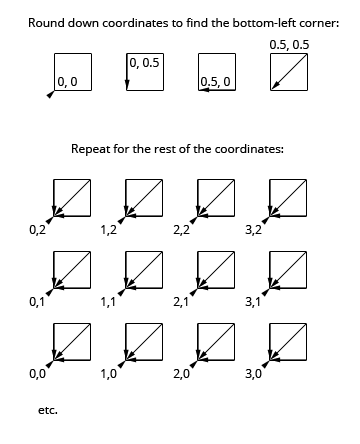
To animate each letter individually, the shader needs to know which vertices belong to which character. This is done by exploiting the geometry layout: letter quads are square and separated by small offsets, so rounding down any vertex coordinate yields the bottom-left corner of its letter quad. That coordinate serves as a unique per-letter index that the shader can use to vary animation parameters.
Rounding down vertex coordinates to find the top-left corner of a letter.
The animated shader starts from the same foundation as a simple vertex shader—transforming by model, view, and projection matrices—but adds a time-varying displacement per letter:
uniform float uTime;
uniform float uEffectAmount;

varying float vZ;
varying vec2 vUv;

// rotateAngleAxisMatrix returns the mat3 rotation matrix
// for given angle and axis.
mat3 rotateAngleAxisMatrix(float angle, vec3 axis) {
  float c = cos(angle);
  float s = sin(angle);
  float t = 1.0 - c;
  axis = normalize(axis);
  float x = axis.x, y = axis.y, z = axis.z;
  return mat3(
    t*x*x + c,    t*x*y + s*z,  t*x*z - s*y,
    t*x*y - s*z,  t*y*y + c,    t*y*z + s*x,
    t*x*z + s*y,  t*y*z - s*x,  t*z*z + c
  );
}

// rotateAngleAxis rotates a vec3 over the given axis by the given angle and
// returns the rotated vector.
vec3 rotateAngleAxis(float angle, vec3 axis, vec3 v) {
  return rotateAngleAxisMatrix(angle, axis) * v;
}

void main() {
  // Compute the index of the letter (assuming 80-character max line length).
  float idx = floor(position.y/1.1)*80.0 + floor(position.x/1.1);

  // Round down the vertex coords to find the bottom-left corner point of the letter.
  vec3 corner = vec3(floor(position.x/1.1)*1.1, floor(position.y/1.1)*1.1, 0.0);

  // Find the midpoint of the letter.
  vec3 mid = corner + vec3(0.5, 0.5, 0.0);

  // Rotate the letter around its midpoint by an angle and axis dependent on
  // the letter's index and the current time.
  vec3 rpos = rotateAngleAxis(idx+uTime,
    vec3(mod(idx,16.0), -8.0+mod(idx,15.0), 1.0), position - mid) + mid;

  // uEffectAmount controls the amount of animation applied to the letter.
  // uEffectAmount ranges from 0.0 to 1.0.
  float effectAmount = uEffectAmount;

  vec4 fpos = vec4( mix(position,rpos,effectAmount), 1.0 );
  fpos.x += -35.0;

  // Apply spinning motion to individual letters.
  fpos.z += ((sin(idx+uTime*2.0)))*4.2*effectAmount;
  fpos.y += ((cos(idx+uTime*2.0)))*4.2*effectAmount;

  vec4 mvPosition = modelViewMatrix * fpos;

  // Apply wavy motion to the entire text.
  mvPosition.y += 10.0*sin(uTime*0.5+mvPosition.x/25.0)*effectAmount;
  mvPosition.x -= 10.0*cos(uTime*0.5+mvPosition.y/25.0)*effectAmount;

  vec4 p = projectionMatrix * mvPosition;

  // Pass texture coordinates and the vertex z-coordinate to the fragment shader.
  vUv = uv;
  vZ = p.z;

  // Send the final vertex position to WebGL.
  gl_Position = p;
}
Three.js makes it easy to plug custom shaders in through THREE.ShaderMaterial, which accepts a shader program and uniform definitions:
// First, set up uniforms for the shader.
var uniforms = {

  // map contains the letter map texture.
  map: { type: "t", value: 1, texture: tex },

  // uTime is the urrent time.
  uTime: { type: "f", value: 1.0 },

  // uEffectAmount controls the amount of animation applied to the letters.
  uEffectAmount: { type: "f", value: 0.0 }
};

// Next, set up the THREE.ShaderMaterial.
var shaderMaterial = new THREE.ShaderMaterial({
  uniforms: uniforms,

  // I have my shaders inside HTML elements like
  // <script id="vertex" type="text/x-glsl-vert">... shaderSource ... <script>

  // The below gets the contents of the vertex shader script element.
  vertexShader: document.querySelector('#vertex').textContent,

  // The fragment shader is a bit special as well, drawing a rotating
  // rainbow gradient.
  fragmentShader: document.querySelector('#fragment').textContent
});

// I set depthTest to false so that the letters don't occlude each other.
shaderMaterial.depthTest = false;
Each animation frame, the only update needed is refreshing the shader uniforms:
// I'm controlling the uniforms through a proxy control object.
// The reason I'm using a proxy control object is to
// have different value ranges for the controls and the uniforms.
var controller = {
  effectAmount: 0
};

// I'm using <a href="http://code.google.com/p/dat-gui/">DAT.GUI</a> to do a quick & easy GUI for the demo.
var gui = new dat.GUI();
gui.add(controller, 'effectAmount', 0, 100);

var animate = function(t) {
  uniforms.uTime.value += 0.05;
  uniforms.uEffectAmount.value = controller.effectAmount/100;
  bookModel.position.y += 0.03;

  renderer.render(scene, camera);
  requestAnimationFrame(animate, renderer.domElement);
};
animate(Date.now());
Practical limitations and workarounds
One drawback of pushing all animation math into the GPU is that JavaScript no longer knows where the letters actually are. If you need the positions on the CPU side—for picking, collision detection, or UI updates—you can duplicate the shader's transformation logic in JavaScript and run it in a web worker. That keeps expensive math off the rendering thread.
For more deterministic animation, a render-to-texture approach can help: render current positions to a texture, then animate toward positions stored in a second texture supplied by JavaScript. The benefit is that you can update only a small subset of target positions per frame without halting the animation of the rest.
Also, the 256-character sprite atlas limits you to ASCII text. Upscaling the font texture to 4096x4096 with an 8px font fits the full UCS-2 range, but readability suffers. Multiple textures or a sprite-atlas sample are better options for larger character sets, as is generating glyphs only for the characters that actually appear in your content.
One of the most wonderful aspects of math is how deep we can get by studying seemingly trivial questions. Consider the roots of unity, where "unity" simply means the number 1. Basics: roots of unity for real numbers Studying the roots of unity usually begins in middle school: what is …
Cloudflare Gateway and Data Loss Prevention have inherited the flexibility and power of Cloudflare Workers through our full-stack integration with the Cloudflare Developer platform.