

Comments as Marks in the Document Tree
Commenting in rich text editors shares many structural challenges with character formatting. A comment can overlay styled text, overlap other comments, span across paragraph nodes, or wrap around links. Because of these parallels, we can model comment threads the same way SlateJS models character styles: as marks on text nodes.
This approach leverages Slate’s built-in mark handling, which automatically restructures text nodes as marks are applied. When a comment thread targets a selection, the range is split so that each resulting text node carries a consistent set of marks. A comment thread is represented as a boolean mark named commentThread_threadID, with a unique ID per thread. Overlapping threads simply set multiple such properties on the shared text range, just as bold and italic coexist on the same selection.
The examples below show how the text node hierarchy changes when comment threads are introduced to different selections.
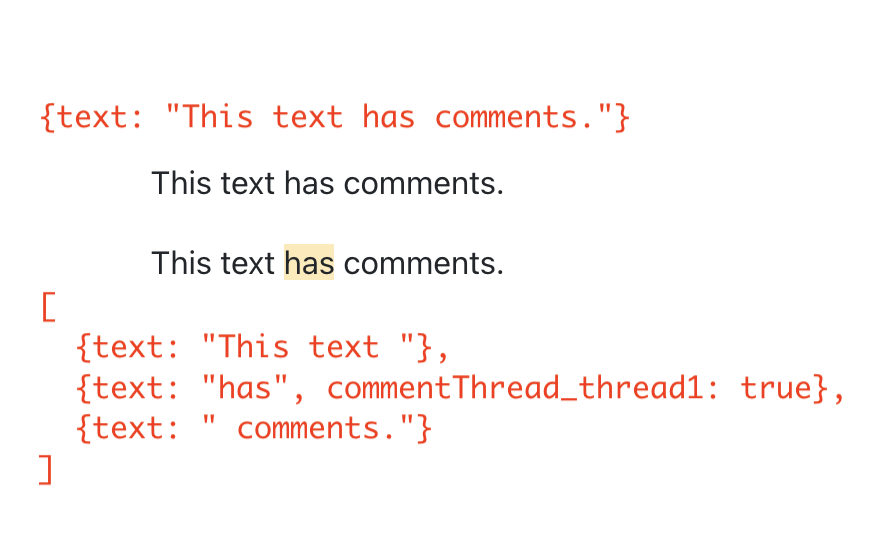
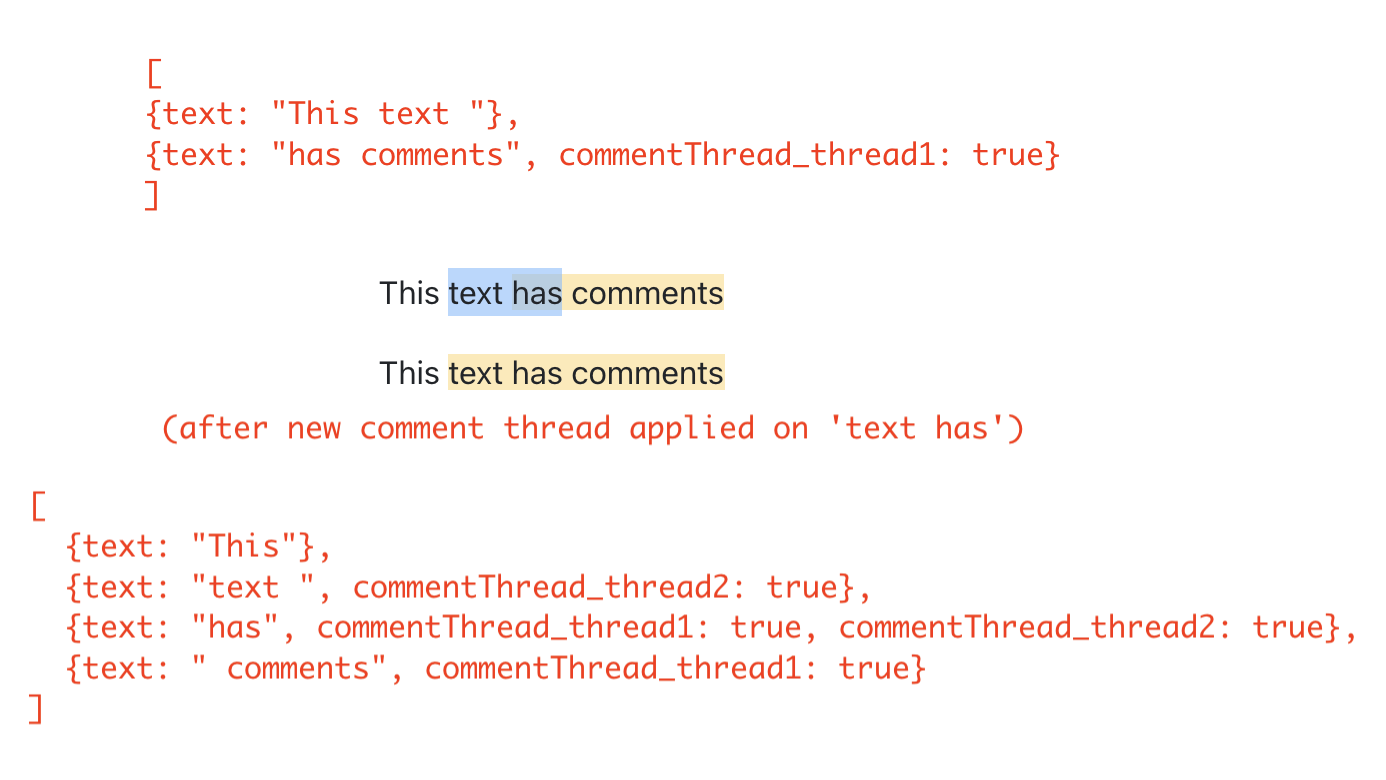
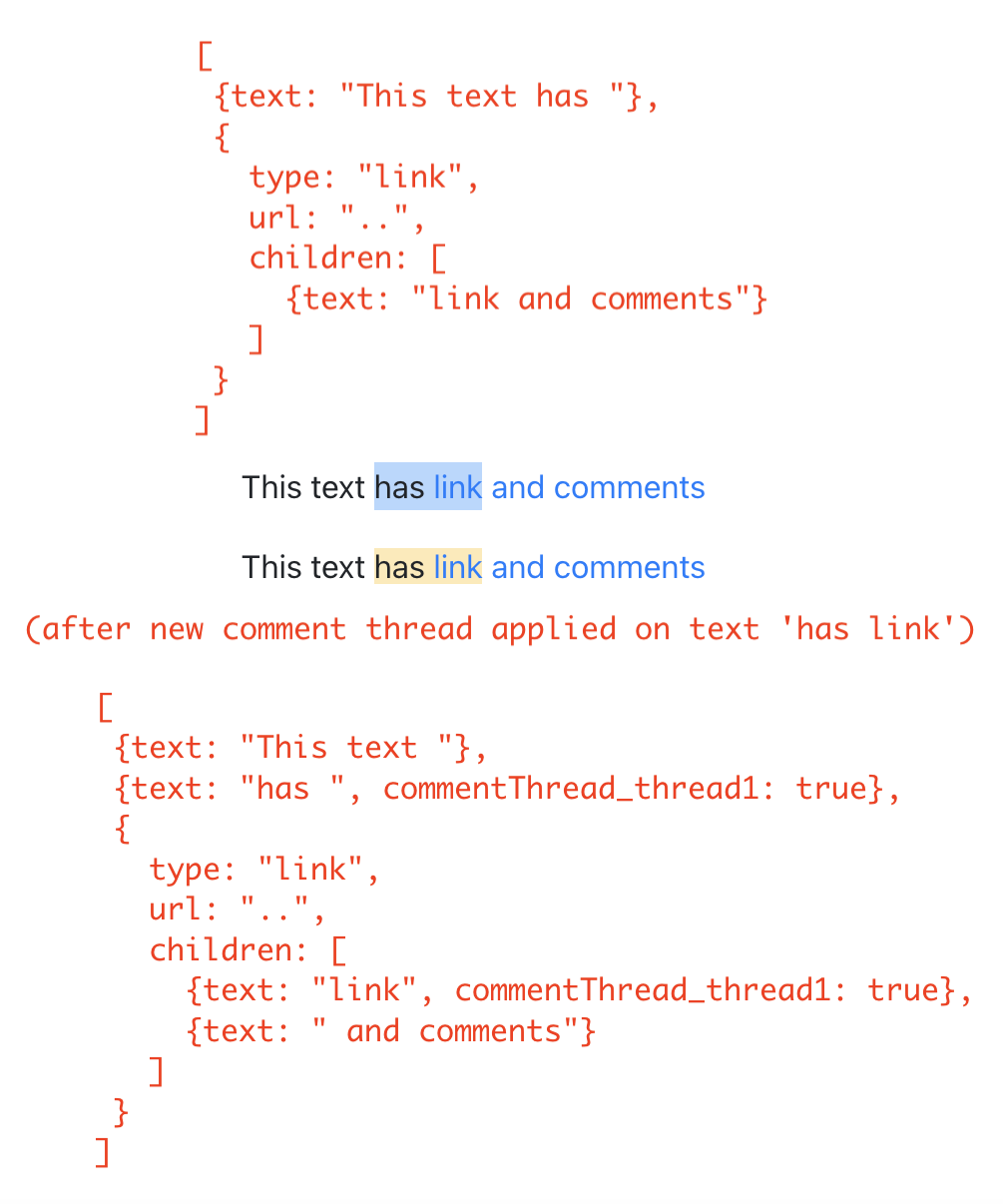
Rendering Commented Text
With the data model in place, we apply comments to the sample document and teach the editor to render them. A new EditorCommentUtils module collects all comment-related utility functions, starting with a simple factory for thread IDs.
# src/utils/EditorCommentUtils.js

const COMMENT_THREAD_PREFIX = "commentThread_";

export function getMarkForCommentThreadID(threadID) {
  return `${COMMENT_THREAD_PREFIX}${threadID}`;
}
In the test document, several ranges receive comment threads. One notable case is the text ‘Richard McClintock’, which carries two threads where one is fully contained within the other.

# src/utils/ExampleDocument.js
import { getMarkForCommentThreadID } from "../utils/EditorCommentUtils";
import { v4 as uuid } from "uuid";

const exampleOverlappingCommentThreadID = uuid();

const ExampleDocument = [
   ...
   {
        text: "Lorem ipsum",
        [getMarkForCommentThreadID(uuid())]: true,
   },
   ...
   {
        text: "Richard McClintock",
        // note the two comment threads here.
        [getMarkForCommentThreadID(uuid())]: true,
        [getMarkForCommentThreadID(exampleOverlappingCommentThreadID)]: true,
   },
   {
        text: ", a Latin scholar",
        [getMarkForCommentThreadID(exampleOverlappingCommentThreadID)]: true,
   },
   ...
];
For this article, IDs are assigned directly in the example document using the uuid npm package. A production version would likely delegate ID creation to a backend service. To activate the highlight, the text node renderer needs to know whether a node carries any threads. A util getCommentThreadsOnTextNode answers that question.
# src/utils/EditorCommentUtils.js

export function getCommentThreadsOnTextNode(textNode) {
  return new Set(
     // Because marks are just properties on nodes,
    // we can simply use Object.keys() here.
    Object.keys(textNode)
      .filter(isCommentThreadIDMark)
      .map(getCommentThreadIDFromMark)
  );
}

export function getCommentThreadIDFromMark(mark) {
  if (!isCommentThreadIDMark(mark)) {
    throw new Error("Expected mark to be of a comment thread");
  }
  return mark.replace(COMMENT_THREAD_PREFIX, "");
}

function isCommentThreadIDMark(mayBeCommentThread) {
  return mayBeCommentThread.indexOf(COMMENT_THREAD_PREFIX) === 0;
}
# src/components/StyledText.js
import { getCommentThreadsOnTextNode } from "../utils/EditorCommentUtils";
export default function StyledText({ attributes, children, leaf }) {
...
const commentThreads = getCommentThreadsOnTextNode(leaf);
if (commentThreads.size > 0) {
return (
<CommentedText
{...attributes}
// We use commentThreads and textNode props later in the article.
commentThreads={commentThreads}
textNode={leaf}
>
{children}
</CommentedText>
);
}
return <span {...attributes}>{children}</span>;
}The CommentedText component handles the rendering of such nodes, applying the CSS needed for visual emphasis.
# src/components/CommentedText.js

import "./CommentedText.css";

import classNames from "classnames";

export default function CommentedText(props) {
  const { commentThreads, ...otherProps } = props;
  return (
    <span
      {...otherProps}
      className={classNames({
        comment: true,
      })}
    >
      {props.children}
    </span>
  );
}

# src/components/CommentedText.css

.comment {
  background-color: #feeab5;
}
Note: At this stage, overlapping threads are indistinguishable visually — the whole range renders as one highlight. That issue is addressed later when we introduce the active comment thread concept, which lets users isolate one thread and see its exact extent.
Storing Comment State with Recoil
Before enabling user-created comments, we establish a UI state layer. RecoilJS provides the state management here, storing threads, their comments, and metadata like timestamps, status, and authorship. Atoms hold this data, with our thread storage modeled as an atom family.
> yarn add recoil# src/utils/CommentState.js
import { atom, atomFamily } from "recoil";
export const commentThreadsState = atomFamily({
key: "commentThreads",
default: [],
});
export const commentThreadIDsState = atom({
key: "commentThreadIDs",
default: new Set([]),
});Two considerations from the atom definitions:
- Each atom or atom family has a unique
keyand an optional default. - Iterating over an atom family isn't directly supported yet, so we keep a separate
commentThreadIDsStateatom holding all current thread IDs. Both atoms must stay synchronized as threads are added or removed.
The application is wrapped in a RecoilRoot to make these atoms available, and the included Debugger component writes state changes to the developer console in real time.
# src/components/App.js

import { RecoilRoot } from "recoil";

export default function App() {
  ...

  return (
    <RecoilRoot>
      >
         ...
        <Editor document={document} onChange={updateDocument} />

    </RecoilRoot>
  );
}
# src/components/Editor.js
export default function Editor({ ... }): JSX.Element {
.....
return (
<>
<Slate>
.....
</Slate>
<DebugObserver />
</>
);
function DebugObserver(): React.Node {
// see API link above for implementation.
}Inititalization of these atoms with pre-existing threads — like those in our example document — is deferred until we build the Comments Sidebar, which needs to read all threads in a document. At this point, we only verify the Recoil setup loads without errors.
Inserting New Comment Threads
The toolbar needs a button that creates a new comment thread on the currently selected text. This requires three things: a unique ID for the thread, a new mark in the Slate document to highlight the text, and an update to our Recoil atoms. We handle the first two with a utility function in EditorCommentUtils.
# src/utils/EditorCommentUtils.js

import { Editor } from "slate";
import { v4 as uuidv4 } from "uuid";

export function insertCommentThread(editor, addCommentThreadToState) {
    const threadID = uuidv4();
    const newCommentThread = {
        // comments as added would be appended to the thread here.
        comments: [],
        creationTime: new Date(),
        // Newly created comment threads are OPEN. We deal with statuses
        // later in the article.
        status: "open",
    };
    addCommentThreadToState(threadID, newCommentThread);
    Editor.addMark(editor, getMarkForCommentThreadID(threadID), true);
    return threadID;
}
Storing each thread as a mark means we can rely on the Editor.addMark API for insertion. This single call covers all the edge cases from the previous discussion: partially overlapping comments, comments on text that already contains links, formatting like bold or italic, and selections spanning multiple paragraphs. Slate automatically adjusts the node hierarchy and splits text nodes as needed.
Updating the Recoil state is handled by the reusable callback hook addCommentThreadToState, which is built with useRecoilCallback. This hook provides a set function to update atom values. The callback updates both commentThreadsState and commentThreadIDsState.
# src/hooks/useAddCommentThreadToState.js

import {
  commentThreadIDsState,
  commentThreadsState,
} from "../utils/CommentState";

import { useRecoilCallback } from "recoil";

export default function useAddCommentThreadToState() {
  return useRecoilCallback(
    ({ set }) => (id, threadData) => {
      set(commentThreadIDsState, (ids) => new Set([...Array.from(ids), id]));
      set(commentThreadsState(id), threadData);
    },
    []
  );
}
The first set call creates a new Set of IDs from the existing one. The second uses the atom family accessor — commentThreadsState(id) — to set the thread data for the new ID. Conceptually, this is like calling commentThreadsState.set(id, threadData) on a JavaScript Map.
With these functions in place, we add the toolbar button and wire it to them.
# src/components/Toolbar.js

import { insertCommentThread } from "../utils/EditorCommentUtils";
import useAddCommentThreadToState from "../hooks/useAddCommentThreadToState";

export default function Toolbar({ selection, previousSelection }) {
  const editor = useEditor();
  ...

  const addCommentThread = useAddCommentThreadToState();

  const onInsertComment = useCallback(() => {
    const newCommentThreadID = insertCommentThread(editor, addCommentThread);
  }, [editor, addCommentThread]);

return (
    <div className="toolbar">
       ...
      <ToolBarButton
        isActive={false}
        label={<i className={`bi ${getIconForButton("comment")}`} />}
        onMouseDown={onInsertComment}
      />
    </div>
  );
}
Note: We trigger the insertion with onMouseDown rather than onClick. Using onClick would cause the editor to lose focus and reset the selection to null before the handler runs, as discussed in detail in the link insertion section of the first article.
The examples below show a simple insertion and the behavior with comments overlapping existing links. The Recoil debugger confirms the state updates, and we can verify new text nodes get created as threads are added.
Handling Overlapping Comments
Before adding more features, we need a strategy for overlapping comment threads. To understand why, it helps to preview the Comment Popover we'll build later. When a user clicks on highlighted text, we select one of the threads and show a popover for adding replies.
As the video demonstrates, a single word can belong to multiple threads. In the example, you can have two threads that overlap each other (threads #1 and #2) while both are fully contained inside a third, longer thread (#3). This leads to two important questions:
- Which thread gets selected when a user clicks on a word shared by several threads, like 'designers' here?
- Can an overlap situation make it impossible to ever select certain threads, leaving users with no way to access them?
The core concern is accessibility in reverse: once a thread is inserted, the user must be able to select it later by clicking some text inside its range. If they can't, we should not allow that insertion in the first place. Different editors resolve this trade-off differently. Our approach adopts two rules to ensure users can usually access every thread, while still permitting the overlap scenarios that enable richer collaboration.
The Shortest Range Rule
This rule determines which thread to show when text carries multiple comments:
"If the user clicks on text that has multiple comment threads on it, find the thread with the shortest text range and select it."
This is intuitive for the dense, fully-contained case: it lets the user always reach the innermost thread. Partial or no overlaps will have some text with only a single thread, so those are easy to select. But dense overlaps — where a long range completely wraps shorter ones — need this rule to make internal threads reachable.
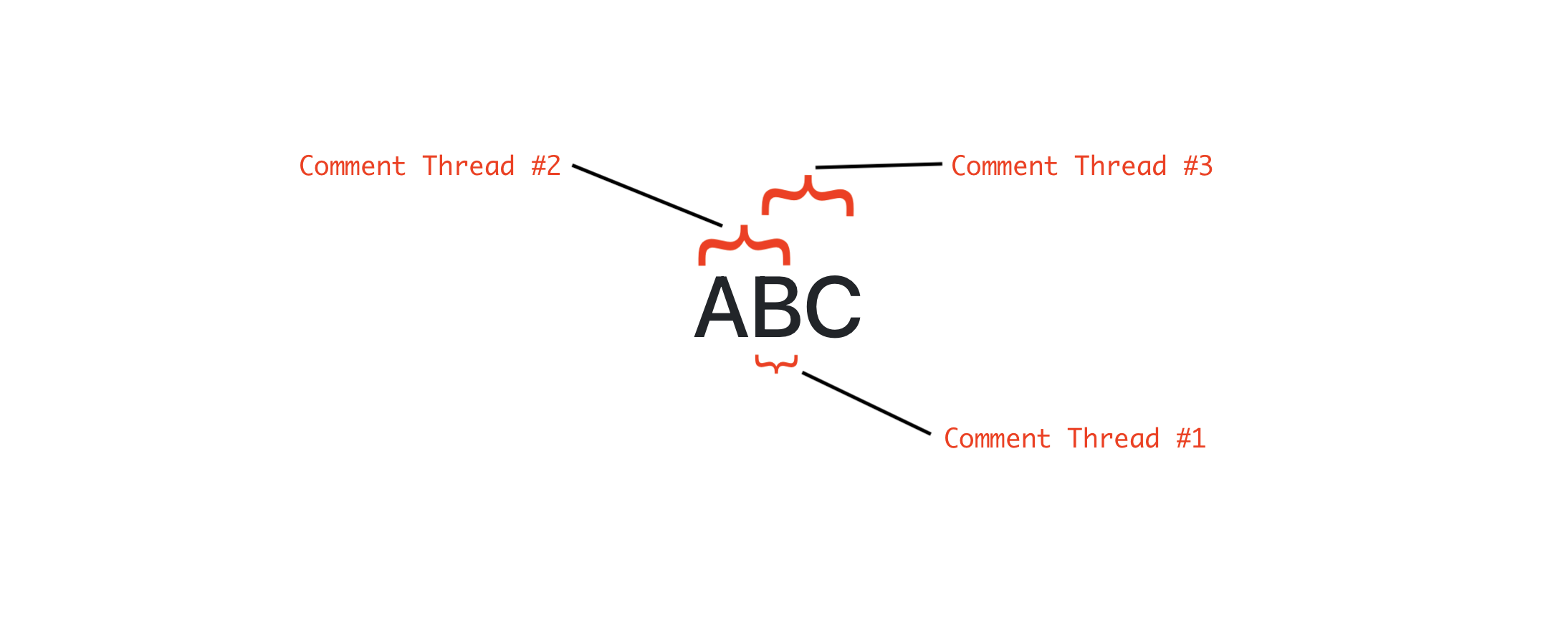
Consider a complex insertion where the user adds threads in this order:
- Thread #1 over the single character 'B' (length = 1).
- Thread #2 over 'AB' (length = 2).
- Thread #3 over 'BC' (length = 2).
Slate splits the text into three nodes after insertion. Clicking on 'B' with the shortest rule selects Thread #1, which otherwise would be permanently unreachable because it's the shortest of all three threads on that singular character.
The rule has limits, though. A long thread can become inaccessible when all inner characters are claimed by shorter threads. If we have 100 repeated characters and the user inserts threads in this order:
- Thread #1, covering characters 20-80.
- Thread #2, covering characters 0-50.
- Thread #3, covering characters 51-100.
Clicking any character between 20 and 80 always satisfies threads #2 or #3 because they are shorter than #1, leaving #1 unselectable. Ambiguity also occurs when multiple threads have the exact same shortest length.
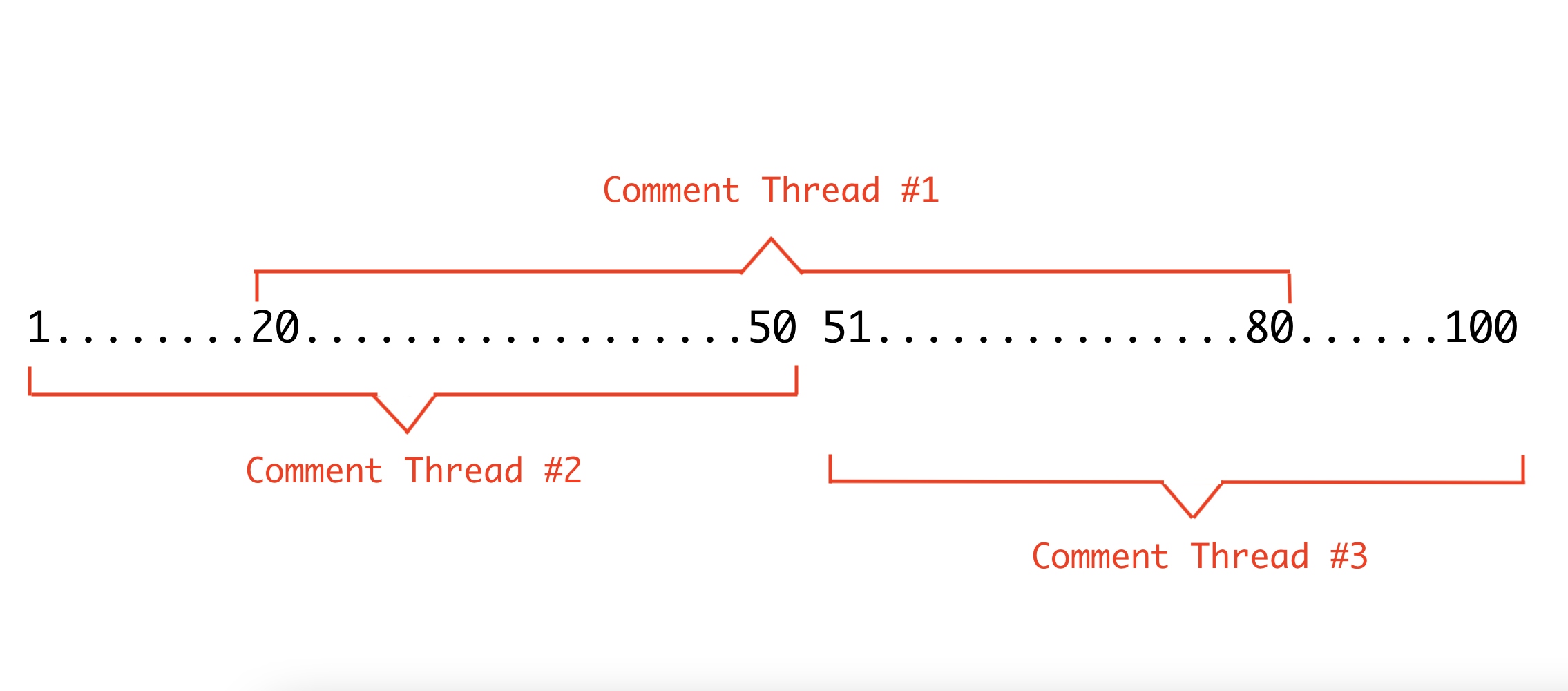
For these less common cases, we will later build a Comments Sidebar listing every thread in the document; users can always click a sidebar entry to activate that thread. Still, the Shortest Range Rule is worth implementing because it handles the vast majority of overlaps and keeps the direct-click flow intuitive.
The Insertion Rule
This rule restricts what can be created:
"If the selected text is already fully covered by existing comment threads, do not allow a new insertion."
Without this rule, the selected range would have at least two threads on every character — the existing ones and the new one — which is a prime scenario for making some long threads inaccessible. Combined with the Shortest Range Rule, it prevents exact duplicates and minimizes the situations where we must rely on the Sidebar.
Take the case where the user attempts to add Thread #3 over a range already fully covered by threads #1 and #2. Without the Insertion Rule, thread #3 would be the longest range in the mix and could never be accessed again.
Note: Even with this rule, some dense overlaps will still happen depending on insertion order. Our earlier example of the word 'designers' is a case in point; the longest containing thread was added last. The Insertion Rule deliberately permits this because the Shortest Range Rule will make the popover selection clear.
The Insertion Rule must contain the new thread ID as well as monitor the existing comment nodes. The check implements:
- Reject inserts on a collapsed selection (a blinking caret).
- Collect all text nodes in the current selection using
Editor.nodeswith modelowest, which traverses to the text leaves. - Allow the insert if at least one text node in that collection has no existing threads, using the
getCommentThreadsOnTextNodehelper.
The UI reflects the rule by deciding when the button is interactive.
# src/utils/EditorCommentUtils.js

export function shouldAllowNewCommentThreadAtSelection(editor, selection) {
  if (selection == null || Range.isCollapsed(selection)) {
    return false;
  }

  const textNodeIterator = Editor.nodes(editor, {
    at: selection,
    mode: "lowest",
  });

  let nextTextNodeEntry = textNodeIterator.next().value;
  const textNodeEntriesInSelection = [];
  while (nextTextNodeEntry != null) {
    textNodeEntriesInSelection.push(nextTextNodeEntry);
    nextTextNodeEntry = textNodeIterator.next().value;
  }

  if (textNodeEntriesInSelection.length === 0) {
    return false;
  }

  return textNodeEntriesInSelection.some(
    ([textNode]) => getCommentThreadsOnTextNode(textNode).size === 0
  );
}
If the selection covers a fully-threaded line, the toolbar's comment button becomes disabled.
# src/components/Toolbar.js

export default function Toolbar({ selection, previousSelection }) {
  const editor = useEditor();
  ....

  return (
   <div className="toolbar">
     ....
    <ToolBarButton
        isActive={false}
        disabled={!shouldAllowNewCommentThreadAtSelection(
          editor,
          selection
        )}
        label={<i className={`bi ${getIconForButton("comment")}`} />}
        onMouseDown={onInsertComment}
      />
  </div>
);One user experience nuance: disabling the button alone doesn't tell the user why. We will address this when building Comment Popovers — even if the button is disabled, the popover for an existing thread will open, giving the user a path to communicate without confusion.
When uncommented text exists, the rule permits a new insertion.
Finding the Right Comment Thread on Click
When a user clicks on a commented text node, we need a reliable way to determine which comment thread they intended to select. The approach relies on what we call the Shortest Comment Range Rule: if multiple threads overlap on the same node, the one with the shortest text range wins. The implementation breaks down into three parts: finding the shortest thread at the clicked node, storing that selection in shared state, and having the affected text nodes update their highlight to reflect the selection.
Implementing the Shortest Comment Range Rule
The first step is computing the length of every comment thread that touches the clicked text node. To get accurate lengths, we must traverse outward from that node in both directions until we hit one of three stopping conditions:
- An uncommented text node, which marks the outermost edge of all tracked threads.
- A text node where every tracked thread has already reached its start or end boundary.
- The end of the document or a non-text node.
Since forward and backward traversal are mirror operations, a shared helper function updateCommentThreadLengthMap drives both passes, taking an iterator that yields the next text node in the chosen direction.
# src/utils/EditorCommentUtils.js

export function getSmallestCommentThreadAtTextNode(editor, textNode) {

  const commentThreads = getCommentThreadsOnTextNode(textNode);
  const commentThreadsAsArray = [...commentThreads];

  let shortestCommentThreadID = commentThreadsAsArray[0];

  const reverseTextNodeIterator = (slateEditor, nodePath) =>
    Editor.previous(slateEditor, {
      at: nodePath,
      mode: "lowest",
      match: Text.isText,
    });

  const forwardTextNodeIterator = (slateEditor, nodePath) =>
    Editor.next(slateEditor, {
      at: nodePath,
      mode: "lowest",
      match: Text.isText,
    });

  if (commentThreads.size > 1) {

    // The map here tracks the lengths of the comment threads.
    // We initialize the lengths with length of current text node
    // since all the comment threads span over the current text node
    // at the least.
    const commentThreadsLengthByID = new Map(
      commentThreadsAsArray.map((id) => [id, textNode.text.length])
    );

    // traverse in the reverse direction and update the map
    updateCommentThreadLengthMap(
      editor,
      commentThreads,
      reverseTextNodeIterator,
      commentThreadsLengthByID
    );

    // traverse in the forward direction and update the map
    updateCommentThreadLengthMap(
      editor,
      commentThreads,
      forwardTextNodeIterator,
      commentThreadsLengthByID
    );

    let minLength = Number.POSITIVE_INFINITY;

    // Find the thread with the shortest length.
    for (let [threadID, length] of commentThreadsLengthByID) {
      if (length < minLength) {
        shortestCommentThreadID = threadID;
        minLength = length;
      }
    }
  }

  return shortestCommentThreadID;
}
The main utility function above orchestrates the two traversals. For the iterators, Slate's Editor.previous and Editor.next utilities (from the Editor interface) are particularly useful. Both iterators pass the option mode: lowest and a Text.isText match function to guarantee they only yield text nodes.
# src/utils/EditorCommentUtils.js

function updateCommentThreadLengthMap(
  editor,
  commentThreads,
  nodeIterator,
  map
) {
  let nextNodeEntry = nodeIterator(editor);

  while (nextNodeEntry != null) {
    const nextNode = nextNodeEntry[0];
    const commentThreadsOnNextNode = getCommentThreadsOnTextNode(nextNode);

    const intersection = [...commentThreadsOnNextNode].filter((x) =>
      commentThreads.has(x)
    );

     // All comment threads we're looking for have already ended meaning
    // reached an uncommented text node OR a commented text node which
    // has none of the comment threads we care about.
    if (intersection.length === 0) {
      break;
    }

    // update thread lengths for comment threads we did find on this
    // text node.
    for (let i = 0; i < intersection.length; i++) {
      map.set(intersection[i], map.get(intersection[i]) + nextNode.text.length);
    }

    // call the iterator to get the next text node to consider
    nextNodeEntry = nodeIterator(editor, nextNodeEntry[1]);
  }

  return map;
}
A common follow-up question is why the traversal continues until the intersection of all tracked thread lengths drops to 0, rather than stopping as soon as any single thread hits its boundary. The reason is that we don't know which text node inside a multi-node thread the user clicked. Stopping early at the edge of one thread would prevent us from discovering whether another thread extends further and might end up being shorter overall.
Consider two overlapping threads, A and B, that together produce three text nodes, with node #2 containing the overlap:
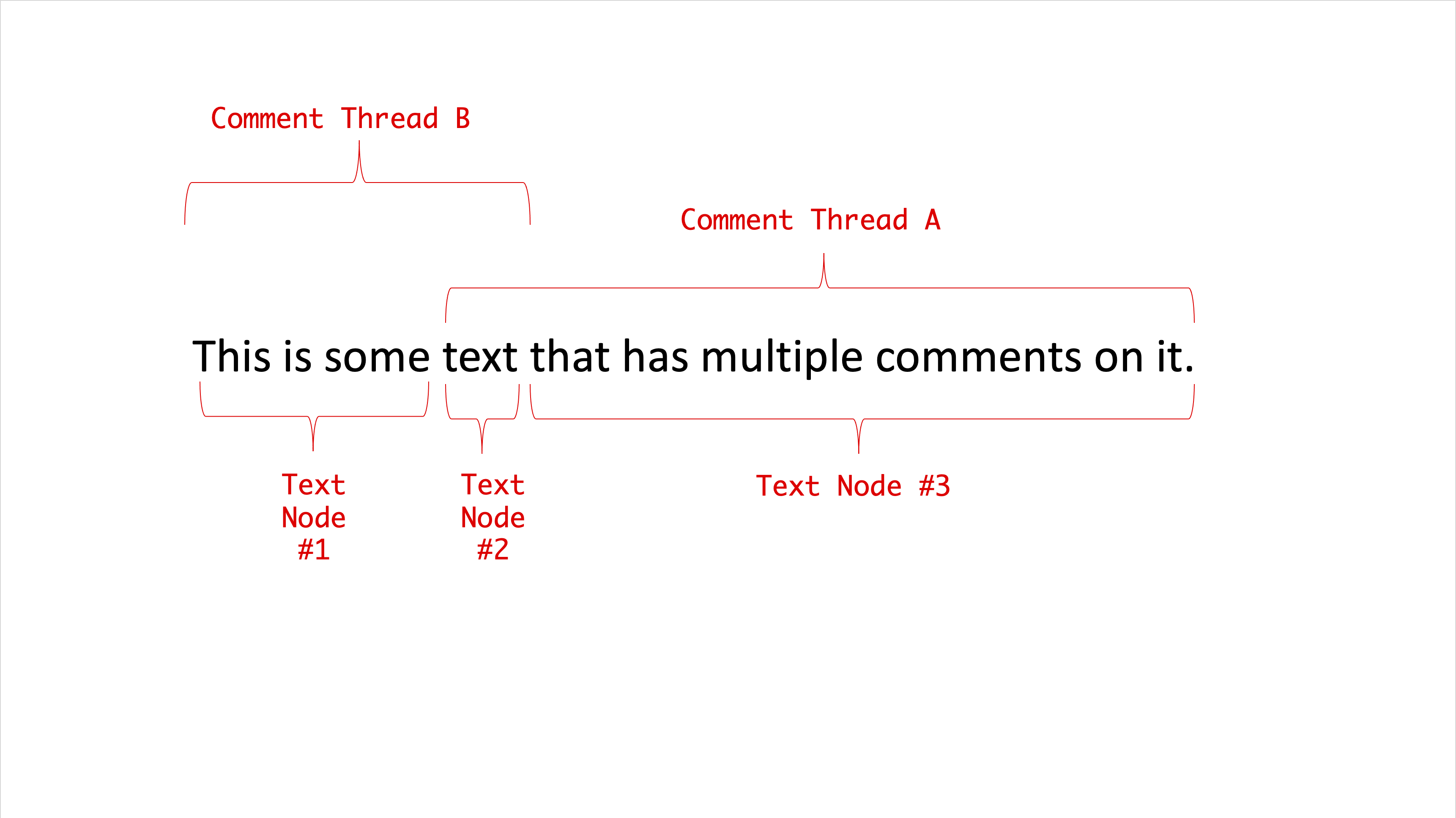
If a user clicks node #2 and we stop at the first edge we encounter (which would be the start of thread A at node #2's beginning), we'd incorrectly compute lengths for both threads. By forcing the traversal to the farthest boundaries of the union of all thread ranges — covering nodes 1, 2, and 3 in this case — the calculation correctly identifies B as shorter. A visual walkthrough of these iterations is worth seeing:
Storing the Active Thread and Updating Highlights
With the selection logic in place, the editor needs two more pieces: a Recoil atom to track the currently active comment thread ID, and updates to the CommentedText component so it can react to changes in that state.
# src/utils/CommentState.js

import { atom } from "recoil";

export const activeCommentThreadIDAtom = atom({
  key: "activeCommentThreadID",
  default: null,
});

# src/components/CommentedText.js

import { activeCommentThreadIDAtom } from "../utils/CommentState";
import classNames from "classnames";
import { getSmallestCommentThreadAtTextNode } from "../utils/EditorCommentUtils";
import { useRecoilState } from "recoil";

export default function CommentedText(props) {
 ....
const { commentThreads, textNode, ...otherProps } = props;
const [activeCommentThreadID, setActiveCommentThreadID] = useRecoilState(
    activeCommentThreadIDAtom
  );

  const onClick = () => {
    setActiveCommentThreadID(
      getSmallestCommentThreadAtTextNode(editor, textNode)
    );
  };

  return (
    <span
      {...otherProps}
      className={classNames({
        comment: true,
        // a different background color treatment if this text node's
        // comment threads do contain the comment thread active on the
        // document right now.
        "is-active": commentThreads.has(activeCommentThreadID),
      })}
      onClick={onClick}
    >
      {props.children}
    ≷/span>
  );
}
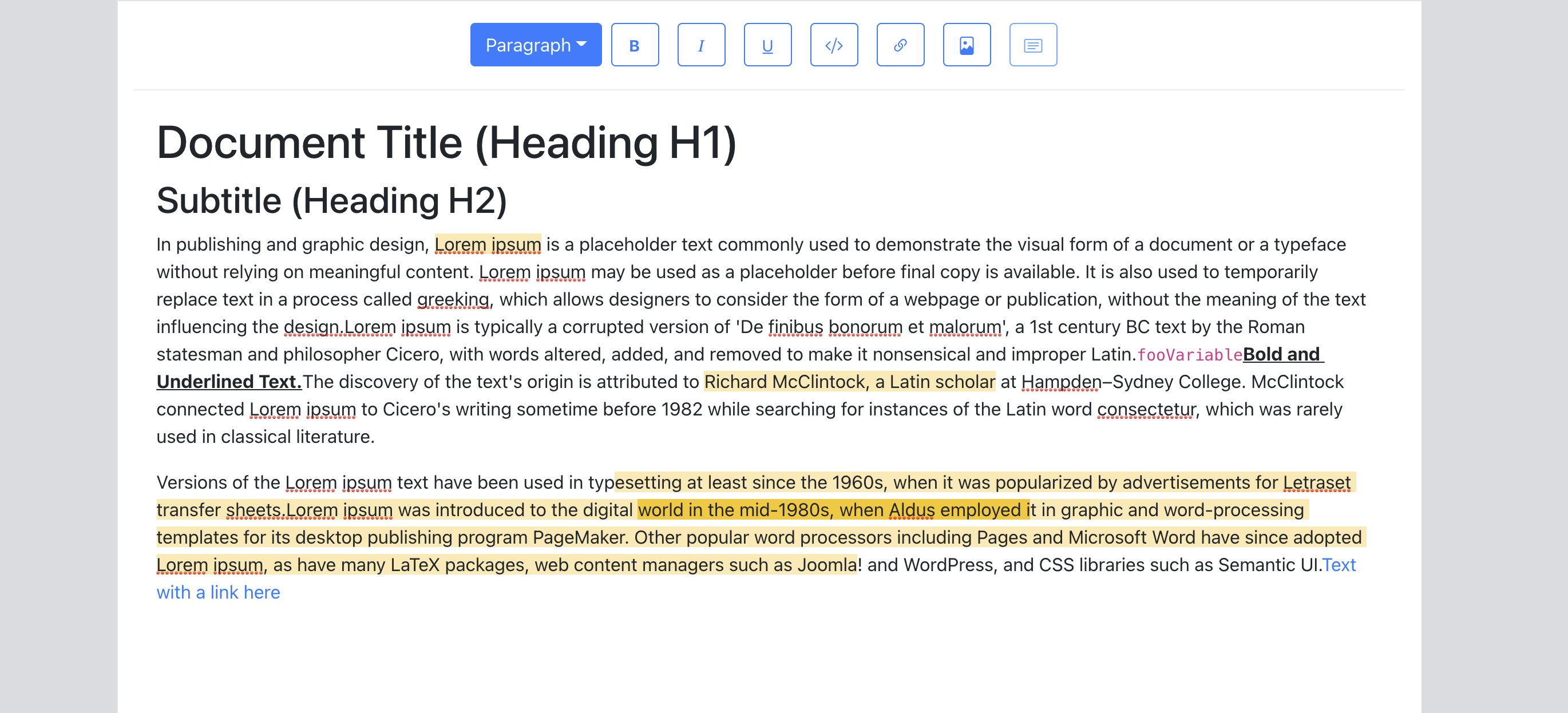
The CommentedText component subscribes to the atom via useRecoilState, which gives it both the current value and a setter. When a text node belongs to the active thread, it applies a distinct highlight style. The result is a clear visual indication of the entire selected range:
Testing the traversal logic covers both straightforward overlaps and trickier edge cases:
- Clicks on commented nodes at the very start or end of the editor.
- Threads that span multiple paragraphs.
- Commented nodes immediately adjacent to image blocks.
- Threads that overlap inline link nodes.
One final detail: when the user inserts a new comment thread from the toolbar, we should set it as the active thread immediately. This makes the comment thread popover appear right away so the user can start typing without an extra click. The toolbar component makes use of useSetRecoilState — a Recoil hook that exposes only the atom's setter without subscribing the component to its value changes.
# src/components/Toolbar.js

import useAddCommentThreadToState from "../hooks/useAddCommentThreadToState";
import { useSetRecoilState } from "recoil";

export default function Toolbar({ selection, previousSelection }) {
  ...
  const setActiveCommentThreadID = useSetRecoilState(activeCommentThreadIDAtom);
 .....
  const onInsertComment = useCallback(() => {
    const newCommentThreadID = insertCommentThread(editor, addCommentThread);
    setActiveCommentThreadID(newCommentThreadID);
  }, [editor, addCommentThread, setActiveCommentThreadID]);

 return <div className='toolbar'>
              ....
           </div>;
};
Note: The choice of useSetRecoilState here is deliberate: unlike useRecoilState, it avoids forcing a re-render of the toolbar whenever the active thread changes, which would be unnecessary overhead since only the text nodes need to react to that state.
Rendering the Comment Thread Popover
A comment thread popover should appear when a comment thread becomes active, positioning itself near the selected text. The popover’s visibility is bound to the Recoil atom activeCommentThreadIDAtom from the previous section. When that atom has a value, we find the first text node in the editor’s current selection (or the last known selection) and place the popover next to it. Clicking anywhere outside the popover clears the active thread ID, which hides the popover.
This positioning logic is not new; it mirrors what was done for the link editor in the first article of this series. To avoid duplication, we’ve extracted the shared behavior into a NodePopover component. It handles rendering a floating panel relative to a given text node and accepts an onClickOutside callback.
# src/components/CommentThreadPopover.js

import NodePopover from "./NodePopover";
import { getFirstTextNodeAtSelection } from "../utils/EditorUtils";
import { useEditor } from "slate-react";
import { useSetRecoilState} from "recoil";

import {activeCommentThreadIDAtom} from "../utils/CommentState";

export default function CommentThreadPopover({ editorOffsets, selection, threadID }) {
  const editor = useEditor();
  const textNode = getFirstTextNodeAtSelection(editor, selection);
  const setActiveCommentThreadID = useSetRecoilState(
    activeCommentThreadIDAtom
  );

  const onClickOutside = useCallback(
    () => {},
    []
  );

  return (
    <NodePopover
      editorOffsets={editorOffsets}
      isBodyFullWidth={true}
      node={textNode}
      className={"comment-thread-popover"}
      onClickOutside={onClickOutside}
    >
      {`Comment Thread Popover for threadID:${threadID}`}
    </NodePopover>
  );
}
The NodePopover component relies on a few pieces:
editorOffsetsandselectionare passed in from the parentEditorcomponent. The offsets provide the editor’s bounding rect, while the selection is needed because toolbar interactions can cause the nativewindow.getSelection()to returnnull, leaving us with stale but valid coordinates.- The
onClickOutsideprop is wired up by listening formousedownevents ondocument. - A helper function,
getFirstTextNodeAtSelection, uses Slate’s utilities to resolve the first text node inside the selection, which serves as the anchor for the popover.
The onClickOutside handler needs one important safeguard. If the user clicks on a different commented text while a popover is open, we do not want the popover’s outside-click handler to reset the active thread. That click on the other CommentedText should instead become the new active thread. To distinguish these cases, we resolve the Slate node for the DOM element that received the click. If that node is a text node carrying comments, we skip clearing the active thread atom.
# src/components/CommentThreadPopover.js

const setActiveCommentThreadID = useSetRecoilState(activeCommentThreadIDAtom);

const onClickOutside = useCallback(
    (event) => {
      const slateDOMNode = event.target.hasAttribute("data-slate-node")
        ? event.target
        : event.target.closest('[data-slate-node]');

      // The click event was somewhere outside the Slate hierarchy.
      if (slateDOMNode == null) {
        setActiveCommentThreadID(null);
        return;
      }

      const slateNode = ReactEditor.toSlateNode(editor, slateDOMNode);

      // Click is on another commented text node => do nothing.
      if (
        Text.isText(slateNode) &&
        getCommentThreadsOnTextNode(slateNode).size > 0
      ) {
        return;
      }

      setActiveCommentThreadID(null);
    },
    [editor, setActiveCommentThreadID]
  );
Slate’s helper toSlateNode maps a DOM node back to its corresponding Slate node, walking up ancestors if necessary. Its current implementation throws when no Slate node is found rather than returning null, so we explicitly check for null in our code — a likely outcome when the click lands outside the editor entirely.
With the callback ready, the Editor component can subscribe to activeCommentThreadIDAtom and conditionally render the CommentThreadPopover when a thread is active.
# src/components/Editor.js

import { useRecoilValue } from "recoil";
import { activeCommentThreadIDAtom } from "../utils/CommentState";

export default function Editor({ document, onChange }): JSX.Element {

  const activeCommentThreadID = useRecoilValue(activeCommentThreadIDAtom);
  // This hook is described in detail in the first article
  const [previousSelection, selection, setSelection] = useSelection(editor);

  return (
    <>
               ...
              <div className="editor" ref={editorRef}>
                 ...
                {activeCommentThreadID != null ? (
                  <CommentThreadPopover
                    editorOffsets={editorOffsets}
                    selection={selection ?? previousSelection}
                    threadID={activeCommentThreadID}
                  />
                ) : null}
             </div>
               ...
    </>
  );
}
Adding and Viewing Comments
With the popover anchored correctly, we can let users contribute to an active thread. Thread data lives in the Recoil atom family commentThreadsState, keyed by thread ID. Accessing commentThreadsState(threadID) returns both the value and a setter specific to that atom. If comments are fetched lazily, useRecoilStateLoadable provides a Loadable object, letting the popover show a loading indicator until the data arrives.
When the active thread is known, we retrieve its data and render its comments array. To keep metadata consistently formatted, each entry is rendered by a dedicated CommentRow component, which shows the author name and a human-readable creation time formatted with date-fns.
# src/components/CommentRow.js

import { format } from "date-fns";

export default function CommentRow({
  comment: { author, text, creationTime },
}) {
  return (
    <div className={"comment-row"}>
      <div className="comment-author-photo">
        <i className="bi bi-person-circle comment-author-photo"></i>
      </div>
      <div>
        <span className="comment-author-name">{author}</span>
        <span className="comment-creation-time">
          {format(creationTime, "eee MM/dd H:mm")}
        </span>
        <div className="comment-text">{text}</div>
      </div>
    </div>
  );
}
We extract CommentRow as its own component here because the same rendering logic will be reused later in the Comment Sidebar.
Inserting a new comment is straightforward. A draft comment is held in a local commentText state variable while the user types. Submitting the form appends that text to the thread’s comments array via the Recoil setter.
# src/components/CommentThreadPopover.js

import { commentThreadsState } from "../utils/CommentState";
import { useRecoilState } from "recoil";

import Button from "react-bootstrap/Button";
import Form from "react-bootstrap/Form";

export default function CommentThreadPopover({
  editorOffsets,
  selection,
  threadID,
}) {

  const [threadData, setCommentThreadData] = useRecoilState(
    commentThreadsState(threadID)
  );

  const [commentText, setCommentText] = useState("");

  const onClick = useCallback(() => {
    setCommentThreadData((threadData) => ({
      ...threadData,
      comments: [
        ...threadData.comments,
        // append comment to the comments on the thread.
        { text: commentText, author: "Jane Doe", creationTime: new Date() },
      ],
    }));
    // clear the input
    setCommentText("");
  }, [commentText, setCommentThreadData]);

  const onCommentTextChange = useCallback(
    (event) => setCommentText(event.target.value),
    [setCommentText]
  );

  return (
    <NodePopover
      ...
    >
      <div className={"comment-input-wrapper"}>
        <Form.Control
          bsPrefix={"comment-input form-control"}
          placeholder={"Type a comment"}
          type="text"
          value={commentText}
          onChange={onCommentTextChange}
        />
        <Button
          size="sm"
          variant="primary"
          disabled={commentText.length === 0}
          onClick={onClick}
        >
          Comment
        </Button>
      </div>
    </NodePopover>
  );
}
One deliberate UX choice: the input field does not steal focus when the popover mounts. The user may still want to place their cursor inside the commented text to edit it while the thread is open. Whether the popover should take focus is an editor-specific decision; here, we opt for leaving focus untouched.
To confirm updates are propagating correctly, the Recoil Debug Observer from an earlier step can be used in the browser console to verify that the comment thread atom changes as new comments are added.
A Sidebar for Comment Threads
Rule-based overlap detection means that sometimes a comment thread isn't reachable by clicking its text nodes alone. For those cases, and for review workflows where someone sweeps through every discussion in order, a dedicated sidebar is necessary. Before building it, we need to handle one unfinished piece of state initialization.
Initializing Comment Thread State
When a document loads, the editor must scan for existing comment threads and populate the Recoil atoms we defined earlier. A utility in EditorCommentUtils handles this by walking the text nodes and adding each found thread to the atom family.
# src/utils/EditorCommentUtils.js

export async function initializeStateWithAllCommentThreads(
  editor,
  addCommentThread
) {
  const textNodesWithComments = Editor.nodes(editor, {
    at: [],
    mode: "lowest",
    match: (n) => Text.isText(n) && getCommentThreadsOnTextNode(n).size > 0,
  });

  const commentThreads = new Set();

  let textNodeEntry = textNodesWithComments.next().value;
  while (textNodeEntry != null) {
    [...getCommentThreadsOnTextNode(textNodeEntry[0])].forEach((threadID) => {
      commentThreads.add(threadID);
    });
    textNodeEntry = textNodesWithComments.next().value;
  }

  Array.from(commentThreads).forEach((id) =>
    addCommentThread(id, {
      comments: [
        {
          author: "Jane Doe",
          text: "Comment Thread Loaded from Server",
          creationTime: new Date(),
        },
      ],
      status: "open",
    })
  );
}
For this UI-focused implementation, we seed the state with data just to confirm the initialization works. In production, comment threads would typically be stored separately from document content. The initialization would instead fetch metadata and comments for all thread IDs in commentThreads via an API call. As users add comments in real time, the state would need to stay in sync with the server — Recoil's Atom Effects API (experimental at the time of writing) offers examples of this pattern.
For very long documents with many collaborators, it may be wise to load only threads on the first few pages, or to fetch lightweight metadata first and defer the heavier comment payloads.
We call this initialization when the Editor component mounts.
# src/components/Editor.js

import { initializeStateWithAllCommentThreads } from "../utils/EditorCommentUtils";
import useAddCommentThreadToState from "../hooks/useAddCommentThreadToState";

export default function Editor({ document, onChange }): JSX.Element {
   ...
  const addCommentThread = useAddCommentThreadToState();

  useEffect(() => {
    initializeStateWithAllCommentThreads(editor, addCommentThread);
  }, [editor, addCommentThread]);

  return (
     <>
       ...
     </>
  );
}
Reusing the useAddCommentThreadToState hook from the toolbar button, we can now click on a pre-existing thread in the popover and verify it displays the seeded data.
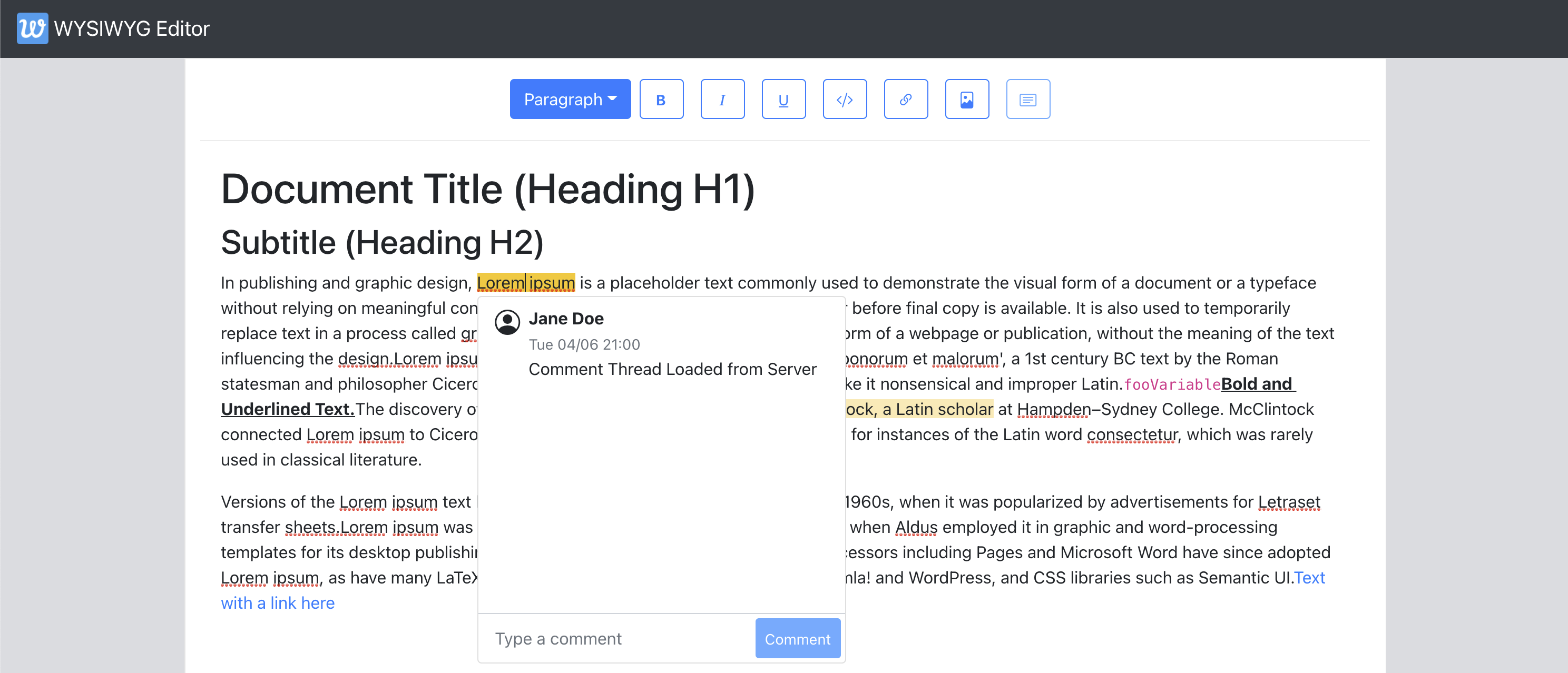
With state initialized, the sidebar itself is straightforward. We iterate over the IDs in commentThreadIDsState and render a CommentThread component for each.
# src/components/CommentsSidebar.js

import "./CommentSidebar.css";

import {commentThreadIDsState,} from "../utils/CommentState";
import { useRecoilValue } from "recoil";

export default function CommentsSidebar(params) {
  const allCommentThreadIDs = useRecoilValue(commentThreadIDsState);

  return (
    <Card className={"comments-sidebar"}>
      <Card.Header>Comments</Card.Header>
      <Card.Body>
        {Array.from(allCommentThreadIDs).map((id) => (
          <Row key={id}>
            <Col>
              <CommentThread id={id} />
            </Col>
          </Row>
        ))}
      </Card.Body>
    </Card>
  );
}
The CommentThread component subscribes to its corresponding atom in the family, so it updates live as comments are added or metadata changes in the editor. To keep the sidebar from becoming unwieldy on comment-heavy documents, only the first comment is shown by default, with a "Show/Hide Replies" button to expand the rest of the thread.
# src/components/CommentSidebar.js

function CommentThread({ id }) {
  const { comments } = useRecoilValue(commentThreadsState(id));

  const [shouldShowReplies, setShouldShowReplies] = useState(false);
  const onBtnClick = useCallback(() => {
    setShouldShowReplies(!shouldShowReplies);
  }, [shouldShowReplies, setShouldShowReplies]);

  if (comments.length === 0) {
    return null;
  }

  const [firstComment, ...otherComments] = comments;
  return (
    <Card
      body={true}
      className={classNames({
        "comment-thread-container": true,
      })}
    >
      <CommentRow comment={firstComment} showConnector={false} />
      {shouldShowReplies
        ? otherComments.map((comment, index) => (
            <CommentRow key={`comment-${index}`} comment={comment} showConnector={true} />
          ))
        : null}
      {comments.length > 1 ? (
        <Button
          className={"show-replies-btn"}
          size="sm"
          variant="outline-primary"
          onClick={onBtnClick}
        >
          {shouldShowReplies ? "Hide Replies" : "Show Replies"}
        </Button>
      ) : null}
    </Card>
  );
}
We reuse the CommentRow component from the popover, adding a showConnector prop that visually links each comment in a thread within the sidebar.
Rendering the CommentSidebar in the Editor now shows all threads and correctly reflects newly added threads and replies.
# src/components/Editor.js

return (
    <>
      <Slate ... >
       .....
        <div className={"sidebar-wrapper"}>
          <CommentsSidebar />
            </div>
      </Slate>
    </>
);Syncing Sidebar Clicks with the Editor
A common sidebar interaction is clicking a thread to activate it in the editor. We use the activeCommentThreadIDAtom to track this and give the active thread a distinct visual treatment in the sidebar.
# src/components/CommentsSidebar.js

function CommentThread({ id }) {

const [activeCommentThreadID, setActiveCommentThreadID] = useRecoilState(
    activeCommentThreadIDAtom
  );

const onClick = useCallback(() => {
    setActiveCommentThreadID(id);
  }, [id, setActiveCommentThreadID]);

  ...

  return (
    <Card
      body={true}
      className={classNames({
        "comment-thread-container": true,
        "is-active": activeCommentThreadID === id,
      })}
      onClick={onClick}
    >
    ....
   </Card>
);Testing reveals a bug: clicking different sidebar threads highlights them in the editor, but the Comment Popover stays put. The popover renders against the first text node in the editor's selection, which previously was always updated by a Slate click event. Our sidebar onClick only updates the Recoil atom, leaving Slate's selection unchanged.
The fix requires updating the editor's selection along with the atom. The steps are:
- Collect all text nodes carrying the target comment thread.
- Sort them by document order using Slate's
Path.compare. - Build a selection range spanning from the start of the first node to the end of the last.
- Apply that range with
Transforms.select.
Selecting the entire comment range is cleaner than jumping to just the first node. The comment popover follows the new selection automatically.
const onClick = useCallback(() => {

    const textNodesWithThread = Editor.nodes(editor, {
      at: [],
      mode: "lowest",
      match: (n) => Text.isText(n) && getCommentThreadsOnTextNode(n).has(id),
    });

    let textNodeEntry = textNodesWithThread.next().value;
    const allTextNodePaths = [];

    while (textNodeEntry != null) {
      allTextNodePaths.push(textNodeEntry[1]);
      textNodeEntry = textNodesWithThread.next().value;
    }

    // sort the text nodes
    allTextNodePaths.sort((p1, p2) => Path.compare(p1, p2));

    // set the selection on the editor
    Transforms.select(editor, {
      anchor: Editor.point(editor, allTextNodePaths[0], { edge: "start" }),
      focus: Editor.point(
        editor,
        allTextNodePaths[allTextNodePaths.length - 1],
        { edge: "end" }
      ),
    });

   // Update the Recoil atom value.
    setActiveCommentThreadID(id);
}, [editor, id, setActiveCommentThreadID]);Note:allTextNodePathsholds paths to each text node. We useEditor.pointto derive start and end points at those paths. The earlier Slate article covers Location concepts in detail.
During verification, overlapping threads also behave correctly.
An unexpected benefit: clicking a sidebar thread that lies outside the viewport now scrolls the document to that selection automatically — no extra code needed.
Resolving and Reopening Threads
Comment threads carry a status metadata field of open or resolved. We add a toggle button to the CommentPopover so users can mark a discussion concluded or reopen it.
# src/components/CommentThreadPopover.js

export default function CommentThreadPopover({
  editorOffsets,
  selection,
  threadID,
}) {
  …
  const [threadData, setCommentThreadData] = useRecoilState(
    commentThreadsState(threadID)
  );

  ...

  const onToggleStatus = useCallback(() => {
    const currentStatus = threadData.status;
    setCommentThreadData((threadData) => ({
      ...threadData,
      status: currentStatus === "open" ? "resolved" : "open",
    }));
  }, [setCommentThreadData, threadData.status]);

  return (
    <NodePopover
      ...
      header={
        <Header
          status={threadData.status}
          shouldAllowStatusChange={threadData.comments.length > 0}
          onToggleStatus={onToggleStatus}
        />
      }
    >
      <div className={"comment-list"}>
          ...
      </div>
    </NodePopover>
  );
}

function Header({ onToggleStatus, shouldAllowStatusChange, status }) {
  return (
    <div className={"comment-thread-popover-header"}>
      {shouldAllowStatusChange && status != null ? (
        <Button size="sm" variant="primary" onClick={onToggleStatus}>
          {status === "open" ? "Resolve" : "Re-Open"}
        </Button>
      ) : null}
    </div>
  );
}
To make resolved threads easy to spot in the sidebar, we apply a distinct visual style to them.
# src/components/CommentsSidebar.js

function CommentThread({ id }) {
  ...
  const { comments, status } = useRecoilValue(commentThreadsState(id));

 ...
  return (
    <Card
      body={true}
      className={classNames({
        "comment-thread-container": true,
        "is-resolved": status === "resolved",
        "is-active": activeCommentThreadID === id,
      })}
      onClick={onClick}
    >
       ...
   </Card>
  );
}Where to Take This Next
The infrastructure described here — text-node mapping, popover, and sidebar — is the foundation for a fuller collaboration experience. Options for building on it include:
@mentions so collaborators can address each other in comments.- Support for images and videos inside comment threads.
- A suggestion mode at the document level, along the lines of Google Docs' suggesting or Word's track changes.
- Sidebar enhancements: searching conversations by keyword, filtering by status or author.



