
Make touch feedback explicit
With touchscreens now common from phones to desktop displays, users expect their taps to produce visible results. A quick color shift or style change when an element is touched reassures users their input registered, making the interface feel responsive and polished.
Elements in the DOM can exist in several states: default, focus, hover, and active. You style these states using pseudo-classes — :hover, :focus, and :active. Applying distinct styles for each state helps users understand what they're interacting with.
.btn {
  background-color: #4285f4;
}

.btn:hover {
  background-color: #296cdb;
}

.btn:focus {
  background-color: #0f52c1;

  /* The outline parameter suppresses the border
  color / outline when focused */
  outline: 0;
}

.btn:active {
  background-color: #0039a8;
}
On most mobile browsers, hovering or focusing an element also applies those styles after a tap. Be deliberate about which states you style and how they appear once a user's finger lifts from the screen.
Remove default browser touch styles
When mobile devices first appeared, many sites had no styles for the :active state, so browsers added their own visual feedback. Now that you're providing custom styles, you may want to suppress these defaults.
Most browsers render a ring around focused elements using the outline CSS property. To disable it:
.btn:focus {
    outline: 0;

    /* Add replacement focus styling here (i.e. border) */
}
Safari and Chrome apply a tap highlight color that you can override with the -webkit-tap-highlight-color property:
/* Webkit / Chrome Specific CSS to remove tap
highlight color */
.btn {
  -webkit-tap-highlight-color: transparent;
}
Internet Explorer on Windows Phone has a similar behavior, but it is disabled with a meta tag:
<meta name="msapplication-tap-highlight" content="no">
Firefox introduces two other quirks. The -moz-focus-inner pseudo-class adds an outline on touchable elements; remove it by setting border: 0. Firefox also applies a gradient to <button> elements by default, which you can clear with background-image: none.
/* Firefox Specific CSS to remove button
differences and focus ring */
.btn {
  background-image: none;
}

.btn::-moz-focus-inner {
  border: 0;
}
Prevent accidental text selection
In some parts of your UI, you may want users to tap or drag without triggering the browser's native text-selection behavior. The user-select CSS property suppresses that behavior. Use it cautiously — blocking text selection on content users might legitimately want to copy can frustrate them.
/* Example: Disable selecting text on a paragraph element: */
p.disable-text-selection {
  user-select: none;
}
Handling multi-element and custom gestures
For gestures that target one element at a time, you have two broad strategies. If you want the entire gesture to control a single element, keep sending touch events to that element even when the user's finger drifts off it. This gives users flexibility, but restricts them to interacting with one UI element at a time. For multi-touch interactions where users touch multiple elements simultaneously, you'll restrict touch to the specific element each gesture started on.
Listening to the right events
The recommended approach for Chrome 55 and later, Internet Explorer, and Edge is PointerEvents, which unifies mouse, touch, and pen input into one set of callbacks: pointerdown, pointermove, pointerup, and pointercancel.
Other browsers require TouchEvents (touchstart, touchmove, touchend, touchcancel) and separate MouseEvents (mousedown, mousemove, mouseup) for pointer input.
All of these use the standard addEventListener() signature with the event name, a callback, and a boolean. Passing true for the boolean catches the event before other elements can interpret it.
// Check if pointer events are supported.
if (window.PointerEvent) {
  // Add Pointer Event Listener
  swipeFrontElement.addEventListener('pointerdown', this.handleGestureStart, true);
  swipeFrontElement.addEventListener('pointermove', this.handleGestureMove, true);
  swipeFrontElement.addEventListener('pointerup', this.handleGestureEnd, true);
  swipeFrontElement.addEventListener('pointercancel', this.handleGestureEnd, true);
} else {
  // Add Touch Listener
  swipeFrontElement.addEventListener('touchstart', this.handleGestureStart, true);
  swipeFrontElement.addEventListener('touchmove', this.handleGestureMove, true);
  swipeFrontElement.addEventListener('touchend', this.handleGestureEnd, true);
  swipeFrontElement.addEventListener('touchcancel', this.handleGestureEnd, true);

  // Add Mouse Listener
  swipeFrontElement.addEventListener('mousedown', this.handleGestureStart, true);
}
Tracking single-element gestures
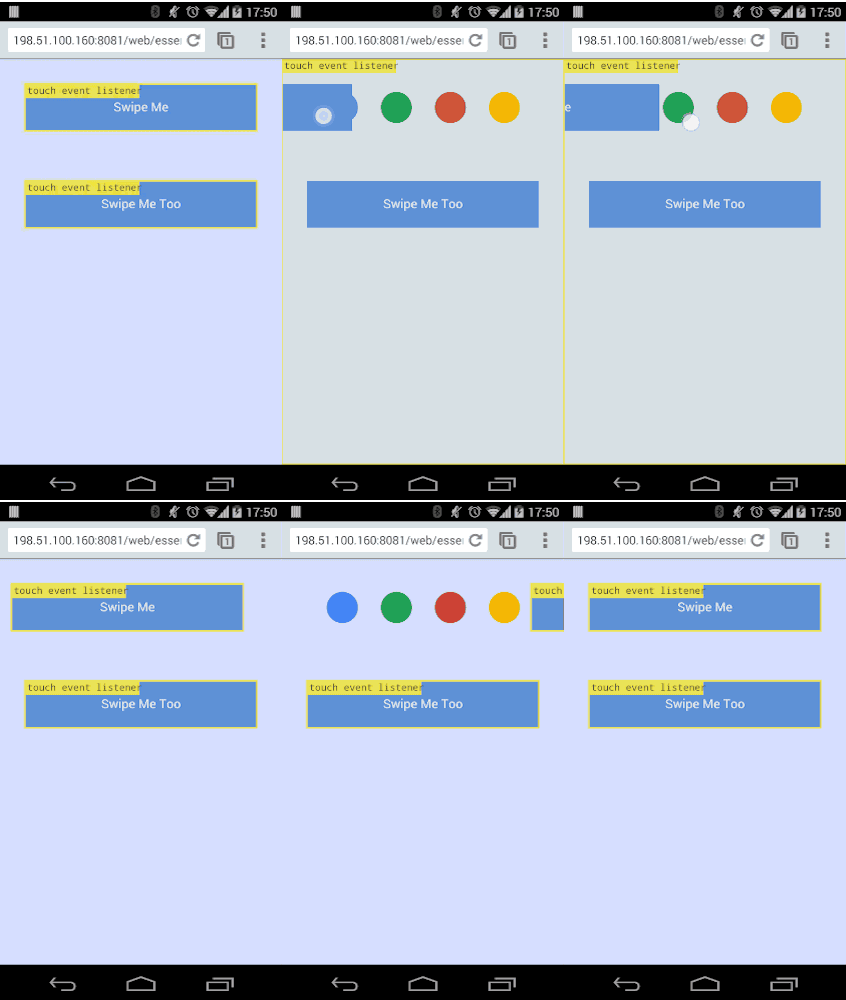
Mouse events only fire while the cursor hovers over the element the listener is attached to. Touch and pointer events, however, generally track a gesture after it starts, regardless of where the touch moves. To make mouse input behave this way, you bind the move and end listeners to the document inside your gesture-start callback. For pointer events, call setPointerCapture() on the original element to keep receiving events.
In practice the steps are:
- Register all
TouchEventandPointerEventlisteners upfront. For mouse, register only the start event. - Inside the gesture-start handler, attach mouse move and end listeners to the document (or call
setPointerCapture()for pointer events). Then handle the gesture start. - Handle movement in the move listeners.
- On the end callback, remove the document-level move and end listeners and end the gesture.
// Handle the start of gestures
this.handleGestureStart = function(evt) {
  evt.preventDefault();

  if(evt.touches && evt.touches.length > 1) {
    return;
  }

  // Add the move and end listeners
  if (window.PointerEvent) {
    evt.target.setPointerCapture(evt.pointerId);
  } else {
    // Add Mouse Listeners
    document.addEventListener('mousemove', this.handleGestureMove, true);
    document.addEventListener('mouseup', this.handleGestureEnd, true);
  }

  initialTouchPos = getGesturePointFromEvent(evt);

  swipeFrontElement.style.transition = 'initial';
}.bind(this);
// Handle end gestures
this.handleGestureEnd = function(evt) {
  evt.preventDefault();

  if (evt.touches && evt.touches.length > 0) {
    return;
  }

  rafPending = false;

  // Remove Event Listeners
  if (window.PointerEvent) {
    evt.target.releasePointerCapture(evt.pointerId);
  } else {
    // Remove Mouse Listeners
    document.removeEventListener('mousemove', this.handleGestureMove, true);
    document.removeEventListener('mouseup', this.handleGestureEnd, true);
  }

  updateSwipeRestPosition();

  initialTouchPos = null;
}.bind(this);
Extracting coordinates from events
Using the start and move events, you can pull out x and y coordinates. A TouchEvent exposes these via its three lists: touches (all touches on screen), targetTouches (touches on the bound element), and changedTouches (touches that changed and fired the event). For most cases, targetTouches is what you want.
function getGesturePointFromEvent(evt) {
    var point = {};

    if (evt.targetTouches) {
      // Prefer Touch Events
      point.x = evt.targetTouches[0].clientX;
      point.y = evt.targetTouches[0].clientY;
    } else {
      // Either Mouse event or Pointer Event
      point.x = evt.clientX;
      point.y = evt.clientY;
    }

    return point;
  }
Pointer and mouse events expose clientX and clientY directly on the event object.
Managing frame rate
Since your event callbacks run on the main thread, keep them lean. requestAnimationFrame() defers UI updates to just before the browser paints, which benefits responsiveness.
The pattern is straightforward: store the latest x and y coordinates in the move event, then request an animation frame if one isn't already pending.
// Handle the start of gestures
this.handleGestureStart = function(evt) {
  evt.preventDefault();

  if (evt.touches && evt.touches.length > 1) {
    return;
  }

  // Add the move and end listeners
  if (window.PointerEvent) {
    evt.target.setPointerCapture(evt.pointerId);
  } else {
    // Add Mouse Listeners
    document.addEventListener('mousemove', this.handleGestureMove, true);
    document.addEventListener('mouseup', this.handleGestureEnd, true);
  }

  initialTouchPos = getGesturePointFromEvent(evt);

  swipeFrontElement.style.transition = 'initial';
}.bind(this);
this.handleGestureMove = function (evt) {
  evt.preventDefault();

  if (!initialTouchPos) {
    return;
  }

  lastTouchPos = getGesturePointFromEvent(evt);

  if (rafPending) {
    return;
  }

  rafPending = true;

  window.requestAnimFrame(onAnimFrame);
}.bind(this);
function onAnimFrame() {
  if (!rafPending) {
    return;
  }

  var differenceInX = initialTouchPos.x - lastTouchPos.x;
  var newXTransform = (currentXPosition - differenceInX)+'px';
  var transformStyle = 'translateX('+newXTransform+')';

  swipeFrontElement.style.webkitTransform = transformStyle;
  swipeFrontElement.style.MozTransform = transformStyle;
  swipeFrontElement.style.msTransform = transformStyle;
  swipeFrontElement.style.transform = transformStyle;

  rafPending = false;
}
By checking whether a frame is already scheduled via rafPending, you ensure only one update queue is active at a time. Inside the onAnimFrame() callback, you apply your UI changes (like updating a transform) and reset the flag, allowing the next move event to schedule another frame.
Controlling default touch behavior
The CSS property touch-action overrides the browser's default touch handling. Setting touch-action: none stops all browser gestures on that element and lets you intercept every touch event. It is, however, a heavy-handed approach; browsers offer more granular options such as manipulation, which suppresses double-tap zoom while keeping panning and pinch-zoom. Choosing the right value lets you keep some default behaviors while implementing your own custom gestures for others.
| Touch Action Parameters | |
|---|---|
touch-action: none |
No touch interactions will be handled by the browser. |
touch-action: pinch-zoom |
Disables all browser interactions like `touch-action: none` apart from `pinch-zoom`, which is still handled by the browser. |
touch-action: pan-y pinch-zoom |
Handle horizontal scrolls in JavaScript without disabling vertical scrolling or pinch-zooming (eg. image carousels). |
touch-action: manipulation |
Disables double-tap gesture which avoids any click delay by the browser. Leaves scrolling and pinch-zoom up to the browser. |
Legacy IE support
IE10 needs vendor-prefixed pointer events. Detect support by checking window.navigator.msPointerEnabled, and listen for 'MSPointerDown', 'MSPointerUp', and 'MSPointerMove' instead of their unprefixed equivalents.
var pointerDownName = 'pointerdown';
var pointerUpName = 'pointerup';
var pointerMoveName = 'pointermove';

if (window.navigator.msPointerEnabled) {
  pointerDownName = 'MSPointerDown';
  pointerUpName = 'MSPointerUp';
  pointerMoveName = 'MSPointerMove';
}

// Simple way to check if some form of pointerevents is enabled or not
window.PointerEventsSupport = false;
if (window.PointerEvent || window.navigator.msPointerEnabled) {
  window.PointerEventsSupport = true;
}
Active states on iOS
Safari on iOS doesn't apply the :active state by default. One way around this is to add a touchstart listener on the document body, which covers all elements but might cause performance drag while scrolling. Alternatively, attach the listeners individually to each interactive element for tighter control.
window.onload = function() {
  if (/iP(hone|ad)/.test(window.navigator.userAgent)) {
    document.body.addEventListener('touchstart', function() {}, false);
  }
};
window.onload = function() {
  if (/iP(hone|ad)/.test(window.navigator.userAgent)) {
    var elements = document.querySelectorAll('button');
    var emptyFunction = function() {};

    for (var i = 0; i < elements.length; i++) {
        elements[i].addEventListener('touchstart', emptyFunction, false);
    }
  }
};


