

Getting Out of Git Trouble: Repairing Local Mistakes
Mistakes are a constant in software development, but Git provides a robust safety net. When you understand the right commands, you can recover from nearly any error. This guide covers the first set of undo techniques: fixing problems in your working copy and your most recent commits.
Discarding All Changes in a File
If you've modified a file but haven't committed those changes, you can revert it to its last committed state with git restore.
$ git restore index.html
This command wipes out all local modifications to index.html. Note that this operation is destructive: since the changes were never committed to Git's database, they cannot be recovered afterward.
Bringing Back a Deleted File
The same command handles the case where you've deleted a file entirely but haven't committed the deletion. git restore recreates the file from the last commit, regardless of what happened to it in the working directory.
$ git restore index.html
Selectively Dropping Changes
Not every change in a file is a mistake. Git lets you discard changes in granular chunks using the -p flag with git restore.
$ git restore -p index.html
Git will walk you through each chunk of changes in the file, prompting you to decide whether to discard it (y) or keep it (n).
Graphical Git clients often go further, allowing you to select or discard individual lines of code rather than entire chunks. Tools like Tower provide this level of control directly in the interface.
Fixing Your Last Commit
Committing too early or with a typo is common. Git has a built-in mechanism to fix the most recent commit without adding a new one to history.
Consider a commit with a flawed message:
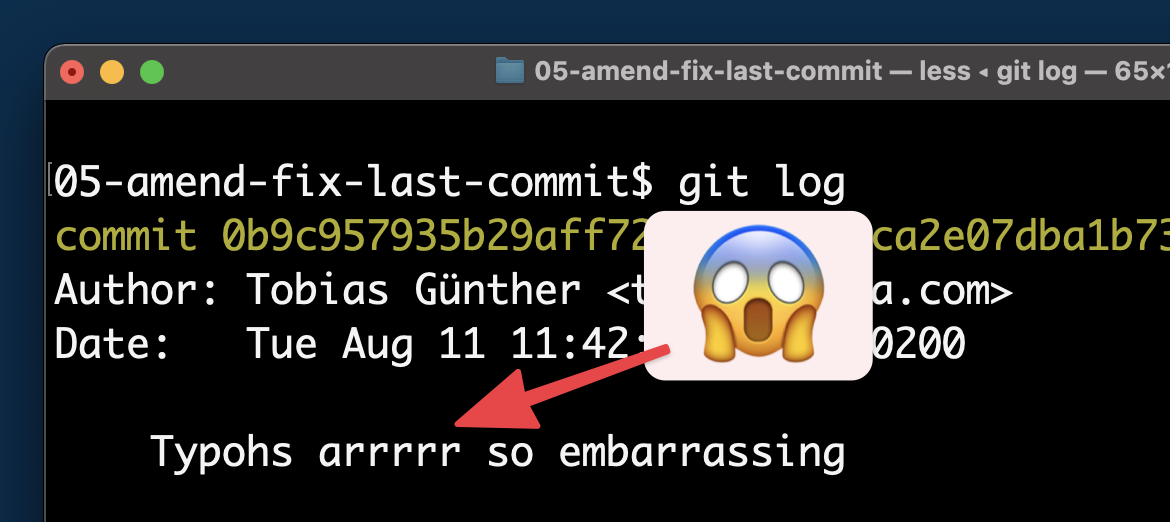
The --amend option lets you edit the message of the last commit:
$ git commit --amend -m "A message without typos"
You can also add forgotten changes to that same commit. Stage the new change with git add and then run git commit --amend again. To keep the existing message, use the --no-edit flag.
$ git add forgotten-change.txt

$ git commit --amend --no-edit
Reverting a Bad Commit's Effects
When a mistake isn't spotted until later, the bad commit already sits in your revision history. For this situation, git revert provides a non-destructive solution.

Instead of removing the problematic commit from history, git revert creates a new commit that applies the opposite changes.

You supply the revision hash of the offending commit as an argument.
$ git revert 2b504bee
This approach is safe even if the original commit has already been shared with colleagues in a remote repository because the history itself is not altered.
Resetting the Project to an Earlier State
If you've gone down a dead end and want to discard the last several commits, git reset is the tool. Provide the SHA-1 hash of the revision you want to return to.
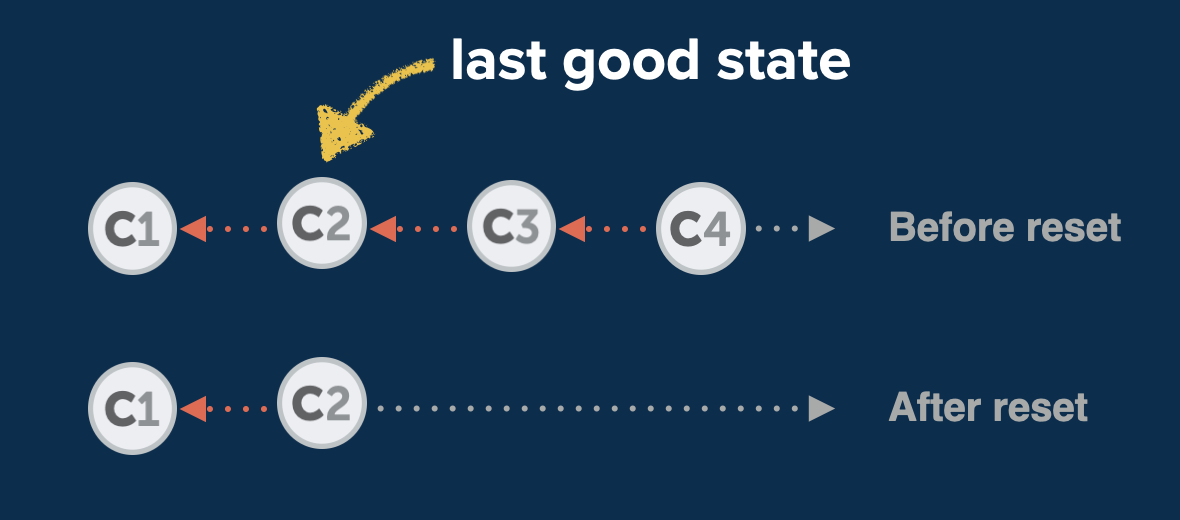
$ git reset --hard 2b504bee
The --hard option discards everything and leaves a clean working copy. For more flexibility, use --mixed instead; it preserves the changes from the removed commits as local, uncommitted modifications in your working copy.
Undoing an Undo with the Reflog
Git even allows you to recover from a mistaken git reset. The reflog is a chronological journal that Git maintains of every movement of the HEAD pointer. Each commit, checkout, merge, rebase, and reset adds an entry.
Running git reflog displays this history.
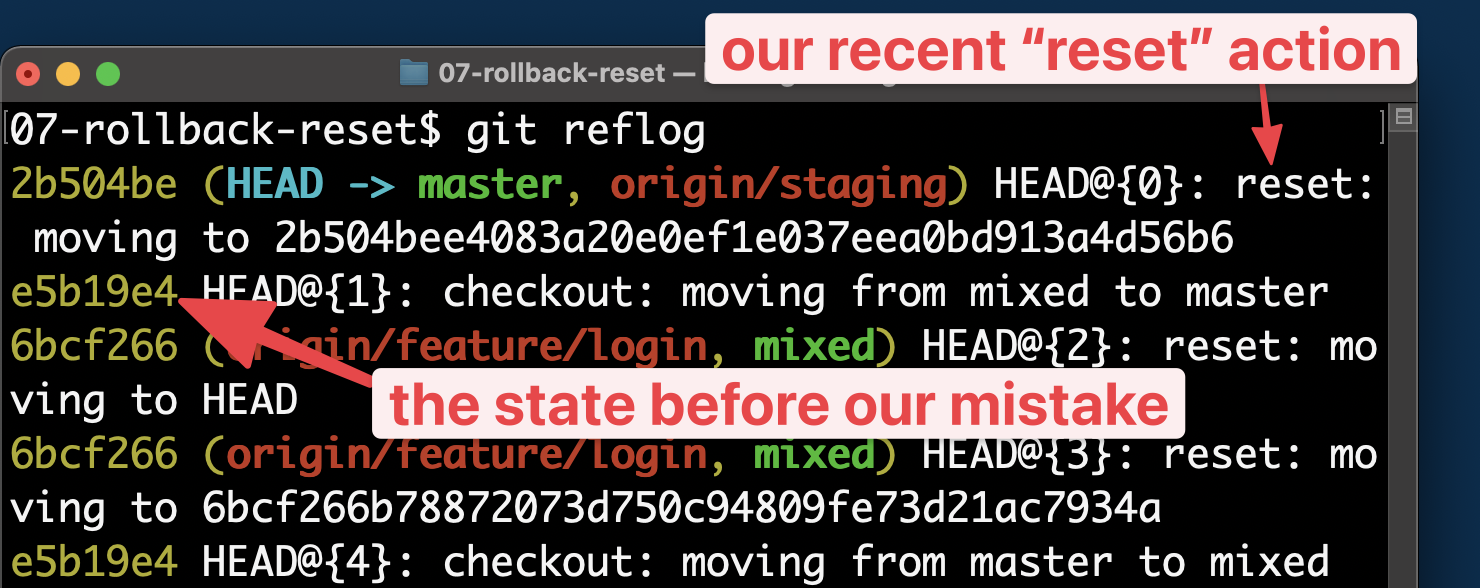
Recently performed actions appear at the top. If your last reset was a mistake, you can find the state before it listed just below. Copy the commit hash from that safe state and create a new branch based on it.
$ git branch happy-ending e5b19e4
While git reset e5b19e4 would also bring you back to that state, creating a new branch has no downside and lets you inspect the state before committing to it.
Restoring a Single File from an Old Commit
Restoring an entire project is straightforward, but sometimes you only need one file back. For example, if you deleted a file long ago and only now realize it was a mistake, you face two tasks: find the commit where the deletion occurred and then restore the file.
First, search the commit history for the file:
$ git log -- <filename>
Since log is ordered chronologically, the commit that deleted the file will appear near the top, likely as the most recent entry listed. Once you have that commit's hash, you can restore the file from the commit just before it.
$ git checkout <deletion commit hash>~1 -- <filename>
Note the use of the ~1 suffix. This addresses the commit immediately preceding the one where the deletion happened. The deletion commit itself no longer contains the file, so you cannot use it to restore the file; you need the state from one step earlier.


