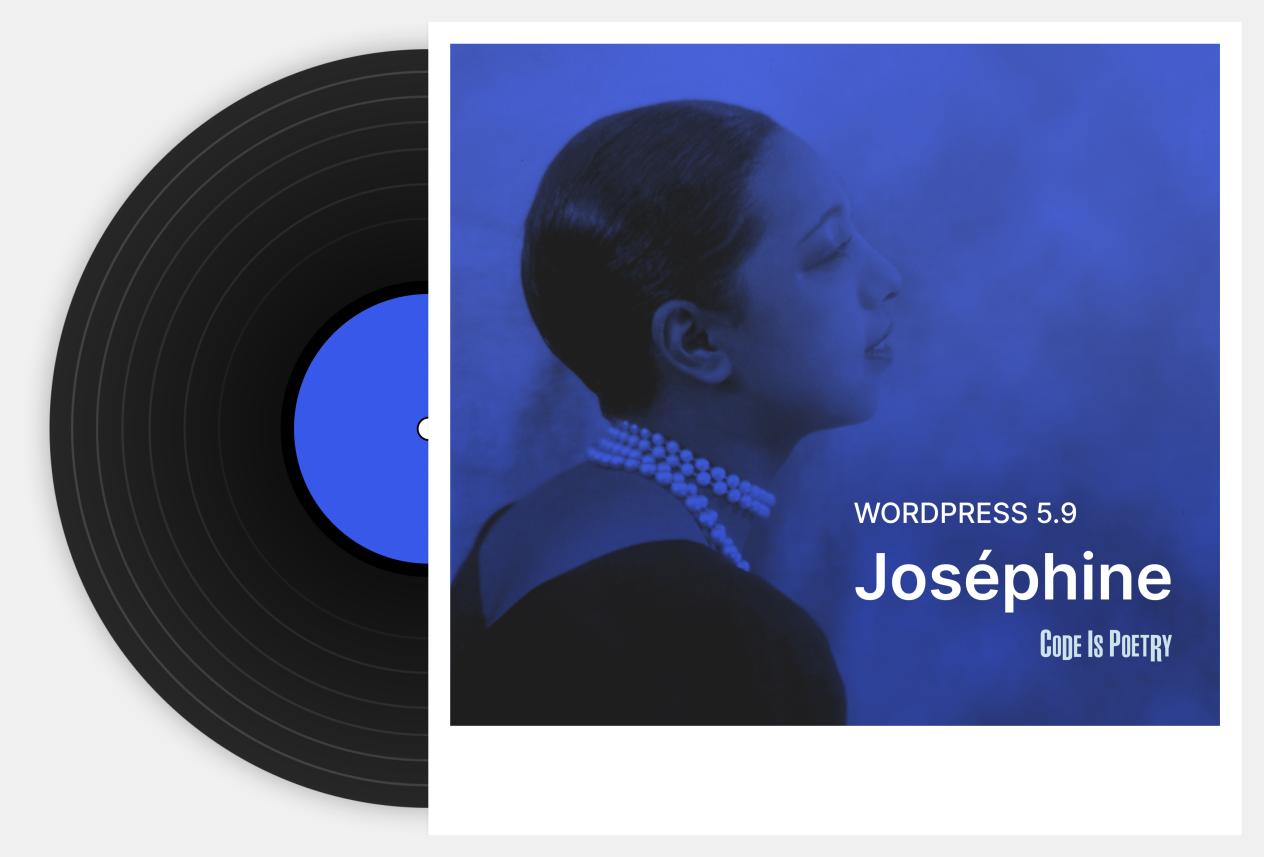
A block theme is a WordPress theme whose templates are built entirely from blocks, so that the same block editor used for post and page content also handles headers, footers, sidebars and other site-wide areas. WordPress calls this capability Full-Site Editing (FSE), and WordPress 5.9 ("Joséphine") is the release that brings it to general users.
The groundwork is old: the block editor has been shipping since 2018 and has long been developed in public through the Gutenberg plugin. Before FSE existed, the block editor already worked with any classic theme, provided the theme loads the CSS the blocks rely on. Block themes push much further, shifting a theme's responsibility toward design guidelines instead of control over page content.
Terminology building blocks
Block Editor is what "the WordPress Editor" now means: pages and posts are laid out from modular blocks — text, images, videos, headers, footers and so on. That differs from the old editor, which was centered on entering content into a layout predefined by the theme. Layout, in effect, has moved from theme templates into the editor interface.
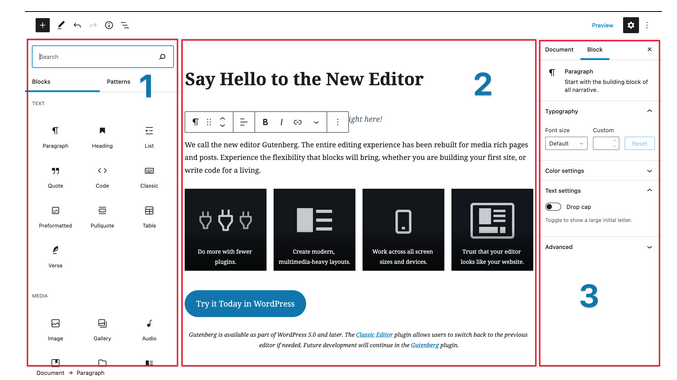
Credit: WordPress Block Editor Handbook.
Block Theme. The WordPress docs define it as "a WordPress theme with templates entirely composed of blocks so that in addition to the post content of the different post types (pages, posts, …), the block editor can also be used to edit all areas of the site: headers, footers, sidebars, etc." Instead of relying strictly on PHP files following the WordPress Template Hierarchy, a block theme ships HTML templates made of block groups that can be rearranged and styled in the Site Editor, plus an optional theme.json file for global style tokens.
Site Editor. Known during development as Full-Site Editing, this is the headline feature of WordPress 5.9. The documentation describes it as "the cohesive experience that allows you to directly edit and navigate between various templates, template parts, styling options, and more." You assemble groups of blocks (blog name, primary menu, tagline, etc.) into templates that apply site-wide, creating a new block theme or reworking an existing one's global appearance without touching code. Earlier releases let people build themes with a stack of PHP templates; with the Site Editor, much of that work has a UI directly inside WordPress. The WordPress Glossary has more terms worth checking.
A theme's anatomy has changed shape
In classic theming, PHP and JavaScript generate the markup. In a block theme, WordPress Core provides both the markup and basic styling, so templates consist solely of HTML blocks plus structural CSS. One consequence is a dramatically simpler file tree: Twenty Twenty-One contains 48 PHP files and 11 JavaScript files (4.5 MB), whereas its block-based counterpart, the experimental TT1 Blocks theme, contains four PHP files, one JavaScript file and eight HTML files (3.5 MB).


Only three things are required: index.php, style.css and templates/index.html. A typical structure, taken from the WordPress Editor Handbook, looks like this:
#! basic block-theme structure
theme
|__ style.css
|__ functions.php
|__ index.php
|__ theme.json
|__ templates
    |__ index.html
    |__ single.html
    |__ archive.html
    |__ ...
|__ parts
    |__ header.html
    |__ footer.html
    |__ sidebar.html
|__ ...style.css— the theme's style sheet.functions.php— theme setup; may include additional files, enable an editor style sheet, and enqueuestyle.css.index.php— deliberately empty, so the theme stays harmless if activated without the block editor.theme.json— optional configuration: enables or disables features and sets default styles for the site and for individual blocks.templates/— block-built page templates that follow the traditional template hierarchy;index.htmlis the primary template (analogous toindex.php), withsingle.htmlfor single posts or pages andarchive.htmlfor archive lists.parts/— reusable block collections such asheader.html,footer.htmland an optionalsidebar.html.
Blocks specific to block themes are catalogued in the Block Editor Handbook. Templates themselves may compose reusable template parts, or arbitrary blocks — a list of posts, a grid of products, a widget. A sample template from the Handbook:
<!-- wp:site-title /-->

<!-- wp:image {"sizeSlug":"large"} -->
<figure class="wp-block-image size-large">
    <img src="https://cldup.com/0BNcqkoMdq.jpg" alt="" />
</figure>
<!-- /wp:image -->

<!-- wp:group -->
<div class="wp-block-group">
    <!-- wp:post-title /-->
    <!-- wp:post-content /-->
</div>
<!-- /wp:group -->

<!-- wp:group -->
<div class="wp-block-group">
    <!-- wp:heading -->
    <h2>Footer</h2>
    <!-- /wp:heading -->
</div>
<!-- /wp:group -->
Writing templates out of HTML is only one route. The Handbook lists three ways to produce templates and template parts: manually as HTML files containing block markup, through the Site Editor, and through the template editing mode in the block editor, which WordPress 5.9 supports for creating new templates. Templates customized in the Site Editor can then be exported for inclusion in a theme — meaning a functioning theme can be produced without writing code. The export currently omits the theme.json file, though a GitHub issue proposes exporting both themes and styles.
Working inside the Site Editor
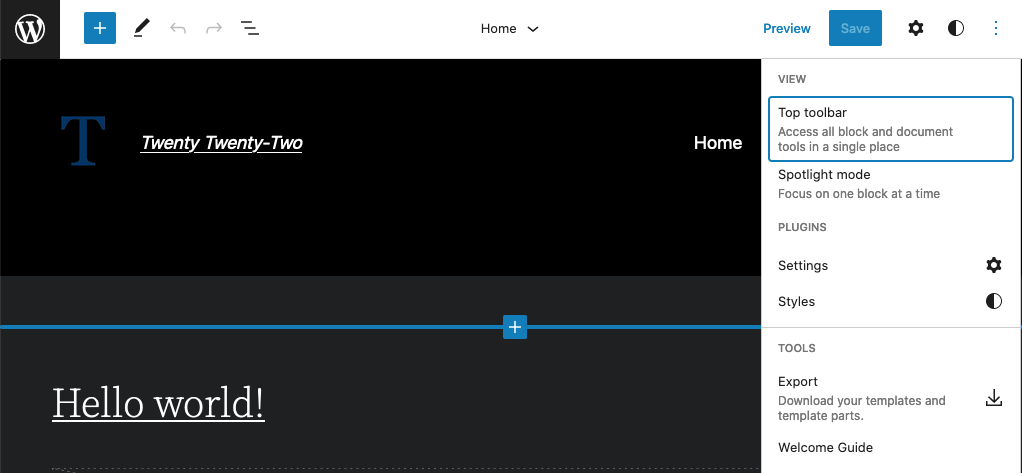
The Site Editor is reached from Appearance → Editor, the spot where the Customizer used to live; in 5.9 the menu item may carry a red "beta" label. It opens on either your homepage or your post archive, depending on the setting under Settings → Reading, and resembles the fullscreen block editor. Clicking the WordPress logo in the top-left reveals a navigation panel with Site, Templates and Template Parts.

Choosing Templates lists the theme's templates with a description of each and where it is registered (parent or child theme). The same screen is reachable from the template name in the top admin bar.

Any template edits like a page or post: removing a featured image block and saving is enough. The list view shows the current block structure and, unlike older versions, lets you expand or collapse parent blocks with child blocks like an accordion and drag and drop blocks straight from there. A kebab menu next to each template offers Clear customizations to reset it.

Global settings and styles
Classic themes put their style rules in style.css. In block themes, CSS arrives from several directions at once — core blocks, the theme, and user edits — which makes styling trickier to reason about. WordPress 5.8 introduced Global Styles to fix that: a theme.json file at the root of the theme directory consolidating, per the docs, "the various APIs related to styles into a single point."

The file gives theme authors granular control parsed from those various origins. They can enable styling features for users or hide them, define the default color palette and font sizes, set the editor's default layout, and configure settings per block. The trade-off: a complex theme's theme.json grows long, and there is currently no supported way to split it up. A GitHub ticket proposes distributing multiple theme.json files across a /styles folder. The default Twenty Twenty-Two theme is the reference example of how FSE uses theme.json for global settings and block styling.
Approaches to building block themes
Automattic's Blockbase is pitched as the block-era equivalent of the Underscores starter theme. It ships temporary "ponyfill" styles covering theme.json "custom" properties that the block editor does not yet handle, with the expectation those become obsolete as Gutenberg matures into Core. Eight child themes built on this "universal parent" concept are already released, and more are in progress on GitHub. Twenty Twenty-Two itself is the first default theme designed for the Site Editor and makes a strong showcase for developers fluent in FSE, though non-developers may find customizing and exporting it as a child theme frustrating.
Hybrid themes blend the traditional approach with full-site editing; per Frank Klein's write-up: "A hybrid theme mixes the traditional theming approach with full-site editing features. A key component here is the theme.json file. It offers more control over the block editor's settings, and simplifies styling blocks. A hybrid theme can use block templates as well, but that's optional." Klein authored Block-Based Bosco and a hybrid version of Twenty Twenty. Justin Tadlock has predicted four theme camps — block only, universal, hybrid, and classic — with authors splitting between block themes and a mix of classic/hybrid. As of writing, no hybrid themes exist in the Theme Directory.
The directory holds 47 block-based themes with FSE features at the time of writing, and implementations vary widely. Ellen Bower's Aino blocks theme has a file structure that differs from the standard layout. Anders Norén's Tove bills itself as a flexible base theme and follows the standard structure. Carolina Nymark's Miniblock OOAK is a proof of concept consisting of a single index.html. Justin Tadlock's minimal theme is in progress.
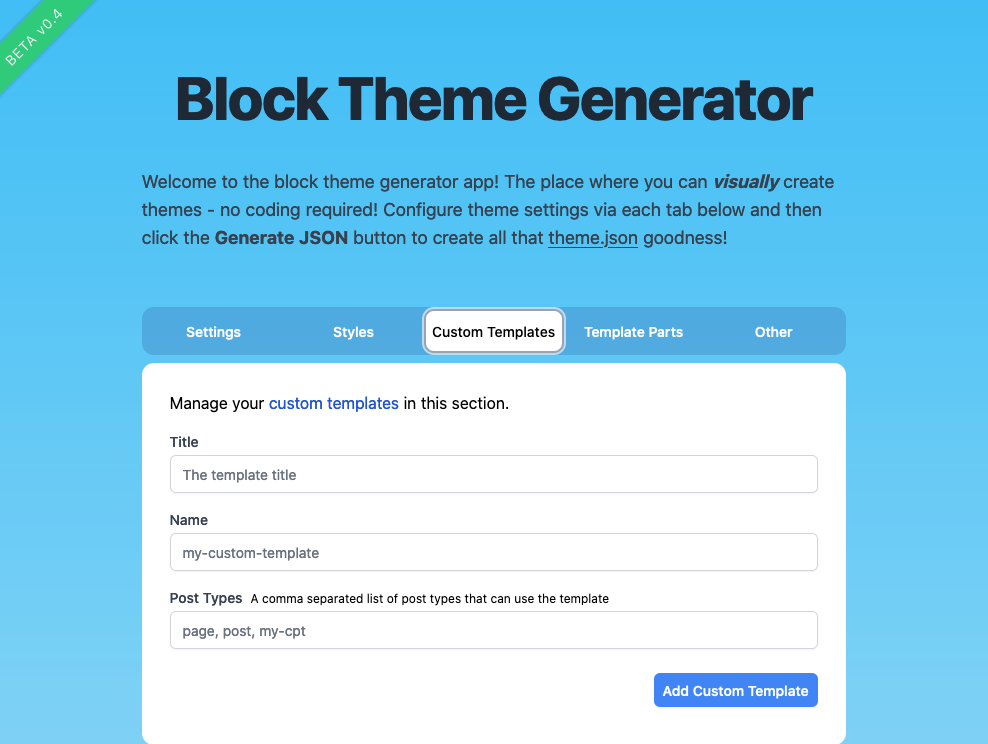
Tooling follows too. Automattic engineer David Gwyer's beta Block theme generator is available for testing by request; in brief testing it only produced a customized theme.json, and Gwyer told WP Tavern features are being added frequently.
Child theming in the block era
Child theming persists, but practice is unsettled and tooling is thin. Automattic's experimental Create Blockbase Theme plugin generates a Blockbase child theme; Ben Dwyer has outlined six code-free steps for the job. Testing the plugin locally with small changes to a Blockbase install worked, though development continues.
A second route is swapping the theme.json file. Kjell Reigstad, author of Twenty Twenty-Two, has demonstrated replacing the default file with one containing different font, color, duotone and spacing values to change the design wholesale, and opened a pull request containing experimental child themes for testing in the theme-experiments repository. Ryan Welcher is building a theme.json builder to let non-coders generate comparable child themes. The Framboise child theme in the directory is an early example consisting of just a theme.json file.
That raises a bigger question, posed by Rich Tabor: "If a theme consist of JSON and block templates that can both be modified via Global Styles, then what are child themes for?" A single theme.json can indeed act as a child theme. There is an open discussion about letting themes ship multiple theme.json files as global style variations users can choose between; parts of that feature are in Gutenberg v12.5 and are expected in WordPress 6.0.
In production, and in perspective
Block themes are live beyond test sites. Carolina Nymark collected real-world examples in a Twitter thread and a Yoast article.
- Personal: femcreations.com, helen.blog, Rich Tabor, Lesly.pizza, dimonacook.com, ryelle.codes.
- Business: fullsiteediting.com, sitefly.be, wpvip.com, Ainoblocks, pagely.com, frostwp.com, WP Tavern.
Twenty Twenty-Two reports more than 60,000 active installs, pointing to many more implementations in the wild.
Two structural observations follow. First, block themes blunt the Jamstack critique that WordPress themes are bloated with PHP files — a whole theme can be an index.html and a theme.json, markup and tokens with nothing else. Second, customizing even a minimal classic theme (changing fonts, say) used to require know-how; with the Site Editor and theme.json, a theme can now be customized and exported without writing code. On the other hand, the Site Editor remains an intimidating and fast-changing interface, and the Customizer's ability to inject custom code has no direct equivalent — duplicating it depends on a deep grasp of the Site Editor UI. The 6.0 roadmap is the place to watch for UX improvement, and Make WordPress Core for ongoing release notes.