

What WordPress Multisite Actually Does
WordPress Multisite is an advanced platform feature, available since WordPress 3.0, that lets you run multiple websites from a single WordPress installation. Previously called WordPress Multi-User or WPMU, it gives you one dashboard from which to manage an entire network of sites. You can update everything at once, or run a service where subscribers create their own sites on your network.
Networks can be organized as subdomains like https://john.example.com, directories like https://www.example.com/john/, or as fully separate domains per site.
Who Should Run a Network
The deciding factor for Multisite is usually the shared database. Every site on the network lives in the same database, so you cannot back up or move a single site independently. That constraint makes Multisite a good fit for organizations where all sites belong to one parent domain. A university running sites for each department, a digital publication with separate sections, a hotel chain, or a bank with regional branches are all plausible use cases.
The wrong use case is managing unrelated client projects. If one client later wants to move to their own hosting, the shared database makes that migration messy. For independent sites that need separate backups, a standard single-site installation per project is the better path.
Pros and Cons at a Glance
The Upside
- One dashboard manages every site on the network.
- Different admins can be assigned to individual sites.
- Themes and plugins can be installed and activated network-wide from a single download.
- Updates run from one master installation.
The Downside
- Sites share infrastructure, so a network outage takes everything down.
- One site's traffic spike consumes resources for all other sites.
- A compromise on one site exposes the whole network.
- Some plugins and some hosting providers do not support Multisite.
- If your host won't let you add domains to the same server, you'll need to switch plans or providers.
Requirements Before You Start
You need hosting that can handle multiple domains in one plan. Shared hosting may work for a couple of low-traffic sites, but VPS or dedicated servers are safer given the resource-sharing nature of Multisite. You also need basic WordPress installation knowledge, FTP access, and the ability to edit files over FTP. Pretty permalinks must be enabled — URLs like https://example.com/my-page rather than https://example.com/?p=2345. If you're converting an existing WordPress site, back it up first and deactivate all plugins.
Domain Mapping and SSL Considerations
By default, new sites in a network appear as subsite.network.com or network.com/subsite. Domain mapping lets those sites present as domain.com instead. Before WordPress 4.5, mapping required a plugin; in 4.5 and later it is a native capability.
SSL deserves special attention on a network. Some hosts provide a free certificate for only the main domain, leaving subdomains to be covered separately. A single site on the network lacking SSL weakens security for all the others, so every site needs its own valid certificate.
Enabling Multisite on a WordPress Installation
Once WordPress is installed, open wp-config.php via FTP or your host's file manager.
- Add the Multisite definition just before the
/*line in the file.
/* Multisite */
define( 'WP_ALLOW_MULTISITE', true );- Save and upload the file back to the server.
If you are already logged into the dashboard, refresh the page. Otherwise log in again to continue the network setup.
- On an existing site, deactivate all plugins first. From the "Plugins" » "Installed Plugins" page, use the "Bulk Actions" dropdown to select all plugins and apply "Deactivate."
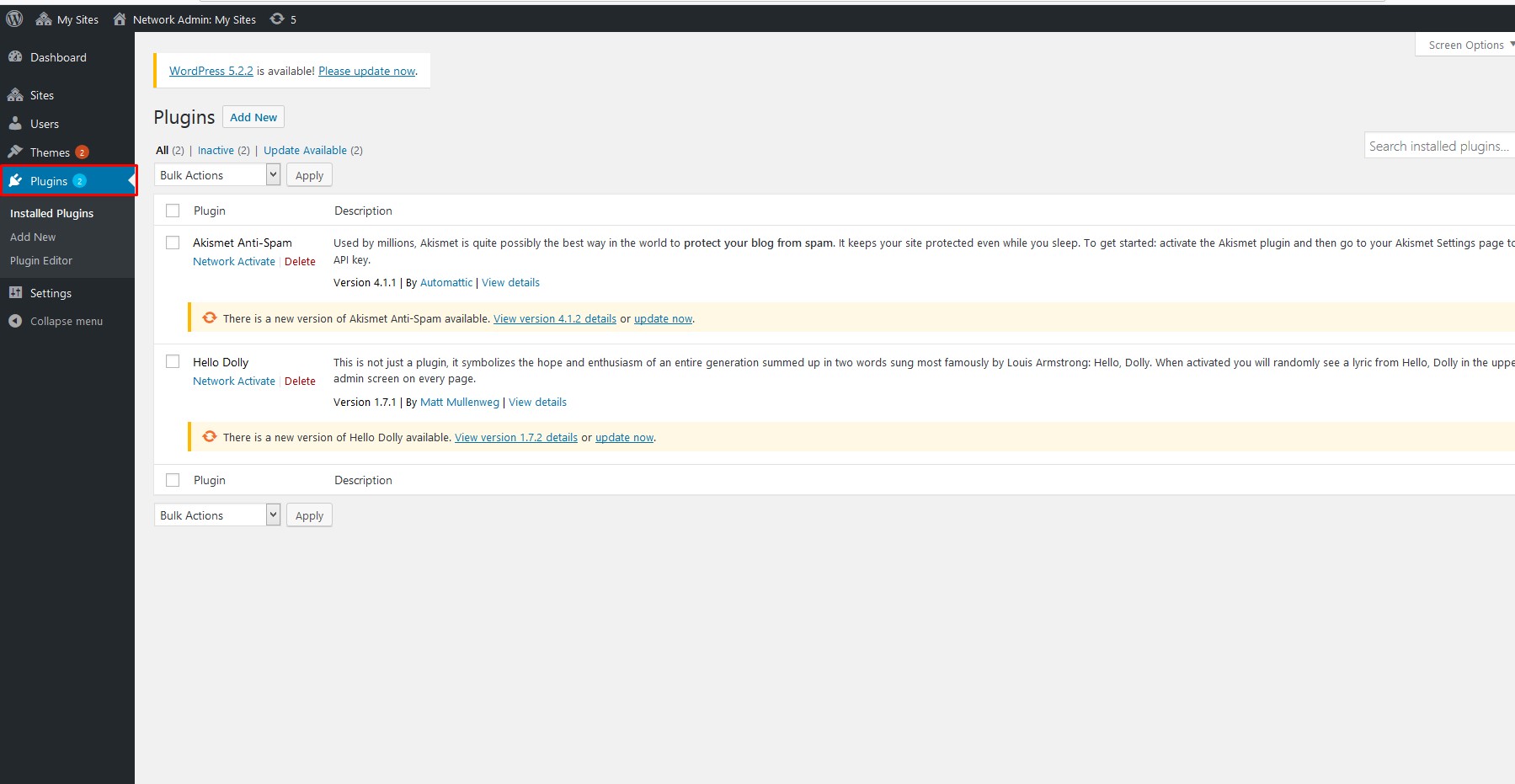
- Go to "Tools" » "Network Setup." If a notice appears about Apache's
mod_rewritemodule, that's expected — mainstream WordPress hosts enable it.
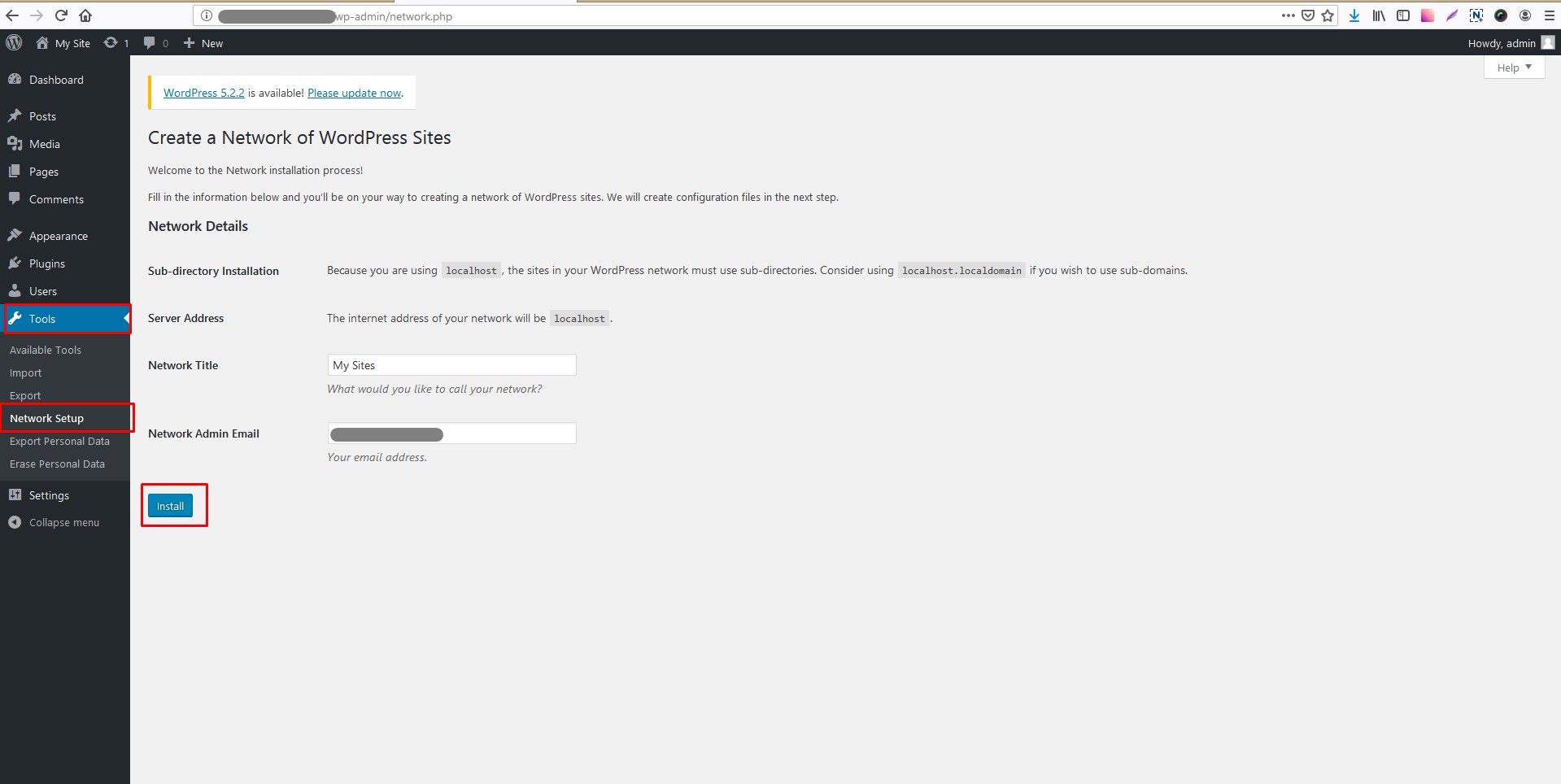
- Choose the network structure: subdomains or subdirectories.
- Enter a network title and confirm the network admin email address.
- Click "Install."
- Copy the generated code into the
wp-config.phpand.htaccessfiles as directed.
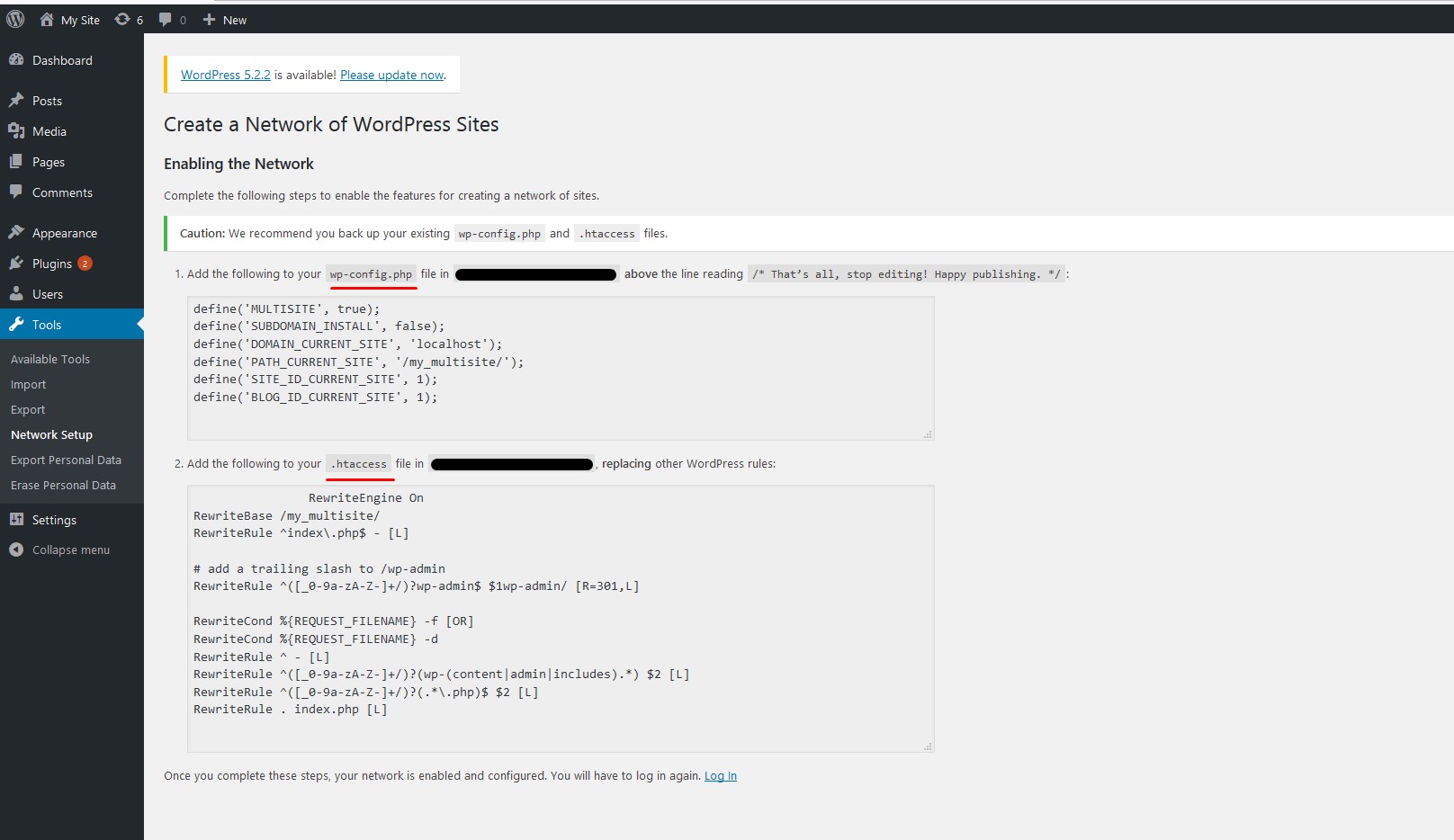
The network is now set up. Log in again to reach the Multisite dashboard.
Configuring Network Settings
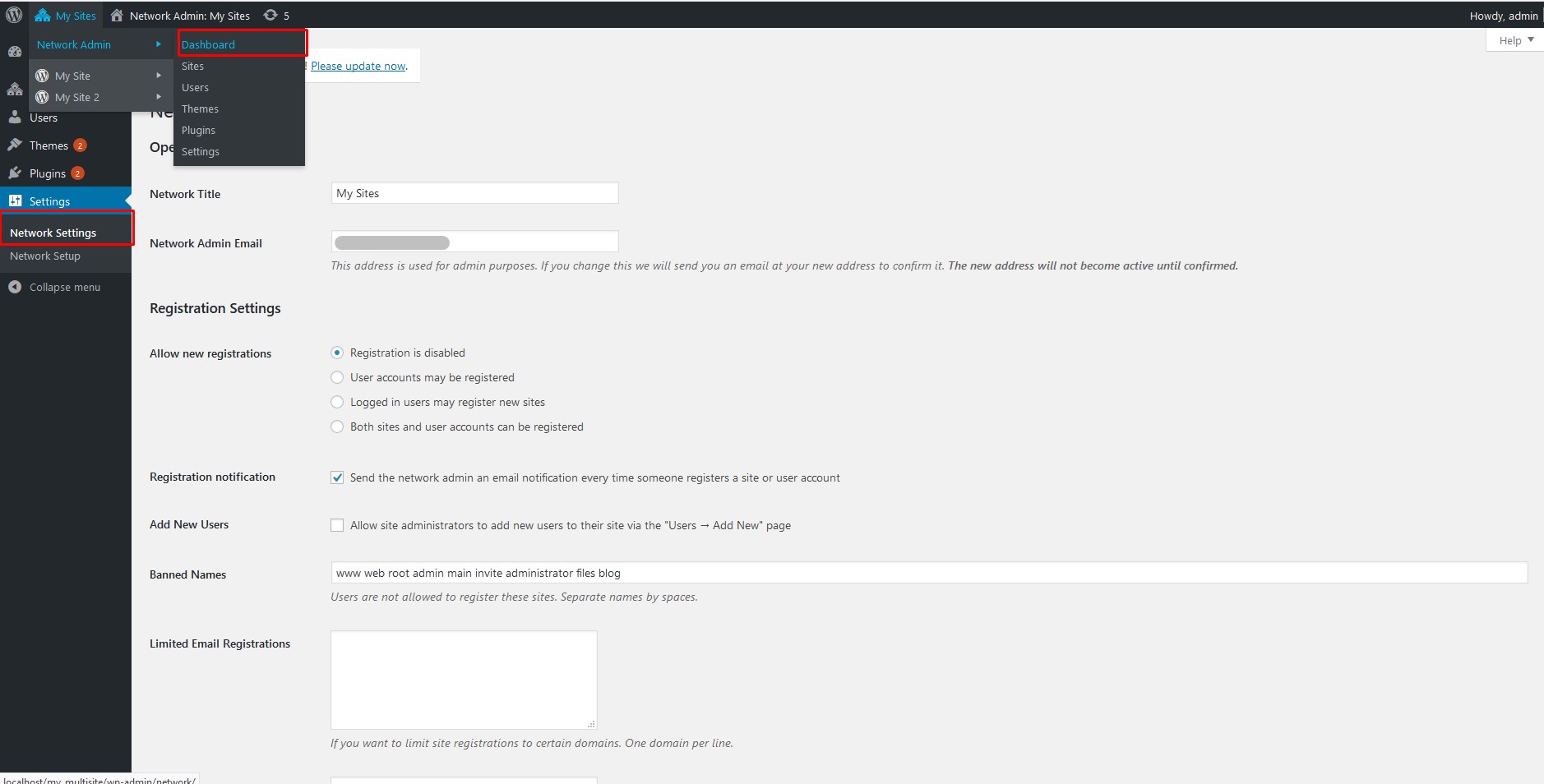
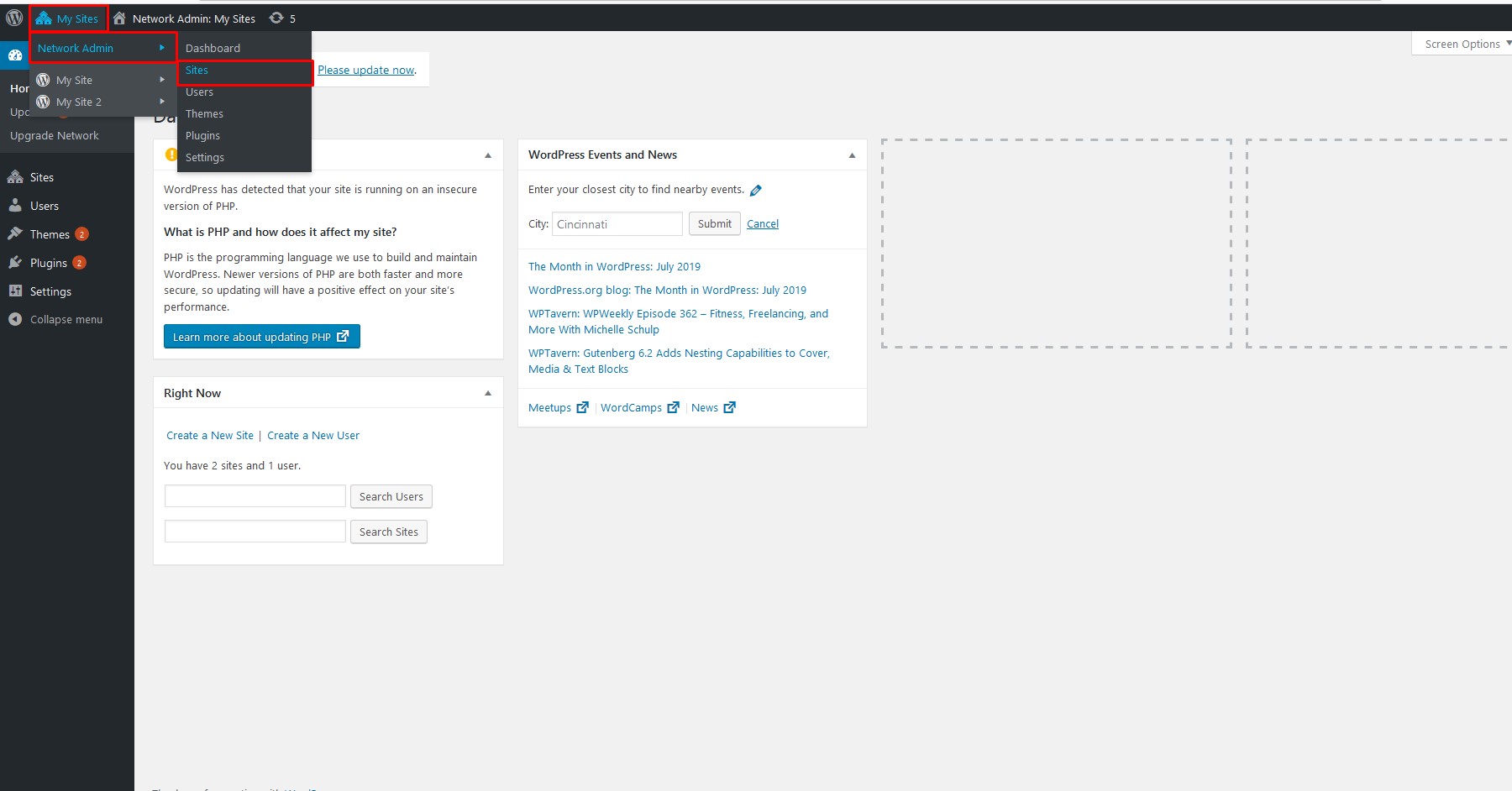
From the "My Sites" menu in the admin toolbar, open "Network Admin" and then "Dashboard." From the sidebar, click "Settings" to verify the site title and admin email before adjusting the four essential configuration areas.
Registration Settings
These options determine whether users can register on the network and whether existing users can create new sites. Checking "Registration Notification" sends you an email for each new user or site. "Add New Users" lets individual site admins add users to their own sites. "Limited Email Registration" restricts signups to approved domains — your company's domain, for example — while you can also block specific domains entirely.
New Site Defaults
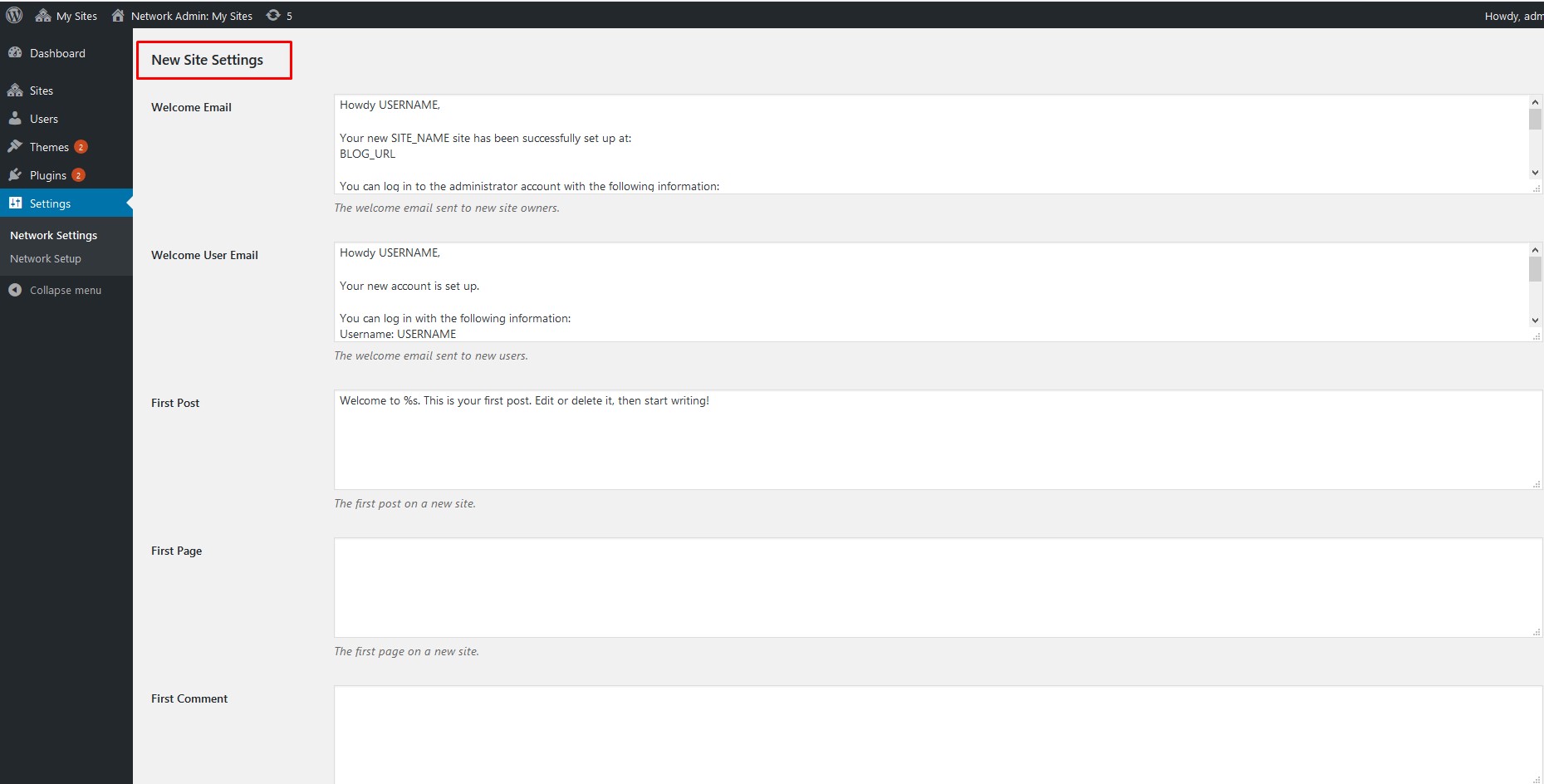
Define the welcome emails and the content of the first default post, page, and comment for each new site. These defaults can be changed at any time after a site is created.
Upload Limits
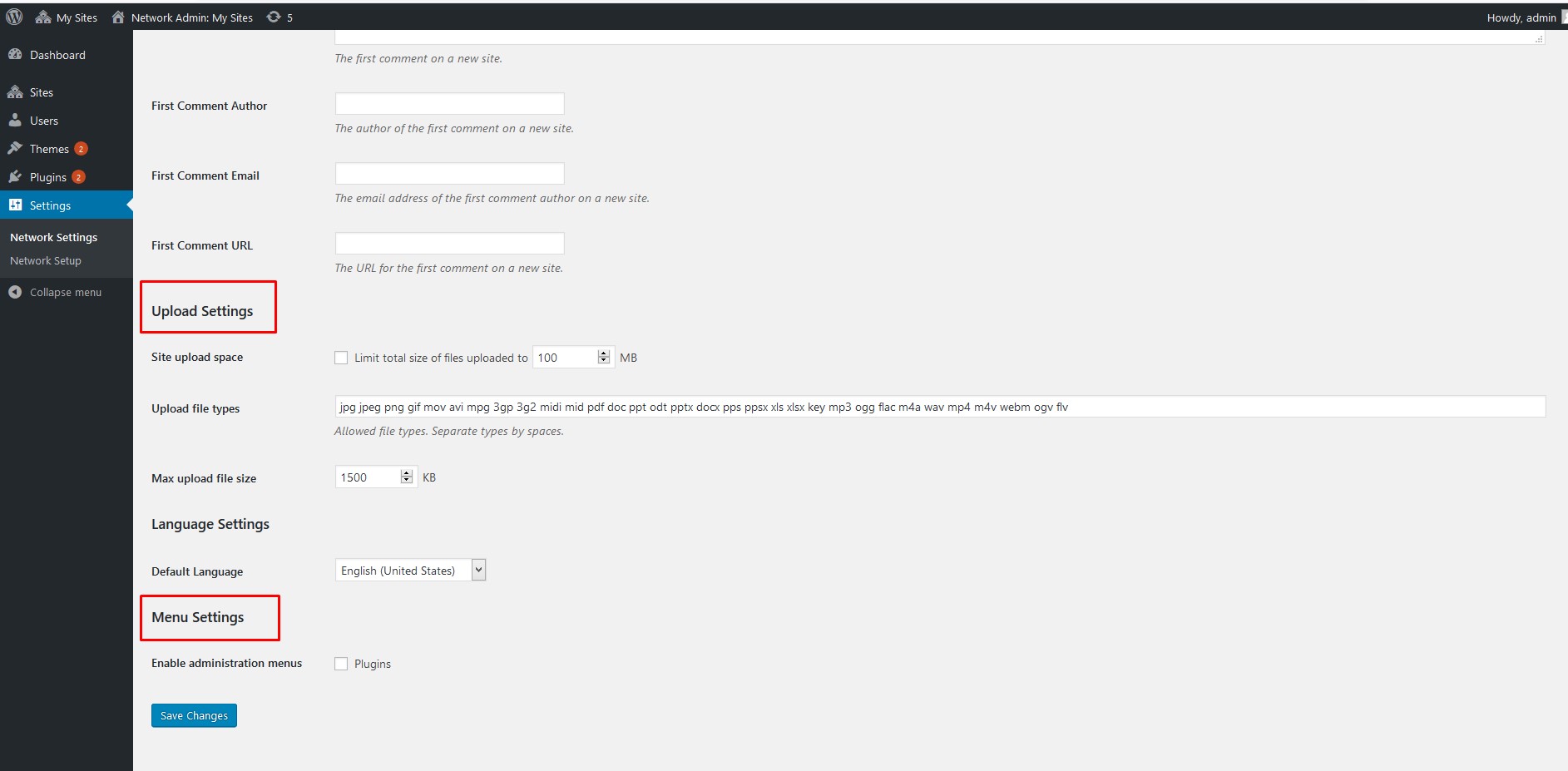
Cap the storage each site can consume for uploads to allocate server resources fairly; the default is 100 MB. You can also restrict allowed file types — images, .doc, .docx, .odt, audio, video, or PDF — and impose a per-file size limit.
Menu Settings
Turning on this option exposes the plugins menu to site admins. They can then activate and deactivate existing plugins on their own sites but cannot install new ones. Save all settings with "Save Changes" once you are done.
Themes And Plugins On A Multisite Network
On a Multisite network, individual site administrators cannot install themes or plugins themselves. The Super Admin must handle these tasks from the Network Admin screens.
Managing Themes Network-Wide
Navigate to “My Sites” » “Network Admin” » “Themes” to see a list of installed themes. From here, you can control which themes are available to site administrators:
- “Network Enable”: Makes a theme available for site administrators to activate.
- “Network Disable”: Removes a previously enabled theme from the available list.
- “Add New”: Installs a new theme to the network.
To change the default theme for newly created sites, add the following code to your wp-config.php file, replacing your-theme with the theme's folder name:
// Setting default theme for new sites
define( 'WP_DEFAULT_THEME', 'your-theme' );
Managing Plugins Network-Wide
Go to “My Sites” » “Network Admin” » “Plugins.” Click “Network Activate” below a plugin to make it available across the entire network. If the “Plugins Menu” option is enabled for site administrators in the “Network Settings,” admins can activate and deactivate these plugins on their own sites, but they cannot install new ones or delete existing ones.
Adding A New Site
From “My Sites” » “Network Admin” » “Sites,” you can create new websites.
Click the “Add New” button.
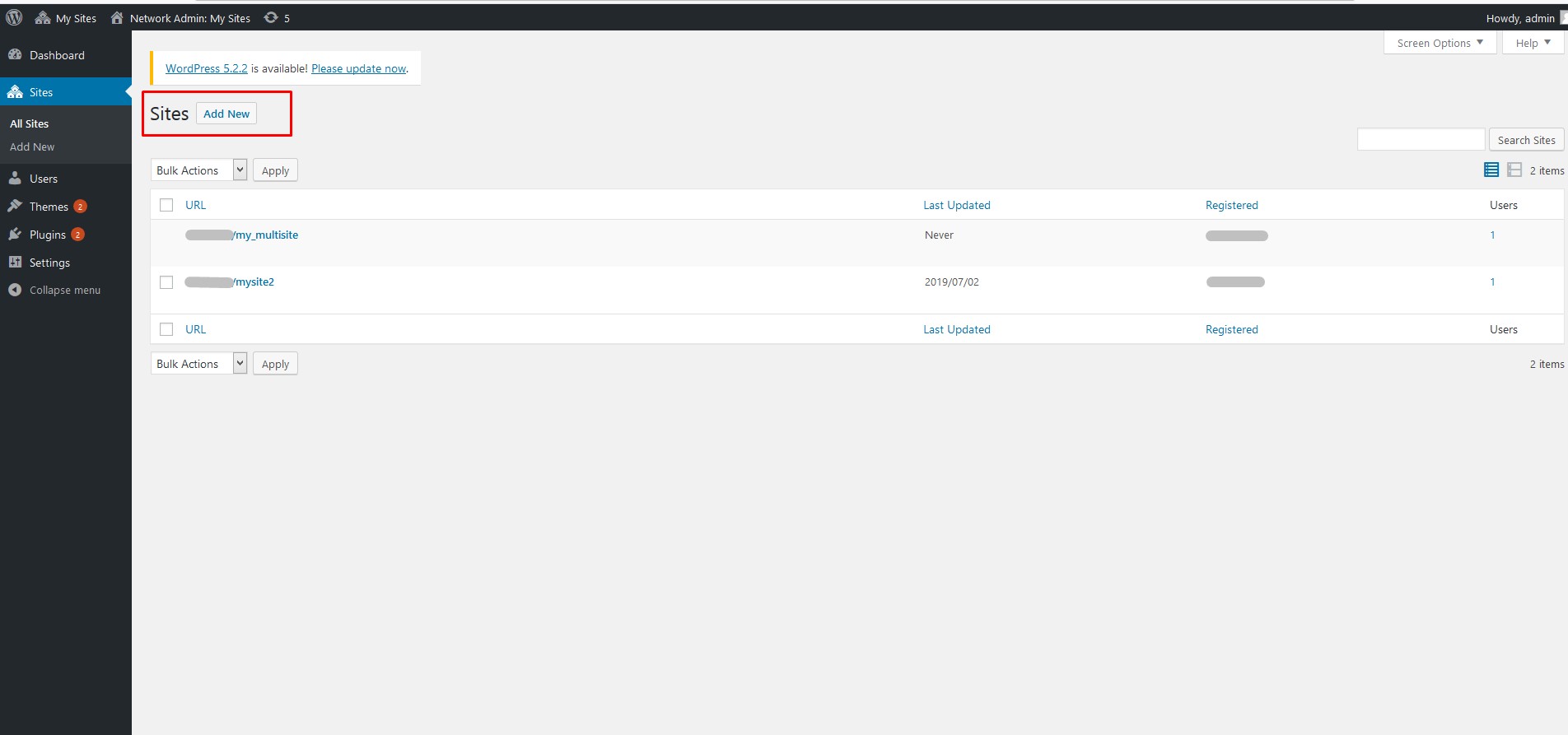
You will need to provide the following details:
- The address (URL) for the new website.
- Your “Site Title.”
- The email address of the new website’s administrator.
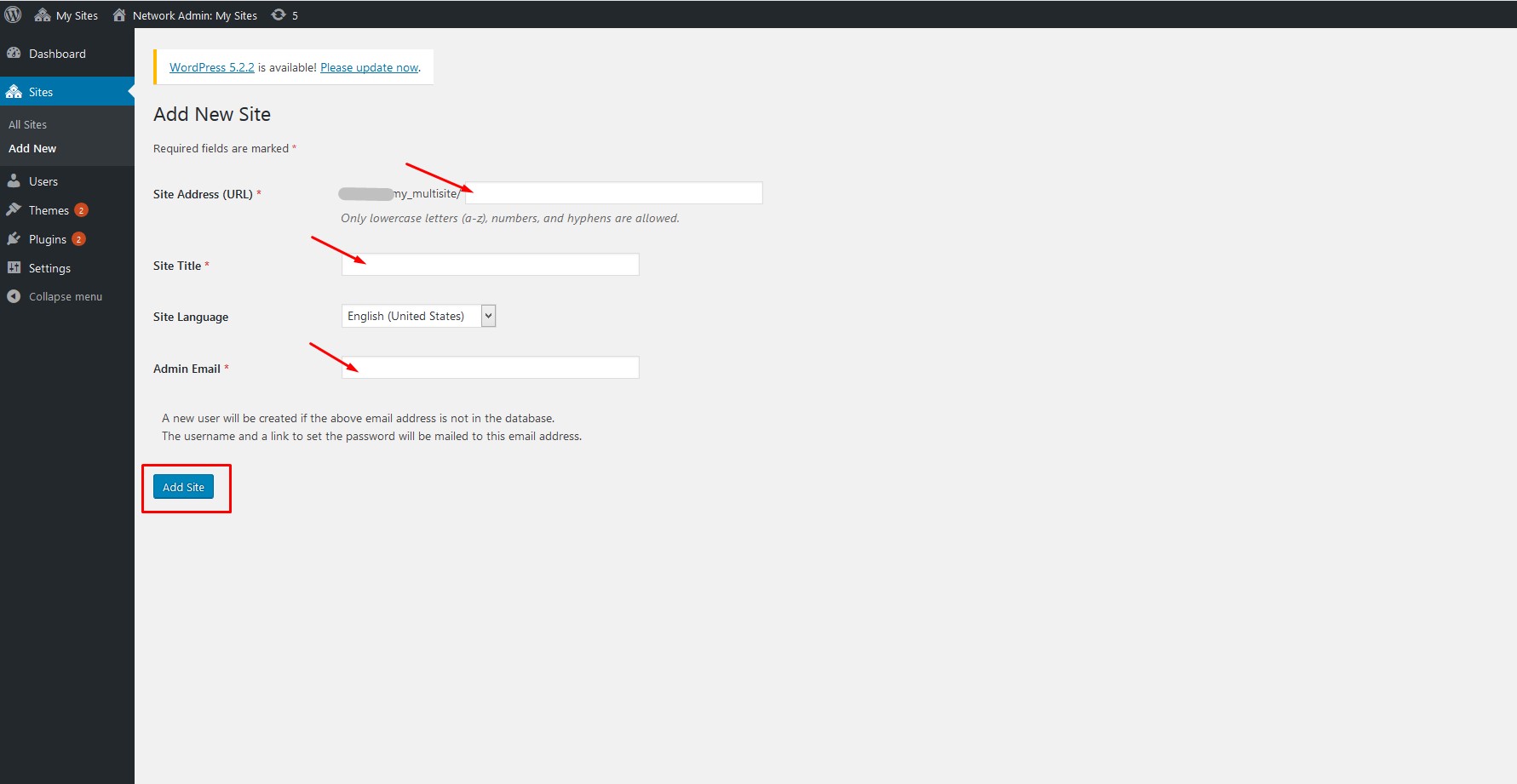
Finish by clicking the “Add Site” button.
Adding Google Analytics
To track activity across all sites on the network, you can add a global Google Analytics tag. Start by creating a Google Analytics account and a property to get an Analytics ID, which you can find in the “Property” column of the “Admin” section.
After you have the ID, copy the global site tag (gtag.js) and paste it immediately after the opening <head> tag on the relevant pages. Super Admins can manage different analytics codes for individual sites if needed.
Local Development Setup
WordPress Multisite can run locally using standard WAMP or LAMP stacks with the same installation process used for a normal host. However, pay close attention to domain mapping. Subdirectory installs are straightforward on a local machine, but subdomain or different-domain setups require configuring a virtual host on your WAMP or LAMP server.
Useful Plugins For Multisite
Several plugins are particularly helpful for running a smooth Multisite network:
- Domain Mapping: Allows each site on the network to use its own unique domain name.
- WPForms: Provides a drag-and-drop builder for creating forms.
- Yoast SEO: Helps optimize each website on the network for search engines.
- Pro Sites: Enables monetization through paid upgrades and advertising. You can restrict features on free sites to encourage users to upgrade.
- SeedProd: Creates professional “Coming soon” and “maintenance mode” pages.
- WP Mail SMTP: Fixes email delivery issues by routing mail through an SMTP server, which is critical for registration and notification emails.
- User Switching: Allows a Super Admin to switch into another user’s account to see their experience and troubleshoot functionality problems.
Troubleshooting
Two common problems occur during Multisite setup.
Login Issues With Subdirectory Sites
If you cannot log in to the admin backend of individual sites when using subdirectories (as opposed to subdomains), look at the wp-config.php file. Change the line define ('SUBDOMAIN_INSTALL', true); to define ('SUBDOMAIN_INSTALL', 'false');.
Missing Unconfirmed Users
Registered users may not appear if they haven’t received their activation email. This is usually an email delivery problem. The default PHP Mail function often sends emails to spam. Configure an SMTP service provider—such as MailGun or Gmail—with proper domain authentication to ensure delivery to the inbox.
Frequently Asked Questions
- Can I install any plugin? Yes, but not all plugins support Multisite. Check the plugin's documentation first.
- Can user logins and roles be shared across sites? Yes, users and their roles are shared automatically across the network.
- Can I show posts from the main site on all sites? Yes, this is possible.
- Can a Super Admin log in to all network sites with one ID? Yes, Super Admin credentials work across the entire network.
- Can a Super Admin log in to another network? No, credentials do not cross network boundaries.
- Can I add more sites later? Yes, you can add sites at any time.
- Can different sites use different SEO plugins? Yes. Activate the plugin only for the specific site (not the network) to restrict usage.
- Can I install a plugin on an individual site? No. Plugins are installed network-wide, but can be activated or deactivated for individual sites.
- Can I create and apply themes per site? Yes, site admins can activate any network-enabled theme for their own site.
Notable WordPress Multisite Deployments
Several prominent brands rely on WordPress Multisite to manage multiple web properties:
- OpenView Venture Partners: Runs its corporate site, corporate blog (
blog.openviewpartners.com), and a multi-author blog called Labs (labs.openviewpartners.com) as subdomains under a single install. - The University of British Columbia Blogs: Enables professors to create course sites, multi-contributor blogs, and student or staff portfolios, giving instructors full control over their online communities.
- Cheapflights: Powers its Travel Tips section with Multisite to cover travel news, flying advice, and destination guides.


