

Speed up project management with GitHub Projects
GitHub Projects gives teams a flexible way to track issues and pull requests, but many users only scratch the surface of what it can do. Here are some of the less obvious capabilities that can help you manage work more efficiently.
Work from the command line
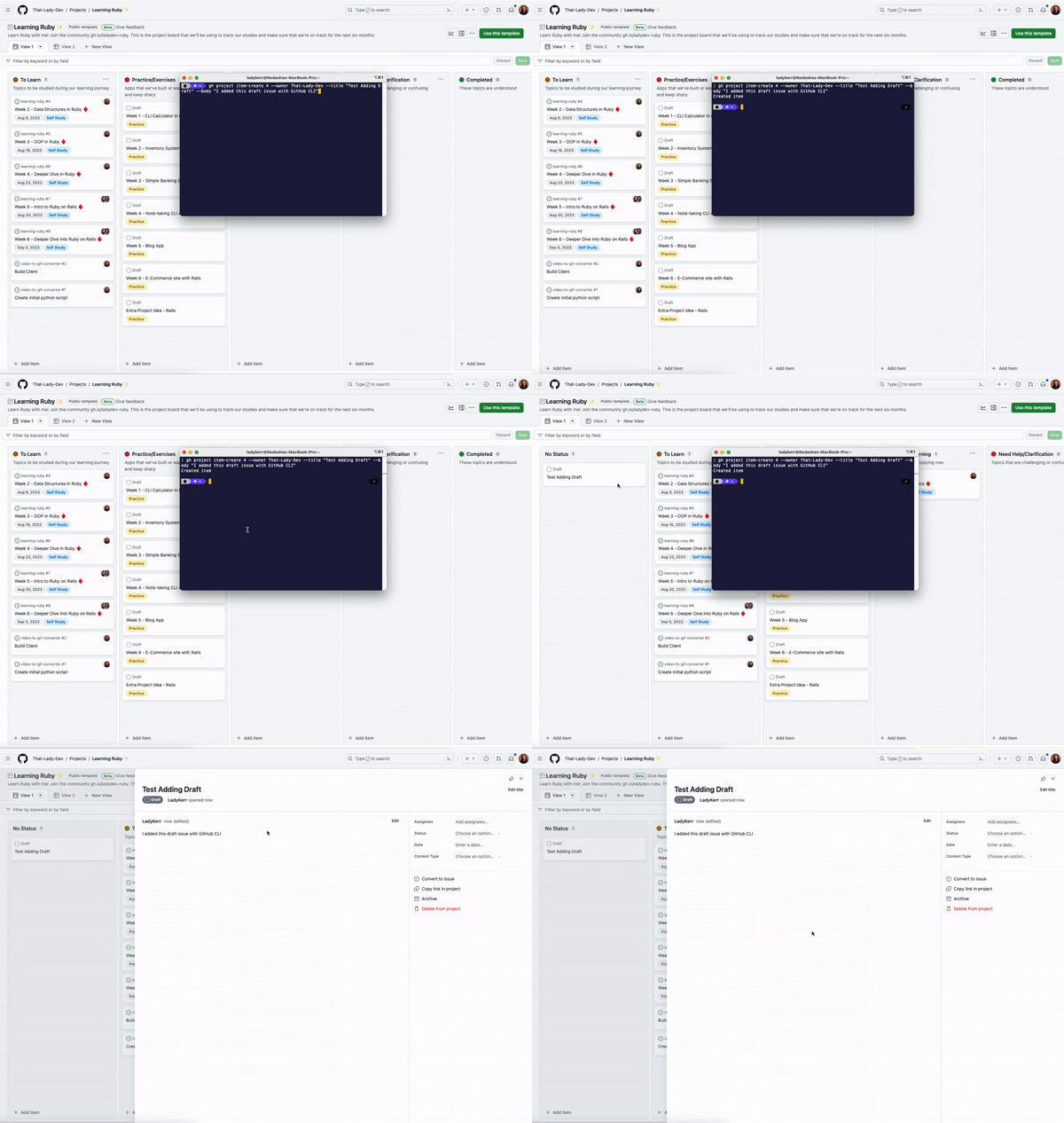
The GitHub CLI's project command lets you manage and automate project workflows without leaving your terminal. After installing the CLI and authenticating with the project scope, you can find the project number in the URL (for example, the number is 4 in https://github.com/orgs/That-Lady-Dev/projects/4) and use it to interact with the project:
gh project item-create 4 --owner That-Lady-Dev --title "Test Adding Draft" --body "I added this draft issue with GitHub CLI"
Running this command adds a new draft issue to the project:
See the CLI documentation for the full range of supported project operations.
Export data for external tools
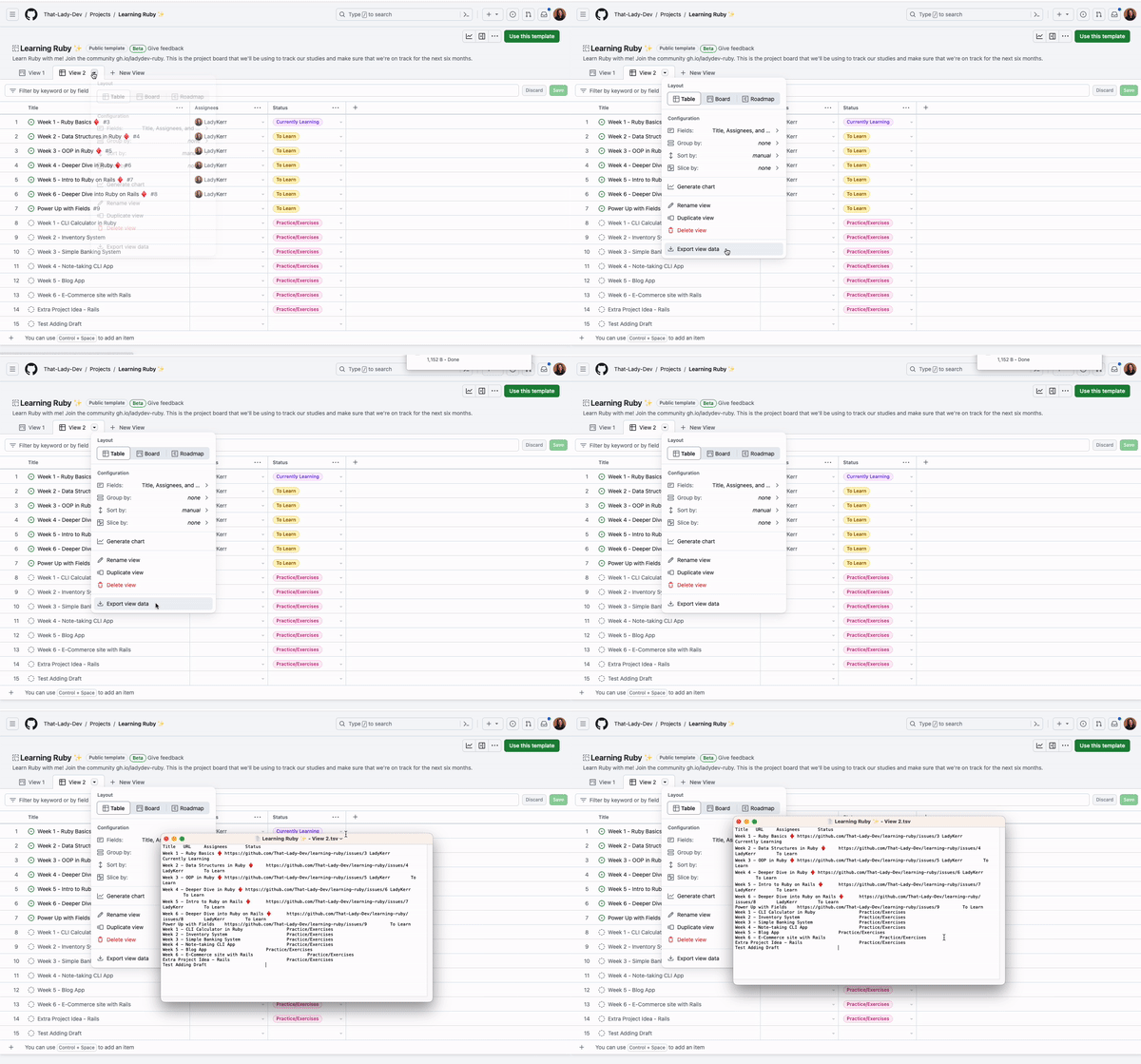
You can export any project view to a TSV file by clicking the arrow next to the view name and selecting Export view data. TSV format works well with tools like Figjam, Google Sheets, and Excel. If you need CSV instead, GitHub Copilot Chat can help you write a conversion script.
Reuse project structures
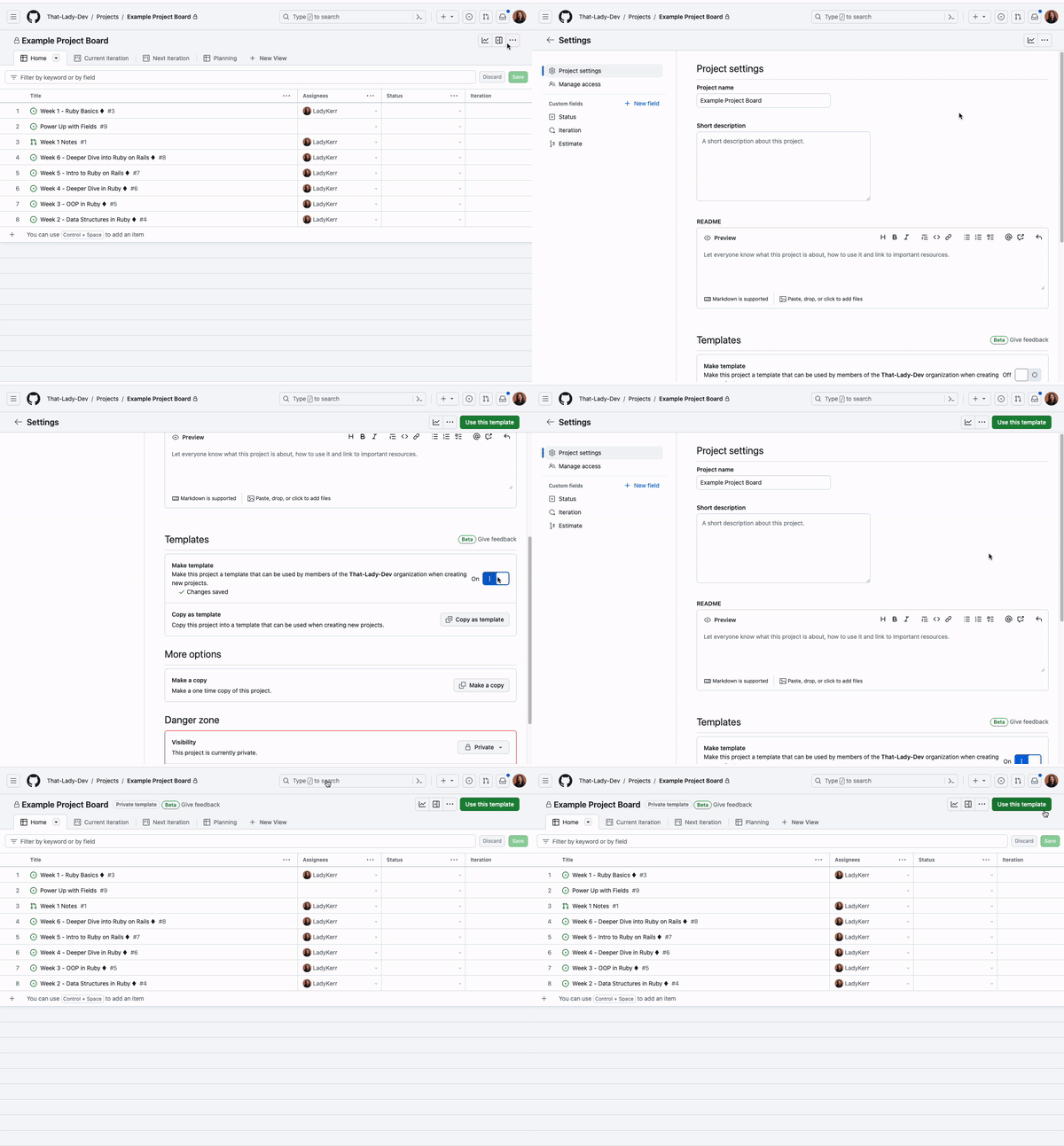
Instead of rebuilding projects from scratch, you have two options for reuse. First, any project can be designated as a template: go to the project's Settings page, find the "Templates" section, and toggle on Make template. Teammates can then start from that template via the green Use this template button or when creating a new project.
Second, you can make a one-time copy of an existing project that carries over fields, views, configured workflows, insights, and draft items. Open the three-dot menu and select Make a copy to set the owner and name, then choose whether to include draft issues. The CLI supports the same operation:
gh project copy 1 --source-owner That-Lady-Dev --target-owner Demos-and-Donuts --title "copied project"
Enable built-in automations
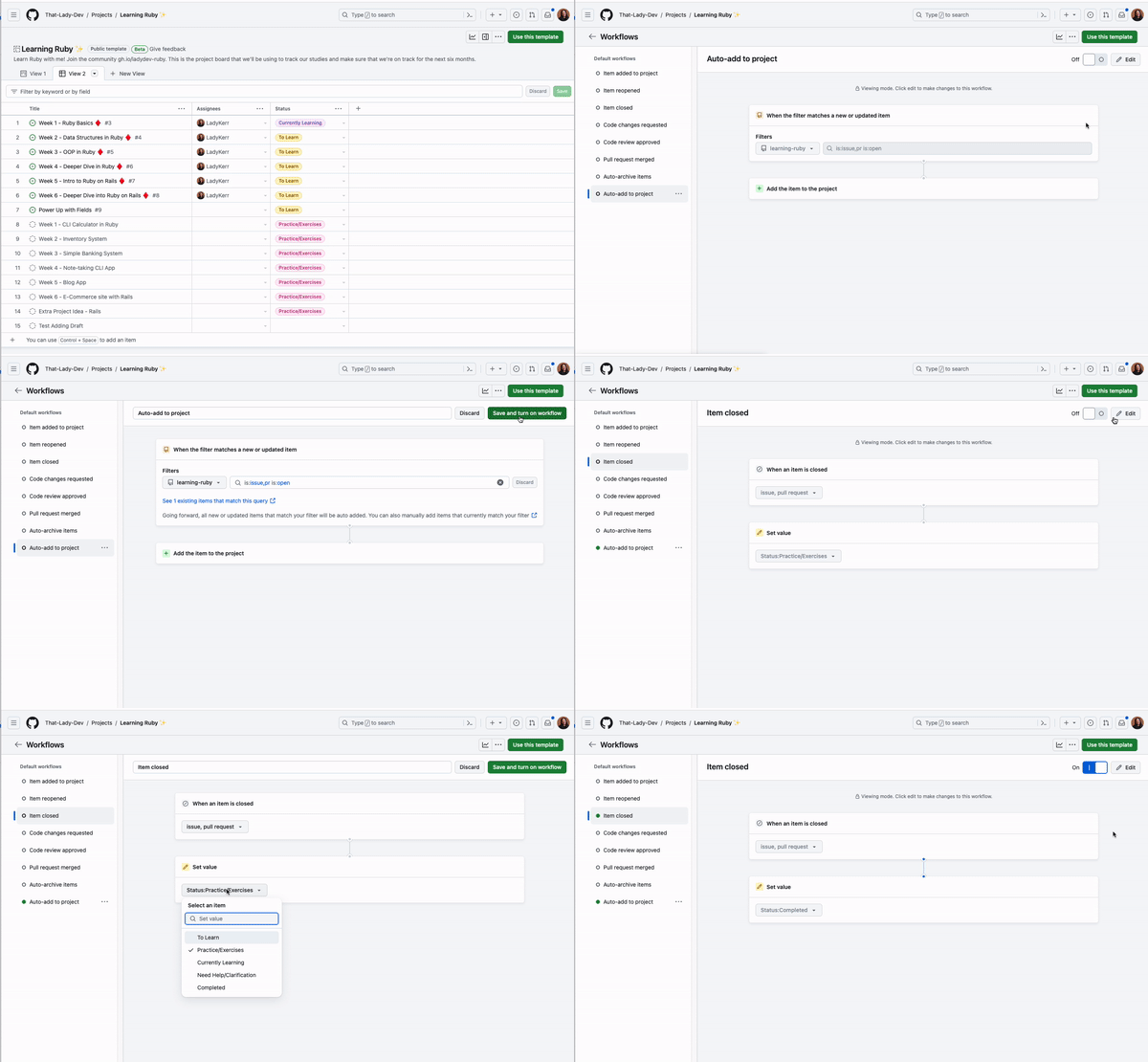
Project workflows can handle routine updates for you. Under the "Workflows" menu, you can enable the "Auto-add to project" workflow to automatically add issues from a repository, or the "item closed" workflow to set the status to "completed" when an issue closes. Additional built-in workflows plus GitHub Actions integration are covered in the automation documentation.
Richer custom fields
Custom fields support text, number, date, single select, and iteration types. For single select fields, you can attach a color and description to each option, which helps keep teams aligned on what each value means. Configure these in project settings when adding a new field, or update them later via Edit details from the group or column menus.
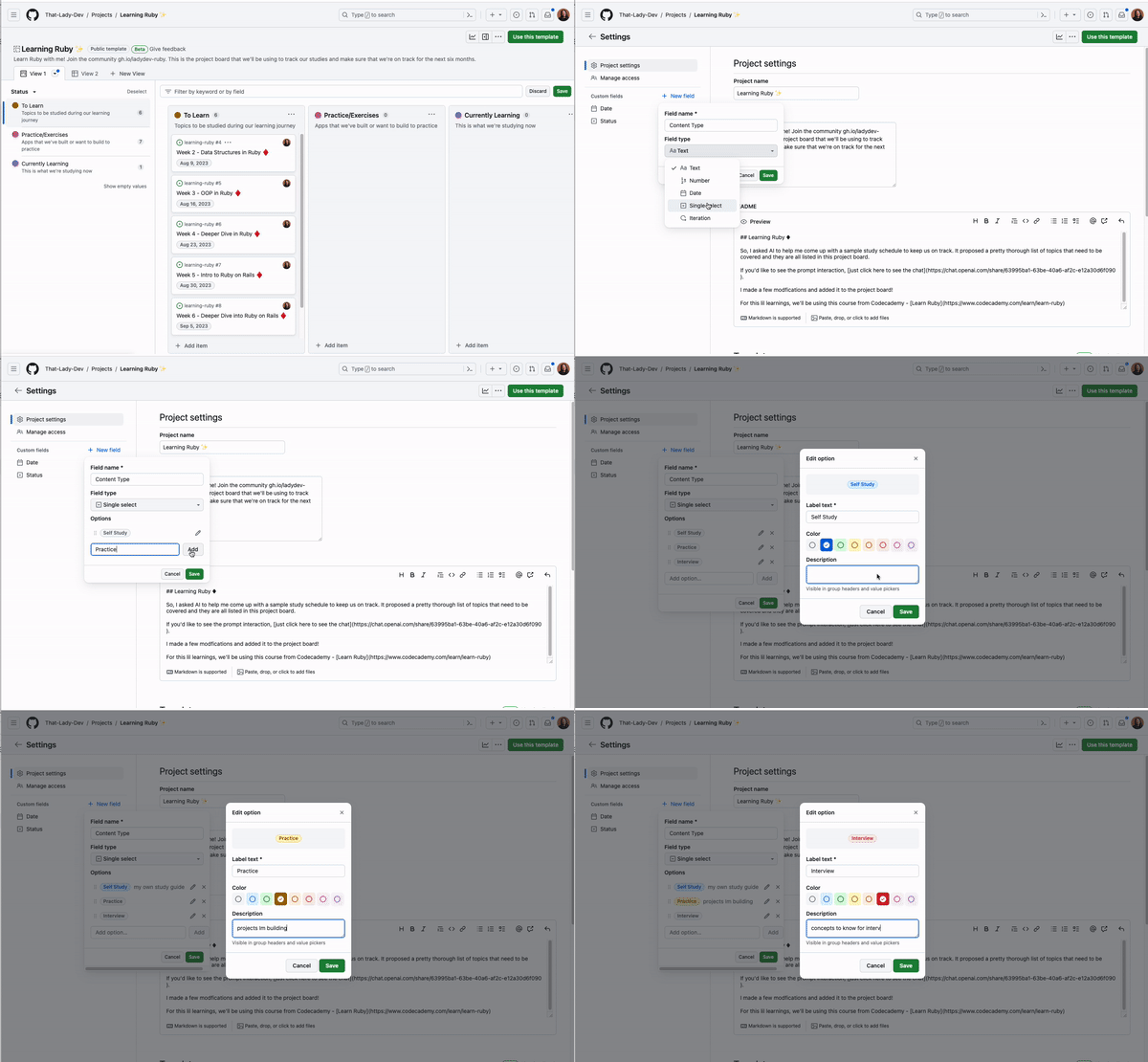
Track issues across organizations
Open source maintainers and developers with multiple clients often need a single board that pulls in work from several organizations. GitHub Projects makes that possible: you can either paste an issue link directly into the project, or use # to search by organization and repository from within the project view.
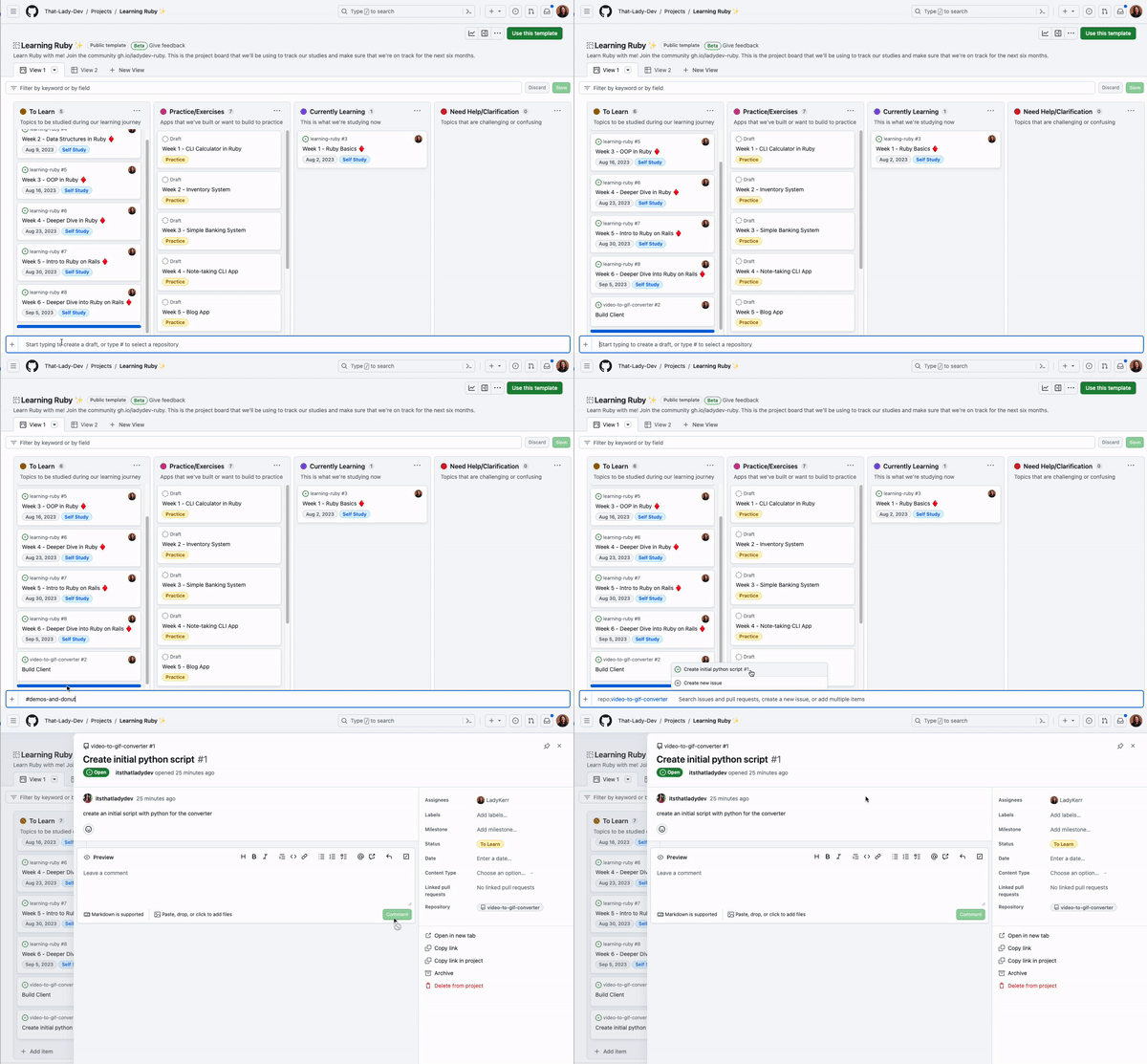
The CLI offers the same capability for adding an issue or pull request to a project:
gh project item-add 4 --owner That-Lady-Dev --url https://github.com/Demos-and-Donuts/video-to-gif-converter/issues/1
Bulk editing shortcuts
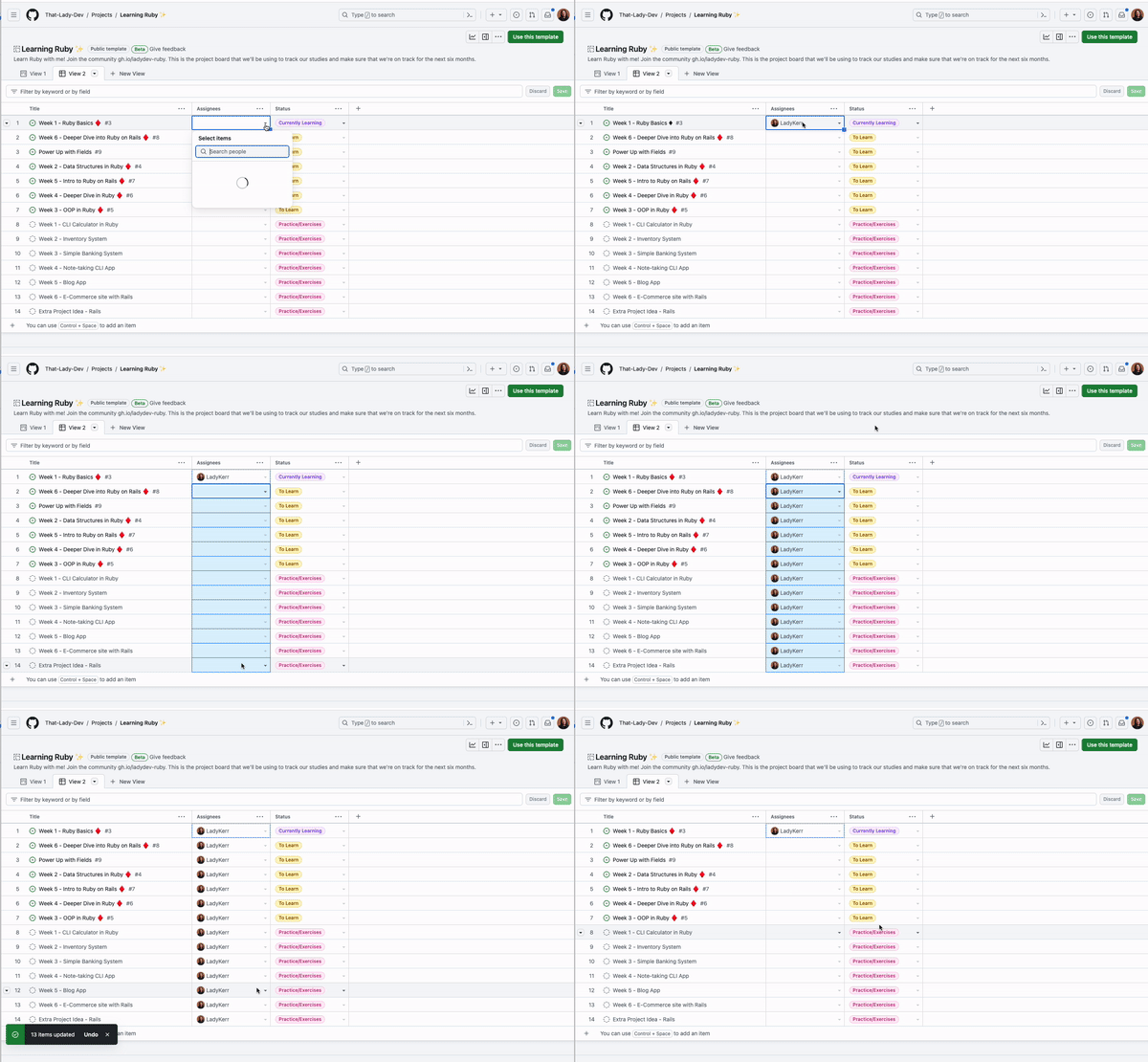
Updating multiple items one at a time is slow, but the table layout supports a quicker path. Assign one issue, highlight and copy the cell contents, then select all the remaining items and paste. The change is applied across all selected items and can be undone with a single click or keyboard command. Multi-select also works for dragging and dropping items between columns on the board.
Keep fields and views organized
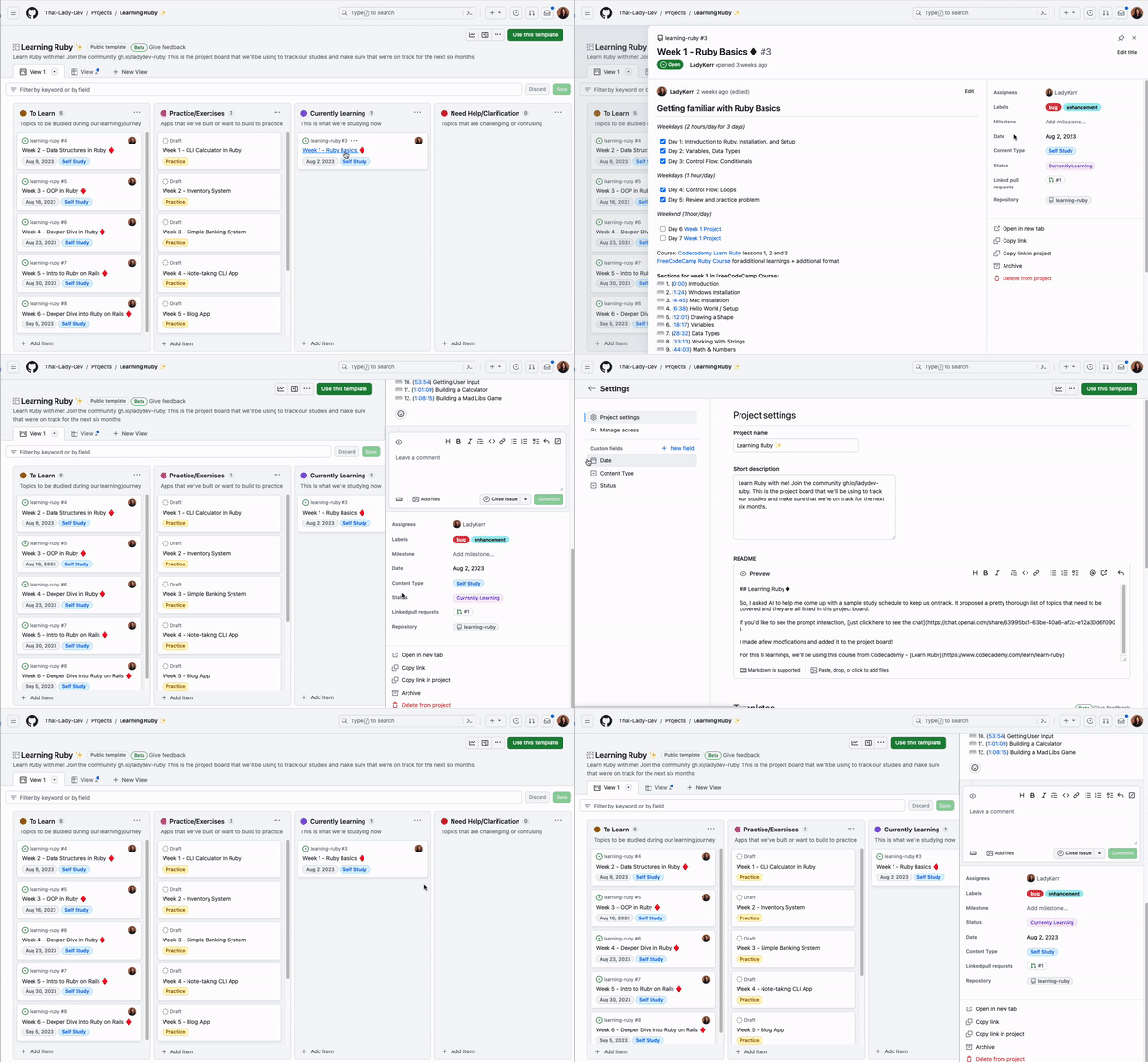
As your project accumulates custom fields, you can reorder them by dragging and dropping in the "Custom fields" list under project settings. The new order applies to the side panel and the issues page.
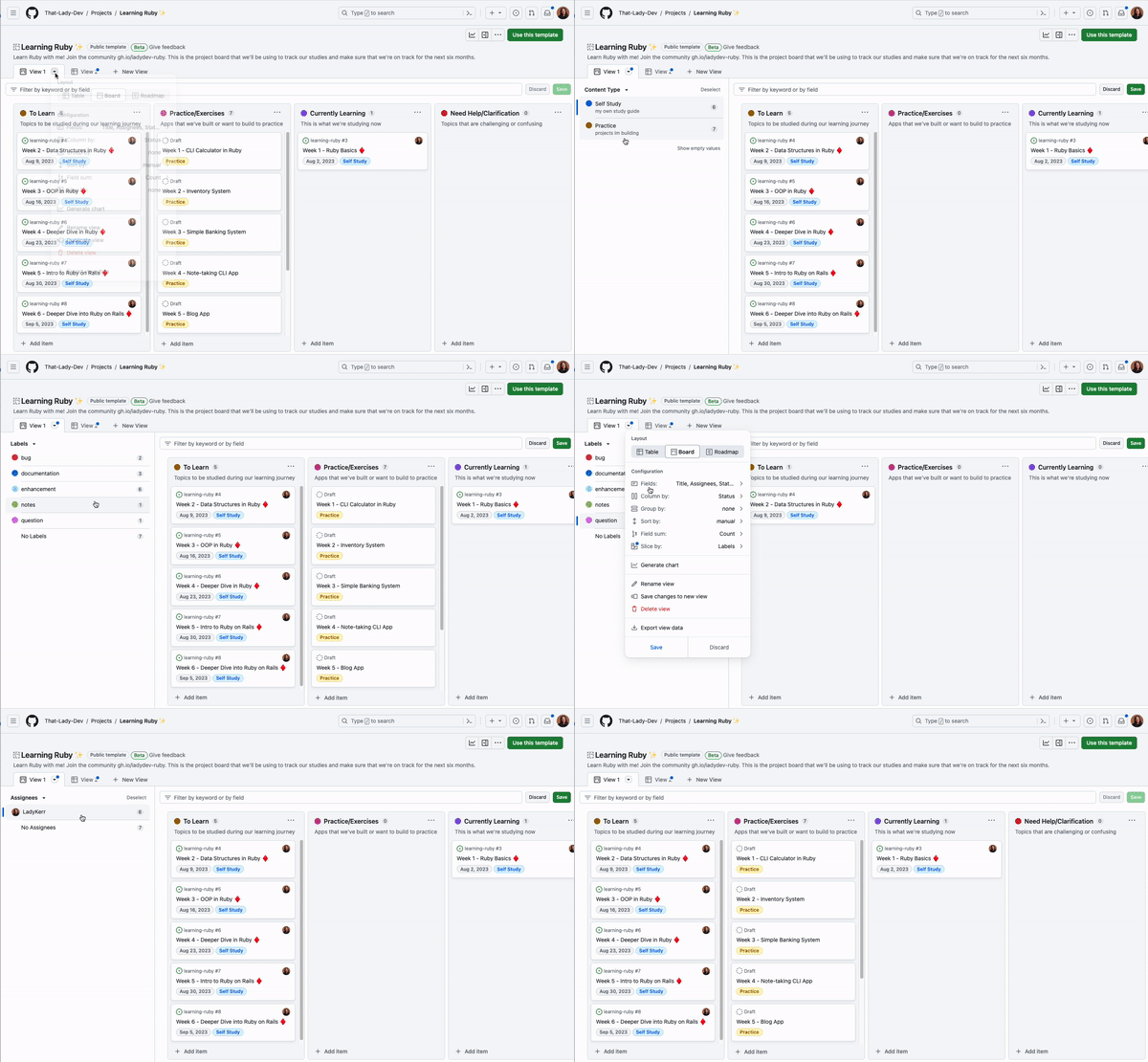
For filtering through large sets of items, the Slice by field breaks down items based on a chosen field, displaying values in a left-hand panel. Clicking each value filters the project view to show only the matching items.
Send a direct link to any item
Rather than sending a teammate to a project and asking them to hunt for a specific issue, use the Copy link to project button. This generates a direct link to that particular issue within the project.



