Why Accessibility Matters
Many developers treat accessibility as a box to check: something involving government compliance, screen readers, and lengthy audits. A common misconception is that making a site accessible means stripping away design polish and delivering a clunky, bloated experience. That framing gets the problem backwards.
When a site is accessible, its content is available and its functionality can be operated by literally anyone. As developers, it's easy to assume every user sees a screen and uses a keyboard, mouse, or touch screen exactly the way we do. That assumption quietly excludes people with impairments — including temporary and situational ones that affect all of us at some point.
Consider having trouble reading a desktop site on a phone, seeing "This content is not available in your area," or hunting for a familiar menu on a tablet. Those are all accessibility failures. Fixing problems in this broader sense tends to improve the experience for everyone, not just for users with permanent disabilities.
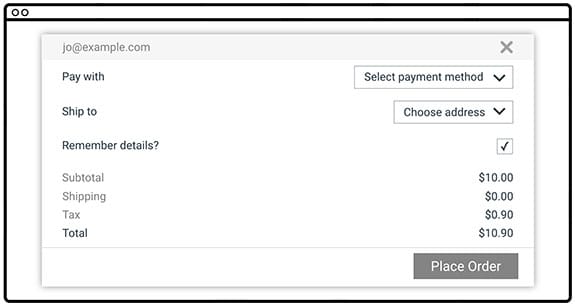
This form suffers from several common issues:
- Low-contrast text is difficult for low-vision users to read.
- Labels on the left with fields on the right break the visual association between them, particularly for anyone zoomed in or on a mobile screen.
- The "Remember details?" label isn't tied to its checkbox, so users must click exactly on the tiny box; keyboard-only or screen reader users will struggle to identify the association at all.
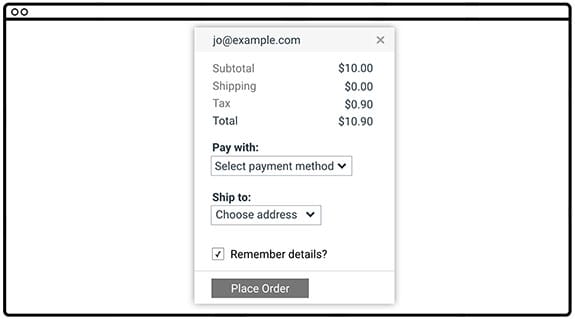
Now compare it with a revised version: darker text, labels adjacent to their controls, and the checkbox label properly linked so clicking either the label or box toggles the setting. Given the choice, most people prefer the second form. Something that's a complete blocker for a few users often turns out to be a pain point for many — fix the accessibility gap and the whole interface improves.
The POUR Principles at a Glance
The Web Content Accessibility Guidelines (WCAG) 2.0 organize accessibility into four principles, abbreviated as POUR:
- Perceivable: Can users perceive the content? Information presented only through sight, for example, won't be perceivable to everyone.
- Operable: Can users operate the UI and navigate the content? An interaction that depends on hover, for instance, is not operable without a mouse or touch screen.
- Understandable: Can users grasp the content and interface, and is the interaction consistent enough to avoid confusion?
- Robust: Can a wide range of browsers and assistive technologies consume the content reliably?
The full WCAG spec is comprehensive but dense. The WebAIM (Web Accessibility in Mind) group has condensed it into a practical checklist aimed specifically at web content. The checklist gives a concise summary of what you need to implement and links back to the original WCAG clauses whenever you need a broader definition.
Using tools like that checklist gives your accessibility work a concrete direction: meet the outlined criteria and your users should have a predictable, positive experience with what you build.
Accessibility falls into four overlapping categories
When planning for accessibility, it helps to know who your users actually are. Google Technical Program Manager Victor Tsaran, who is totally blind, describes the range by splitting impairments into four broad buckets: visual, motor, hearing, and cognitive.

- Visual impairments range from no vision to low vision.
- Motor impairments can make pointer-based navigation difficult or impossible.
- Hearing impairments mean you can't rely on sound to convey information.
- Cognitive impairments may require simpler layouts and reduced distraction.
What kinds of visual impairments do users have?
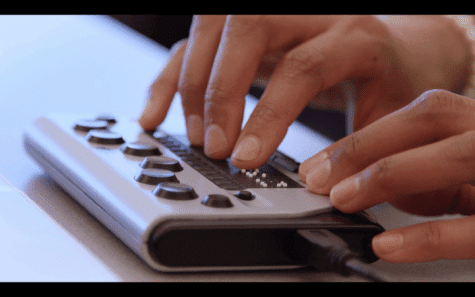
People with no vision often use a screen reader or braille display. But it's much more common to have low vision, a category with a wide range of severity. Some users need screen magnifiers or browser zoom; others use text-to-speech tools without full screen reader functionality. High-contrast modes or themes help users who struggle to distinguish elements.
Low-vision accommodations aren't just for people with permanent conditions. Faded vision comes with age, and even something as common as working in bright sunlight can make a screen unreadable. Designing for these situations improves the experience for everyone.
Color vision deficiency also falls under this umbrella, affecting about 9% of males and roughly 1% of females. Problems distinguishing red from green or yellow from blue are worth considering in any color-coded UI, such as form validation.
What about motor impairments?
This group includes users who find a mouse painful due to repetitive strain injury, as well as those with paralysis or limited mobility. Keyboard input, switch devices, voice control, and eye-tracking systems all allow motor-impaired users to interact with a computer. A broken trackpad or a wrist injury can mimic a permanent disability, proving that keyboard support is robust design, not just a niche feature.
How should hearing impairments affect design?
Hearing loss, which naturally increases with age, means content needs to avoid relying on sound. Video captions, transcripts, and alternative visual indicators for audio cues cover this group well. These accommodations also help people working in noise-sensitive environments who can't play audio aloud.
And cognitive impairments?
Conditions like ADHD, dyslexia, and autism can make conventional layouts difficult to process. Minimal design that reduces distraction often benefits these users, and they may rely on some of the same tools as other groups, such as screen zoom. Designing with cognitive load in mind tends to produce calmer, cleaner interfaces that anyone would prefer.
Tsaran's key insight is that each of these four categories can affect a user permanently, temporarily, or situationally. A broken arm makes a motor impairment temporary; a loud room makes a hearing impairment situational. Building for the intersection of these circumstances excludes far fewer people and respects the reality that most users are not operating under perfect conditions.
| Situational | Temporary | Permanent | |
|---|---|---|---|
| Visual | concussion | blindness | |
| Motor | holding a baby | broken arm, RSI* | RSI* |
| Hearing | noisy office | ||
| Cognitive | concussion |
What's next
So far, the essentials are covered: what accessibility means, why the WCAG guidelines and WebAIM's accessibility checklist matter, and the variety of impairments users bring to your site.
The practical work ahead can be organized into three main areas:



