The Figma agent runs on the canvas alongside you, so you can call on it at any stage of the work—from early exploration with your team to final refinements before handoff—while retaining control of the design. The following workflows show how teams use it to cut tedious work and make designs more expressive.
Sort feedback without leaving the conversation
Meeting and crit feedback arrives fast, and summarizing it by hand eats time you would rather spend in the discussion. Through Connectors, you can pull notes or transcripts from tools like Granola, Notion, or Google Drive into the agent and have it place feedback beside the relevant designs.
Try it: Click + in the agent's chat box, open Connectors, and connect the app holding your notes or transcript. Share the link, then prompt: Annotate this design based on the crit feedback in this transcript.
Turn accumulated comments into action items
When comments pile up in a Figma file, the agent can summarize them and propose updates. After you review the suggestions, it can apply the changes you approve directly to the designs.
Try it: Select the frames with comments and prompt: Summarize the feedback on these designs and suggest updates.
For a more structured pass, use a skill—a reusable set of instructions triggered with a slash (/) command. To install one from Figma Community, open its page, click Save, and type / in the agent's prompt box to select it. You can also write your own to capture a workflow worth repeating or sharing with your team.
Try it: Add the /comments-do-try-consider skill to sort feedback into things to do, try, and consider: Use /comments-do-try-consider to sort the comments on this design and add the summary to a new frame next to it.
Build a custom shader and reuse it
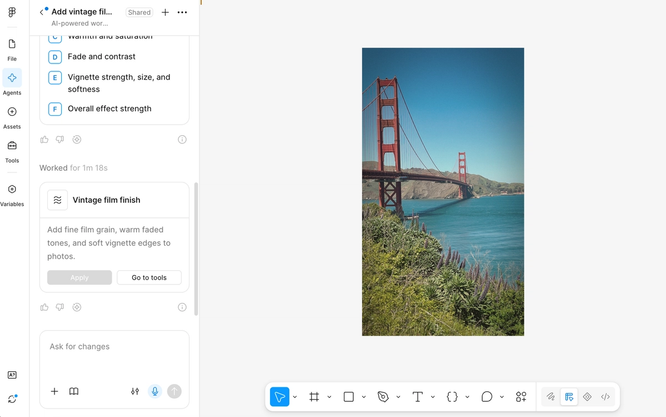
Shaders are code-backed effects or fills that produce looks like liquid metal, grain, glass distortion, or holographic textures. Describe the result you want to the agent and refine it through prompting; those new to shaders can start with the /shader-starter skill.
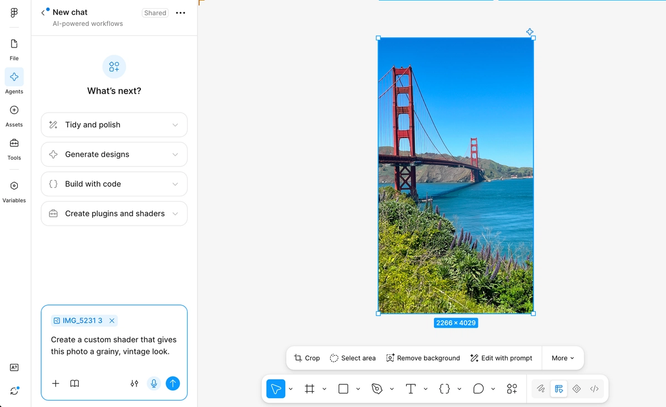
Try it: Select a photo in your design and prompt: Create a custom shader that gives this photo a grainy, vintage look.
To spread the effect across more images, connect Google Drive via + → Connectors and prompt: Find the photos in this folder and apply the same shader: [folder link]. The finished shader is also available in Tools for applying to other images.


Explore several directions in one pass
To get an app or website onto the canvas, pull the latest version into Figma in one click using the Figma Chrome extension, then riff on layout or content with the agent. Building multiple directions by hand has traditionally meant significant upfront time; the agent can instead generate several variations of a screen or feature from a single prompt, letting you compare small details or whole approaches side by side.
Suppose you are designing a weekly insights screen and want to trial different layouts—altering the size of the main image or the placement of the heading. One prompt produces the variations, and if your team's design library is selected, the agent draws on your existing components, styles, and variables.
Try it: Open Libraries in the agent's prompt menu and select your team's library. Then select your design and prompt: Create three layout variations of this weekly insights screen. Try different sizes for the main image and different placements for the heading and introductory text. Keep the existing content, colors, and visual style.
Test interactions as code layers
Some interaction decisions cannot be judged from static screens. If you have designed a card stack in a carousel that users should swipe through, the agent can recreate the design as a code layer—an interactive, code-backed prototype on the canvas—so you can drag a card aside, reveal the next item, and tune the transition.
Try it: Select your design frame, choose Build this with code, and prompt: Make this card stack interactive so users can swipe or drag the top card aside to reveal the next item. Keep the stacked layout and animate the transition between cards.
Compare motion options before committing
The agent can add motion to a static design, either when you know exactly what movement you want or when you need options to weigh. For a hand icon demonstrating where to touch a screen, for instance, it can produce a slow tap and a playful spin in a single prompt, so you can play both back and pick the fit.
Try it: Select your design frame and prompt: Create two animation variations for this design: one where the hand spins before clicking and another where it slowly presses down. Then switch the toolbar toggle to Motion, select each frame, and press play to compare.
Availability
The Figma agent is offered on Starter, Professional, Organization, and Enterprise plans, as well as higher education plans. Collab, Dev, and View seats can use the agent within their drafts. More detail is available in the Figma help center.