

Why calling GitHub APIs from pipelines gets messy
Azure Pipelines integrates natively with GitHub repositories: you can trigger builds on pushes or pull requests, and pipeline results flow back to GitHub as status checks. That covers the common path. When you need to go further—posting PR comments, managing releases, or sending code scanning results—you have to call the GitHub REST or GraphQL APIs directly.
The friction arrives quickly. Every pipeline step that talks to GitHub needs an authentication strategy, and the options you might reach for first aren't ideal for automation:
- Personal Access Tokens (PATs) are tied to a user account and give repository-wide access. Classic PATs are coarse-grained; fine-grained PATs are better but don’t yet support every API call.
- OAuth tokens are built for third-party apps acting on behalf of users, which isn’t quite the machine-to-machine model of CI/CD.
A cleaner approach is to register a GitHub App, install it on the target account or organization, and let Azure Pipelines mint short-lived installation tokens on demand. That gives you fine-grained permissions, installation-scoped access, higher rate limits, and none of the risk of a long-lived user token sitting in a variable group.
Use cases worth automating
Before digging into the mechanics, it helps to know what you’re likely to automate. The common patterns in Azure Pipelines are:
- Setting status checks on commits or PRs so pipeline results (tests, builds, security scans) feed into GitHub rulesets.
- Commenting on pull requests with test coverage, performance metrics, or deployment notes.
- Committing file updates back to the repo, such as a
CHANGELOG.mdor a version bump in package manifests. - Managing issues: opening a bug when a test fails, closing one when a feature ships.
- Feeding code scanning results to GitHub Advanced Security for centralized vulnerability tracking.
- Creating releases and uploading build artifacts or binaries as release assets.
- Tracking deployments via the GitHub deployments API so history shows up in the GitHub UI.
- Triggering GitHub Actions workflows from Azure Pipelines to orchestrate hybrid CI/CD.
REST vs. GraphQL: picking an interface
GitHub exposes two API paradigms. REST is the straightforward one: HTTP endpoints for repos, issues, pull requests, and workflows. It’s well documented and supports PAT, OAuth, and GitHub App authentication.
GraphQL is the more surgical option. You write a query that asks for exactly the fields you need, so you can avoid the round-trips required to assemble related data with REST. That matters when you’re pulling nested structures such as a PR with its reviews, status checks, and changed files in one shot.
For pipeline automation, the choice comes down to what you’re fetching. Simple CRUD operations are easy in REST; complex read queries are often better in GraphQL.
Why GitHub Apps win for pipelines
GitHub Apps are the strongest authentication model for machine-to-machine work. They are independent entities with their own permissions, rather than a borrowed user identity. The model has three properties that matter in CI/CD:
- Fine-grained permissions scoped per repository, so a pipeline step only gets the rights it actually needs.
- Installation-based access, meaning the app is installed on an organization or account and can be limited to a subset of repos.
- Short-lived tokens. Instead of a PAT that stays valid until it expires, a GitHub App lets you exchange its private key for an installation token that lasts only an hour.
PATs have their place, and fine-grained PATs improve on the classic flavor by allowing org scoping and per-repo permissions with admin approval. But for production pipelines, the security profile and rate limits of GitHub Apps make them the right default.
Registering and installing a GitHub App
Two setup steps precede any use of the GitHub API from the pipeline.
Register the app in the enterprise, organization, or account. When you do, pay attention to three things:
- Select permissions that match exactly what the pipeline will do. If you later tighten or widen them, an installed app’s new permissions require re-authorization by the org’s administrators.
- Keep the app private unless you have a real reason to expose it publicly. Note that “private” vs. “public” semantics vary depending on your GitHub Enterprise Cloud type.
- If you generate a private key during registration, store it securely. That key is what your pipeline needs to mint installation tokens (and it can be revoked, with up to 20 active keys total).
Install the app on the accounts or organizations it will talk to. During installation you choose whether it can access all repos (including future ones) or only a selected list.
One operational constraint worth knowing: you can install unlimited apps per account, but you can register at most 100 GitHub Apps per enterprise, organization, or account.
| Authentication Type | Pros | Cons |
|---|---|---|
| Personal Access Tokens (PATs) | – Simple to create and use – Quick to get started – Good for personal automation – Can be scoped to multiple organizations – Configurable permissions per token – Admins can revoke organization access – Configurable expiration dates – Work with most GitHub API libraries – No additional infrastructure needed | – Tied to user account lifecycle – Limited to user’s permissions – Classic PATs have coarse-grained permissions – Require manual rotation – Browser-based management only – If compromised, expose all accessible organization(s)/repositories |
| OAuth Tokens | – Standard OAuth 2.0 flow – Organization admins control app access – Can act on behalf of multiple users – Excellent for web applications – User-approved permissions – Refresh token mechanism – Widely supported by frameworks – Good for user-facing applications | – Require storing refresh tokens securely – Need server infrastructure – More complex than PATs for simple automation – Still tied to user accounts – Require initial browser authorization – Token management complexity – Potential for scope creep – User revocation affects functionality |
| GitHub Apps | – Act as independent identity – Fine-grained, repository-level permissions – Installation-based access control – Tokens can be scoped down at runtime – Short-lived tokens (1 hour max) – Higher rate limits – Best security model available – No user account dependency – Audit trail for all actions – Can be installed across multiple orgs | – More complex initial setup – Require JWT implementation – May be overkill for simple scenarios – Require understanding of installation concept – Private key management responsibility – More moving parts to maintain – Not all APIs support Apps |
With the app registered and installed, you now have two pieces of sensitive material to manage inside Azure DevOps: the app ID and the private key. Keeping those in a single pipeline step, passed explicitly per call, is a maintenance burden. The section that follows covers how to abstract that away in a custom Azure DevOps extension so pipeline authors just say call GitHub instead of implementing token exchange logic each time.
Behind a GitHub App token: the authentication model
GitHub Apps authenticate in two stages. The app first presents a JSON Web Token (JWT) signed with its private key. That JWT only proves the app’s identity; it carries no access to GitHub resources. To actually call the API, the app exchanges the JWT for an installation token, an access token scoped to the enterprise, organization, or account where the app is installed. Installation tokens are short-lived (one hour) and limited to the repositories and permissions granted at installation.
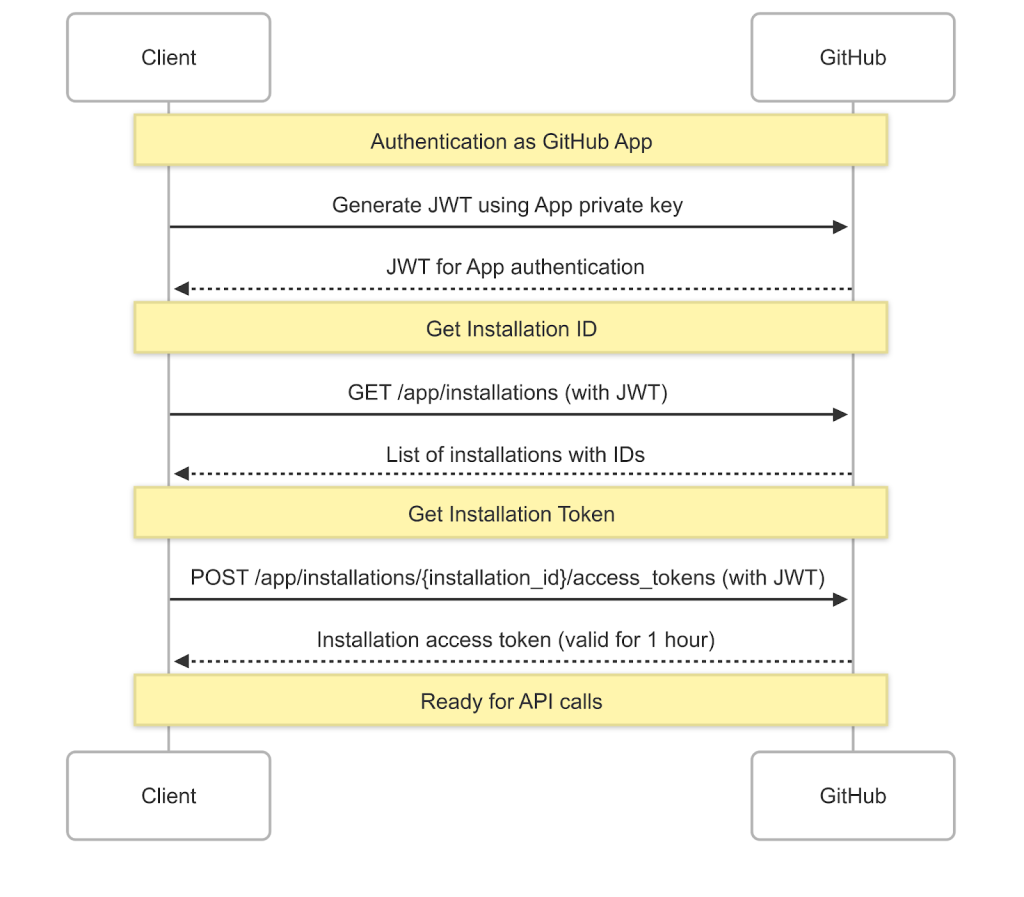
To obtain an installation token, you either supply a known installation ID or look one up via the installations API. With the ID in hand, the app requests a token, optionally restricting its permissions or repository list — useful when you don’t need full access. The token can then authenticate API calls. GitHub also supports user-on-behalf-of authentication, but that model is a poor fit for CI/CD pipelines, which should run under a service identity rather than a user account.
Generating installation tokens in Azure Pipelines
For pipeline authors, generating an installation token is all that’s required before calling the GitHub API. Three general approaches exist:
- Command-line tooling: open-source tools like
gh-tokenhandle the full token-generation flow in a pipeline step. - Custom scripts: implement the JWT/installation-token exchange yourself in bash/curl or PowerShell. Maximum control, more code to own.
- Azure Pipelines tasks: pipelines lack built-in GitHub App authentication, so you either pull a task from the Azure DevOps Marketplace or write your own.
For the rest of this article, the focus is the third path: a custom task built as an Azure DevOps extension.
Building an extension for GitHub App authentication
When wiring Azure Pipelines to GitHub, the app’s private key is the crown jewel — possession of it lets anyone mint installation tokens and call APIs as the app. Store it carefully. Azure Pipelines offers three primary storage mechanisms:
- Secret variables from the pipeline secrets store
- Secure files
- Service connections, project-level resources for external-service credentials
Service connections earn their keep here: they centralize access control (admin decides which pipelines may use the connection), support multiple authentication schemes, keep credentials hidden from pipeline authors, and can be shared across projects. For GitHub App credentials specifically, they store the private key safely and let administrators enforce connection behaviour rather than leaving it to individual pipeline authors.
The sample extension referenced here — see the repository — wires a custom service connection to a custom task. Azure DevOps extensions are packages that add capabilities; the manifest declares what the extension provides, and the implementation code carries the logic. Building one means creating the extension structure, defining the service connection schema, writing the task (PowerShell is Windows-only; JavaScript/TypeScript is cross-platform), then packaging it for private or Marketplace distribution.
Adding a custom service connection
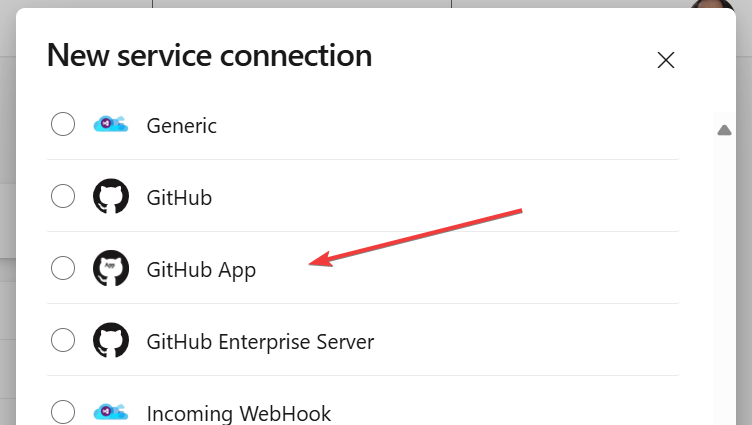
Azure Pipelines has no native GitHub App service connection, so the extension adds one through a contribution of type ms.vss-endpoint.service-endpoint-type. That contribution defines the endpoint schema, the authentication scheme, and the input fields shown in the configuration dialog — the app ID, private key, and related settings. The connection stores the private key securely and can be referenced by tasks later in a pipeline.
"contributions": [
  {
    "id": "github-app-service-endpoint-type",
    "description": "GitHub App Service Connection",
    "type": "ms.vss-endpoint.service-endpoint-type",
    "targets": [ "ms.vss-endpoint.endpoint-types" ],
    "properties": {
        "name": "githubappauthentication",
        "isVerifiable": false,
        "displayName": "GitHub App",
        "url": {
            "value": "https://api.github.com/",
            "displayName": "GitHub API URL",
            "isVisible": "true"
        },
        ...
  },
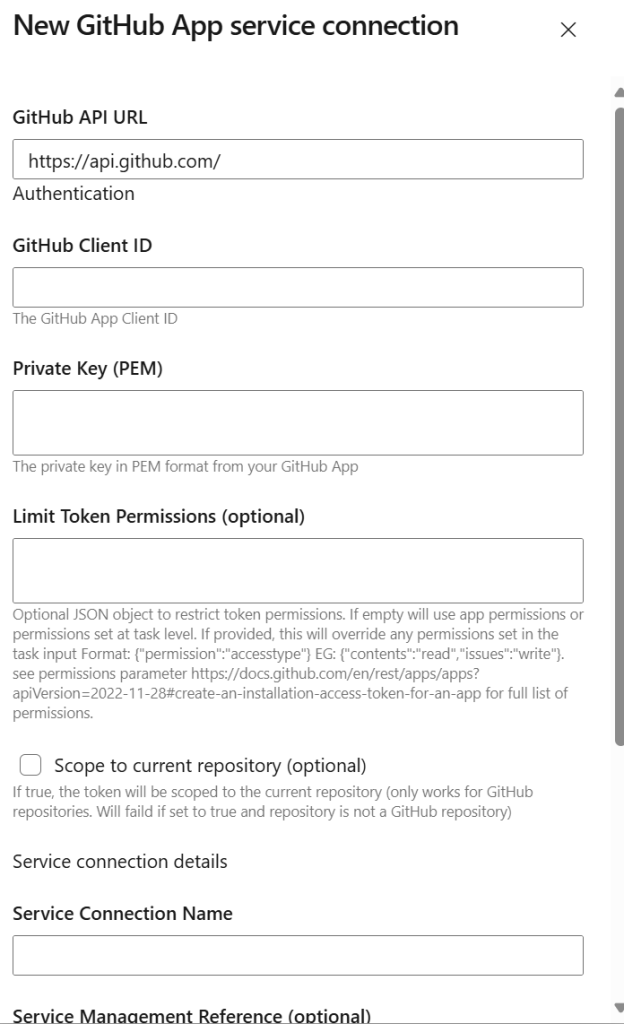
Once the extension is installed, you can create a GitHub App service connection and supply the app’s ID, private key, and optional configuration.
The connection schema can also hold defaults like the GitHub API URL, the app client ID, or constraints on token permissions and repository scope. Enforcing those at the connection level keeps pipeline configurations consistent and reduces the chance of a pipeline author inadvertently requesting broader access than intended.
Adding a custom task
With credentials stored, the extension adds a task — a TypeScript application using the Azure DevOps Extension SDK — that consumes the service connection and produces an installation token. The task’s skeleton, task.json manifest, implementation, and vss-extension.json declaration follow the standard custom-task recipe. The sample repository includes a GitHub Actions workflow and an Azure Pipelines YAML pipeline that build and package the extension for Marketplace publishing. Because the sample isn’t published publicly, you must publish it privately to your organization and share it with the relevant Azure DevOps organizations.
Using the token in a pipeline
The custom task accepts the private key as a string, as a file (paired with secure files), or — the preferred route — via a service connection. Given a connection named my-github-app-service-connection, the task can generate a token and immediately use it to post a comment on a pull request via the GitHub CLI:
steps:
- task: create-github-app-token@1
  displayName: create installation token
  name: getToken
  inputs:
    githubAppConnection: my-github-app-service-connection

- bash: |
    pr_number=$(System.PullRequest.PullRequestNumber)
    repo=$(Build.Repository.Name)
    echo "Creating comment in pull request #${pr_number} in repository ${repo}"
    gh api -X POST "/repos/${repo}/issues/${pr_number}/comments" -f body="Posting a comment from Azure Pipelines"
  displayName: Create comment in pull request
  condition: eq(variables['Build.Reason'], 'PullRequest')
  env:
    GH_TOKEN: $(getToken.installationToken)
Running the pipeline leaves the comment on the pull request.
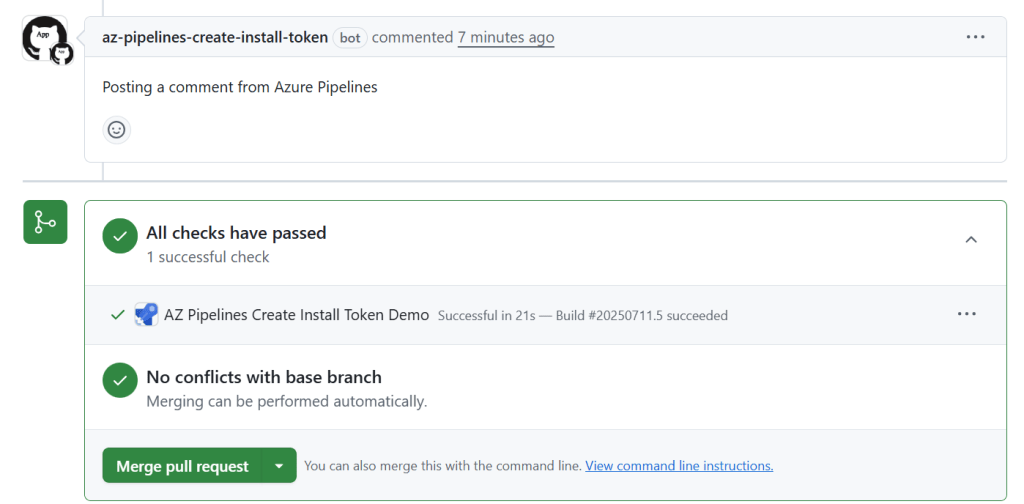
The task exports the installation token as a pipeline variable — getToken.installationToken, where getToken is the step identifier — along with two additional outputs:
tokenExpiration: the token’s ISO 8601 expiry timestampinstallationId: the installation ID that produced the token
With the token in hand, any HTTP client — the GitHub CLI, curl, or otherwise — can authenticate against the GitHub API for the duration of the run.
Production-ready GitHub automation in Azure Pipelines
GitHub Apps offer a fundamentally more secure and scalable authentication model for Azure Pipelines than personal access tokens. By replacing long-lived PATs with fine-grained permissions and short-lived installation tokens, organizations gain precise control over what their pipelines can access and for how long.
The custom Azure DevOps extension approach abstracts the complexity of GitHub App authentication into a seamless user experience. With a service connection and a custom task, pipeline authors can request installation tokens on demand without manually handling JWT generation, installation IDs, or token expiration. The extension manages the full token lifecycle, so pipeline definitions stay clean and focused on the actual automation logic.
This integration path opens up a wide range of GitHub API capabilities directly from your pipelines:
- Automated commit status updates
- Pull request comments and reviews
- Issue creation and labeling
- Security scanning result reporting
- Deployment tracking via GitHub Deployments API
These building blocks let teams weave GitHub into the full delivery loop, giving developers a single view of CI results, code review activity, and release progress without switching tools or hunting through logs.
A migration path off Azure Repos
For organizations moving code from Azure Repos to GitHub while keeping their Azure Pipelines investments, the GitHub App service connection is a practical bridge. Pipelines can be enriched incrementally — adding status checks and pull request feedback first, then layering in more GitHub API features as the migration matures.
The combination of Azure Pipelines and GitHub Apps also supports workflows beyond classic CI/CD. Teams can build custom automation for repository governance, release orchestration, or developer feedback loops, all running on the same infrastructure they already maintain.
The result is a cohesive DevOps workflow where both platforms complement each other, providing end-to-end visibility from commit to production with a consistent, auditable authentication boundary.