Prompt-to-prototype in an afternoon no longer signals much. A good-looking artifact can still be the first idea rather than the strongest, feel unlike the team that made it, or be work nobody should ship. Teams that do well once builds come cheap spend their effort on three fronts: keeping momentum through delivery, widening the search before picking a direction, and producing an outcome that stands out.
Prototypes ship nothing

The trouble with a fast start is the shape it leaves behind. A generated prototype can feel launch-ready well before it is — it may ignore the design system entirely, and it can create fresh work in the handoff from design to code. If the first 80% of the effort collapses to near zero, the last 20%, where the work becomes detailed, shared, and close to release, is where the pace tends to break.
The most effective product builders put their energy there, instead of spending it widening the search: they resist stopping at a plausible first idea, take more candidate directions than the schedule strictly allows before committing, and push the final result toward something only their team would produce.
Keeping velocity as work hardens
Pick the medium that fits the change
Iteration continues through the whole life of the build, from visual nitpicks to behaviour changes, and no single approach is fastest for all of it. Space to fix between a form field and a button is a quick direct adjustment in Figma and an irritating one to express in a prompt. The reverse holds for behaviour: a price estimator that recomputes from team size needs no separate 10-, 20- and 50-seat layouts — a small coded calculation updates as the number changes.
Forcing every tweak through the same channel, prompting or otherwise, throws away the largest gains. Within Figma, that frequently means moving between direct editing, prompting, and code, whichever suits the change in hand.
What that looks like in Figma:
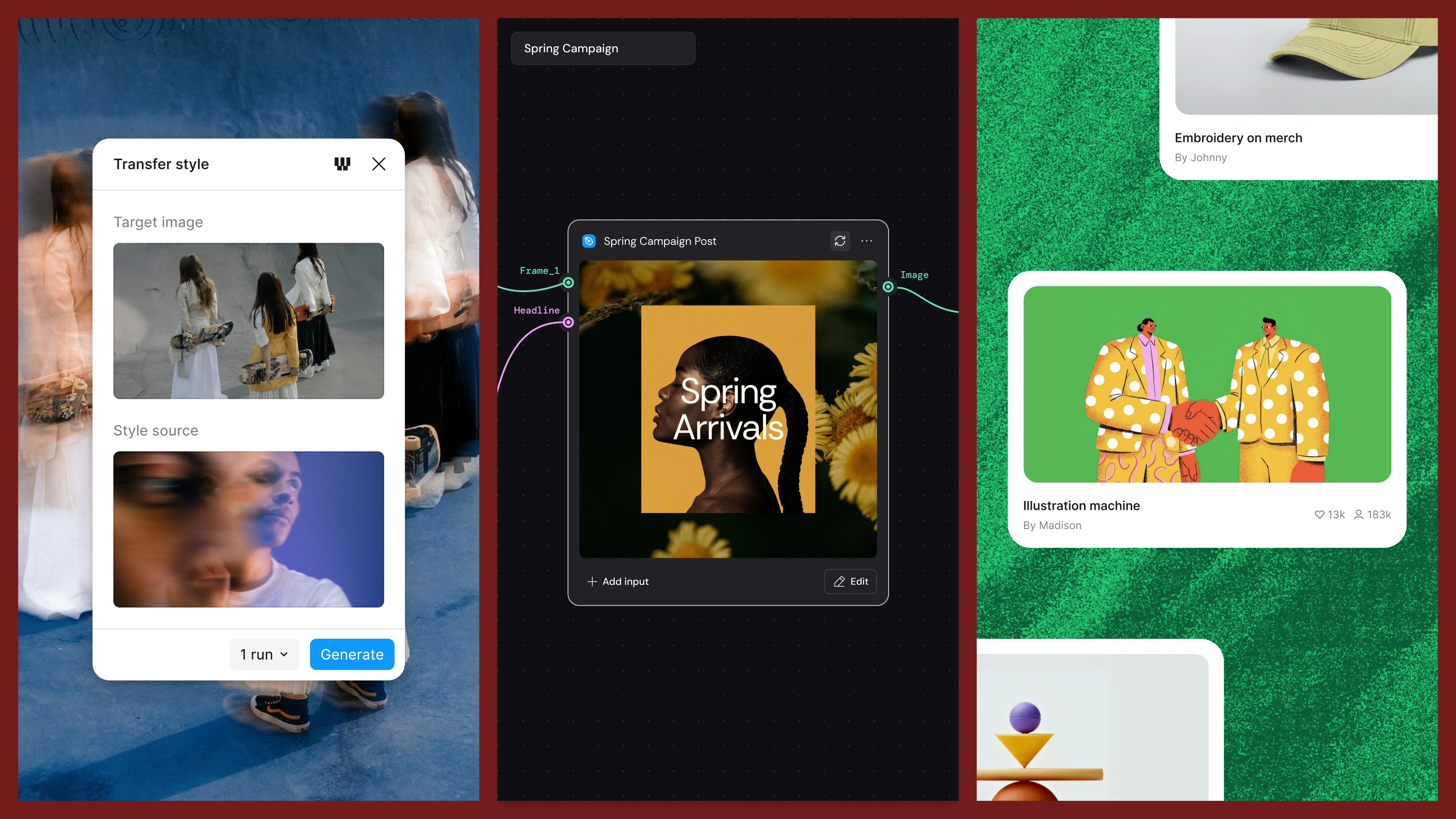
The properties panel supports direct edits in Figma Make — spacing, typography, layout, sizing — without describing each one in a prompt; annotations add context to what a change should do.- Any Figma Make preview can be copied into Figma Design as editable layers, where the team refines it on the canvas.
- A Figma Make instance can be connected to the project's codebase, so changes are made and previewed against real code before engineering reviews them.
Making the work unmistakably yours
When AI can carry more people to a polished starting point, sameness becomes the default outcome. Standing out requires deliberate choices: pushing past the first output and shaping the experience until it carries a distinct point of view. In practice, that work happens in three places.
Let a design system carry your standards
A strong design system encodes your product's point of view. Its components and variables capture thousands of small decisions—which red is on brand, how rounded a card should be, the spacing between elements, the button treatment that signals a primary action. Build those choices into the system and AI-generated work inherits the same visual language rather than falling back on generic defaults, so the traits that make the product distinct appear consistently across everything the team makes.
To make those standards reusable in Figma:
- Ask the Figma agent to work from your design system and flag where the work strays from it.
- Use Code Connect with Figma MCP to show agents which components in Figma match the components the team uses in code, so they build with the same system instead of guessing or re-writing components.
Edit the output, don't re-prompt it
Prompting is powerful, but routing a single small change through another prompt can regenerate more than intended. Ownership means keeping what works, changing what doesn't, and pushing on details until the result matches your intent. Consider a generated custom shader where only the glow is too intense: ask for a fix through a prompt and the color, blur and pattern may shift along with it. Adjusting the glow manually avoids that collateral change.
Ways to take control in Figma:
- Mix models from different providers in Figma Weave to get closer to the result you want.
- Apply shader effects to add distortion, grain or texture directly on the canvas.
Extend expression on the canvas
Once output can be refined directly, it can be pushed further with custom illustration and motion. That work once required another tool or another specialist; those constraints are fading. A designer who wants a menu to slide open with a specific bounce, or a card with a shimmering gradient instead of a flat fill, can now build both without leaving the canvas, pairing with the Figma agent.
Motion on the Figma canvas lets you build and refine animation inside the file and reuse it across every instance of a component. Start from a preset style, describe what you want and let the Figma agent produce a first pass, or set keyframes yourself for position, scale, rotation or opacity. Timing is adjustable by dragging layers on the timeline, and the marker can jump to any moment for a check. A developer can then copy the exact result as CSS, JSON or React from Dev Mode.
To push the product experience further:
- Create vector artwork with Figma Draw, right on the canvas.
- Generate and combine images or video in Weave.
- Switch a frame to Figma Motion mode and drag layers on the timeline to control when and how long each part animates—or chat with the Figma agent for a v1.
- Describe a custom shader, such as the card's shimmer, and have the Figma agent build a first pass to adjust on the canvas.
Where the hard work moved
Building great products has not become effortless; what changed is where the effort lands. A prototype can be the opening move, but teams still have to hold momentum through the last mile, choose the right direction, and shape something distinct. Speed, direction and differentiation are what turn faster building into a product people actually want to use.