
Why set a performance budget in webpack
Modern web applications no longer ship as one monolithic JavaScript bundle. Research has shown that larger bundles increase memory usage and CPU costs, particularly on mid-range and low-end mobile devices. webpack offers several features for keeping bundle sizes in check, most notably code splitting, which lets you split code into separate bundles loaded on demand or in parallel. A complementary tool is webpack’s built-in performance hints, which flag when emitted bundles cross a configured size threshold at build time.
Configuring size thresholds
In production mode, webpack’s default behavior is to emit a warning when any asset or entry point exceeds 250KB (244KiB). You can override this via the performance object in webpack.config.js:

The maxAssetSize and maxEntrypointSize properties set thresholds in bytes for assets and entry points, respectively. maxEntrypointSize applies to bundles derived from files in the entry object (typically JavaScript or Sass), while maxAssetSize governs other emitted files such as images and fonts. A minimal site, for example, might set both values to a modest 50KB (48.8KiB):
module.exports = {
  performance: {
    maxAssetSize: 50000,
    maxEntrypointSize: 50000,
  }
};
Turning warnings into errors
The default warning is adequate for development, but for production builds it’s often better to fail loudly. Setting the hints property to 'error' makes webpack throw an error when thresholds are exceeded:
module.exports = {
  performance: {
    maxAssetSize: 50000,
    maxEntrypointSize: 50000,
    hints: 'error',
  }
};
Other valid values for hints are 'warning' (the default in production) and false. The latter disables performance hints entirely, even when limits are breached, and is not recommended for production.
Excluding assets from the budget
By default, webpack applies size thresholds to every emitted asset, which can be problematic if one large image or other file crosses the limit and fails the build. The assetFilter property lets you control which files are included in the performance calculation:
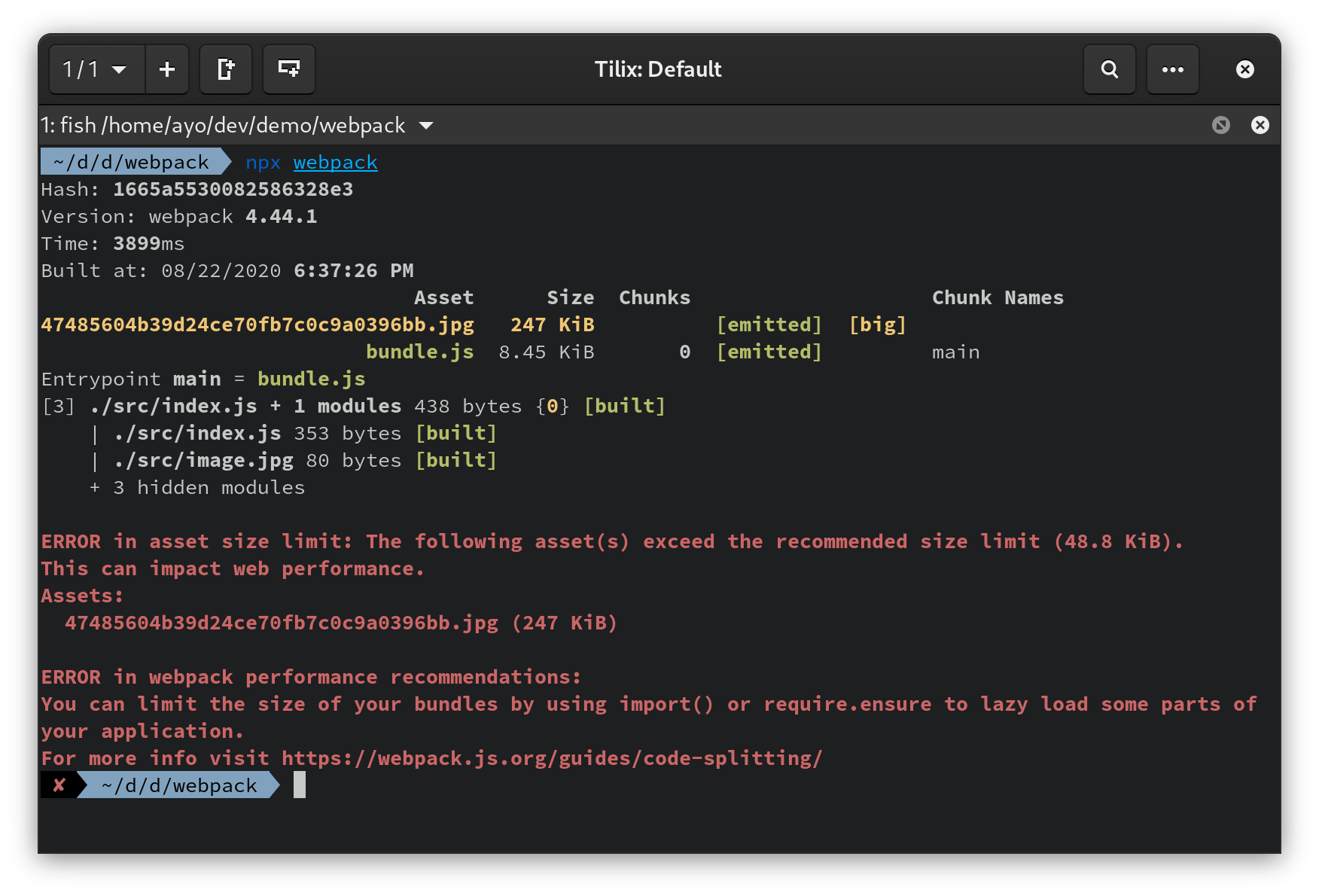
For instance, to exclude JPEG images from the budget check:
module.exports = {
  performance: {
    maxAssetSize: 50000,
    maxEntrypointSize: 50000,
    hints: 'error',
    assetFilter: function(assetFilename) {
      return !assetFilename.endsWith('.jpg');
    },
  }
};
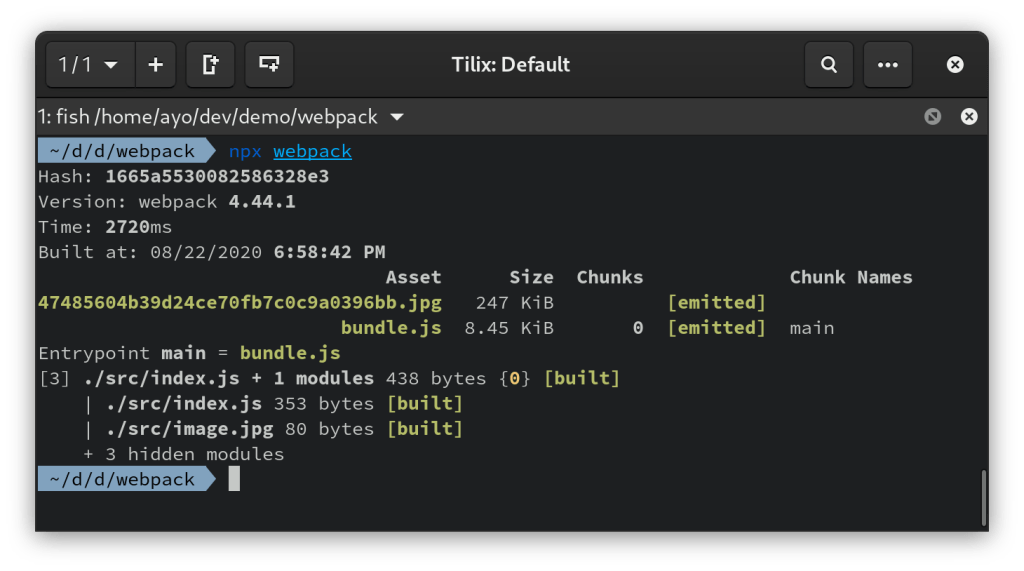
The filter can handle more complex logic based on environment, file type, or other characteristics. Note that webpack plugs this filter into its asset processing pipeline:
Known limitations
A significant constraint is that the same budget applies uniformly to all assets and entry points. There is currently no way to set separate limits for JavaScript, CSS, and images in one configuration. An open pull request on the webpack repository aims to remove this restriction, but it has not yet been merged.
Beyond asset size
Enforcing a performance budget at build time is a straightforward safeguard worth adopting at project start. It draws attention to dependency weight and encourages choosing lighter alternatives. But asset size is only one factor in overall performance. Running a Lighthouse audit is a good next step for identifying other metrics and improvement opportunities.



