

Bringing Personality To Your Images — Automatically
When you want a site to stand out, every visual element should carry the design. Typography, palette, spacing, and animation all contribute. Images can participate too — but only if they get the same treatment as other page elements, including when they're shared on social media or appear elsewhere outside the page's CSS context.
Take the <meta property="og:image"> tag. If an article's image is styled only via CSS, the version pulled into social media feeds loses the design treatment entirely. Embedding that style in the image itself means every copy of it — featured image, thumbnails, share cards — arrives with the visual identity intact.
Doing that manually with an image editor is tedious and error-prone. Files must be re-uploaded for every size variant, and if you want a different style on a campaign page or section, the whole process repeats. Automating image styling solves that. The approach becomes: configure a design as a chain of transformations, then upload originals. Everything else follows automatically via a media manager on the site.
Cloudinary offers exactly this capability. This article walks through its integration with the WordPress plugin v3.0.
Transformations In Action
Cloudinary's transformation library covers a wide range of operations on both images and videos: watermarking, rotation, rounding, borders, shadows, cropping, face detection, color filters, sharpening, and more. These are attached directly to an image's URL, with each transformation appended in sequence.
Let's walk through a practical example using a photo of the author and two friends in Barcelona. Starting with the original as the featured image, the goal is to produce a 300-pixel-wide thumbnail for the homepage. Attaching w_300 scales it down — but the subjects become small. To compensate, c_crop crops the image after resizing. Cropping from the default center removes one subject from the frame. Using g_south_west as gravity keeps him in but cuts off heads. Swapping in g_faces lets AI detect the faces and crop around them:
| Transformation | URL |
|---|---|
| Resized + cropped + focused around faces | https://res.cloudinary.com/dpelr4pk9/images/w_300,c_crop,g_faces/v1636082490/wpPlayground/me-and-friends/me-and-friends.jpg |
That solves it for images with people. For subjects that aren't people, g_auto is an even better general option: an AI picks the most visually interesting region to retain:
| Transformation | URL |
|---|---|
| Resized + cropped + focused around the most interesting content | https://res.cloudinary.com/dpelr4pk9/images/w_300,c_crop,g_auto/v1636082490/wpPlayground/me-and-friends/me-and-friends.jpg |
With the composition finalized, adding a stylistic touch — a hue shift via e_hue:40 — results in the complete transformation chain:
w_300,c_crop,g_auto,e_hue:40
Optimizing Delivery And Size
The same transformation model serves performance objectives. Media performance relies on getting the smallest possible file without perceptible quality loss. Cloudinary approaches this in two ways:
- Serving images through a CDN close to the user cuts response latency;
- Automatic compression to the most efficient format spares the development team the work of pre-processing.
Two transformations matter most here:
f_autolets Cloudinary choose the most modern format the browser supports, from AVIF and WebP down to PNG and JPG;q_autocalculates the best quality-versus-file-size tradeoff automatically.
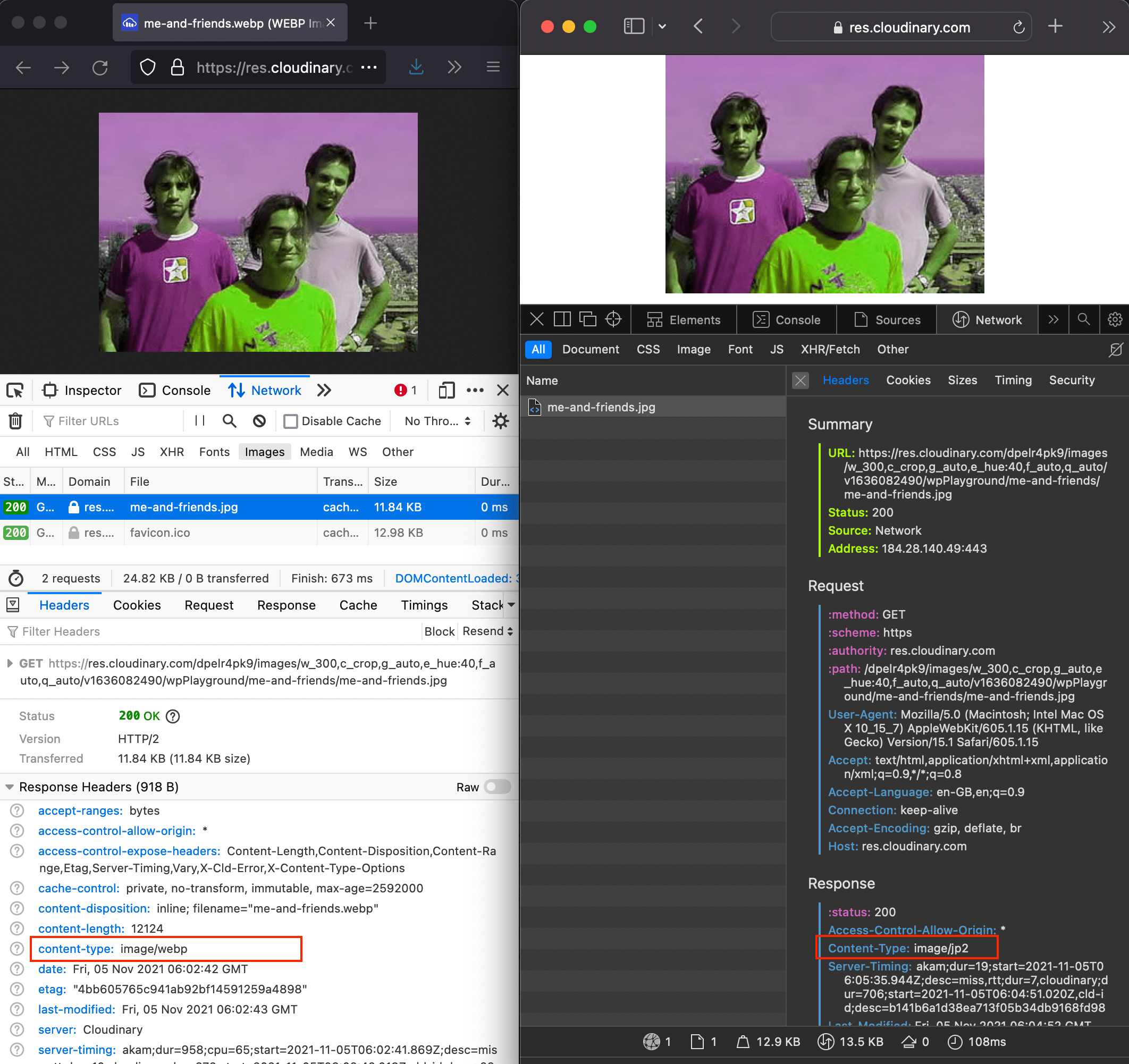
In testing the same URL with f_auto,q_auto appended, Safari received image/jp2 while Firefox fetched image/webp — the latter transferring fewer bytes for the same visual result.
Applying Transformations From WordPress
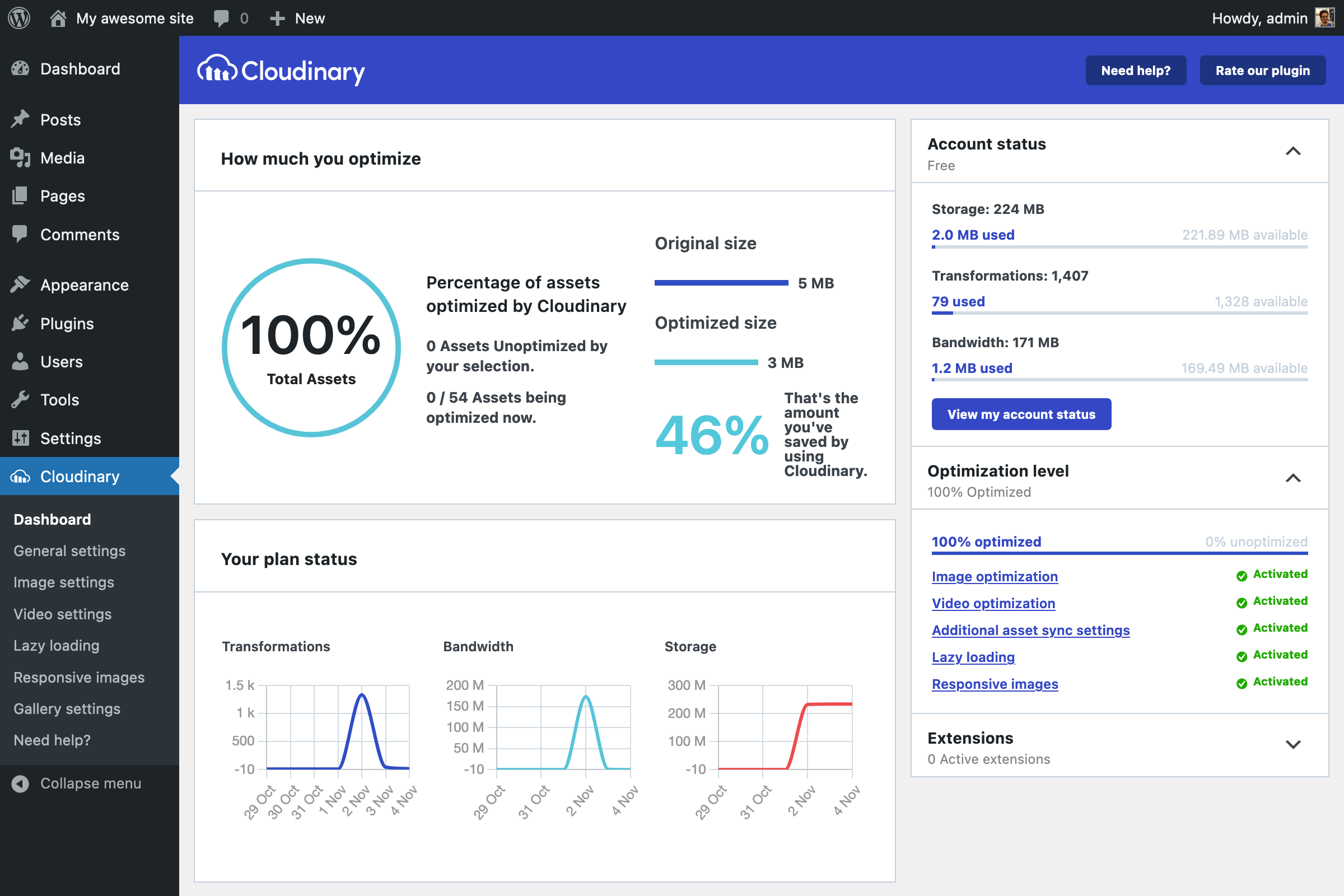
The WordPress plugin, installable after creating a free Cloudinary account, connects via account credentials and shows usage statistics — transformations, bandwidth, and storage — from its dashboard.

The General settings page provides control over image synchronization (automated or manual), folder organization on Cloudinary, and where images are hosted.
Notably, default hosting keeps images both in Cloudinary and on the WordPress server, so disabling the plugin later causes no data loss.
Image Settings is where global transformations live. Both "Image format" and "Image quality" default to Auto, making compression decisions per-browser. This page also accepts additional global transformations — for example, applying e_hue:40 across all images.
While a style can be global, some sections benefit from tailoring. The plugin allows per-tag or per-category transformations, so a campaign page's images can carry a different look without contradicting the main design.
Additional configuration pages cover:
- Transformation rules for videos as well as images;
- Lazy loading for deferred loading of images until they enter the viewport;
- Responsive image breakpoints that let the browser pick the smallest fitting asset;
- A Cloudinary Gallery block for the WordPress editor.
Per-Image Control And Painless Integration
Rather than applying transformations site-wide, you can also treat them in isolation. The Media Manager has a dedicated "Cloudinary" tab for browsing hosted content and applying custom transformations. What gets returned is a new image on the WordPress site that can be added to any post normally.
Suppose an overlay caption l_text:Arial_25:Me and my friends in sunny Barcelona,g_north_west,y_70,x_25 needed positioning at the top-left of the frame. Medium options include doing textual overlays through the transformation string itself, or bringing the styled image into the WordPress editor and using a Cover block with a caption to place text on top.
Because the resulting asset is standard in WordPress, all standard editing tools apply. The plugin is also compatible with the popular page builders, Elementor and Divi, maintaining the same experience across builder-based layouts.
Balancing Design And Performance
Successful websites ultimately hinge on two factors: a distinctive design that sets the site apart, and the speed that keeps users engaged and satisfies Core Web Vitals for better search rankings. With the right image management approach, neither has to be sacrificed.
Cloudinary addresses both concerns through its transformation pipeline. You define the visual treatment once — cropping, effects, overlays — and the service delivers an output file tailored to the visitor's specific browser and device. Every asset is then served from a global CDN, which minimizes latency and contributes to a faster overall experience.
For WordPress users, the current version of the Cloudinary plugin goes beyond basic CDN integration. It adds native support for the block editor, compatibility with popular page builders, and a dashboard that surfaces usage stats. The plugin also improves existing optimization workflows, simplifying the setup required to get these benefits without deep custom code.

Topics: Performance





