
PHP-only blocks: A new path for WordPress developers
Custom blocks have traditionally demanded JavaScript expertise, build tooling, and package management. WordPress 7.0 changes that calculus with a new option: register blocks using only PHP, no React or build pipeline required.
The feature hinges on an 'autoRegister' => true flag in the block's supports section. Setting this flag triggers WordPress to generate the necessary client-side registration and editor preview JavaScript automatically, based entirely on the PHP registration.
function css_tricks_hello_world_block() {
  register_block_type(
    'css-tricks/hello-world',
      [
        'title' => 'Hello World',
        'render_callback' => function () {
          return sprintf(
            '<div %s>Hello World!</div>',
            get_block_wrapper_attributes()
          );
        },
        'supports' => [
          'autoRegister' => true,
        ],
      ]
  );
}
add_action('init', 'css_tricks_hello_world_block');
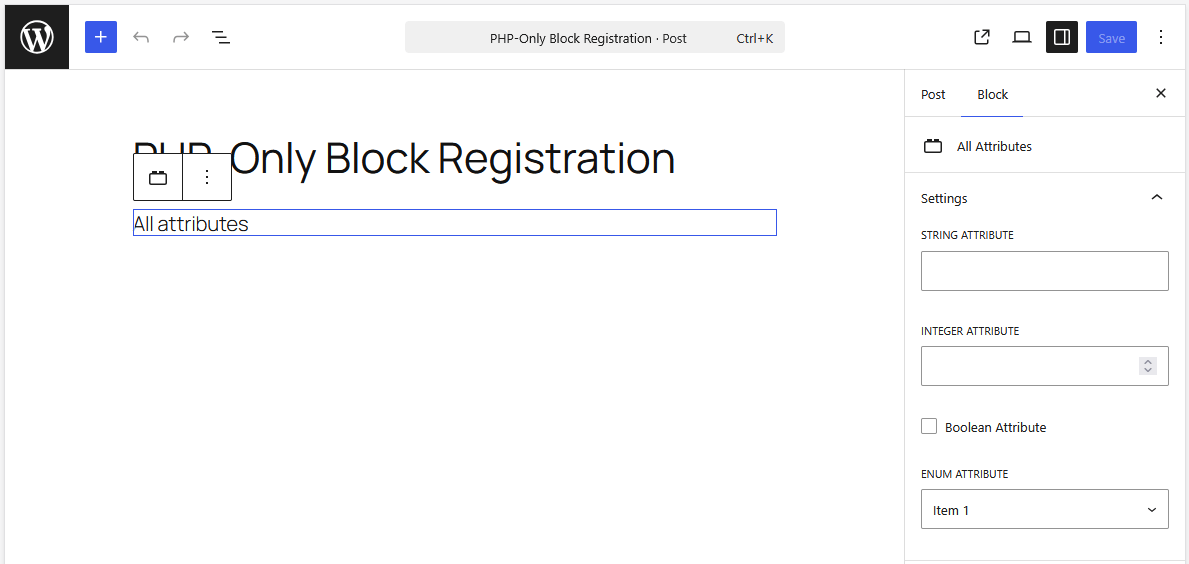
The result is a fully functional block that behaves like any other in the editor. Defining attributes follows the same pattern — you declare them in the registration, and WordPress generates the corresponding sidebar controls.
function css_tricks_hello_world_block()
{
  register_block_type(
    'css-tricks/hello-world',
    [
      'title' => 'Hello World',
      'render_callback' => function ($attributes) {
        return sprintf(
          '<div %s>%s</div>',
          get_block_wrapper_attributes(),
          esc_html($attributes['greeting'])
        );
      },
      'supports' => [
        'autoRegister' => true,
      ],
      'attributes' => [
        'greeting' => [
          'type' => 'string',
          'default' => 'Hello World!',
        ],
    ],
    ]
  );
}
add_action('init', 'css_tricks_hello_world_block');
What you give up with PHP-only blocks
This approach has architectural constraints that aren't going away. Understanding them matters before deciding where PHP-only blocks fit.
No in-block interactivity
Editor previews are rendered server-side via the block's render_callback, fetched through a REST API endpoint whenever the preview refreshes. Consequently, the block markup isn't part of the editor's JavaScript application, which eliminates two capabilities you'd otherwise expect.
First, you can't place controls within the block preview itself. Editing happens exclusively through the auto-generated Settings sidebar controls, and even there you're limited — no image uploads, rich text, or multiline text fields. Second, you can't attach JavaScript to the preview markup. Any event listeners you manage to bind on initial load get disconnected on the next re-render, making DOM manipulation in the editor unreliable or impossible. This rules out patterns like progressively enhancing markup into a slider or other interactive component within the editor context, even though the front-end output works fine.
Stale data in the editor
The editor maintains a client-side data store with the latest post data. PHP-only blocks bypass this store entirely — their render callbacks query the database directly. The database only updates on save, so the preview shows whatever was last saved, not what's currently being edited. If your block displays the post title or content, changing it in the editor won't be reflected until you save and reload. Any block that surfaces user-editable data like titles, excerpts, or featured images will show stale values during editing.
No post context in previews
On the front end, blocks render within The Loop, which sets globals like $post that template tags such as the_title() depend on. The REST endpoint handling editor previews is stateless, and although it accepts a post ID parameter, the editor doesn't pass it through. Your render_callback therefore has no reliable way to know which post is being edited, making functions like get_post_meta() unusable in the preview context. This is a known architectural gap as of WordPress 7.0 with no confirmed timeline for addressing it.
A narrow set of attribute types and controls
WordPress 7.0 restricts PHP-only block attributes to three types: strings, numbers, and booleans. Those map to just four control types: text inputs, number inputs, checkboxes, and a dropdown. The dropdown has an added limitation — no keyed arrays, so you can't display a human-readable label while storing a separate value. For a category selector, you'd have to choose between showing names or slugs, and storing that same value in the block markup. Storing slugs is brittle: renaming a category breaks every block that references the old slug, whereas IDs would only fail if the category was deleted.
The migration case that makes PHP-only blocks worthwhile
For new blocks targeting rich editing experiences, the JavaScript route remains the right call. But PHP-only blocks solve a different, equally important problem: moving existing PHP-driven functionality into block themes.
The adoption barrier for block themes among developers maintaining classic themes isn't performance or maintainability — it's the accumulated PHP code that would need rewriting. Prior to WordPress 7.0, migrating meant learning JavaScript block development, standing up a new build pipeline, and reimplementing existing logic. PHP-only registration eliminates that entire workload. Any PHP developer can now convert template parts, widgets, shortcodes, and custom template tags into blocks using the skills they already have.
The practical example of a theme migration illustrates the point well. Rebuilding content areas and footers as standard blocks is straightforward. Complex pieces like headers were traditionally the sticking point. Wrapping an existing PHP header in a server-side rendered block got the job done in hours rather than days, even with rough edges like a non-responsive preview or non-functional dropdowns in the editor. What mattered was that the front end rendered correctly. That pragmatic tradeoff is what makes the feature compelling for adoption.
Concrete migration targets include:
- Legacy widgets: The Settings sidebar maps naturally to a widget's settings.
- Shortcodes: They technically work in block templates, but blocks are far easier to manage and reposition.
- Template parts: Headers, footers, author bios, related-post sections.
- Static custom functionality: Anything that renders correctly on the front end without demanding editor interactivity.
The bar isn't perfection inside the editor. A block preview that's merely adequate is sufficient when the front-end output is correct and the migration cost stays minimal.
Practical Techniques for PHP-Only Block Development
Building blocks entirely in PHP has its own set of quirks. These tips address common scenarios you will encounter when registering blocks without JavaScript.
Rendering Differently in the Editor vs. the Front End
Sometimes you need a different markup depending on whether the block is being displayed in the admin. The is_admin() function does not work for this because it does not return true when the REST API is generating the preview markup for the block editor.
The correct check is wp_is_rest_endpoint(). However, this function returns true for any REST request, so you must narrow it down specifically to the Block Renderer endpoint to avoid unintended behavior in other contexts.
function css_tricks_php_only_detecting_editor_render()
{
  register_block_type(
    'css-tricks/php-only-detecting-editor-render',
    [
      'title' => 'PHP-Only Detecting Editor Render',
      'render_callback' => function () {
        if ( wp_is_rest_endpoint()
          && str_contains($GLOBALS['wp']->query_vars['rest_route'] ?? '', 'v2/block-renderer/' )
         ) {
           $frontend = false;
         } else {
           $frontend = true;
         }

         $bgcolor = $frontend ? 'green' : 'blue';

         return sprintf(
           '<div %s>%s</div>',
           get_block_wrapper_attributes(['style' => "color: #fff; background-color: $bgcolor;"] ),
           $frontend ? 'Rendered on the frontend' : 'Rendered in the editor'
          );
        },
        'supports' => [
          'autoRegister' => true,
        ]
      ]
  );
}
add_action('init', 'css_tricks_php_only_detecting_editor_render');
This check lets you alter the output and its styling for the editor preview:


Getting the Current Post ID
By default, PHP-only blocks cannot access the ID of the post being edited. Since block registration happens on the init hook, the post ID is provided as a query argument in the admin URL (e.g., https://css-tricks.com/wp-admin/post.php?post=5&action=edit). You can parse this at registration time and pass it to the block as an attribute. To prevent the editor from rendering a UI control for it, you must define the attribute with a source of local.
function css_tricks_php_only_post_title_block()
{
  register_block_type(
    'css-tricks/php-only-post-title',
    [
      'title' => 'PHP-Only Post Title',
      'render_callback' => function ($attributes) {
        $post_id = is_int(get_the_ID()) ? get_the_ID() : $attributes['postId'];

        if ($post_id === 0) {
          return sprintf(
            '<div %s>Please save the post and reload the page.</div>',
            get_block_wrapper_attributes()
          );
        }

        return sprintf(
          '<div %s>%s</div>',
          get_block_wrapper_attributes(),
          get_the_title($post_id)
        );
      },
      'supports' => [
        'autoRegister' => true,
      ],
      'attributes' => [
        'postId' => [
          'type' => 'integer',
          'default'=> isset($_GET['post']) ? absint($_GET['post']) : 0,
          'role' => 'local'
        ],
      ]
    ]
  );
}
add_action('init', 'css_tricks_php_only_post_title_block')
This method has a catch: it only works when an existing post is being edited. When creating a new post, no ID is passed initially. WordPress assigns an ID upon the first save and updates the URL via JavaScript, which does not trigger a fresh server request. Consequently, PHP will not see the new ID until a full page reload occurs. It is not a perfect solution, but it can unblock your project until a more robust core API is introduced.
Using Placeholders for Complex Previews
Some blocks can't provide a meaningful live preview because they depend on external scripts or interactive elements, such as an embedded newsletter form. In these cases, the editor preview will always render incorrectly.
Core itself uses this strategy—the Post Content block shows a placeholder rather than attempting to render the full content. Implement a static placeholder for such cases.
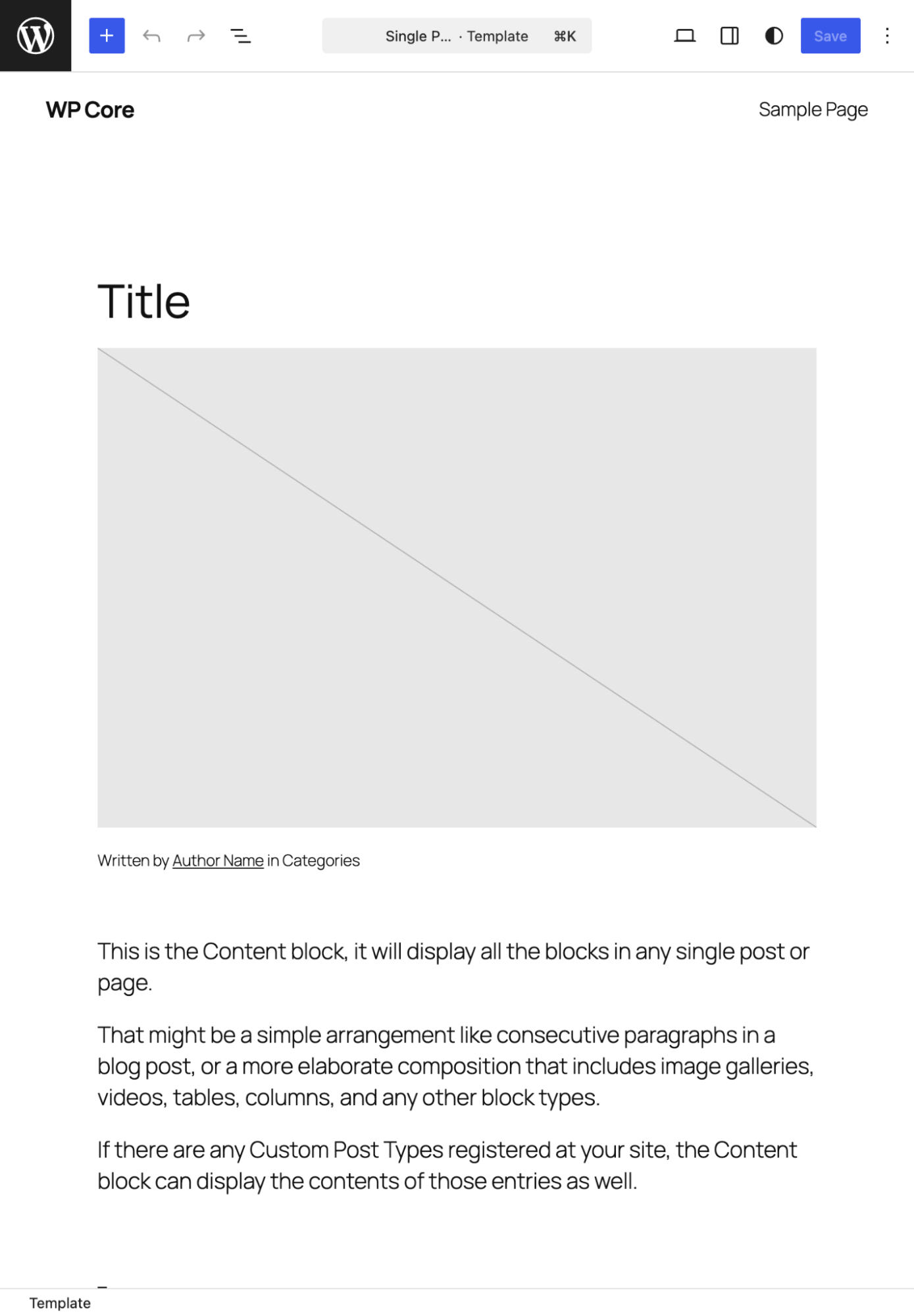
Users don't expect every block to be fully interactive in the editor. Weigh the effort of a complex preview against the UX benefit before deciding on a compromise.
Managing Styles with register_block_type
You can take advantage of WordPress's conditional enqueueing, which only loads styles for blocks that are present. The register_block_type function supports two arguments:
style: Loads the stylesheet both in the editor and on the front end.editor_style: Loads the stylesheet only in the block editor (afterstyle), enabling you to override front-end styles specifically for the admin preview.
Register styles with wp_register_style() and then hook the handle into the registration:
function css_tricks_hello_world_block()
{
  wp_register_style(
    'css-tricks-hello-world',
    plugins_url( 'style.css', __FILE__ ),
    [],
    filemtime( plugin_dir_path( __FILE__ ) . 'style.css' )
  );

  register_block_type(
    'css-tricks/hello-world',
  [
    'title' => 'Hello World',
    'render_callback' => function ($attributes) {
      return sprintf(
        '<div %s>%s</div>',
        get_block_wrapper_attributes()
      );
    },
    'supports' => [
      'autoRegister' => true,
    ],
    'style' => 'css-tricks-hello-world',
    ]
  );
}
add_action('init', 'css_tricks_hello_world_block');
Targeting Styles for Your Block
WordPress generates a .wp-block-{namespace}-{block-name} class in the block's wrapper when you use get_block_wrapper_attributes(). You can append extra classes or inline styles by passing an array to this function within the render callback.
$wrapper_attributes = get_block_wrapper_attributes(
  [
    'class' => 'custom-class',
    'style' => 'color: #333',
  ]
);
Use this generated class as the root for your CSS. A Block, Element, Modifier (BEM) methodology keeps your styles scoped and avoids conflicts with those from Core or other plugins. If you are inheriting a lot of legacy CSS, convert it to BEM if possible. Where that is not practical, use a unique prefix for these classes.
When migrating code from a front-end framework like Bootstrap, do not enqueue the full framework. Only copy the necessary CSS rules into scoped classes with the prefixes described above.
Benefits of the Iframed Editor
WordPress has two methods for integrating the block editor into the admin: embedding it directly in the page, or displaying it within an iframe. The former exposes your block styles to the admin theme's CSS, leading to visual discrepancies. The iframe isolates the editor, ensuring your front-end styled blocks preview more consistently. While the criteria depends on the block API version as of WordPress 7.0, the upcoming release will enforce iframed editing regardless. To future-proof your site, update all your custom blocks to use Block API Version 3.
Enqueueing Front-End Scripts
For PHP-only blocks, JavaScript execution is limited to the front end. You can pass a registered script handle to the view_script argument. WordPress will conditionally load this script only on pages where the block is present.
function css_tricks_hello_world_block()
{
  wp_register_script(
    'css-tricks-hello-world',
    plugins_url( 'script.js', __FILE__ ),
    [],
    filemtime( plugin_dir_path( __FILE__ ) . 'script.js' )
  );

  register_block_type(
    'css-tricks/hello-world',
    [
      'title' => 'Hello World',
      'render_callback' => function () {
        return sprintf(
          '<div %s>Hello World!</div>',
          get_block_wrapper_attributes()
        );
      },
      'supports' => [
        'autoRegister' => true,
      ],
      'view_script' => 'css-tricks-hello-world',
    ]
  );
}
add_action('init', 'css_tricks_hello_world_block');
Leveraging the Block Supports API
PHP-only blocks can still tap into the Block Supports API. This opts into Core features that generate interface controls for the user and store their choices in block attributes. Support for specific features may depend on the active theme.json. For example, to allow text and background color customization:
function css_tricks_hello_world_block()
{
  register_block_type(
    'css-tricks/hello-world',
    [
      'title' => 'Hello World',
      'render_callback' => function ($attributes) {
        return sprintf(
          '<div %s>%s</div>',
          get_block_wrapper_attributes(),
          esc_html($attributes['greeting'])
        );
      },
      'supports' => [
        'autoRegister' => true,
        'color' => [
          'background' => true,
          'text' => true,
        ],
      ],
        'attributes' => [
        'greeting' => [
          'type' => 'string',
          'default' => 'Hello World!',
        ],
      ],
    ]
  );
}
add_action('init', 'css_tricks_hello_world_block');
WordPress handles the necessary CSS classes and inline styles through get_block_wrapper_attributes().
Three Practical Block Supports
Visual customization supports are common, but these controls tend to be less frequently used for internal blocks. Here are some more immediately useful options.
Hiding Blocks from the Inserter
All registered blocks appear in the inserter by default. This isn't always needed, for example, blocks used internally for template migration. Setting inserter to false removes them from the palette while keeping them fully operational.
'supports' => [
  'autoRegister' => true,
  'inserter' => false,  // Hide from inserter
],
Limiting to One Instance
The multiple support, when set to false, prevents the block from being added more than once per post (e.g., the Core More block). Once inserted, the block's icon in the inserter becomes disabled.
'supports' => [
  'autoRegister' => true,
  'multiple' => false,  // ← How to limit to single instance
],
Controlling Alignment
Setting align to true offers all alignment options. While text alignments (left, center, right) are always present, the wide and full-width options require explicit theme support. You can enable a selective list using the left, center, right, wide, and full values.
'supports' => [
  'autoRegister' => true,
  'align' => true,  // All alignments
],
'supports' => [
  'autoRegister' => true,
  'align' => ['left', 'center', 'right'],  // Selective alignments
],
WordPress manages the output of the necessary classes for the block's layout.
Assessing the Value of PHP-Only Blocks
For new, complex, and interactive blocks, JavaScript remains a necessary tool. The process of building them involves substantial setup with build pipelines and coordinated files. However, JavaScript is not the target for this feature.
PHP-only blocks solve a specific problem: moving classic themes and legacy code into the modern block environment. Porting shortcodes, widgets, and template parts into blocks without needing a new toolchain reduces the barrier to entry.
These blocks don't need pixel-perfect editor previews. If they can be embedded into content and render correctly on the front end, they serve their purpose. This approach is a gateway for adoption.
The push for PHP-only registration is also a signal that Core is paying attention to the developer experience and the cost associated with conventional JavaScript block development. Any option that reduces boilerplate or the need for a complex setup is a positive step.
For those constrained by legacy PHP, this is the feature that removes the last major hurdle. It allows you to focus on migrating content and leveraging the modern capabilities of WordPress without a complete rewrite.


