Why Some CSS Costs More To Paint
Chrome's GPU-accelerated compositing has been well documented, from the layer model used to organize page content to the way the GPU handles final rendering. But a related question gets less attention: how much does the paint stage—the actual drawing of CSS effects—vary depending on what properties you use?
Anyone who has written a software rasterizer knows that some drawing operations are algorithmically heavier than others. Scaling an image to the screen is not the same problem as rendering a drop shadow over an arbitrary shape. The question becomes: which CSS properties add the most weight to a page's render, and are there combinations whose cost is greater than the sum of their parts?
Measuring Paint Times in Skia
To get numerical data, one approach is to generate a suite of test pages, each holding a single DOM element with a unique permutation of CSS properties. Using Chrome Canary or a beta channel build, each page can be loaded into a fresh browser instance—avoiding any stale-state bias from reloads—and captured as a Skia Picture, or SKP file. Those SKP files then run through the Skia source code benchmark app, which returns the average render time for each page.
A simple test page might look like this:
<style>
#example1 {
    background: url(foo.png) top left / 50% 60%;
    padding: 20px;
    margin-top: 10px;
    margin-right: 20px;
    text-align: center;
}
</style>
<div id="example1">WOAH</div>
Adding a more complex background changes the paint commands involved:
<style>
#example1 {
    background-color:#eee;
    box-shadow: 1px 2px 3px 4px black;
    border-radius: 50%;
    background: radial-gradient(circle closest-corner, white, black);
    padding: 20px;
    margin-top: 10px;
    margin-right: 20px;
    text-align: center;
}
</style>
<div id="example1">WOAH</div>
Even tweaking a single argument in a gradient declaration can produce a new paint profile:
<style>
#example1
{
    background-color:#eee;
    box-shadow: 1px 2px 3px 4px black;
    border-radius: 50%;
    background: radial-gradient(farthest-side, white, black);
    padding: 20px;
    margin-top: 10px;
    margin-right: 20px;
    text-align: center;
}
</style>
<div id="example1" style="padding: 20px; margin-top: 10px;margin-right: 20px; text-align: center;">WOAH</div>
Stack-Ranking Properties
Chrome 27 beta data from a full suite of these pages produces a bar chart where each vertical bar is the paint time of a single CSS permutation, scaled for readability:
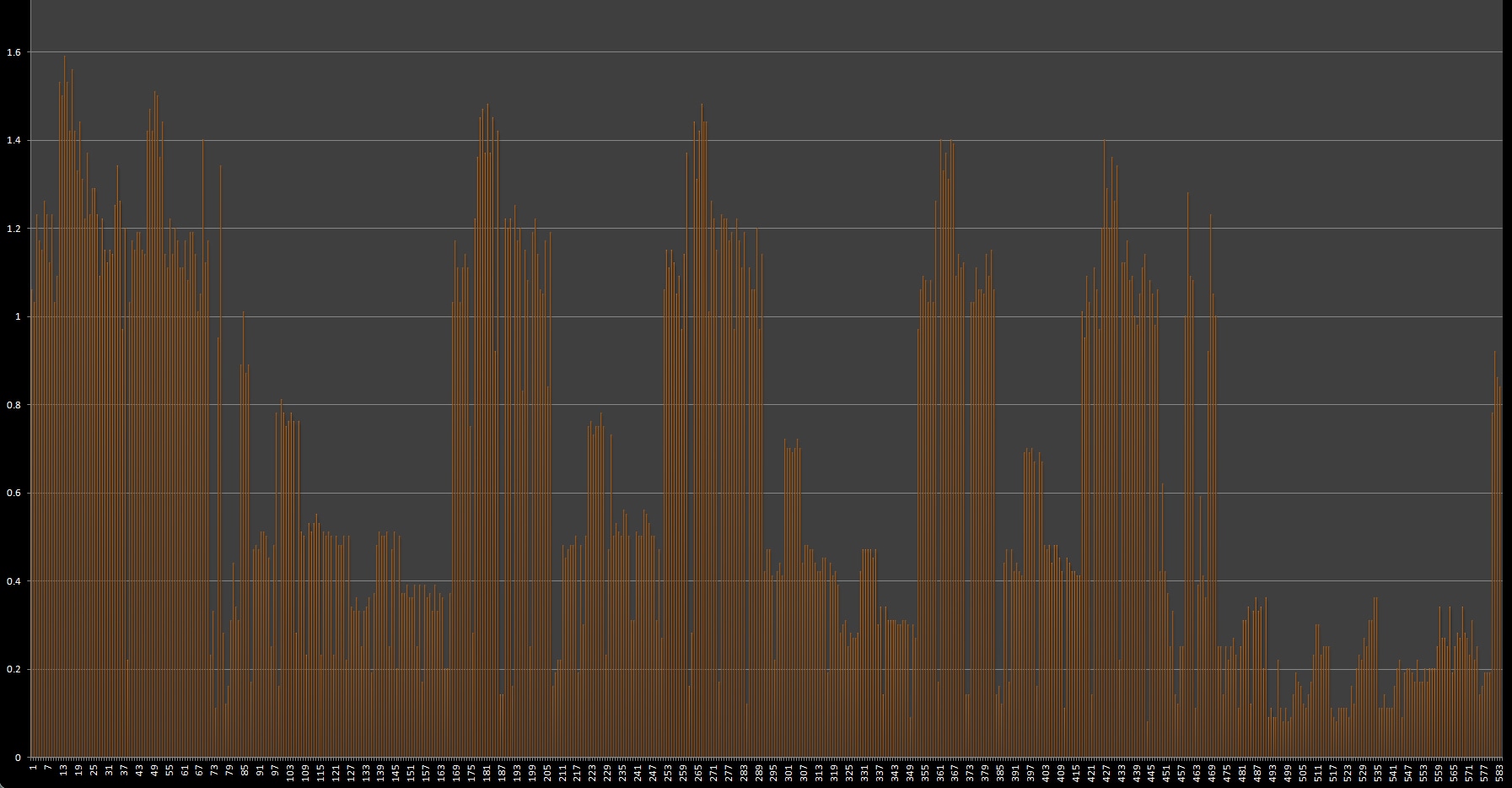
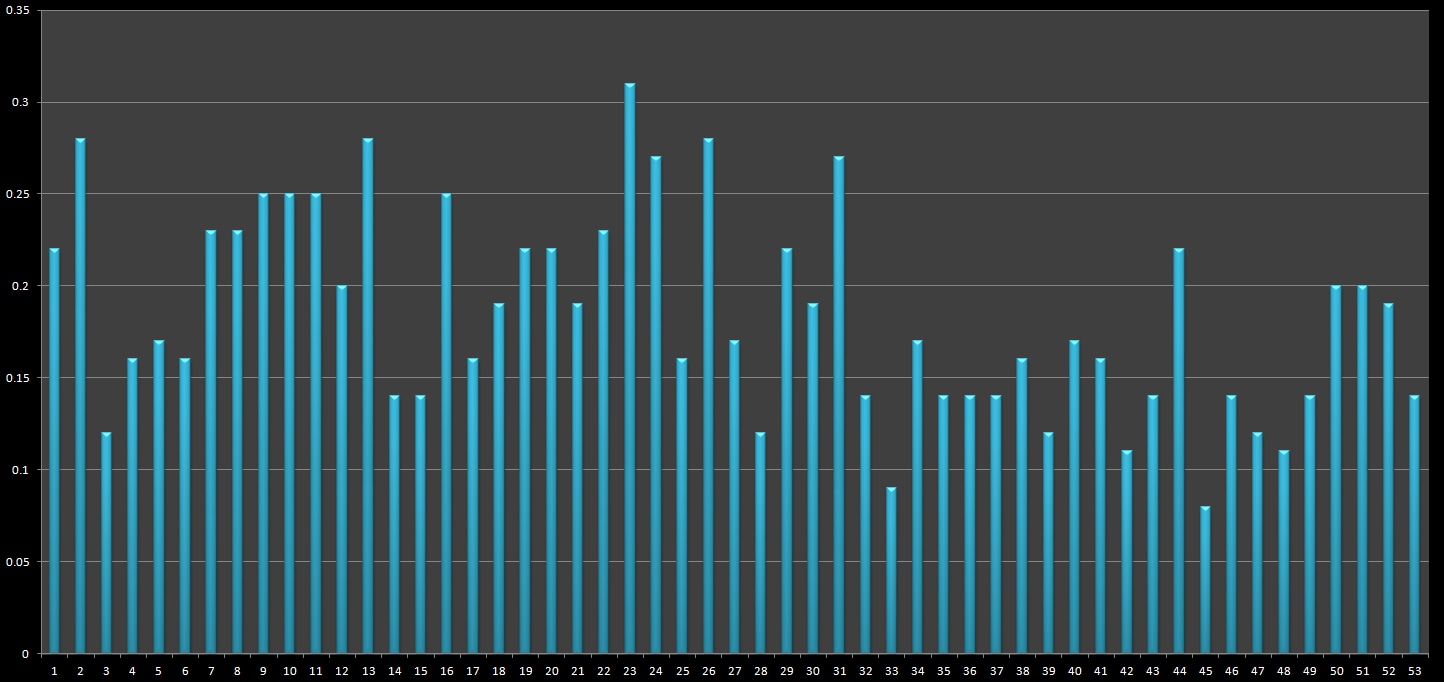
The first clear trend is that some CSS properties are inherently more expensive to paint. Rasterizing a drop shadow requires a multi-pass approach with curves and composite steps, making it a heavier operation than something like a simple opacity change:
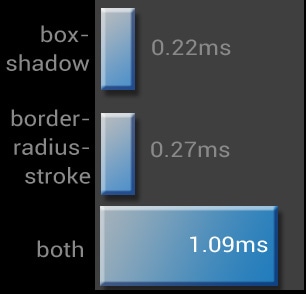
The second—and more surprising—finding is that combined properties can cost more than the sum of their separate paint times. Adding box-shadow to an element that already uses a border-radius-based stroke can approach 2.2 times the combined individual cost, rather than a clean A + B sum:
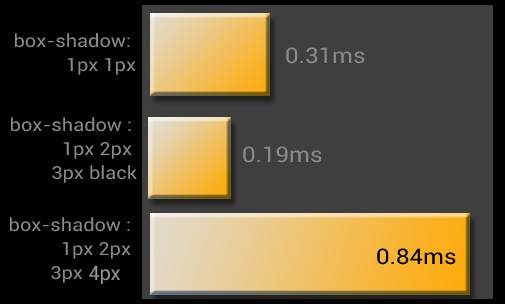
What's particularly interesting is that the penalty isn't tied to the property itself so much as the specific value combination. With box-shadow set to a fixed value, varying the border-radius changes the paint cost noticeably:
The test suite only scratches the surface of possible combinations. Many other pairings likely yield similarly non-linear results.
Putting Render Weight to Work
With per-element paint data, developers can begin assessing their page's overall render weight. A few practical steps help translate these findings into day-to-day frontend work:
- Use Chrome DevTools' Continuous Paint mode to identify which CSS properties on your page actually cost time during paint.
- Add CSS performance checks to your code review process. Keep an eye out for known heavy hitters like gradients and shadows; ask whether they're needed on that element in the first place.
- Default to the lighter option when uncertain. Users may not recall padding widths, but they will remember a janky or sluggish page.
The deeper value of this experiment is not a static list of CSS properties to avoid. Skia and Chrome evolve with each release, meaning today's slow paths may become tomorrow's optimizations. The real takeaway is that CSS choices directly influence page paint times, and measuring that cost—both for individual properties and for the combinations you use—is a critical part of building a responsive site.


