Getting a user’s push subscription
To deliver push messages, you first need the user's permission and a PushSubscription object from the browser's push service. That subscription object contains everything your server needs to later trigger a message. The client-side flow breaks down into a few clear steps: confirm browser support, register a service worker, request permission, and call subscribe().
Confirm the browser supports push
Two feature checks tell you whether push messaging is available in the user's browser. Look for serviceWorker on the navigator object and PushManager on the window object:
if (!('serviceWorker' in navigator)) {
  // Service Worker isn't supported on this browser, disable or hide UI.
  return;
}

if (!('PushManager' in window)) {
  // Push isn't supported on this browser, disable or hide UI.
  return;
}
Support for both APIs is steadily improving, but always run both checks and treat push as a progressive enhancement.
Register the service worker
After feature detection, register your service worker file. Use navigator.serviceWorker.register(), pointing the browser at the JavaScript file that runs in the service worker environment:
function registerServiceWorker() {
  return navigator.serviceWorker
    .register('/service-worker.js')
    .then(function (registration) {
      console.log('Service worker successfully registered.');
      return registration;
    })
    .catch(function (err) {
      console.error('Unable to register service worker.', err);
    });
}
When you call register(), the browser downloads the file, executes it, and resolves the returned promise if the script runs cleanly—or rejects it on any error. Check the DevTools console for typos if registration fails. The resolved ServiceWorkerRegistration gives you access to the PushManager API.
The PushManager API is supported in Chrome 42+, Edge 17+, Firefox 44+, and Safari 16+.
Request notification permission
Getting permission to send push messages uses Notification.requestPermission(). That API recently changed from a callback style to returning a promise, so you need code that handles both forms because you can't know which one the browser implements:
function askPermission() {
  return new Promise(function (resolve, reject) {
    const permissionResult = Notification.requestPermission(function (result) {
      resolve(result);
    });

    if (permissionResult) {
      permissionResult.then(resolve, reject);
    }
  }).then(function (permissionResult) {
    if (permissionResult !== 'granted') {
      throw new Error("We weren't granted permission.");
    }
  });
}
Calling Notification.requestPermission() shows the user a permission prompt. Their choice comes back as a string: 'granted', 'default', or 'denied'.

The sample resolves only when permission is granted; otherwise it throws. If a user clicks Block, your app cannot ask for permission again—the user must manually change the permission setting for your site. Because that decision is difficult to reverse, choose carefully when to present the permission request. Users generally grant it when they understand why it's being asked.
Subscribe with PushManager
With the service worker registered and permission secured, subscribe the user:
function subscribeUserToPush() {
  return navigator.serviceWorker
    .register('/service-worker.js')
    .then(function (registration) {
      const subscribeOptions = {
        userVisibleOnly: true,
        applicationServerKey: urlBase64ToUint8Array(
          'BEl62iUYgUivxIkv69yViEuiBIa-Ib9-SkvMeAtA3LFgDzkrxZJjSgSnfckjBJuBkr3qBUYIHBQFLXYp5Nksh8U',
        ),
      };

      return registration.pushManager.subscribe(subscribeOptions);
    })
    .then(function (pushSubscription) {
      console.log(
        'Received PushSubscription: ',
        JSON.stringify(pushSubscription),
      );
      return pushSubscription;
    });
}
The options object passed to subscribe() contains parameters that control the subscription's behavior.
The userVisibleOnly option
The userVisibleOnly option exists because of early concerns about silent push—messages that arrive without any visible notification, letting a site track a user's location in the background without their knowledge. Setting this option to true is a commitment to the browser that your app will show a notification for every push message it receives.
You must pass true. If you omit the key or set it to false, the call errors out:
Chrome currently only supports the Push API for subscriptions that will result
in user-visible messages. You can indicate this by calling
`pushManager.subscribe({userVisibleOnly: true})` instead. See
[https://goo.gl/yqv4Q4](https://goo.gl/yqv4Q4) for more details.
Chrome only supports the Push API for subscriptions that produce user-visible messages. Blanket silent push will not land in Chrome; instead, spec authors are considering a budget-based API that would permit a limited number of silent pushes based on how actively the user uses the web app.
The applicationServerKey option
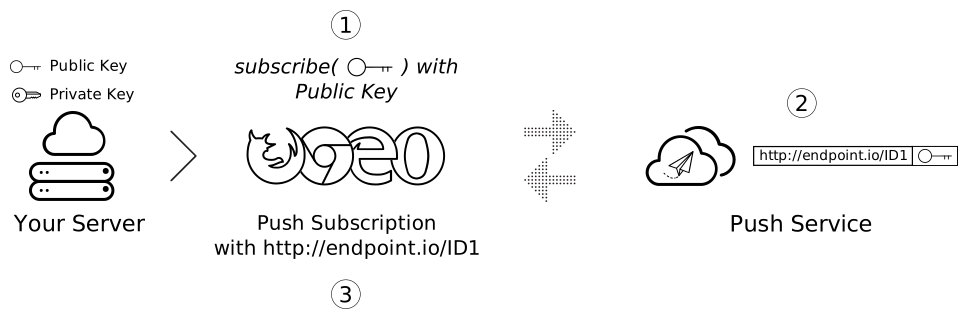
Application server keys identify your application to the push service. They come as a public/private key pair unique to your app—keep the private key secret and share the public key freely.
The value you pass as applicationServerKey is that public key. The browser includes it when subscribing the user, tying your app's key to their PushSubscription:
- Your web app calls
subscribe(), passing your public application server key. - The browser requests an endpoint from a push service, which associates that endpoint with your public key.
- The browser builds a
PushSubscriptionaround the returned endpoint and resolves the promise.
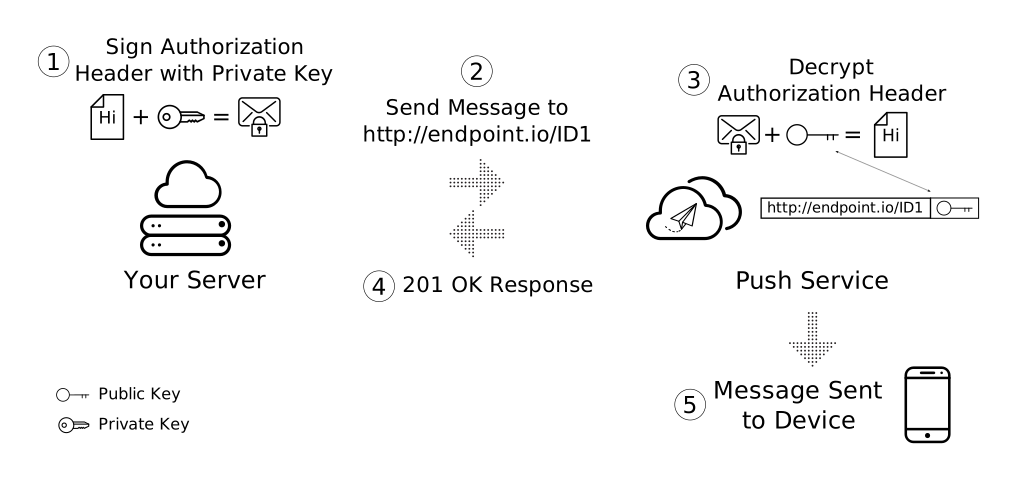
When you send a push message, your request includes an Authorization header signed with your private key. The push service validates the signature against the public key linked to the endpoint. Only a valid signature proves the message came from the application server holding the matching private key, preventing others from messaging your users.
The applicationServerKey is technically optional, but Chrome's simplest implementation requires it and other browsers may follow. Firefox treats it as optional. The key format comes from the VAPID spec; application server keys and VAPID keys are the same thing.
Generating application server keys
Generate your public/private key pair once, using the web-push-codelab.glitch.me tool or the web-push command line:
    $ npm install -g web-push
    $ web-push generate-vapid-keys
Permission side effects of subscribe()
Calling subscribe() has one side effect: if your web app lacks notification permission at that moment, the browser asks for it automatically. That works if your UI is built around this flow, but most developers want explicit control and should use Notification.requestPermission() first, as shown earlier.
Inside the PushSubscription
Once subscribe() resolves, you receive a PushSubscription:
function subscribeUserToPush() {
  return navigator.serviceWorker
    .register('/service-worker.js')
    .then(function (registration) {
      const subscribeOptions = {
        userVisibleOnly: true,
        applicationServerKey: urlBase64ToUint8Array(
          'BEl62iUYgUivxIkv69yViEuiBIa-Ib9-SkvMeAtA3LFgDzkrxZJjSgSnfckjBJuBkr3qBUYIHBQFLXYp5Nksh8U',
        ),
      };

      return registration.pushManager.subscribe(subscribeOptions);
    })
    .then(function (pushSubscription) {
      console.log(
        'Received PushSubscription: ',
        JSON.stringify(pushSubscription),
      );
      return pushSubscription;
    });
}
Serializing that object with JSON.stringify() shows its structure:
    {
      "endpoint": "https://some.pushservice.com/something-unique",
      "keys": {
        "p256dh":
    "BIPUL12DLfytvTajnryr2PRdAgXS3HGKiLqndGcJGabyhHheJYlNGCeXl1dn18gSJ1WAkAPIxr4gK0_dQds4yiI=",
        "auth":"FPssNDTKnInHVndSTdbKFw=="
      }
    }
The endpoint field is the URL of the push service. Sending a push message means making a POST request to that URL. The keys object holds the encryption values used to protect message data.
Store the subscription on your server
With a subscription in hand, send it to your server. You can serialize the whole object with JSON.stringify() or manually assemble the equivalent fields:
const subscriptionObject = {
  endpoint: pushSubscription.endpoint,
  keys: {
    p256dh: pushSubscription.getKeys('p256dh'),
    auth: pushSubscription.getKeys('auth'),
  },
};

// The above is the same output as:

const subscriptionObjectToo = JSON.stringify(pushSubscription);
Sending it from the web page looks like this:
function sendSubscriptionToBackEnd(subscription) {
  return fetch('/api/save-subscription/', {
    method: 'POST',
    headers: {
      'Content-Type': 'application/json',
    },
    body: JSON.stringify(subscription),
  })
    .then(function (response) {
      if (!response.ok) {
        throw new Error('Bad status code from server.');
      }

      return response.json();
    })
    .then(function (responseData) {
      if (!(responseData.data && responseData.data.success)) {
        throw new Error('Bad response from server.');
      }
    });
}
On the server, the request is saved to a database for later message delivery:
app.post('/api/save-subscription/', function (req, res) {
  if (!isValidSaveRequest(req, res)) {
    return;
  }

  return saveSubscriptionToDatabase(req.body)
    .then(function (subscriptionId) {
      res.setHeader('Content-Type', 'application/json');
      res.send(JSON.stringify({data: {success: true}}));
    })
    .catch(function (err) {
      res.status(500);
      res.setHeader('Content-Type', 'application/json');
      res.send(
        JSON.stringify({
          error: {
            id: 'unable-to-save-subscription',
            message:
              'The subscription was received but we were unable to save it to our database.',
          },
        }),
      );
    });
});
Subscriptions can expire
You'll often see PushSubscription.expirationTime set to null, but that doesn't guarantee the subscription never expires. Browsers commonly let subscriptions lapse—for example, if no push reaches the user for a long period or the browser determines the user isn't actively using the app. Resubscribing on every received notification prevents expiration, but only works if you send notifications often enough to keep the subscription alive. Weigh that against the risk of spamming users purely to preserve a subscription. The browser's auto-expiration exists to protect users from forgotten notification subscriptions, so don't try to circumvent it:
/* In the Service Worker. */

self.addEventListener('push', function(event) {
  console.log('Received a push message', event);

  // Display notification or handle data
  // Example: show a notification
  const title = 'New Notification';
  const body = 'You have new updates!';
  const icon = '/images/icon.png';
  const tag = 'simple-push-demo-notification-tag';

  event.waitUntil(
    self.registration.showNotification(title, {
      body: body,
      icon: icon,
      tag: tag
    })
  );

  // Attempt to resubscribe after receiving a notification
  event.waitUntil(resubscribeToPush());
});

function resubscribeToPush() {
  return self.registration.pushManager.getSubscription()
    .then(function(subscription) {
      if (subscription) {
        return subscription.unsubscribe();
      }
    })
    .then(function() {
      return self.registration.pushManager.subscribe({
        userVisibleOnly: true,
        applicationServerKey: urlBase64ToUint8Array('YOUR_PUBLIC_VAPID_KEY_HERE')
      });
    })
    .then(function(subscription) {
      console.log('Resubscribed to push notifications:', subscription);
      // Optionally, send new subscription details to your server
    })
    .catch(function(error) {
      console.error('Failed to resubscribe:', error);
    });
}
Common questions
Can your app choose which push service a browser uses?
No. The browser picks the push service, and your app works with whatever endpoint that service returns in the PushSubscription.
Do different push services need different APIs?
No. All push services implement the Web Push Protocol, a single common API for triggering messages.
Does subscribing on desktop also subscribe the phone?
No. A user must grant permission and subscribe separately in every browser where they want to receive push messages.
Go deeper with push notifications
The articles linked below build on the fundamentals covered here, walking through the full lifecycle of web push from the server side to the notification tray. Start with the overview if you want to revisit how the pieces fit together, then move on to the protocol and event handling guides for the implementation details.
- Web Push Notification overview
- How push messaging works
- Permission user experience
- Web Push Protocol
- Handle push events
- Common notification patterns
Server-side sending
Once the client subscription is in place, the next step is delivering messages from your application server. These guides cover the libraries and protocol details for that side of the equation.
Notification display and behavior
Getting a message to the browser is only half the work. These references cover how to present notifications to users and handle their interactions, plus the questions and edge cases that come up in production.
- Display a notification
- Notification behavior
- Common issues and reporting bugs
- Push notifications frequently asked questions
Client codelab
For a hands-on walkthrough of the client-side code discussed in this article, work through the step-by-step codelab.


