
Dropbox Scoped Apps and Short-Lived Tokens: What Developers Need to Know
Dropbox has rolled out a new permissions model for its API, introducing scoped apps, short-lived access tokens, PKCE, and refresh tokens. These changes affect how apps request and manage user permissions. The App Console currently supports both legacy and scoped app creation, but long-lived token creation is scheduled to be retired on September 30th, 2021. Developers should review their app's permission tab and verify their apps handle short-lived tokens correctly.
Two migration tracks apply here:
- Reviewing the Permissions tab to transition to scopes—this generally does not require code changes.
- Ensuring your app works with short-lived access tokens—this may require code changes.
Moving from Legacy Permissions to Scopes
When you open the Permissions tab in an app's settings, the scopes will be pre-selected based on your app's legacy access type. Apps using the Business API with team auditing, for example, will have team_info.read, members.read, groups.read, and events.read pre-selected. User API apps will have all user scopes pre-selected.
You can click through without making any changes and your app will continue to function. However, deselecting scopes your app doesn't need improves security and means asking users for fewer permissions.
Identifying Required Scopes
Start by listing every endpoint your app calls. For each endpoint, check the HTTP Reference documentation and note the "Required Scope" listed there—the documentation shows exactly which permission each endpoint expects.
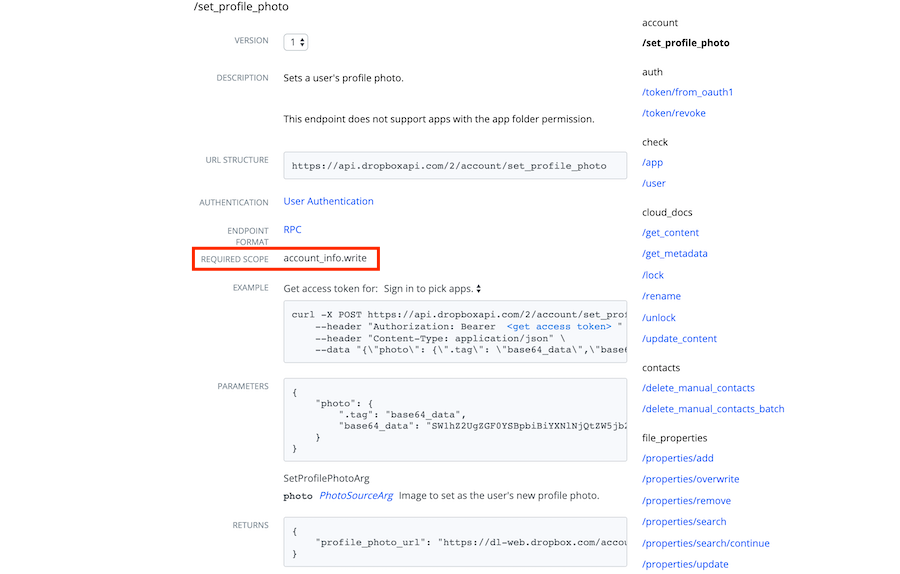
For example, consider migrating an online photo editing tool. You'd go through each endpoint the tool uses and record its corresponding scope:
| Endpoint | Required Scope |
|---|---|
| /users/get_current_account | account_info.read |
| /files/list_folder (and /continue) | files.metadata.read |
| /files/get_thumbnail | files.content.read |
| /files/download | files.content.read |
| /files/upload | files.content.write |
Once your app's scopes match your list, it will have exactly the permissions needed to access those endpoints. Calling an endpoint without the appropriate scope will result in an error.
Testing Scopes Programmatically
You can test your app with a specific group of scopes before deselecting unused ones by passing them directly in the authorization URL:
https://www.dropbox.com/oauth2/authorize?client_id=YOUR_CLIENT_ID&redirect_uri=YOUR_REDIRECT_URI&response_type=code&scope=files.content.read&account_info.read
Completing the Scope Migration
In the App Console, navigate to the Settings page of an app using the legacy permission model and click the Permissions tab. You'll see a note in light blue with migration details. Deselect the scopes your app isn't using—but proceed carefully, since removing a scope your app relies on will break functionality. It's advisable to audit your app for required scopes before deselecting anything. You can add or remove scopes later if needed.
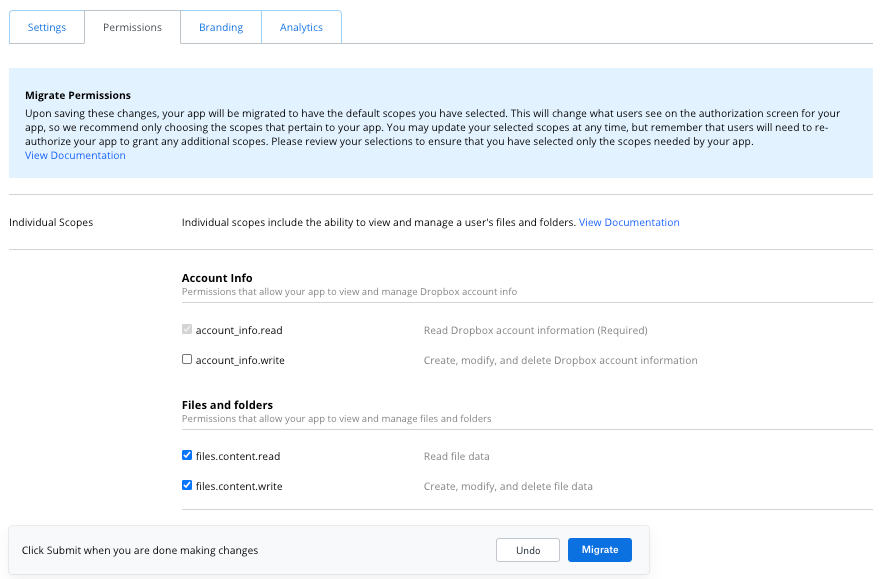
Click Migrate, then Confirm. This change does not affect existing tokens. Test your scopes by running through an authorization flow. After this, the next recommended step is moving to short-lived tokens, since long-lived tokens are being deprecated.
Switching to Short-Lived Access Tokens
If your app already handles 401 status errors correctly and only makes API calls while users are actively interacting with it, no code changes should be required. Apps that don't handle 401 errors property or need to access the Dropbox API without user input ("offline" access) will need to make adjustments.
Testing Short-Lived Tokens
You can issue short-lived tokens programmatically before changing your app's default settings. Add token_access_type=online to your authorization URL:
https://www.dropbox.com/oauth2/authorize?client_id=YOUR_CLIENT_ID&redirect_uri=YOUR_REDIRECT_URI&response_type=code&token_access_type=online
Start with this approach during migration. Once you're confident your app behaves correctly, update the default access token type to short-lived in the App Console. The OAuth Guide provides more detail on choosing the right authorization flow.
Handling Authorization Errors
When a user reaches your app with an invalid token, redirect them to the authorization URL used in your OAuth flow. If the user has already authorized the app and is logged into Dropbox, a new short-lived token is issued and they're redirected back without any further input. This results in more re-authorization flows than before, but the impact on user experience should be minimal.
For online-only apps that follow OAuth best practices—prompting for re-authentication on a 401—no code changes should be necessary to support short-lived tokens.
Implementing Refresh Tokens
For apps that need long-term access (such as a mobile app that stays logged in) or that must interact with the Dropbox API while the user isn't present, Dropbox provides a long-lived refresh_token. This token can be used to request new short-lived access tokens as needed.
Request a refresh token as part of your access token payload by specifying token_access_type=offline in the authorization URL:
https://www.dropbox.com/oauth2/authorize?client_id=YOUR_CLIENT_ID&redirect_uri=YOUR_REDIRECT_URI&response_type=code&token_access_type=offline
Complete the authorization request to /oauth2/token:
curl https://api.dropbox.com/oauth2/token \
    -d code=<AUTHORIZATION_CODE> \
    -d grant_type=authorization_code \
    -d redirect_uri=<REDIRECT_URI> \
    -u <APP_KEY>:<APP_SECRET>
The resulting payload contains a refresh_token:
{
    "uid": "267161268",
    "access_token": "Your_Access_token",
    "expires_in": 14399,
    "token_type": "bearer",
    "scope": "files.content.read files.metadata.read sharing.read sharing.write",
    "refresh_token": "LwlUmqpmGqgAAAAAAAAEYgRoVJoei4u9cC7cDHFBAp0Kkp2JNciPxQpNWGY",
    "account_id": "dbid:AABuTtSGJM0ME3t4m85i1o3XqnmXvwH5I-A"
}
To obtain a new access token, call the /oauth2/token endpoint with grant_type set to refresh_token and your refresh token included as a parameter:
curl https://api.dropbox.com/oauth2/token \
    -d grant_type=refresh_token \
    -d refresh_token=<YOUR_REFRESH_TOKEN> \
    -u <YOUR_APP_KEY>:<YOUR_APP_SECRET>
Setting Short-Lived as the Default
In the Settings page of a legacy app in the App Console, locate the OAuth 2 settings section. Newly created scoped apps already default to short-lived tokens. For legacy apps:
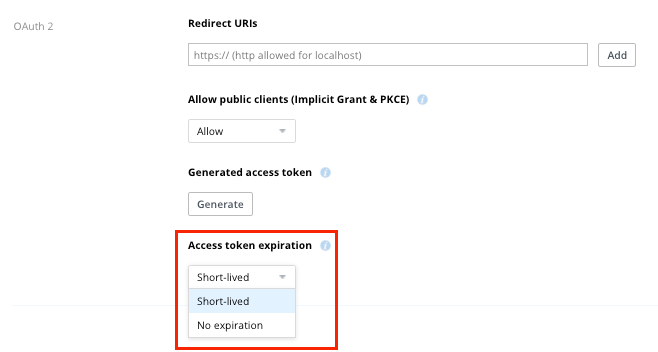
Open the Access token expiration drop-down and select Short-lived. From this point, your app uses short-lived access tokens by default. Note that short-lived tokens expire after a period that's "short," but generally long enough for a typical web session. The exact validity period is returned in the expires_in field of the access token payload. If your app requires offline access, refer to the refresh token section above.
What the Legacy Token Retirement Means
On September 30th, 2021, Dropbox will retire the creation of long-lived access tokens—all new tokens will be short-lived. Online-only apps that already handle re-authentication may see more frequent prompts, but the impact should be minor. Apps that require background access and haven't yet implemented refresh tokens will be significantly affected.
Getting Help with the Migration
Developers with unresolved questions about the migration process, or who want to request more examples or documentation, can post in the scopes discussion thread on the Dropbox developer forum. Those needing private help can use the support request form.


