Figma Weave connects AI generation and editing tools into workflows that can be reused, so a creative process becomes something a team can shape, refine, and repeat. Work happens on a canvas of nodes—individual building blocks for adding images and prompts, generating content, and making edits. Connected nodes form a workflow that turns starting material into a finished result. Because the connections are visible, the canvas doubles as a record of how a piece came together, and any earlier node can be revisited to make changes.

Directions, details, and reuse
Running several directions at once
A branch is a separate path in a workflow for exploring a different direction from the same starting point; the original stays available. Branches let a team develop ideas side by side, with each new path building on work already on the canvas. The same prompt can also be run through different AI models and the results compared side by side, and every version stays connected to the steps that produced it.
For example, a backpack photo connected to two AI image-editing nodes—one placing it in a forest, one on a mountain—can become two campaign directions: adjust colors on the forest branch, turn the mountain scene into a short video, and keep both branches on the canvas before committing.
Weave is aimed at teams launching a product collection that needs imagery for multiple variations without a photoshoot per variant, producing campaigns that must adapt to different formats and markets while keeping a consistent look, and generating shots from reference images or refining existing clips.
Editing tools as nodes
Weave's editing tools appear as nodes and connect to other steps. They give control beyond prompting:
- Color correction: change overall color and appearance of an image or video, including hue and saturation.
- Compositor: layer images, videos, text, and shapes into a single output.
- Levels: adjust shadows, midtones, and highlights to control tonal range.
- Trim: shorten a video clip without leaving Weave.
- Crop: crop and resize inputs with preset aspect ratios or custom dimensions.
- Painter: paint on an image or canvas using brushes, shapes, and an eraser.
Packaging and sharing workflows
A workflow can be handed to a teammate, who swaps in new material while the treatment stays consistent—say, background removal, a branded backdrop, and a social crop for the next product launch. A workflow can also become a Weave tool: a packaged workflow someone can run without working with the underlying nodes or writing prompts from scratch, supplying an upload and clicking Generate. Community-built Weave tools let people try a workflow directly in Figma Design, for tasks like turning a moodboard into a 3D rendering of a room or fitting an image into a new format.
Getting better results
Prompt with specificity
Clear prompts move outputs closer to intent. Specify what the model should create or change, and when editing, also describe what should stay the same. Instead of "Make the lighting better," try "Use soft, warm light, keeping the backpack's color and shape unchanged." The Run Any LLM node can be asked to review or rewrite instructions, and the Prompt Enhancer node rewrites a prompt with more specific instructions. Prompt variables change one part of the instructions without rewriting the rest.
Assign roles to references
Reference images communicate things like color palettes or lighting that are hard to describe in words. When using several, a Prompt node can state what the model should take from each—"Use the colors from the first image and the illustration style from the second"—so the written instructions direct which details carry over.
Edit directly when it makes sense
Small changes such as brightening, adjusting colors, or adding text can be done with the editing tools rather than another generation, giving more control over details and avoiding extra credit spend.
Test as you build
Checking results at each step keeps an early mistake from propagating into later work—verify an edited image before generating a video from it or using it in the Compositor. Before sharing a workflow as a Weave tool, have a teammate run it without guidance, and check that it works with material other than the images and instructions used to build it.
Keep Figma Design connected
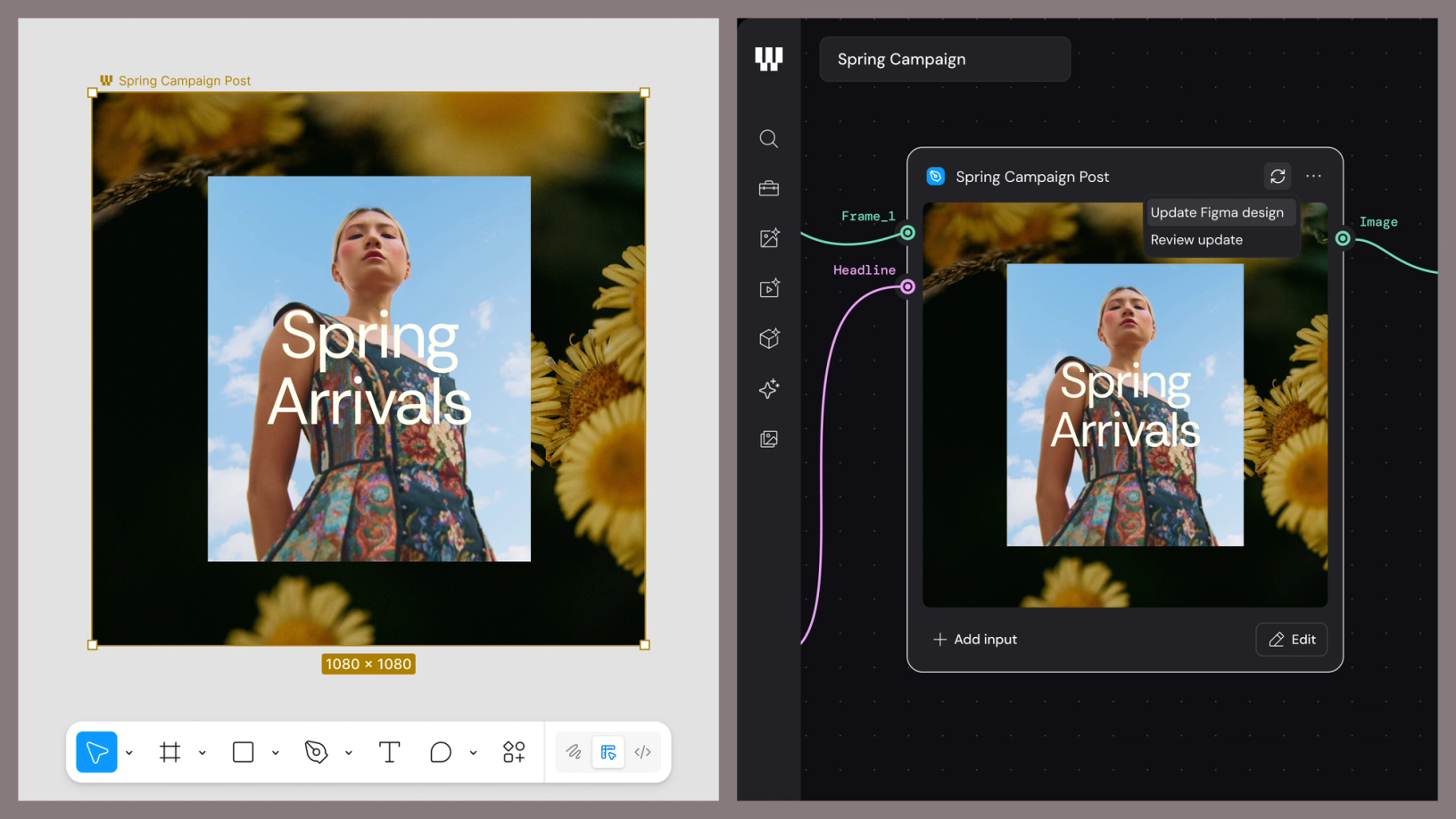
The Figma node lets a frame copied from Figma Design and pasted into Weave stay connected to the original; edits to the frame in Figma Design are reflected in its connected node in Weave. This lets layouts and brand decisions a team has already made guide new work instead of being recreated.
Compare models
Weave brings several AI models into one place with different strengths. Available models are listed in the left menu in Weave; running one prompt through several and comparing results shows which best matches the intended vision.