

Figma Slides enters open beta with designer-grade tools
Figma announced the open beta of Figma Slides on June 26, marking the company's push into presentation software. The tool originated as an internal hackathon project and combines Figma's design fidelity with FigJam's interactive collaboration features. It is designed for both professional designers and non-designers who need to build polished decks together.
Figma's research shows users created about 3.5 million presentations in Figma over the past year, often resorting to awkward workarounds when presenting to non-designer stakeholders. Figma Slides aims to remove that friction by providing a shared workspace where both groups can work on the same file without compromising on design quality or collaboration features.
Design mode unlocks the full Figma toolkit
Figma Slides includes a basic toolbar for working with text, images, and shapes, but designers can toggle on design mode to access the complete Figma Design feature set, including Auto Layout and advanced properties. This means teams no longer have to choose between a simple presentation tool and pixel-level control.
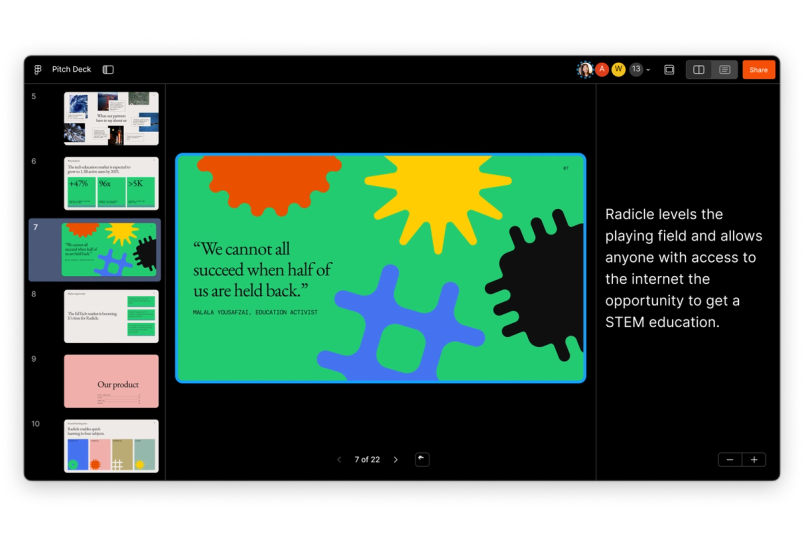
"Every feature that's optimized for UI design, like the way things snap into alignment, add up to a huge quality-of-life improvement," says product designer Keeyen Yeo. "For example, when I paste an interactive component with a hover state, it comes to life when I present."
Design teams can also bring their existing resources into the new tool. Text styles, color styles, and assets from Figma libraries carry over, and the copy-paste workflow scales across the Figma suite, so there is no longer any need to export UI designs one by one for a presentation.
Grid view helps rework the narrative
A single-slide workspace is fine for polishing individual screens, but editing the overall storyline is easier with a wider perspective. Figma Slides offers a grid view that organizes slide sections in rows, allowing presenters to rearrange content as they tighten the narrative. Any changes made while zoomed out are reflected immediately in single-slide view.
"When you have more than 20 slides in a deck, changing your story arc gets much harder, so people tend to stick to what they've built out so far," Yeo says. "With grid view, you get a bird's-eye view that empowers you to massage the overall narrative."
Turning presentations into two-way conversations
Figma's experience with FigJam since 2021 revealed a fundamental problem with standard presentations: too often one person speaks and everyone else passively listens, and the dialogue is dominated by the loudest or most senior voices. Figjam's success drove the company to bring the same democratic conversation mechanisms into slides.
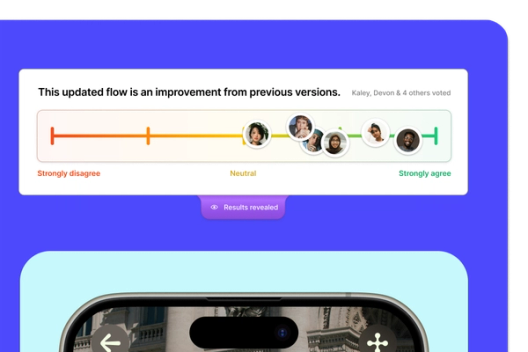

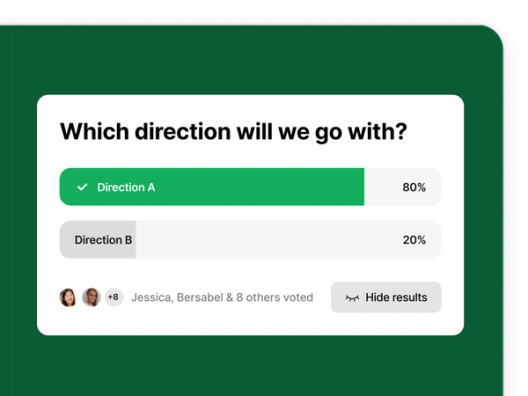
Polls and alignment scales capture feedback in context while the presenter is on a slide and store it in a place that attendees can reference later. Presenters no longer have to sift through meeting notes, chats, and other channels for a read on how the room feels. Team members can stamp their faces on a slide to signal agreement or show they have reviewed it asynchronously, giving presenters a clear picture of perception without disrupting their flow.
Figma Slides also embeds prototypes directly in the presentation, replacing the old tactic of queuing up an external tab or sending a separate link. Presenters retain control of the narrative instead of risking having audience members jump ahead to try the prototype on their own. The tool also includes transitions such as smart animate, push, and dissolve to smooth the visual flow between slides.
For teams with multiple speakers, Figma Slides supports co-presenting: each presenter can spotlight themselves when speaking and pass control cleanly to a colleague instead of relying on an awkward shared driver.
A shared space for designers and non-designers
Figma Slides is built around the premise that ideation and storytelling belong to the whole team. Non-designers get a comprehensible interface with polished templates, and designers get the underlying power they are used to—both in the same file.
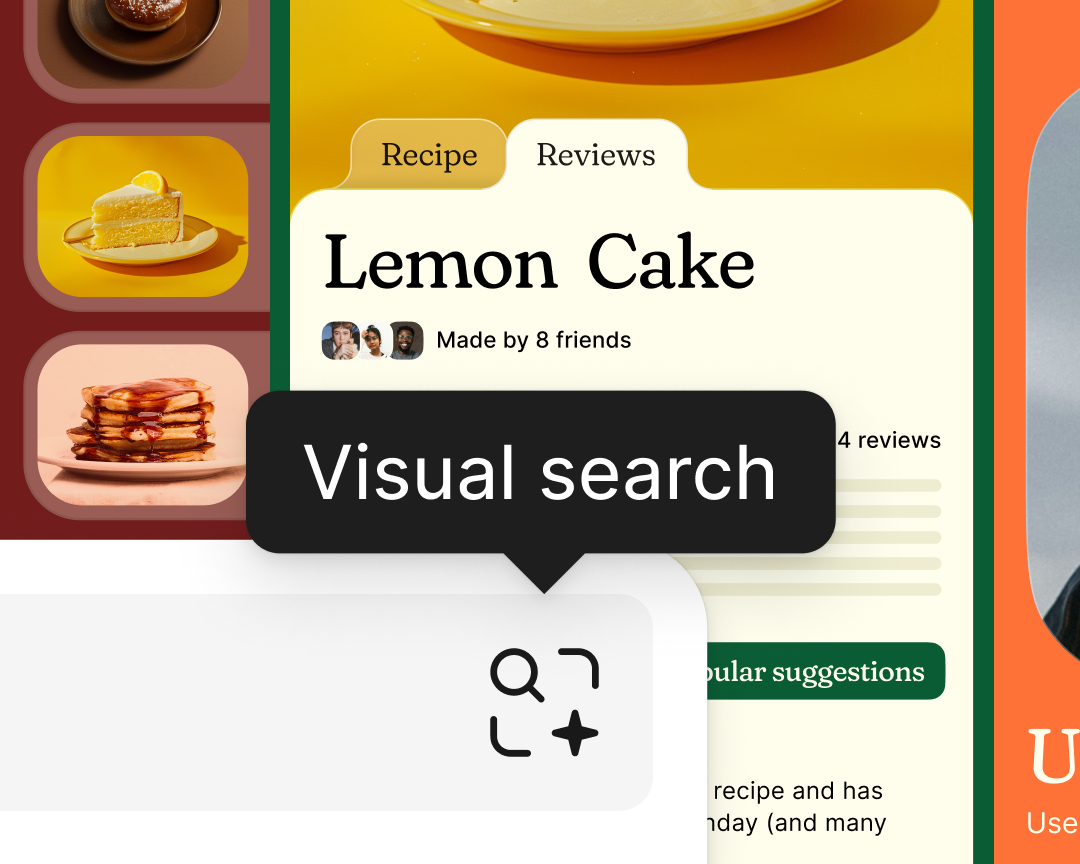
AI features make it easy to edit copy without breaking the slide layout. From shortening text to adjusting tone or translating messages, a single AI action can tailor deck copy for a specific audience.
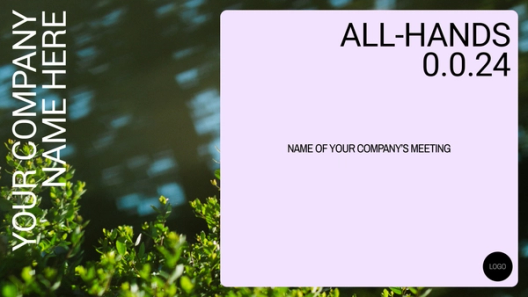
Teams can start from a library of preexisting templates for keynotes and pitch decks, and they can publish anything they build so others on the team can reuse it as a starting point. Those templates rely on Auto Layout, meaning they stay structurally intact as content is typed in: spacing and alignment readjust automatically, so a less design-savvy person does not have to fight the layout.

Users can also pull individual slides from any template and combine them into a single deck, mixing a top banner from one design with a graph from another. A unifying theme applied afterwards keeps everything cohesive even when the slides came from different sources.
Figma Slides is free during beta. Starting in early 2025 it will be available on free and paid plans from $3 and $5 per user per month. Tutorials and help center documentation are now available, alongside a curated collection of community templates to get starting point.
Building with Figma Slides
Figma Slides is built directly into the Figma design environment, which means your team's existing components, design systems, and brand assets are immediately available when you start a new presentation. You don't need to export assets or maintain a separate library—the same files and styles you use for product design can be dropped straight onto a slide.
Working with shared assets
Because slides live in the same file format as your other Figma work, anything you've already created is fair game. A slide can pull in a component from your design system, a prototype frame, or even a full screen mockup, and those elements stay linked to their source. If you update the original design, the slide reflects that change automatically—no manual copy-paste sync required.
- Use live components instead of static screenshots, so a slide showing a UI state always matches the current design.
- Combine presentations with specs or research in one file, keeping all project context in a single place rather than scattering it across documents.
- Reuse existing work without re-creating it: any frame or component from your files can be placed directly on a slide, preserving its full fidelity and editability.
Figma AI assistance
Figma Slides includes an AI feature that handles some of the more tedious parts of presentation assembly. You can ask it to generate an outline from a prompt or from an existing document, and it will build a rough draft structure you can then refine. It also syncs the slide deck with the underlying file: if you update a design or a component, the corresponding slide updates too, so your presentation doesn't drift out of date as the product evolves.
Co-editing and feedback
The multiplayer model from Figma's design tooling carries over to slides. Multiple people can be in the same deck at once, leaving comments, watching each other's cursors, and making live changes during a meeting rather than iterating over email threads or chat messages. Whether a teammate joins from the Figma desktop app or through a browser link, everyone sees the same current state of the presentation.
For alignment on process, Figma has a playbook covering how teams can use the tool alongside the rest of the product development workflow. Individual contributors, managers, and stakeholders all get the same editing and commenting access without needing separate accounts or licenses.


