
The gap in block theme documentation
Type is central to any site's design, and WordPress theme developers have long wired hosted font services like Google Fonts into the Customizer for classic PHP themes. Block themes have no equivalent path: the WordPress Theme Handbook currently has nothing on the subject. Google Fonts can be used in block themes, but registering them works very differently from the classic approach.
What block themes did before
Twenty Twenty-Two, the first block-based default theme, ships downloaded font files as theme assets. It takes two steps: registering the files in functions.php and defining the bundled fonts in theme.json. Since that release the process has simplified — Twenty Twenty-Three defines bundled fonts without registering them. But font files still have to be downloaded and bundled by hand, which undercuts the appeal of drop-in hosted fonts served from a fast CDN.
Create Block Theme
The Gutenberg plugin is where Block and Site Editor features are developed and tested early. In a Theme Shaper article, Gutenberg lead architect Matias Benedetto describes how Google Fonts — or any other downloaded fonts — can be added to block themes through the Create Block Theme plugin. A short video at Learn WordPress walks through it. The plugin lives up to its name: it provides WordPress UI controls for building a full theme, child theme, or theme style variation without writing code or touching template files.
Because it is authored and maintained by the WordPress.org team, it is arguably the best available direction for integrating Google Fonts into a theme. One caveat: the plugin is in active development, so things can change quickly.
The classic approach and its problem
In classic PHP themes, Google Fonts are enqueued in functions.php, as Twenty Seventeen demonstrates:
function twentyseventeen_fonts_url() {
  $fonts_url = '';
  /**
   * Translators: If there are characters in your language that are not
   * supported by Libre Franklin, translate this to 'off'. Do not translate
   * into your own language.
   */
  $libre_franklin = _x( 'on', 'libre_franklin font: on or off', 'twentyseventeen' );
  if ( 'off' !== $libre_franklin ) {
    $font_families = array();
    $font_families[] = 'Libre Franklin:300,300i,400,400i,600,600i,800,800i';
    $query_args = array(
      'family' => urlencode( implode( '|', $font_families ) ),
      'subset' => urlencode( 'latin,latin-ext' ),
    );
    $fonts_url = add_query_arg( $query_args, 'https://fonts.googleapis.com/css' );
  }
  return esc_url_raw( $fonts_url );
}
The theme then pre-connects to Google Fonts:
function twentyseventeen_resource_hints( $urls, $relation_type ) {
  if ( wp_style_is( 'twentyseventeen-fonts', 'queue' ) && 'preconnect' === $relation_type ) {
    $urls[] = array(
      'href' => 'https://fonts.gstatic.com',
      'crossorigin',
    );
  }
  return $urls;
}
add_filter( 'wp_resource_hints', 'twentyseventeen_resource_hints', 10, 2 );
The hitch is legal. In January 2022, a German regional court fined a website owner under Europe's GDPR requirements because enqueued Google Fonts exposed a visitor's IP address, compromising privacy. CSS-Tricks covered the ruling previously.
Create Block Theme meets GDPR privacy requirements by using the Google Fonts API purely as a proxy for the local vendor. Fonts are served from the user's own site rather than Google's servers, protecting privacy. WP Tavern's coverage of the German ruling links to guides for self-hosting Google Fonts.
Adding Google Fonts step by step
Start with a local test site — the author used Flywheel's Local app — plus the Theme Test Data plugin from the WordPress Themes Team for dummy content, and the Create Block Theme plugin. With both installed and activated, go to Appearance → Manage theme fonts.

That screen lists fonts already defined in the theme's theme.json and offers two options:
- Add Google fonts — pulls Google Fonts into the theme directly from the Google Fonts API.
- Add local fonts — adds downloaded font files to the theme.
The demo uses WordPress's blank Emptytheme, renamed "EMPTY-BLANK" and modified so it has no predefined fonts or styles at all.


theme.json file (right)Clicking "Add Google Fonts" opens a page listing every font available from the current Google Fonts API.
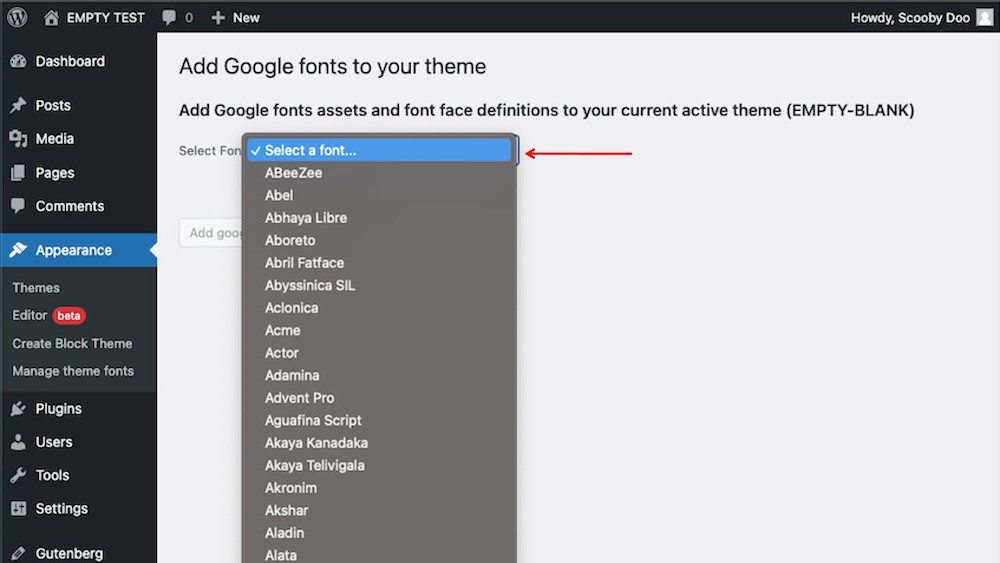
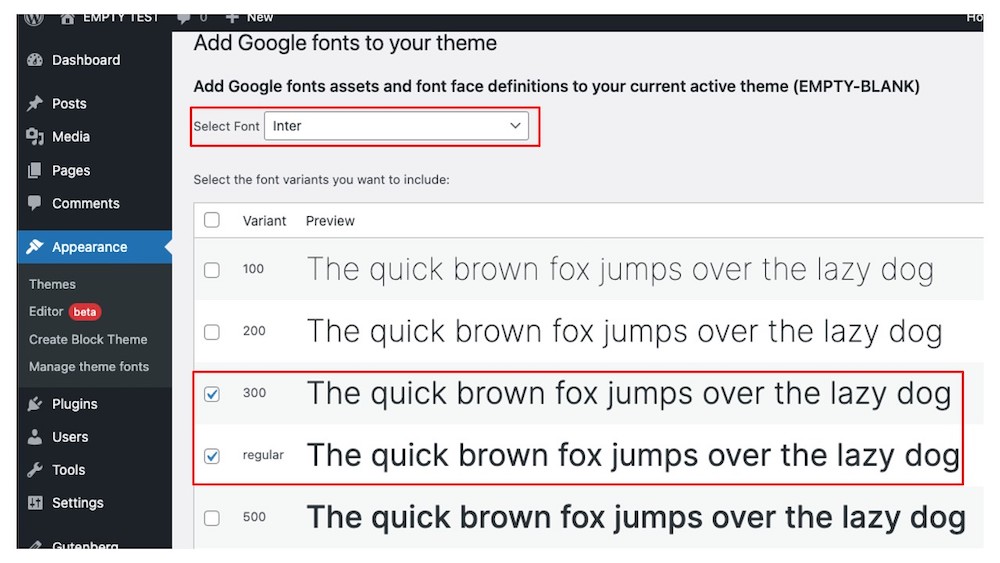
For the demo, Inter was selected at weights 300, Regular, and 900.
After saving, the selected Inter styles are downloaded into the theme's assets/fonts folder.
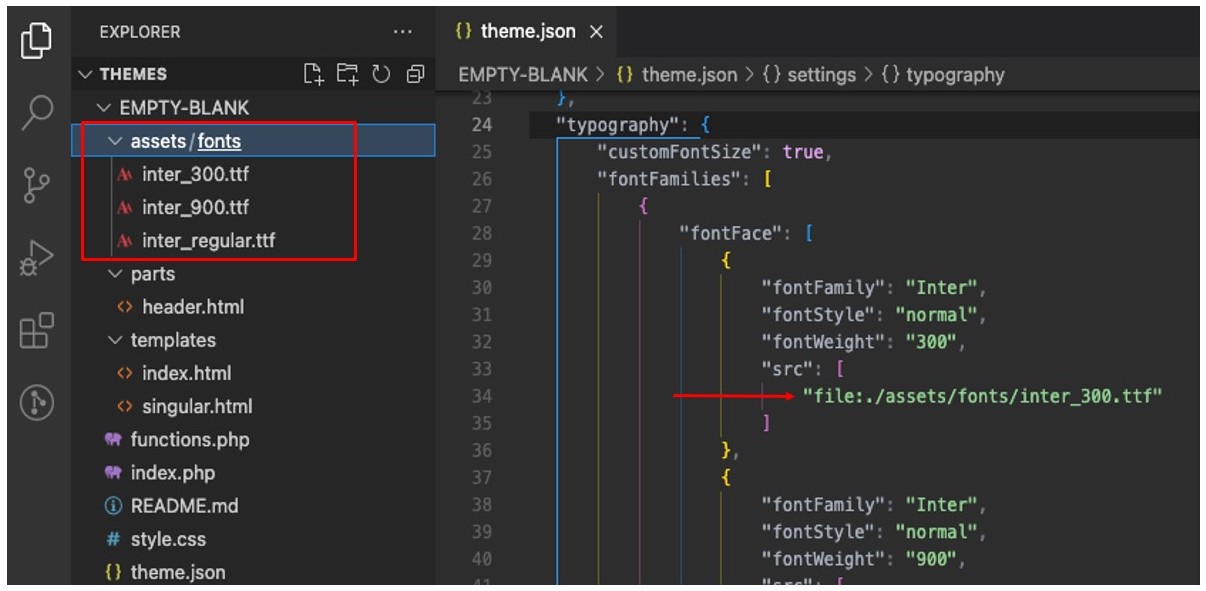
The selections are also written automatically into theme.json, with the plugin adding the path to the font files:
{
  "version": 2,
  "settings": {
    "appearanceTools": true,
    "layout": {
      "contentSize": "840px",
      "wideSize": "1100px"
    },
    "typography": {
      "fontFamilies": [
        {
          "fontFamily": "Inter",
          "slug": "inter",
          "fontFace": [
            {
              "fontFamily": "Inter",
              "fontStyle": "normal",
              "fontWeight": "300",
              "src": [
                "file:./assets/fonts/inter_300.ttf"
              ]
            },
            {
              "fontFamily": "Inter",
              "fontStyle": "normal",
              "fontWeight": "900",
              "src": [
                "file:./assets/fonts/inter_900.ttf"
              ]
            },
            {
              "fontFamily": "Inter",
              "fontStyle": "normal",
              "fontWeight": "400",
              "src": [
                "file:./assets/fonts/inter_regular.ttf"
              ]
            }
          ]
        }
      ]
    }
  }
}
Returning to Create Block Theme's main screen and clicking Manage theme fonts again reveals Inter's 300, 400 (Regular), and 900 variants in the preview panel.

A demo text preview box at the top previews the selected fonts in a sentence, header, and paragraph, alongside a font size slider. A GitHub video shows the feature in action.
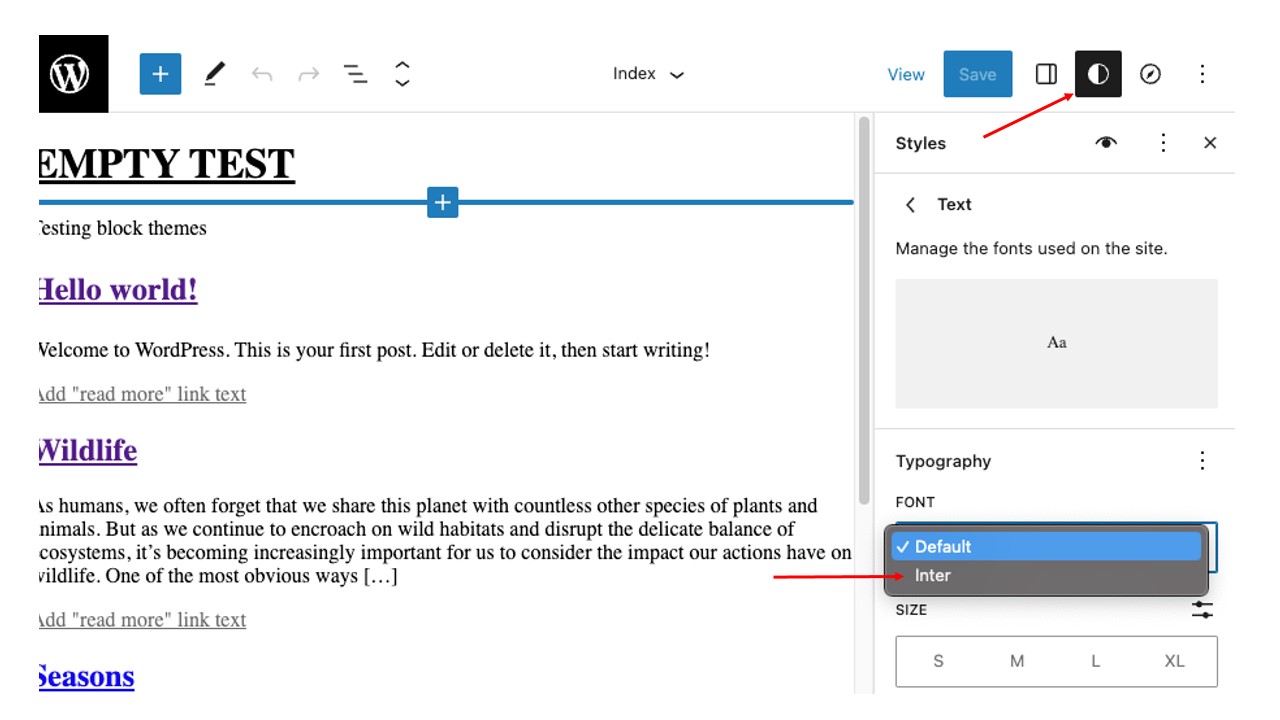
The fonts also appear in the Site Editor's Global Styles (Appearance → Editor), in the Design panel.

Go to Templates → Index, click the blue Edit button to edit index.html, then open Global Styles via the contrast icon at the top right. Under Text settings, open the Font menu in the Typography section, and Inter is listed.
Local fonts, same workflow
The plugin can also attach local fonts, which lets you use any font file from any service. Without it, you would copy font files into the theme folder and enqueue them via the traditional PHP route in functions.php. Instead, upload the file on the Add local fonts screen, and the font face definition fields fill in automatically.
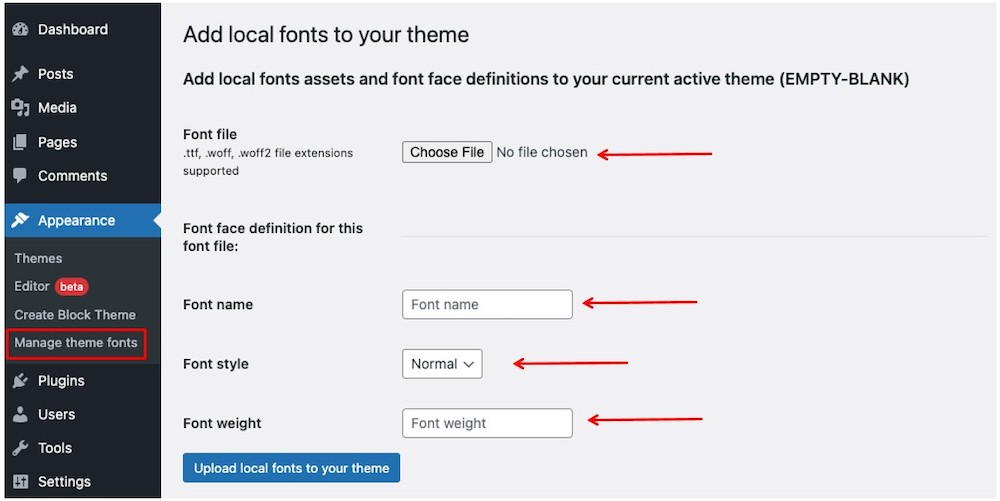
Any .ttf, .woff, or .woff2 file works. The demo uses two weight variations of Open Sans downloaded from Google Fonts — regular and 800. The same automatic file management and theme.json update happens on upload, one file at a time:

Deleting fonts
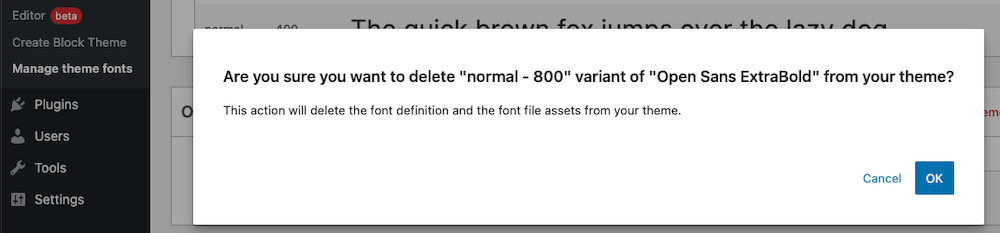
Fonts can also be removed from the admin. Deleting one of the Open Sans variants installed above:

The Remove link triggers a confirmation warning; clicking OK continues.
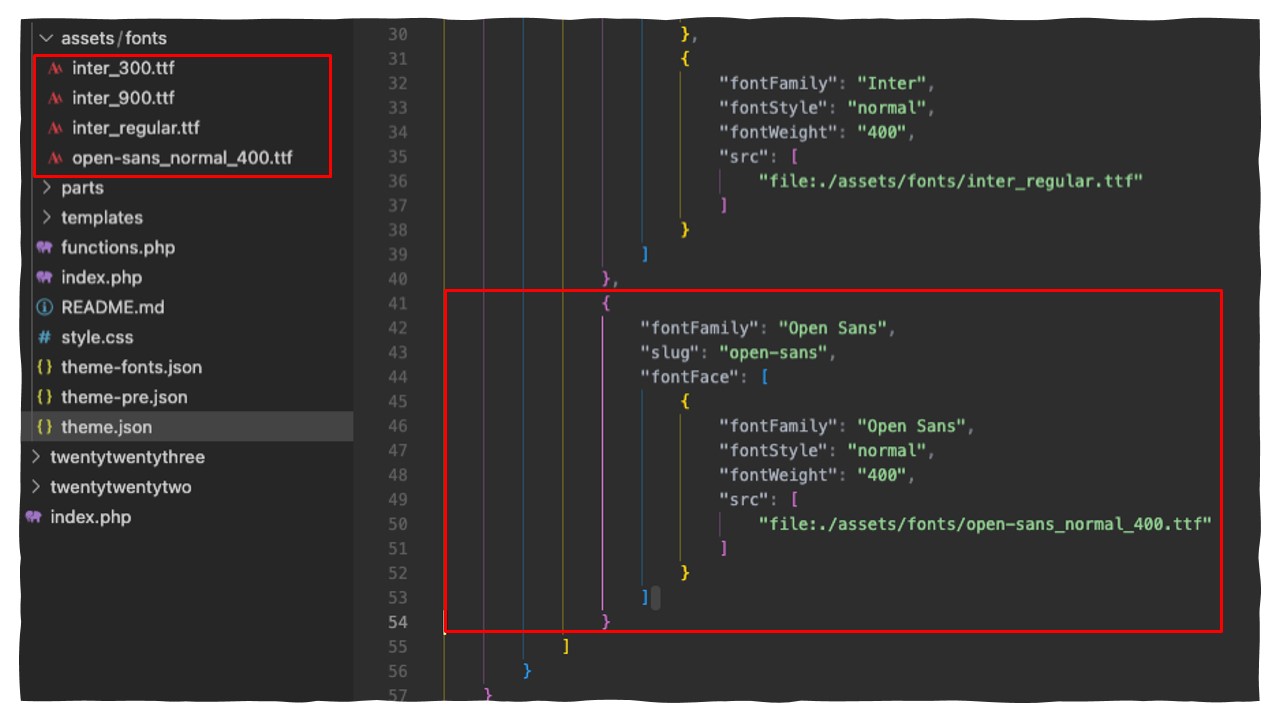
In the theme folder and theme.json, the deleted Open Sans 800 file is gone and its reference removed.
Font management heading to Core
Discussion is underway about bringing this "Font Manager" feature into WordPress Core instead of leaving it in a separate plugin. An initial iteration in the Gutenberg repository uses the same approach as this walkthrough, and it should be GDPR-compliant as well. The feature is scheduled to land with the WordPress 6.3 release later this year.