
Bridging the Designer–Developer Gap in Figma
Handing a finished Figma file to a development team is rarely the clean transfer designers hope for. Even with tools like Figma’s Inspect panel, a design built inside a fixed-width frame carries assumptions that don’t survive contact with real browsers, devices and screen sizes. Developers inevitably ask about minimum and maximum dimensions, content behavior and edge cases that the static canvas never shows.
The uncomfortable truth is that there is no perfect handoff. Every engineer reads files differently and codes in their own style. The goal, then, is not a flawless document but a usable process — one that gives developers what they need without stripping away their flexibility to interpret and build.
Here are four practical ways to make that process smoother.
1. Treat Engineers Like Users
A design isn’t finished when the file is sent over. It’s finished when the user experiences it as intended. That means the handoff itself is a mini case study: just as you research users, you should understand how your developers work, what they look for in a file and where they get stuck. Regular conversation with the engineering team sets the foundation for this. Along the way, a few Figma skills are worth sharing with them.
Master the Inspect Panel
The Inspect panel exposes the exact styles and measurements behind each layer. When a design library is in place, it also surfaces the names of components and styles used, so developers working from a style guide can reuse tokens directly instead of eyeballing values. It’s equally useful to review your own file in read-only mode before handoff — it shows you exactly what developers will see and highlights missing links to design-system tokens or sloppy layer naming.
Agree on Asset Export Workflow
Image and icon delivery is a frequent source of friction. Some developers want a single ZIP with every asset; others prefer exporting assets themselves to get the exact format and scale they need. Align early on this, and if the developer exports on their own, document the export settings — format, suffix, scale — so there’s no guesswork.
Move Commentary Into the File
Engineers often ping designers with questions over chat, which loses context for everyone else. Encouraging in-file comments keeps questions attached to the relevant frame, visible to the whole team. Reaction support and the “mark as resolved” action turn comments into a trackable thread rather than a one-off message.
Go Real-Time When Needed
For quick clarifications, Figma’s cursor chat works well when everyone is in the same file. For heavier discussions, the built-in audio chat avoids the friction of switching to a second app. Both are useful ways to keep a multi-person handoff from turning into an endless messaging thread.
2. Document Decisions, Not Just Pixels
Case studies often take forever to build because the thinking behind the design was never written down. Figma can hold more than just layouts: keeping competitor notes, user journeys or problem statements inside the project — and linking them from the handoff file — gives engineers a window into your reasoning. Not every developer will read them, but many appreciate the clarity, and it strengthens the file for future collaborators.
3. Go Beyond the Lovely Picture
A static frame communicates very little about behavior. Adding thoughtful detail is what turns a mockup into a buildable spec.
Adopt a Numbering System
Frames labeled “1. Welcome,” “2. Onboarding,” “3. Homepage” make flows instantly readable. Community templates and plugins like Renamed help with bulk renaming, but numbering that requires manual updates can become a burden when flows grow or change. An alternative is to break work into smaller tickets and label screens by journey, so structure stays meaningful even as the product evolves.
Name Layers Properly
Default layer names like “Frame 3123” force everyone to dig through the panel hunting for the right element. Clear layer names get teams to the correct node quickly and make translating design into code far more accurate. Plugins can help organize naming at scale, but the habit has to start with the designer.
Specify Interaction States
Details mean more than “click this and it does that.” Developers need the initial state, the hover state, the maximum width, and how variants behave across use cases. Figma’s Sections let you keep a big, readable overview at the top of the file while digging into interaction and state details below.
Show the Flow, Not Just Screens
Interactive prototypes clarify how screens relate to one another. FigJam is a lighter-weight alternative for showing connectivity at a glance — both give developers context without a lengthy written explanation.
4. Record a Loom Walkthrough
A short Loom video explaining the file is arguably the most valuable component you can add. Recorded once, it answers questions repeatedly without interrupting anyone. A quick overview video works for most files; complicated designs may merit a second, deeper video on details that deserves its own walkthrough. The Loom Embed plugin places the video right inside Figma, so developers can replay it on demand.
Keeping Design and Code in Sync
Version control is a genuine concern for any team shipping a product. Designs change after development starts, and the handoff file needs to reflect that reality without introducing confusion about which screens are current. If the Figma file you share with developers is not the definitive reference, the workflow breaks down.
The goal is to maintain a single source of truth. Any updates to the design should happen directly in the handoff file you have shared. Keep a separate, duplicated file for your own reference and exploration, but do not ask developers to track multiple pages or versions across the project. This keeps the communication channel clear regarding the current state of the UI.
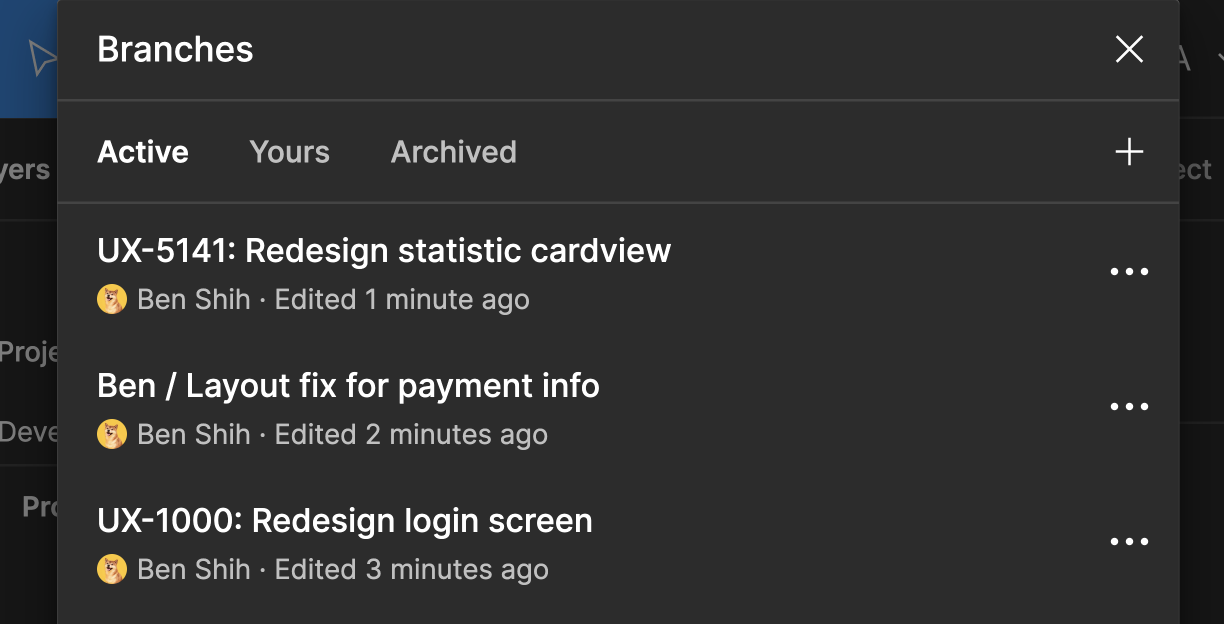
If your Figma plan includes enterprise branching features, they are worth using for updating shared files. Instead of editing the handoff file directly, create a new branch. Make the necessary changes there, share that branch for stakeholder review, and merge it back into the main handoff file once approved. This workflow keeps the original link you sent to developers stable and unchanged, avoiding broken or duplicated references.
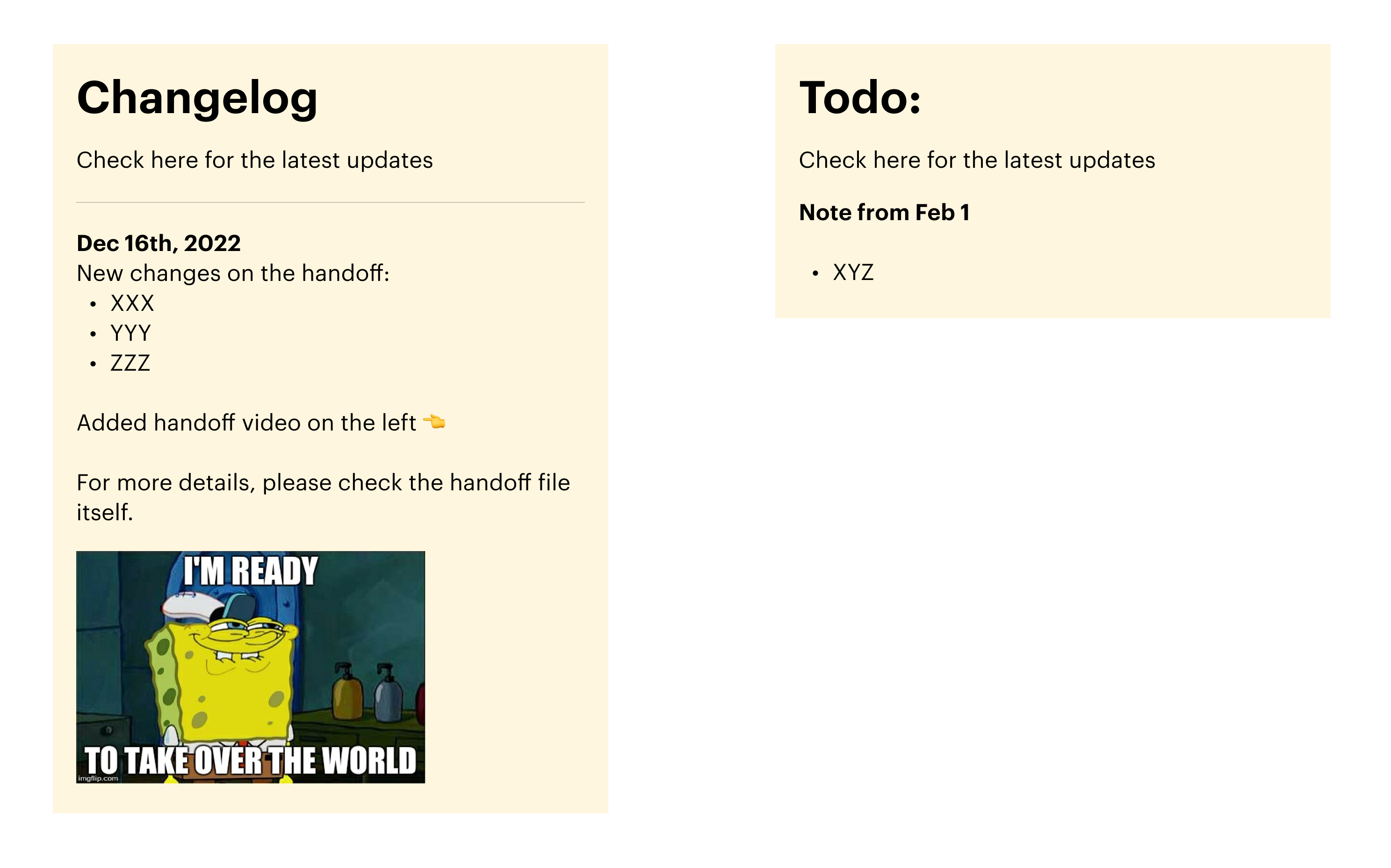
Documenting changes is just as important as making them. Include a changelog within the handoff file so developers can quickly see what has been updated and why. If you are aware of future design adjustments, note them in the file as well. Giving developers a heads-up on roadmap changes prevents them from building features or components that are slated for revision.
Plugins and the Path to a Design System
Several Figma plugins can streamline the handoff process further:
- EightShapes Specs: Generates design specifications automatically with a single click.
- Autoflow: Visually connects screens to show flows without needing to move to FigJam.
- Style Organizer: Ensures all styles are linked to your components and style definitions, so developers don't need to parse hex codes manually.
For teams ready to go further, a formal design system is the ultimate step in aligning design and development. By matching token names and layer/frame naming conventions in Figma to the containers and structure used in code, you eliminate ambiguity during implementation.
Investing in a design system yields several distinct benefits:
- Consistency: Establishes a unified visual language across platforms for a coherent user experience.
- Efficiency: Allows designers and developers to reuse components and patterns, minimizing time spent on duplicative work.
- Collaboration: Creates a shared vocabulary around components and usage, improving communication between disciplines.
A Moving Target
There is no one-size-fits-all solution for developer handoff. The ideal process depends on the product, the team structure, and the engineers involved. What works for one group may be overhead for another. The consistent thread across successful handoffs is not a specific tool or layout but the relationship between the people using it. Regular communication and a collaborative approach to finding solutions are the real drivers of a smooth workflow.


