
Dropbox Overhauls Mobile Onboarding for First-Time Users
Dropbox’s growth team took a hard look at how new users encounter the service on mobile. The company’s apps were originally designed for people who already had Dropbox on a desktop computer, treating the mobile client as a companion for viewing files on the go. That assumption no longer holds. Many users today install the mobile app first, sometimes with no prior knowledge of what Dropbox does. The growth team’s conclusion: the mobile experience needed to be rebuilt for a mobile-first world, guiding users from first launch to full setup without requiring prior desktop experience.
Introducing the Product Before the Account
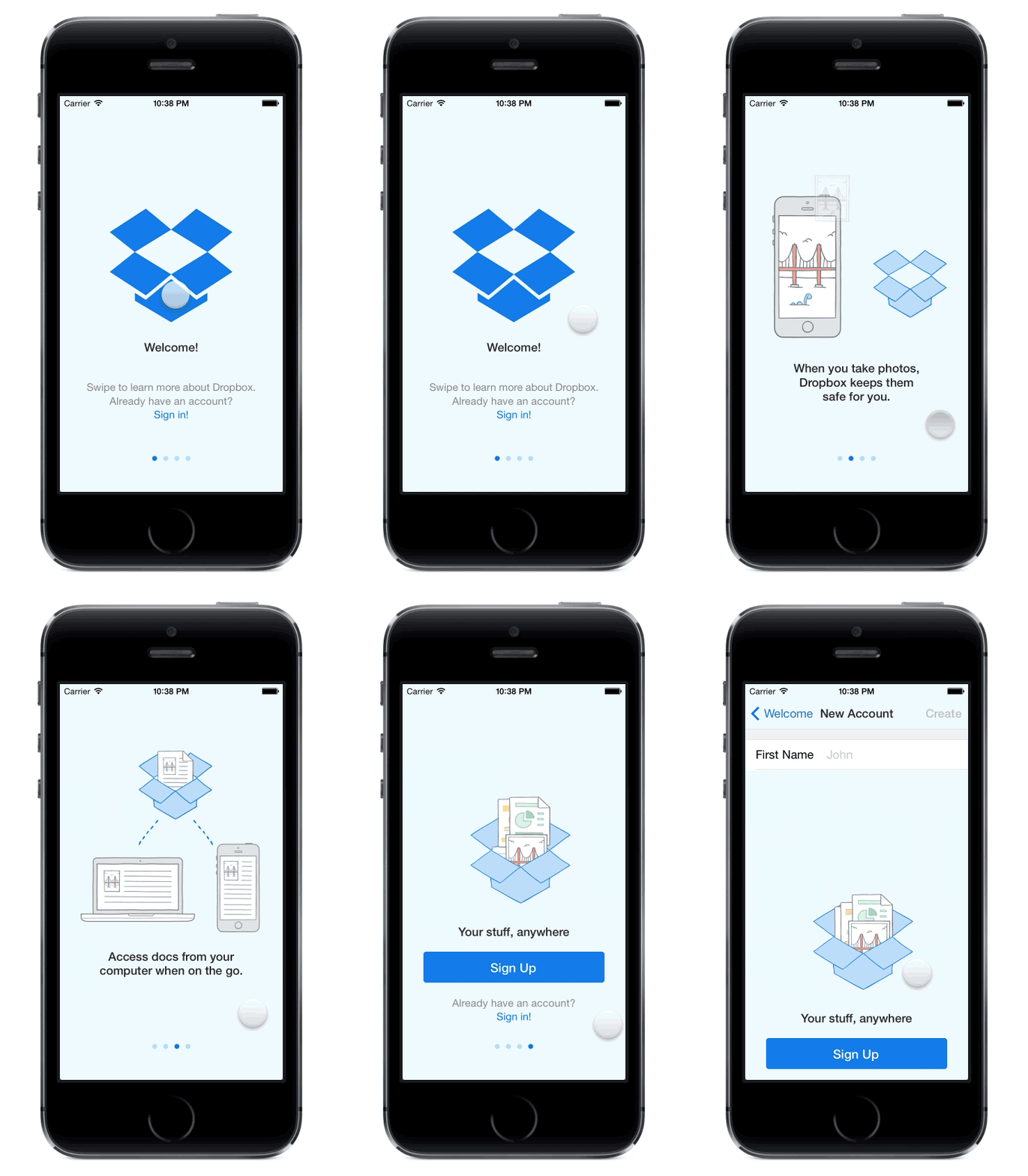
The team’s first obstacle was the account creation screen itself. For a user who has never seen Dropbox, that screen offers little context. The old flow made sense when nearly everyone who opened the mobile app already had a desktop account, but for first-time mobile users, it was a barrier. The redesign added an introductory flow before account creation, designed to convey Dropbox’s value clearly.
The team explored approaches ranging from elaborate animated stories to a simple one-page list of benefits. The winning design was an interactive tour with engaging animations that distilled the core value proposition without distracting from it. After testing, the team found that placing the tour before login increased both conversion and engagement, even though it delayed the account creation step. Providing information to users up front proved more valuable than rushing them into the signup form.
A Step-by-Step Guide to Two-Way Sync
After the introduction, the team designed an activation checklist that teaches users how Dropbox works by doing. The flow guides users through the two-way sync model: backing up photos moves files from phone to computer, and installing the desktop client with a file added lets users see those files on their phone. The checklist covers photo backup and desktop installation, giving users hands-on experience with both directions of the sync.
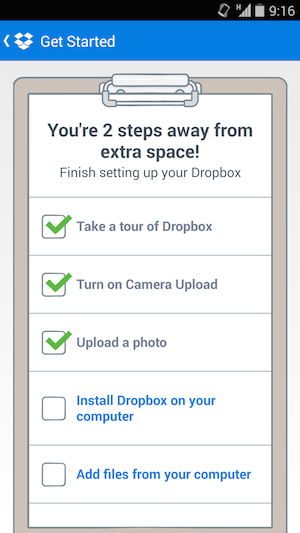
Each checklist item is clickable and context-aware. For example, tapping “upload a photo” yields different results depending on the user’s current state. If Camera Upload is disabled, the app shows a dialog to turn it on. If Camera Upload is enabled but Wi-Fi is off, the user is directed to Wi-Fi settings. The goal is to guide users through every step without allowing frustration or confusion to cause drop-off.
Connecting the Desktop Without Passwords
The desktop installation step presented the biggest obstacle to a fully guided flow. Unlike mobile screens, the desktop is a largely unmanaged environment where users can get lost: they may miss the download link, abandon the install during the large download, or forget their password when opening the app.
Dropbox addressed this with a personalized QR code that lets users log in securely to the website without typing credentials. Instead of downloading the full installer immediately, the process starts with a small “meta-installer” that downloads quickly. Once launched, this file sets up permissions and then pulls down the full installer automatically. When installation completes, the server, browser, and desktop client coordinate to validate and log in the user—no email or password entry required in the desktop app.
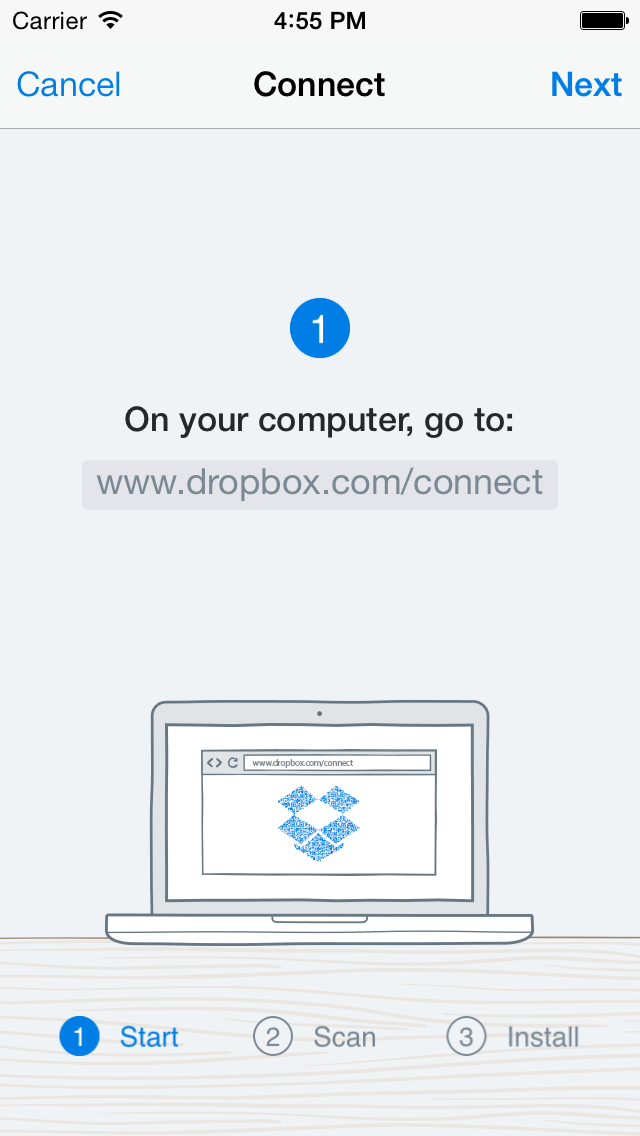
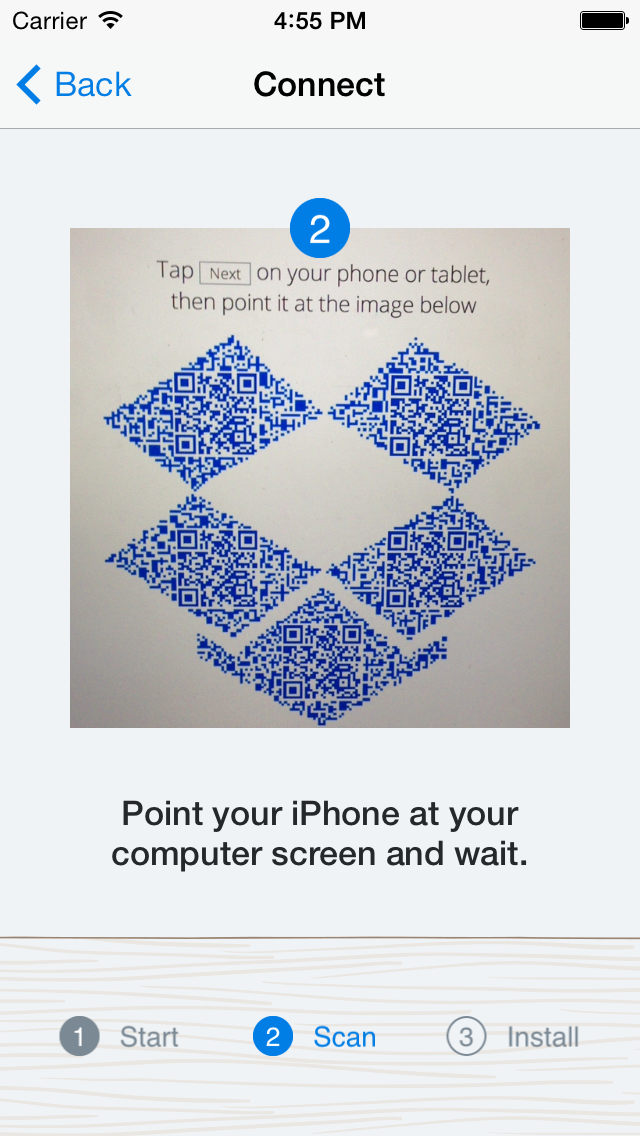
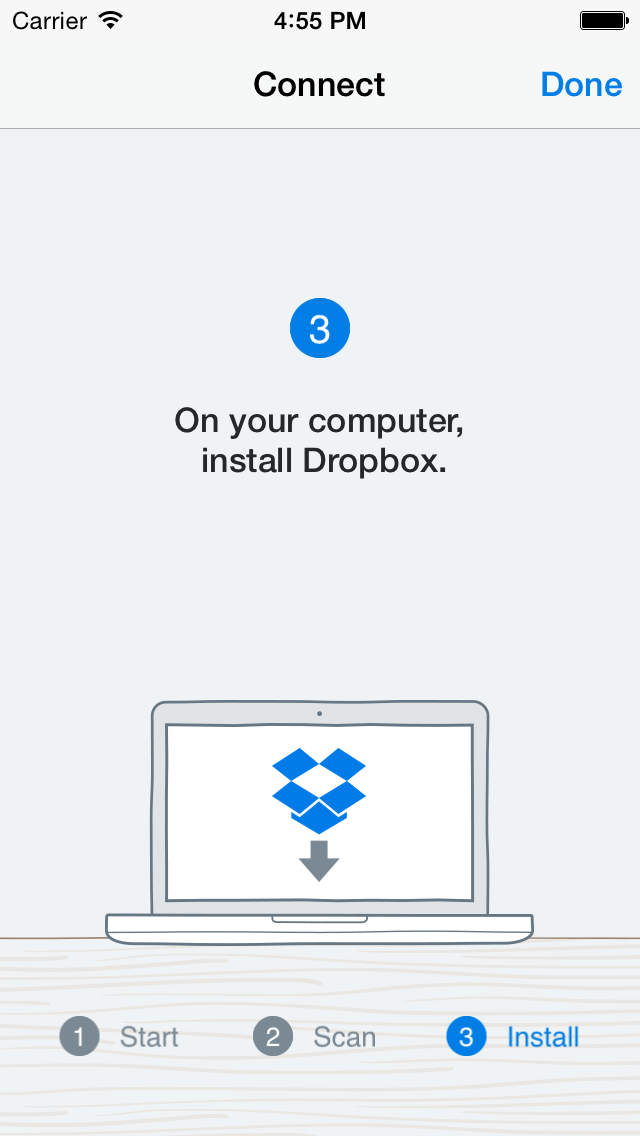
The outcome is a fully installed, logged-in, ready-to-use desktop Dropbox client with no credential entry. Eliminating manual sign-in removes the risk of users accidentally choosing a different email address or hitting a forgotten-password dead end.
Ongoing Work and Experimental Flows
The onboarding improvements solve a significant portion of the setup problem, but some challenges remain. The last step of the Get Started flow—adding files to Dropbox from a computer—shows notably lower completion rates than earlier steps. Dropbox is exploring ways to help users automatically bring in important documents and photos from their computers, which could raise those numbers.
The introductory flow and the desktop connect flow are both live on Android and iOS. The Get Started checklist is still in experimentation on Android. The design, product, and engineering efforts focused on making simple user experiences, but the team notes there is still room to improve the journey for new users.


