
A Year of Keyboards: Making Figma Shortcuts Work Worldwide
Figma's shortcut system was built around the US QWERTY layout. For users on international keyboards, many shortcuts would fail or trigger unintended actions. The team was tasked with making Figma shortcuts friendlier to international keyboards, a charter that would take them on a twisty journey through the next year. The core problem: Figma's shortcut engine detected key presses by their physical position on a US keyboard, not by the character they produce in a given layout.
The Underlying Problem
When a user presses Cmd/Ctrl + Z on a US keyboard, Figma receives the KeyZ value. But on an AZERTY layout, the physical key that produces Z on a US keyboard actually produces W. If Figma listens for KeyZ and the user presses the key that visually shows Z on their AZERTY keyboard, the browser reports KeyW, and the shortcut fails.
The naive fix — simply listening for the character the key produces — breaks on layouts where keys produce characters that require Shift or AltGr. For example, on a German keyboard, the Z key produces Y when pressed alone, but Shift + Z produces an uppercase Z. The team needed a system that maps shortcuts to physical key positions, so that the same physical key works regardless of the active layout.
A Complex, Cross-Platform Landscape
The challenge extended beyond simple layout differences. The team had to account for:
- Multiple operating systems: macOS, Windows, and Linux each expose keyboard events differently.
- Layout variations: QWERTY, AZERTY, QWERTZ, Dvorak, Colemak, and dozens of others, each with distinct key-to-character mappings.
- Dead keys: Keys that don't produce a character on their own but modify the next keypress (e.g.,
^,´,¨). - Compose keys and IMEs: Input method editors for CJK languages and other complex scripts intercept key events entirely.
- Modifier combinations: Some shortcuts require
Shiftto reach the necessary character, while others must work without it.
The team tested across many keyboard layouts, and quickly realized that any solution based on string matching of event.key would be fundamentally broken for a significant portion of users.
The Physical Key Mapping Approach
Figma's solution centered on the concept of a key code. The browser's KeyboardEvent.code property reports a physical key identifier like KeyA or KeyZ that is independent of the active layout. Figma could then map each shortcut to a set of key codes that correspond to the intended character's position on a US QWERTY layout.
Consider a shortcut like Cmd/Ctrl + Shift + X for a common action. On a US keyboard, X is at the KeyX position. On a French AZERTY keyboard, the physical key at that position produces X when shifted — but the user's muscle memory tells them to press the key that looks like X, which is located elsewhere. The team ultimately designed a mapping table for each supported layout, specifying which physical key codes correspond to each US key's position.
The core abstraction became a mapping table per layout, translating each event.code value to the US key character it would produce if the layout were QWERTY. When a shortcut is defined with a US key character, Figma looks up the current layout's mapping to determine which physical key code(s) should trigger it. This handles the common case where a shortcut is defined for Z, and the user is on an AZERTY keyboard: the mapping table tells Figma that KeyW (the AZERTY position for Z) should trigger the shortcut.
Edge Cases That Forced Refinements
The initial implementation worked for straightforward cases but quickly hit tricky layout behaviors:
- The QWERTZ swap: German and Czech layouts swap
YandZpositions. A shortcut that worked on QWERTY would unintentionally trigger when the user pressedYon a QWERTZ layout. - Number rows: Symbols (
!,@,#) aren't available withoutShifton some layouts, while on others they're the unshifted state. The mapping had to handle character-level matching for shortcuts that included symbols, sometimes requiring shifting the modifier logic. - The mac command key: On macOS,
Cmdshortcuts often don't need to worry aboutShift— the system treatsCmdandShiftas separate modifiers. But on Windows and Linux,Ctrlbehaves differently, and the mappings had to be platform-specific.
The team iterated with a large test matrix of layouts on all three operating systems. They built an internal tool that displayed each layout's output for every physical key, allowing rapid debugging and validation of the mapping tables.
Implementation Strategy
Figma's shortcut matcher now works in two stages. First, it filters events by physical key code. Second, it checks the active layout and modifier state. For shortcuts that include characters requiring Shift (like ? on many layouts), the matcher automatically adjusts which key code is expected when Shift is held.
A key decision was to keep the system purely in the frontend, avoiding a server-side shortcut registry. The team also accepted that certain shortcuts might never be comfortably reachable on some layouts. Rather than attempting to fix every oddity, they prioritized the most common layouts: US, UK, German, French, and Spanish, with others following in a second wave.
All this work gets shipped inside the regular Figma desktop app and web client, so no additional infrastructure was needed. The changes are shipped only after regression tests across the core matrix pass, and the team monitors issue reports from international users to refine mapping details for rarer layouts.
What This Means for Users
Users on common international layouts now find that muscle memory works: pressing the key that shows the shortcut's character triggers the command. Users on rare layouts may still experience gaps, and the team asks for feedback to improve mappings.
Keyboards Don't Have to Be a Dead End
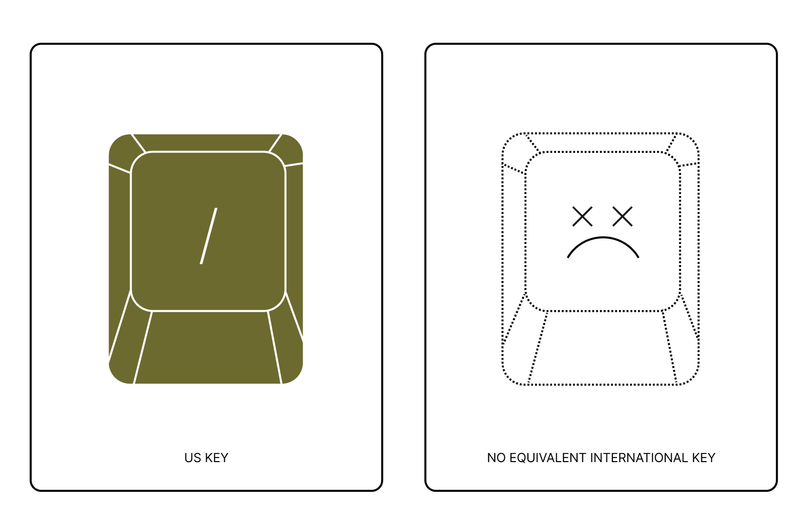
Figma's shortcut system was built around US QWERTY keyboards, which created real friction for users on other layouts. Instructions like "press ⌘ + \ to toggle the UI" are meaningless when your keyboard has no backslash key, and users on some layouts physically couldn't initiate cursor chat because there was no / key to press. A cross-functional team set out to fix this, and the journey turned into a year-long exploration of keyboard quirks, browser inconsistencies, and some genuinely surprising Unicode behavior.
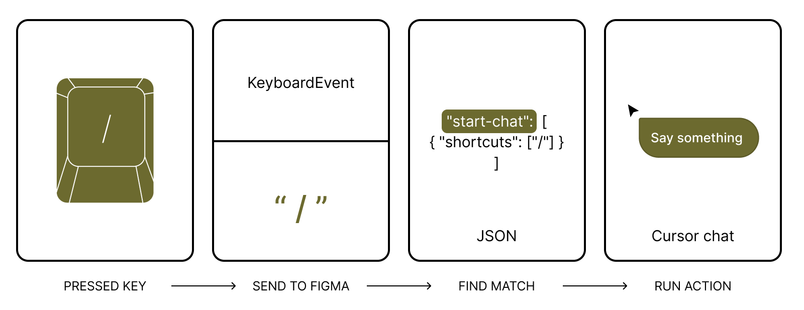
Keyboard event handling starts simply enough: when a key is pressed, the browser sends a KeyboardEvent, which Figma translates and checks against a JSON file of possible shortcuts. If there's a match, the associated action fires—paste a frame, toggle the UI, open cursor chat. The naive fix would be to just add new shortcut definitions for non-US layouts: a Swedish user gets Meta + Ä for "Bring forward" instead of ⌘ + ]. That's where the rabbit hole begins.
Unicode's Unexpected Curveballs
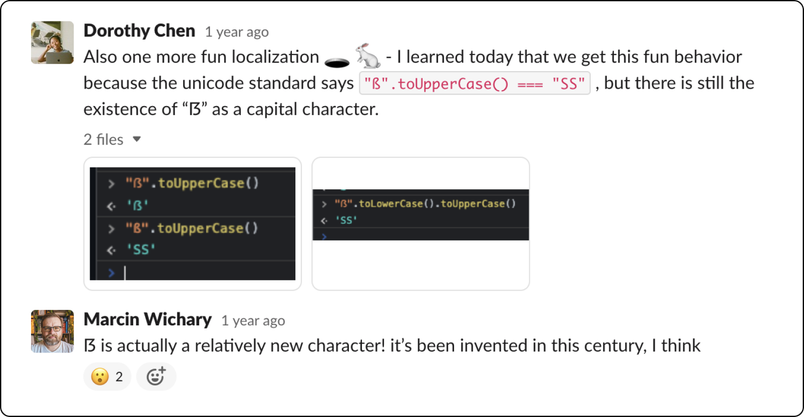
The first trap sprung on German keyboards. The shortcut for "Decrease text weight" is Meta + Alt + ß, and it failed mysteriously when added to the JSON definitions. The culprit: shortcut normalization capitalizes characters, and "ß".toUpperCase() yields SS—two characters where there was one. Even worse, "ß".toUpperCase().toLowerCase() doesn't return the original ß, breaking any idempotent normalization logic.
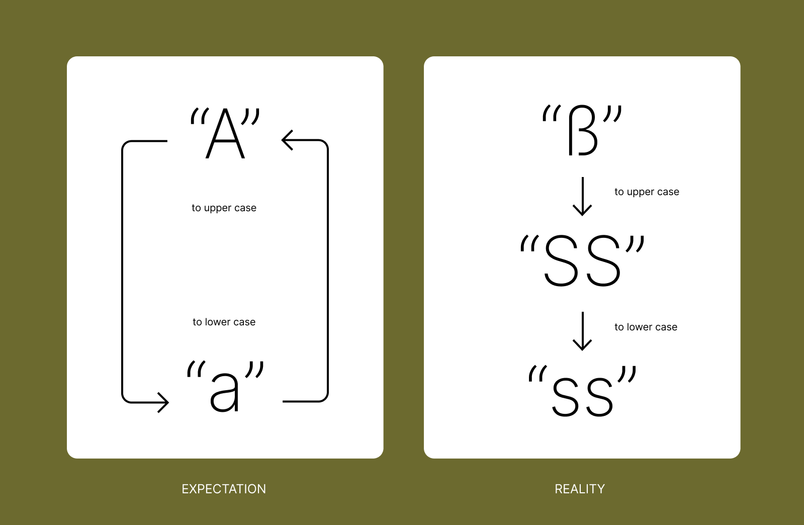
The workaround uses the capital eszett ẞ, a character that was only officially adopted by the German spelling council in 2017. Programming languages haven't fully caught up, so this is the kind of edge case that can silently break keyboard handling in unexpected ways.
Detecting What Keyboard Someone Actually Has
Keyboard detection itself turned out to be a monumental task. The Figma desktop app can detect a user's OS keyboard setting directly, but browsers don't offer reliable native APIs. The team resorted to heuristics based on the experimental Keyboard API, which maps positional key codes to characters. If the Quote code produces ä, the system might guess Swedish. With logging in place, over 2,500 distinct keyboard layouts appeared on Figma within 30 days—and archives of Remington typewriter layouts suggest thousands of layouts have existed for a century.
The data, combined with forum feedback, produced a shortlist of keyboards to support first: German, French AZERTY, Japanese, British, Swedish, Finnish, Danish, Norwegian, Italian, Spanish, Spanish LATAM, Chinese, Portuguese, and Korean.

Designing Shortcuts That Respect User Muscle Memory
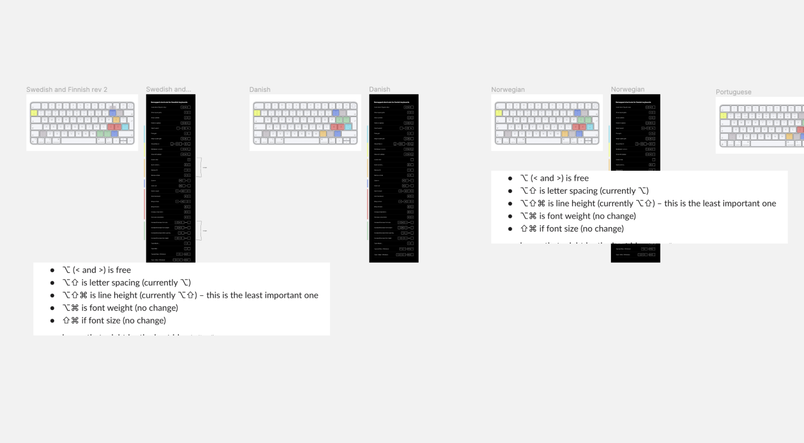
Auditing which shortcuts were problematic—missing keys, physical inaccessibility, or conflicts—cut the investigation down to mostly symbol-based shortcuts. But deeper challenges emerged when adapting US-centric shortcuts to new layouts:
- Physical comfort matters: key combinations should be easy to reach
- Pairs like "move to front" and "move to back" should sit on adjacent keys
- The
⌘key on Mac typically maps toControlon Windows, but Mac also has its ownControlkey used by some shortcuts, complicating translations
A hidden complexity surfaced around storing keyboard layout preferences. Users may have different physical keyboards at work and home, so preferences are stored per-device in localStorage, with fallback to a database-backed user preference if cache is cleared or a new device is used.
Dead Keys and Browser Inconsistencies
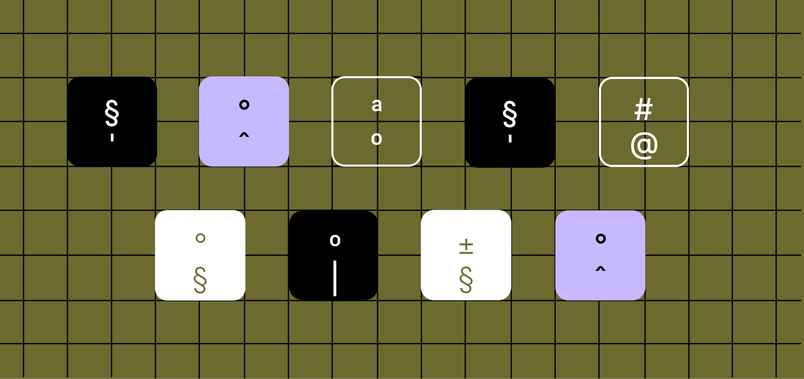
French AZERTY keyboards threw another wrench into the works. For "Unindent text," the shortcut is Meta + ^, but ^ is a diacritic key that the browser flags as a "dead key"—a typewriter-era term for keys that output an accent without advancing the carriage. The browser emits additional KeyboardEvents while waiting to compose the diacritic with another character, and handling them correctly is essential to avoid literally typing ^ instead of executing the action.
Safari adds its own twist by swapping the order of keydown and compositionstart events. Chrome fires them in one order; Safari fires them in reverse. Since Figma relies on the keydown event to determine shortcut acceptance before rejecting characters in the input listener, the logic breaks on Safari—meaning the "Unindent" shortcut simply doesn't work there.
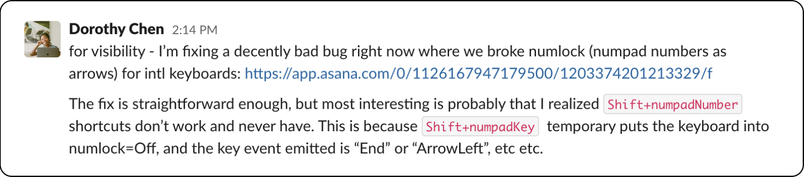
Another quirk: on all keyboards, "Zoom reset" is Shift + 0, but pressing Shift with a numpad key overrides numlock. The shortcut silently fails on numpads—the result of decisions made by designers decades ago.
Notifying Users Without Crossing Streams
After shipping support for international layouts, there was still significant work left. The team needed to tell non-QWERTY users their shortcuts had expanded without burdening QWERTY users with irrelevant notifications. Users who switch their OS keyboard layout mid-session could otherwise face confusing mismatches between physical keys and on-screen shortcuts.
Desktop detection has its own pitfalls: OS keyboard layout names like com.apple.keylayout.ABC or 00004009 don't tell you at a glance which Figma layout to recommend. Apple even renamed some Japanese layouts mid-project, forcing the team to switch from exact-match to prefix-matching for detecting layouts. Browser-side detection compounds this uncertainty: the KeyboardLayout API isn't universally available, and some layouts simply can't be detected heuristically. For Japanese users who toggle between Japanese and ABC layouts multiple times per session on the same physical keyboard, automatic layout switching would likely create more frustration than value.
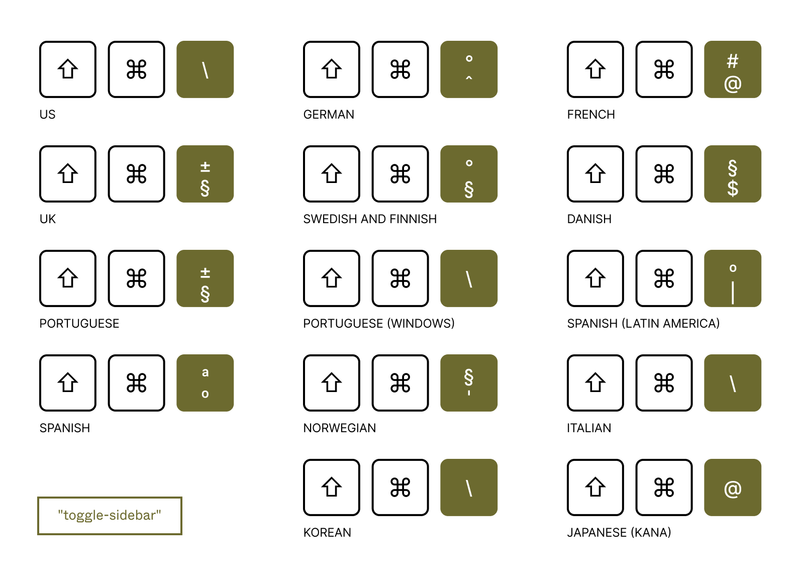
The team initially explored auto-updating keyboard preferences whenever the system layout changed, but the imprecision of detection technology made that approach risky. They abandoned it, instead designing minimal and non-intrusive detection flowcharts.
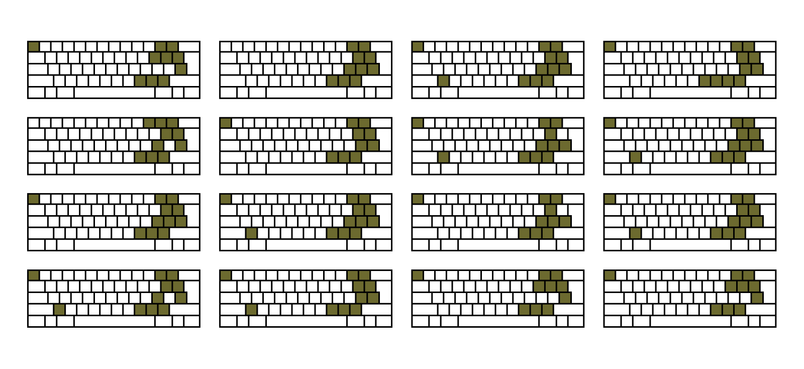
The final design choice was visual: the settings pane now diagrams every supported keyboard layout if users need to confirm whether their Figma setting matches their physical keyboard. With those elements in place, Figma shipped support for non-US QWERTY keyboards to users on the November release. The team is clear that the work isn't finished—requests for additional layout coverage continue.
Keyboard Independence: Thinking Beyond the QWERTY Layout
When you rely on key combinations in an editor, you also accept a cultural bias from its design. Shortcuts like ⌘C and ⌘V were mapped to a US keyboard, but for a user typing in Greek, Russian, or Hebrew, the physical keys are different or lead to slightly different characters. If a plugin or editor shortcut depends on a special character itself rather than the physical key, it will not trigger correctly for users in those locales.
This is why solution architects frequently recommend commands that either reference the position of a key or rely on the standard letter keys. Even a system as robust as an international keyboard mapping may not expose a path for every character modification you expect. When the system does allow it, the code path is often inconsistent due to the way third-party input methods and OS APIs treat "dead" keys.
International Keyboard Shortcuts and Hidden Dependencies
Regardless of platform, the fastest way to get lost in localization work is to assume system events and keyboard events are the same thing. A processed input event tells you which character was generated, not which key produced it. This is not a detail if you run multilingual environments where a simple press of the AltGr combination or a dead key changes the resulting character entirely.
The effective international shortcut should not depend on, for example, the difference between '"', '’' and '”' — those result from where you are typing. The safer mental model for applications is that you test for a modified key press only in regular ASCII contexts, or you make the shortcut fully independent from character set. Function keys, arrows, and common chord patterns like Ctrl + F behave predictably on international layouts, whereas characters coming from a dead key may not even be detected by some front-end frameworks.
Addressing Keycode Interpretation in Browsers
In a web context, keyboard events provide more transparency. The KeyboardEvent.key property renders the text representation, whereas KeyboardEvent.code points to the physical location of the key on the board. If a tool is designed accurately for international use, its backend should validate against code, not key, especially when prioritizing shortcut reliability over user-facing convenience.
This definition makes testing much easier. The code that captures a "copy" on any layout can read physical KeyC rather than accept the value from e.key. Valuable details such as the state of modifier keys are still reliably tracked with e.ctrlKey and e.metaKey, independent of which character set the user configured.
More complex to debug, dead-key handling results appear only at the end of a sequence: a user marking text and immediately pressing Ctrl + E may end up with a composed character if they accidentally hit a single quote first. Input methods that produce multiple characters on one physical action can confuse older libraries which read e.key and record only one final value.
Designing Shortcuts in Figma
Figma supports multiple keyboard layouts and lets you access its environments in six UI languages. Under these layers, though, its logic remains close to a practical recommendation: most shortcuts attach to primary letters, numbers, or function keys, keeping recognizability even when users type in unusual latin or non-latin keyboard sets. The key mapping can fall back gracefully in these situations rather than pushing a tooltip onto a key that doesn’t physically exist in the selected keyboard type.
Edge cases this reveals:
- When your UI language is English and your active keyboard layout is French (AZERTY) or German (QWERTZ), positions of letters differ. Relying directly on letter chord patterns may occasionally trigger, for instance, an emphasis shortcut instead of a group collapse.
- For the Polish programmer layout, you have an additional right
Altkey which works as a modifier. Commands that previously occupied that combination need distinctive fallbacks. - The tendency to translate UI actions but to leave shortcuts untranslated requires testing every modifier combination across each target layout.
If an application does more than one action on the same key combination but is incorrectly sensing a character not present in the selected keyboard, users discover it because their action may skip its shortcut entirely.
Practical Implementation Steps
- Extract all shortcuts from your user interface and classify each one by the region of the keyboard that hosts it. Assign an action reference, not the physical character, for configuration systems. This solves, in one step, mappings for Chinese, Japanese, and Korean users as well as keyboard variants for Portuguese and Czech.
- Always warn users when action conflicts appear. In an international context this happens more often than expected — one variation may see a clear right
Altassociation while another sees that same key as the only path to@, for example. - Test twice: once using
keyto observe which characters arrive and once usingcodeto confirm which specific physical location the user pressed. Create several automated configurations to rotate your keyboard against when the data returned needs validation in a repetitive cross-browser environment.
The conclusion is that internal tools should view shortcut reliability less as a translation table exercise and more as an input-system interpreter that validates context before allowing an action.


