
Hands-on Figma exercises for the design classroom
Miggi Cardona, a designer advocate for education at Figma and instructor in the New Media Design program at Rochester Institute of Technology, has built a set of classroom activities around hands-on practice in Figma. The exercises span beginner to advanced skill levels, and each ships with a companion community file that educators can duplicate for their own courses.
Getting comfortable with the basics
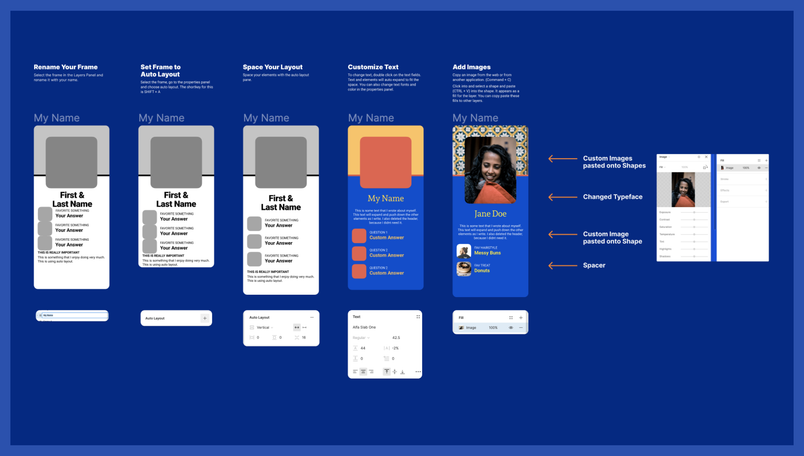
1. Student trading cards. A first-week activity that pairs icebreakers with core Figma concepts. Students build a social media-style profile using Auto Layout and components, working together in a shared file so they can observe each other's process. When finished, profiles are collected on a gallery page. More experienced students can add their own question and icebreaker components to the file.
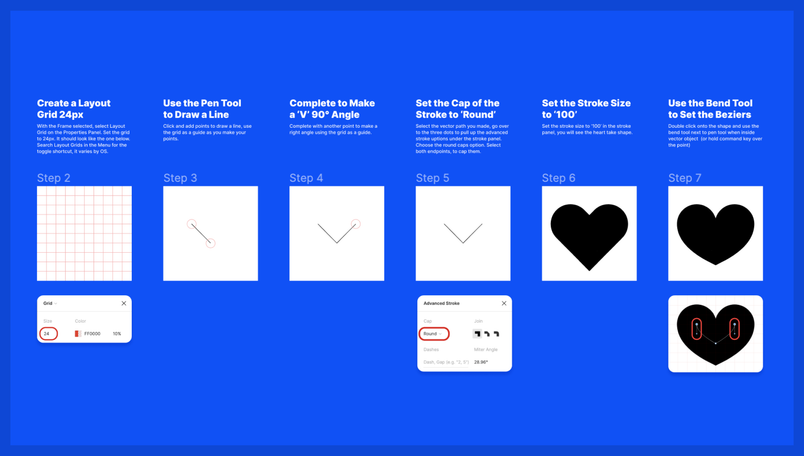
2. Make a heart. A quick exercise for building confidence with shape creation. Students draw a heart using the pen tool, layout grid, and properties panel, then customize it. An optional extension uses Smart Animate to make the heart pulse, and students can move on to designing and styling other shapes.
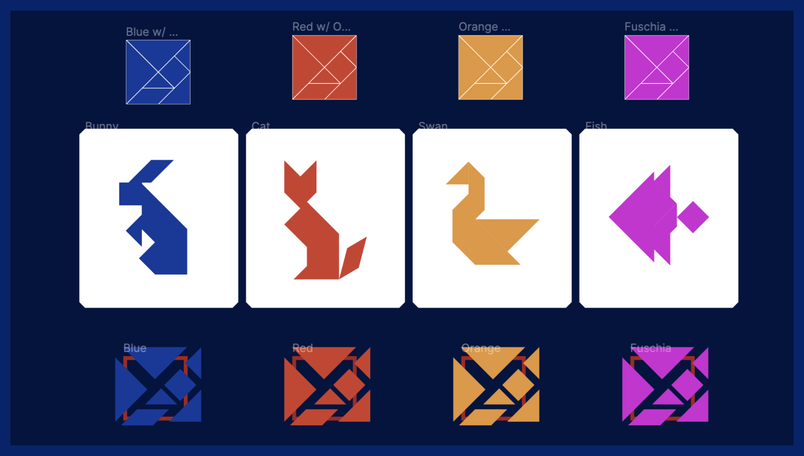
3. Figma tangrams. A brief history lesson on geometry precedes this activity, in which students arrange seven pieces into recognizable animals using components, rotation, and alignment. The prompt also leaves room for abstract shape exploration. As a harder variant, students research and build their own reusable puzzle sets without referring to the shared document.
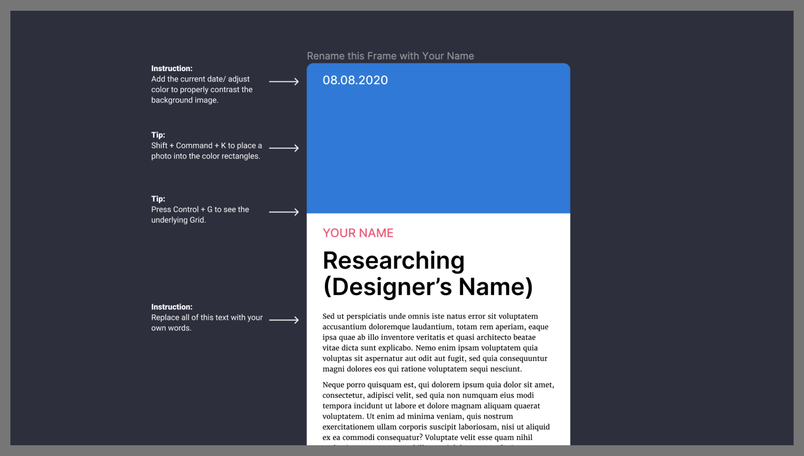
4. Design research paper. This exercise asks students to turn their research findings into a compelling visual layout, producing a collaborative library of articles the class can read and comment on. Cardona notes that it tends to spark discussion about visual hierarchy and communication design principles. Layout grids and keyboard shortcuts are the featured tools.
Collaboration and interaction
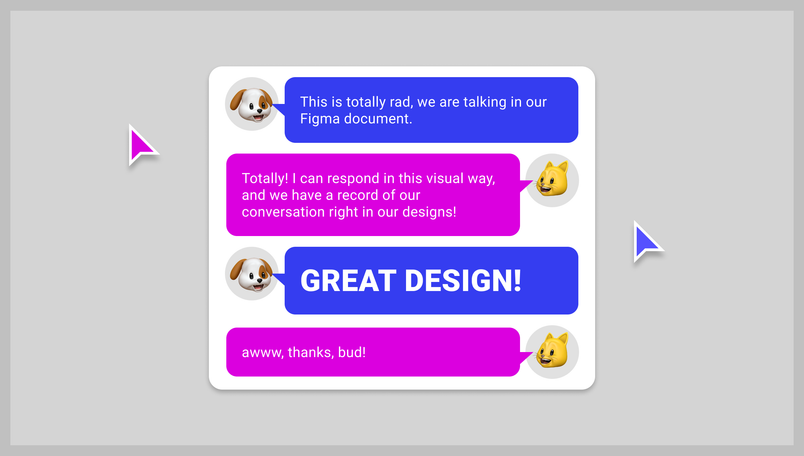
5. Chat windows. Students create custom chat components so that future collaborative documents can include in-file conversation and visual feedback. Because participants can reuse their components in later group projects, the activity has immediate practical payoff beyond the exercise itself.
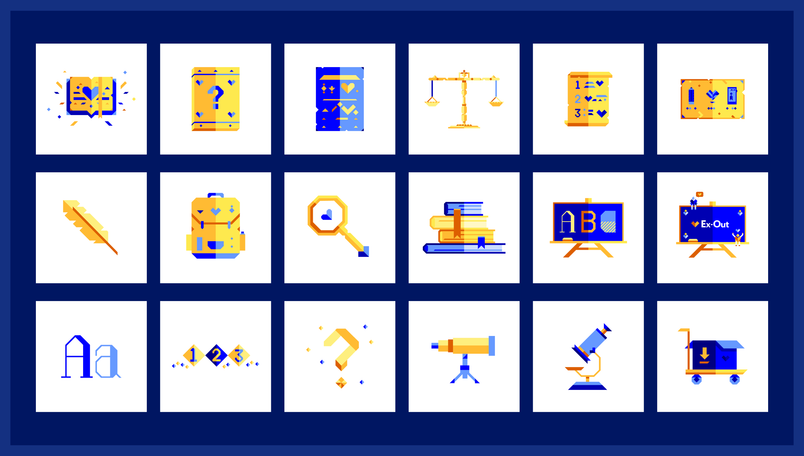
6. Collaborative illustrations (with constraints). Working as a group, students develop a unified illustration or icon set under shared constraints such as a limited color palette and a bespoke angular grid. The example in the community file shows a set of geometric pieces used to illustrate concepts within a handbook mobile application. The collaborative format encourages peer support and critique throughout.
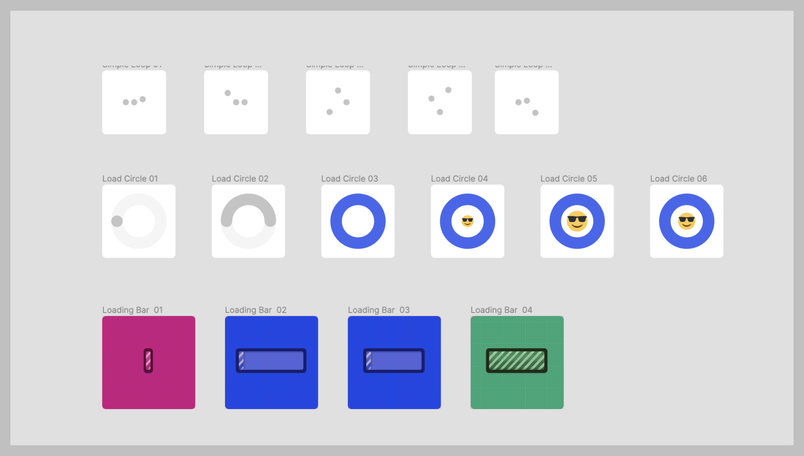
7. Loading animations. Students design their own loading or thinking animation, a task that gets them thinking about how to communicate system state in an interactive application. Prototyping and Smart Animate are the key features here, and the exercise serves as a conceptual bridge to more advanced interaction design work.
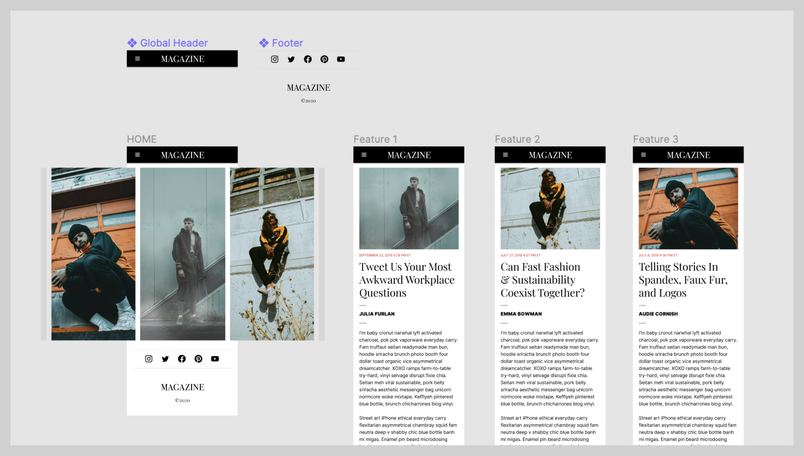
8. Mobile magazine prototype. Combining layout grids with prototyping, students build a mobile layout of a magazine gallery and then prototype its navigation. The exercise can expand on Activity 4, with students collaborating to prototype a working zine that uses their own written content and images.
Layout systems and print
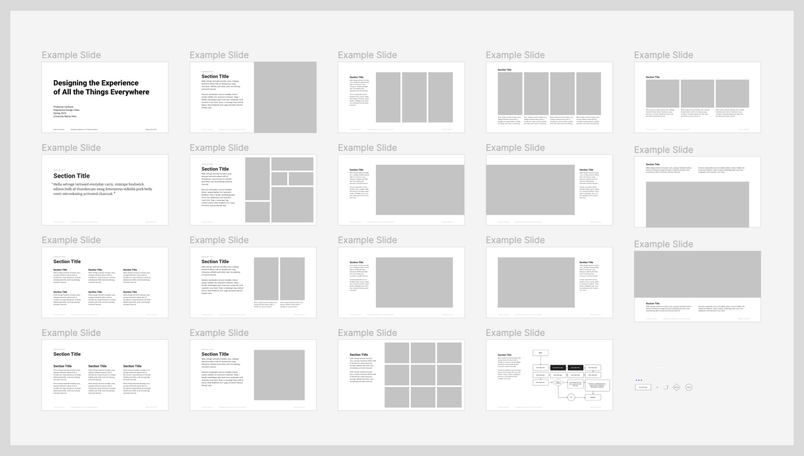
9. A grid system for presentations. This deep-dive on grid systems teaches baseline, columns, gutters, margins, and modules in the context of a 1920×1080 presentation deck built on a 14-column layout. Recommended reading includes Ellen Lupton's Thinking with Type, The Vignelli Canon, Josef Müller-Brockmann's Grid Systems, and Google Material Design's documentation on layout.
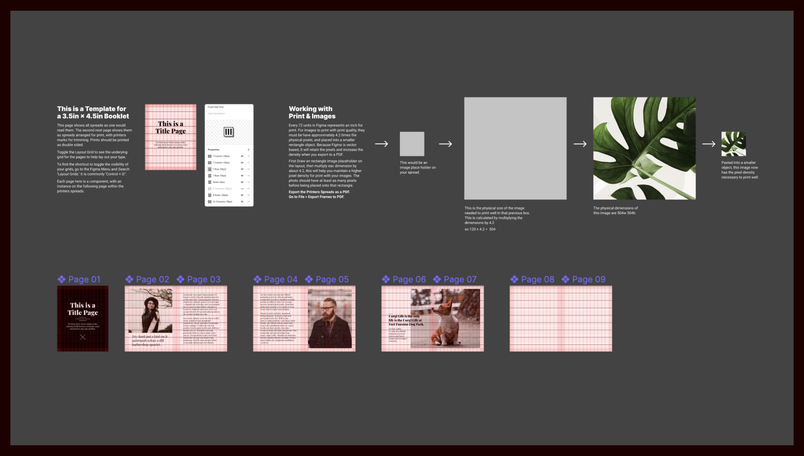
10. Print a zine. A print project refresher that relies on Figma's PDF export. Students lay content out across pages using components, then inspect instances as printer's spreads on a second page. The exercise forces consideration of print resolution and full-spread layout behavior; the accompanying community file includes a template set up for clean export to a commercial printer.
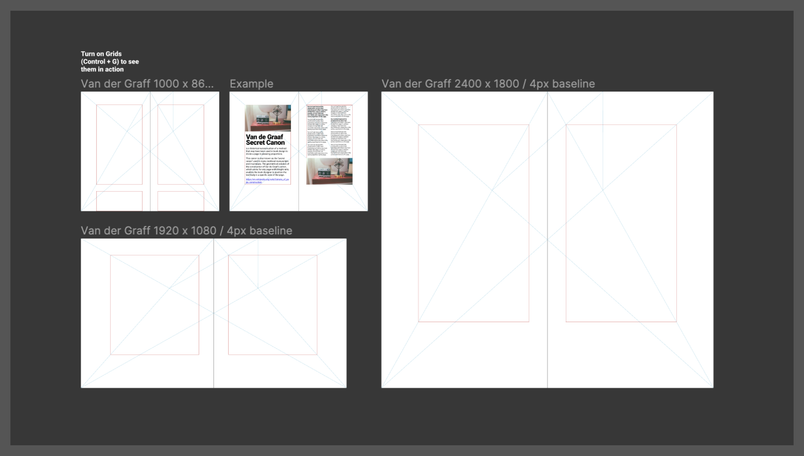
11. Deconstructing a design concept or artifact. In this reverse-engineering exercise, students research a logo mark, design system, or finished artifact and then recreate it in Figma. Example files cover the Rochester, NY Flower City Flour Mill logo and the Van de Graaf Secret Canon as a responsive print layout. Cardona finds that students gain a clearer sense of their own design process by analyzing the intentionality behind existing work.
All exercises are available as community files, which educators can duplicate directly into their own Figma projects.


