Order in the Product Workspace
Every product generates a steady stream of documents: research, specs, design files, reports, decks, contracts. Left to grow without a system, that stream becomes a flood of files where nothing is findable. The fix is not complex. A few simple rules about naming, structure, and cleanup can turn a chaotic Drive folder into a workspace that saves time and makes collaboration smoother.
This matters for more than just managers. Product records — the full body of documents tied to a product — are used by researchers, designers, editors, and anyone else on the team. If everyone understands how assets are organized, onboarding gets faster, handoffs get cleaner, and a sudden absence doesn't become a crisis.
What Counts as a Product Record
Product records include a wide range of materials:
- Market research and business plans
- UX assets: test results, copy docs, and the like
- Editorial policy and content guidelines
- Development timelines and specifications
- Contracts, invoices, and templates
- Presentations, pitch decks, and one-pagers
- Investor reports
The goal is shared understanding: each team member knows where things live and how to follow along, which keeps costly mistakes at bay.
Adopt the Right Mindset
A healthy product records environment follows a few principles:
- Files are accessible any time to anyone authorized — no single "keeper" acts as a bottleneck.
- Records are reachable from anywhere, via cloud sync.
- The setup is robust: accidental changes are hard to make irreversibly.
- Access controls are pre-defined and easy to manage.
- Newcomers can get oriented quickly.
- Shipping assets to outside collaborators is straightforward.
These principles are achievable with any cloud content tool that syncs across users and devices. The choice of software is personal; Google Drive, Dropbox with Paper, and Notion all work. Key is distinguishing between an asset — information relevant across the product's life — and a task, which gets archived when resolved. Use content applications for long-term assets and task managers for time-limited activities.
Build a Structure That Can Grow
Don't try to build a perfect folder hierarchy at the outset. Start simple. You can't predict how the product will evolve, and exhaustive preparation keeps you from real work. Put a general structure in place, observe how the team actually uses it, then adjust in iterations.
For anything that doesn't clearly fit, create a Sandbox folder. Drop documents there when choosing a location takes more than three seconds, and decide on their proper home later.
Then commit to a weekly cleanup — ten minutes is enough. Use that time to rename files, check consistency across folders, and tweak the structure as needed. If things are already tidy, the time is free.
Make Navigation Effortless
As assets accumulate, an index document becomes essential. Think of it as a front page for your product folder — a single overview linking to everything of importance. It helps on calls when you need to pull up a file fast and share it, and it also removes the need to dig for links.
An index document might include:
- Onboarding Tips: a team roster and roles. Next time you hire, log every message you send a newcomer and turn it into a reusable template.
- Design Files: links to Figma, Sketch, or other sources.
- Information Architecture: a link to Miro, Airtables, or equivalent.
- Product Assets: a link to the shared Drive or Dropbox folder.
- Tech Stack: notes on the product's technical setup and tools to install.
- Press Kit and Marketing Materials: brand assets and demo snapshots.
- Presentations and Pitches: decks and one-pagers used to tell the product story.
- Business Assets: plans, unit economics, and similar documents.
Use Tags in File Names
Prefix file names with tags that mark the document's category. Tags prevent confusion when similar files from different projects collide, and they help immensely when navigating with many browser tabs open.
Useful tags include:
- [Draft] or [WIP] for work in progress
- [Old] or [Arch] for outdated files
- Language codes like [EN], [ES], or [UA] for multilingual docs
- A person's name for files worked on by outside collaborators
- A project abbreviation, such as [SM] for Smashing Magazine
Apply tags consistently — don't use [WIP] in one file and [Draft] in another. The same tagging rule applies to folder names. And avoid copying assets across folders or tools; keep each piece of content in a single location and link to it instead.
Editing With Intention
Use Emoji To Signal State
Emoji work well as visual markers because they stand out from surrounding text. You can place them in headings, tables, or folder names to show the status of a document at a glance.
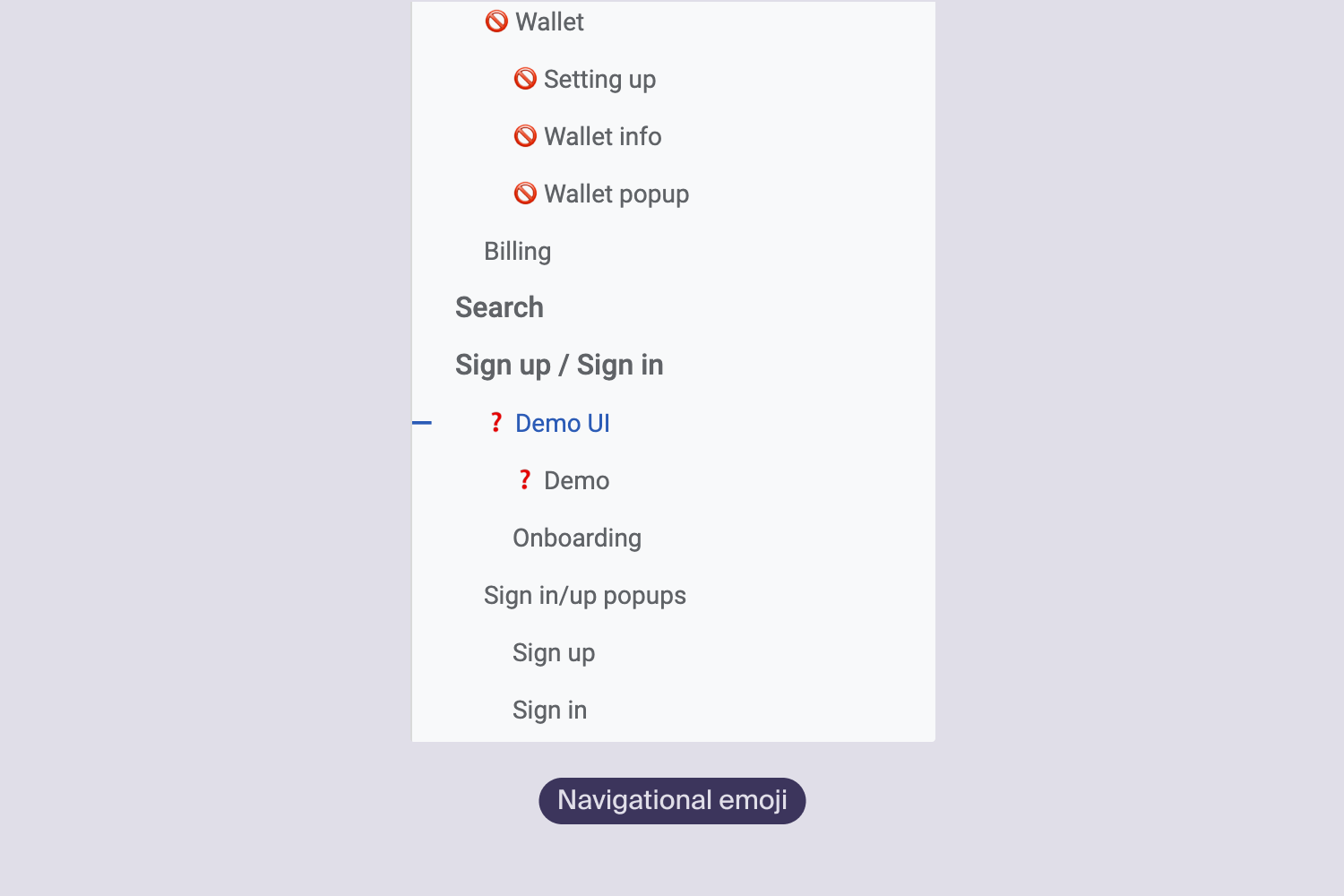
Build a simple labeling system: for example, a green circle for finished items and an orange diamond for work in progress. Make sure the indicators differ by shape as well as color so they remain accessible to everyone. Add a legend so teammates can decode the system without asking.
Highlight Work In Progress
When you edit a shared document, tell people what you touched. Highlighting is the fastest way to do that.
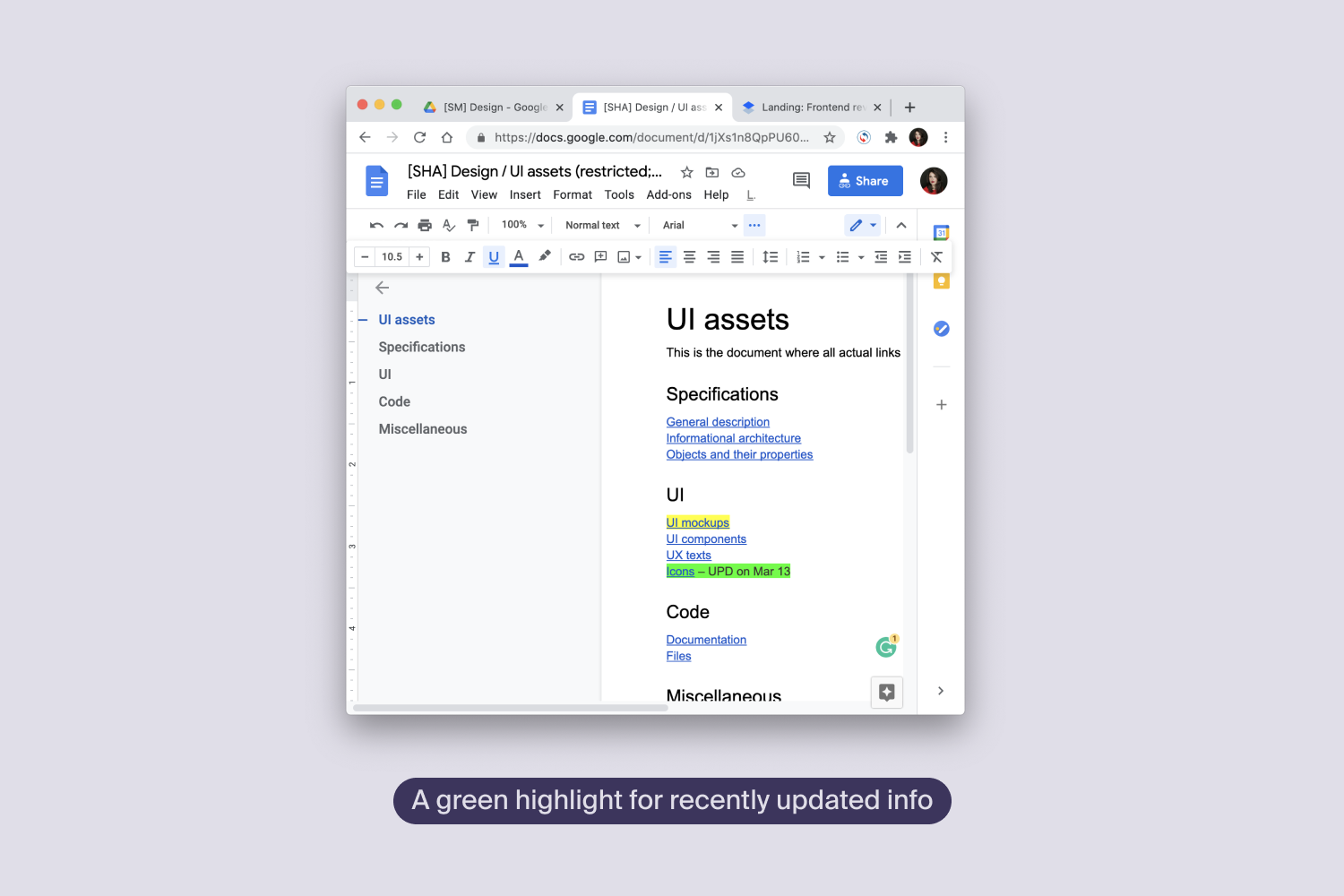
You can also highlight sections you are currently working on. This is especially useful in large files with several unfinished chunks scattered around — scanning for highlights makes it harder to miss a half-done part during review. The technique works across document types, from Google Docs articles to Figma boards.
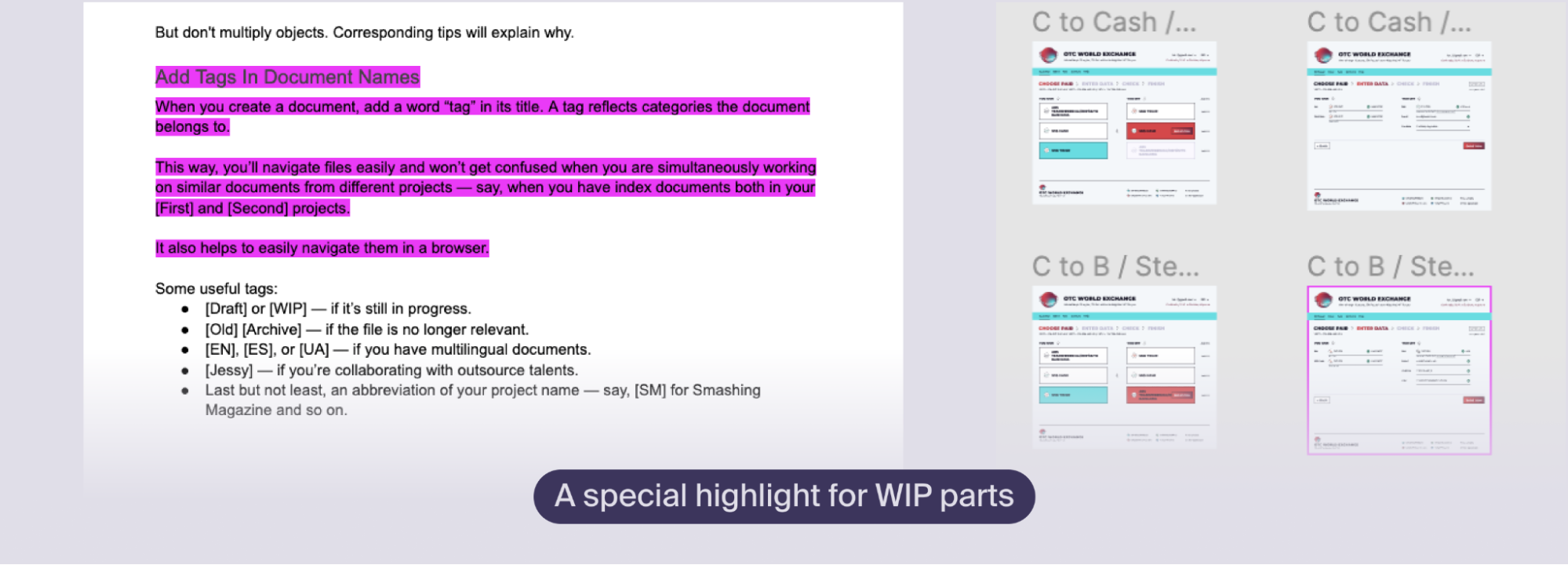
Teammates always know which parts are in flux and which are settled.
Stick To Default Styles
Setting custom fonts and colors in every doc is tempting, but it costs time and adds nothing. Agree on standard typography and formatting for internal documentation, and use those defaults consistently.
Treat Bookmark Links As Supporting Tools
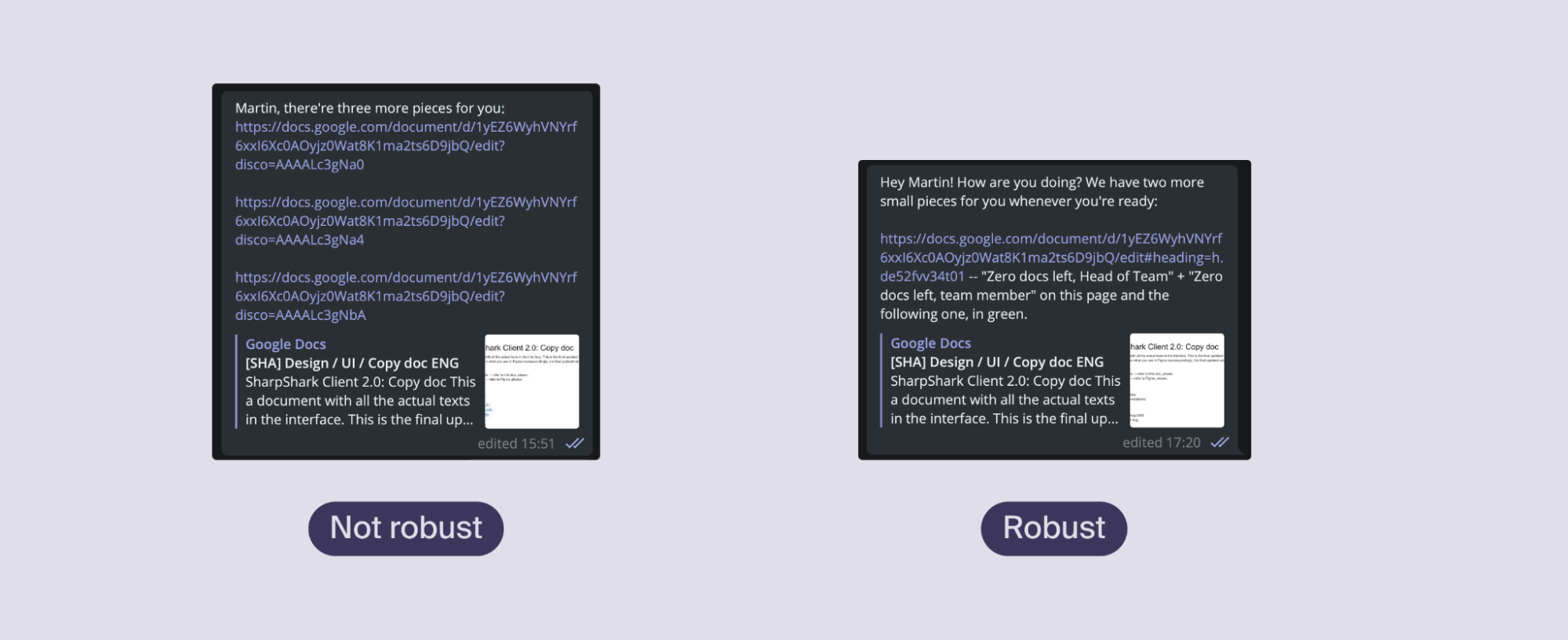
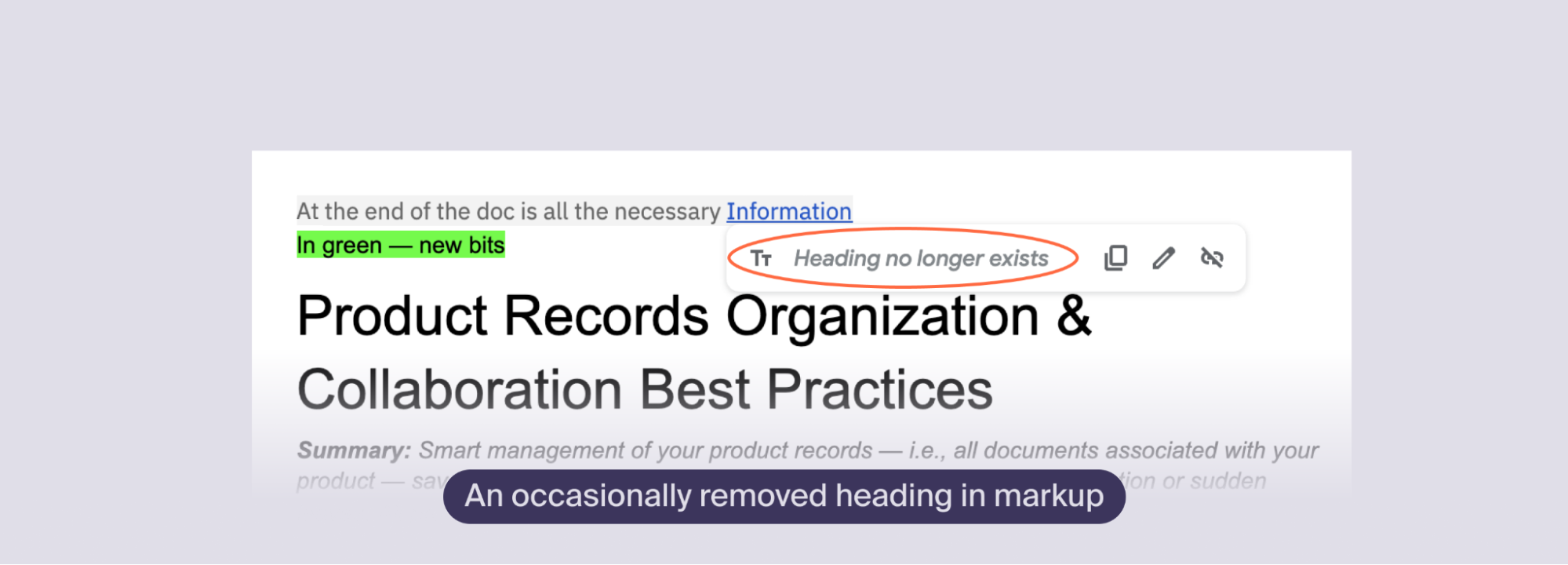
Cloud editors offer anchors, bookmarks, and comment links that generate shareable URLs pointing to a specific spot. These are convenient, but they are fragile compared to a regular link pasted in the body of a message. If a bookmark is removed, the recipient gets dropped at the top of the document with no clue about what was referenced.
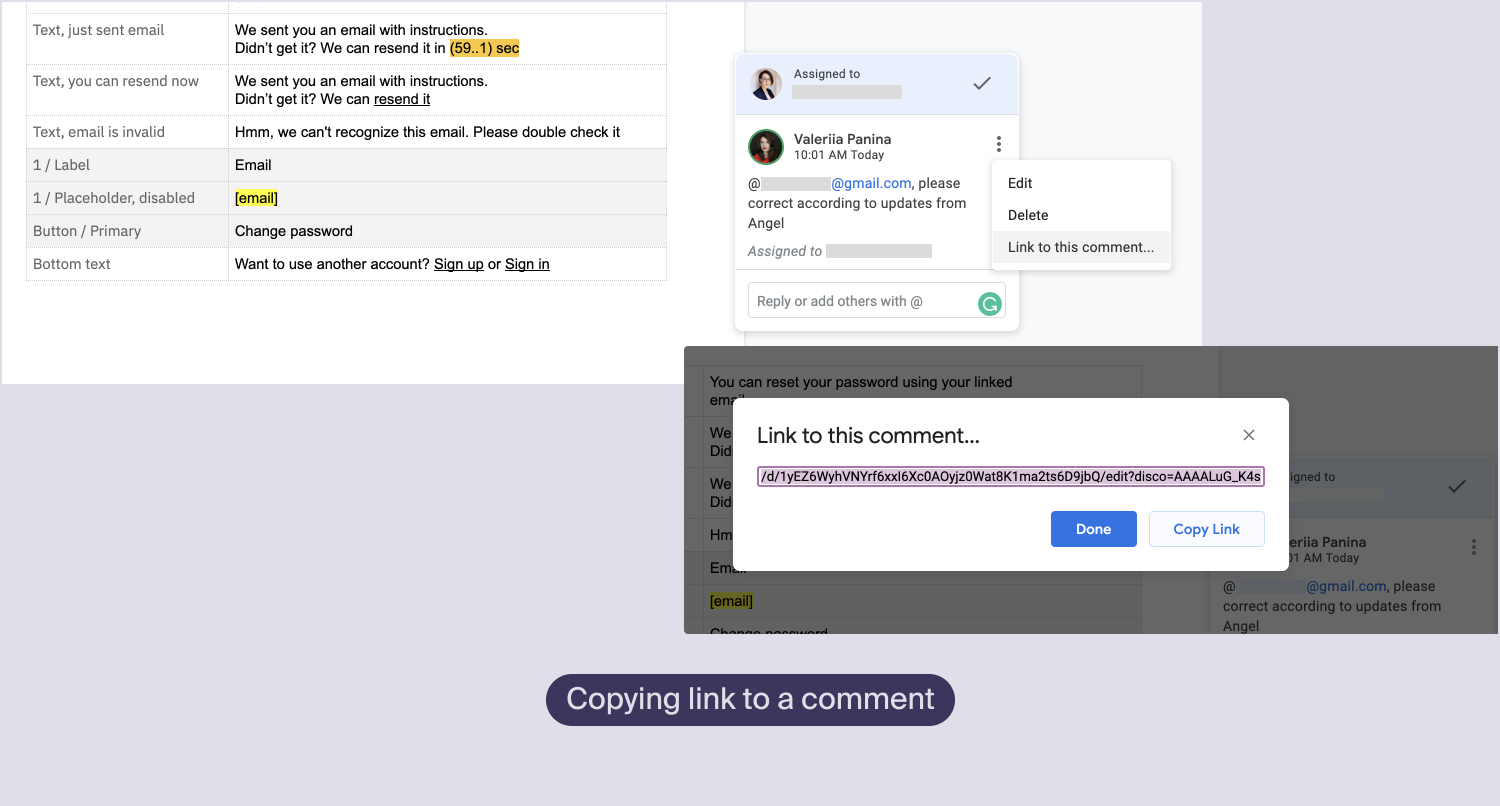
When you share such a link, always add a short note explaining what content is at the other end. The example below shows the difference: the message on the left contains bare bookmark links, while the one on the right describes what should be updated at each destination.
The same rule applies to references inside a document. If you link to another section or page, name the item you are referring to rather than leaving a bare anchor.
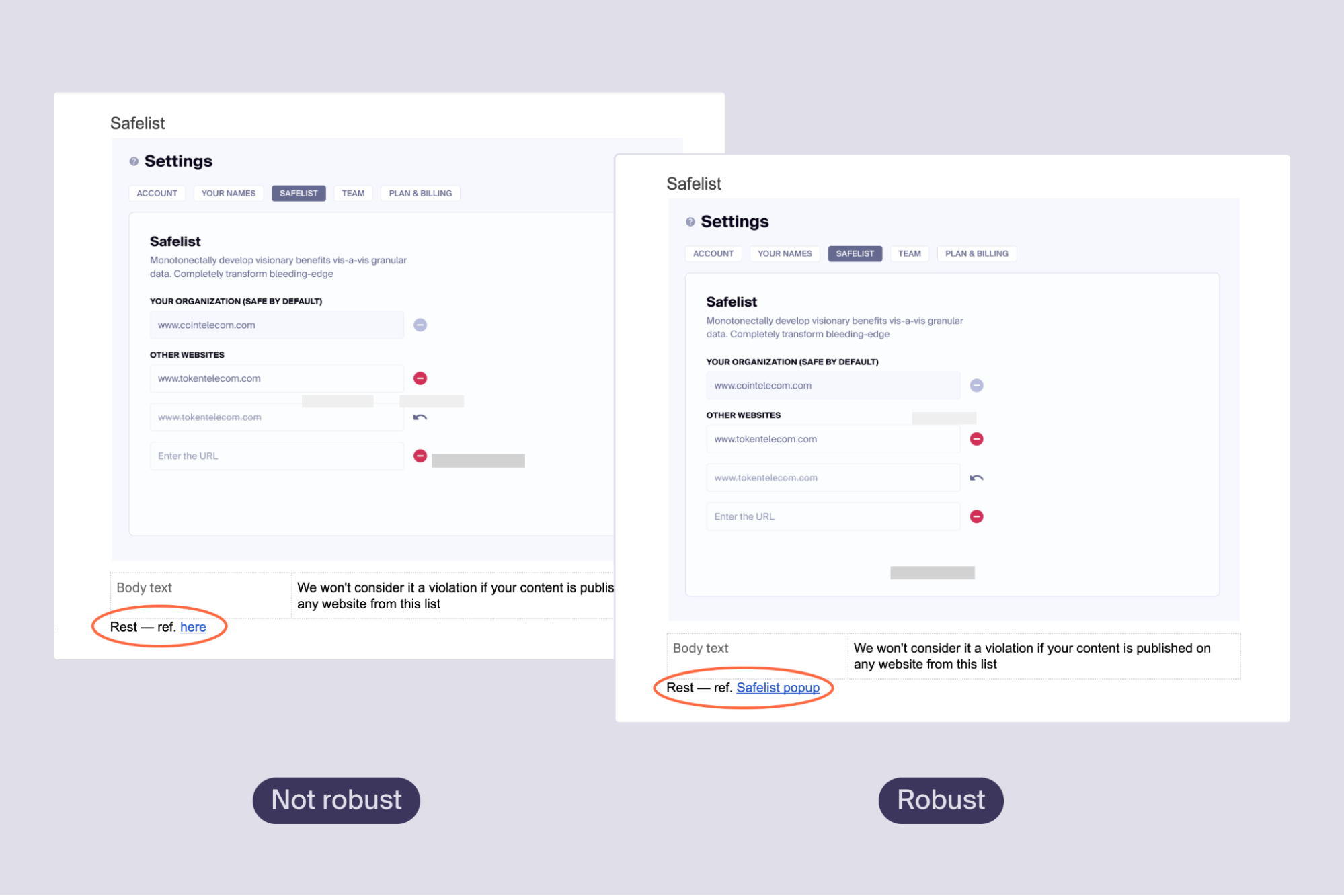
This habit comes from a translation course concept called infoglut: when communicating asynchronously, state the main idea at least twice. If part of the message is lost in transit, the recipient still has enough context to understand.
Version Control Discipline
Never Maintain Duplicate Copies
If a document belongs in two places, do not copy it into both. Use links or shortcuts instead.
This applies to any asset, especially when you work across multiple tools. If you keep an index of product assets inside a Google Doc, do not build a second index in Notion. Doubling the files means doubling the effort to keep them current, and you will eventually end up with two active files that disagree.
Shortcut Rather Than Copy
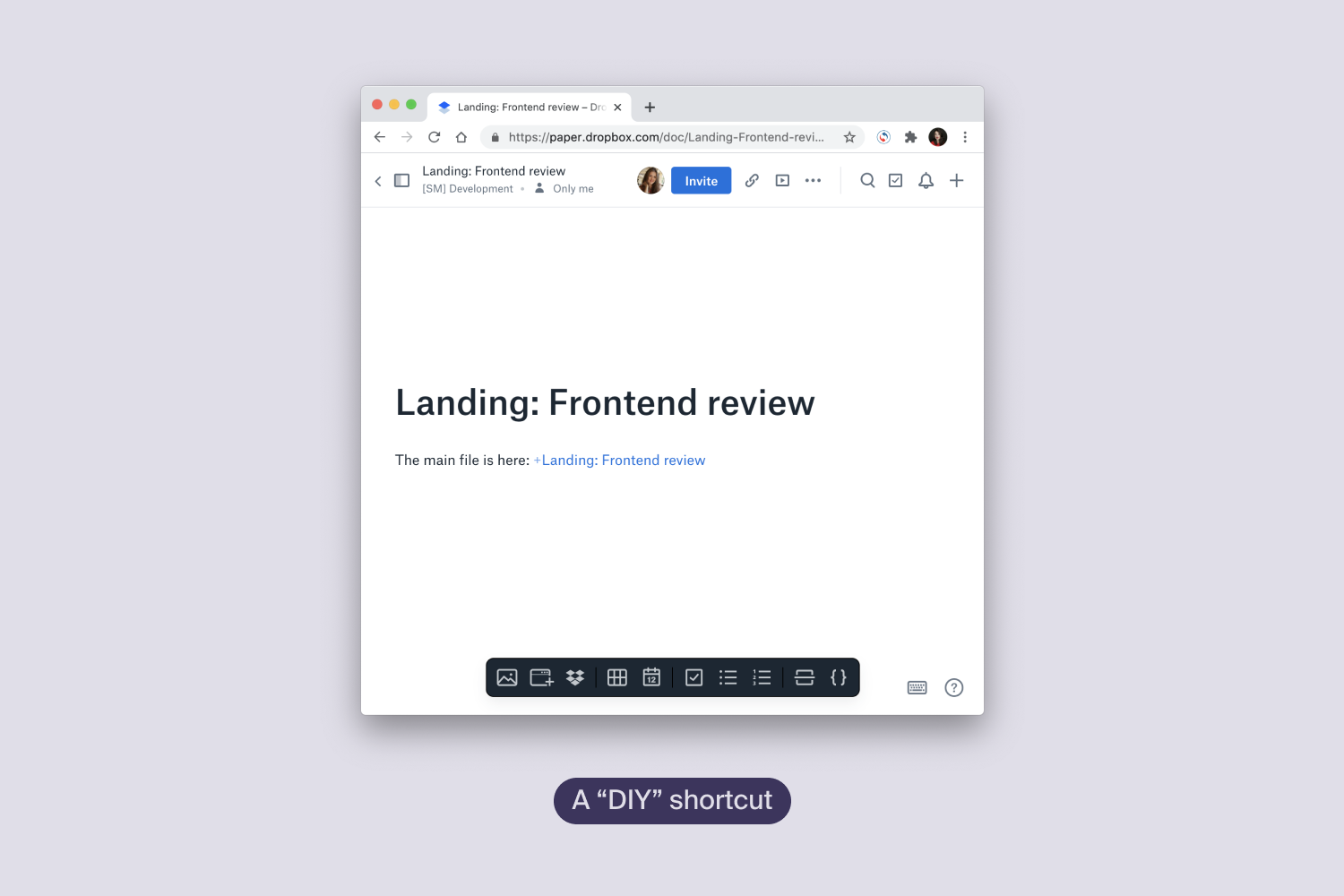
A document may sit under several categories. For instance, a landing-page copy doc lives in the Design folder, but your proofreader also needs it for editing. Do not duplicate the file — create a shortcut where the second copy would go.
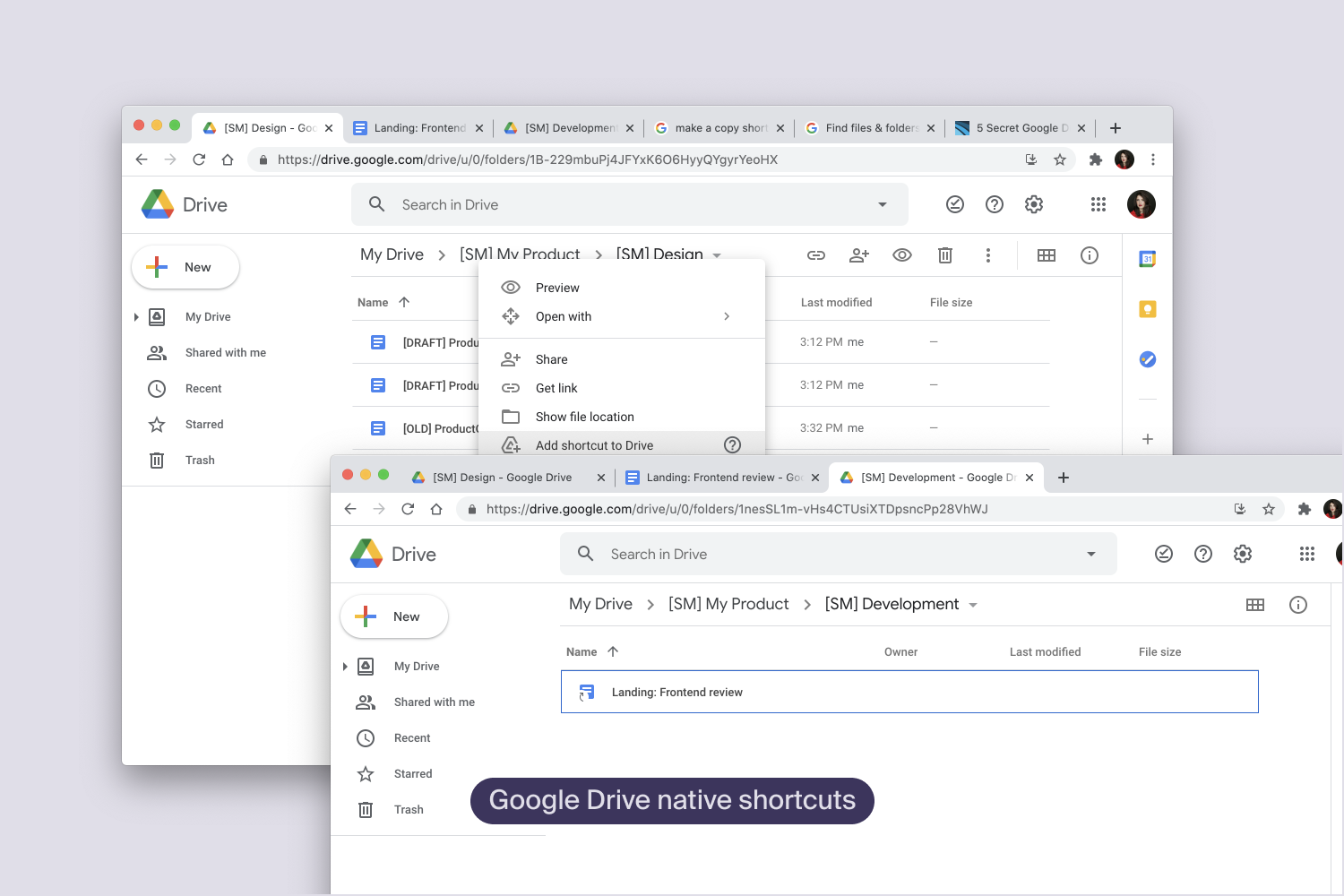
The example shows Google Drive’s native shortcut tool, but the same approach works in other applications: create a document containing a link to the original file.
Retire Old Documents With Backlinks
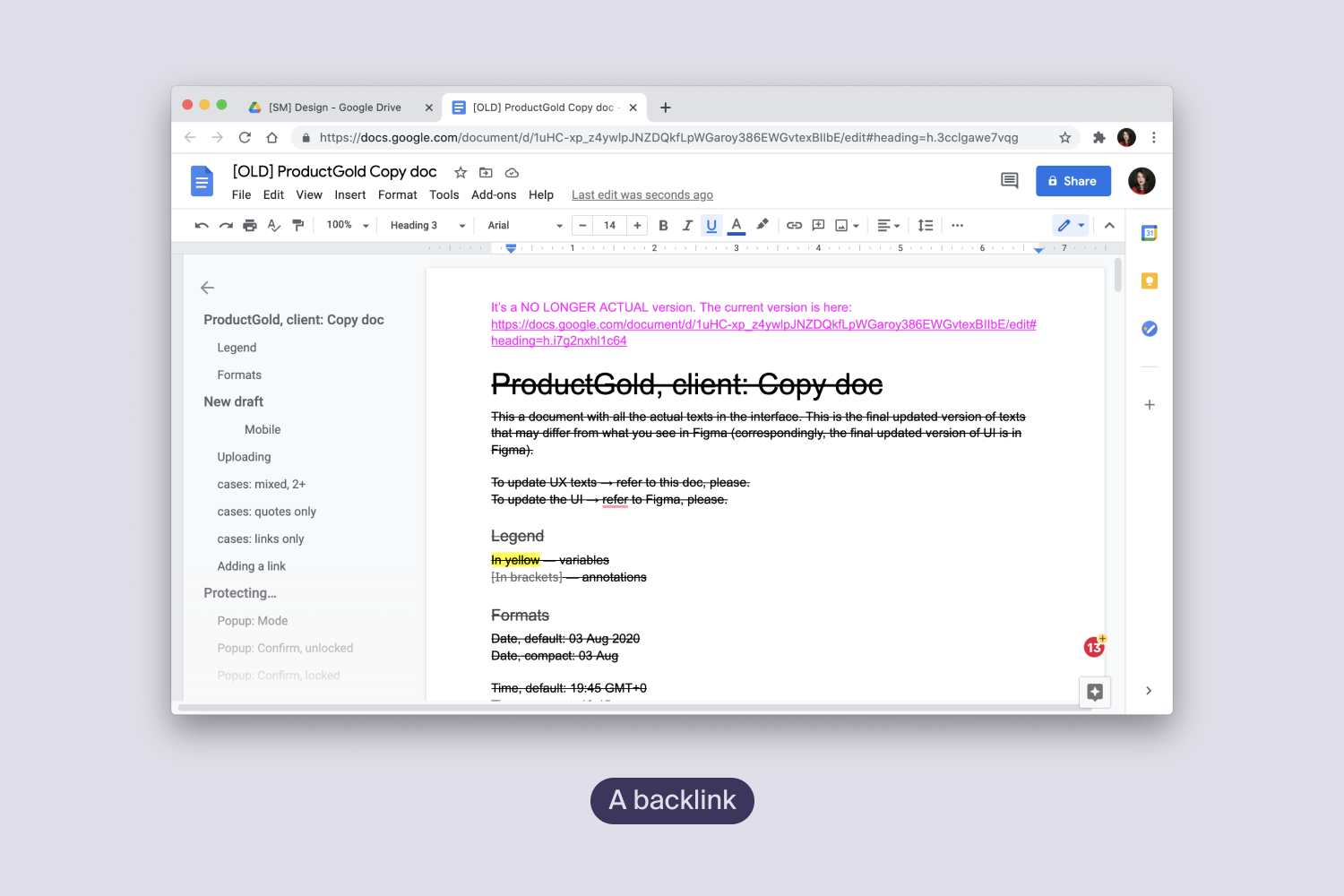
When a document is replaced by a new version, resist the urge to delete the old one. The outdated file may still be reachable through browser history, bookmarks, or links from other documents.
But leaving it untouched is not an option either. Instead:
- Change its look so it is clearly obsolete — for example, magenta text or strikethrough styling.
- Add a tag such as
[OLD]or[Arch]to the filename. - Add an explanation and a link pointing to the replacement version.
Managing Access
Create Files Inside The Team Folder
Cloud storage supports collaboration; local folders do not. Ask everyone to create new documents directly within a team folder rather than moving them there later. That small habit removes a round of emails and messages asking for access.
Share Through The Native Sharing Tool
When you need to share a file from a browser window, the natural instinct is to copy the URL from the address bar. Resist it. In many apps that URL points to your private workspace or to a restricted document with the wrong permissions. The recipient then waits for approval or sends you a request you have to process one by one.
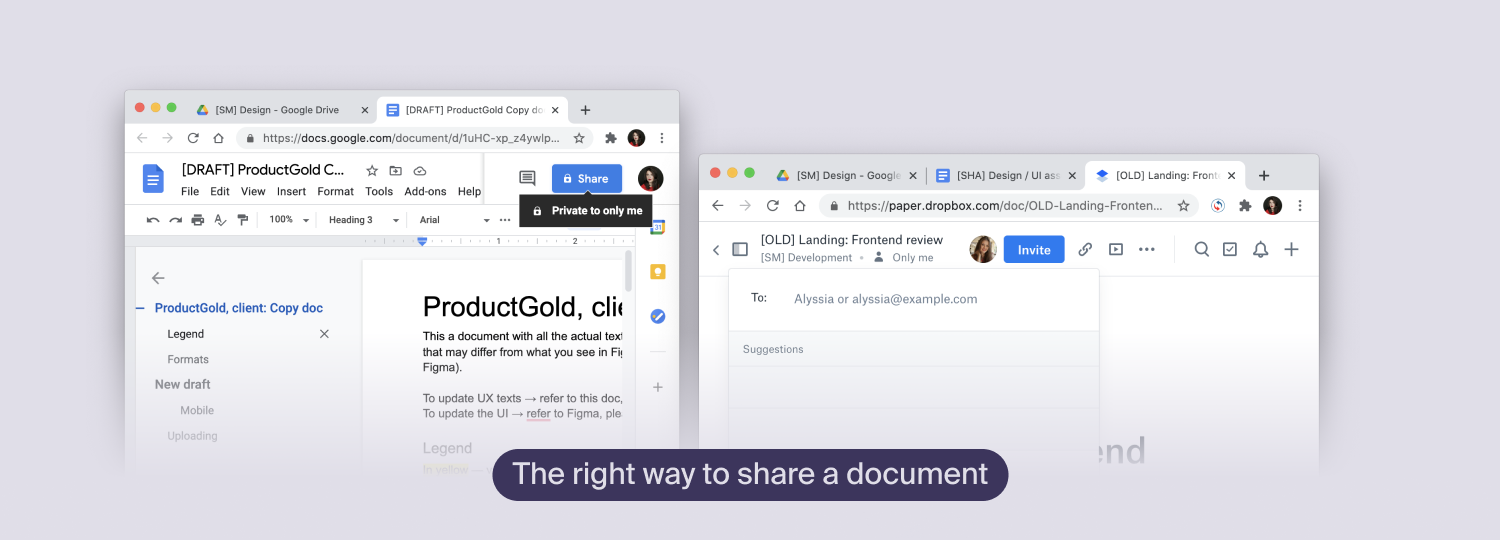
Always use the application’s native share function to generate a link with the correct access level. The extra click saves a stream of access requests.
Collaboration In Cloud Editors
Leave Comment Resolution To The Author
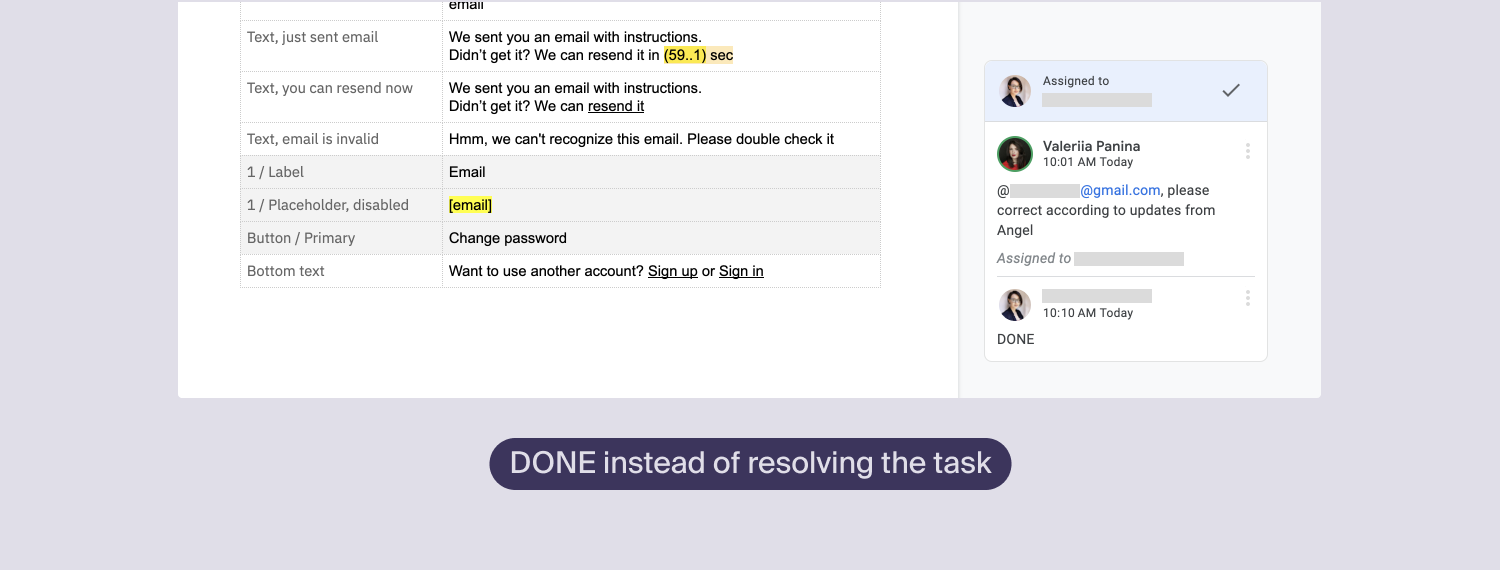
When a discussion thread is settled, the person who raised the point should resolve it. If you are responding to someone else’s comment after making changes, reply DONE and let the comment owner decide whether to close the thread.
That way the commenter can verify the final result before resolving. If you started the discussion yourself, you get a chance to accept or reject the edits without rereading the entire document looking for what changed.
Comments Are For Collaboration, Not Annotations
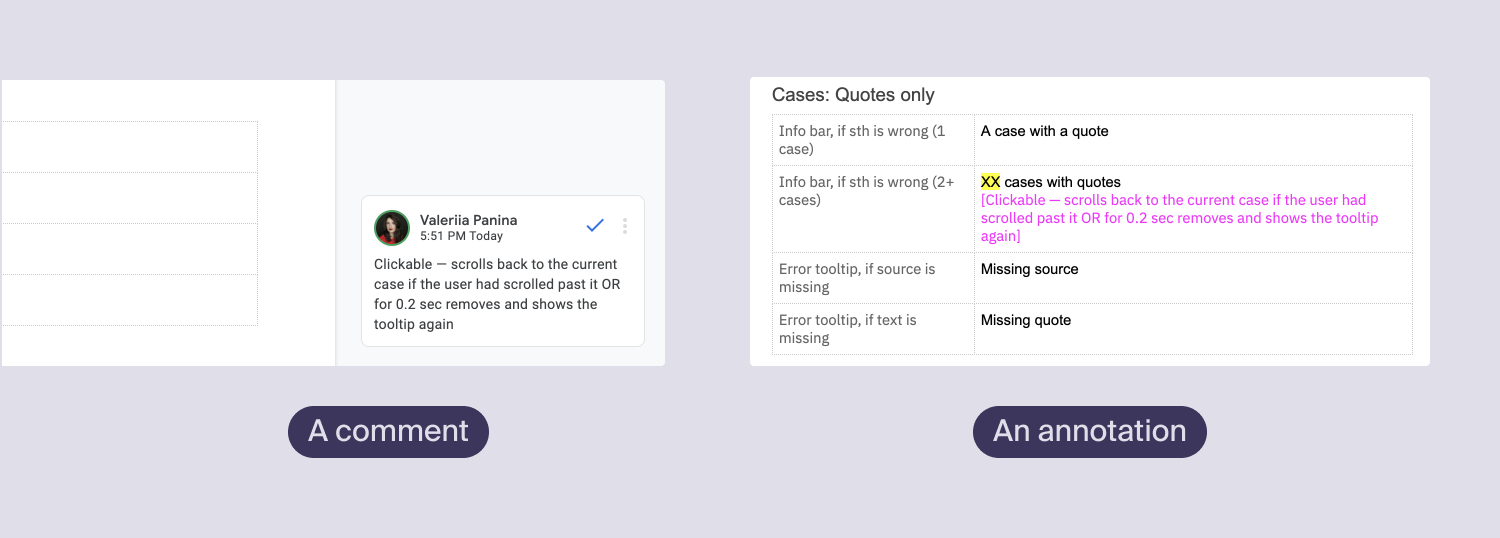
Suggestions and comments let editors propose changes without altering the original text. But people viewing the file in guest or view-only mode will not see those notes at all.
Reserve comments and suggestions for actual team collaboration. For annotations that should be visible to anyone who opens the document, write them in the body of the text using distinct fonts or colors.
Workflow Tips
Learn Shortcuts In Small Batches
Trying to memorize every shortcut at once is inefficient. Pick a set of three, practice until they become automatic, then move on to the next set.
In Google Drive, the most useful five are:
- Cmd/Ctrl + F to find text.
- Cmd/Ctrl + Alt/Option + h1/h2/h3 to apply heading styles.
- Cmd/Ctrl + Shift + C for word and character counts.
- Cmd/Ctrl + Enter to insert a page break.
- Cmd/Ctrl + Shift + X for strikethrough.
In Notion, favorites include / slash commands for creating content blocks (with /todo at the top of the list), Cmd/Ctrl + A to select the current block, and [[ + page name to create a link to a page.
Route Notifications Into Their Own Folder
Notification overload causes important messages to get lost. Keep notifications on but direct them to a dedicated mailbox folder with rules — do not disable them entirely.
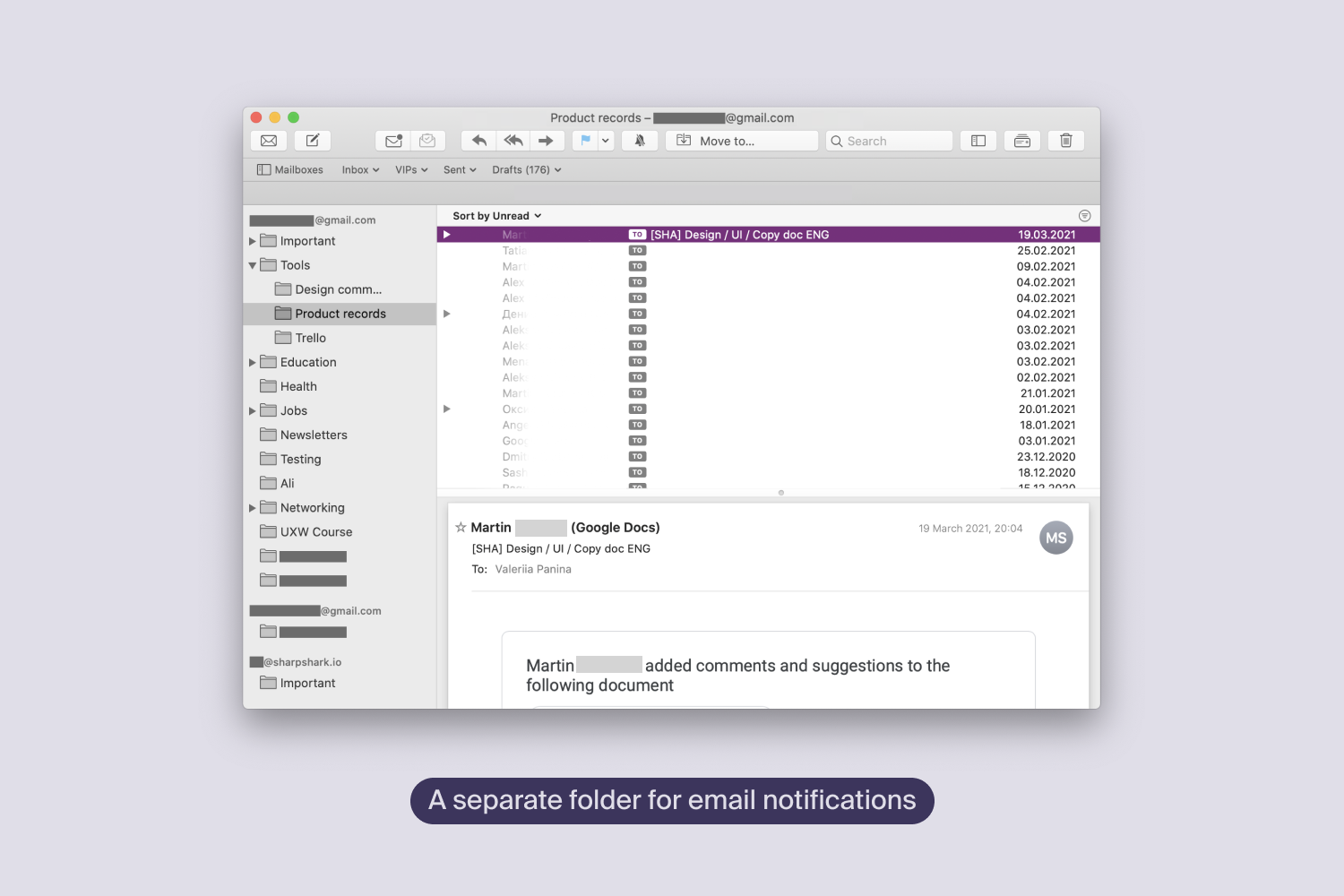
Mark the incoming messages as read automatically while leaving notification badges visible. Grouping the emails this way shows you at a glance which items need attention and which are ongoing work.
Enable A Grammar Checker
A browser extension or desktop grammar tool catches typos and flags awkward phrasing while you type. Several products integrate with every content environment.
A Reusable Product Assets Structure
The techniques above are currently in use for file management at a small startup. The structure has been simplified into a downloadable default folder:
- Download the Product Assets template (ZIP, Dropbox)
The same layout can be recreated in any cloud app — Dropbox, Google Drive, or similar. Notion users can start from the built-in “Company home” or “Product Wiki” templates for long-term assets, and the “Roadmap” template for task management. If your application does not match either, study both structures and design a combined workspace that suits your team.