

Why plan in GitHub?
Many teams start their projects in GitHub Issues but eventually move planning and tracking to separate tools as work scales up. That introduces context switching and splits the history of a piece of work from the code that implements it. The new projects experience in GitHub is designed to remove that gap, letting teams keep planning, tracking, and code review in the same place.
Set up a first project
To begin, navigate to your organization page and select “Projects.” From there, pick the “(beta)” option, which gives you access to both table and board layouts with easy switching between them.
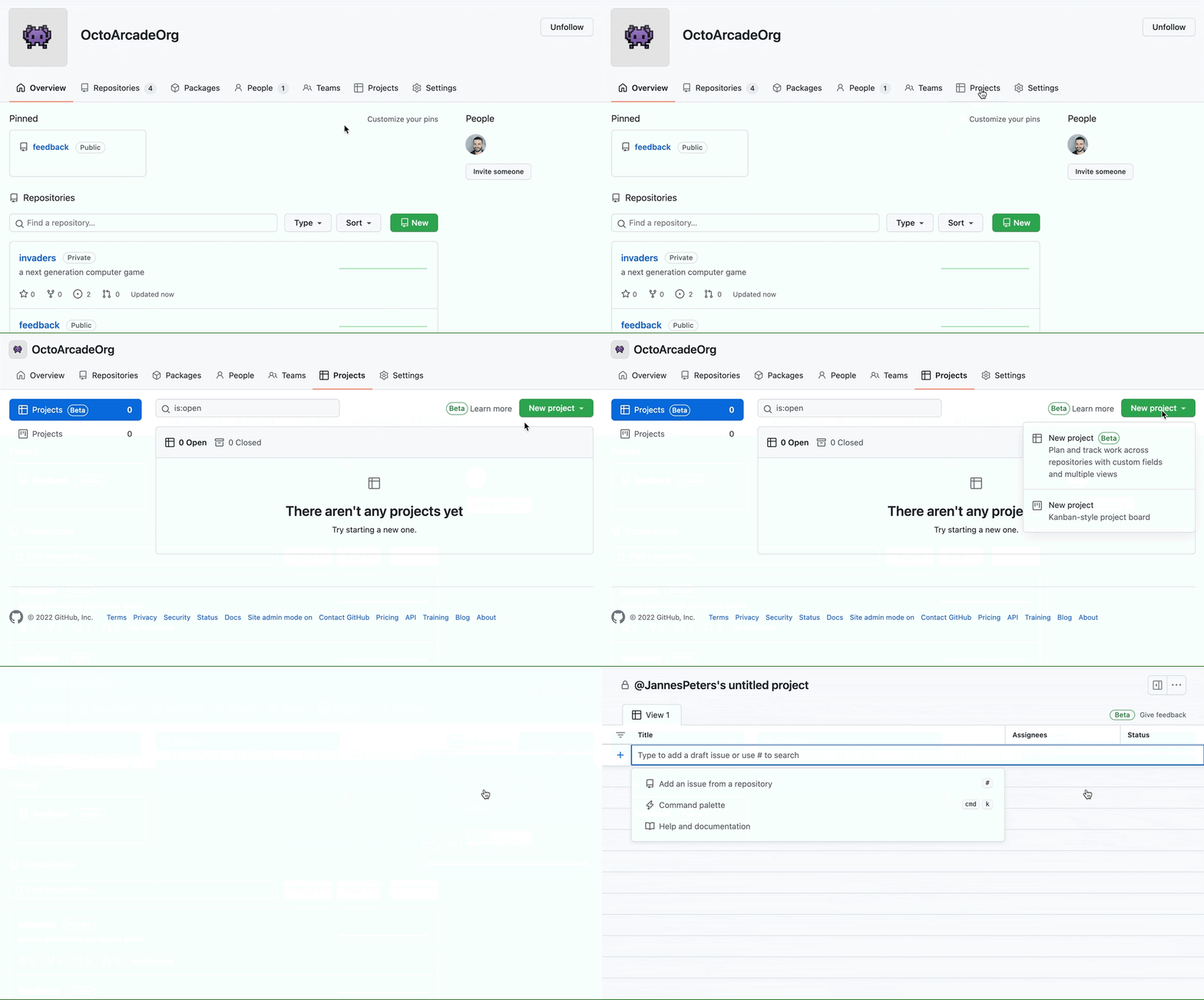
The experience is intentionally flexible: no specific methodology is forced on you. You can structure work however your team prefers. A practical starting point is to pick one feature and track only the GitHub Issues relevant to it. Use the “#” shortcut to add issues to your project. A shorter timeline—six weeks, for example—works well, as it establishes a regular rhythm your team can repeat.
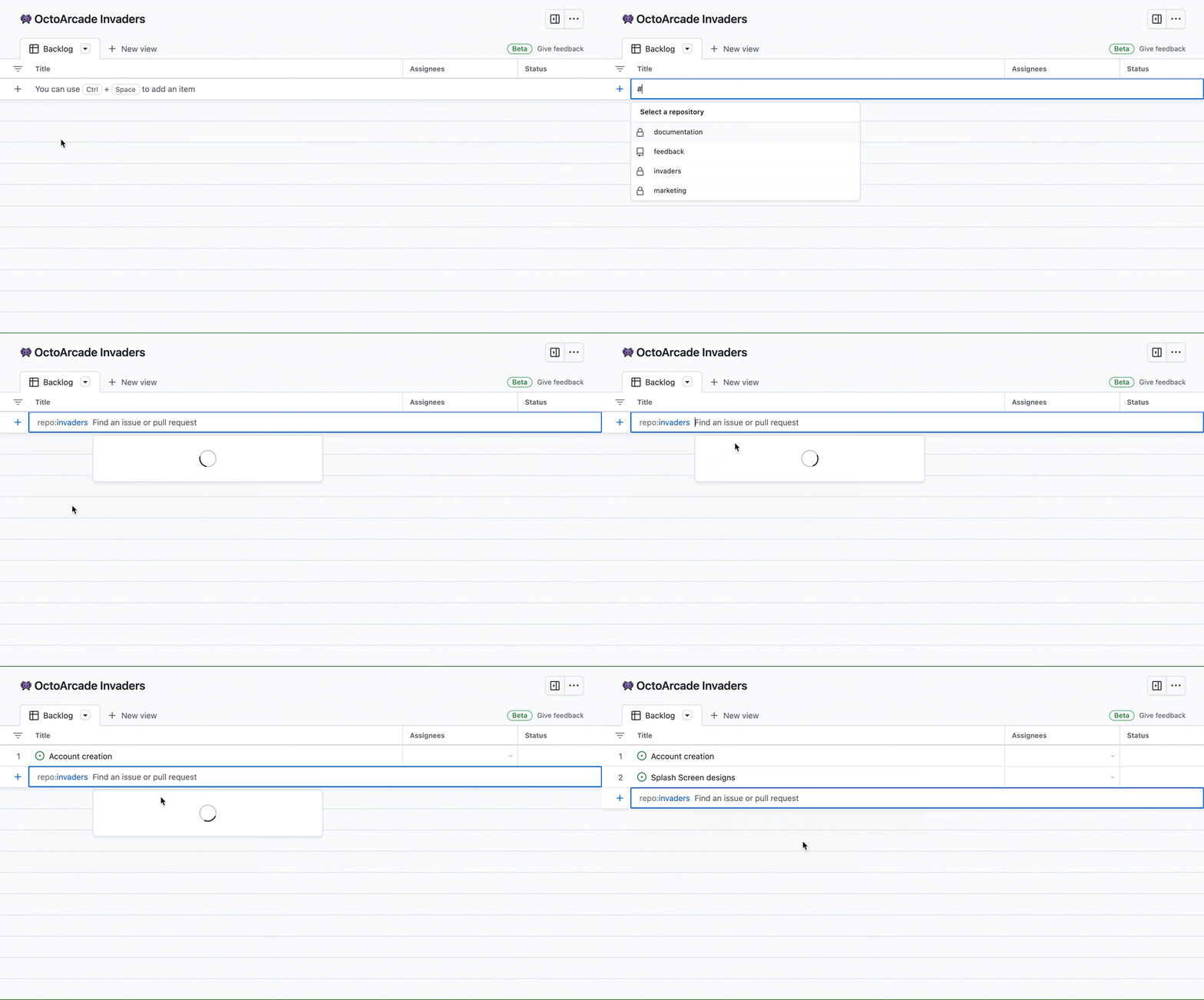
Table and board layouts stay in sync, automatically updating status, assignees, and related details for issues and pull requests as changes happen.
Structure with custom fields
Once issues are added, the next step is customization. The default view provides core fields like title, assignees, and status. If you're tracking a six-week deliverable, an iteration field is useful for organizing work into weekly cycles. After linking iterations to your issues, you can see at a glance what’s open, what’s in progress, and which pull requests belong to each piece of work.
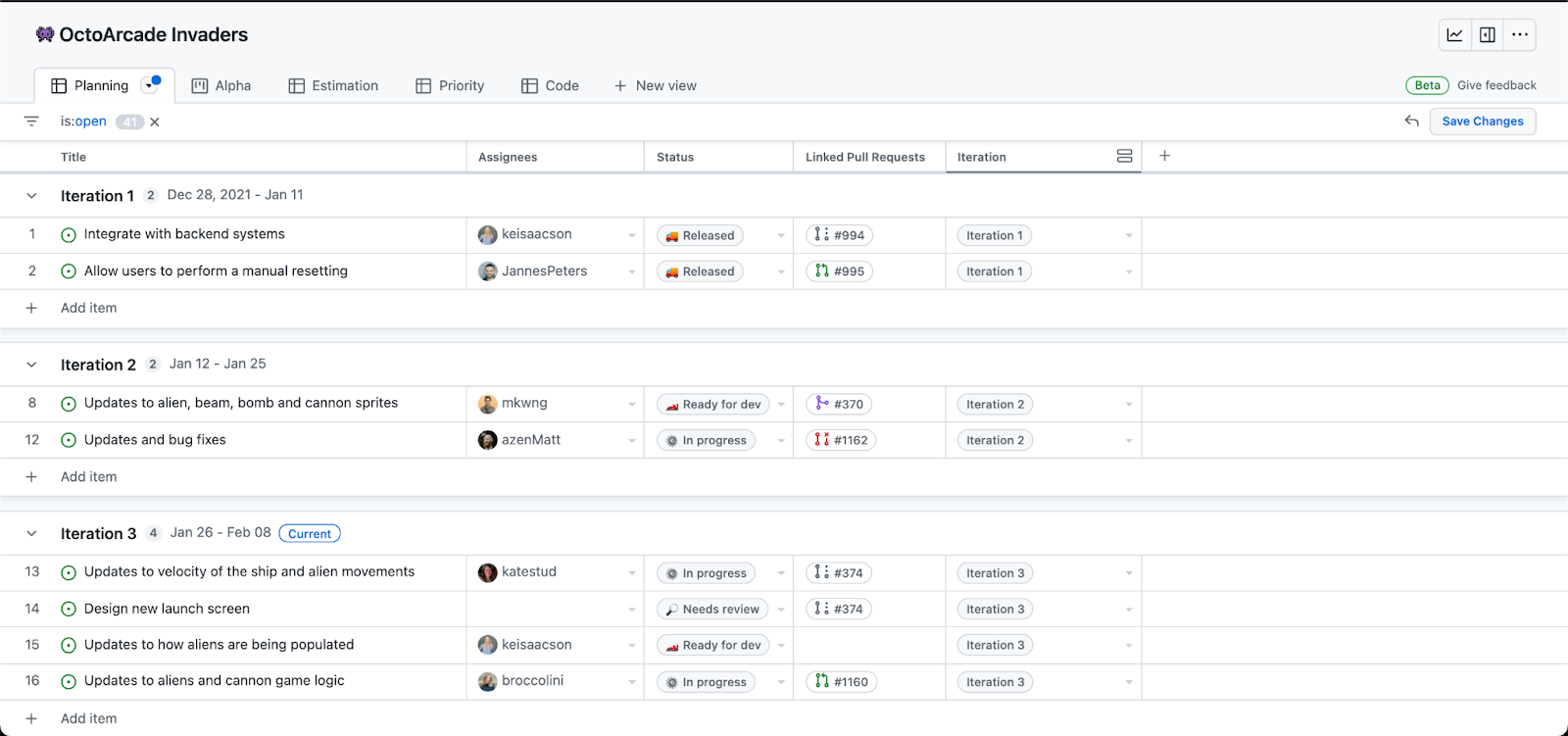
Field customization now extends to board view: a recent update added the ability to display any customized field there alongside the table layout.
Create focused views
Beyond filtering, views let you save tabs for the slices of a project you check most often—for example, what a single team is working on. GitHub’s own public roadmap arranges views by product so customers can filter what’s coming next for them.
A good way to get value quickly is to group a new view by iteration. Use “+ New view” next to your existing layout, or open the command palette with “Command” + “K” (Mac) or “Ctrl” + “K” (Windows/Linux). In the new view’s dropdown menu, under “Configuration,” select group by: iteration to build a planning view that shows what’s active right now.
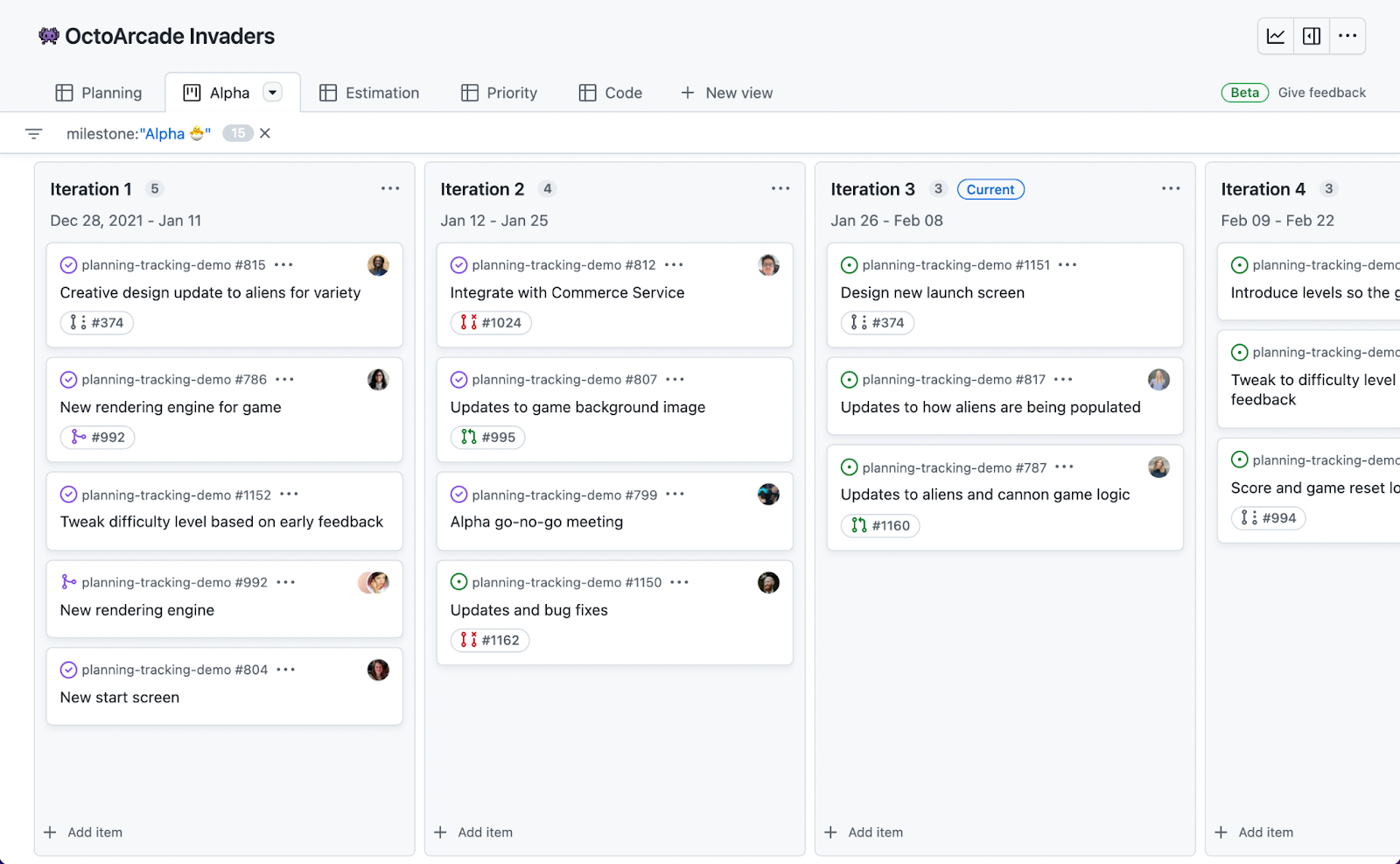
When a work item surfaces mid-cycle, you don’t need to leave the project: draft issues can be opened directly from the table or board—recently enhanced in the GitHub Issues changelog.
Plan in short cycles
Shorter planning windows have benefits: teams build momentum, release more consistently, and stay focused on a manageable scope. Once a project closes, it becomes a reusable template for other teams. After your group is comfortable, those smaller cycles can be grouped into larger objectives without ever losing the connection to the underlying code and issues.
Learn more
- Changelog updates: https://github.blog/changelog/label/issues/
- Docs and quickstart: https://docs.github.com/en/issues, including the quickstart guide
- Give feedback: https://github.com/github/feedback/discussions/categories/issues-feedback
- Upcoming features: https://github.com/orgs/github/projects/4247/views/7