
Why Many WordPress Environments Are Needed
WordPress themes and plugins must behave correctly across a wide range of installations. The possible combinations of environments worth testing include: different PHP versions, different WordPress versions, different versions of the block editor, HTTPS enabled or disabled, and multisite enabled or disabled. Each of these variables can introduce breaking changes or feature requirements that affect how your product runs.
For instance, PHP 8.0 introduced breaking changes compared to earlier releases, yet WordPress still officially supports PHP 5.6. That means a plugin may need to support PHP 5.6 through 8.0 — seven versions total. WordPress itself occasionally introduces breaking changes, such as the jQuery update in version 5.6, and new features like the block editor in 5.0 may become requirements.
If your theme or plugin contains custom blocks, you must test against both the Gutenberg version bundled with WordPress core and the standalone Gutenberg plugin. HTTPS and multisite also matter: you might want to restrict a REST endpoint to HTTPS only, or provide super-admin-only capabilities in a multisite network.
Reducing the Matrix
Automating tests with continuous integration helps, but you can't rely on machines alone. You will also need to open a real WordPress site in a browser to visually confirm that your themes and plugins still render as intended after upgrades. If Gutenberg updates its global styles or core block behavior, you need to see the impact.
Suppose you target four PHP versions (7.2–8.0), five WordPress versions (5.3–5.7), both Gutenberg variants, HTTPS on/off, and multisite on/off. That's 160 combinations. Far too many to maintain. Instead, a smaller set of sites can collectively cover the relevant properties:
- PHP 7.2 + WP 5.3 + Gutenberg core + HTTPS + multisite
- PHP 7.3 + WP 5.4 + Gutenberg plugin + HTTPS + multisite
- PHP 7.4 + WP 5.5 + Gutenberg plugin + no HTTPS + no multisite
- PHP 8.0 + WP 5.6 + Gutenberg core + HTTPS + no multisite
- PHP 8.0 + WP 5.7 + Gutenberg core + no HTTPS + no multisite
Spinning up five sites is manageable but not trivial without the right tooling. Enabling specific PHP versions and provisioning HTTPS certificates are both technical hurdles. What you want is an automated, rapid way to create these environments without becoming a systems administrator.
Introducing DevKinsta
DevKinsta is a free tool from Kinsta, available for Windows, macOS, and Ubuntu. It leverages Docker to isolate applications in containers, but you don't need to know anything about Docker to use it. DevKinsta handles the complexity behind the scenes. Its purpose is to simplify WordPress project work — whether you're a designer, developer, freelancer, or agency.
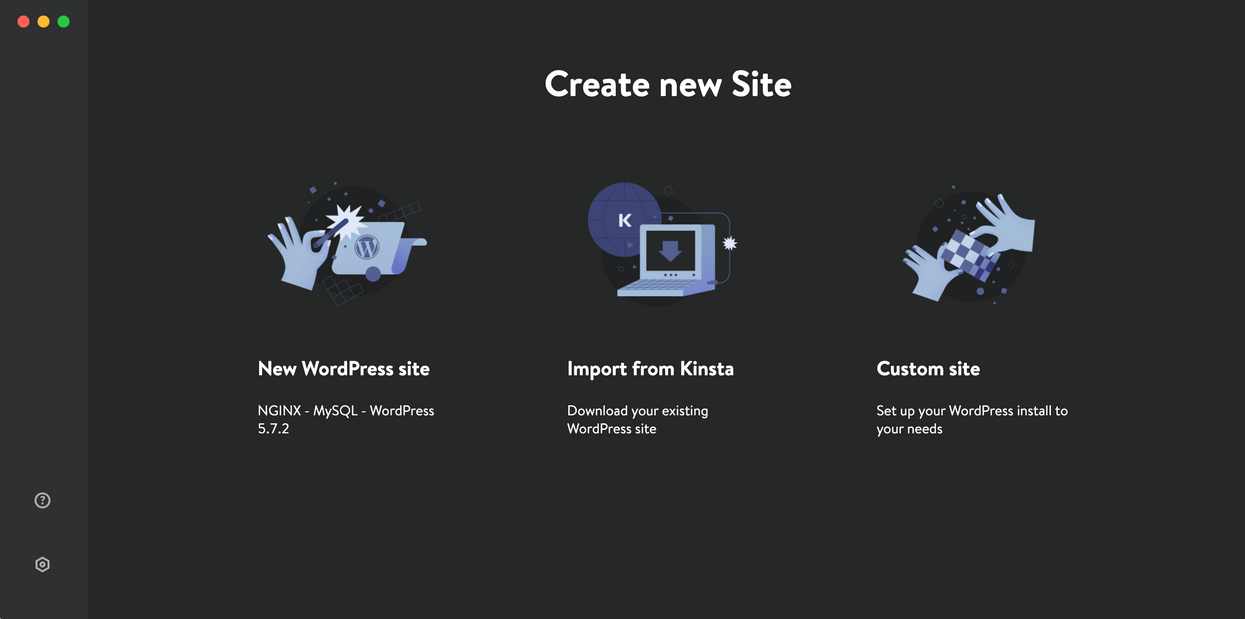
Upon first launch, DevKinsta presents three ways to create a local WordPress site:
- New WordPress site — uses defaults: latest WordPress and PHP 8.
- Import from Kinsta — clones configuration from an existing MyKinsta-hosted site.
- Custom site — accepts a configuration you provide.
The first option creates a site with a single click. The second imports from MyKinsta, including a database dump, and local changes can also be pushed back to staging. The third opens a configuration screen where you have control.
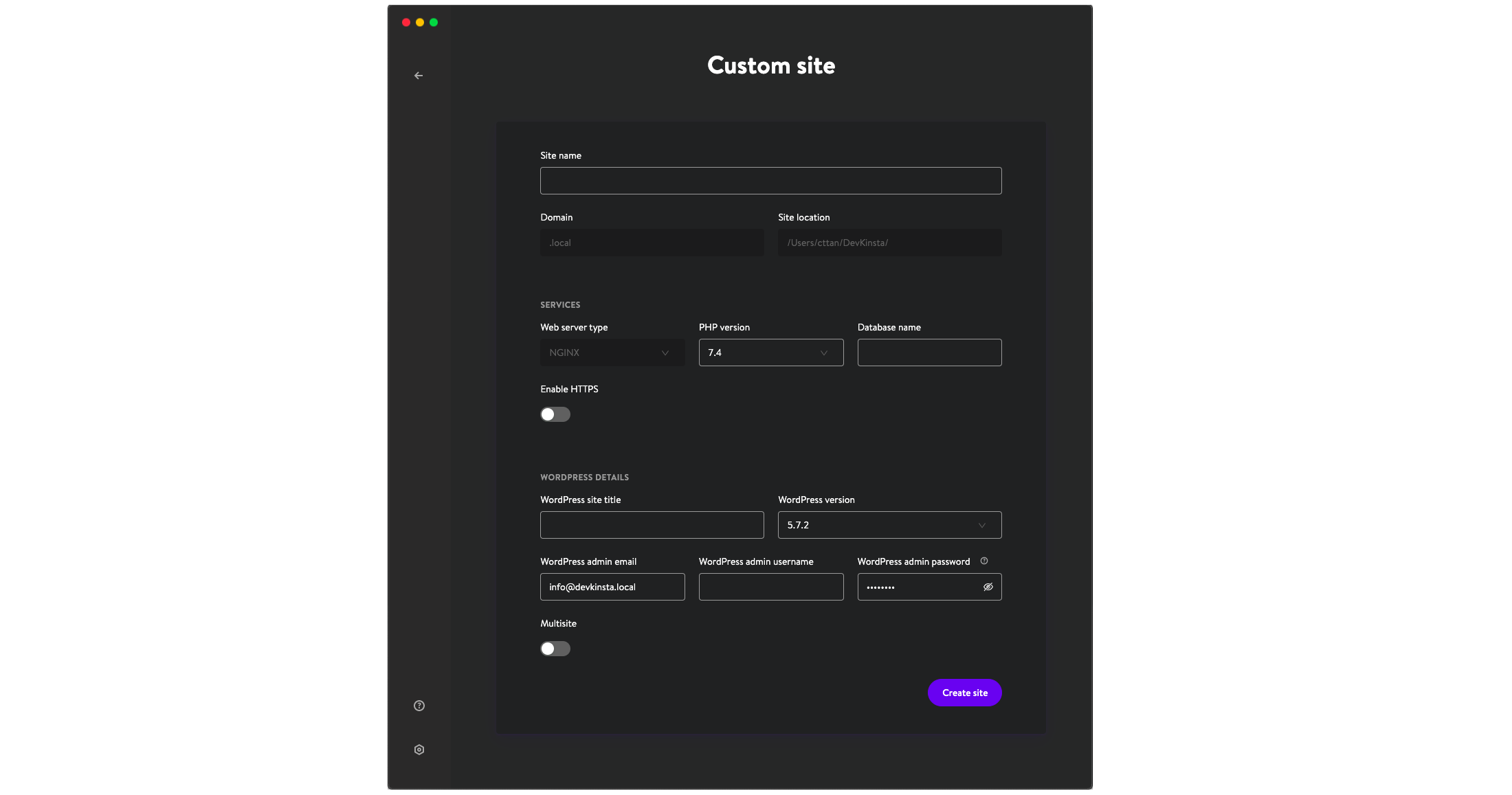
Some configuration fields are read-only for now. The webserver is currently fixed to Nginx, with Apache support underway. Configurable options include:
- Site name (from which the local URL is derived)
- PHP version
- Database name
- HTTPS enabled/disabled
- WordPress site title
- WordPress version
- Admin email, username, and password
- Multisite enabled/disabled
Creating the Required Sites
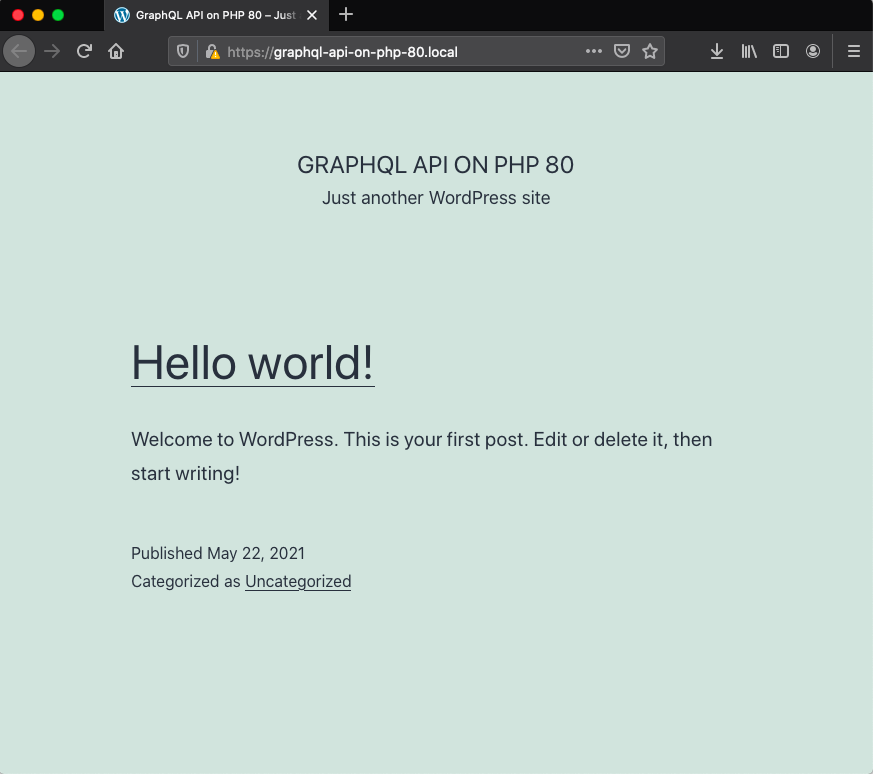
For the first site — configured with PHP 8.0 and named graphql-api-on-php80 — the entire creation process took two minutes. Once created, the site's info screen appears with its local domain, in this case graphql-api-on-php80.local. An "Open site" button loads it in your browser.
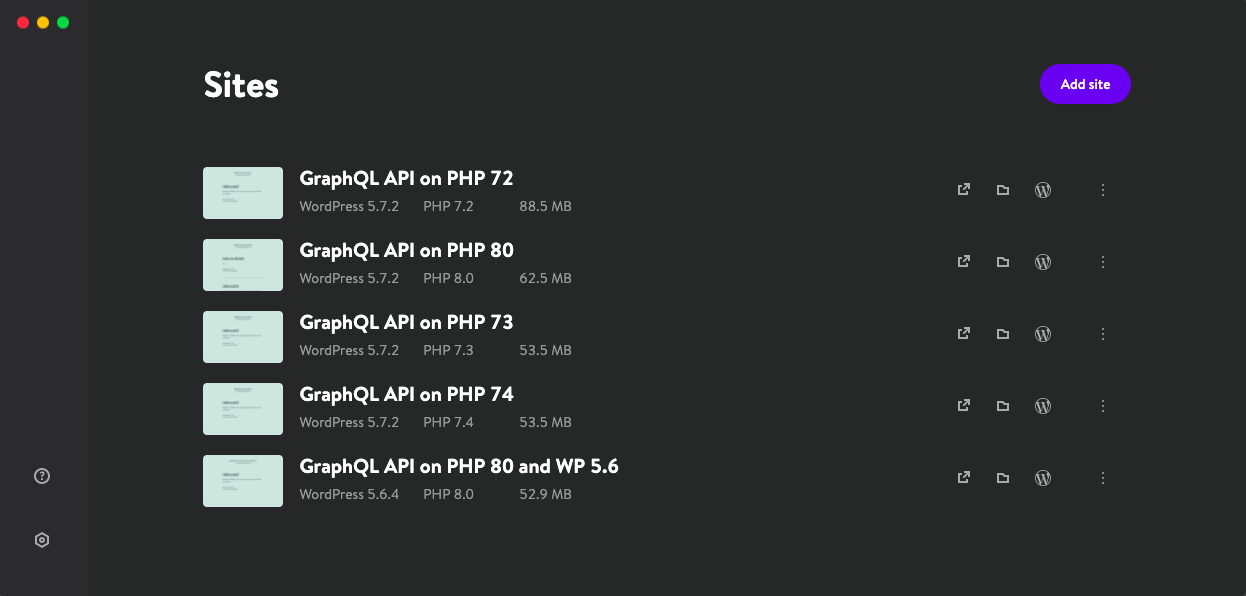
Repeating this process for the remaining environment combinations yields all five local sites, each listed in DevKinsta's initial screen.
Installing Plugins via WP-CLI
All conditions are now satisfied except installing Gutenberg as a plugin. You could do this through the WP admin, accessible via the "WP admin" button. A better route: DevKinsta ships with WP-CLI pre-installed, allowing command-line interaction.
This requires a minimal understanding of Docker. DevKinsta's container is called devkinsta_fpm, and the WP-CLI command follows this pattern:
wp plugin install {pluginName} --activate --path={pathToSite} --allow-root- The site path inside the container is
/www/kinsta/public/{siteName}
The full command to install and activate the Gutenberg plugin becomes:
docker exec devkinsta_fpm /bin/bash -c 'wp plugin install gutenberg --activate --path=/www/kinsta/public/MyLocalSite --allow-root'Database and Email Tools
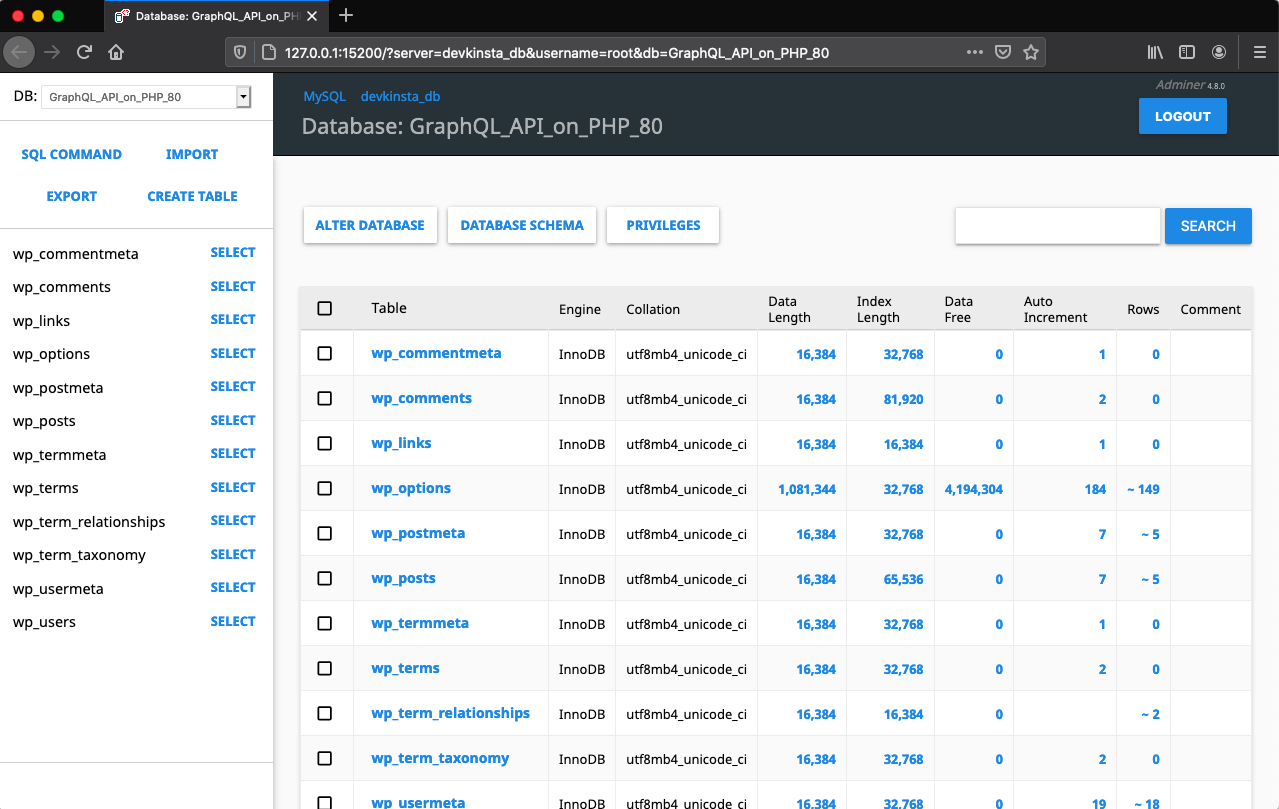
Two features stand out for local development. First is integration with Adminer, a phpMyAdmin-style tool for managing the database. Clicking the "Database manager" button on the site info screen opens Adminer in a new tab, where you can run custom SQL queries and edit data directly.
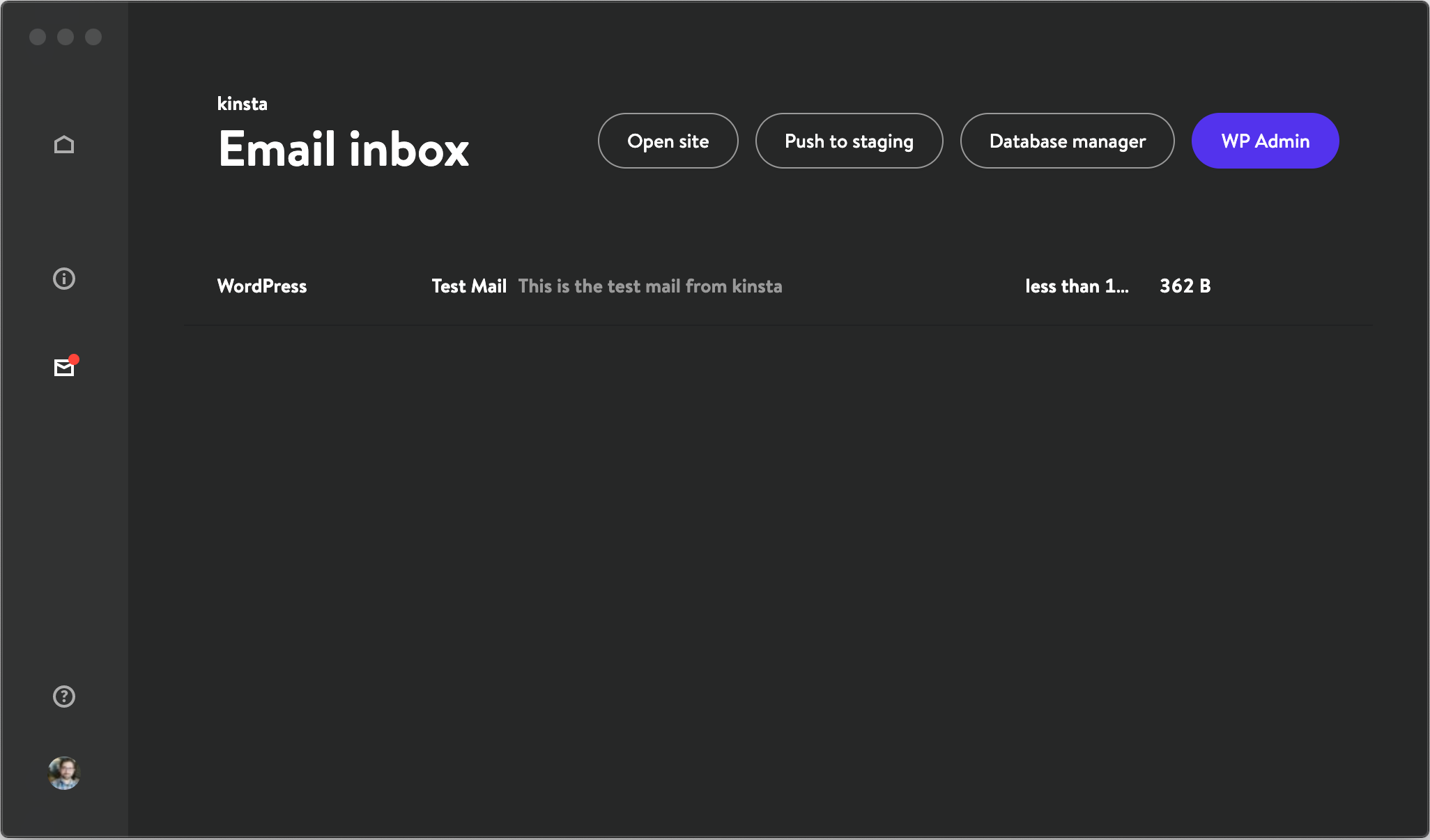
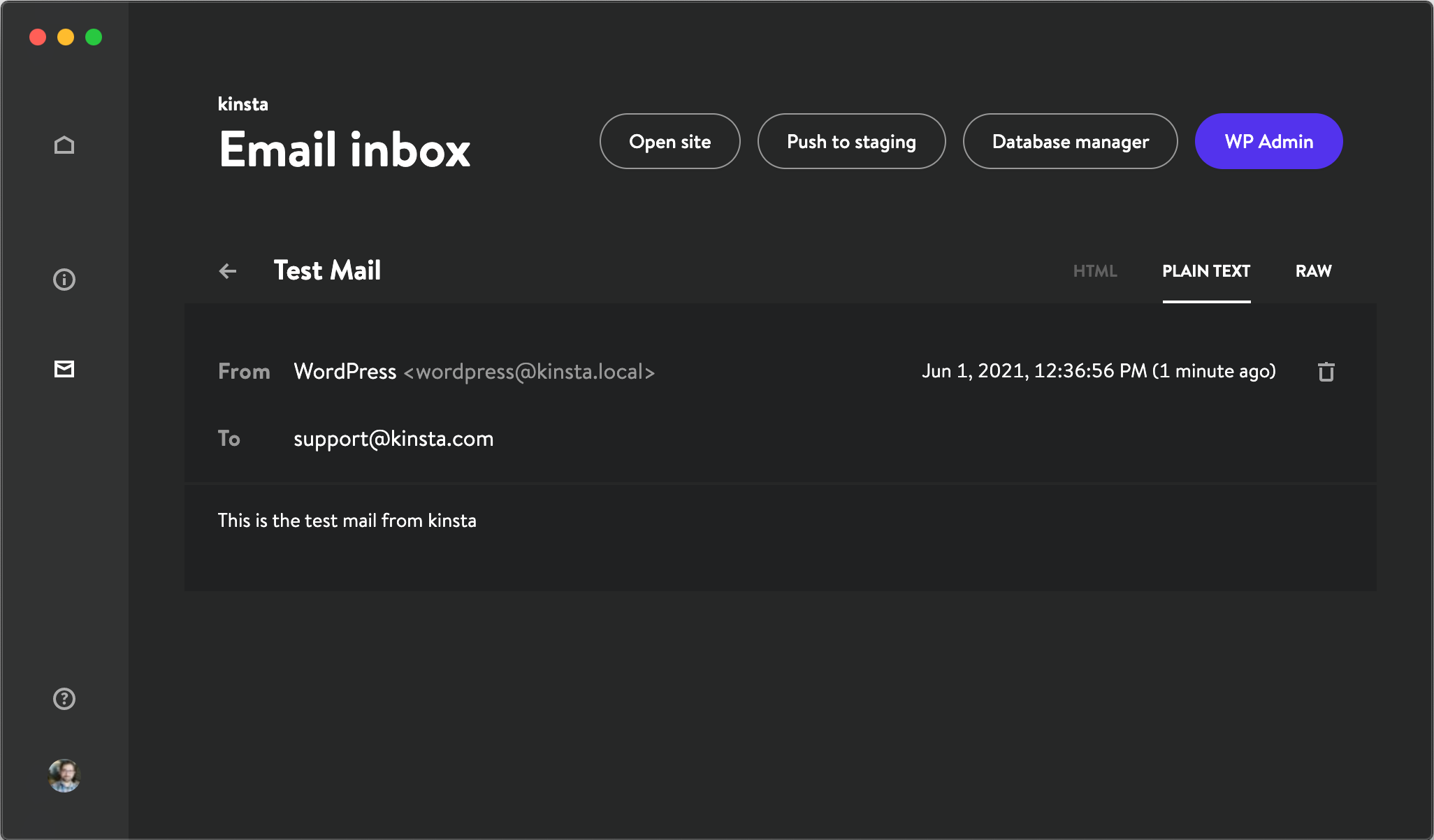
Second is MailHog, a popular email testing tool. Any email sent from your local WordPress site is captured rather than delivered, then displayed in the Email inbox. Clicking an email reveals its full contents.
Editing Files Directly on Disk
Local site files are accessible through your operating system's filesystem, not just inside the Docker container. The paths are:
- Mac and Linux:
/Users/{username}/DevKinsta/public/{siteName}. - Windows:
C:\Users\{username}\DevKinsta\public\{siteName}.
This direct file access offers a significant shortcut when working on your own plugins or themes. Instead of uploading a new plugin version to each site via WP admin or WP-CLI, you can clone a plugin's repository directly into wp-content/plugins:
$ cd ~/DevKinsta/public/MyLocalSite/wp-content/plugins
$ git clone [email protected]:leoloso/MyAwesomePlugin.git
Updating the plugin becomes a simple git pull, making the latest version immediately available in the local WordPress site.
$ cd MyAwesomePlugin
$ git pull
To test a feature branch, run git checkout instead:
git checkout some-branch-with-new-featureFor sites among the five with different environments, you can script the entire process. A bash loop over the local WordPress site folders can execute git pull for the plugin in each one:
#!/bin/bash

iterateSitesAndGitPullPlugin(){
  cd ~/DevKinsta/public/
  for file in *
  do
    if [ -d "$file" ]; then
      cd ~/DevKinsta/public/$file/wp-content/plugins/MyAwesomePlugin
      git pull
    fi
  done
}

iterateSitesAndGitPullPlugin
Why DevKinsta Fits Into a Local WordPress Workflow
The main advantage of local development environments is that they let you focus on the code rather than on the infrastructure. DevKinsta takes that further by reducing the setup time for each new project. Instead of manually configuring a web server, database, and PHP environment, you can create a fresh WordPress installation with a single action.
Because the tool is built around the same containerized architecture that Kinsta uses in production, switching between local and hosted environments is less painful. You can spin up several sites with different configurations, test themes and plugins in isolated environments, and tear them down without affecting your other work.
Getting the Most Out of DevKinsta
DevKinsta is under active development, so it is worth checking the official documentation when you run into unexpected behavior. For questions that the docs do not cover, the Community forum is the place to get direct help from the team behind the tool.
Whether you are building custom blocks, refining a theme, or just need a throwaway WordPress instance to test a plugin, the ability to quickly create and manage multiple local sites removes a lot of friction. The core workflow stays the same: press a button to create a site, do your work, and move on to the next experiment.
DevKinsta is free to use. If you want to try it, download it from the official site and start creating local WordPress installations.